


For Mac workers, you may use different Apps for different projects. For example: when designing pictures, you will use Photoshop, etc., and when checking information, you only need the browser. Some people may use multiple desktops to solve the problem, but if there are duplicates, switching will become a bit troublesome. This article recommends a very easy-to-use one. Ditto can create different working modes according to your own needs, and provides a one-click switching function to automatically open the set applications and also close open applications that are not used in this working mode.
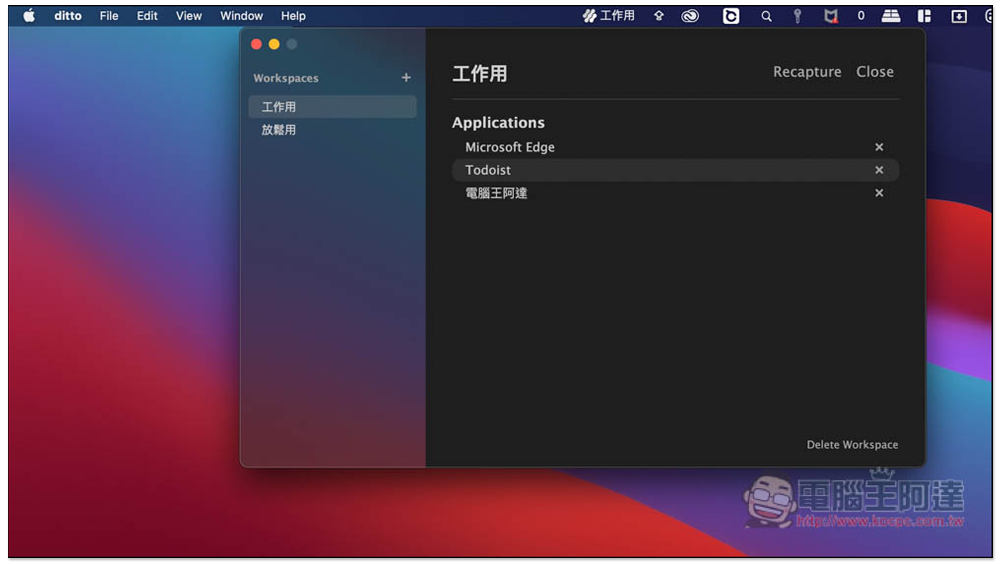
Ditto Mac App operation introduction to switch between different working modes with one click
Ditto is not available on the App Store. You need to download the installation file from the official website. Click Download:
Fill in your email to download, and a 30-day free trial is provided. If you exceed the limit, you will need to pay to upgrade. According to the developer notes, it seems that there will also be a free version in the future, but the functions will be limited:

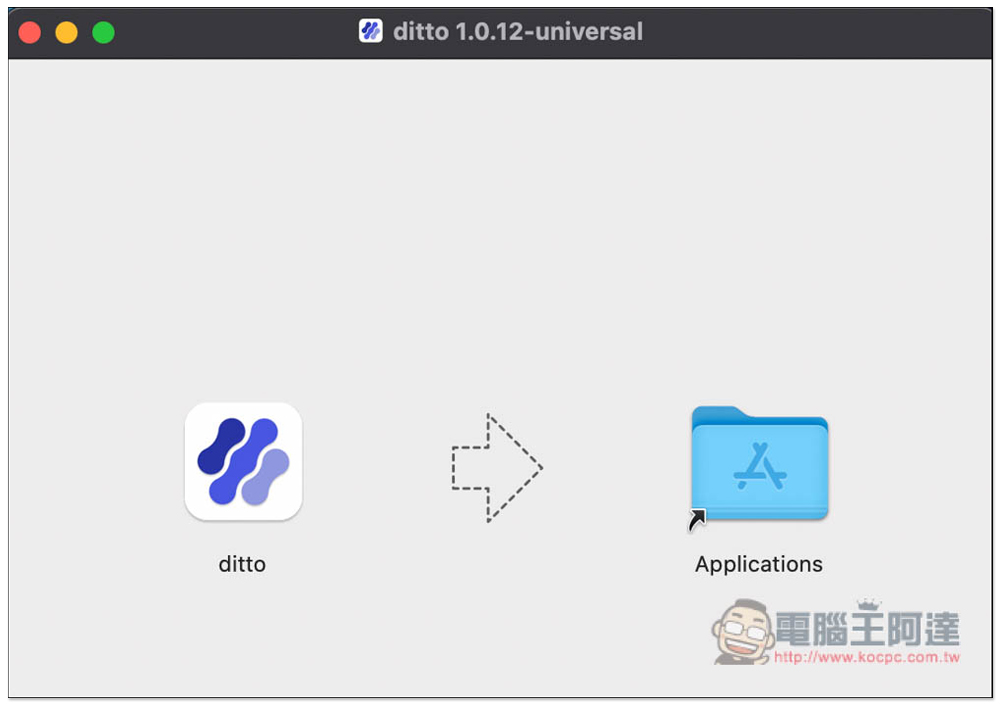
After downloading, open it and drag the ditto icon to Applications:
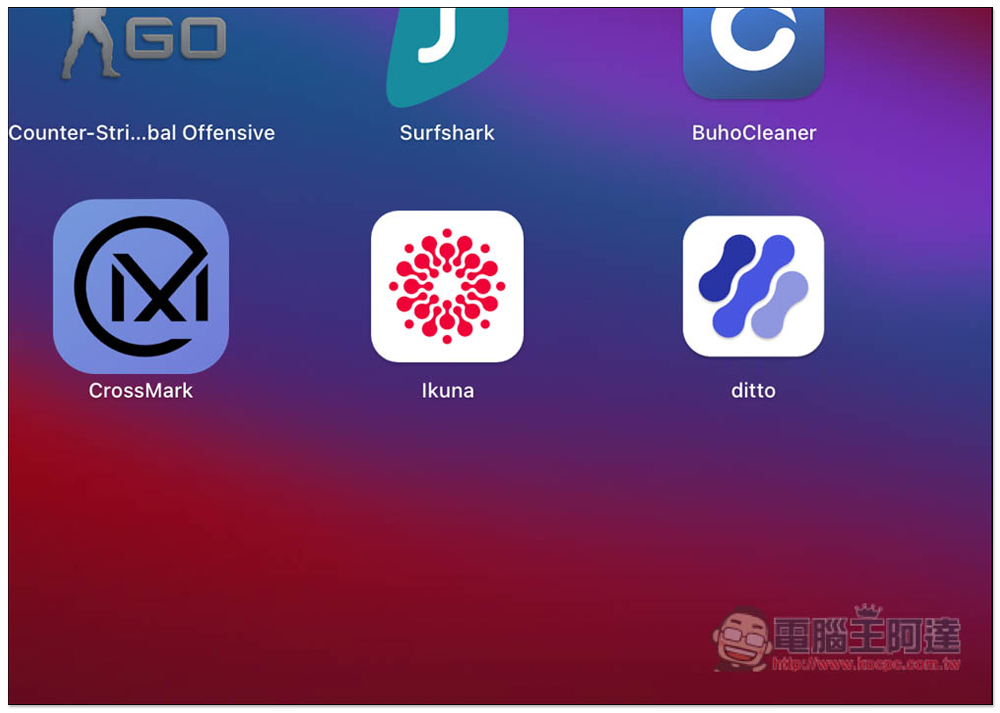
Then you can find it in your Launchpad:
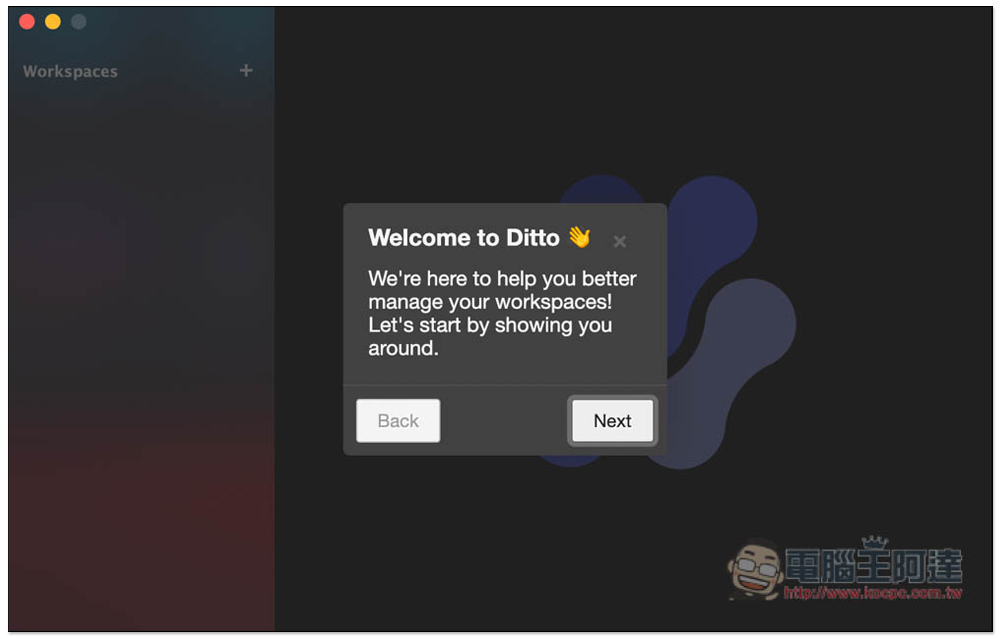
When you open it for the first time, this inquiry window will pop up. Click to open:

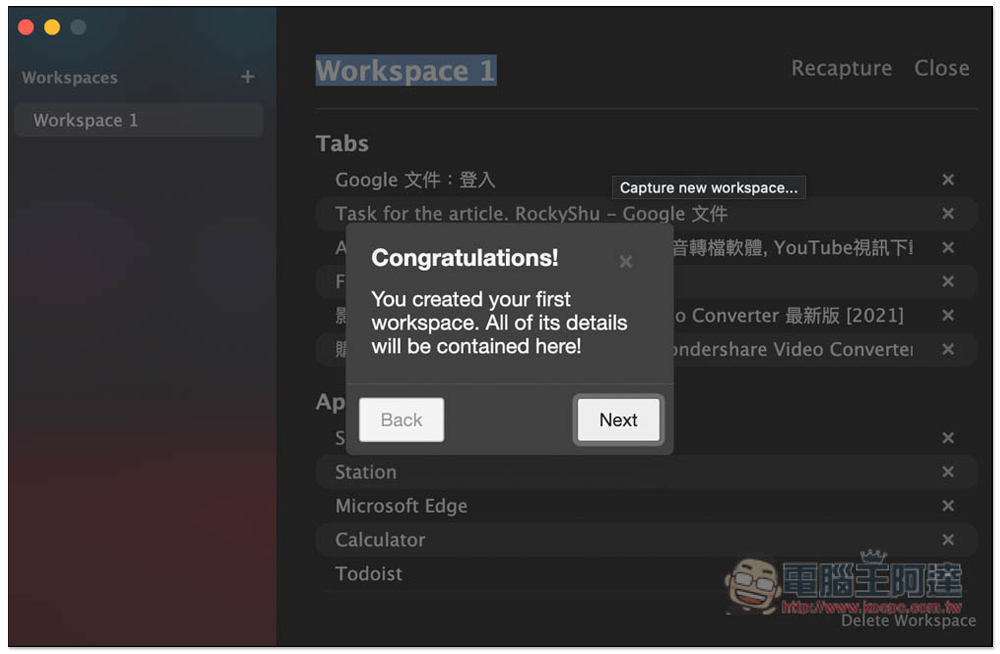
There will be simple instructions for use. Those who are interested can take a look, and it’s okay to skip. The method of use is very simple. Click the + on the right side of Wordspaces in the upper left to create a workstation:
You will be asked to obtain some permissions, remember to click them to ensure that the Apps application can be opened and closed normally:
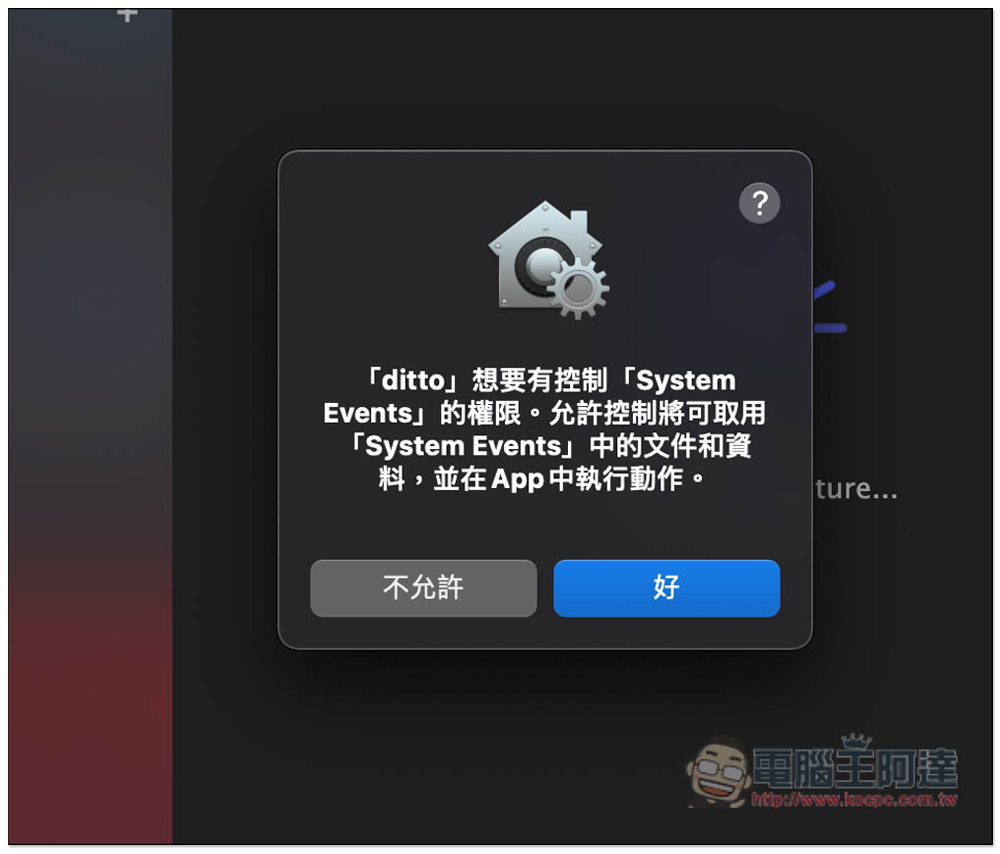
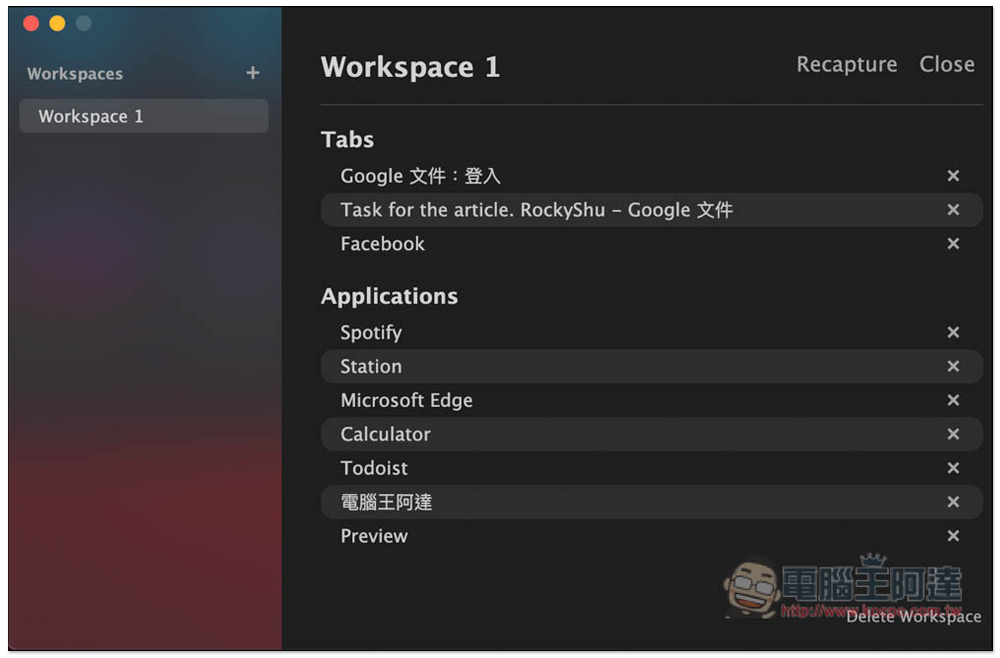
This workstation will keep track of your currently open Apps:
You can also manually adjust and delete unnecessary ones (press the X on the right):
You can also name the workstation yourself, like I named it for work:
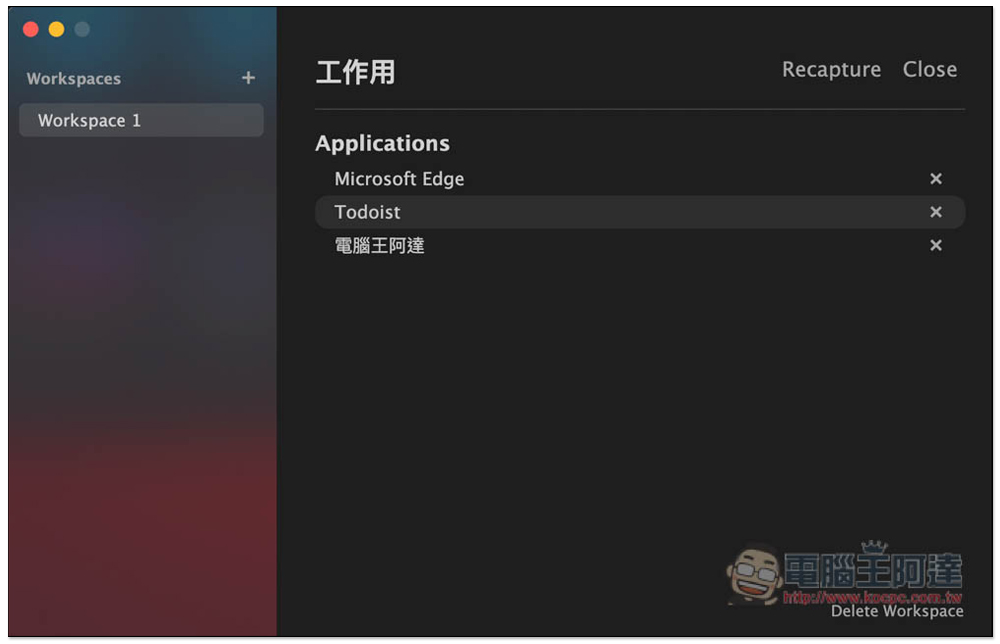
Then I set up a workstation for relaxing, so I have two working modes:
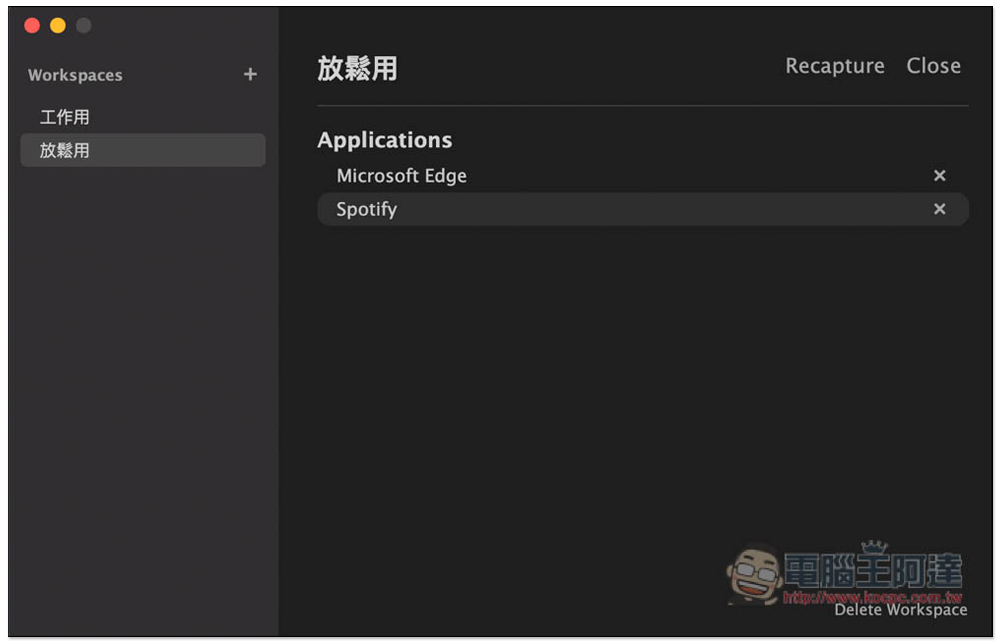
In the future, when you want to switch to another work mode, open the ditto shortcut icon in the Menu Bar and click on the name of the workstation you want to switch. Then you will see that the applications that are not used will be automatically closed and other applications that will be used by this workstation will be opened: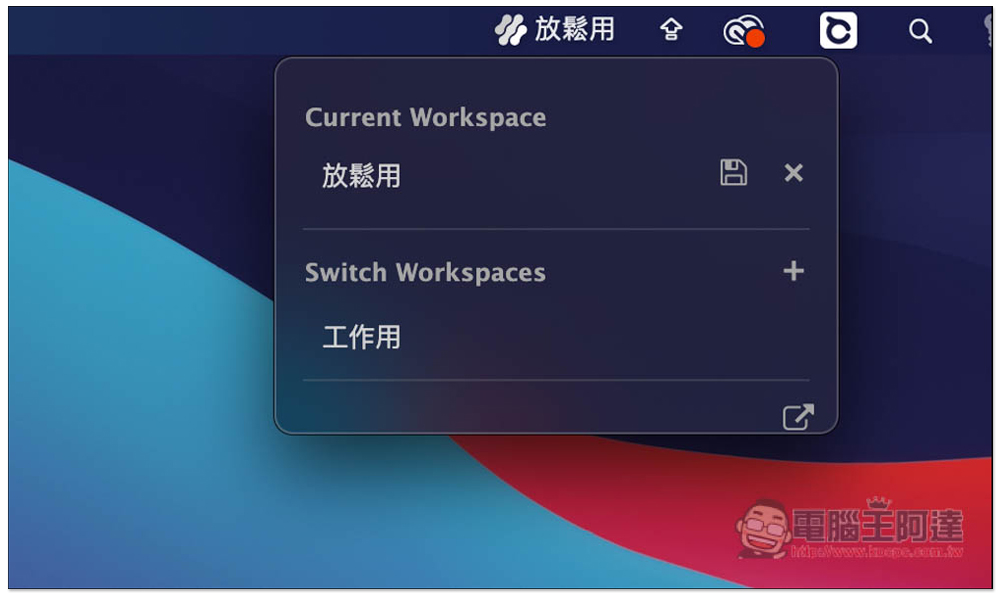
Source: KOCPC Chinese