


Nowadays, many people want to watch foreign audio and video websites, whether it is Japan, South Korea, or the United States, but most of them still do not provide Chinese subtitles, so for those who are not good at speaking English, they have no choice but to give up. The good news is that in the Chrome store, Lenovo has launched an extension plug-in called “Lenovo Voice – Audio and video translation, auxiliary language learning, and a good helper for watching TV shows.” After installation, when watching a video, just press the specified shortcut key to get instant translation of the video. It is supported in English, Japanese, and Korean, and can be used on many audio and video websites.
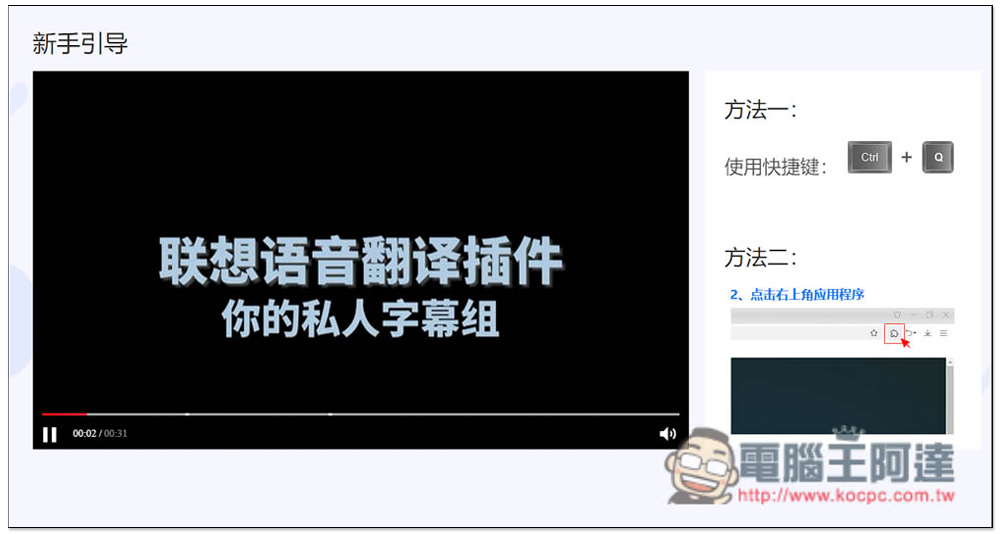
“Lenovo Voice – audio and video translation, auxiliary language learning, and a good helper for watching TV dramas” expanded plug-in introduction
After entering the Chrome store page, click “Add to Chrome” on the right. The Edge browser can also install this extension plug-in. I’ll take Edge as an example. The operations are the same:
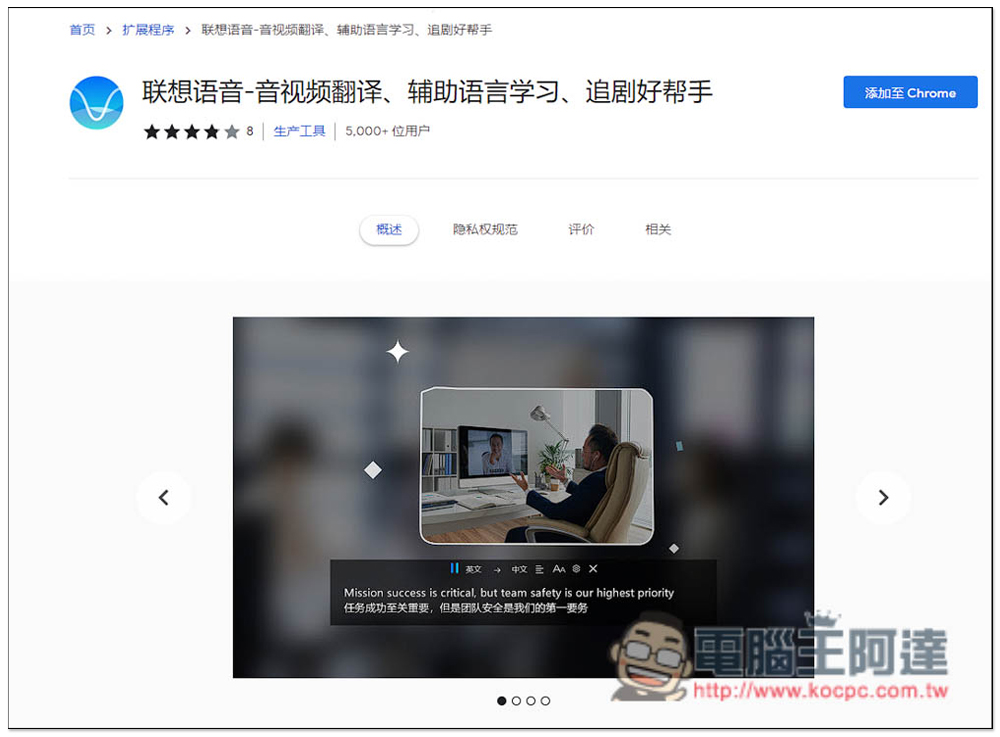
This message will pop up above, click ‘Add extension’ to install:
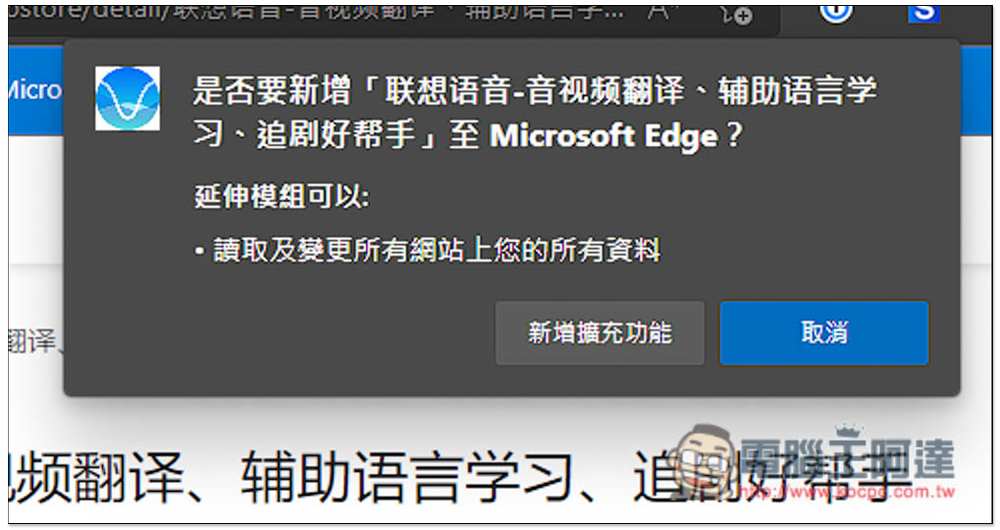
After installation, this small pattern will be hidden. You can find and open it from the puzzle pattern next to it. However, it is not bad to hide it because it is not needed when using it. It uses shortcut keys to enable instant translation:
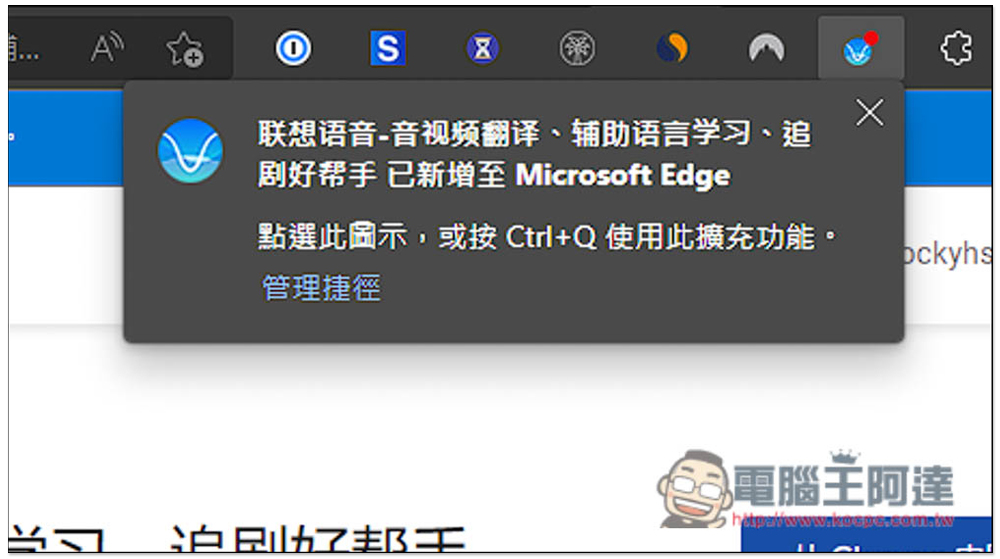
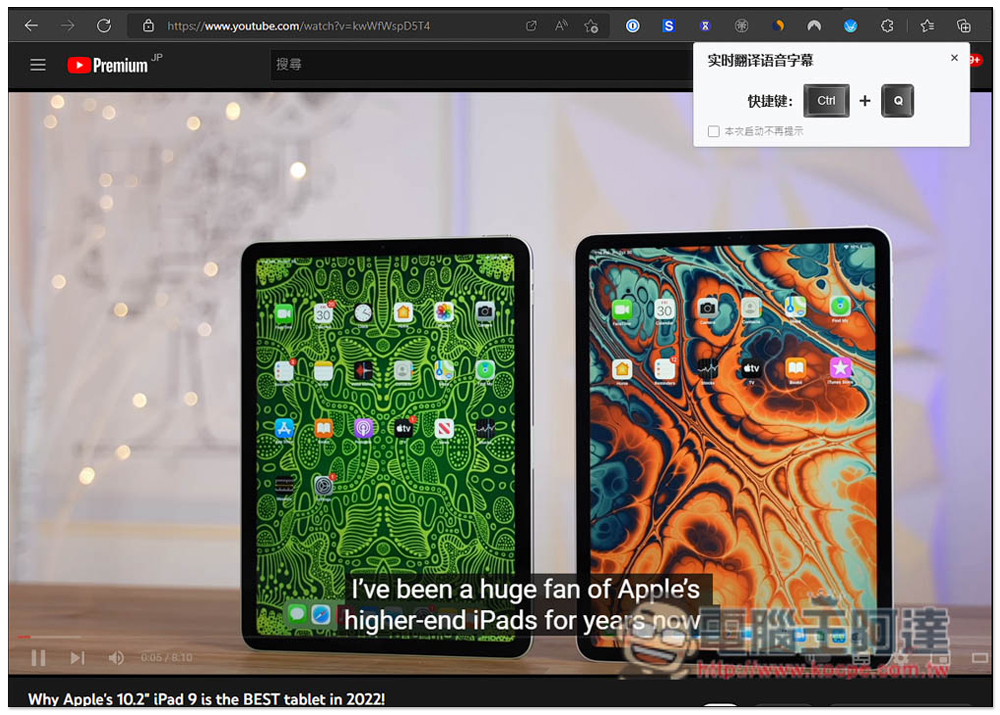
There is a novice guide video, you can watch it for the first time. To put it simply, after opening the video, press the shortcut key Ctrl+Q, and it will enable the real-time translation function:

When playing a video, a prompt will pop up in the upper right corner. If you want to enable real-time translation of voice subtitles, press Ctrl+Q:
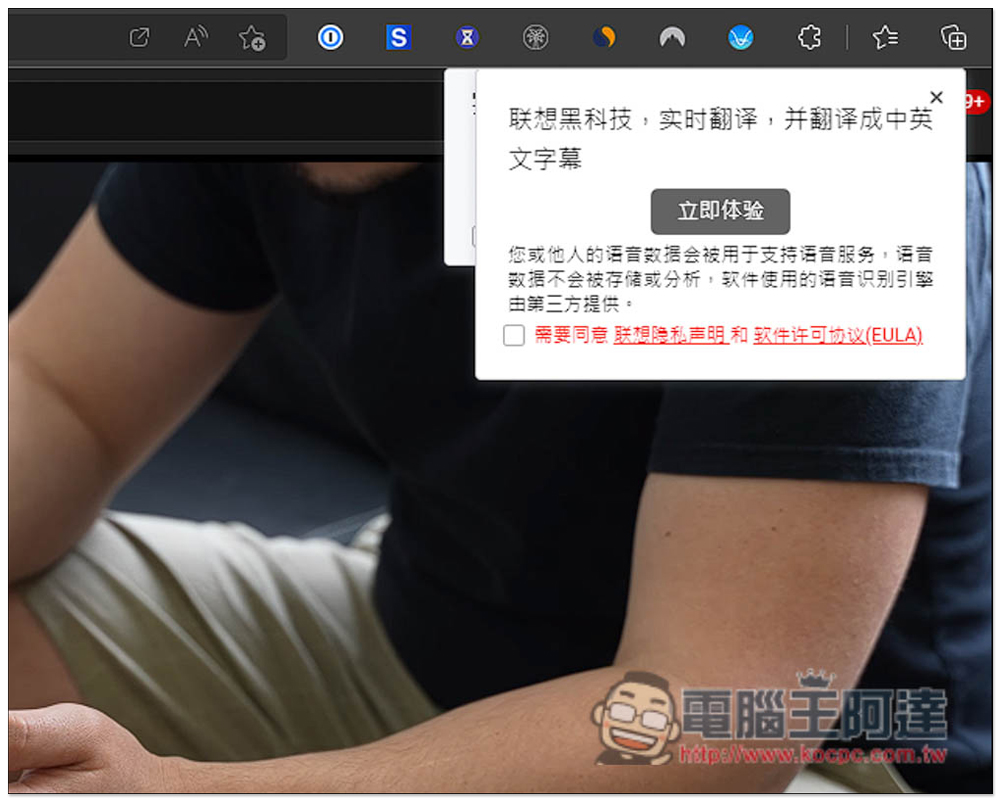
For first-time use, you need to agree to the Lenovo Privacy Statement and Software License Agreement (EULA). Those who are worried can read it, check the box to agree if there is no problem, and then click to experience it now:
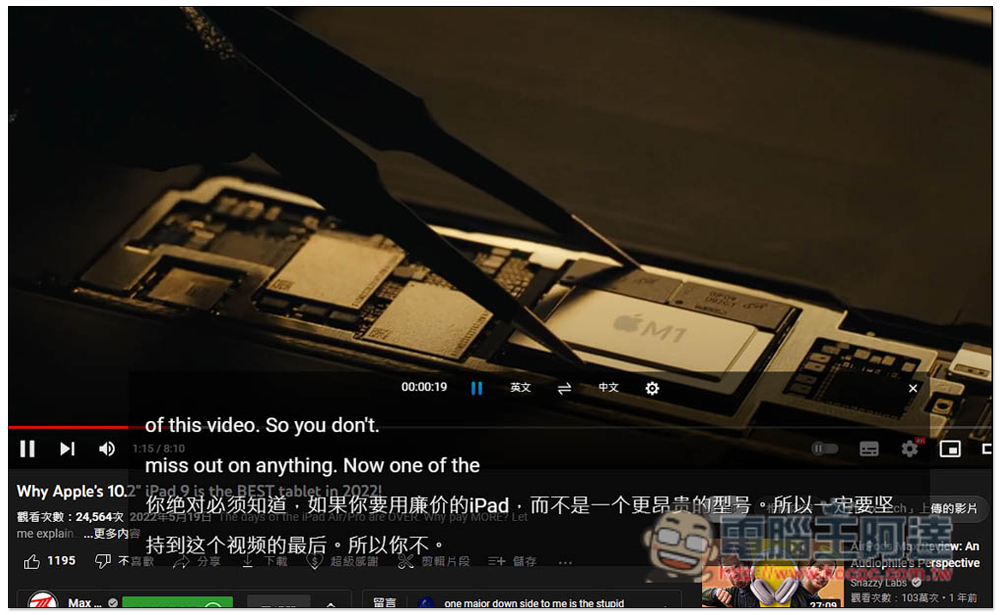
Instant translation content will appear below the video, including the video language and translated Chinese. After all, it is real-time translation. If the video speaks very fast, the translation may not be rushed, that is, the ears have already heard the next sentence, and the translator has just finished translating the previous sentence. This requires getting used to it. Sometimes if the speaker speaks a long sentence, the previous content may be overshadowed by one word after translation. Perhaps because it has just been launched, there is still a lot of room for translation speed and display interface:
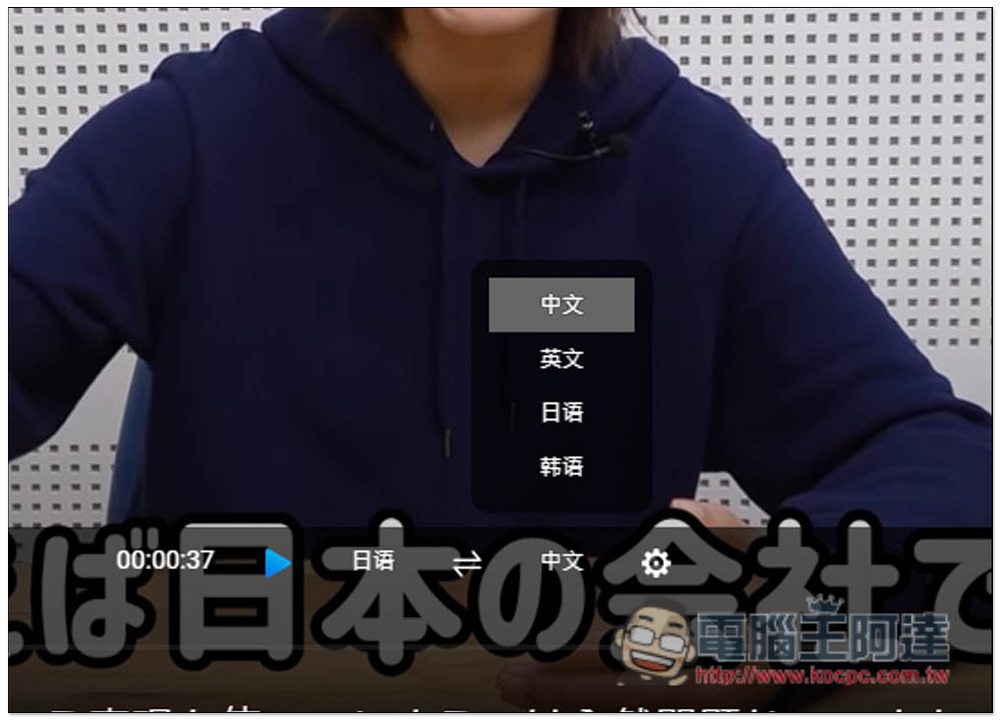
Click the language to switch to other languages, supporting Chinese, English, Japanese and Korean. The left side is to set the video language, and the right side is the translation language:

The translated language also supports four languages: Chinese, English, Japanese and Korean:
Open the settings icon and you can change the text display, text style, background display and personal settings. There are many details that can be customized:
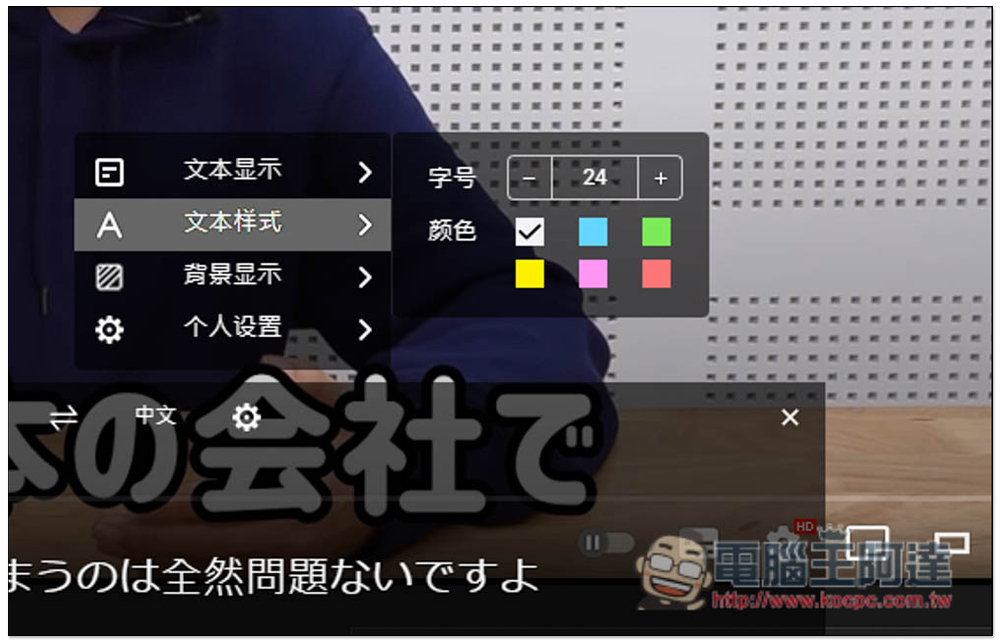
In addition to English YouTube, Japanese YouTube videos are no problem. The actual test was successful:

However, YouTube itself has an automatic translation function for video subtitles, and the speed and quality are better than Lenovo’s. Therefore, if you want to translate, just use YouTube’s built-in function.
I also tested foreign audio and video websites, such as Japan’s ABEMA audio and video website. This one supports it and can also translate in real time:

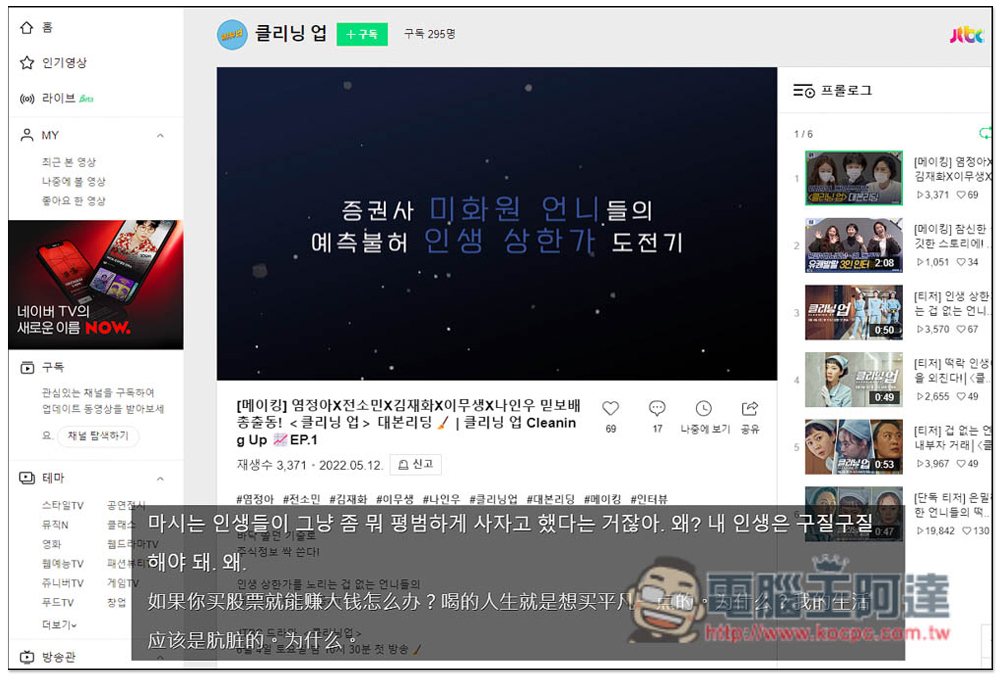
South Korea’s NAVER TV is no problem, it can translate in real time, but the speed will still be a little slower. If you can’t keep up, you can pause the subtitle translation and video first, and then continue playing after reading the content:
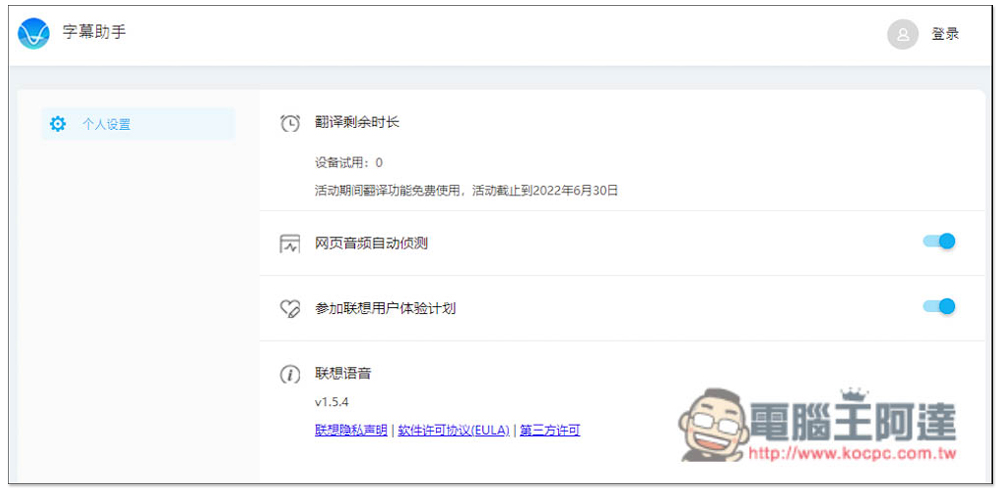
In addition, this instant translation function does not seem to be free forever. It is currently available for trial until June 30, 2022. If it exceeds that, it seems that you must purchase:
Source: KOCPC Chinese