


with ChatGPT Search Same,Perplexity It is also a very popular AI search engine, and basic searches are completely free to use, even without logging in. This article will teach you how to set Perplexity as the search engine in Chrome, Edge, and Firefox. After setting it up, you can directly use Perplexity AI search from the address bar, without having to open the webpage separately.
How to set Perplexity as the Chrome search engine
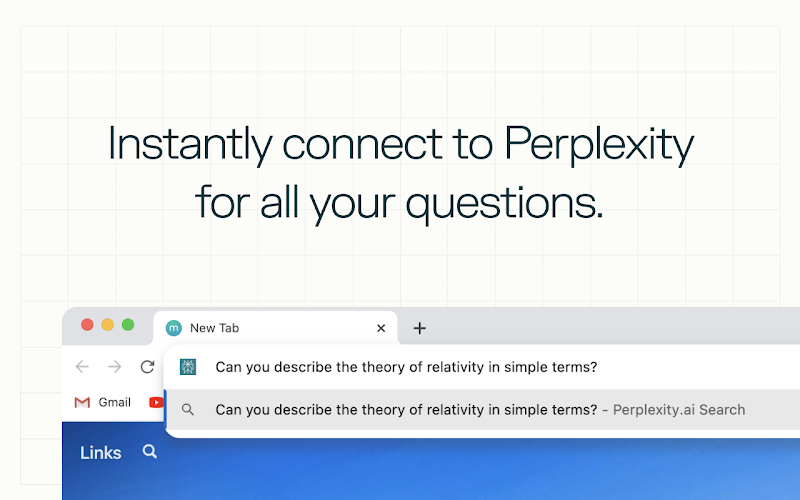
Perplexity AI has officially developed a dedicated extension for Chrome. If you want to directly replace your original Google Search, installing the extension is the simplest approach—once it’s installed, your search engine will become Perplexity.
But if you want more flexibility to switch between Google or Perplexity at any time, use the following method.
Open Chrome settings, go to the search engine options, and click the Add button next to site search:
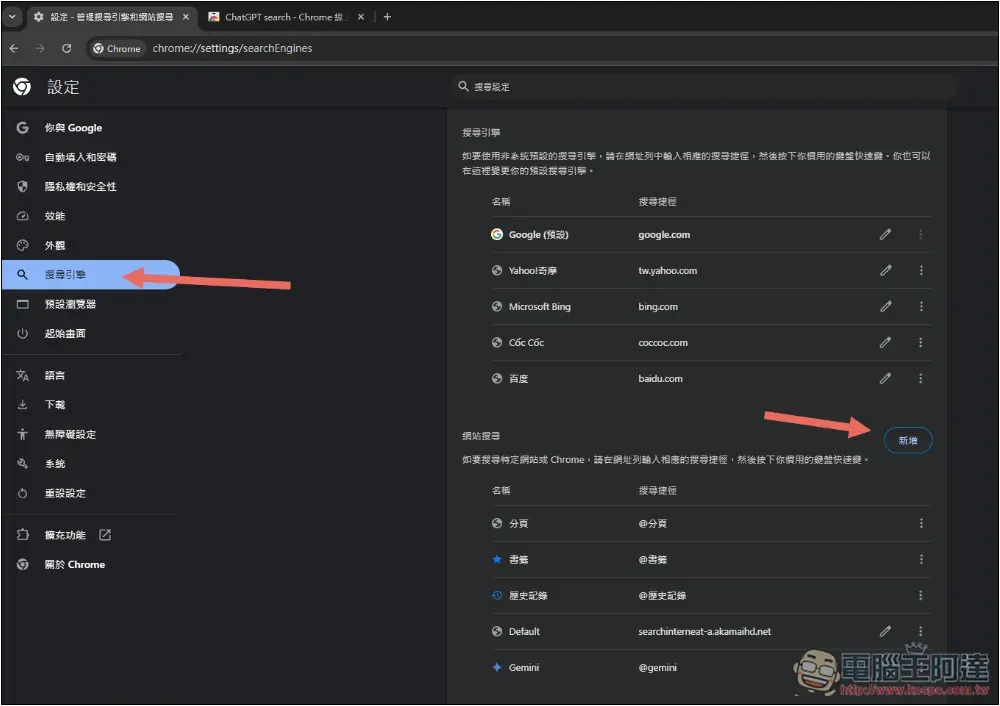
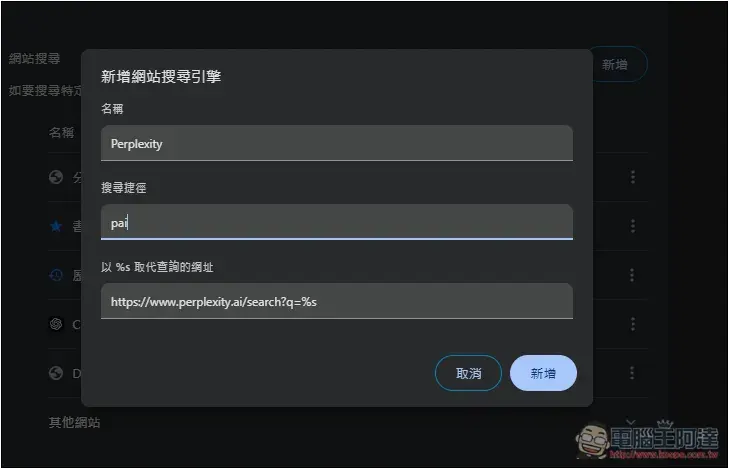
For the name, it’s up to you what to call it. I set it as Perplexity. The search shortcut is what you type to activate Perplexity AI search. It’s best not to make it too long. For example, I type “pai”. Then, in the address bar, typing “pai” plus a space will activate Perplexity AI search. For the URL, fill in “https://www.perplexity.ai/search?q=%s”. After finishing, click Add:
When I type “pai” in the address bar and press the spacebar, “Search Perplexity” appears on the left, which means it was activated successfully. Then you can enter the content you want to search for:

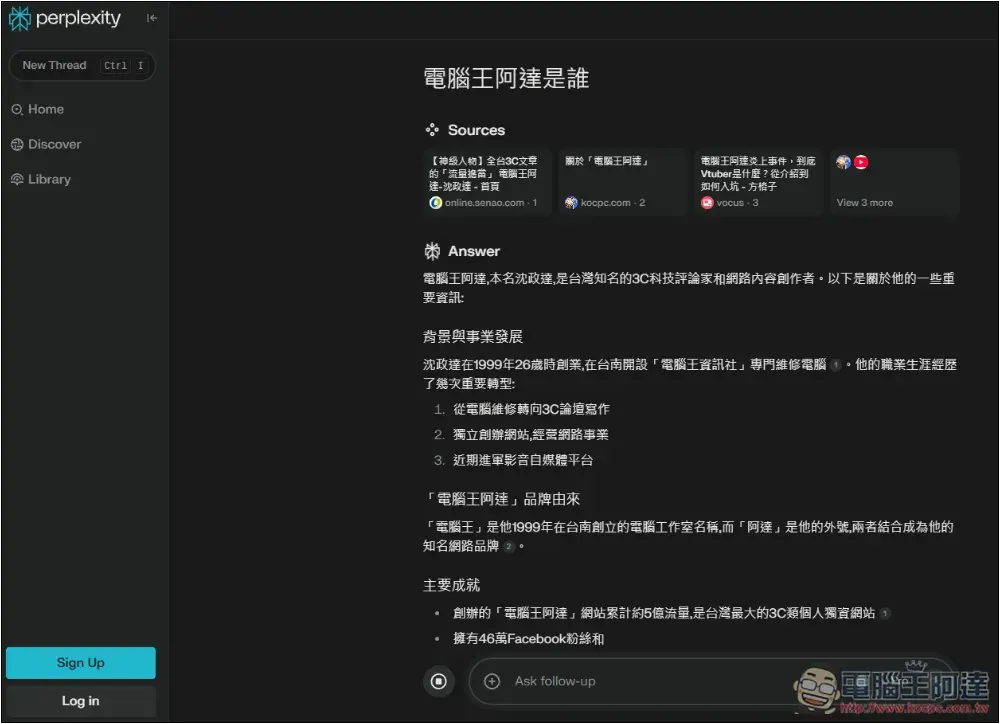
Pressing the Enter key will open Pleplexity and perform a search. You can see in the image below that I can use it without logging in:
How to set Perplexity as the search engine in Microsoft Edge
Microsoft Edge is also developed on the Chromium core, meaning the setup method is the same as Chrome. You can choose to install the official extension to directly replace the default search engine, or go into settings and set a specific string to enable Pleplexity AI search.
If you want to set it manually, please open Edge settings, go to “Privacy, search, and services”, scroll down in the menu on the right, find the services section, and below that there is “Address bar and search”.
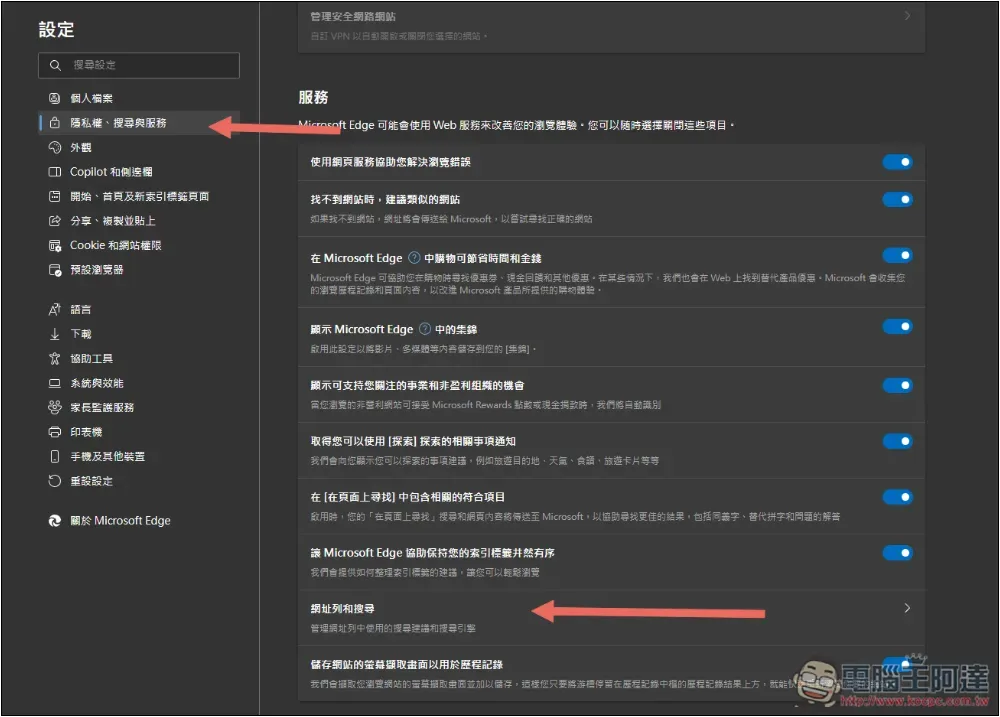
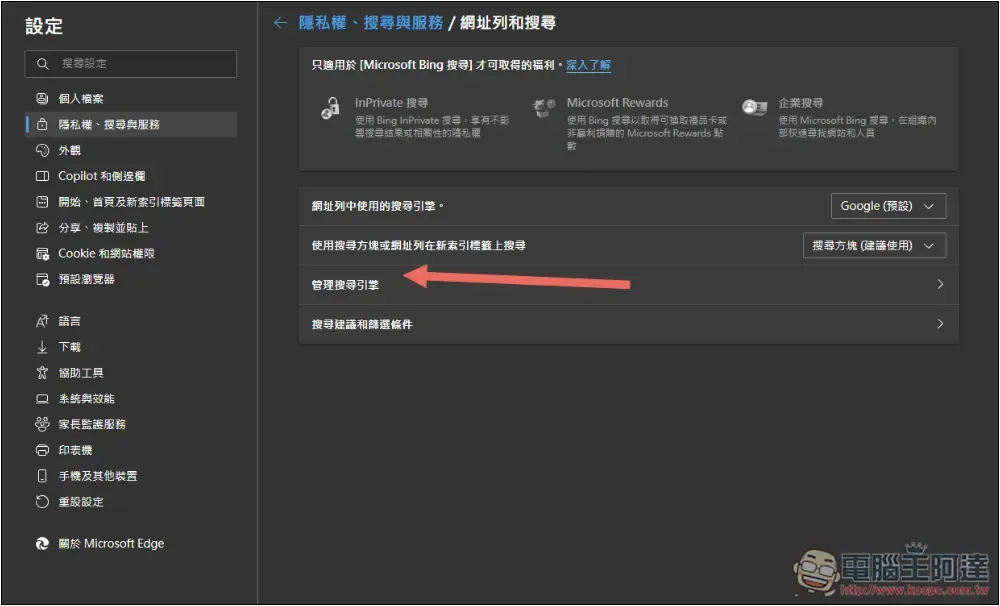
After entering, select “Manage search engines”:
Click the Add button in the top right corner.
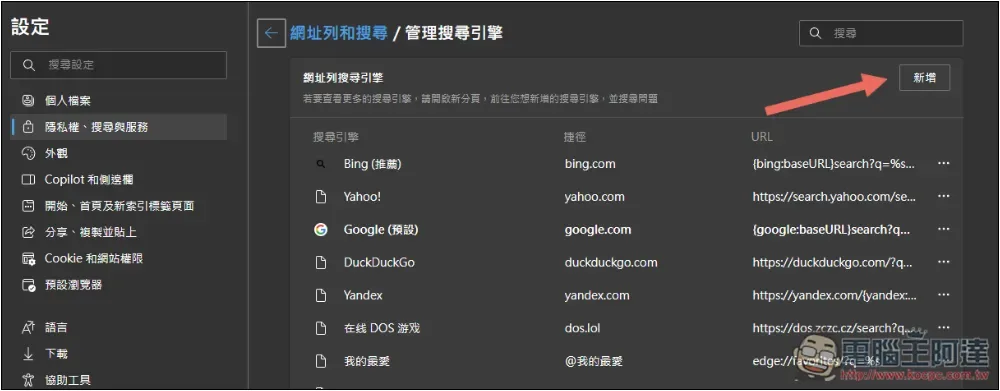
Similarly, you can name the search engine whatever you want. I set mine to Perplexity. The shortcut is the string that triggers Perplexity AI search; for example, I set mine to “pai.” For the URL, enter “https://www.perplexity.ai/search?q=%s,” then click Add when done.

In the future, typing pai in the address bar and pressing the spacebar will activate “Search Perplexity”:

How to set Perplexity as the Firefox search engine
Firefox is a bit more troublesome because it doesn’t natively allow you to manually add search engines, so you have to do it through a third-party extension. First, please install this one:
This can enable the feature of manually adding search engines:
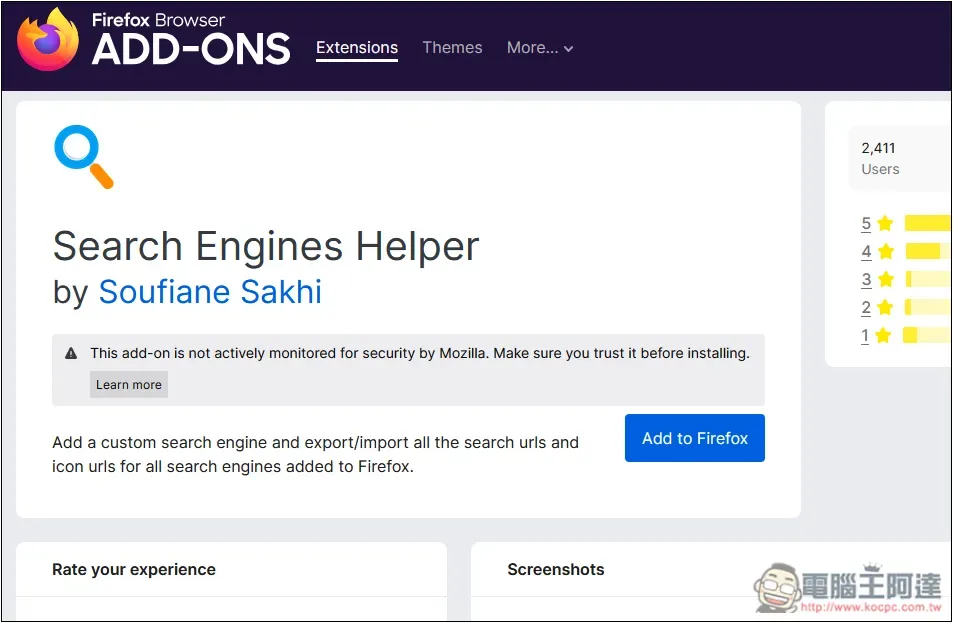
After installation, enable the extension and click the first option, “Add a new search engine”:
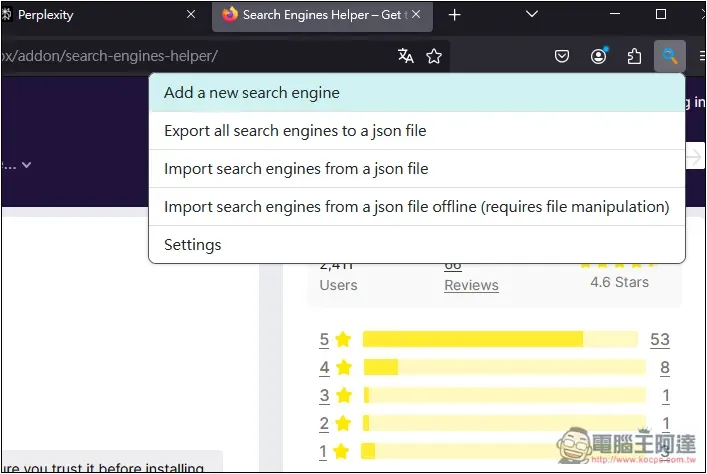
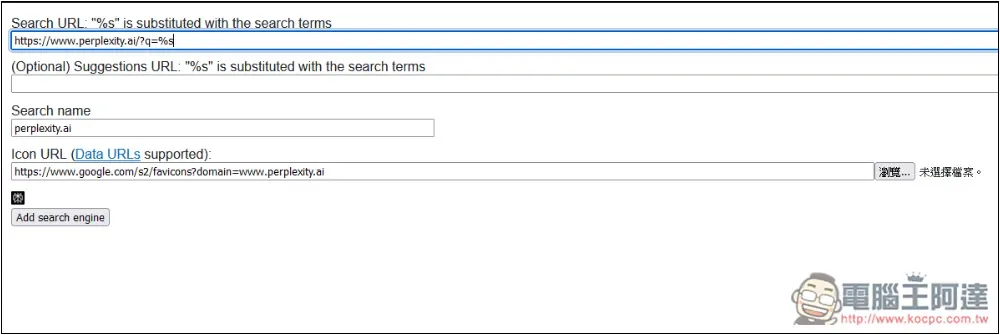
Enter URL “https://www.perplexity.ai/search?q=%s”, after entering, the other fields will auto-fill, then click Add search engine:
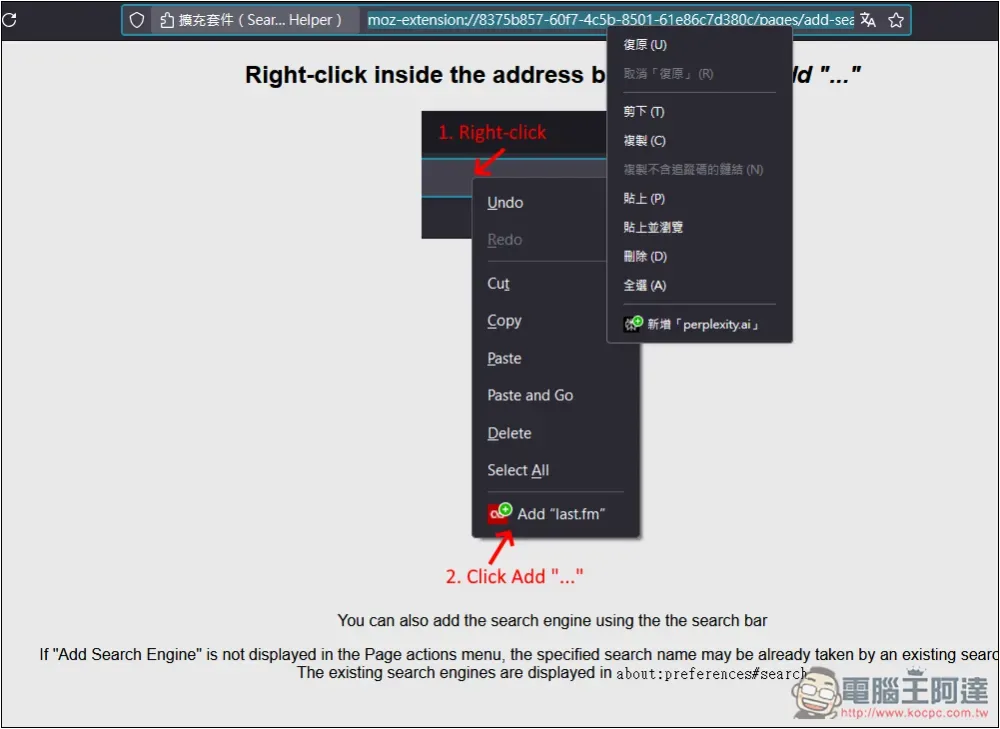
A page will open that asks you to right-click on the address bar. Follow the instructions: open the right-click menu on the address bar above, then click “Add perplexity.ai” below.
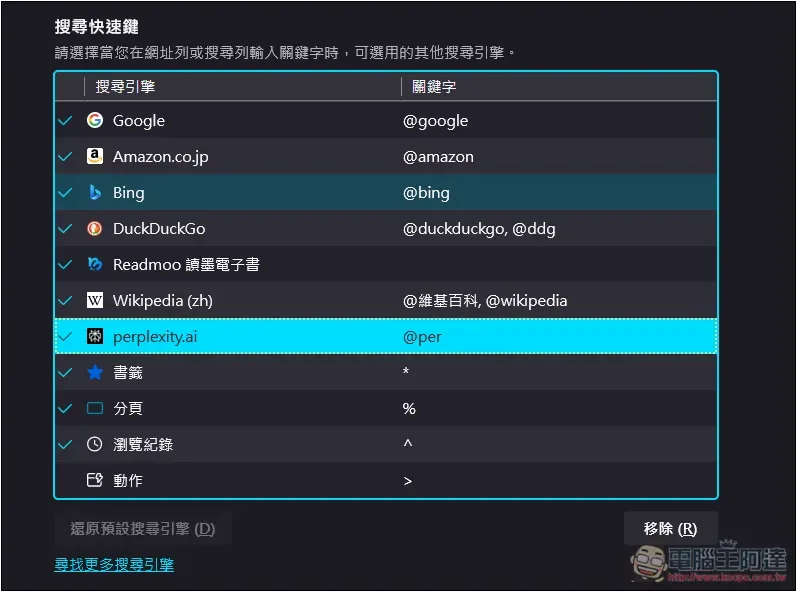
After adding it, go to the search engine settings, and you’ll see perplexity.ai. On the right, you can choose whether to set a keyword. If you set one, it works just like in Chrome and Edge—type the specified string to activate AI search, and leave it blank to use the default search engine, such as Google.
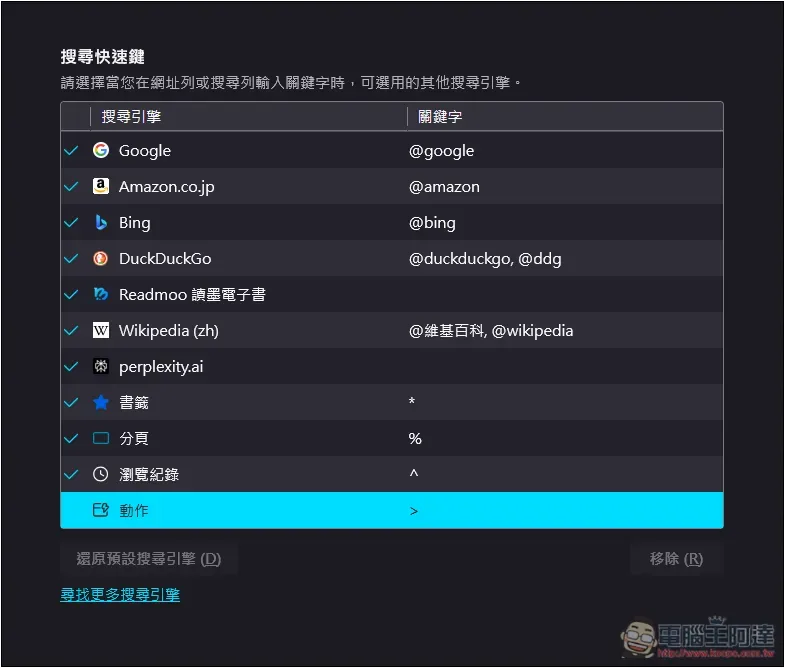
I set @per, so in the future, typing @per in the address bar will activate Perplexity search:
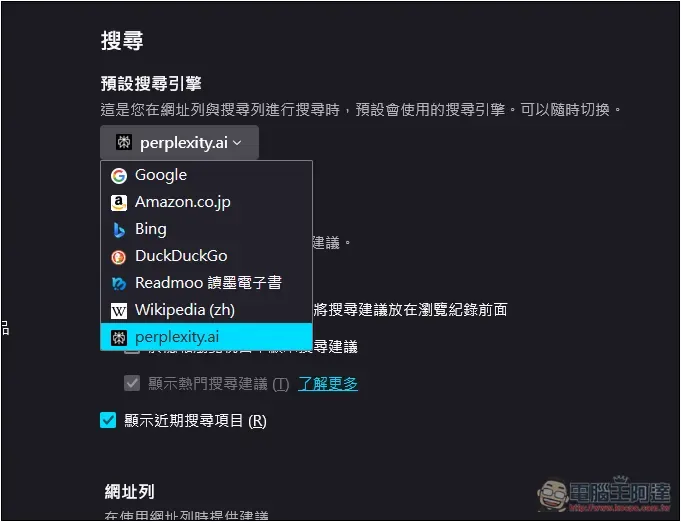
If you don’t want to set it up and simply want to replace Google, change the default search engine above to perplexity.ai:
Source: KOCPC Chinese