

• About Us
King of Computer Media
  • Home
  • Tech News
  • AI News
  • Apps & Tutorials
  • Mobile & Telecom
  • Lifestyle
  • About Us
No Result
View All Result
  • Home
  • Tech News
  • AI News
  • Apps & Tutorials
  • Mobile & Telecom
  • Lifestyle
  • About Us
No Result
View All Result
King of Computer Media
No Result
View All Result

Home - Computer Applications and Other Tutorials - [Windows11] Windows11 toolbar moved to the top of the screen (upper)

[Windows11] Windows11 toolbar moved to the top of the screen (upper)

KOCPC Editor by KOCPC Editor
October 7, 2021 - Updated on August 4, 2026
in Computer Applications and Other Tutorials

As I wrote in Windows 10, putMoving the toolbar to the top of the screen is a very important thing, but the toolbar of Windows 11 cannot be dragged to the top of the screen with the mouse. Although it’s a bit more troublesome, there’s a way to do it and it takes about 3 minutes to complete.

1. Edit machine code

press “Win key + R key”, open the execution window, enter “regedit” (no quotation marks required).

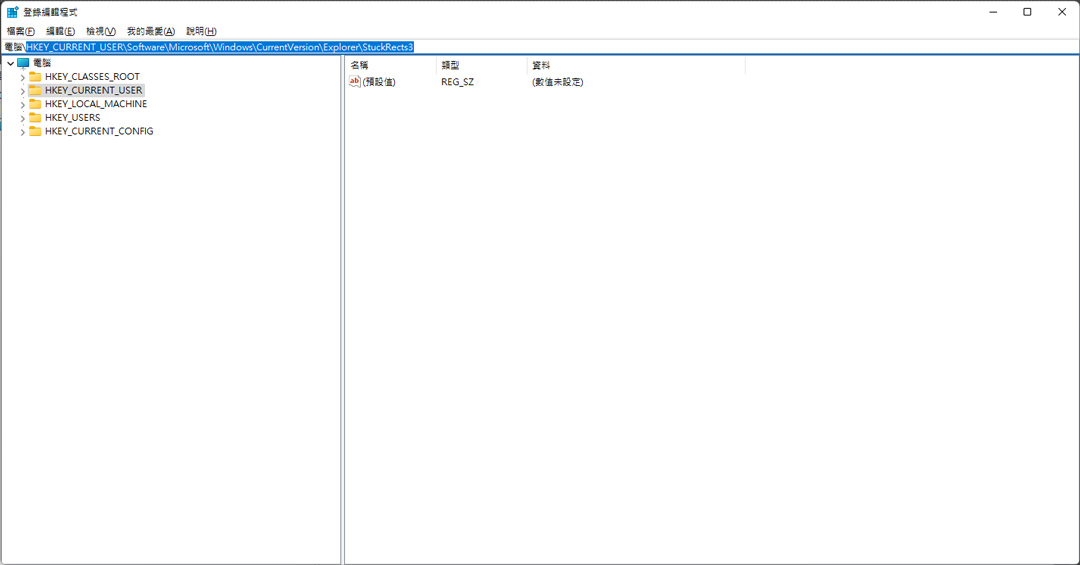
After opening the machine code editing window, please open the folders one by one in the following order, or directly copy and paste this paragraph above.

“HKEY_CURRENT_USER\Software\Microsoft\Windows\CurrentVersion\Explorer\StuckRects3″ (No quotation marks required)。

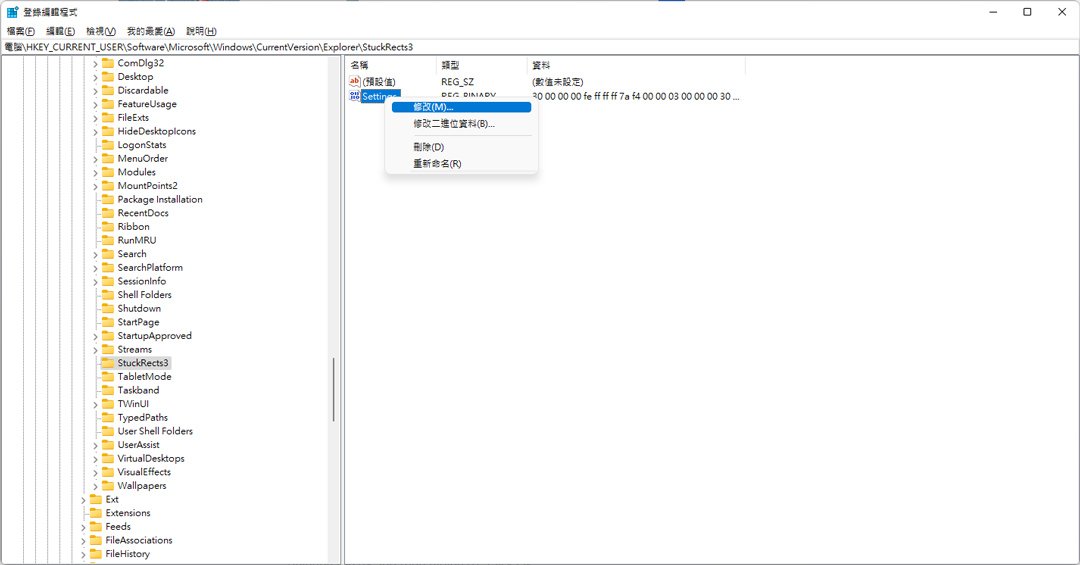
Next in “Setting“Right-click and select”Revise“。

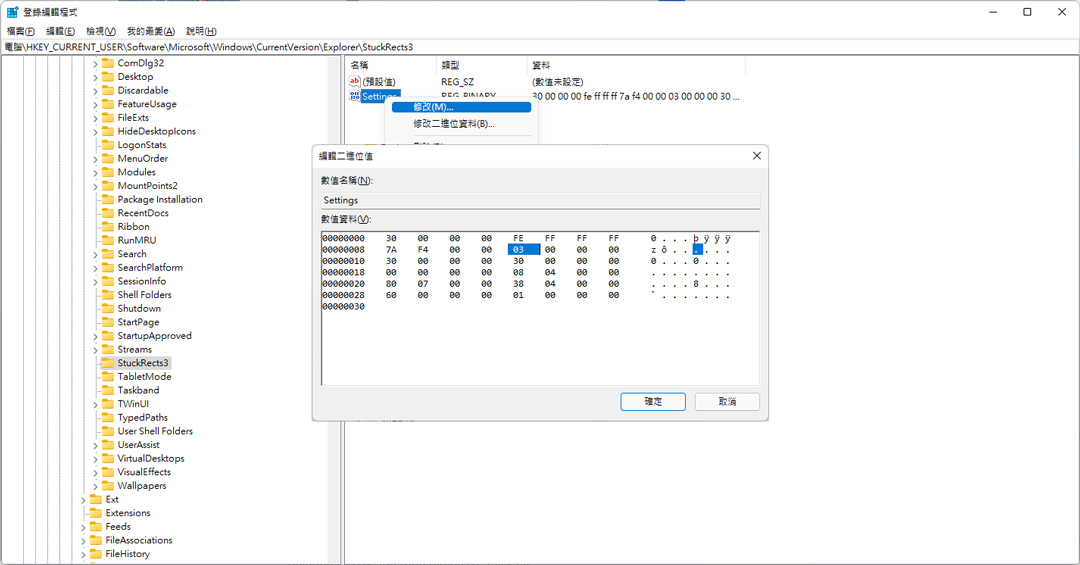
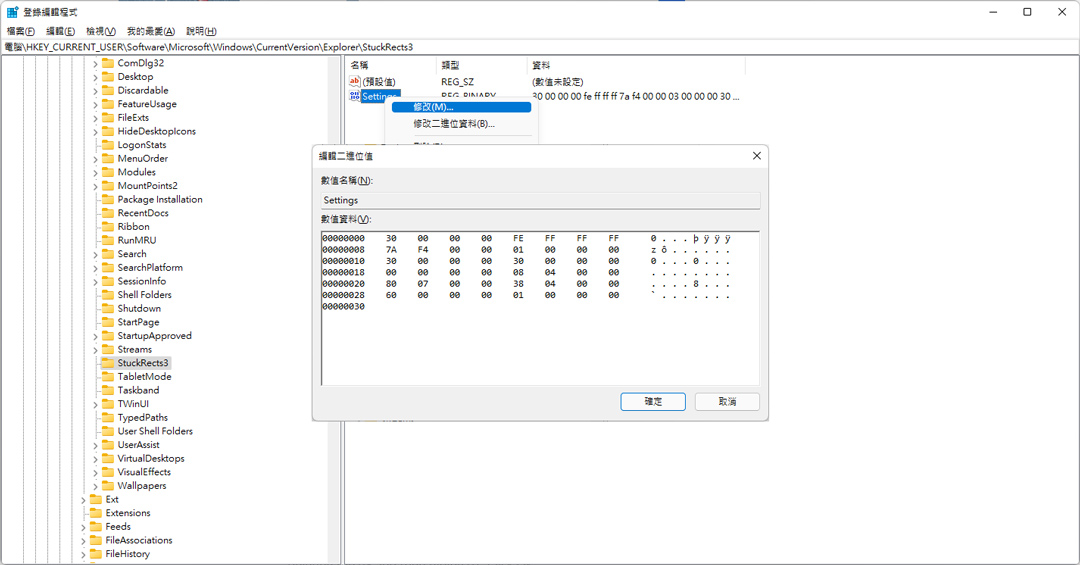
Please change the corresponding position on the screen “03“ value changed to “01“ value pressed“Sure“。

You can close the window for editing machine code.

▼After opening Regedit, you can directly copy the above location, or open it layer by layer.
▼After finding the Setting, start modifying it
▼Change the corresponding position code 03 to 01, 01 is the top, 03 is the bottom, you can try where 02 is

▼After making changes, please press OK
2. Execute CMD as system administrator

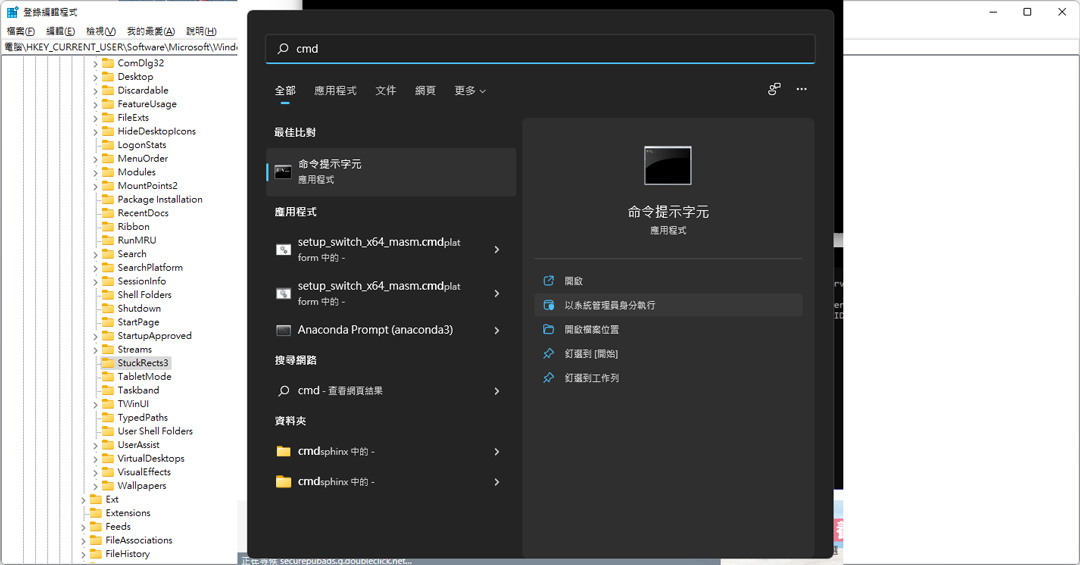
press Win key, hit ” in the search position abovecmd“。

Appear”Command prompt characters“After that, please press “Execute as system administrator”.

▼Execute as system administrator
3. Disable and then enable Explore to complete

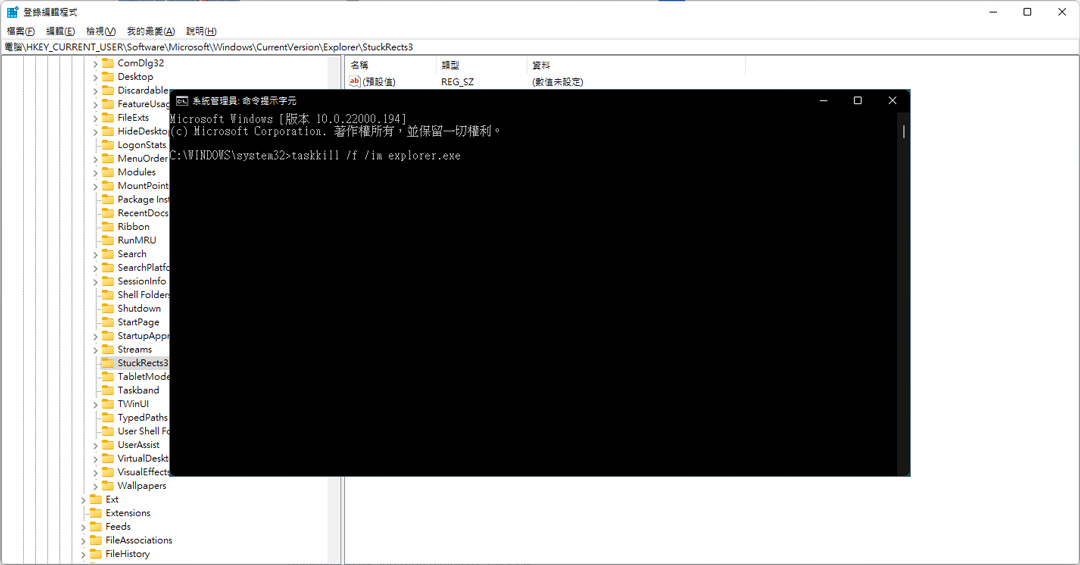
Then enter 2 strings of instructions in sequence, you can copy them directly

“taskkill /f /im explorer.exe” Press Enter (no quotes required)

“start explorer.exe.” Press Enter (no quotes needed)

▼The first command is to disable Explorer.exe
▼The second command is to enable Explorer.exe
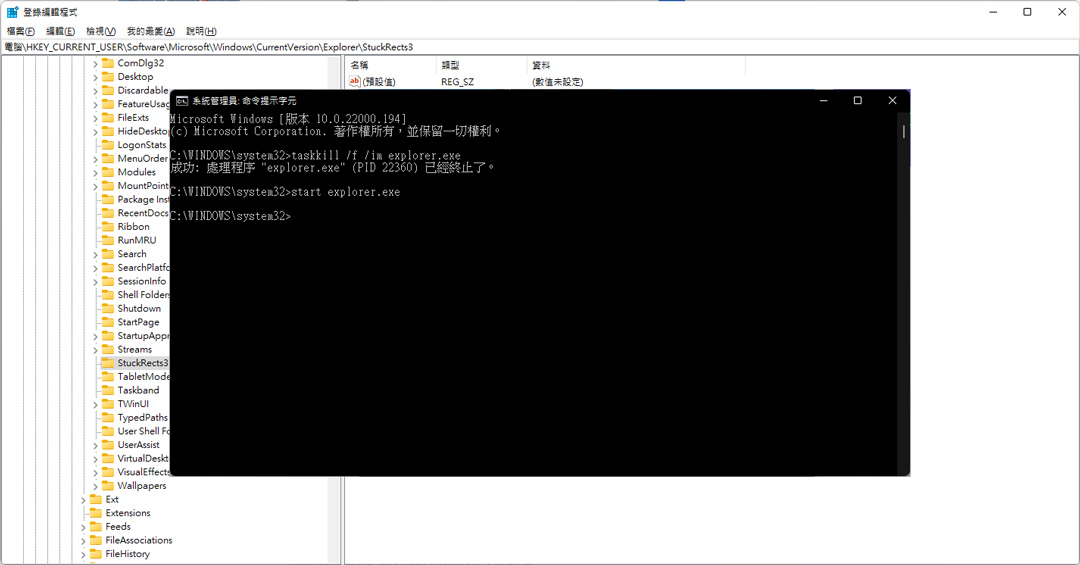
▼Then it’s done, I wish you all the best!



Mikabook will continue to write documents related to Windows 11 in the future. Welcome to come often Mikabook

Source: KOCPC Chinese

Tags: Toolbar

Recent Posts

  • NVIDIA RTX Spark laptops officially launch: opening a new chapter for Windows AI PCs, starting at NT$119,000 in Taiwan.
  • Another new scam! A gamer bought a brand-new Ryzen 9 9950X3D2 sold directly by Amazon online, only to receive an old Intel processor fitted with an AMD heat spreader.
  • The Pixel Watch’s biggest rival isn’t competing products, but Google’s own “subscription wall.”
  • MSI Prestige N16 Flip AI+ Tested: 125B Model Crammed Into a 1.9 kg Convertible Laptop, Beats DGX Spark, No Throttling After 20 Minutes of Stress Testing
  • Tesla’s new Roadster makes its official debut! Featuring SpaceX rocket technology, it does 0 to 100 km/h in just 0.81 seconds and can even flip in mid-air!

Recent Comments

No comments to show.
  • About Us

We welcome partnership inquiries and product review opportunities from smartphone manufacturers, iPhone accessory brands, and app developers.koc kocpc.com.tw|Privacy Policy |Hosting & Maintenance: Fast Line Taiwan, A-Chang Digital Technology

No Result
View All Result
  • Home
  • Tech News
  • AI News
  • Apps & Tutorials
  • Mobile & Telecom
  • Lifestyle
  • About Us

We welcome partnership inquiries and product review opportunities from smartphone manufacturers, iPhone accessory brands, and app developers.koc kocpc.com.tw|Privacy Policy |Hosting & Maintenance: Fast Line Taiwan, A-Chang Digital Technology