


PDF files have the advantages of being cross-platform and easy to carry. Due to open standards, PDF-compatible software can be freely developed under license. Downloadable manuals and documents are provided on the Internet. PDF format is ubiquitous. Even scanners and office multi-function photocopiers directly support PDF output.Windows 10 can also easily convert and save PDF, what should I do if I need to merge many PDF files? You can try this MSTech PDF Split Merge limited-time free PDF file merging and splitting tool to enhance the PDF functions of Windows 10.

用 Telegram 訂閱【挨踢路人甲】最新文章:https://t.me/itwshare
▼MSTech PDF Split Merge is a PDF file merging and splitting tool. The operation is very simple. You only need to add the PDF files that need to be processed, select options and process them with one click. Go directly to the “Event Web Page” and you will see the words “Get IT FREE” (the event URL is at the end of the article).

▼Scroll down to see the “Download” download link for Step 1. Then scroll down to see the License Key for Step 2. Click to expand and you will see the startup serial number. Please note it down.

▼After downloading, it is a compressed file. Please decompress it and install it.

▼One-click installation is simple and powerful, and the installation is completed quickly.

▼The main screen of the software is divided into two major areas: the left is the file list and options, and the right is the PDF file content display area.
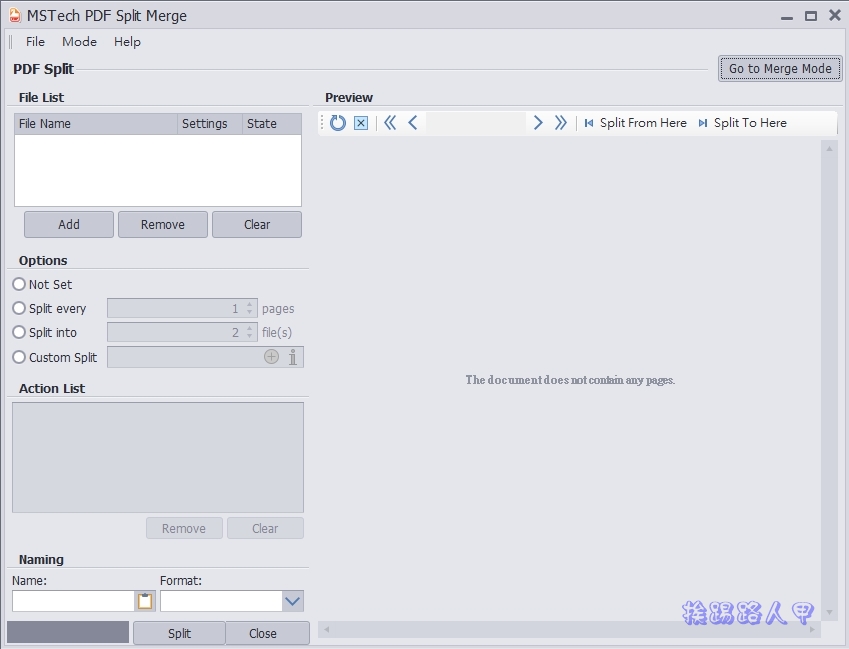
▼The next step is to activate the authorization, press [Help] → [Activate Software] to start.

▼When you see the authorization management window, enter the basic information in the red box of “User Info”, and then press the [Activate Online] button. In about 60 seconds, a message window indicating successful activation will appear.

▼Open a file to give it a try. You can see the opened content in the preview area and the option to split in the red box. The author chooses to split per page (Split server) and press [Split] to split.

▼This PDF has 6 pages in total. After splitting, a number will be added in front of the file name to identify it.

▼MSTech PDF Split Merge, as the name suggests, is mainly focused on splitting and merging PDFs. On [Mode], you can choose to split Split or merge Merger.

▼For example, the author chooses to merge and drags two PDF files to the preview area.

▼At this time, check the files you want to merge and press [Merge] to merge.

[Online free event website]: Please clickhere
Further reading:
Source: KOCPC Chinese