


The 15GB of free storage capacity that Google allocates to each user sounds like a lot, but in fact, in 2020, this space is actually not large. Considering that all current Google products, including cloud drives, photo albums, backups, etc., all share this capacity, you may not even realize that those services have unknowingly taken up your free storage capacity. Gmail is a widely used email service, but its use of free space is often overlooked. Today I will tell you how to use the search function in Gmail to free up the occupied space.

A must-learn for advanced users! Teach you how to use search to free up storage space in Gmail
Before doing this, first understand your own capacity occupancy composition
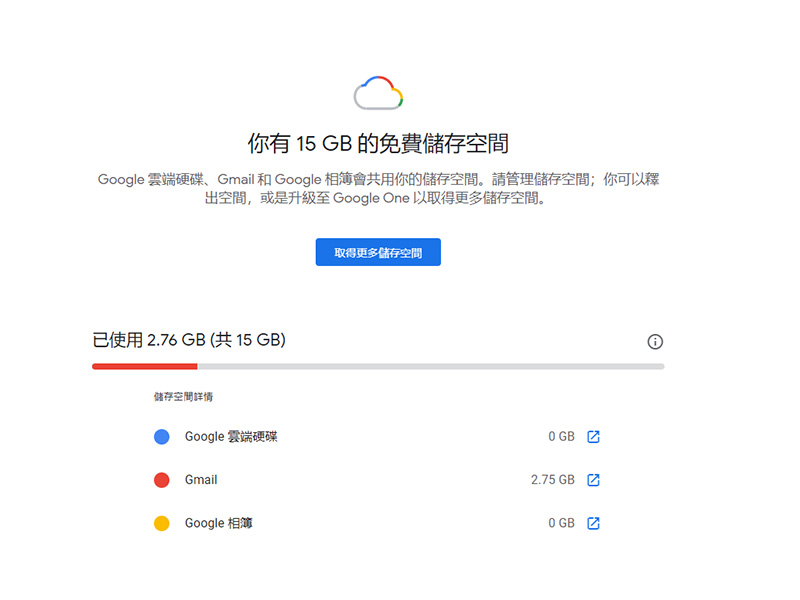
How to free up space in Gmail? Before releasing, you must first understand which Google services are currently occupying your space. Please go to “one.google.com/storage” URL, check the percentage occupied by each service in the browser. If you are a general user, you will see the following screen:
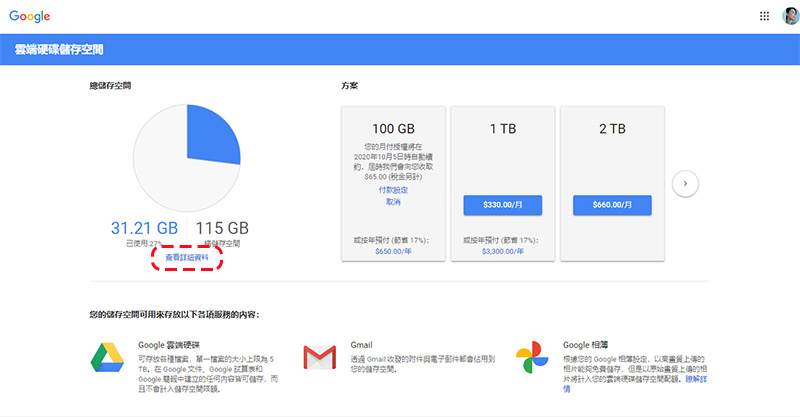
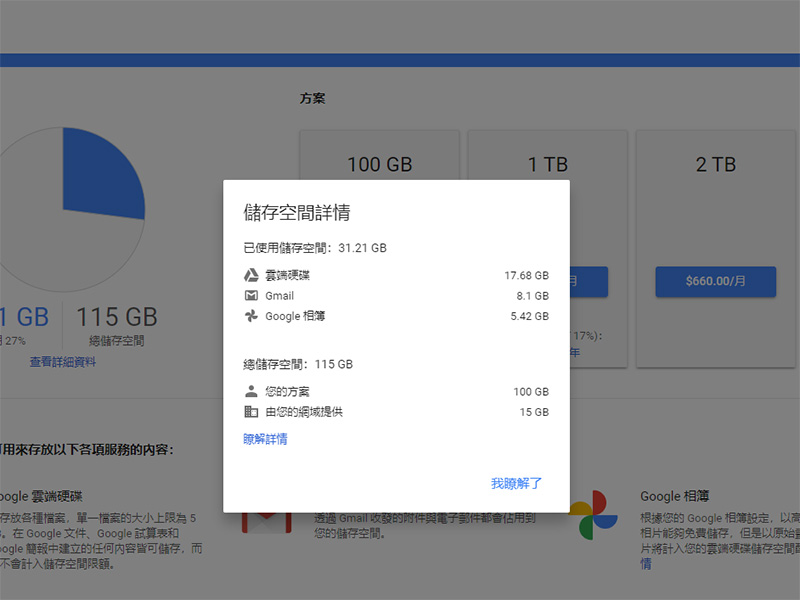
If you are a G Suite user, you will see the following screen, and then click “View Details” below the pie chart to understand the details used by each service in the current storage space:
Step One: Delete Spam
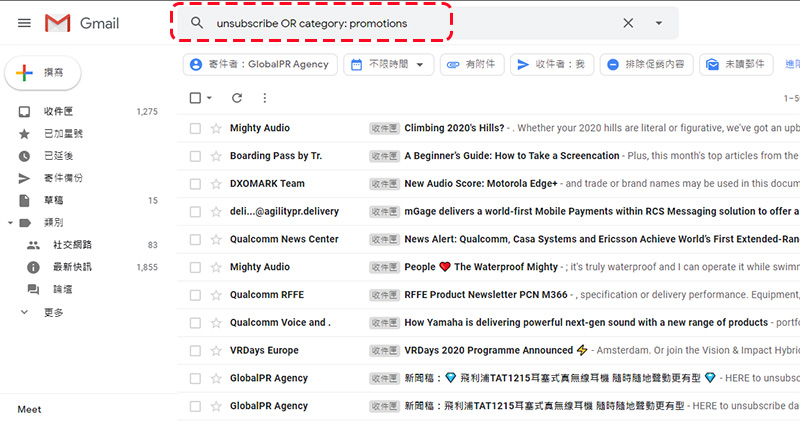
In addition to removing the contents of the spam box, your inbox may have a lot of unwanted advertising emails from retailers, channels, or other sources. Such emails usually have an “unsubscribe” button, and you can search for this item. You can enter “unsubscribe” (for Chinese letters) or “unsubscribe” (for English letters) in the search field to filter out these unsubscribeable news notification letters, then check and delete them.
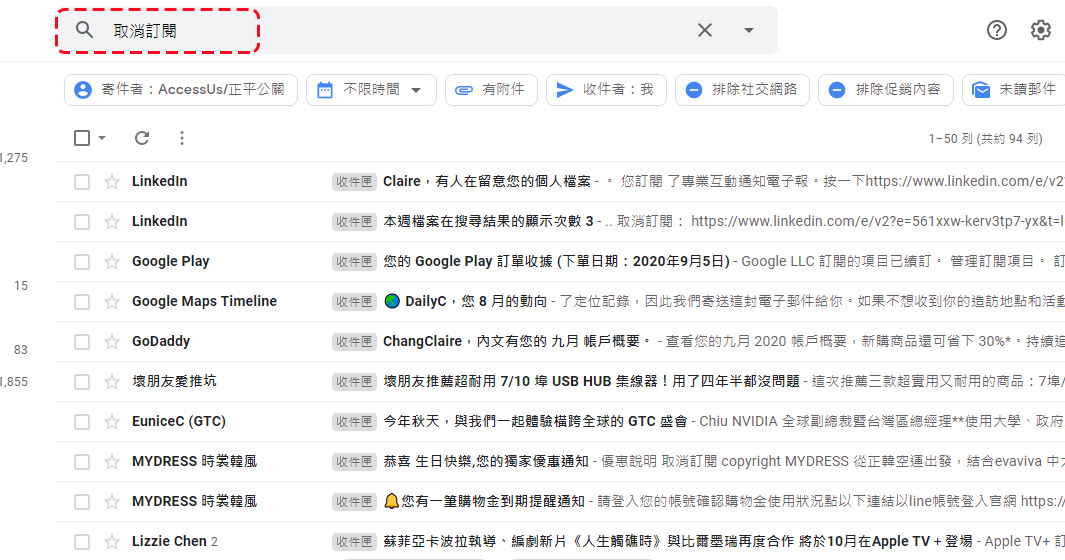
By default, Gmail will try to classify these letters into the “Promotional Content” tab. If you want to delete all the letters that contain promotional content that Gmail identifies as promotional, you can enter “unsubscribe OR category: promotions” (for Chinese letters) or “unsubscribe OR category: promotions” (for English letters) in the search field, filter them, check them and delete them.
Step 2: Delete letters with large attachments
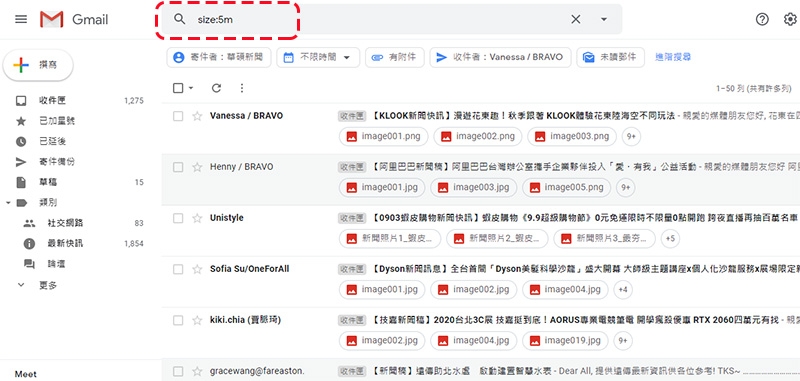
When sending and receiving letters, sometimes large files are included, and these files may also take up your free space. Open your Gmail inbox on your phone or computer and enter “size:5m” (or the minimum file size you want) in the search field to filter out messages with folders larger than or equal to 5MB. From the search results, you can view and check which letters have expired, been closed, or are no longer needed for deletion or retention.
Step 3: Delete old expired emails
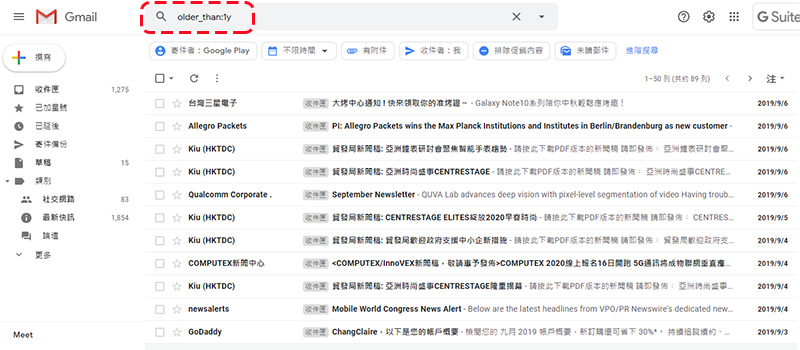
Some very old emails have lost their timeliness or have no value or meaning in saving. In addition to manually switching to the last page and slowly deleting them, you can have a smarter approach. Enter the time limit you want to set in the search field and you can easily filter out emails that match your criteria. For example, if you want to delete emails that are older than 1 year, just enter “older_than:1y” in the search field.
This makes it easier to delete large amounts of messages
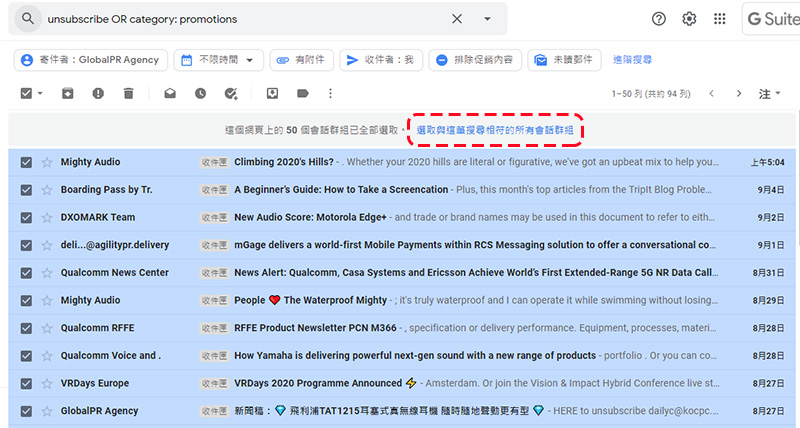
If you open Gmail using a web browser on your computer, you can check the checkbox above and select all single-page items to delete at once. In addition, you can also click “Select all conversations that match this search” and then click the trash can icon above to delete all letters that match the search criteria at once, without having to do it page by page or letter by letter.
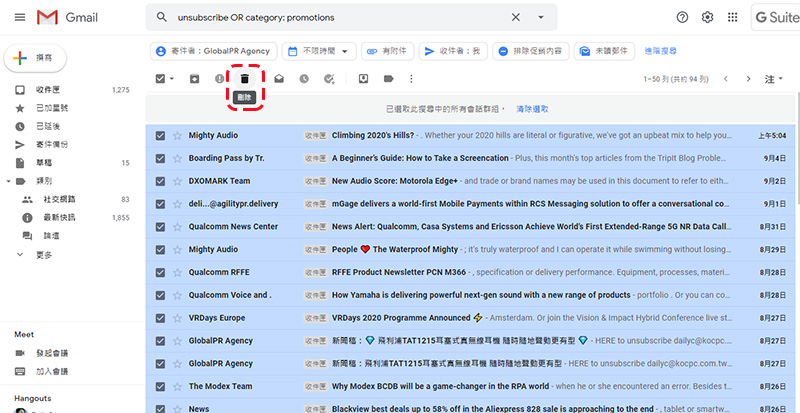
Then go to the trash can and remove all the letters to free up the space previously occupied by useless letters and attachment files!
Source: KOCPC Chinese