


Losing a work laptop is a nightmare for employees, but for corporate IT staff it is an even more difficult dilemma. In the past, when a device was lost, IT teams often had only two choices: “pray no one guesses the password” or “remotely wipe the entire computer immediately.” Even if the laptop miraculously turned up at the office front desk the next morning, the data would already be gone for good.
However, this pain point has finally turned a corner.Windows 11 Insider Preview Build 29708.1001 (Experimental Channel), released by Microsoft on November 13It has officially introduced a brand-new “Remote Lock” testing feature. This compromise solution allows IT administrators to remotely lock down lost or stolen Windows computers via Intune without deleting any files on the hard drive at all.
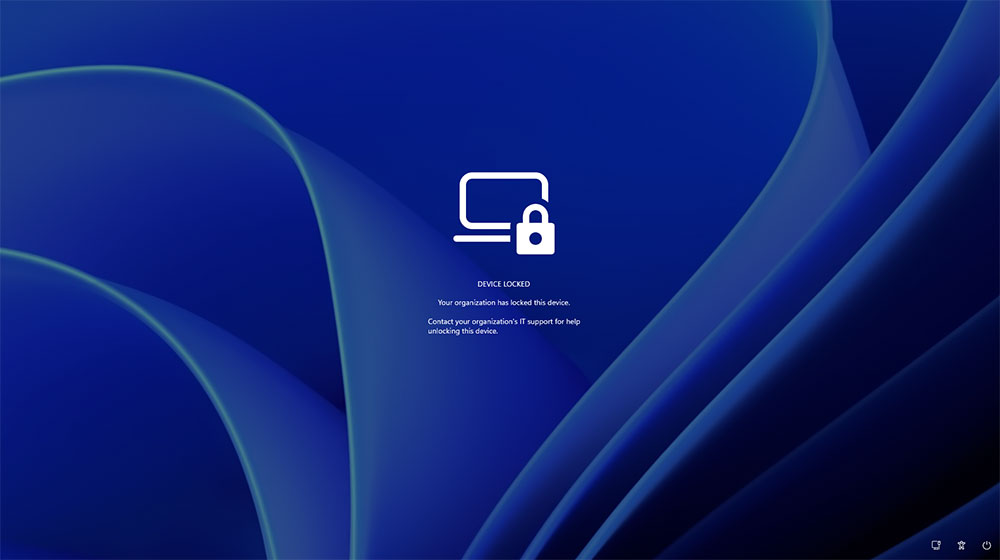
Microsoft is testing a Windows 11 “Remote Lock” feature that lets IT staff fully lock down devices without deleting data.
When IT personnel trigger the remote lock command, Windows immediately signs out all active sessions, hides sign-in options, and displays “Your organization has locked this device” on the screen along with IT support contact information (administrators can customize the prompt message via LockReason and RecoveryHint). This line of defense is quite strict: neither the original Windows password, PIN, web sign-in, nor even a local administrator account can unlock it; the only unlock key is in the hands of the IT department. In addition, even if the person who finds the computer force-restarts it or disconnects the network, the locked state remains in effect; at the same time, the device remains managed by Intune, and BitLocker encryption stays on, ensuring data security.
It is worth noting that remote lock only targets a single device and does not affect the employee’s Microsoft account. This means the employee can still use their credentials normally on other devices; if the account itself is suspected of being compromised, the IT team still needs to separately disable the account or revoke connected sessions in Microsoft Entra ID.
Interestingly, this feature was not previously on Microsoft’s roadmap. As early as March 2025, at an Intune event, an administrator asked whether Windows would support remote lock. Microsoft representative Joe Lurie said outright that “there are currently no plans,” and another employee revealed that the request had very low priority on the development list. No one expected that about 20 months later, Microsoft would ultimately respond to enterprise demand. Although Intune previously had a built-in one-click “remote lock” button, it only supported Android, iOS, macOS, and even Apple VisionOS, despite its mediocre sales performance, while omitting Microsoft’s own flagship Windows. Now the Windows version finally completes the puzzle, and it works without requiring the device to have a password set in advance (currently only supported on Pro, Enterprise, and Education editions joined to Entra or MDM).
Because it is still in early preview, IT staff cannot yet lock devices with a single click in the backend. Instead, they must create a custom OMA-URI profile in the Intune admin center: trigger locking by setting LockState to 1 and assigning it to a specific device group; to unlock, create another profile with LockState set to 0 and reassign the group. Although the workflow is somewhat clunky, admins can use the read-only status node to see in real time whether a device is unlocked (0), locked (1), pending (2), or in error (3).
Microsoft also emphasized that remote lock cannot replace BitLocker. First, the lock command only takes effect when the device is connected to the internet and synced with Intune; second, this mechanism does not block the Windows Recovery Environment or Safe Mode, nor can it prevent someone from booting directly from USB to reinstall the system, or even removing the hard drive to read it. Although BitLocker earlier this year sparked controversy during a Secure Boot certificate update when some computers got stuck in a recovery loop, it remains an indispensable last line of defense against physical data leakage.
Although the operational barrier remains high for now, for enterprise IT, having an additional buffer option to “lock it down first and not rush to destroy data” is undoubtedly a major step toward significantly reducing operational anxiety.
Source: KOCPC Chinese