


When using a Mac, many people are probably like me and use different apps in different scenarios. For example, when I’m working, I’ll open Chrome, work chat groups, and AI tools; after getting off work to relax, if I just want to unwind, I’ll only keep Chrome and the LINE chat app open; when doing AI development, besides still having Chrome open, I’ll also open ChatGPT, Claude, and Antigratify. Having to open and close windows like this every time I switch is honestly quite tedious. If you feel the same way, a very useful window layout management tool, “Cue for Mac,” is currently running a limited-time offer to get the Pro version for free.
This tool helps you remember the tools opened and window positions for different work scenarios. Later, you can switch quickly with just a keyboard shortcut, no need to manually open and close everything one by one. The Pro version has no limit on the number of saved scenarios—you can save as many as you want—and it also supports multi-monitor mode.
Cue for Mac introduction and how to get a Pro serial number free for a limited time
Cue is a window layout management tool built specifically for macOS. Its main function is to remember the position and size of every app window, as well as which display each one is on, and save the entire workspace as a “Scene.” Afterward, whether windows have been moved, apps have been closed, or the computer has even been restarted, you can quickly restore all windows to their original positions just by switching to a previously saved Scene.
This is especially useful for anyone using a Mac Studio, Mac mini, or MacBook with multiple external displays. For example, during your daily work you might put your browser on the main display, messaging apps on a vertical display, and Figma or video editing software on another display; every time you reconnect displays or start up your computer, you may need to rearrange everything again. Cue can save these configurations directly, so next time you just press a keyboard shortcut and restore the entire desktop setup at once.
The controls are also quite simple. Cue supports ⌥⌘1 to ⌥⌘9 to quickly switch Scenes, while ⌥⌘S lets you directly save the current window layout. On a MacBook, you can also move the mouse to the notch to open the Cue panel; on a Mac mini, Mac Studio, or a Mac without a notch, you can open it from the menu bar.
Cue doesn’t just remember window coordinates; it also identifies the model and serial number of external displays. Even if macOS changes the display numbering after a reboot or after unplugging and replugging a monitor, Cue will still try to put the window back on the original display. If the app used when saving a Scene isn’t open, Cue can also launch the app automatically and then place the window in the specified position.
Key Features
- A window configuration management tool built specifically for macOS.
- Save the entire window layout as a Scene
- Remember the App window’s position, size, and which screen it’s on.
- Supports multi-monitor work environments
- Can remember the front-to-back stacking order of windows.
- When the app isn’t open yet, it can automatically launch and restore its position.
- Identify external monitors by monitor model and serial number.
- Supports the MacBook notch display and macOS menu bar
- Supports Google, iCloud, and Outlook calendar meeting automation
- Can integrate with Raycast, Alfred, and Stream Deck.
Recently, the developer of Cue for Mac released a limited-time offer for 電腦王阿達 readers to get a Pro edition license key (regularly $8, usable on three Macs), available only until October 30. Readers who need it should be sure to grab it quickly.
Get a Cue for Mac Professional Edition serial number
After clicking the link above, click the URL on the screen:

Next, you’ll be taken to the payment screen, where you’ll see the amount is 0. Enter your email and name, then click Pay at the bottom:
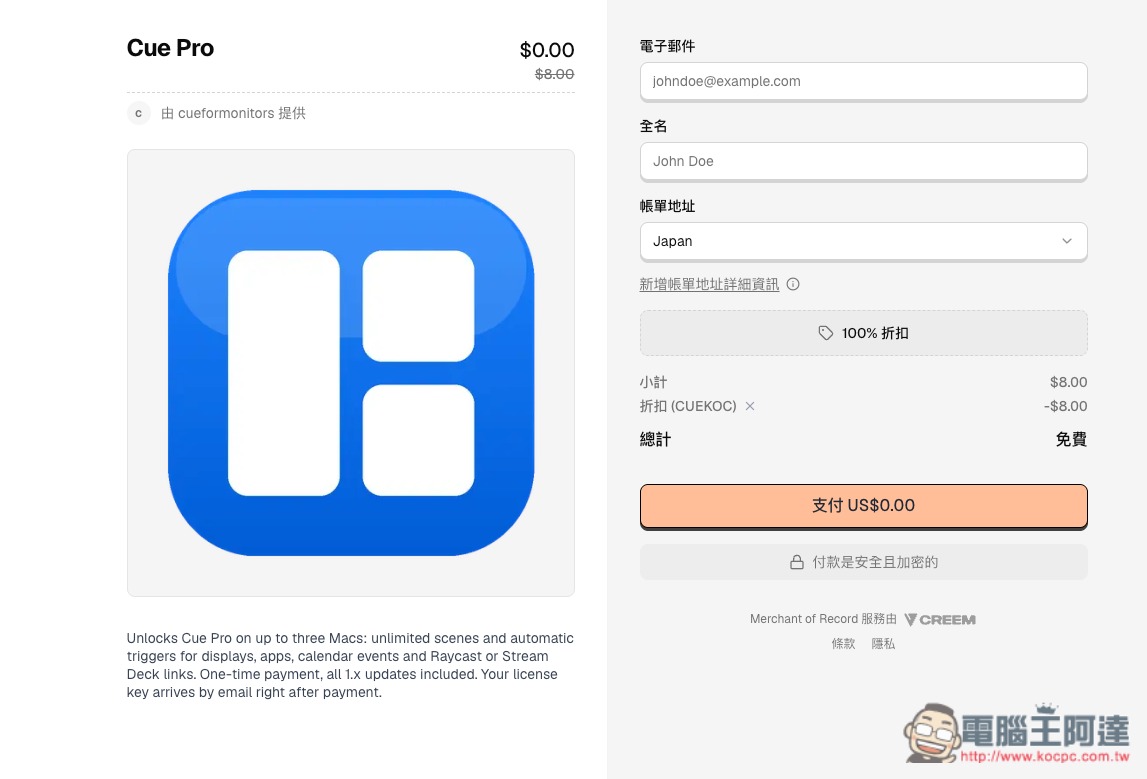
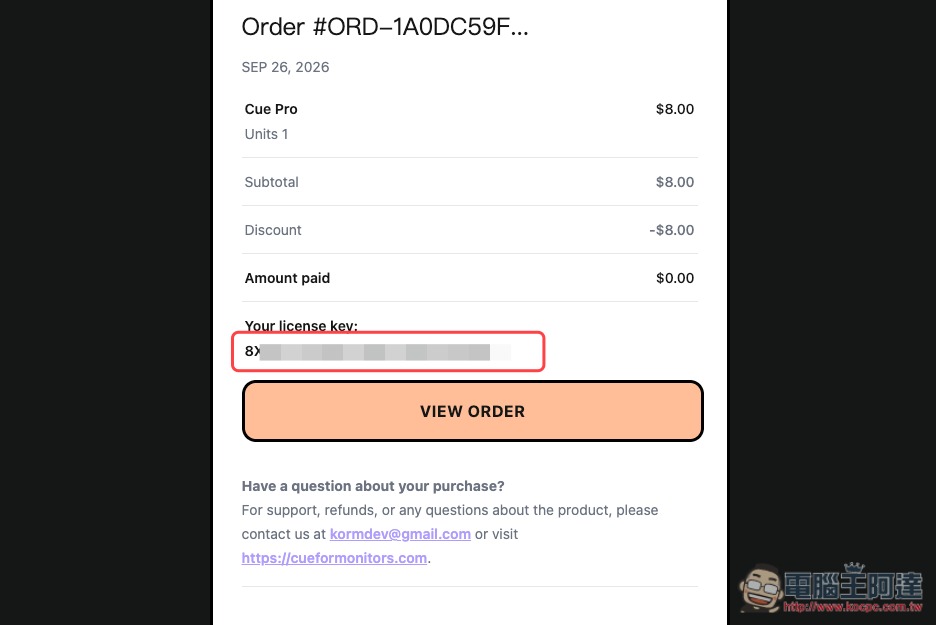
The Cue for Mac installer will download automatically, and the E-mail address you just entered will also receive a receipt and the Pro activation serial number:
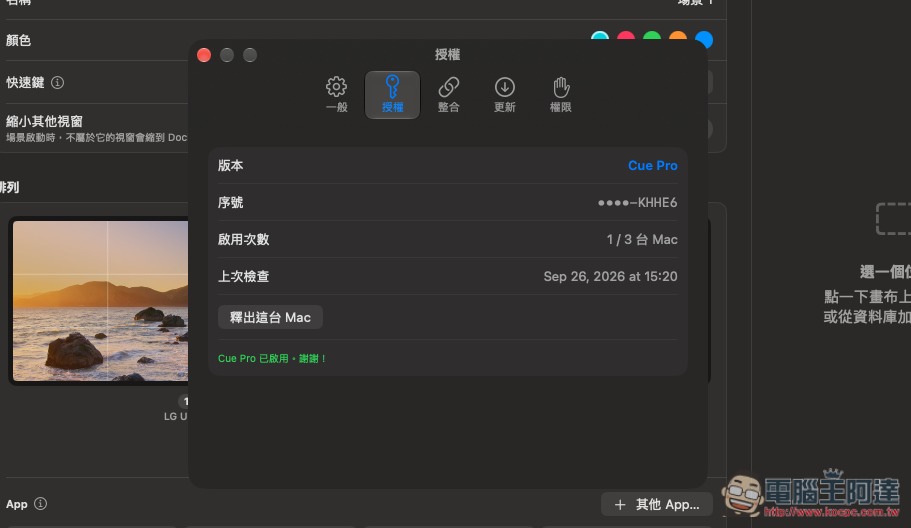
After installation, open it, go to the Licensing menu in Settings, enter the serial number you just obtained in “License Serial Number,” and click Activate at the bottom:
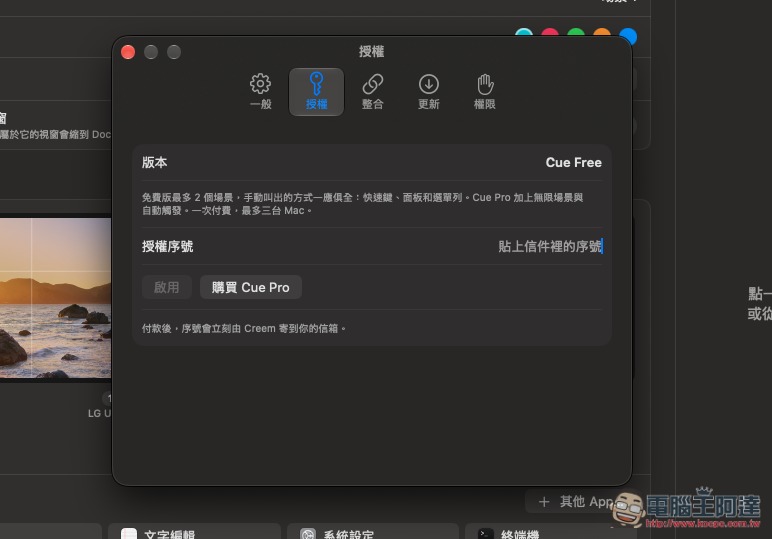
It will become the Professional version. A Professional version serial number can be activated up to 3 times:
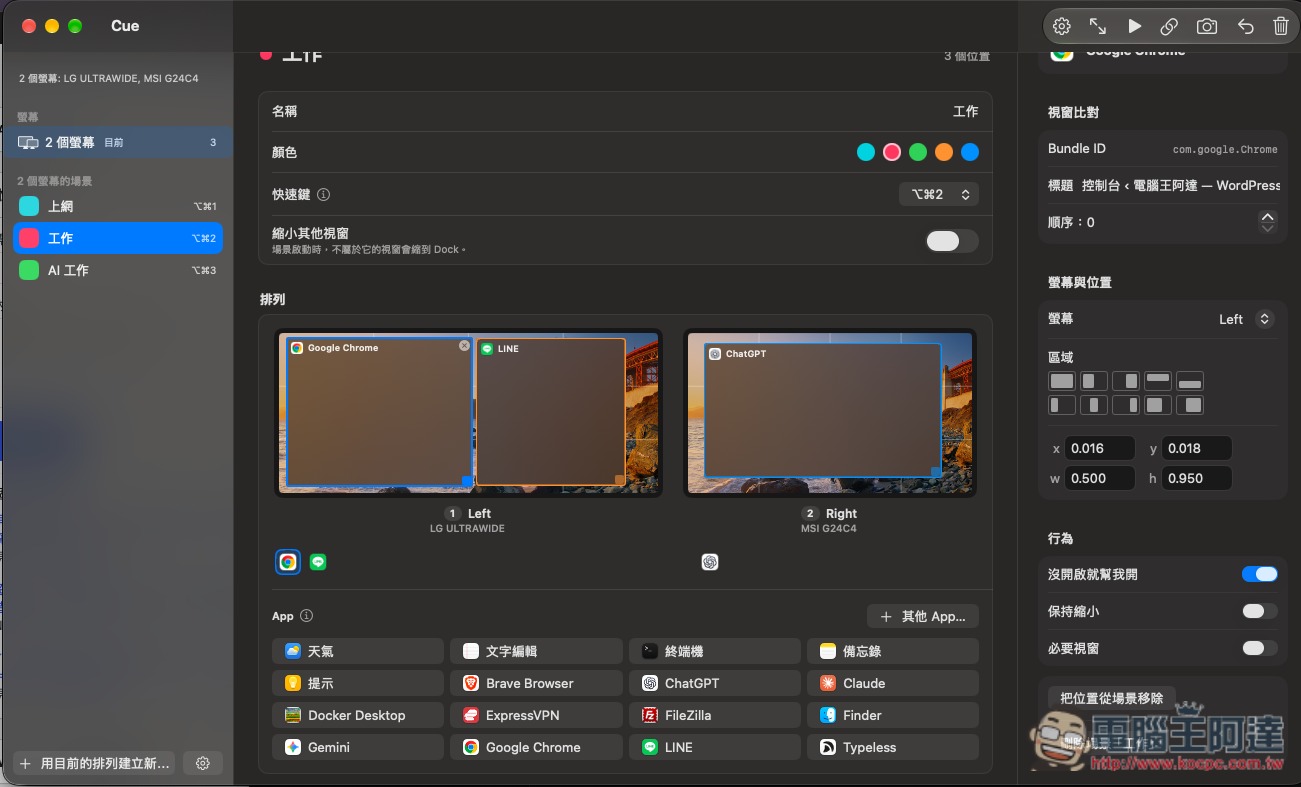
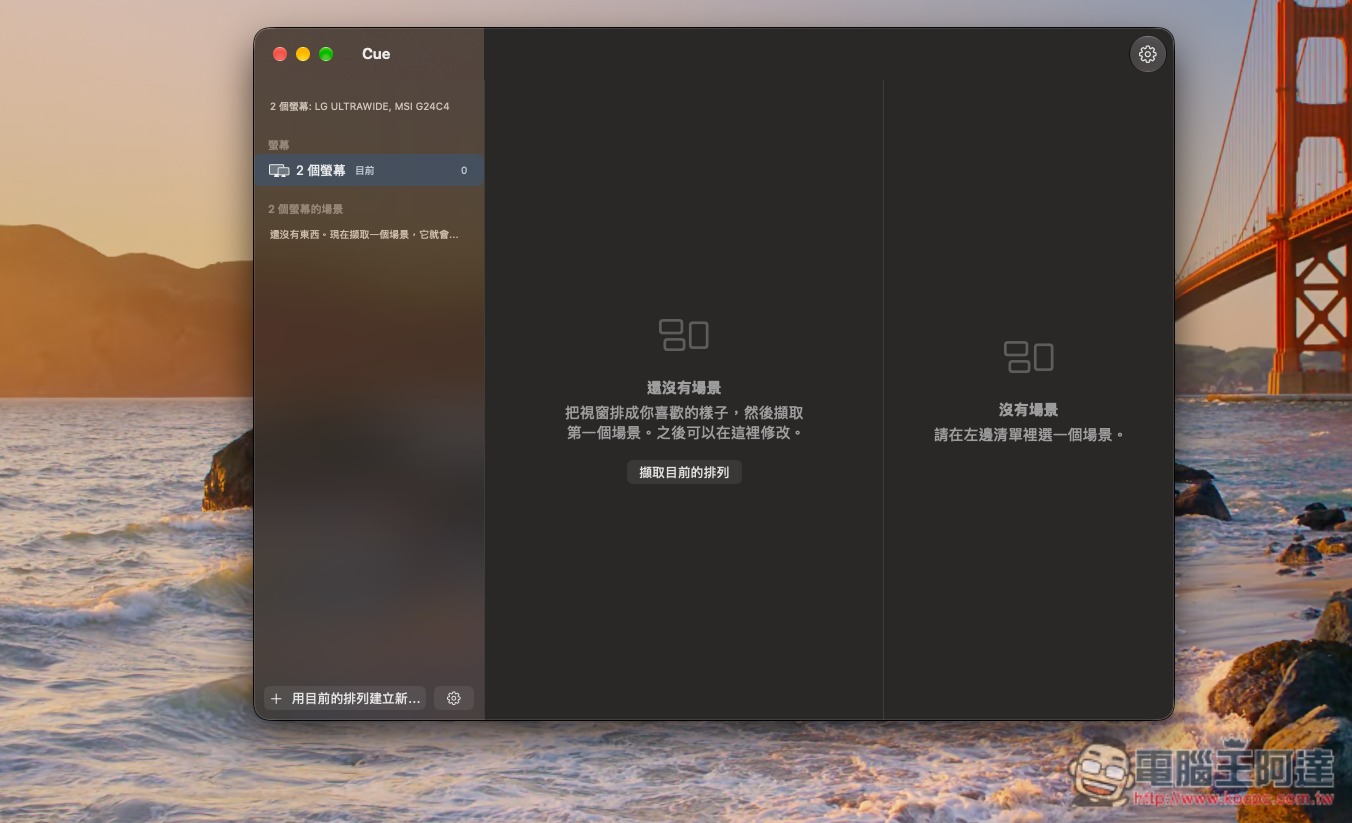
Using it is also very simple: just open the tools you use in your workflow, arrange the window positions, and then press the shortcut key or select “Capture Current Arrangement” in Cue for Mac:
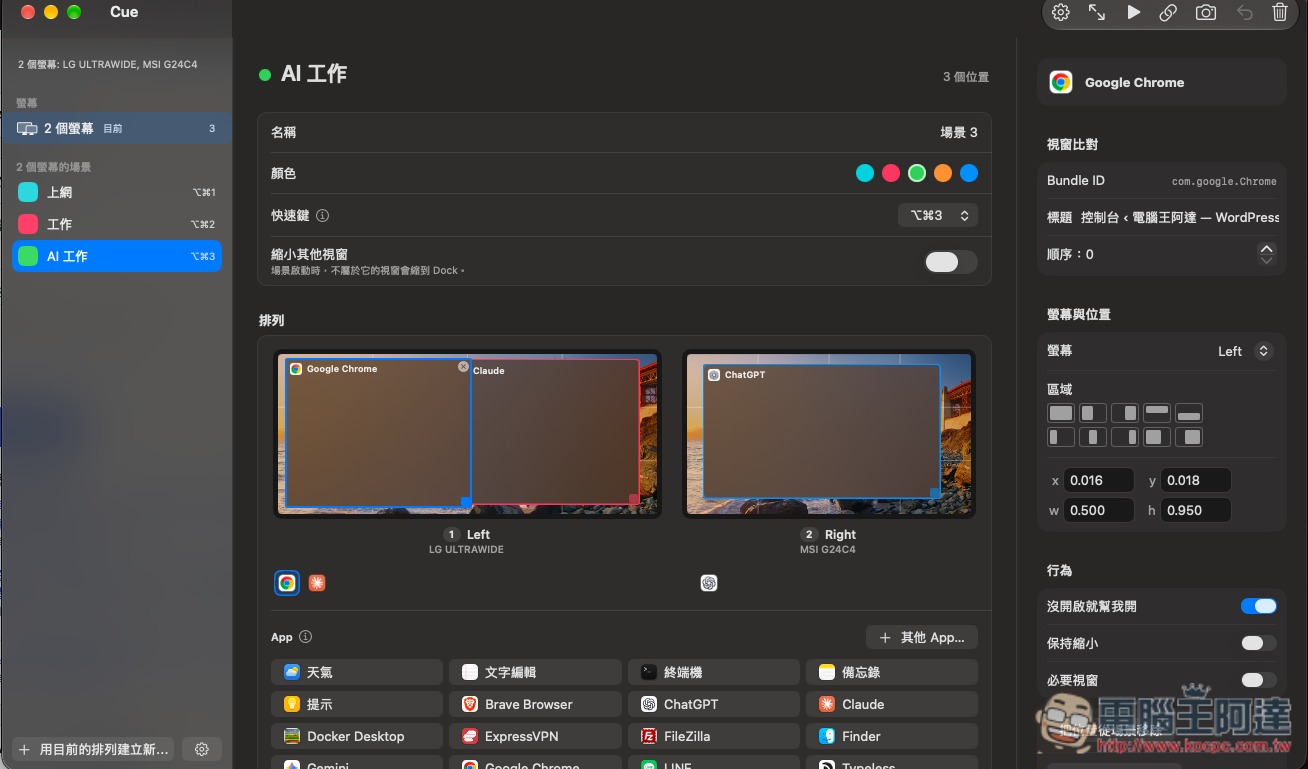
It will then record each of your current displays, open apps, and window positions into a scene. You can name the scene, set a color, keyboard shortcut, etc.:
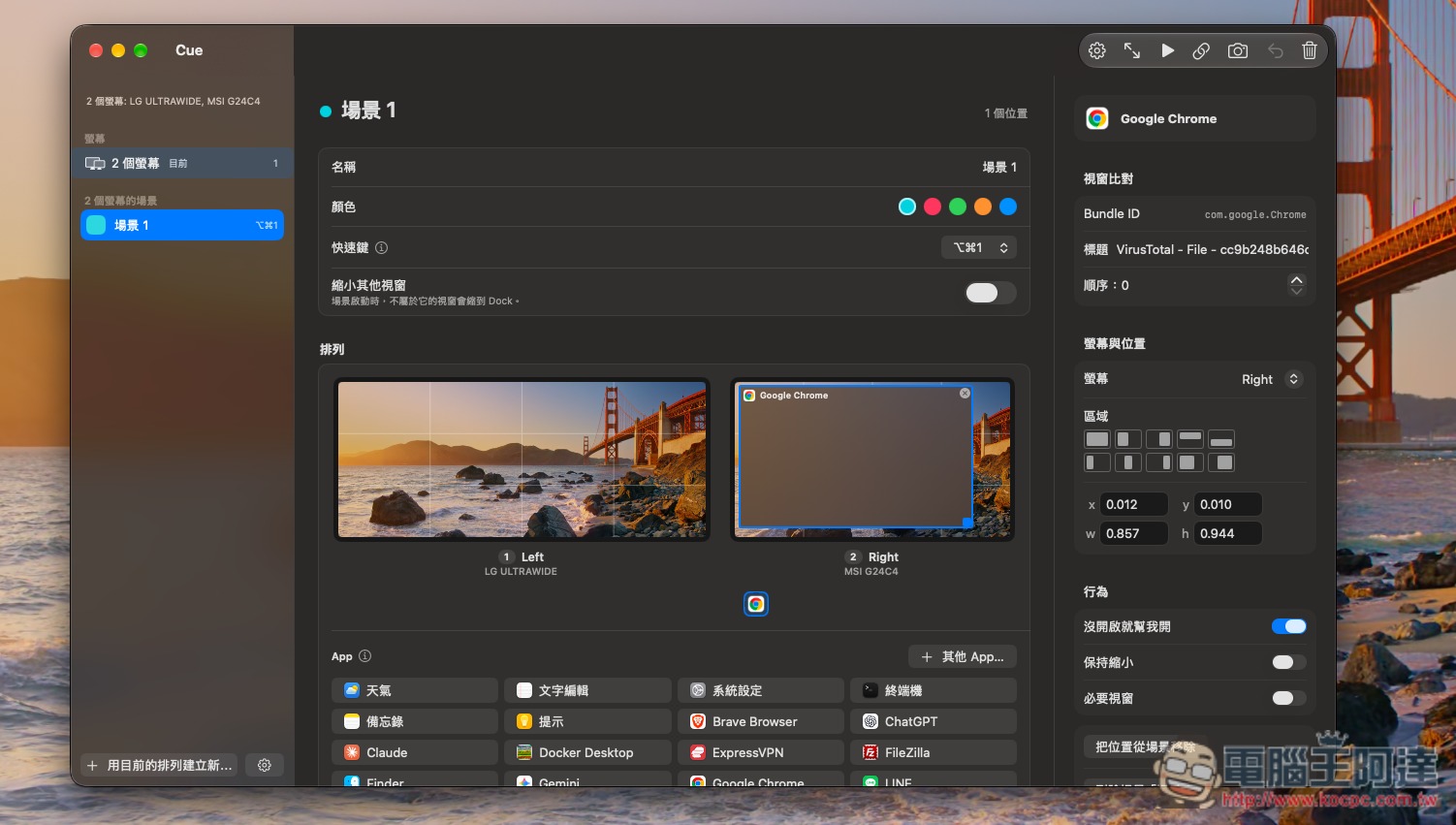
You can also directly arrange the position of the displays in here; the area on the right makes it easy for you to quickly configure them:
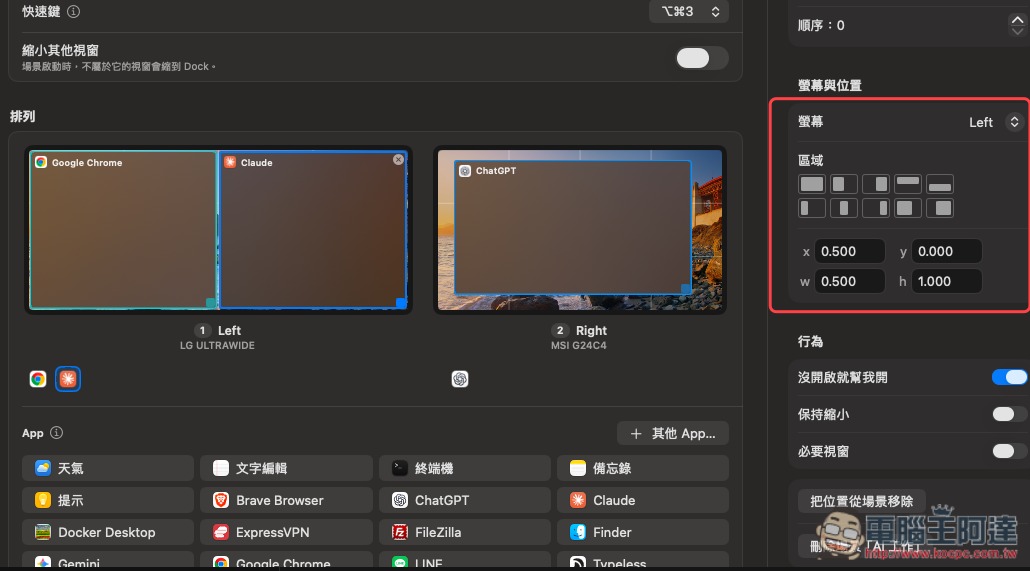
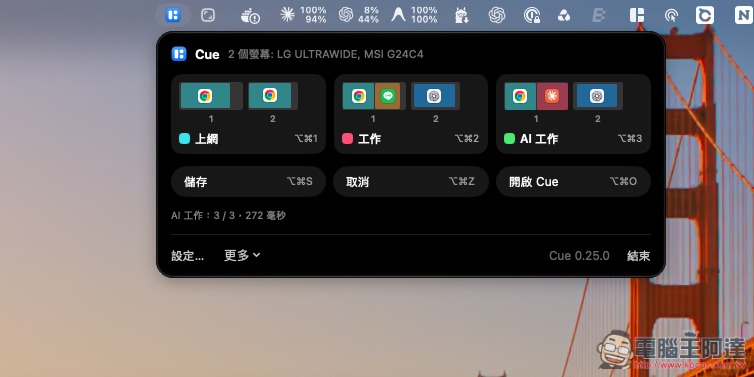
Like the figure below, I’ve set up three scenarios—Browsing, Work, and AI Work—and in the future I’ll only need to press a designated shortcut key to switch between them:
If you don’t find the shortcut convenient, you can also open the widget icon directly to switch:
Source: KOCPC Chinese