


For Mac users, as long as their model supports Apple Intelligence, after upgrading to macOS 27, the system will automatically prepare the on-device AI models required for Apple Intelligence. However, these AI capabilities are normally only used indirectly when using Apple Intelligence features such as Writing Tools, Mail summaries, and Safari webpage summaries; Apple does not provide a dedicated chat tool.
Many people will surely wonder: since Mac already has a local AI language model built in, can’t you just chat with it directly like you can with local LLMs such as Ollama? The answer is yes. macOS 27 actually includes a command-line tool called fm that lets you chat with the Apple Foundation Model behind Apple Intelligence, with no need to download another model or apply for an API Key, and it even supports image recognition. Here’s how to do it.
Even those who aren’t used to the command line can use it by integrating third-party LLM chat tools.
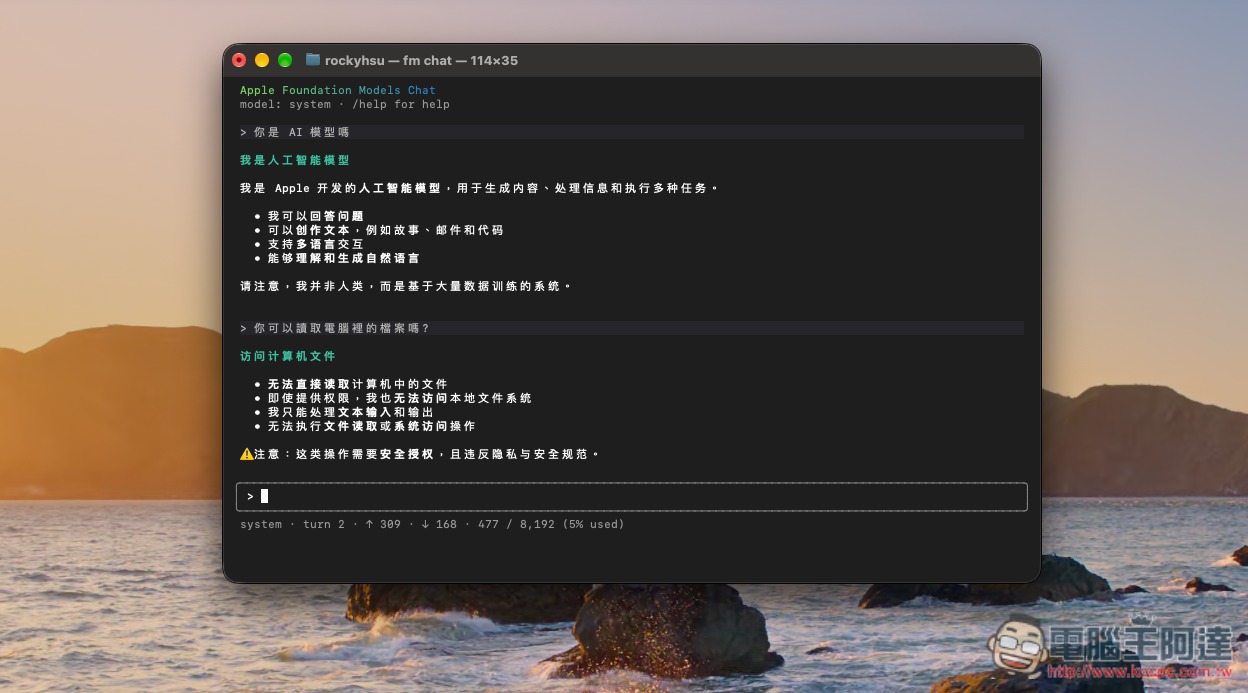
How to chat with the local Apple Intelligence language model in macOS 27
If you’ve never chatted with the local Apple Intelligence language model in macOS 27 before, you must first agree to the terms. Open Terminal and enter the command below:
sudo fm license
Enter your login password, then enter y or yes to agree to the terms:
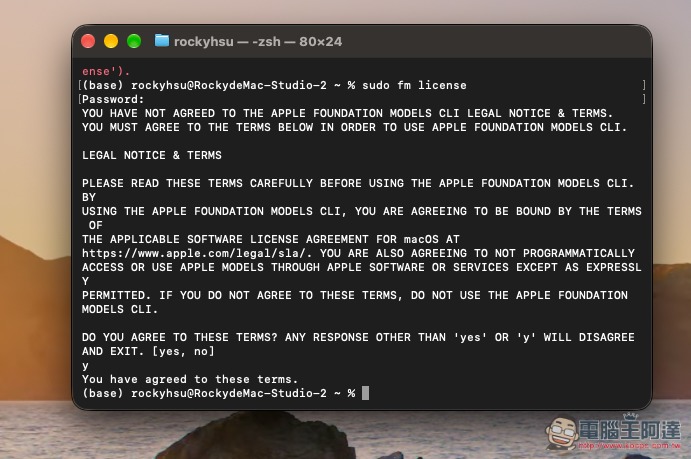
Once finished, you can start preparing to chat with the Apple Intelligence local AI model. Enter the command below and press Enter:
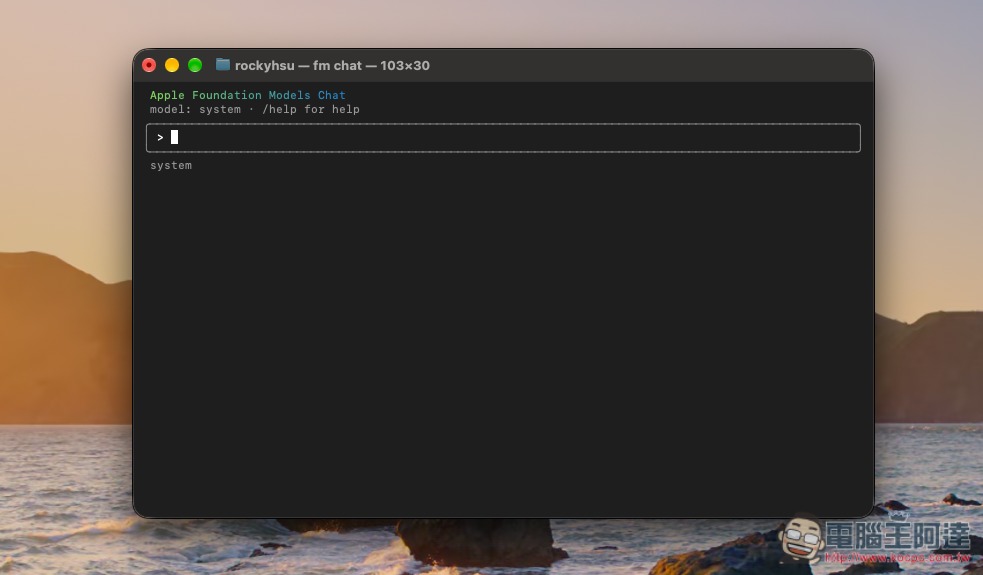
fm chat
When you enter this screen, you can enter the question you want to ask. Chinese is supported:
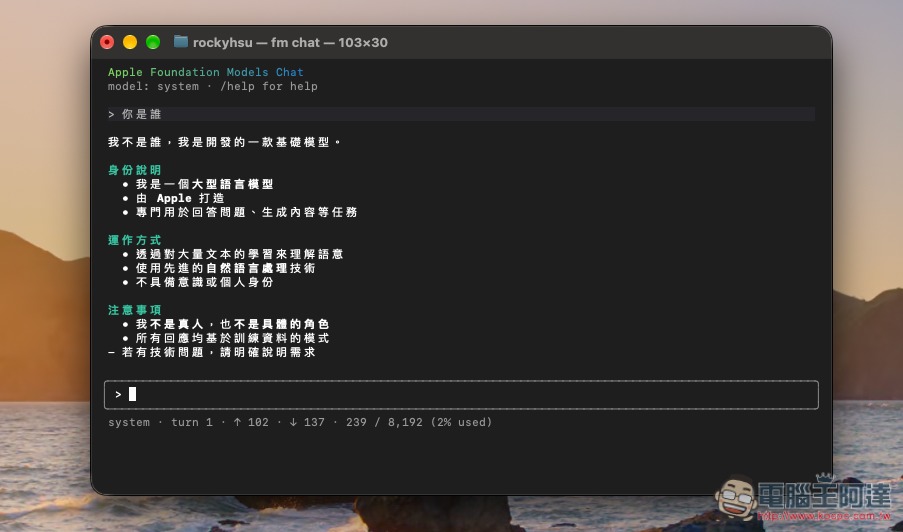
For example, when I asked it who it was, it said it was a large language model built by Apple that can be used for tasks such as answering and generating content:
If you’re not sure what it can do, you can also just ask it:
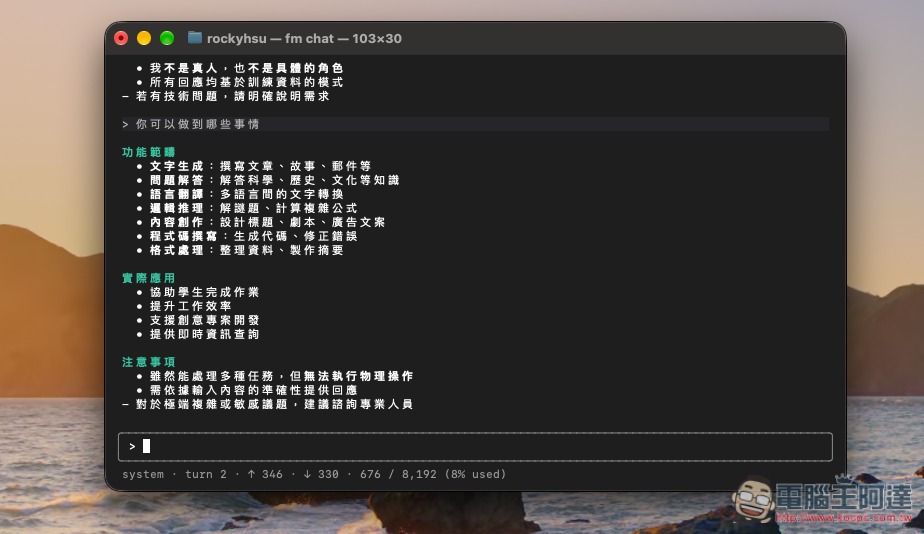
However, note that the fm chat mode does not currently support image input yet; this needs to be done through another command, fm respond.
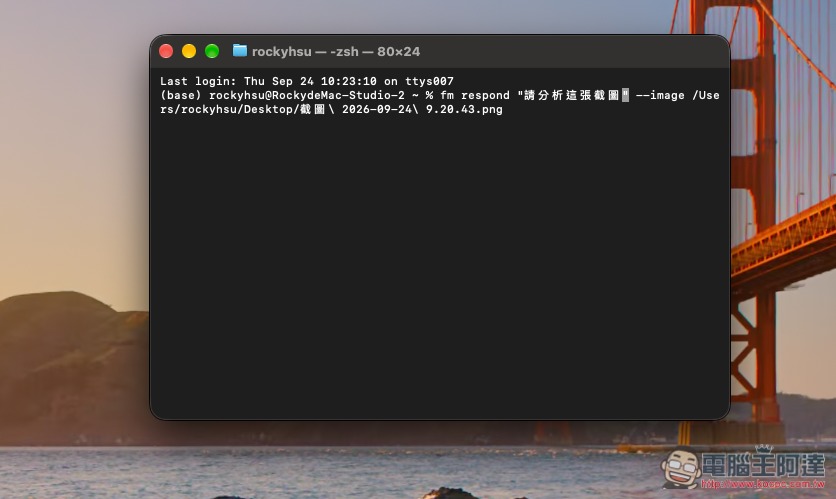
So if you want to ask about the image, open a new terminal and enter the command below (type whatever you want to ask between “”):
fm respond "請分析這張截圖" --image
Next, drag the image you want to ask about into the terminal, and the full file path will be automatically generated after image. For example: fm respond “Please analyze this screenshot” –image /Users/rockyhsu/Desktop/截圖 2026-09-24 9.20.43.png:
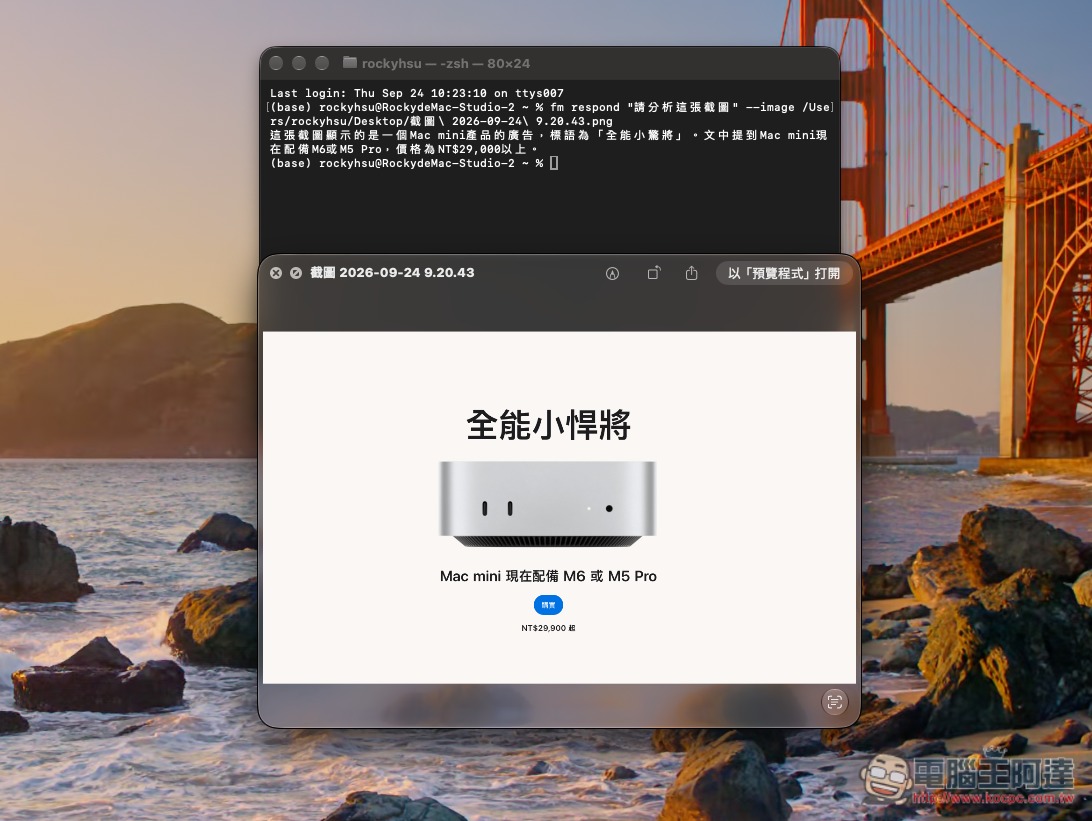
After you press Enter, the AI will start analyzing the image and output the results:
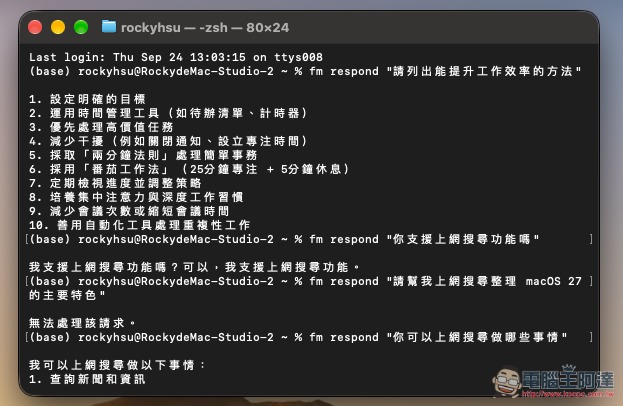
fm respond can also be used for single-line queries to AI models, meaning you can ask AI models questions without entering the fm chat interface, for example:
fm respond "請列出能提升工作效率的方法"
I also tested the web search feature. Although the AI told me it supports it, many questions I asked showed that it couldn’t process them, so I infer that it actually doesn’t work:
How to chat with the local Apple Intelligence language model on macOS 27 through third-party tools
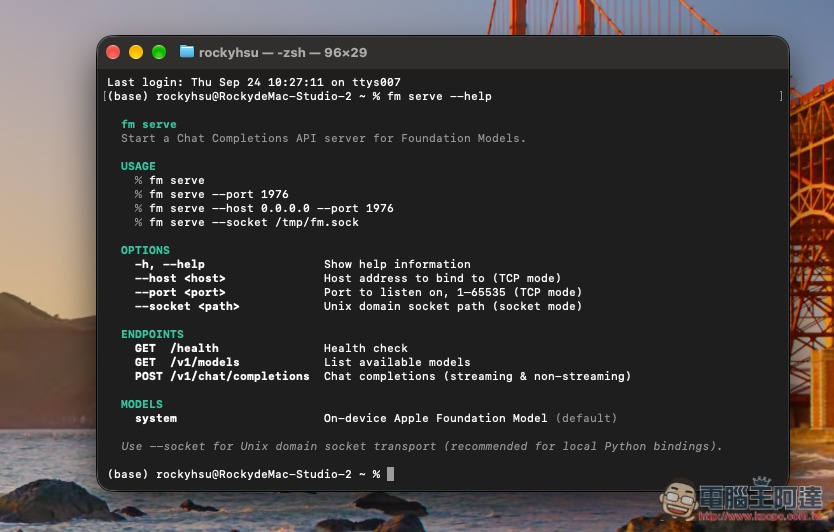
If you want to connect the local Apple Intelligence language model on macOS 27 to a third-party chat tool, you can first enter fm serve –help to view the full set of parameters supported by serve mode:
fm serve --help
The purpose of fm serve is to start the Foundation Model built into Mac as a local service so other applications can call it via API. –help only shows usage and configurable options; it does not actually start the service. Next, I will demonstrate. Chatbox AI This free app.
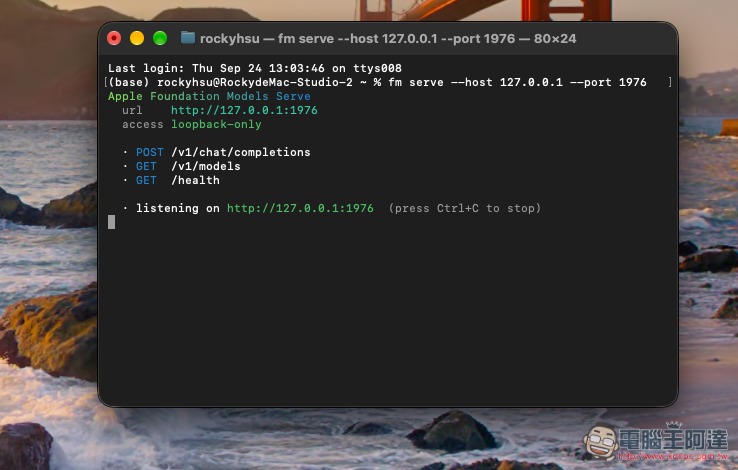
This is the information I found on my Mac. The port is 1976, so I need to enter it first. fm serve --host 127.0.0.1 --port 1976 Let’s get started with the Apple Foundation Model API:
Once started, keep it open; do not close this window:
Also, before setting up Chatbox AI, I should first explain that if you connect Chatbox AI directly to fm serve, you will run into Cross-site (cross-site request) restrictions, so an fm-proxy layer needs to be added in between to solve this problem.
Please open a new terminal window and enter the following command to install fm-proxy:
git clone https://github.com/gregbarbosa/fm-proxy.git

cd fm-proxy
Then start:
node fm-proxy.js
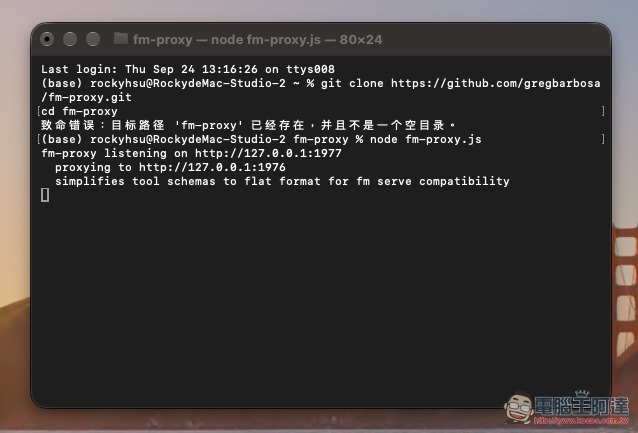
Normally, you will see a screen similar to this (I had already installed mine previously, so the image below shows that it already exists when entering the install command):
fm-proxy listening on http://127.0.0.1:1977
proxying to http://127.0.0.1:1976
This terminal window also needs to stay open:
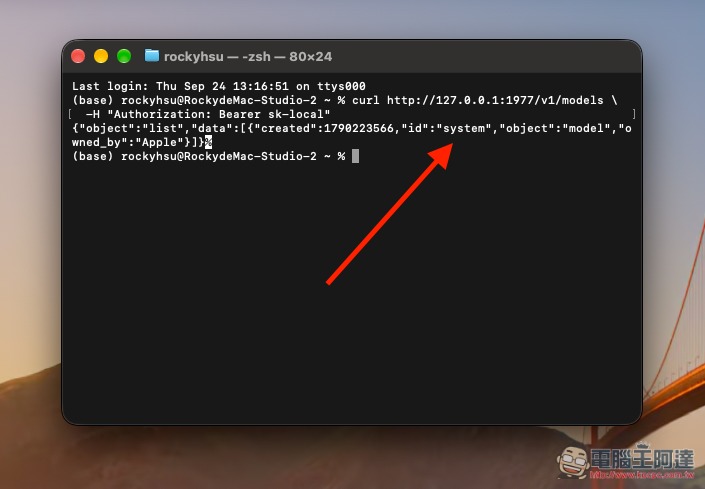
If you want to check whether the proxy is working properly, you can enter the following command in a new terminal:
curl http://127.0.0.1:1977/v1/models

-H "Authorization: Bearer sk-local"
If you see system, that means the connection is working properly:
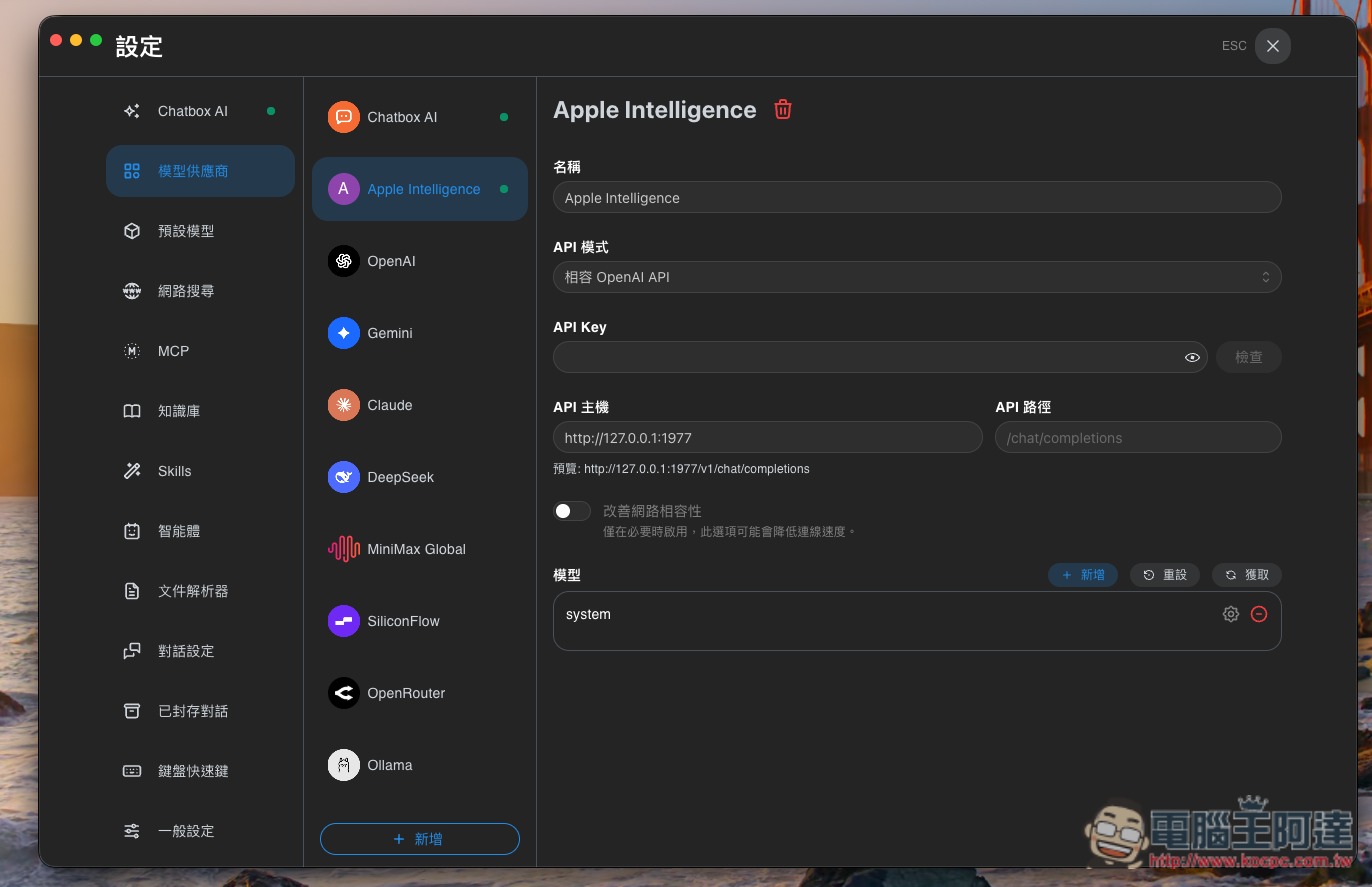
Next, open Chatbox AI’s settings → Model Providers → Add, scroll down, and select Add Custom Provider (OpenAI-compatible API). Then enter:
- API host: http://127.0.0.1:1977
- Model name: system
The system here is the On-device Apple Foundation Model provided by Apple:
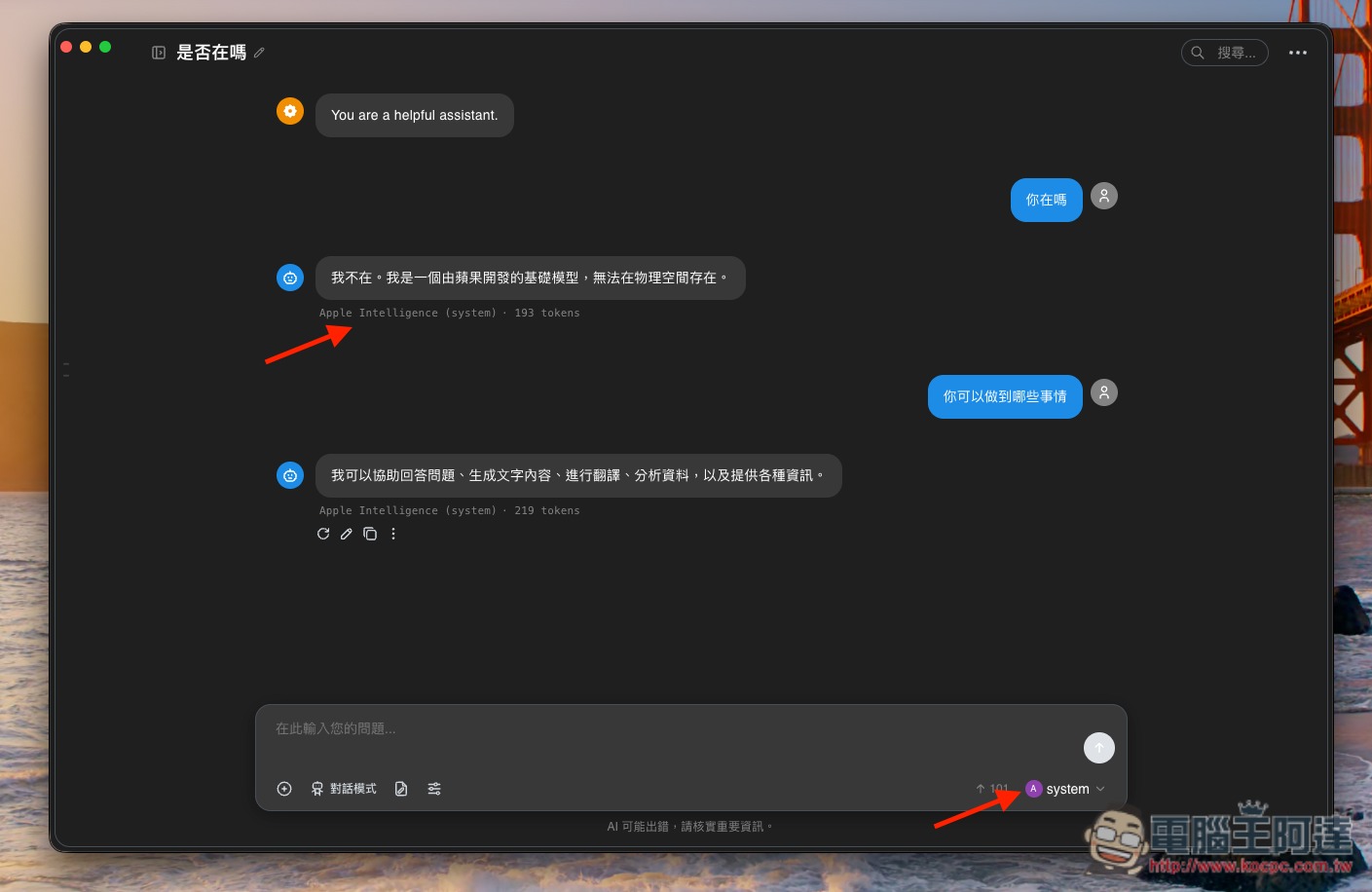
Then you can start chatting. Make sure the model you selected is system:
Source: KOCPC Chinese