


Although the new version of the Work Manager in Windows 11 has a very good texture, I believe that many people are still not used to the interface design even after using it several times. If you feel like this and miss the old version of the Work Manager, the good news is that in fact, Windows 11 still has the old version of the Work Manager, but it is hidden by Microsoft. This article will teach you how to open it.
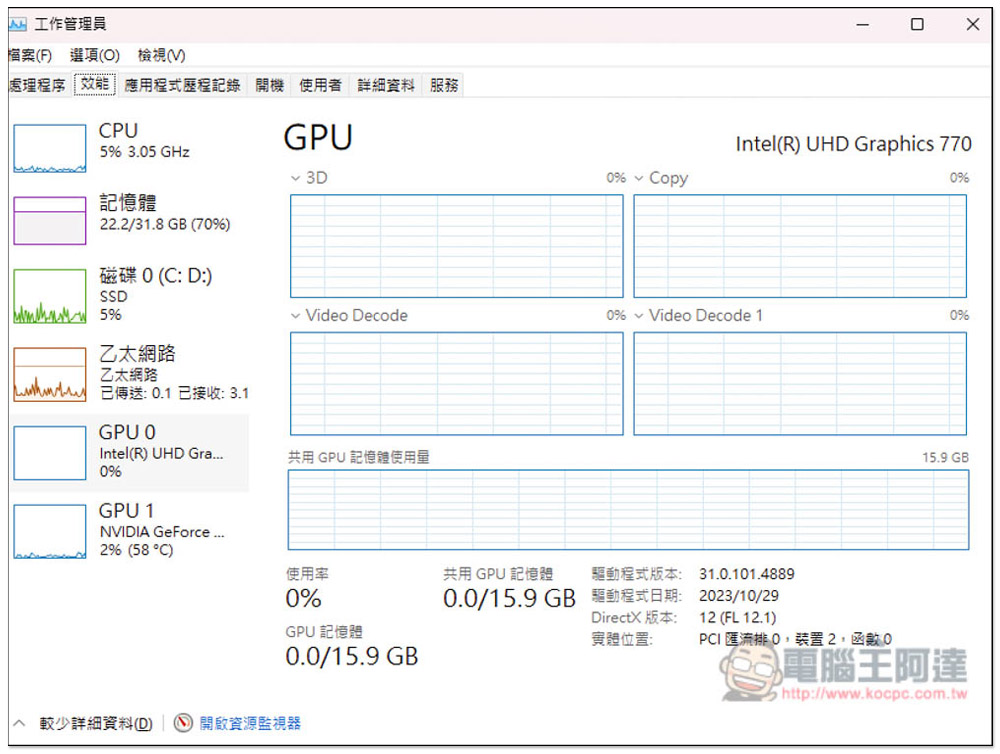
Not used to the new Windows 11 work administrator? Teach you how to open hidden old versions
Windows 11 operating system uses the Ctrl + Shift + Esc or Ctrl + Alt +Detele shortcut keys to open the task manager, which will be the new interface. To use the old interface of the task administrator, you need to open it through File Explorer. You only need to enter a path:
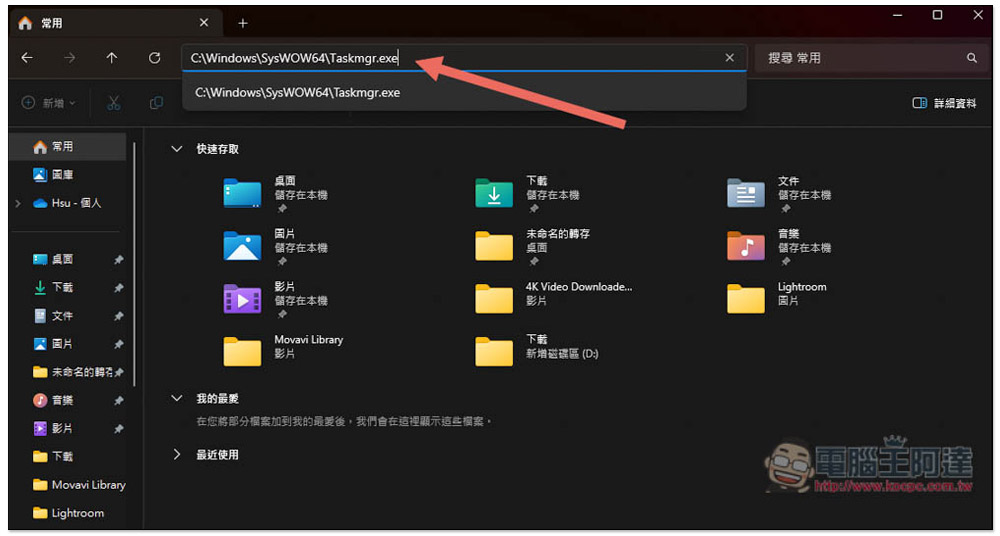
C:\Windows\SysWOW64\Taskmgr.exe
As shown in the figure below, after opening the file manager, click the path field above, paste the path above and press Enter to confirm:
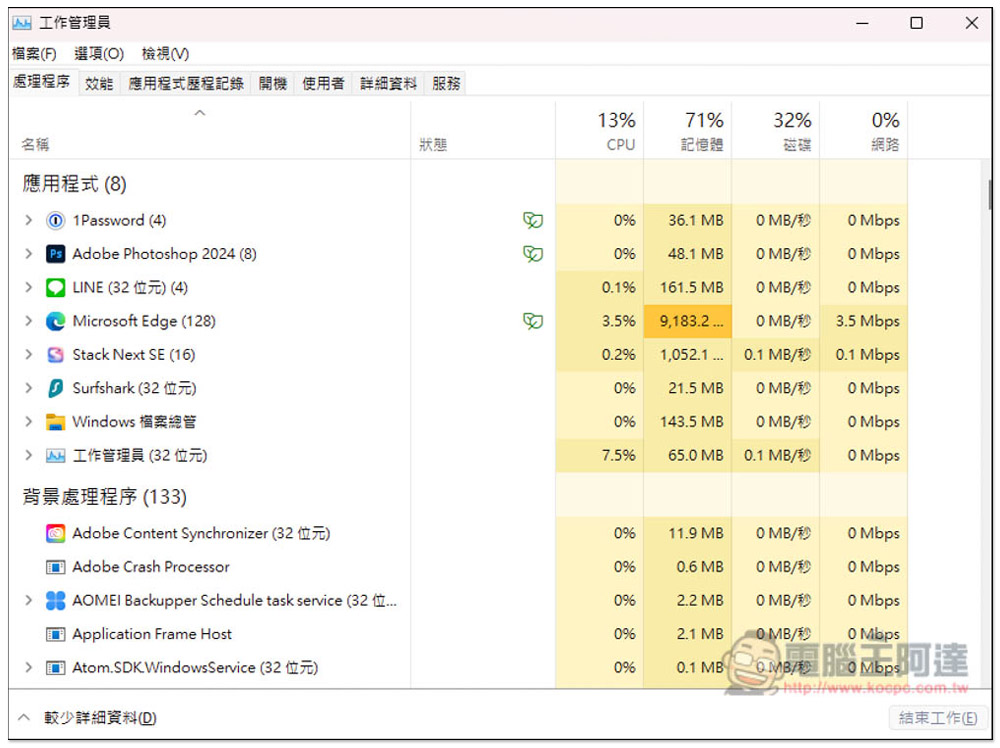
The old version of the job manager will then be enabled:
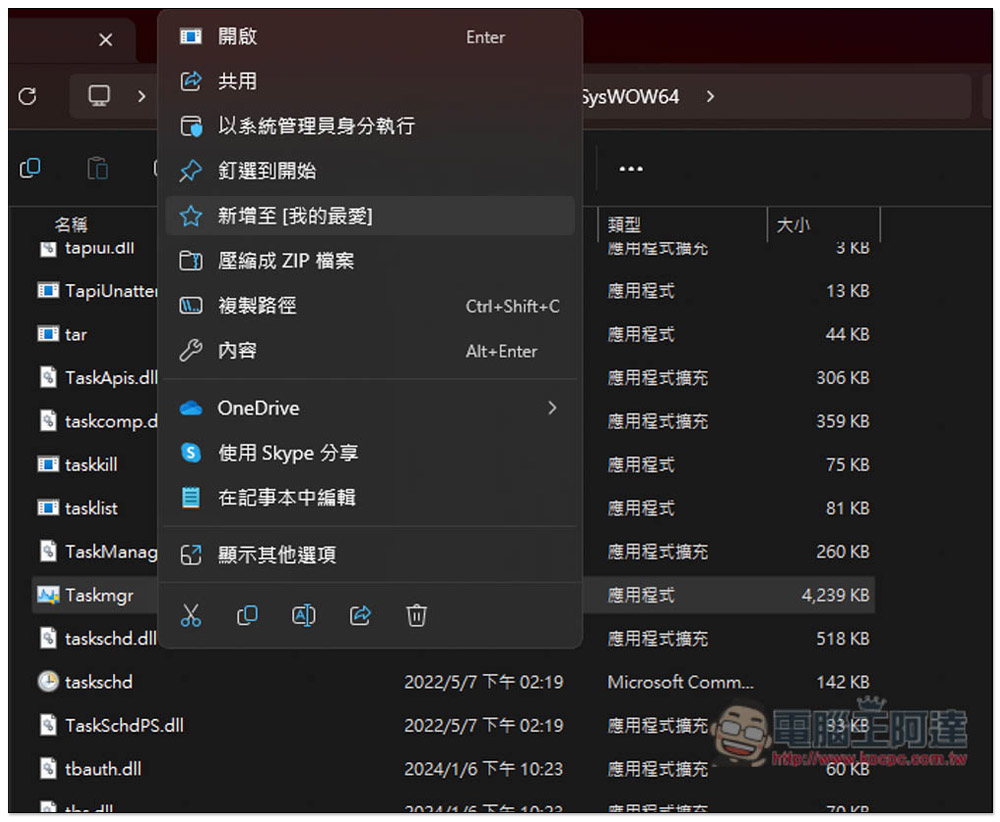
If you find it troublesome to enter the path every time, you can also add Taskmgr.exe to your favorites or create a shortcut on the desktop:
However, one thing to note is that you cannot open the new version and the old version of the work administrator at the same time, which means that if you have already opened the new version of the work administrator, entering this path will not have any effect. Similarly, if you have already opened the old version, then using the shortcut keys of the work administrator will not have any effect.
The biggest difference between the old version and the new version of the work administrator is that in addition to the theme color of the new version being able to follow the system settings (for example: if I set a dark color, the new version will show a dark color), the function menu has also been moved to the left and becomes a vertical display, and there are more functions that can be reduced and expanded:
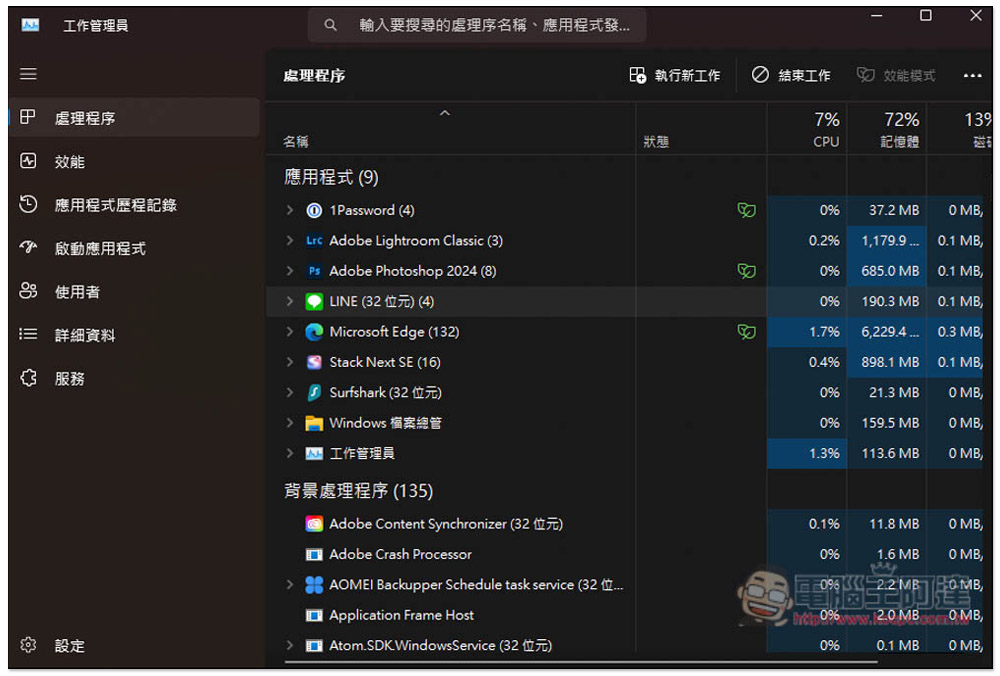
It’s just that many people probably feel the same as me. This expandable and zoom-in design is unnecessary. When zooming out, you often have to guess what function the icon is.
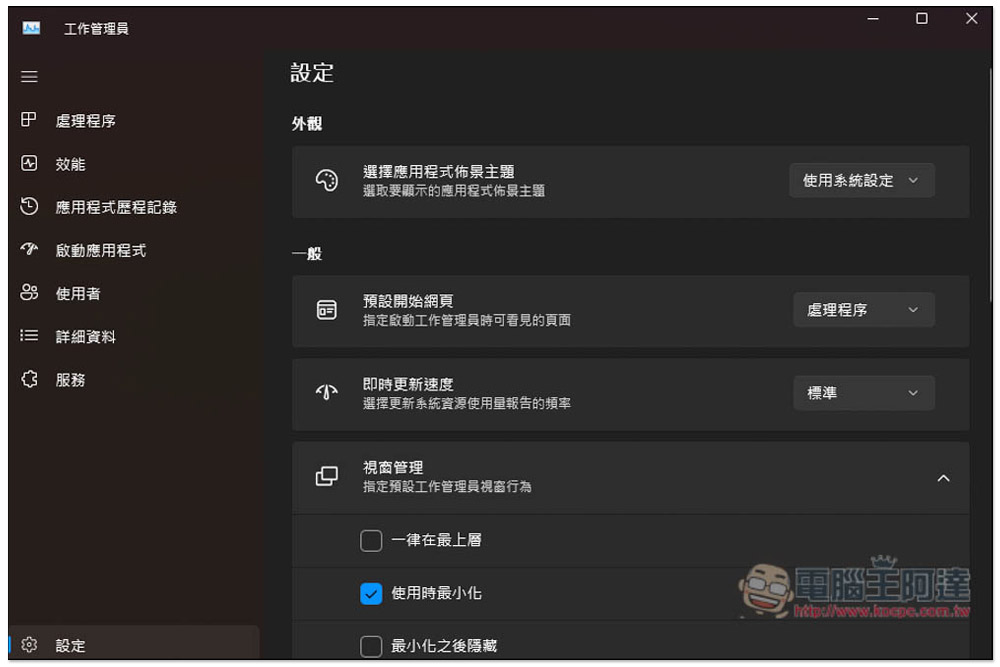
I think the new version of the settings page is good. You can easily adjust some personalized settings, such as: which default start page to use (such as: processing, performance, application history, etc.), control core memory options:
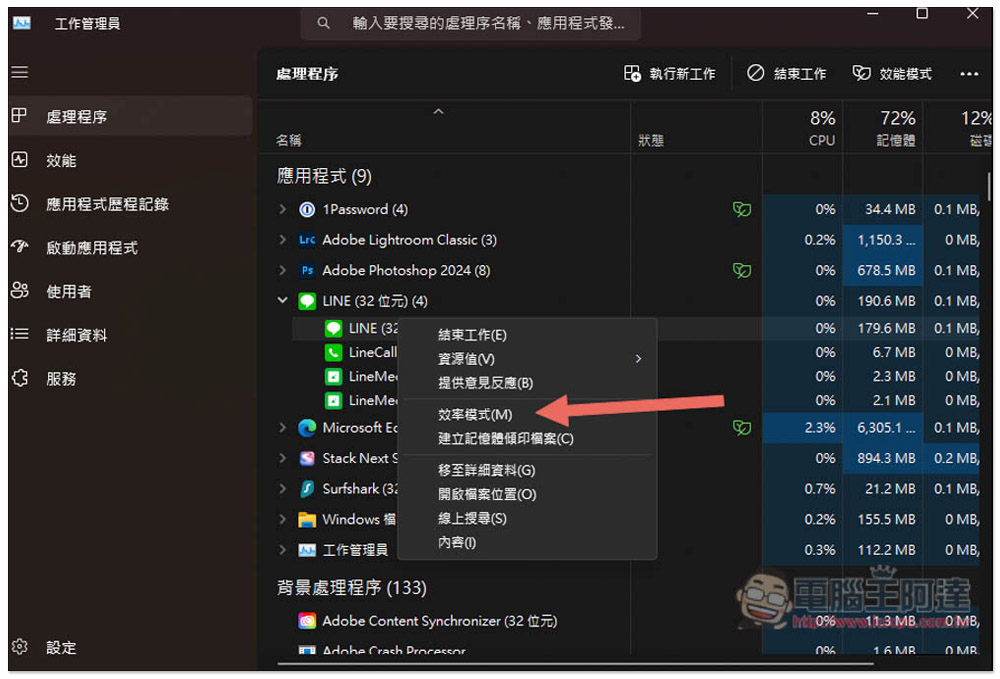
There is also an efficiency mode, which can reduce CPU usage for specific applications, thereby freeing up more performance to perform other tasks:
Although the old version of the operating interface is more intuitive and easy to use, it will definitely be removed by Microsoft. Therefore, it is recommended that Windows 11 users slowly get used to the new version of the interface. This way, if any new features or even new designs are added in the future, you can adapt and enjoy it more quickly.
Other recommended Windows 11 teaching articles:
- How to unmerge and label taskbars in Windows 11
- How to change or adjust keyboard layout, language in Windows 11?
- 6 tips to improve your Windows 11 search experience
- Does Windows 11 Notepad always open the last closed file? Teach you how to turn off this new feature
- The 3 easiest ways to change the administrator name in Windows 11
Source: KOCPC Chinese