


Although there are some free subtitle translation tools online, like the ones we introduced before, anyone who has used them knows that the translation quality from Google, Microsoft, and others is not very good, and many translations are hard to understand. If your computer’s hardware performance isn’t too bad, then you can actually just use local AI models to translate. Not only is the translation quality better, it’s also completely free. Below, I’ll show you how to do it.

1. Advance Preparation
There are many ways to translate subtitle files with a local AI language model. This article covers using LM Studio with the open-source tool gpt-subtrans.
LM Studio is a free tool that makes it easy to deploy AI language models locally. It’s already integrated with the Hugging Face database, meaning you can directly download and activate the AI language model you need right inside the software. It’s very easy to use and comes with a Traditional Chinese interface.
gpt-subtrans is a free, open-source tool that supports translation with multiple AI services, including local ones. Although the interface is English-only, the operation isn’t too difficult—I’ll walk you through it step by step below.
Both programs are available on Windows and Mac. Below, I’ll use Windows as the demonstration.
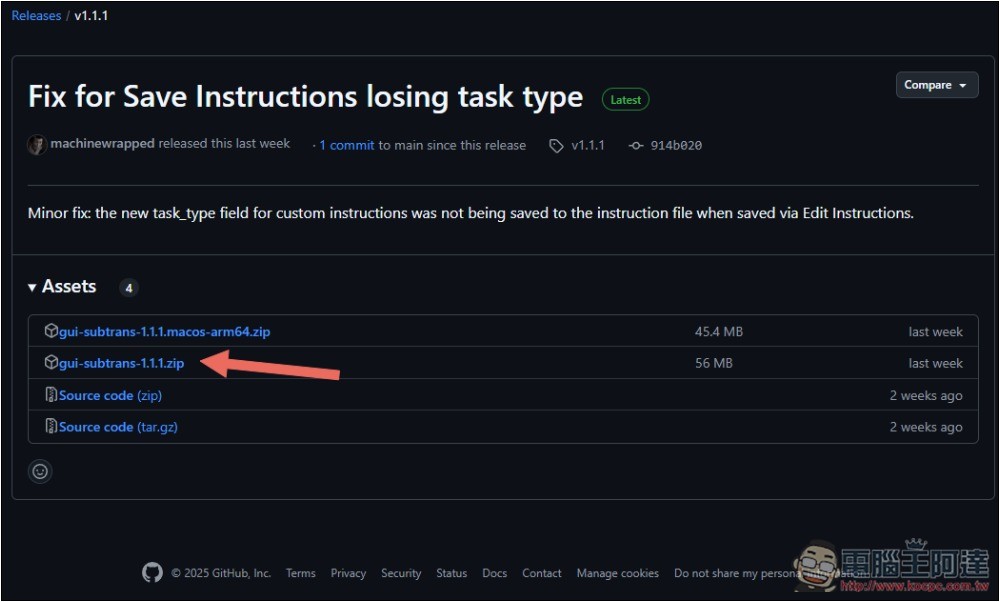
At the time of writing this article, the latest version of gpt-subtrans is v1.1.1. For Windows, download the .zip file; for Mac, it’s the one with “macos” in the name:
2. Install LM Studio, download the AI language model you want to use, and enable the API server.
I won’t elaborate on the LM Studio installation process here; just follow the on-screen steps.
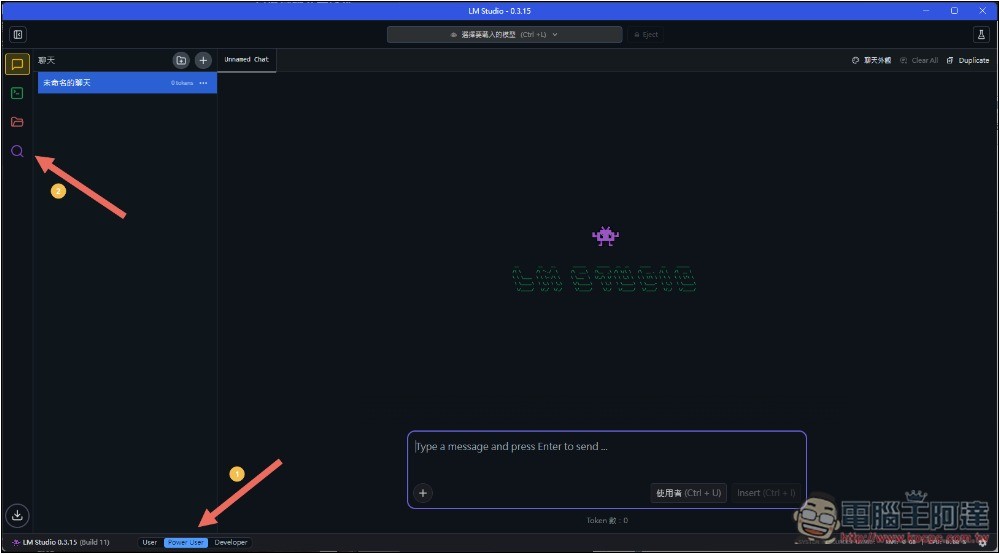
After installing and opening LM Studio, switch the bottom interface mode to “Power-User”, then click the bottom-left search icon. This is the function for finding and downloading AI language models:
In the search box, enter the name of the AI language model you want to download. I’d recommend Gemma 3 12B — my graphics card is an RTX 3080 10GB, and the Gemma 3 12B Instruct Q3_K_L variant runs fine on it, with pretty decent translation quality. Of course, if you have a better graphics card with more VRAM, then picking a larger model will basically guarantee better translation quality.
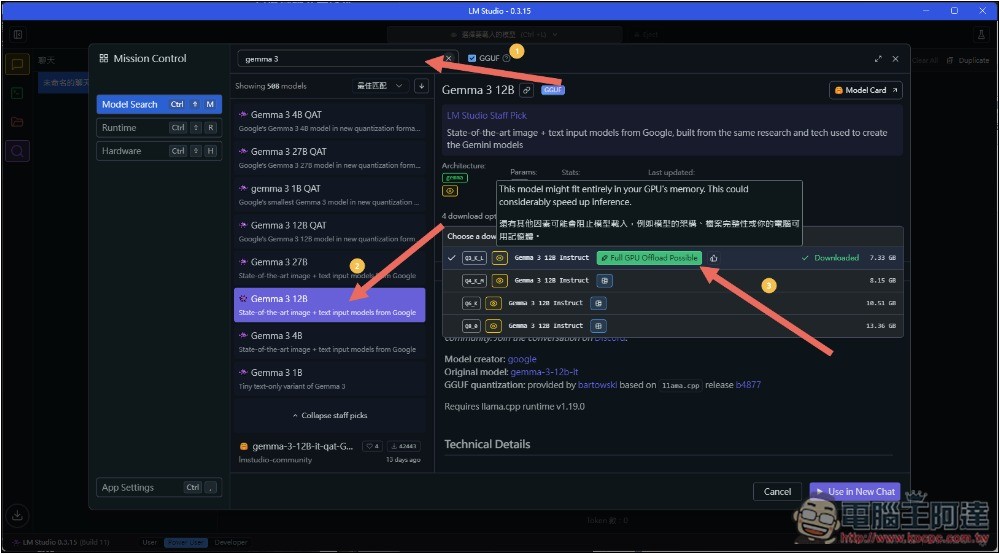
If you’re not sure whether your computer can run the model, you can open the globe icon to the right of the model name. If it shows the green text “Full GPU Offload Possible,” that means it can all run on the GPU, so there’s no problem.
If it shows “Partial GPU Offload Possible” or “Likely too large”, that means it’s not really feasible, especially the latter “large” — it definitely won’t run.
After the download is complete, please open the second menu on the left—this is the API Server feature—then select the model you want to use from the model menu above:
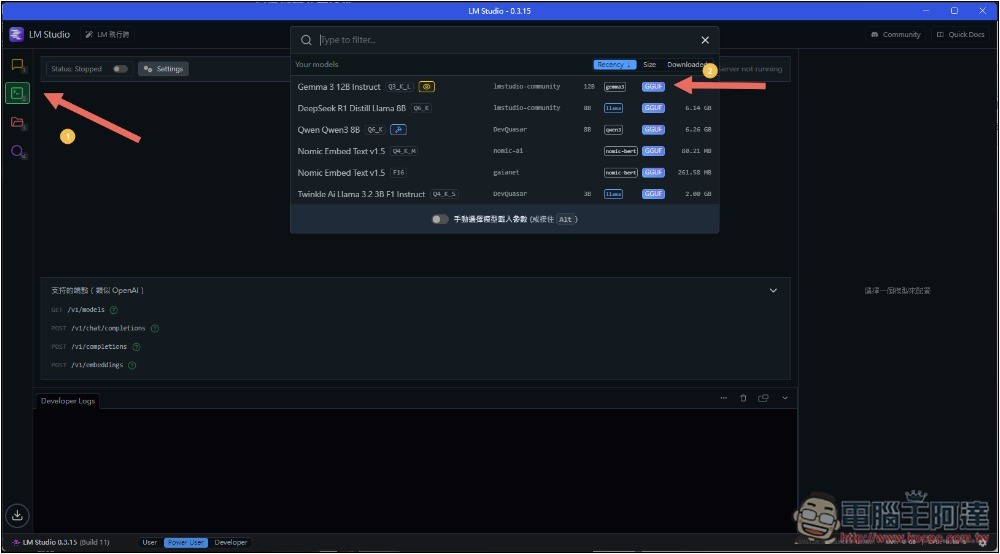
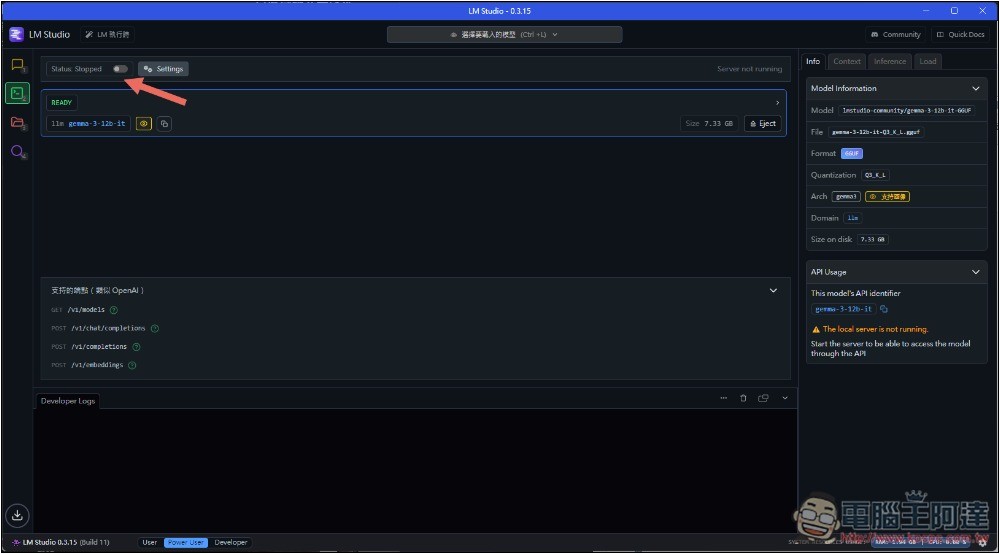
After selecting the model, wait for it to finish running until READY appears, which means it’s ready. Then, turn on the switch next to “Status Stopped” above to run the API server:
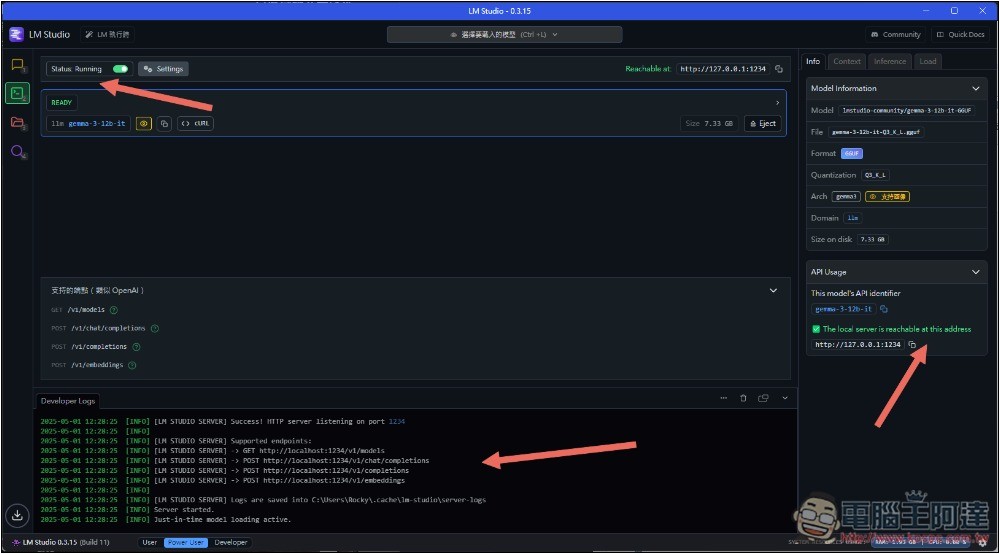
Showing “Status Running” indicates it is running, the Developer Logs at the bottom will also display relevant information, and on the right side there will be the text “The local server is reachable at this address”:
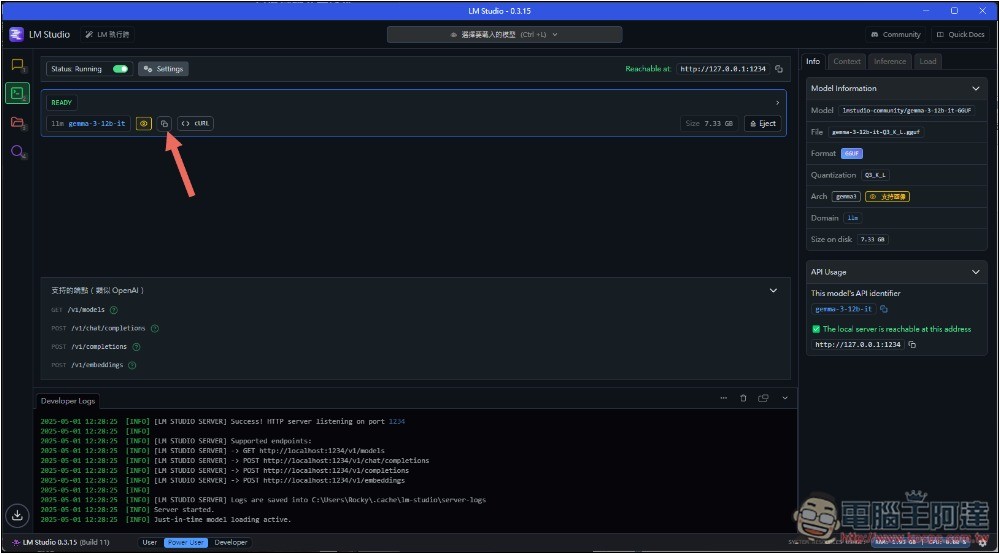
Remember the copy button next to the model for now; when setting up gpt-subtrans later, you’ll need it to copy the model name.
3. Install and set up gpt-subtrans
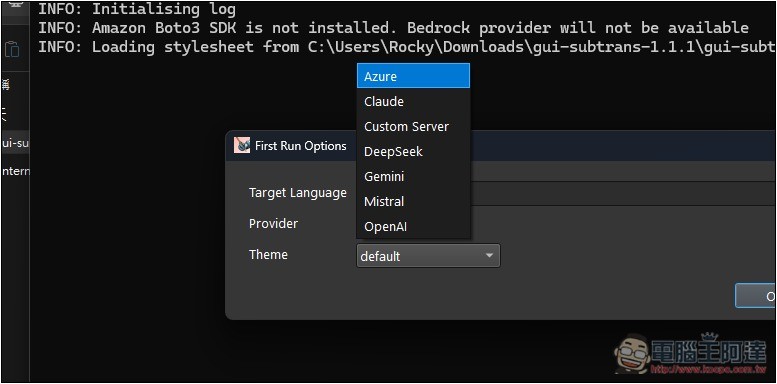
The installation process for gpt-subtrans is the same, just follow the on-screen instructions. After opening it, a settings option will pop up, and you can modify these later, so it doesn’t matter if you choose wrong. Supported AI services include Azure, Claude, Custom Server (use this one for local), DeepSeek, Gemini, Mistral, and OpenAI. If you are still not satisfied with the translation quality of the local AI language model, you can switch to other online AI services (enter your API):
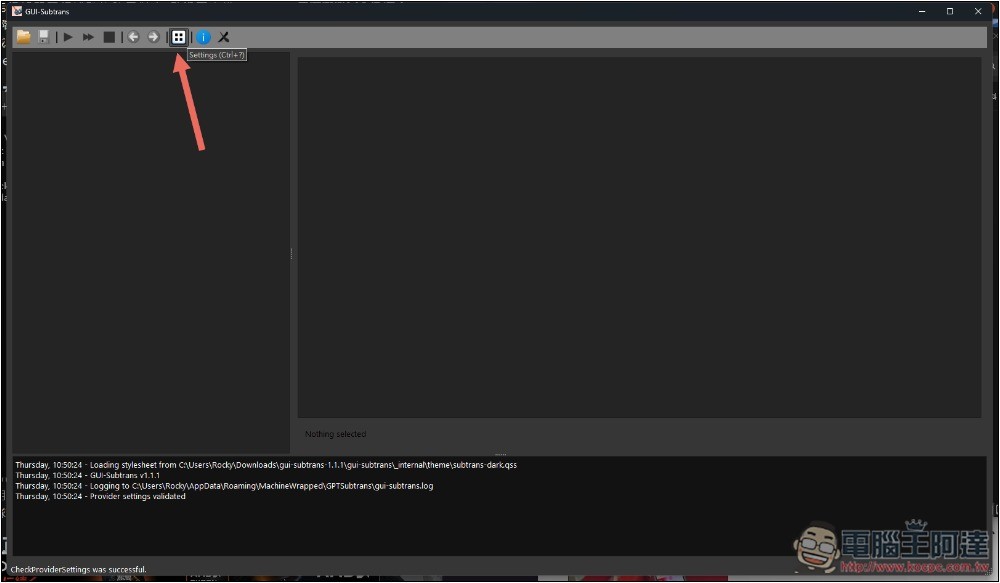
After entering the main interface, please go to the settings menu:
In Provider Settings, select Custom Server for Provider. If you haven’t changed LM Studio’s server address, then you don’t need to change the Server Address—just keep the default. You also don’t need to touch the Endpoint. The only thing you need to change is the Model field: enter the Model name you want to use. You can use LM Studio’s one-click copy for the model name and paste it back here:
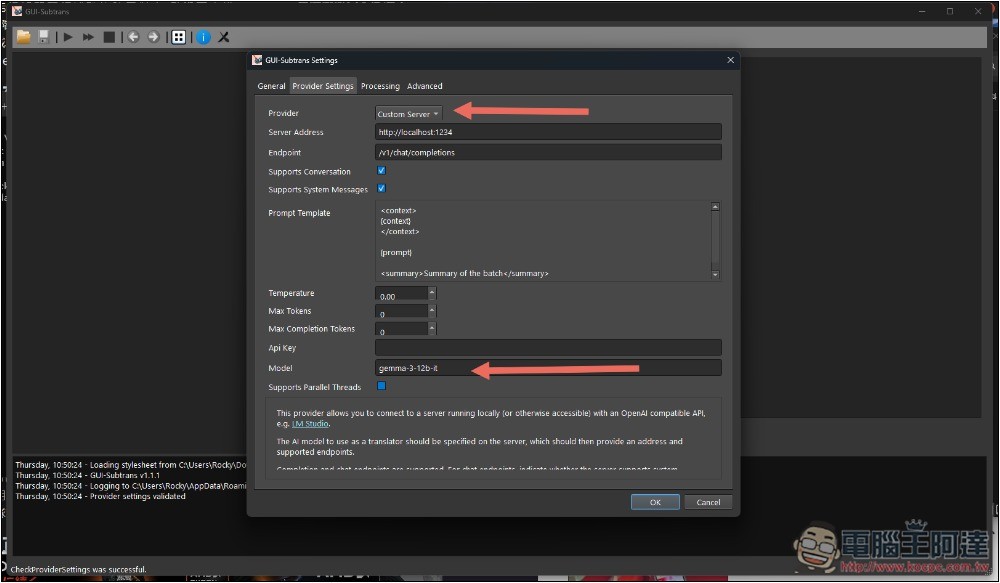
As for the Temperature and Tokens settings, it depends on whether you need to adjust them. If you don’t know what they’re for, you can just ignore them and press OK to save.
With that, gpt-subtrans is set up and ready to translate subtitles using local AI models.
4. Start using local AI models to translate subtitles
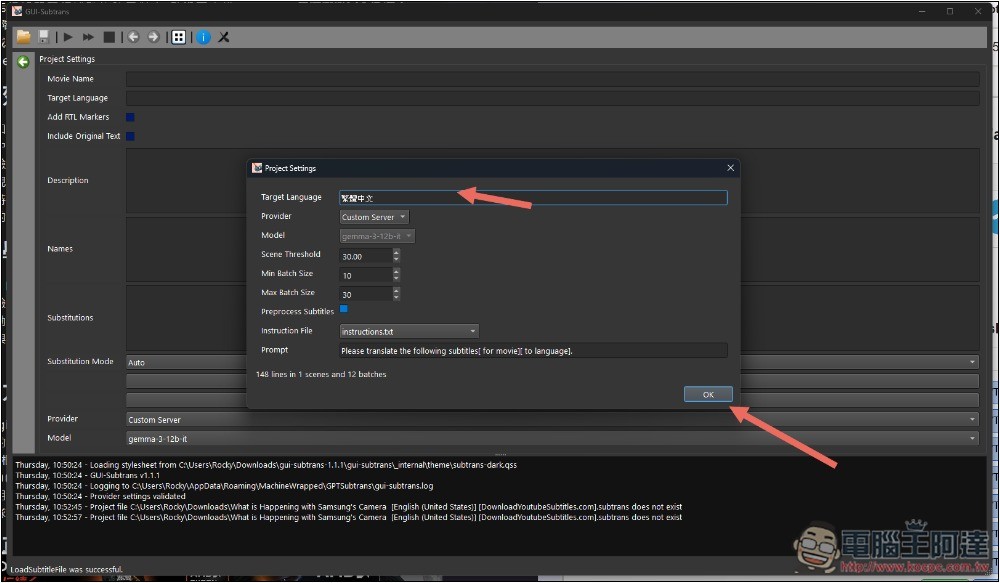
Click the folder icon at the top left to open the subtitle file you want to translate. A settings menu will pop up. In Target Language, enter the language you want to translate to. For example, if I want to translate foreign subtitles into Traditional Chinese, I enter “繁體中文”. For Provider, check if it’s Custom Server. If that’s fine, press OK below:
On the right, the subtitle content will be displayed so you can check if it’s correct. The left block is for configuring this translation project; if you don’t need it, just ignore it. Press the play button above to run:
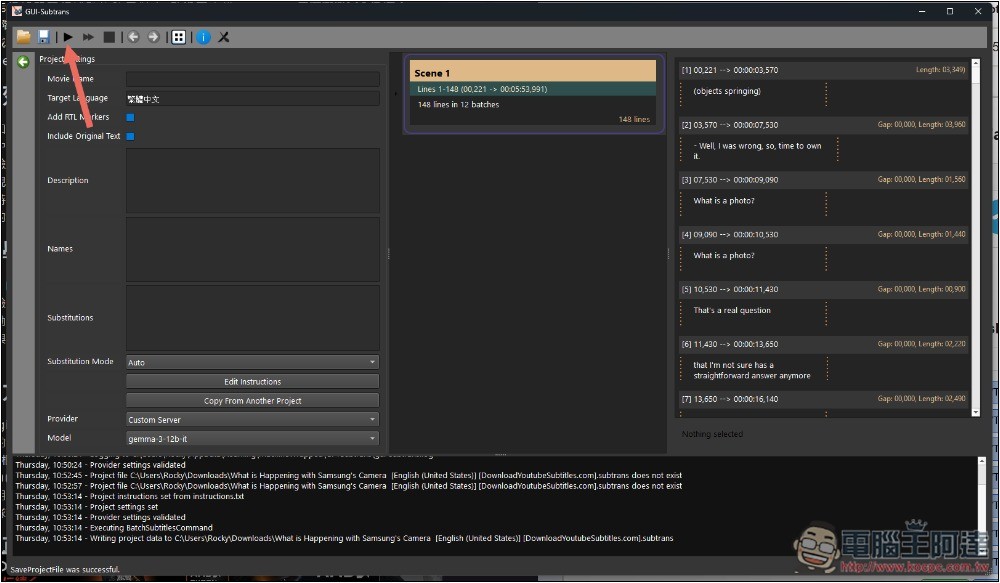
After starting to run, the current status will be displayed below, and the translated content will also be displayed in real-time on the right side:
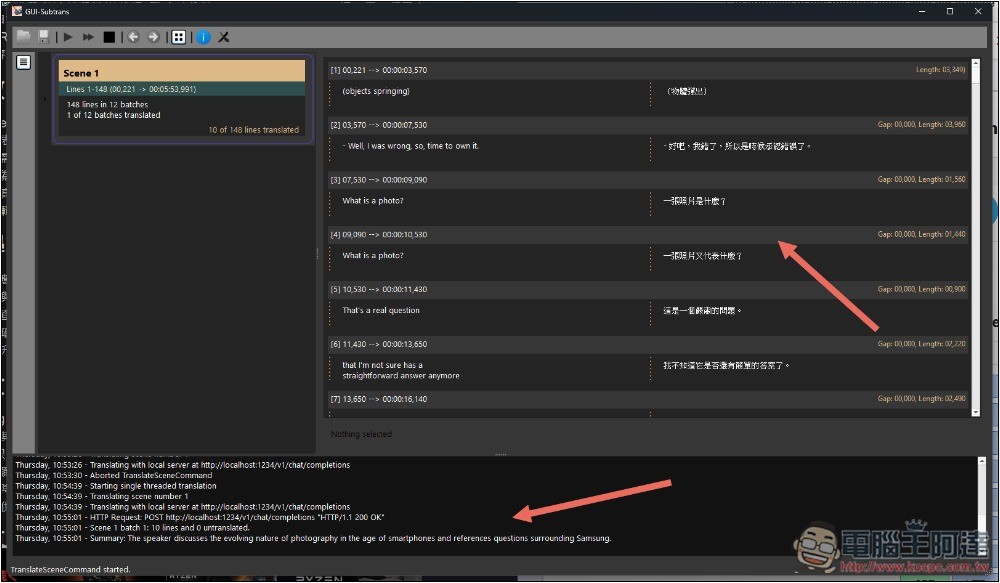
Then just wait for it to finish running. You can refer to the “xx of xxx lines translated” info on the left side, which tells you how many lines of content have been translated so far.
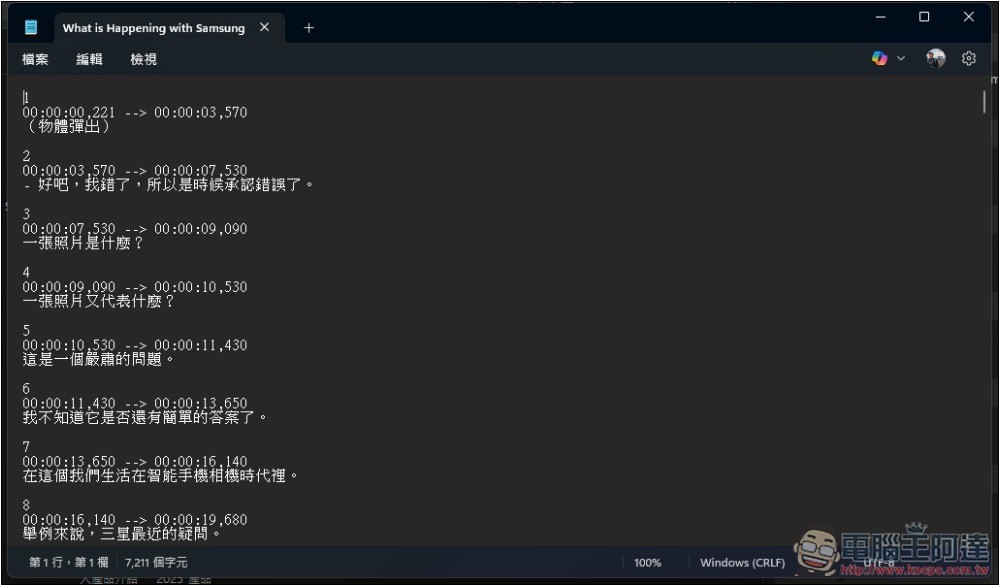
After translation is complete, the subtitle files will be automatically saved in the same directory, with “Traditional Chinese” at the end of the filename. You can open them to check and confirm that everything has indeed been fully translated into Chinese.
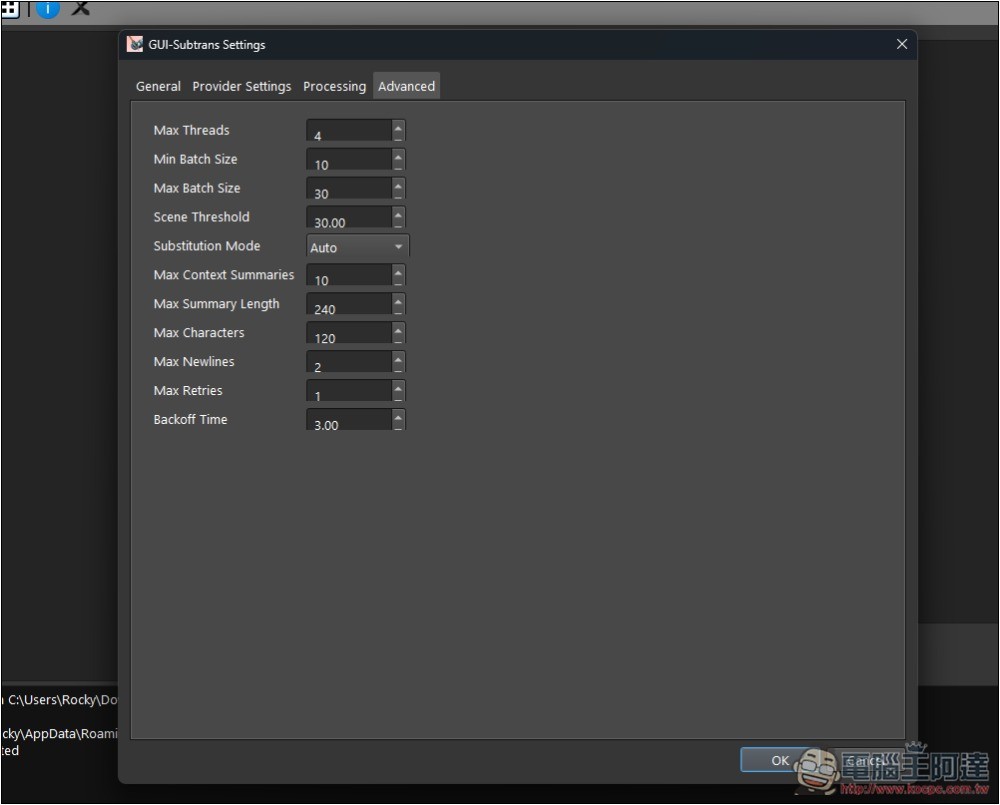
If you feel the translation quality isn’t very good, as if it’s not translating the entire passage together, you can go to Advanced in Settings to adjust values such as Max Context Summaries, Max Summary Length, and more.
Why wasn’t some of the subtitle translated?
If the AI language model you choose can’t run smoothly on your computer—meaning it’s too large or has too many parameters—subtitles may end up untranslated. Also, the model you’re using might not be appropriate; avoid models that are designed for reasoning, as they’re not well suited for translation.
How to use online AI services to translate subtitle files?
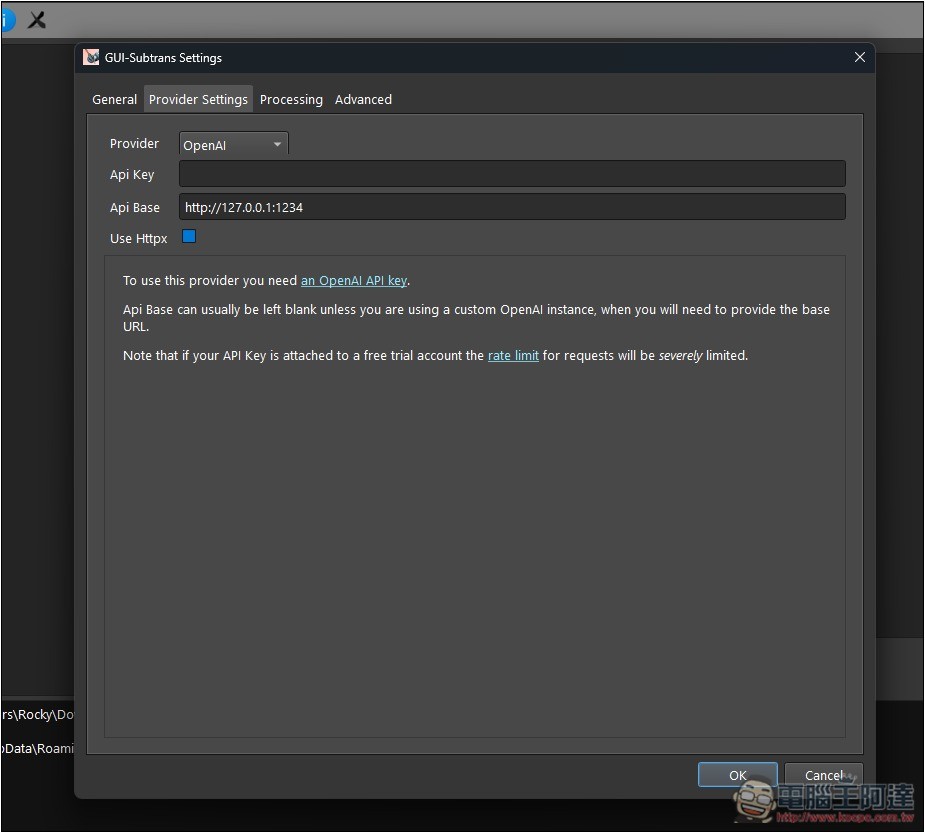
If you want to try using other online AI services for better translation quality, go to Provider Settings in the settings and switch the Provider to the AI service you want to use. For example, in the image below I switched to OpenAI, filled in the API Key, and that’s it. Before starting translation, just make sure the Provider is set to an online AI service.
What languages can subtitles be translated into?
Depending on which languages your model supports, if the language you want to translate is supported, then there’s no problem. Just make sure that in the Target Language settings before translating, you’ve entered the language you want to translate into.
Summary
So, from now on, if subtitle files don’t have Traditional Chinese, you can easily use LM Studio + gpt-subtrans to translate locally with an AI language model, and even common online AI services work just fine.
If there isn’t even a subtitle file, you can generate one using Whisper—we’ve written about that before too. Tutorial for Installing and Using OpenAI Whisper on Windows 10/11, though it’s a bit more troublesome. If I find better software in the future, I’ll introduce it to everyone.
In addition, the free media player PotPlayer now also supports Whisper real-time subtitle generation + translationThose who need it can also give it a try—it’s quite simple to operate.
Source: KOCPC Chinese