


Due to the current iPhone’s size and technical limitations, its AI computing power is naturally not that great, so it can at best run 2B or 4B AI models. Anything larger and it might not be able to handle it. For those who have a computer at home, they’re sure to wonder if there’s a way to remotely use the AI models installed on their computer. Not only can you run models with more parameters, but you can also directly access the knowledge base on your computer. The answer is yes. This article will teach you the simplest way to pair your iPhone with LM Studio.
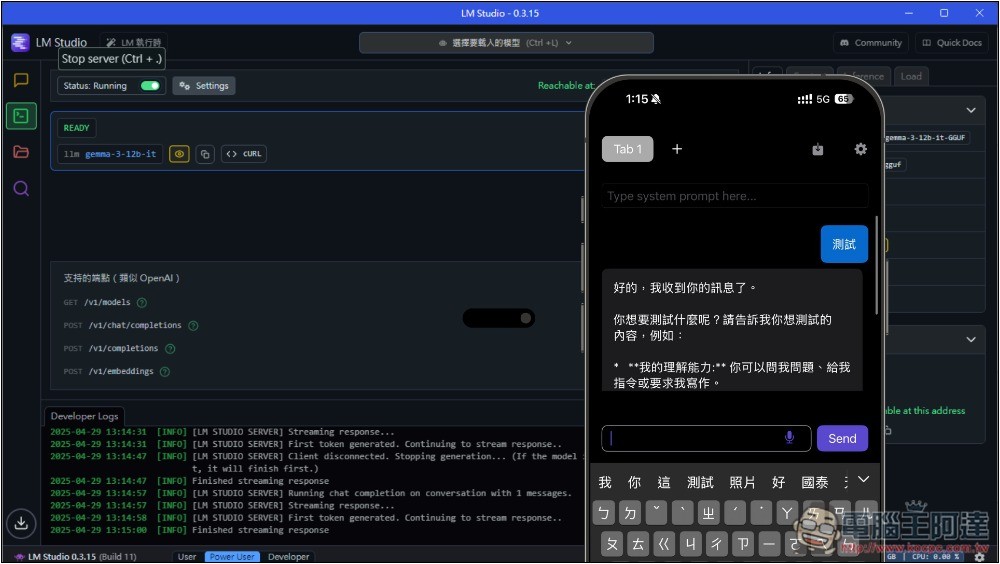
1. Download and install LM Studio and the model you want to use on your computer.
If your computer doesn’t have it yet LM StudioPlease go to the official website to download it first. The interface has Chinese, so you don’t need to worry about not being able to understand it.
As for the model, it depends on your computer’s hardware specs. If you’re not sure how to choose, you can refer to the hints in the download model menu. The fourth search icon on the left is the download model menu (I’m using the Power User interface, which you can switch at the bottom):
Next, enter the model name you want to use. Taking Google’s latest Gemma 3 as an example, it comes in parameter sizes like 1B, 4B, 12B, and 27B. The larger the parameters, the higher the performance requirements.
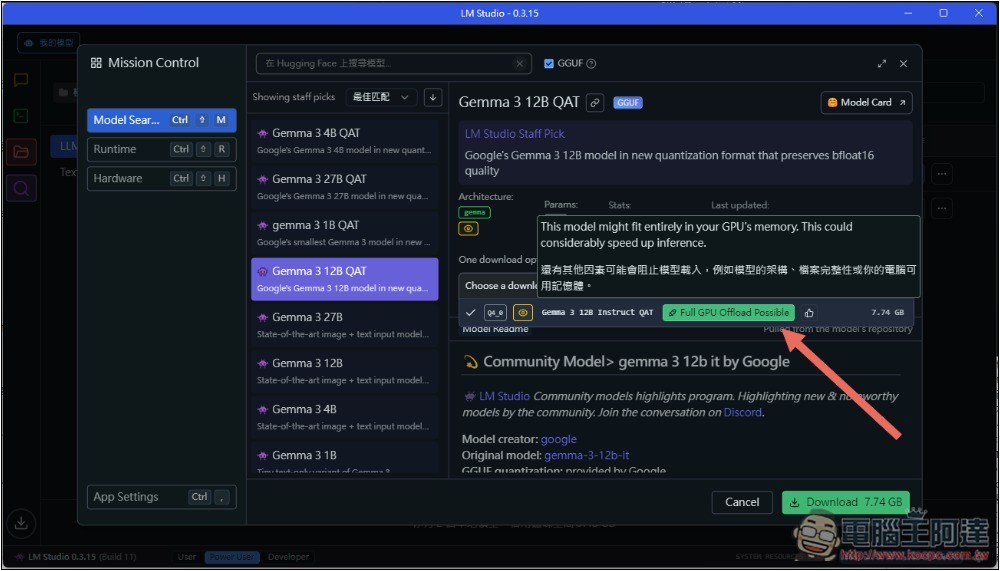
After finding the model, expand the “One download option available” section on the right, then move the mouse over the icon to the right of the model name, and a tooltip will appear showing whether it can fully utilize your primary computing hardware. In my case, it’s the GPU, and it displays “Full GPU Offload Possible,” which means this parameter model can run entirely on the GPU, so it should basically run smoothly. I have no issues with Gemma 3 12B QAT:
But after switching to Gemma 3 27B QAT, it became Partial GPU Offload Possible—only part of it can be offloaded, meaning the model is too large to run properly. In that case, I’d advise not bothering to try it, since it’ll definitely be very slow.
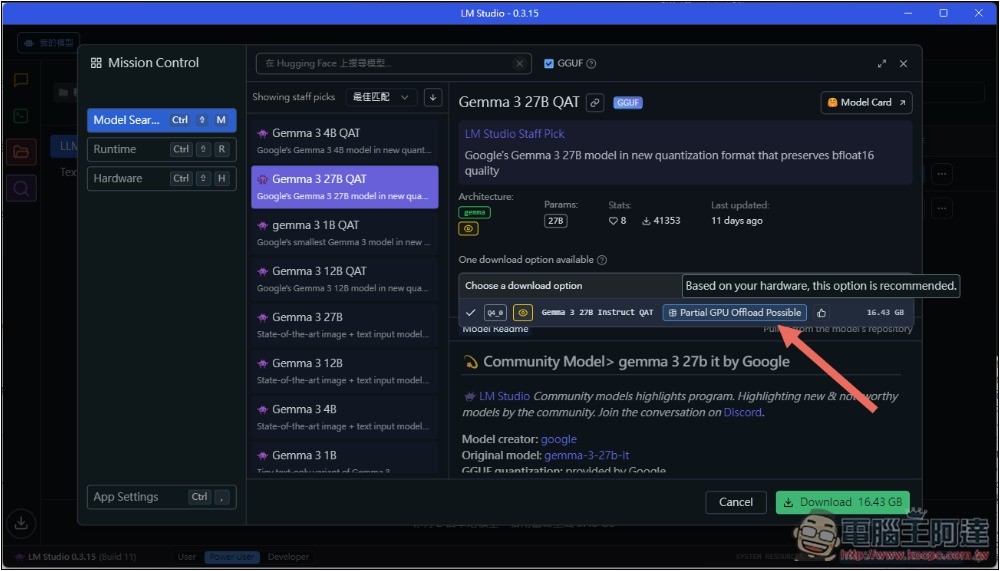
After selecting, click the Download button at the bottom right corner to download this model.
2. Enable the Local LLM API Server in LM Studio
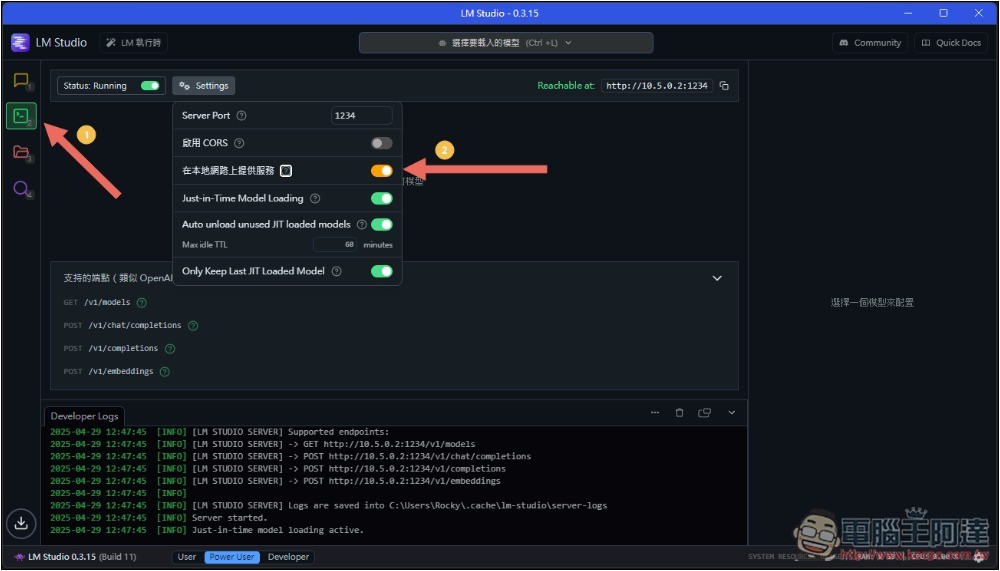
After downloading the LM Studio model, the next step is to enable the Local LLM API Server, which is the second menu item on the left. Then there’s an important point: since you plan to use LM Studio on the remote computer from your iPhone, be sure to turn on the “Serve on local network” option in Settings. If it’s not turned on, only this computer will be allowed to use it:
Next, mount the LLM model you want to use onto the API Server—just click and it will mount, and READY means it’s complete:
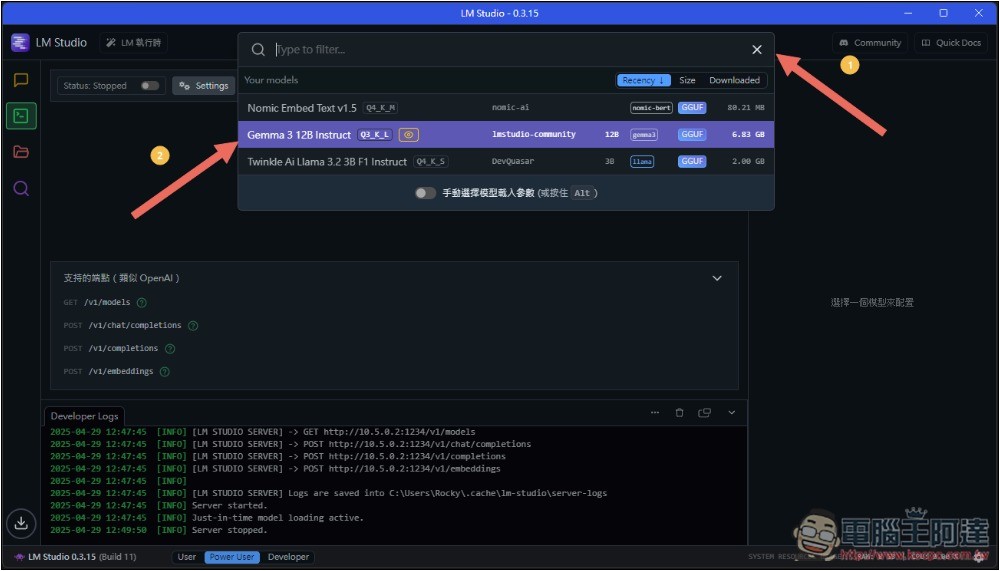
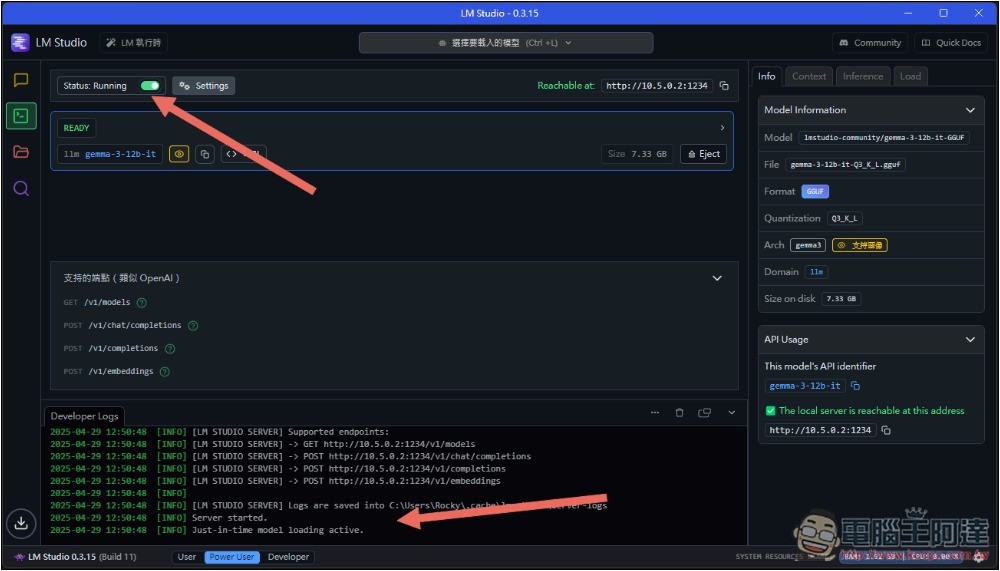
Finally, activate the Server, open the Status at the top, and once it changes to Running, it has started running. The Logs at the bottom will also show “Server started”.
The computer part is ready now. Next is the iPhone.
3. Download LLM Local Client on iPhone
LLM Local Client It is a free and lightweight app, mainly used to let mobile phones or tablets connect to an LLM server deployed on a computer via a local network (such as Wi-Fi).
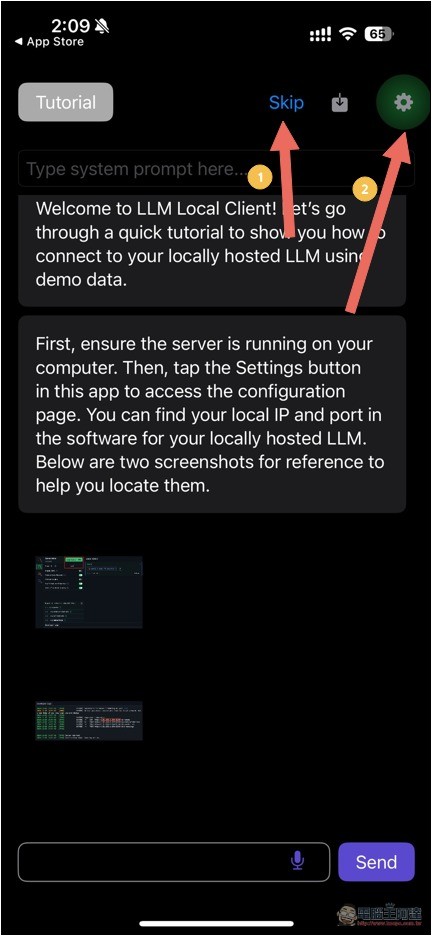
After installation, open it and a tutorial will appear. If you don’t want to watch it, you can press Skip, then click the settings icon on the right:
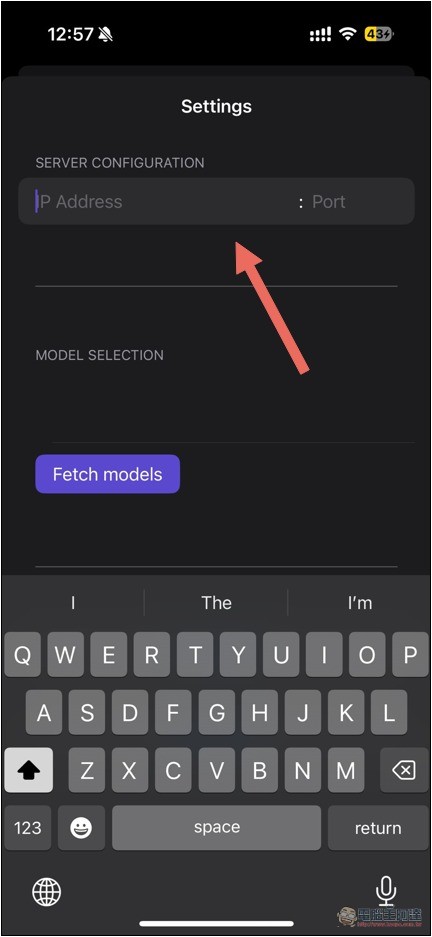
SERVER CONFIGURATION requires entering your computer’s IP address; if you don’t know it, you can look it up in Command Prompt:
After typing ipconfig, the network adapter information on your computer will be displayed. Since I’m using Ethernet, the IPv4 address here is:
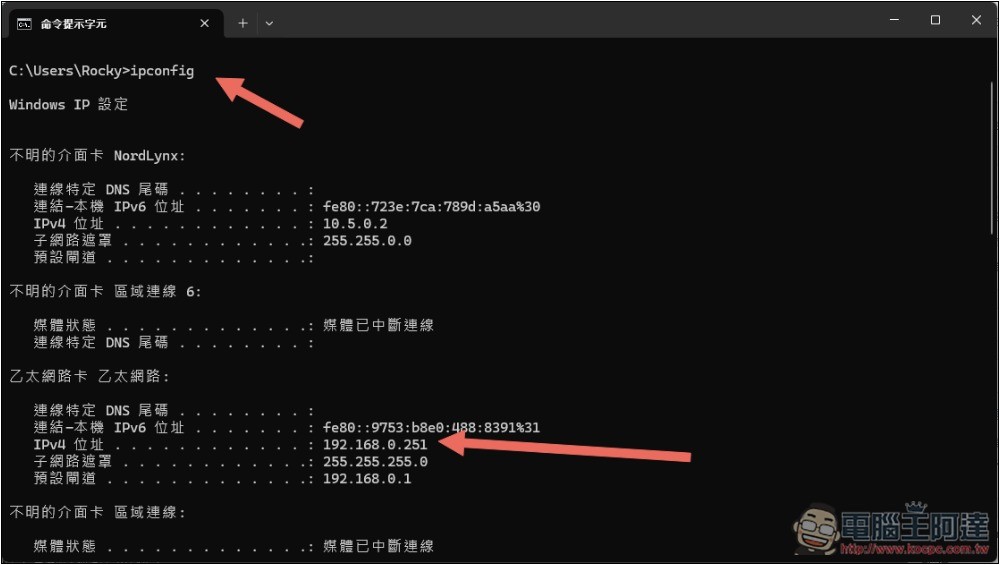
So I enter 192.168.0.251, the Port on the right defaults to 1234, if you haven’t changed it just enter that number, and remember to allow finding devices on the local network. After you finish, if successful, the MODEL SELECTION below will show the models you already have in LM Studio:
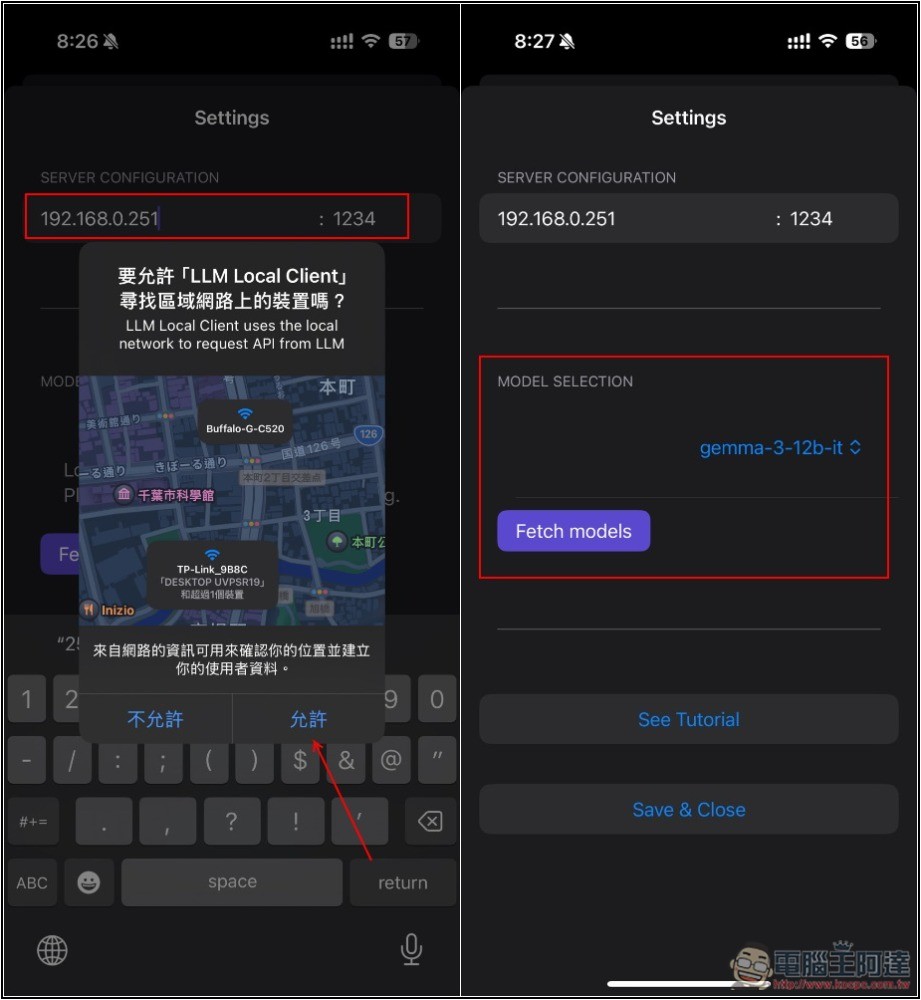
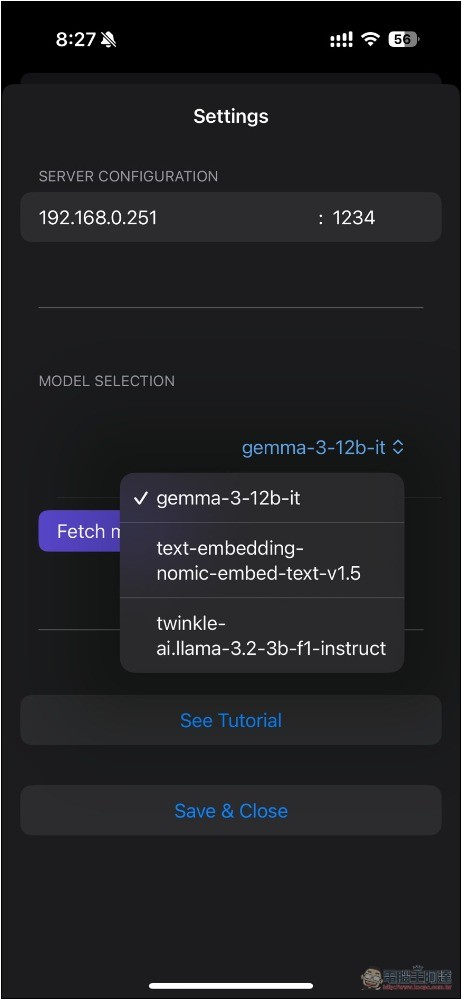
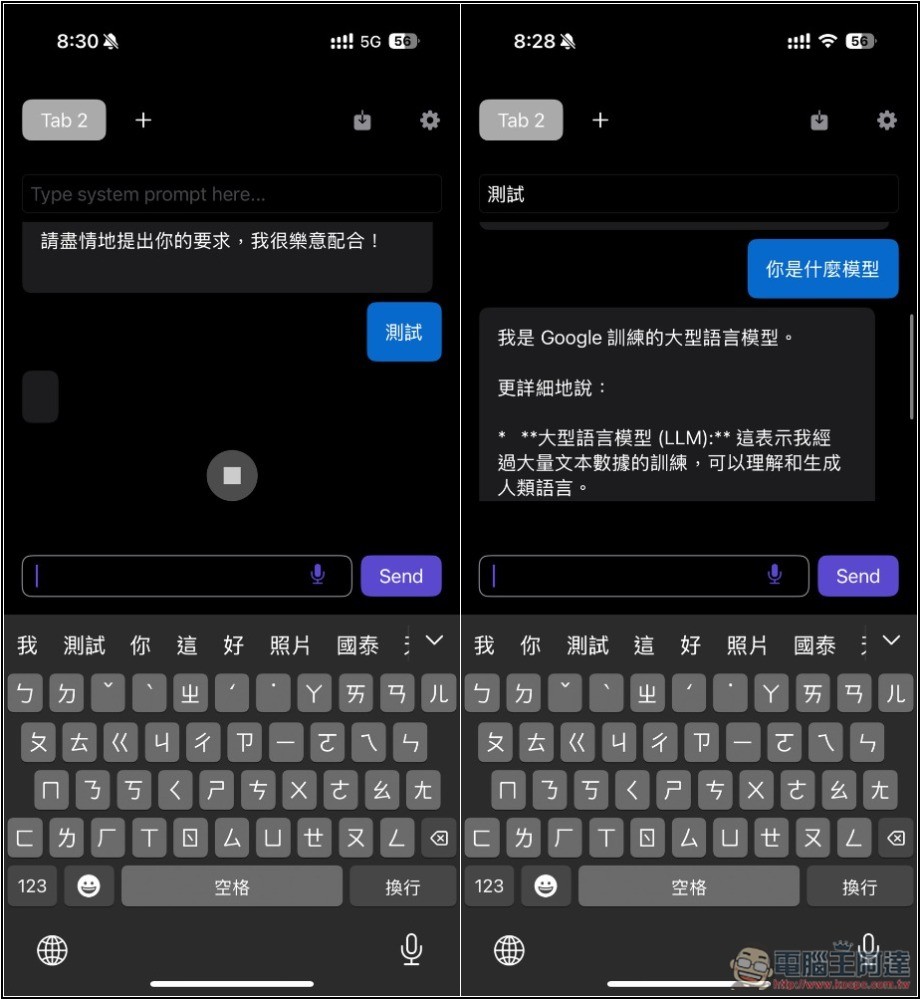
If you have other models installed, go to Settings to switch to the model you want to use before chatting with the LLM. Finally, click Save & Close, and you can start chatting:
Successfully tested — the Gemma 3 12B absolutely cannot run on an iPhone, but with this method, even larger LLM models are no problem, as long as your computer can handle them.
Can an iPhone and a computer be used remotely on different networks?
Yes, but that’s not all. You also need to set up NAT forwarding or a reverse proxy on the router, or use a VPN like Tailscale or ZeroTier to create a private network. I recommend the latter—it’s more secure and simpler.
Like the ones I usually use. NordVPNIt provides mesh network functionality, including the ability to remotely access your own devices and reroute network traffic. Enable the feature on the computer side:
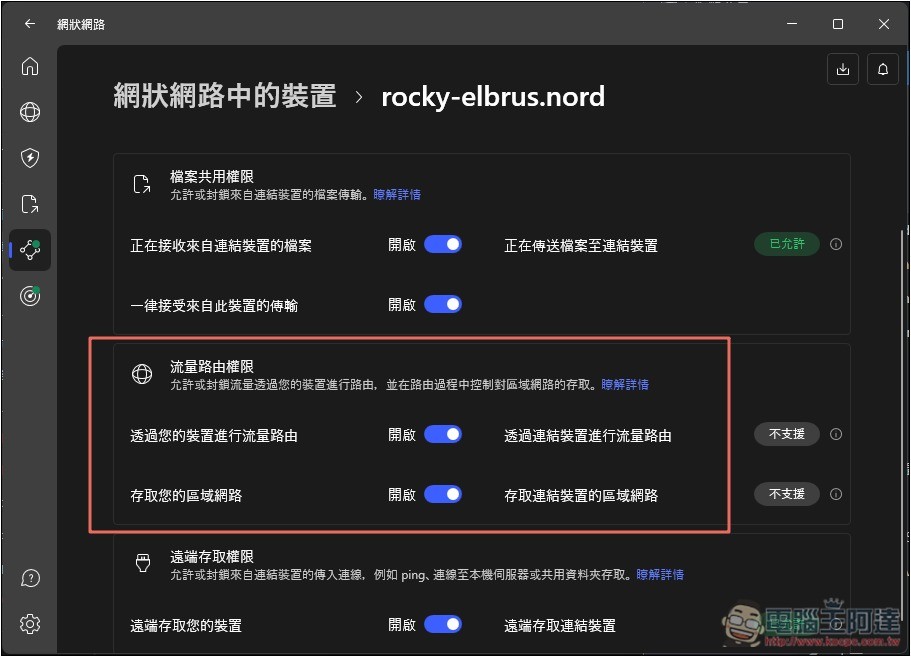
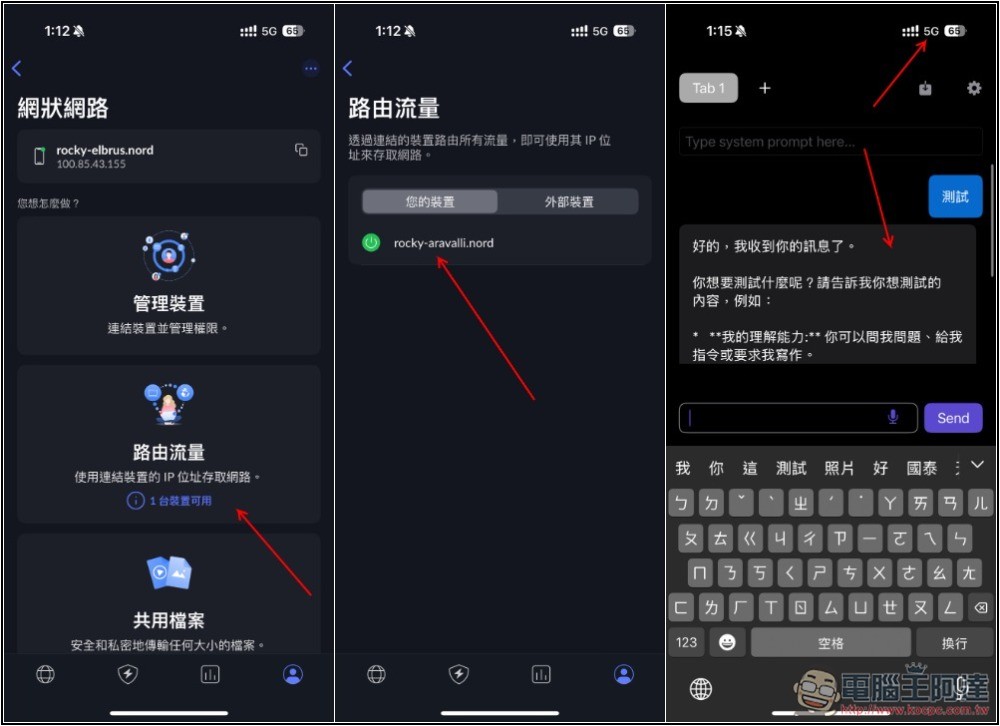
Next, open the NordVPN app on your iPhone, go to Meshnet -> Route traffic, find your computer in your devices, and enable it. Once enabled, your iPhone’s data traffic will first pass through the computer before being sent to the network, meaning it becomes a local network. Now open LLM Local Client again, and make sure the IP address you entered is correct (you must enter the NordLynx IP, which is also shown in ipconfig). Even if the iPhone and computer are on different networks, you can still use LM Studio models remotely:
Source: KOCPC Chinese