


Finally, now there’s no need to worry about missing subtitles or Chinese subtitles when watching videos locally. Now, PotPlayer This free media player has these two AI generation features built in, and it uses Whisper—currently the best option available—for real-time subtitle generation. For translation, it supports multiple services: besides online options like Google, Microsoft, and the OpenAI API, you can also use language models installed locally on your device. Here’s how to use it.
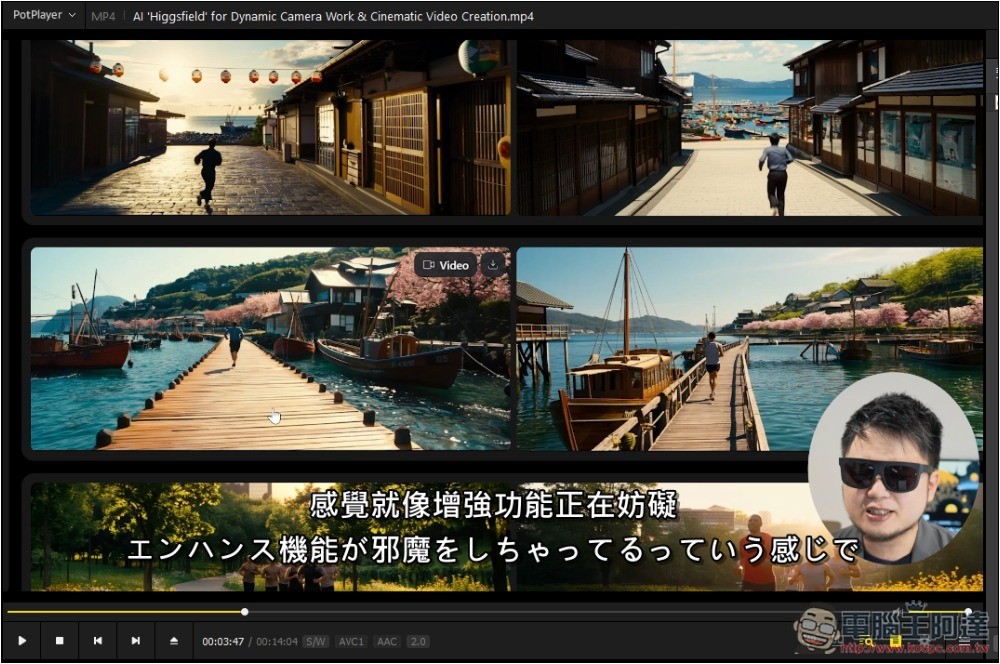
PotPlayer free media player’s real-time subtitle generation and translation feature
Before starting the lesson, let’s first take a look at the results.
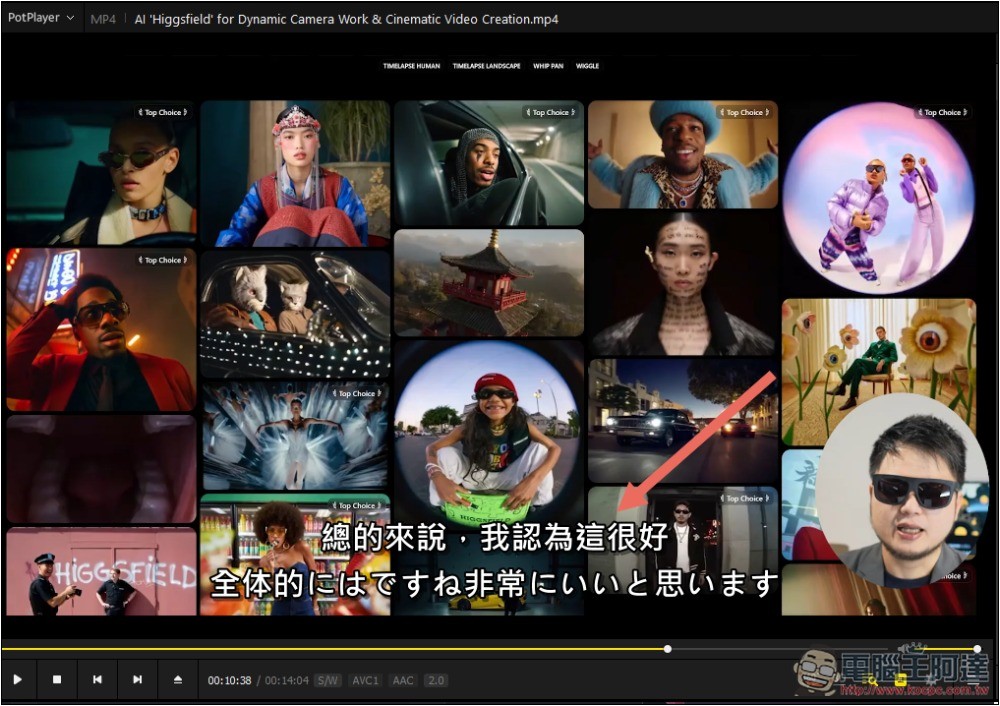
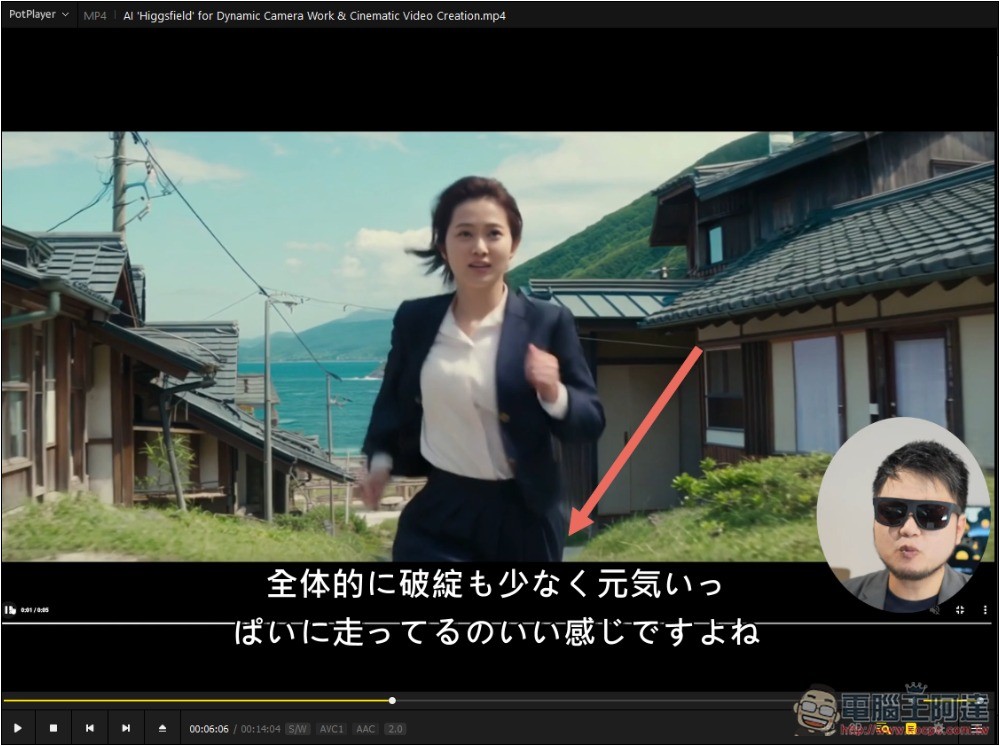
As shown in the image below, this Japanese video originally had no subtitles:
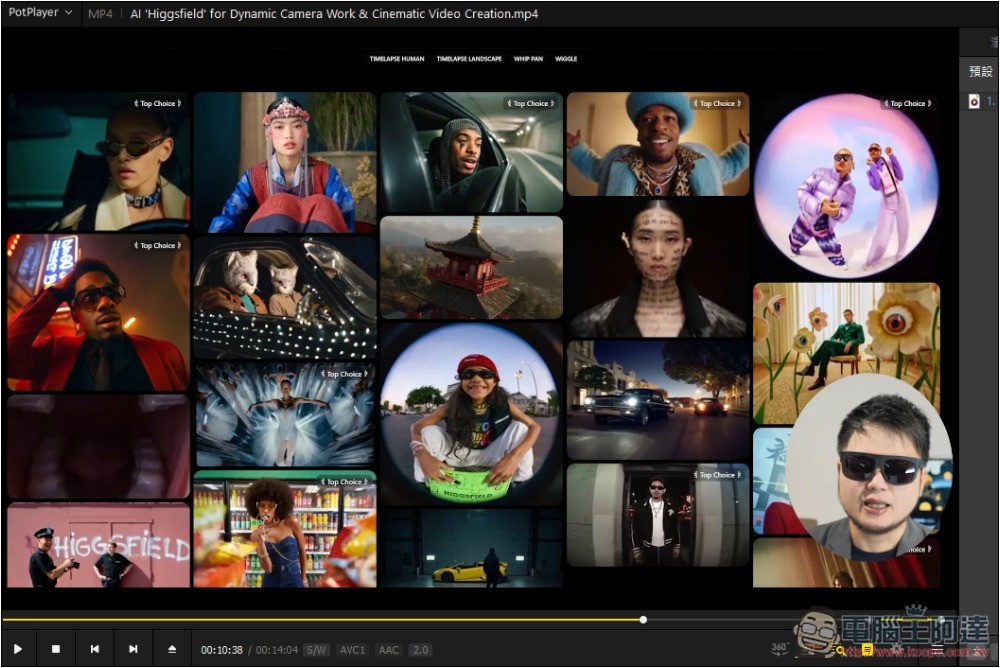
After I enabled Whisper’s real-time subtitle generation, Japanese subtitles appear while watching videos:
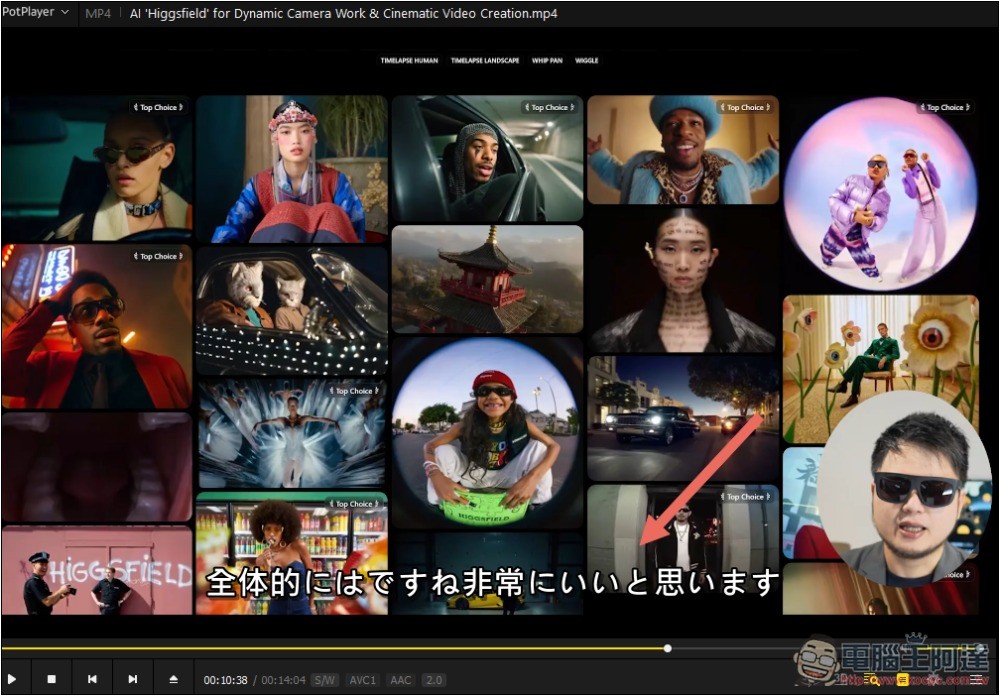
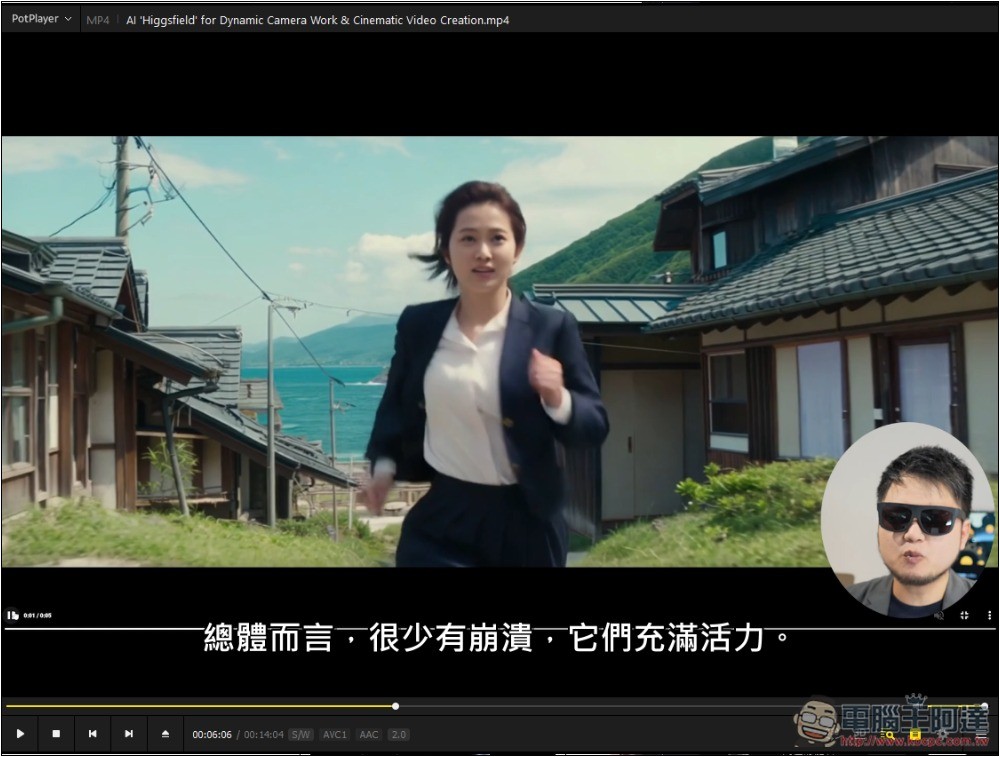
Then I turned on the translation feature, and the original Japanese subtitles were automatically translated into Chinese.
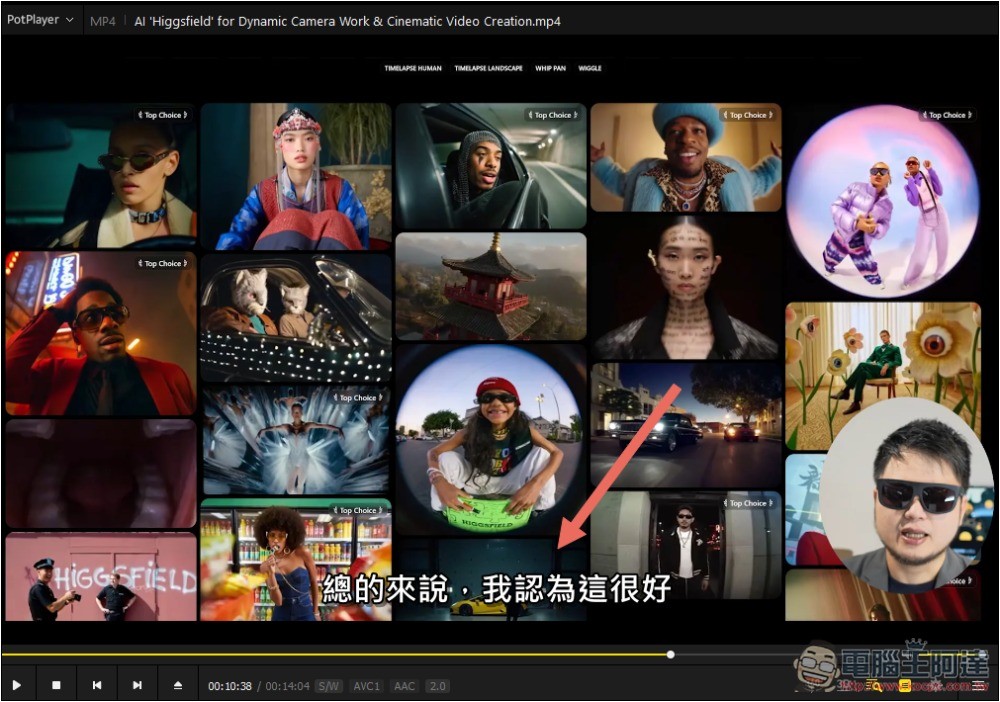
You can also set up dual subtitle display, which is really great:
Regarding knowing PotPlayer For those who use free media players, here’s a brief introduction as well.
PotPlayer is a free multimedia player developed by Kakao in South Korea, designed specifically for Windows, with no Mac version yet. It’s not only lightweight but also powerful, and it continues to improve with modern features, such as the subtitle generation and translation covered in this article.
Supports the vast majority of audio and video formats, along with hardware acceleration technologies such as DXVA, CUDA, and QuickSync. It also includes practical features like screen capture, recording, GIF creation, variable-speed playback, and bookmark management. In principle, as long as you install this player, there’s almost no video you can’t watch. We actually published a tutorial on this a long time ago, and you can click the link below to check it out.
How to enable PotPlayer’s real-time subtitle generation feature.
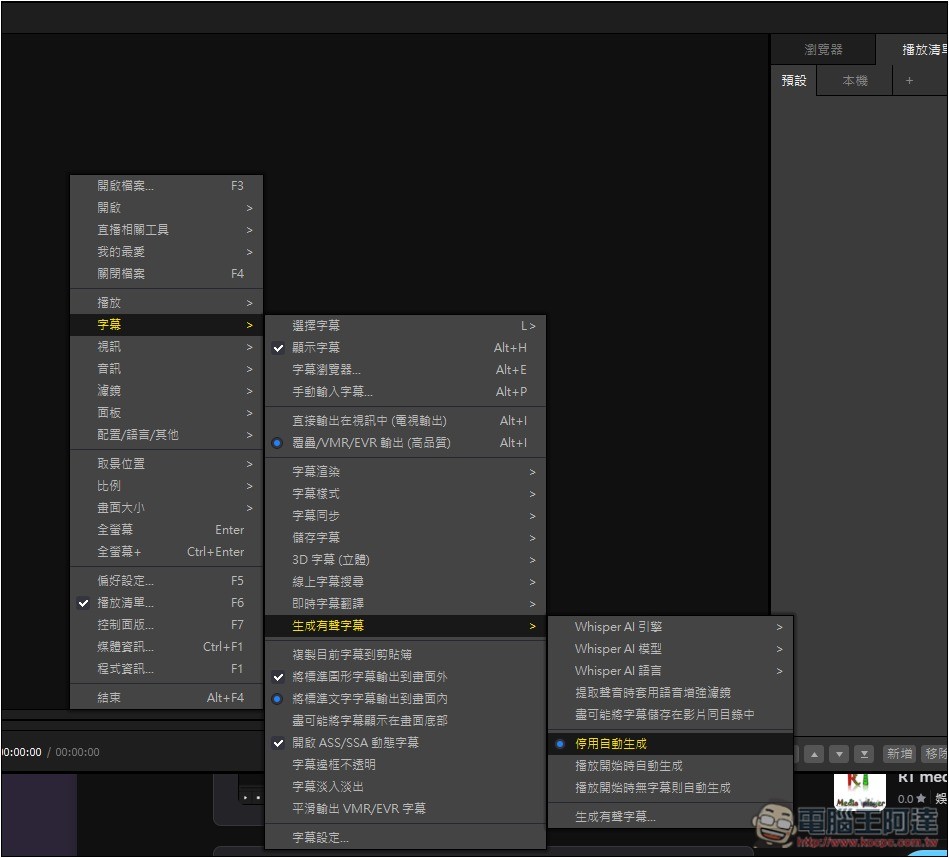
After installing PotPlayer on your computer, open it and right-click anywhere on the playback screen. Then find Subtitles -> Generate audio subtitles -> Since no Whisper models have been downloaded yet, click “Generate audio subtitles” at the bottom.
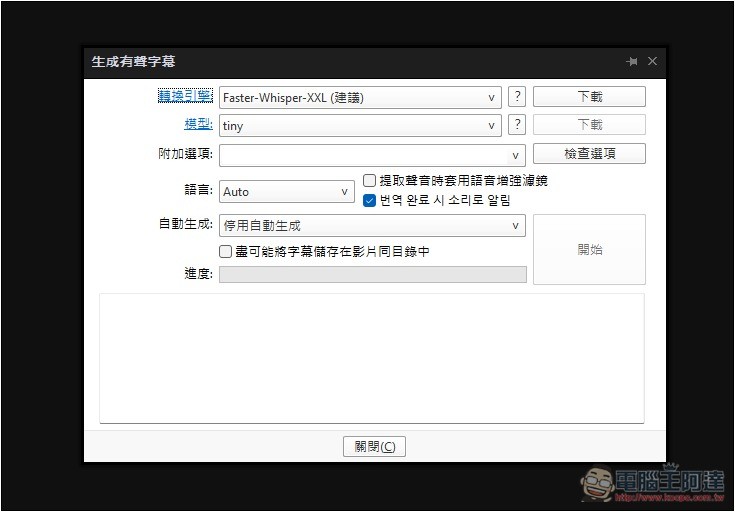
The settings screen will open. First, select the transcription engine. The default is Faster-Whisper-XXL, though it’s just a recommendation:
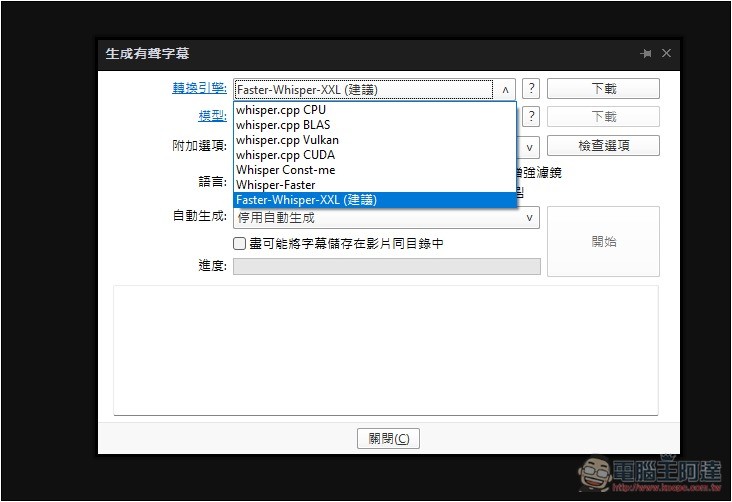
But if you have an NVIDIA graphics card, it’s recommended to switch to CUDA. You can also try both to see how the generation speed is before making a decision:
For the model part, it depends on your computer specs. If your specs aren’t that great, I suggest starting with base, small, or medium. The larger the model, the fewer errors it makes, but it also uses more computer resources. I use an RTX 3080 10GB graphics card, and large-v3-turbo runs fine and smoothly for me. For your reference:
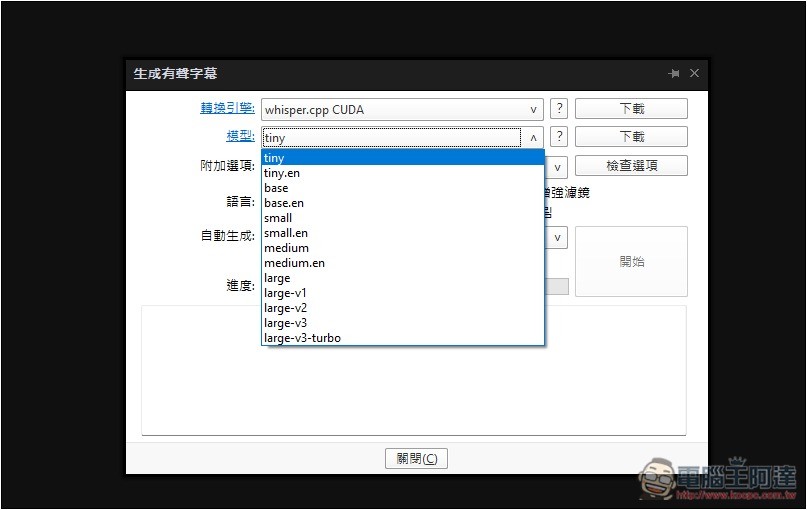
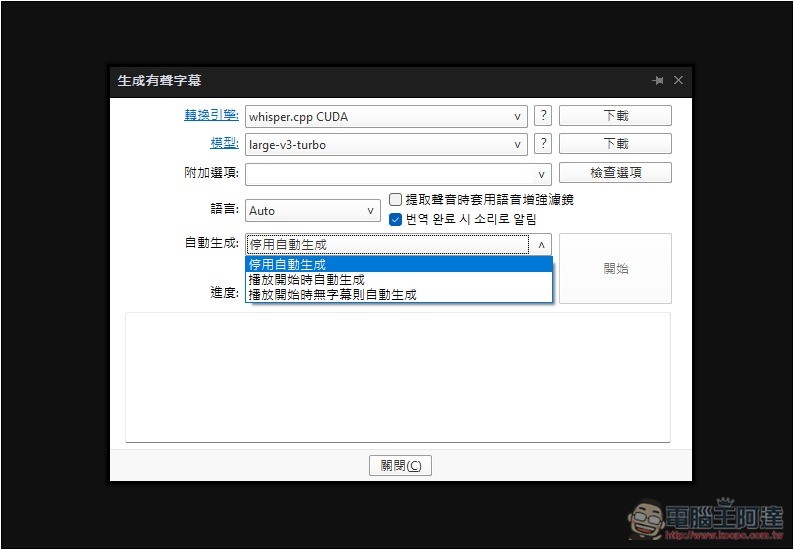
For the auto-generation settings, it’s up to you whether to change them — if you don’t want to bother adjusting them later, you can set it to “auto-generate subtitles when none are available at the start of playback.”
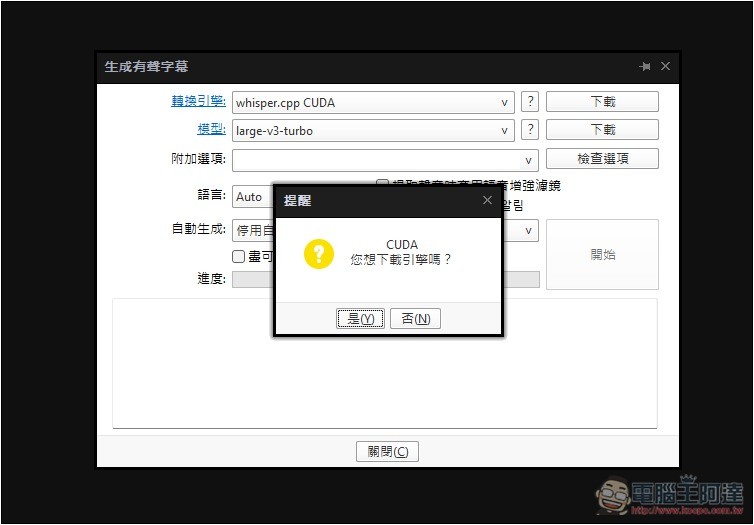
The conversion engine and model both need to be downloaded — click the download button next to them:
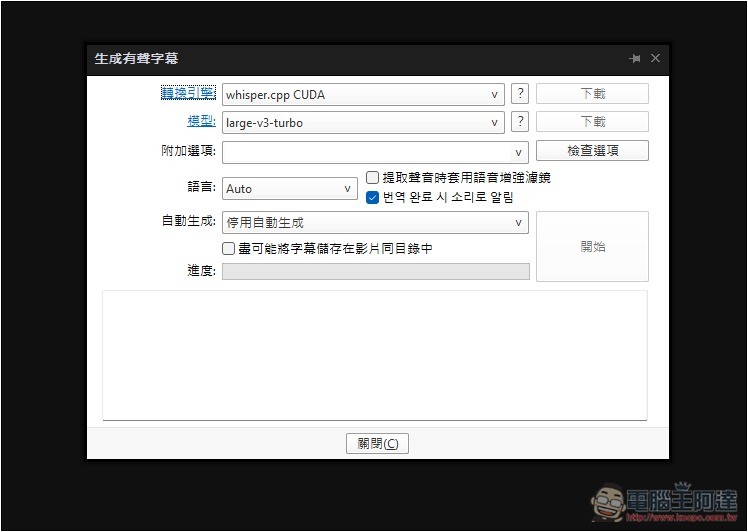
Once everything is downloaded, the download button will turn gray and become unclickable, which means it’s done:
Now play the video you’re watching, and you’ll see the subtitles appear:
How to use PotPlayer’s real-time subtitle translation feature.
PotPlayer already has built-in support for some common online translation services, such as Google Translate, Microsoft Translator, DeepL, and others. If you’re satisfied with the translation quality, you can use them directly without setting up an AI language model. But if you want more accurate subtitle translation, AI is a better choice.
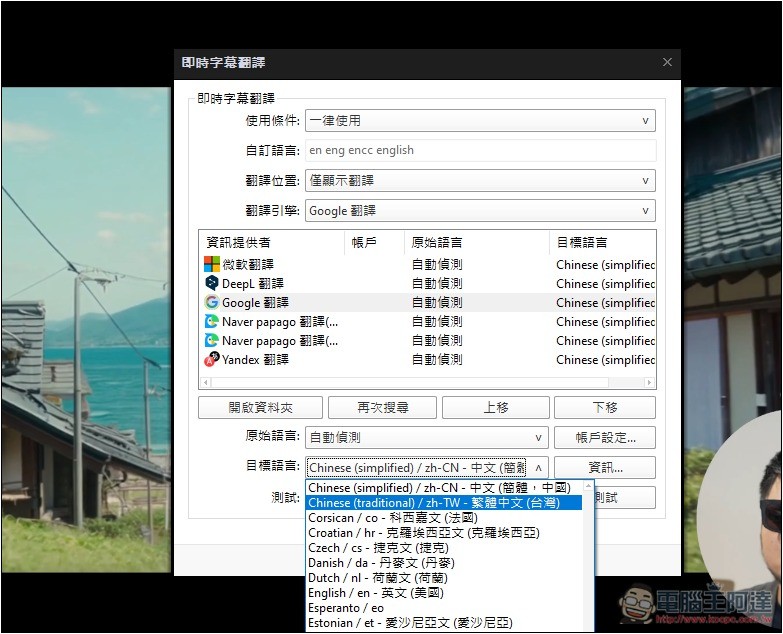
Similarly, right-click to open the context menu, find Subtitles → Live Subtitle Translation, and you’ll see several available translation services. Google Translate is the default, with Naver Papago Translate and Yandex Translate also offered. To use subtitle translation, remember to switch the “Do not use” option at the top to “Always use”. Also, one more thing to keep in mind: the current default output is Simplified Chinese. Click “Live Subtitle Translation Settings” at the bottom to change this.
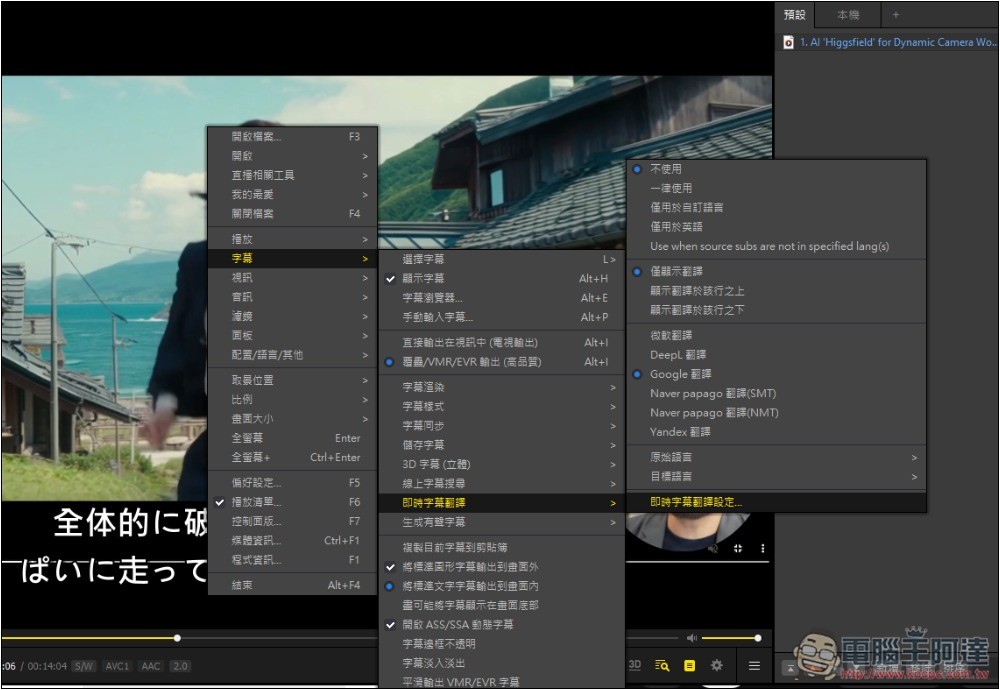
Select the service for which you want to modify the translation language, change the target language to Traditional Chinese, and it will be done:
The original Japanese subtitles will become Chinese subtitles, with the same real-time speed and absolutely no lag at all.
How to set up the AI language model for PotPlayer’s translation feature?
Want to switch to using an AI language model for translation, so you need to install an open-source plugin.PotPlayer_Chatgpt_TranslateAlthough this is named ChatGPT, it actually supports any model with the same API calls, so it’s not just OpenAI — Claude, Grok, Gemini, DeepSeek, and even local language models all work.
At the time of writing this article, the latest version was v1.5.1:
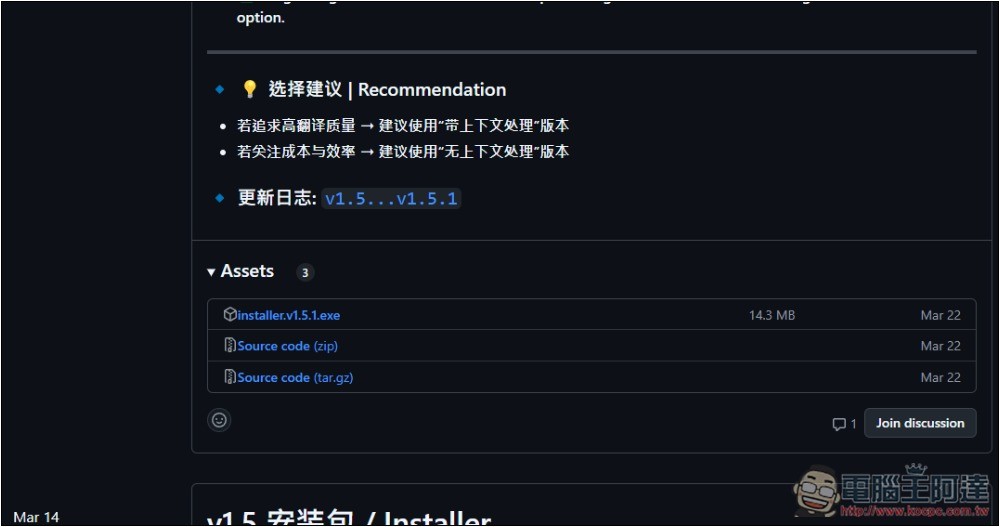
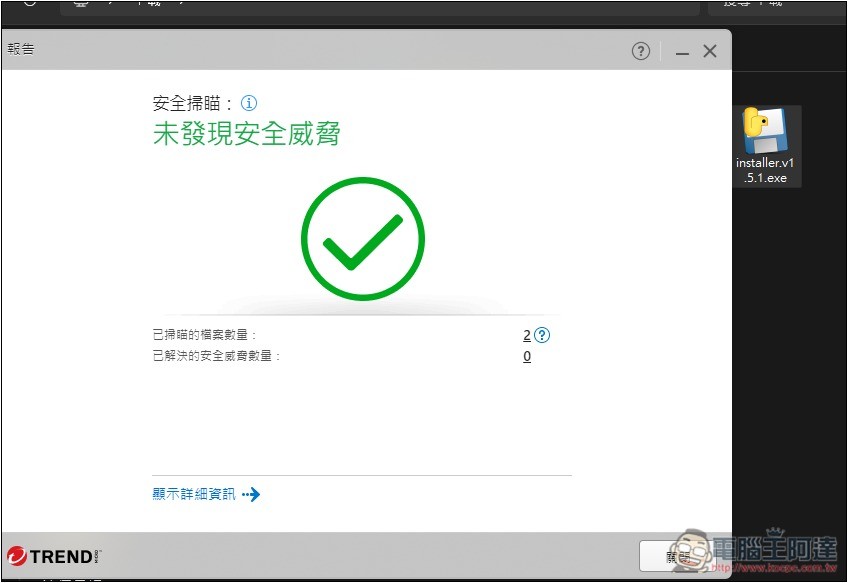
After downloading the installation file, I ran a scan with Trend Micro first and found no security threats:
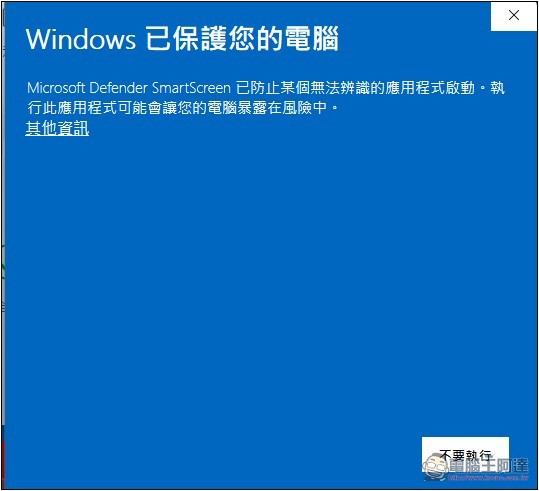
During installation, this window will pop up. Click “Other Information”:
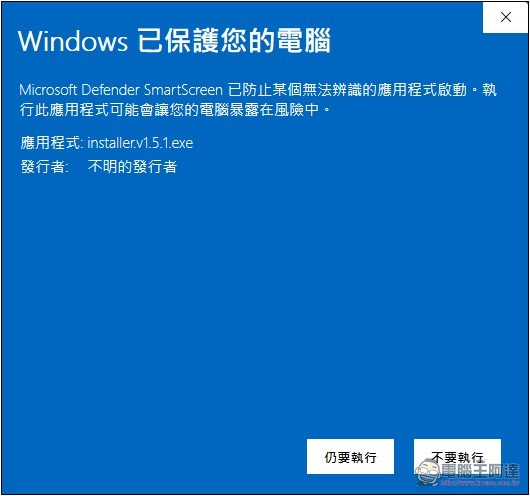
Then click Still Execute:
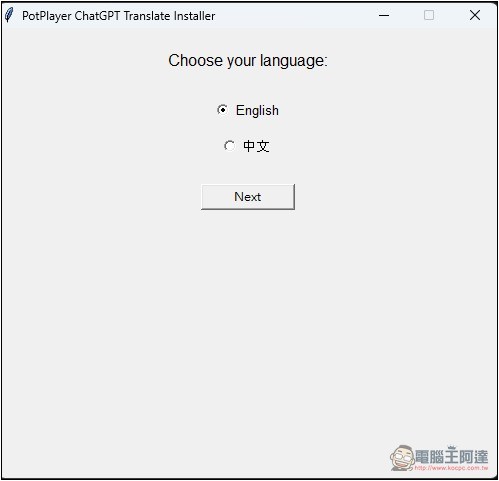
Choose your language, I’ll pick Chinese.
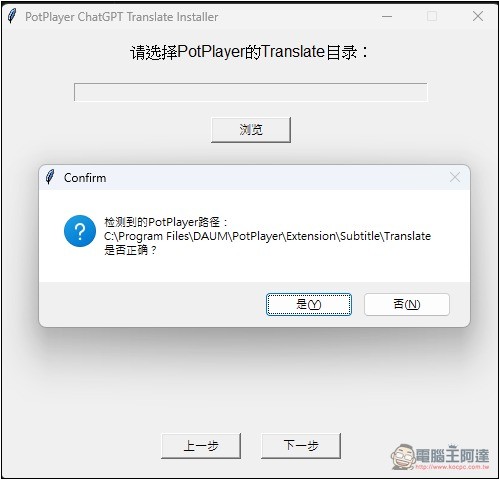
It will automatically detect your PotPlayer installation path. After confirming there are no issues, click Yes and Next:
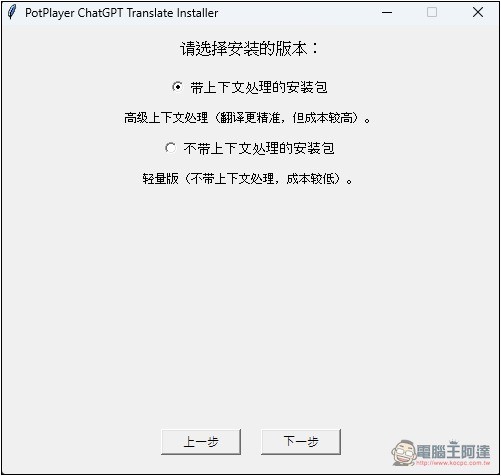
There are two installation versions: “with context” and “without context.” It is recommended to install the one with context processing, as the translation accuracy is much higher.
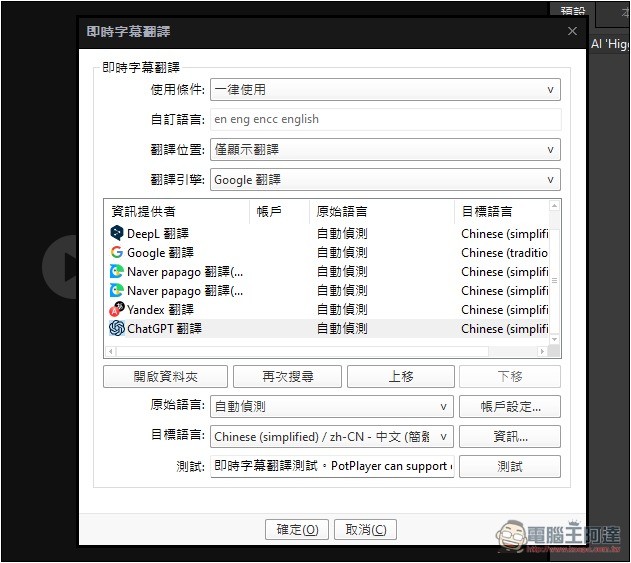
After installation, open PotPlayer’s real-time subtitle translation settings, and at the very bottom you’ll see the newly added “ChatGPT Translation”. Click “Account Settings”:
Next, it will ask you to enter the API address and key. If you’re using an online AI service, just fill in your details. If you want to use a local language model, I’ll show you how to do it with LM Studio below.
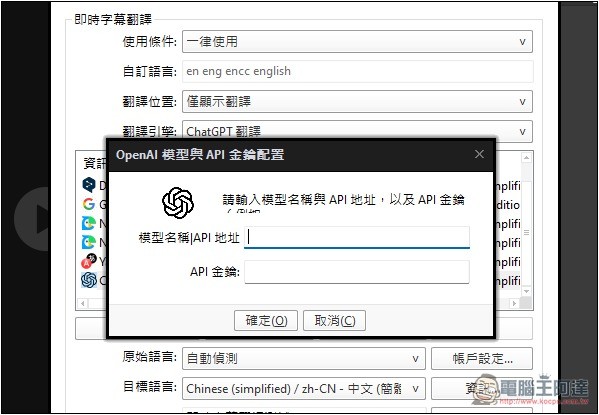
LM Studio is a chat application that can run AI language models locally. It has a built-in Hugging Face database, so you can download the models you need directly from the software, and it also supports a local API service. It has a Traditional Chinese interface, so you don’t need to worry about not being able to understand it.
After downloading and installing LM Studio, first download the model you want to use by clicking the search icon on the left side:
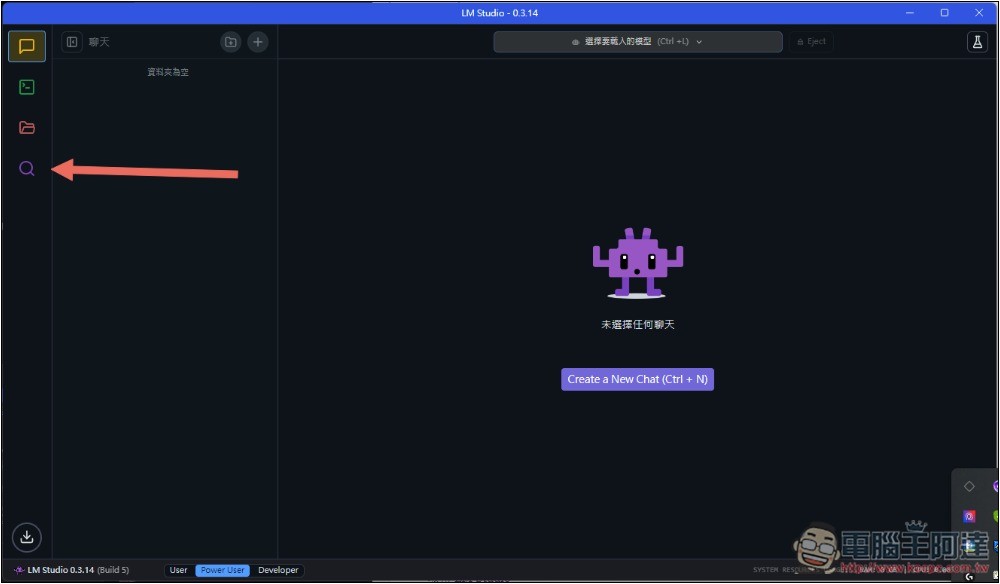
Enter the model name, find the model you want, then click Download in the bottom right corner to download it.
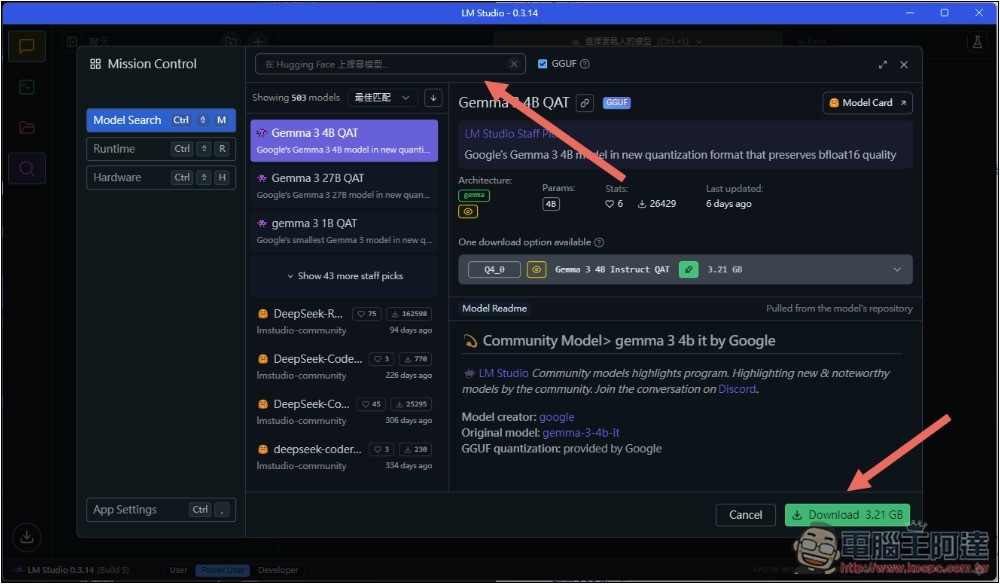
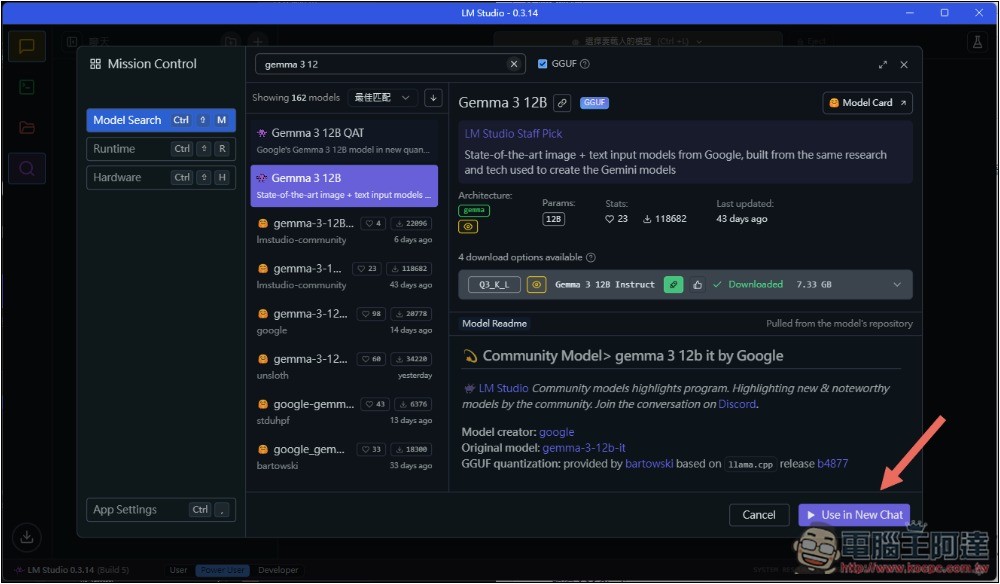
I’m using Gemma 3 12B, and it runs without issues on my RTX 3080 10GB graphics card. I think this model’s translation quality is quite good. After downloading, press Use In New Chat:
Then click the second function icon on the left, which is the feature that enables the local API service, and then click the model selector at the top:
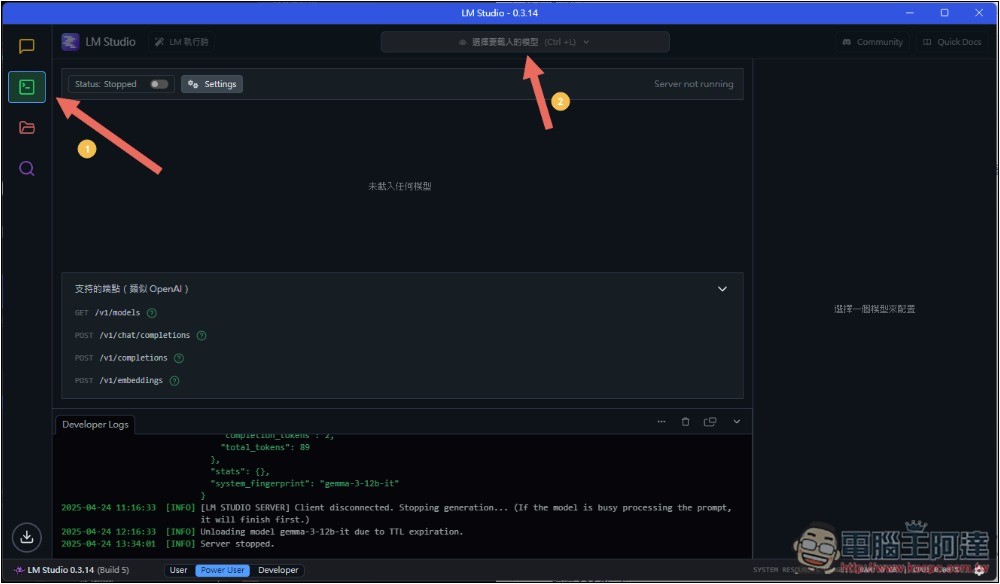
Choose the model you want to use—I’ll pick Gemma 3 12B:
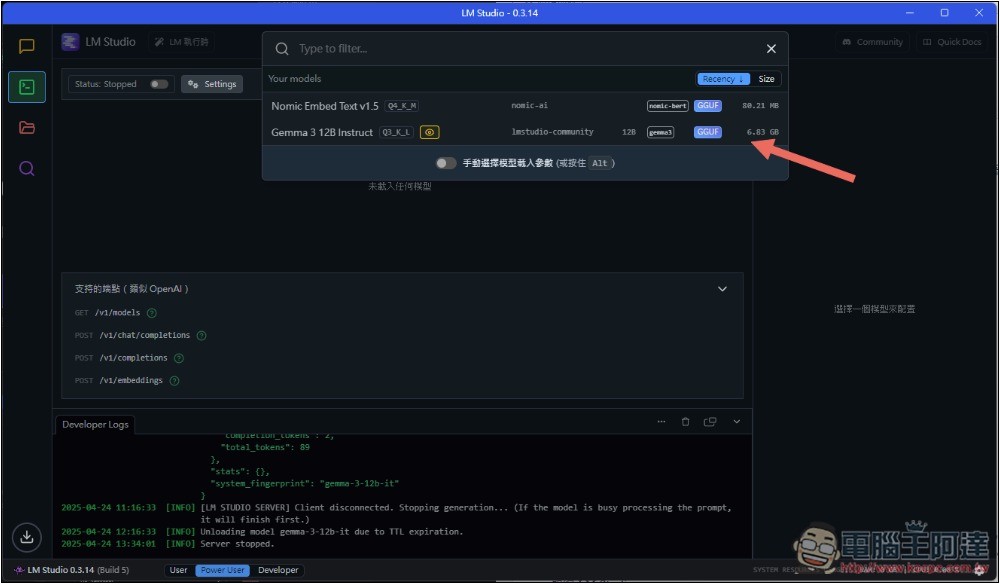
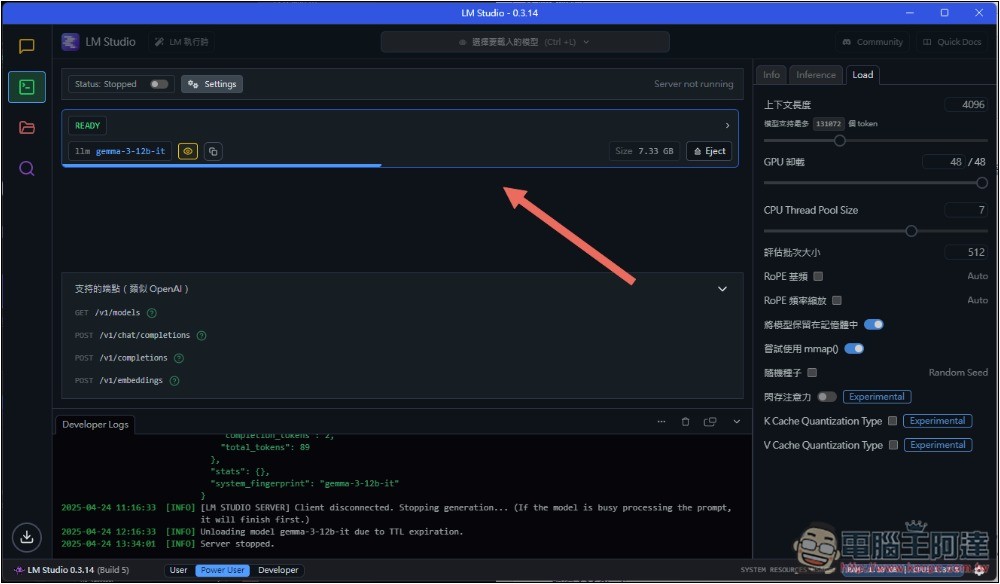
After selecting, it will appear in the list, wait for it to finish:
After it finishes running, turn on the server service, click the switch in the top-left corner, and switch it to Status Running. Next, there are two pieces of information to note down: the model name (1) and the API address (2) shown in the figure below. You can use the copy function on the right to copy them in one click.
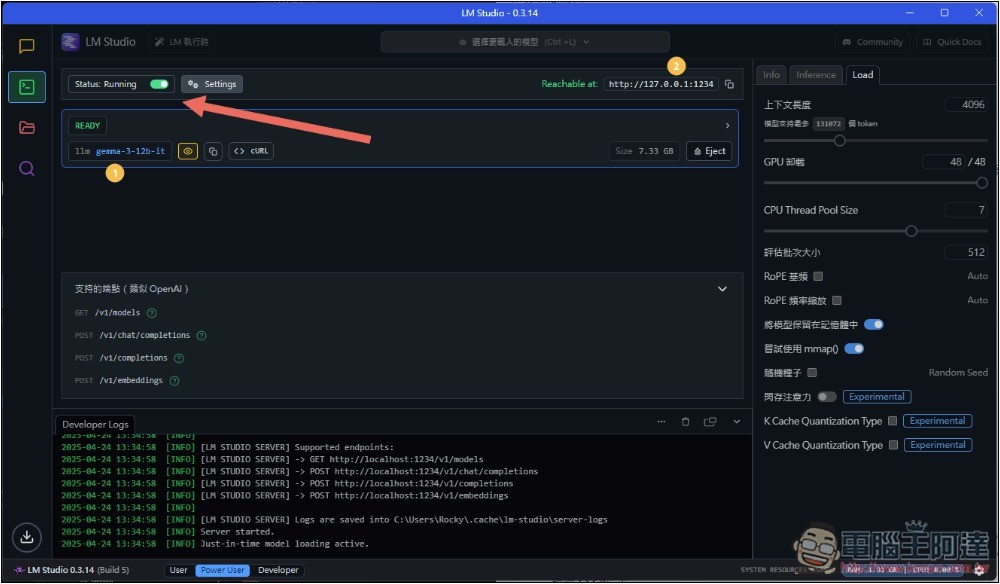
Go back to PotPlayer’s real-time subtitle translation settings, select ChatGPT translation and account settings, and enter the model name in the format below:
範例:模型名稱|http://127.0.0.1:1234/v1/chat/completions|nullkey我的是:gemma-3-12b-it|http://127.0.0.1:1234/v1/chat/completions|nullkey
The main difference is the model name at the front; the API address in the middle is basically fixed, and at the end it’s also just entering nullkey.
You can put any value for the API key, or even leave it blank, but for some reason my test failed when it was blank, so I entered 123456.
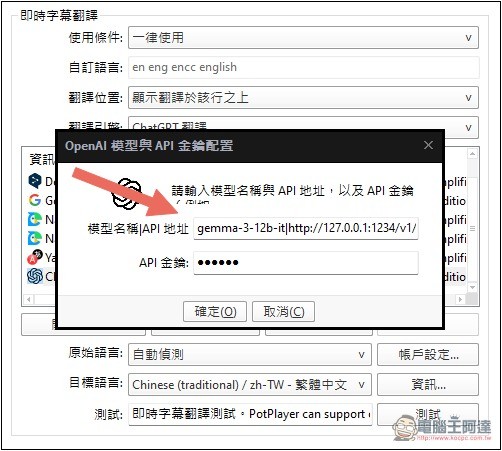
After setting up, test whether it worked. Press the test button below; if Chinese characters are displayed, it means it was successful:
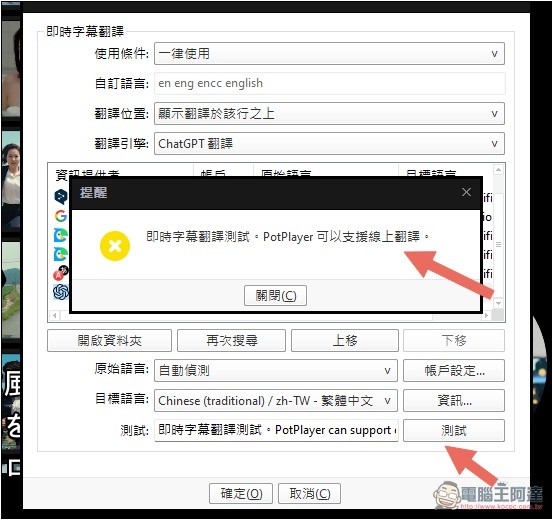
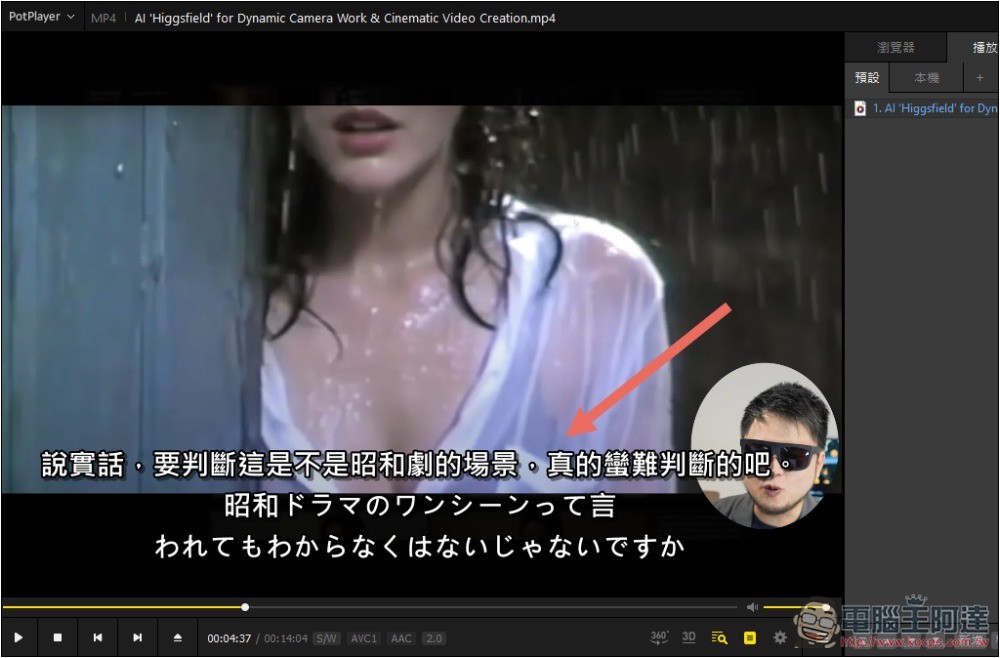
Back in PotPlayer when playing a video, it switches to using a local AI language model for translation. I used Gemma 3 12B to translate the following Japanese sentence, and it came out as “To be honest, whether a scene is from a Showa-era drama is really pretty hard to judge, isn’t it?” I can understand what it means.
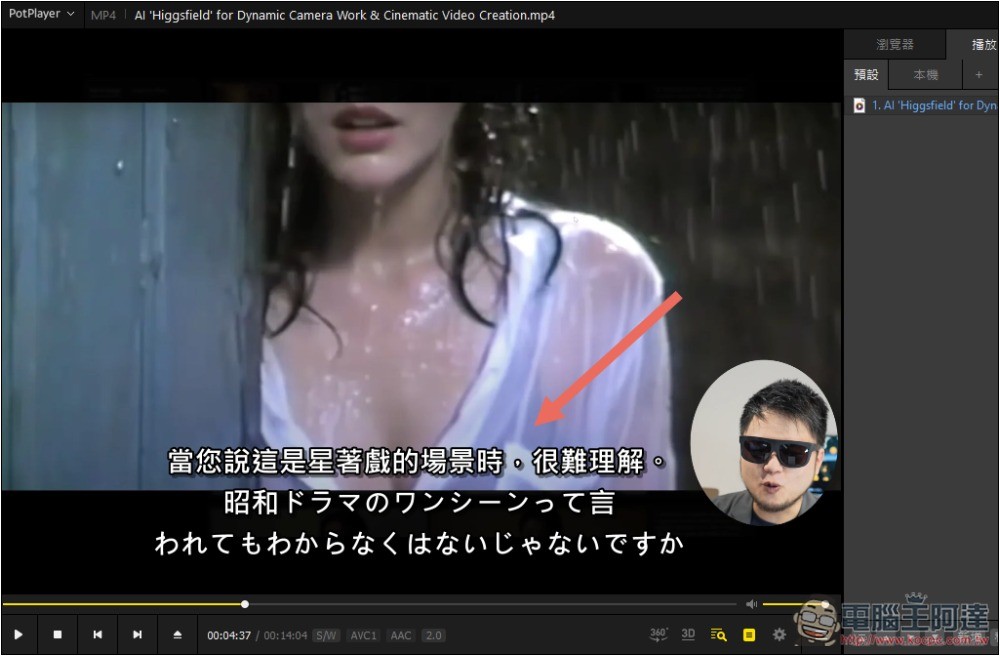
But switching to Google Translate, it becomes “When you say this is a scene from a star play, it’s hard to understand”—I have no idea what that’s saying, so I highly recommend using an AI language model to translate instead.
Because it uses a local AI language model, translation is completely free—translate as much as you want.
However, keep in mind that if your computer runs slowly when you use it, it means the AI language model you chose is too large to run smoothly. Switch to a smaller one, such as 6B or 4B. But the smaller the model, the worse the translation quality.
Source: KOCPC Chinese