

• About Us
King of Computer Media
  • Home
  • Tech News
  • AI News
  • Apps & Tutorials
  • Mobile & Telecom
  • Lifestyle
  • About Us
No Result
View All Result
  • Home
  • Tech News
  • AI News
  • Apps & Tutorials
  • Mobile & Telecom
  • Lifestyle
  • About Us
No Result
View All Result
King of Computer Media
No Result
View All Result

Home - Mac OS software sharing and teaching - WidgetWall allows you to place gadgets on your Mac desktop, including websites, photos, clocks, etc.

WidgetWall allows you to place gadgets on your Mac desktop, including websites, photos, clocks, etc.

KOCPC Editor by KOCPC Editor
July 3, 2022 - Updated on August 4, 2026
in Mac OS software sharing and teaching

WidgetWall is a software that makes the Mac desktop look like an iPhone. It can place widgets, ranging from commonly used time, weather, computers, photos, to your favorite websites and software Apps shortcuts. I will introduce it to you below.
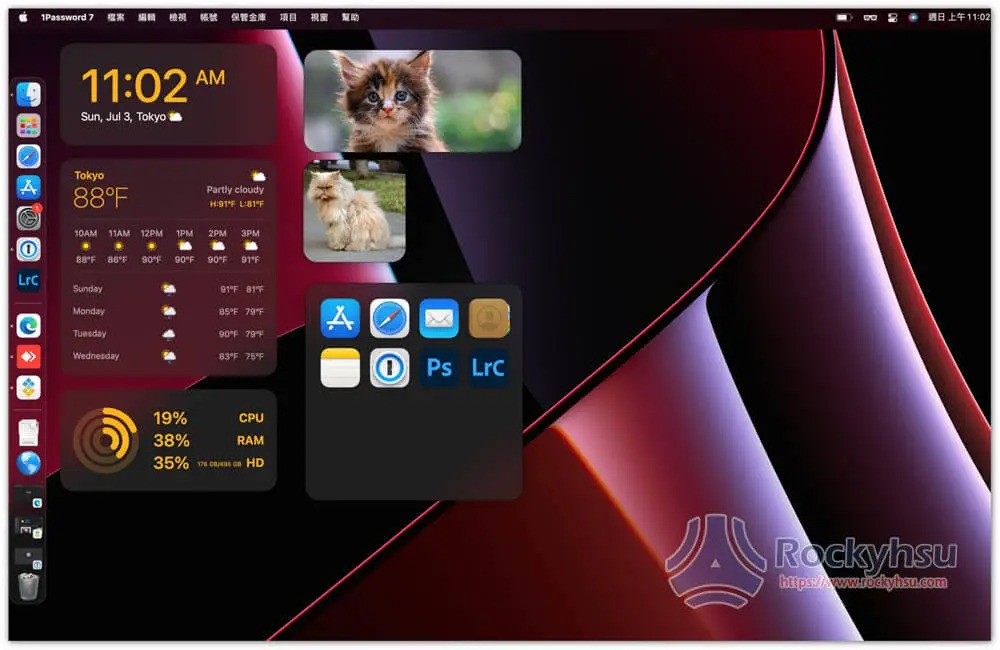
Is this free software for Mac?

No, this is a paid software.Official websiteThere is a free trial, and the price is based on a subscription system. I prefer to get it from Setapp. I installed it from Setapp.

Setapp is a Mac Apps subscription service, paying only $9.99 per month, you can use more than 230 paid professional software, available on many well-known Macs, such as Bartender、SideNotes, Be Focused, Session, CleanMyMac

Further reading:

  • Setapp Mac and iOS software recommended subscription service, one account can use more than 230 professional paid software apps
  • The best Mac productivity software recommendations! These can help you improve work efficiency

WidgetWall operation tutorial and introduction

After the first installation, some commonly used widgets will be automatically added to the Mac desktop. If you don’t like them, you can right-click to delete them and add the required widgets from the function menu in the upper right corner.

Step 1 – Add the gadgets you need

After clicking the small icon of the Menu Bar in the upper right corner, a menu of supported gadgets will appear on the right:
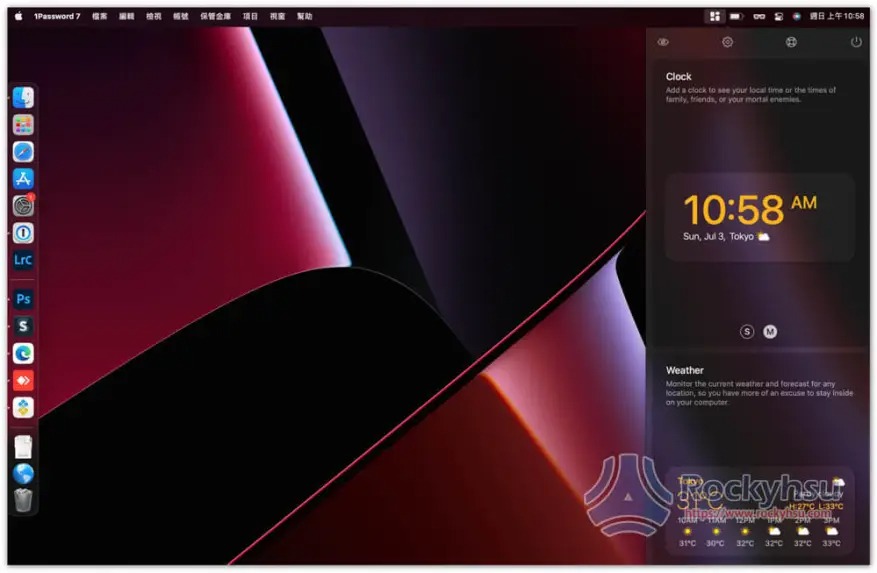
After moving the mouse over the gadget you need, you will see the + function in the upper left corner:
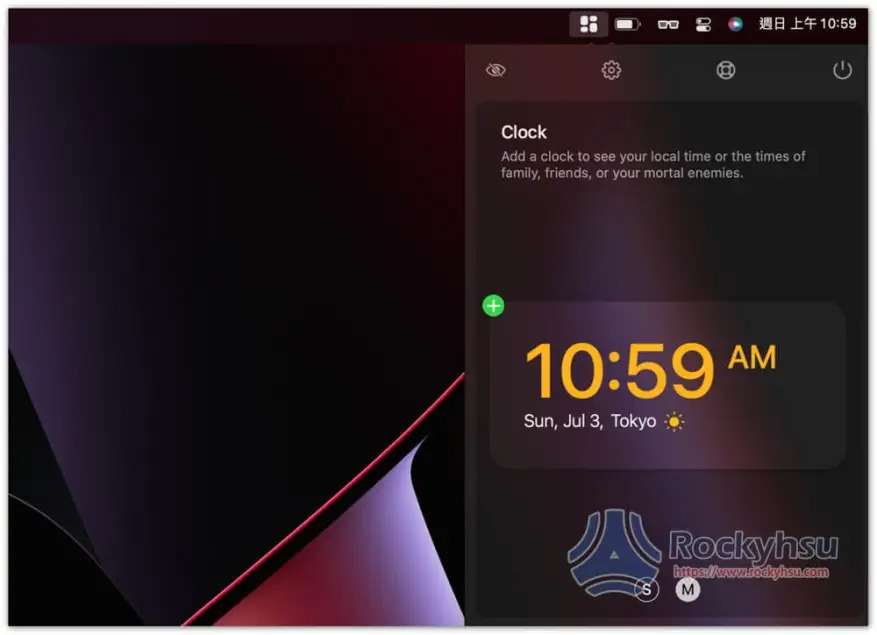
One click will add it to the Mac desktop:
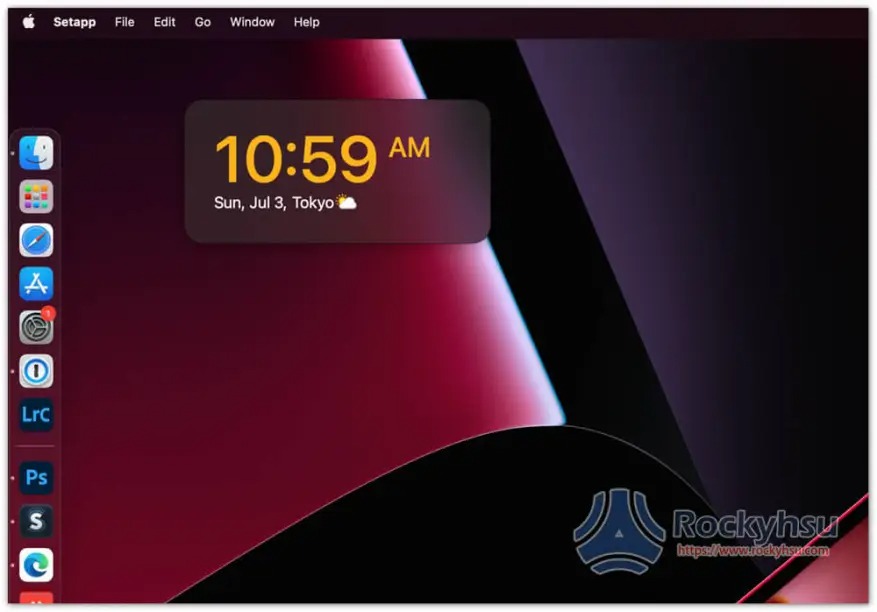
Step 2 – Drag and Arrange Gadgets

After adding all the gadgets you need to your Mac desktop, you can drag each gadget to the arrangement you want and long press to move it. In addition, it is recommended to match HiddenMe free software, which can hide all icons on the desktop so that it doesn’t look cluttered:
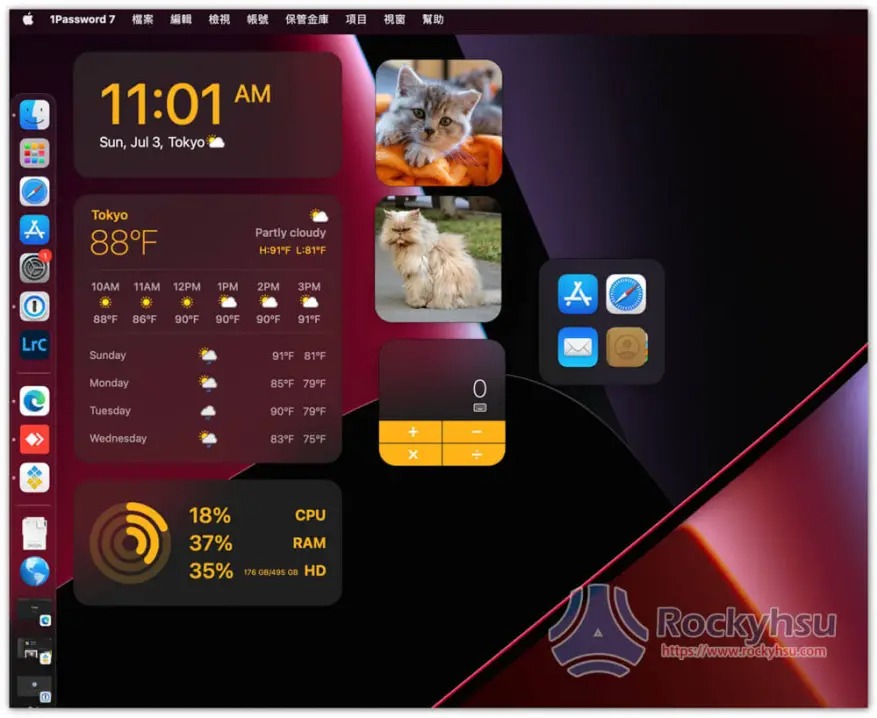
Step 3 – The widget can be resized if necessary

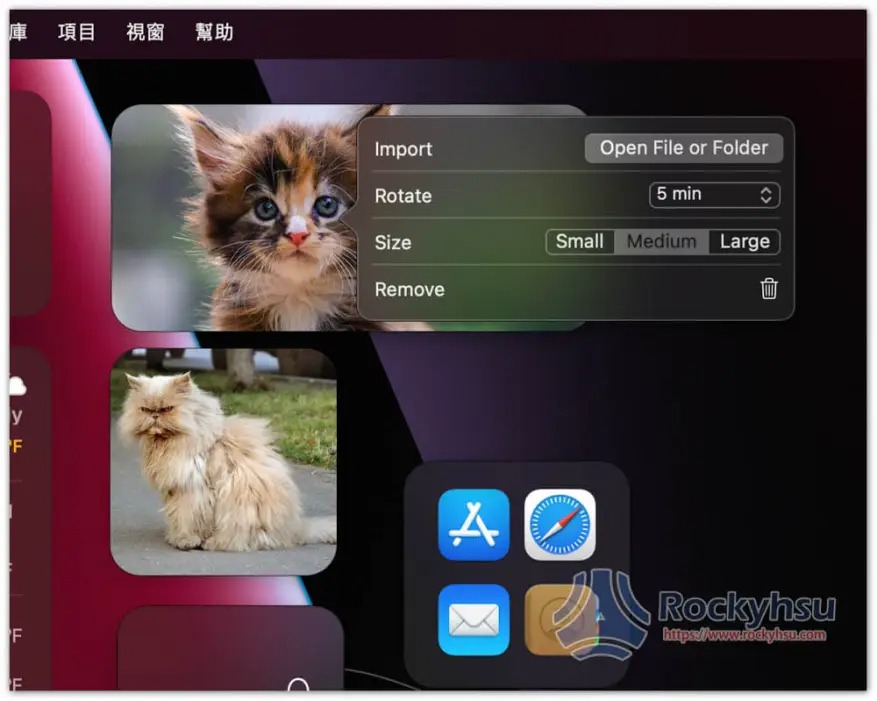
If you feel that the screen of the gadget is too small, you can open the right-click menu and you will see the Size option, which is small, medium and large:
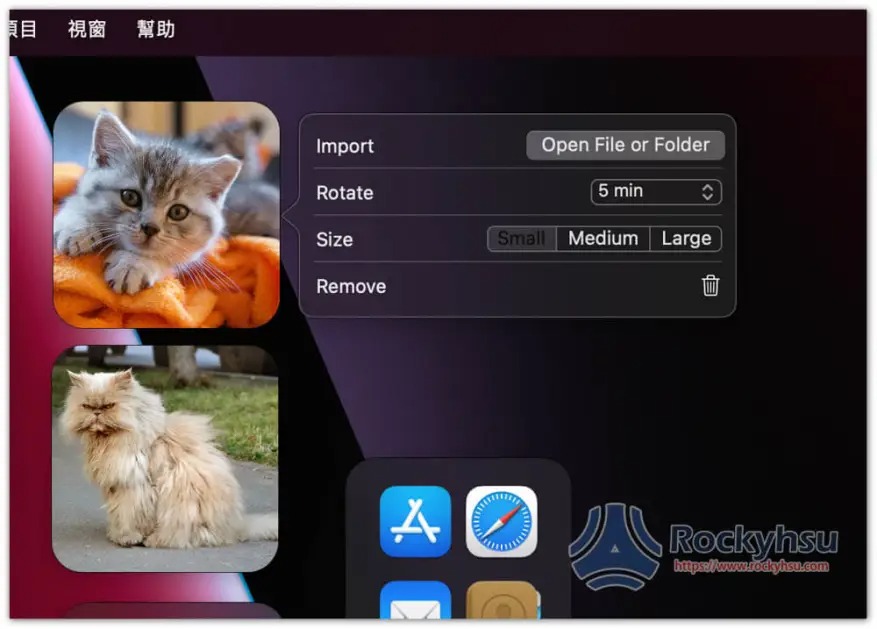
Like I changed the photo to medium size. In addition, in the Import section, please set the photo folder of your rotation and how long the Rotate will change:
Step 4 – Software Apps shortcuts can add more

If you have a gadget that adds software Apps shortcuts, only 5 Apps will be displayed by default. You can manually add more to display, and open the right-click menu in the same way. The first Apps is:
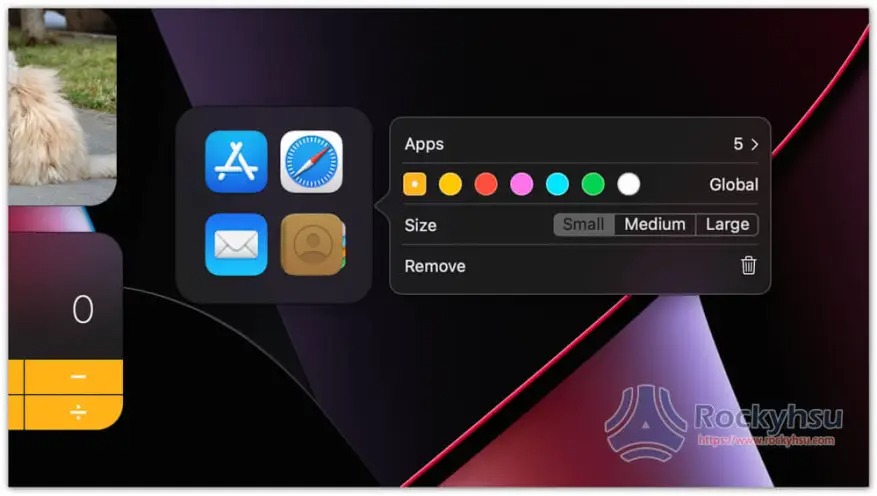
Check the Apps you want to put on the desktop gadgets, and it will appear:

Summarize

For friends who rarely use desktop files, I highly recommend installing this, so that you can use your Mac desktop more effectively, and each Mac desktop can freely set up the gadgets you want.

Source: KOCPC Chinese

Tags: Mac Gadgets

Recent Posts

  • Which top model offers a better subscription deal? SemiAnalysis tested: Anthropic’s subscription value is 5 times OpenAI’s.
  • U.S. iPhone 18 Pro Max Hit by Widespread Network Disconnection Issues; Apple Admits Affected Users Can Only Get Replacements
  • Rumor has it Apple will launch two waves of new products this month! New products will debut both mid-month and at the end of the month.
  • iRobot Roomba Launches Five New Series, Further Upgrading Deep Sweeping and Mopping Performance
  • So heartwarming! A fan of an ultra-rare PC game receives a mysterious party invitation after 25 years.

Recent Comments

No comments to show.
  • About Us

We welcome partnership inquiries and product review opportunities from smartphone manufacturers, iPhone accessory brands, and app developers.koc kocpc.com.tw|Privacy Policy |Hosting & Maintenance: Fast Line Taiwan, A-Chang Digital Technology

No Result
View All Result
  • Home
  • Tech News
  • AI News
  • Apps & Tutorials
  • Mobile & Telecom
  • Lifestyle
  • About Us

We welcome partnership inquiries and product review opportunities from smartphone manufacturers, iPhone accessory brands, and app developers.koc kocpc.com.tw|Privacy Policy |Hosting & Maintenance: Fast Line Taiwan, A-Chang Digital Technology