


Recently, NotebookLM has been getting better and better to use. Following the addition of the feature that turns documents into Podcasts, Google announced earlier that it’s adding support for uploading audio and YouTube URLs. This means you can drop YouTube videos you’re interested in into NotebookLM to have them organized, and then use a conversational approach to understand the key points of the videos and whatever else you want to know.
Also, you can just throw in an English video from overseas that you don’t understand, and then learn what the video is about through a Chinese conversation. That’s really convenient.
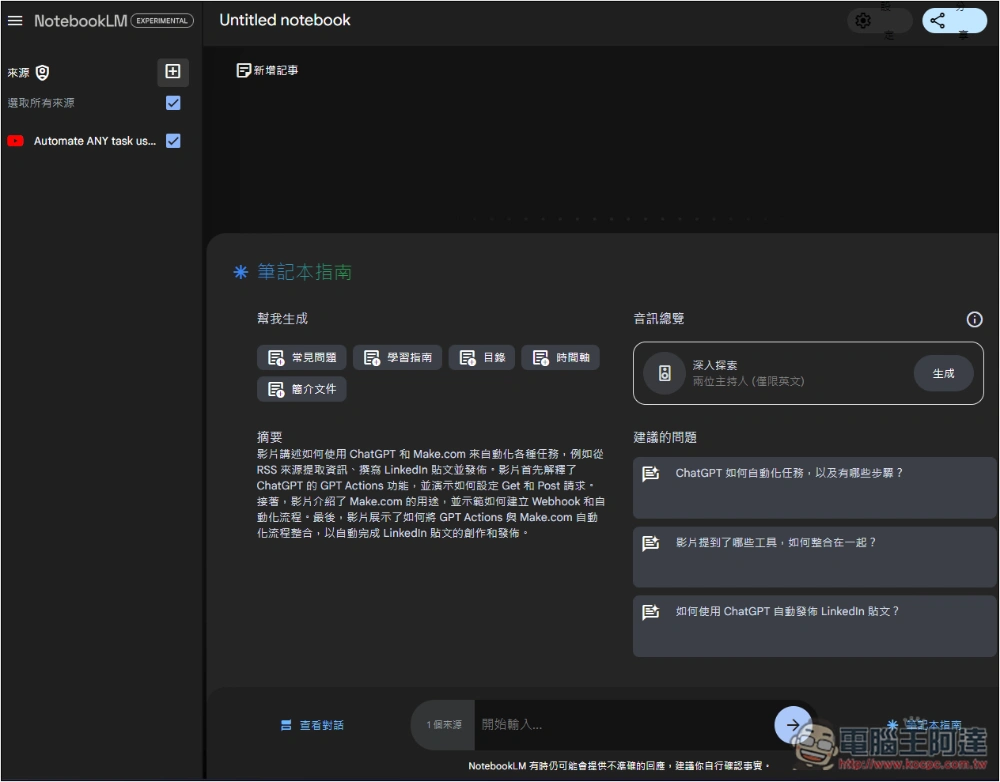
NotebookLM now officially supports YouTube links and audio files.
Now just log in to NotebookLM backendAfterwards, add a file and you’ll see fields for uploading audio files and YouTube. According to Google’s documentation, these two new sources also use the Gemini 1.5 model.
For YouTube videos, after you provide the URL, the system will summarize the video’s key points and also offer related questions to help you gain a deeper understanding of the video.
For Chinese users, after Gemini 1.5 completes its analysis, it will automatically reply in Chinese, even if the video is in English or another language. This is a very useful feature for those who can’t understand foreign YouTube videos.
Also, note that this feature relies on the transcript, i.e., the video’s subtitles. If the YouTube video doesn’t have subtitles available, an error will occur.
However, when I tested a foreign video, the first attempt couldn’t fetch the transcript, but the second try worked fine. So if it fails, you can also try multiple times.
Go to the NotebookLM backend and click “Add notebook”:
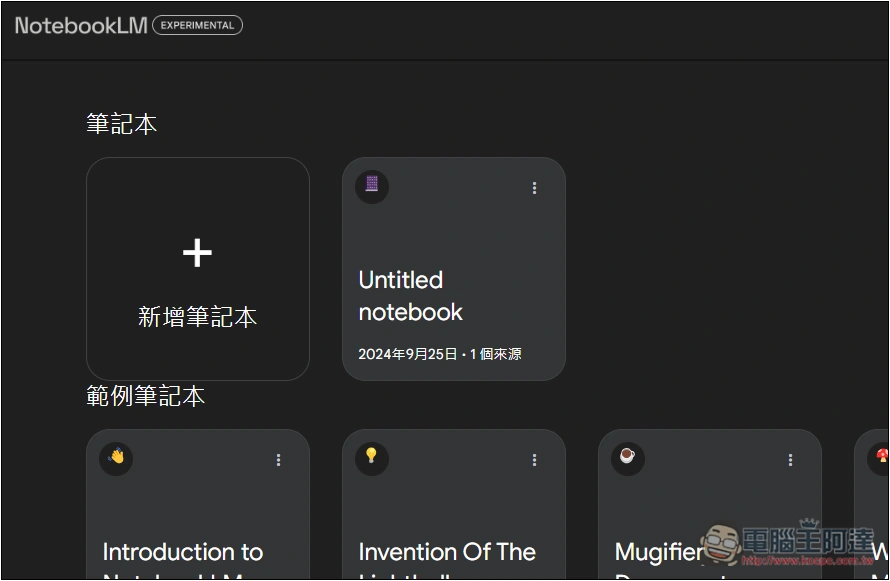
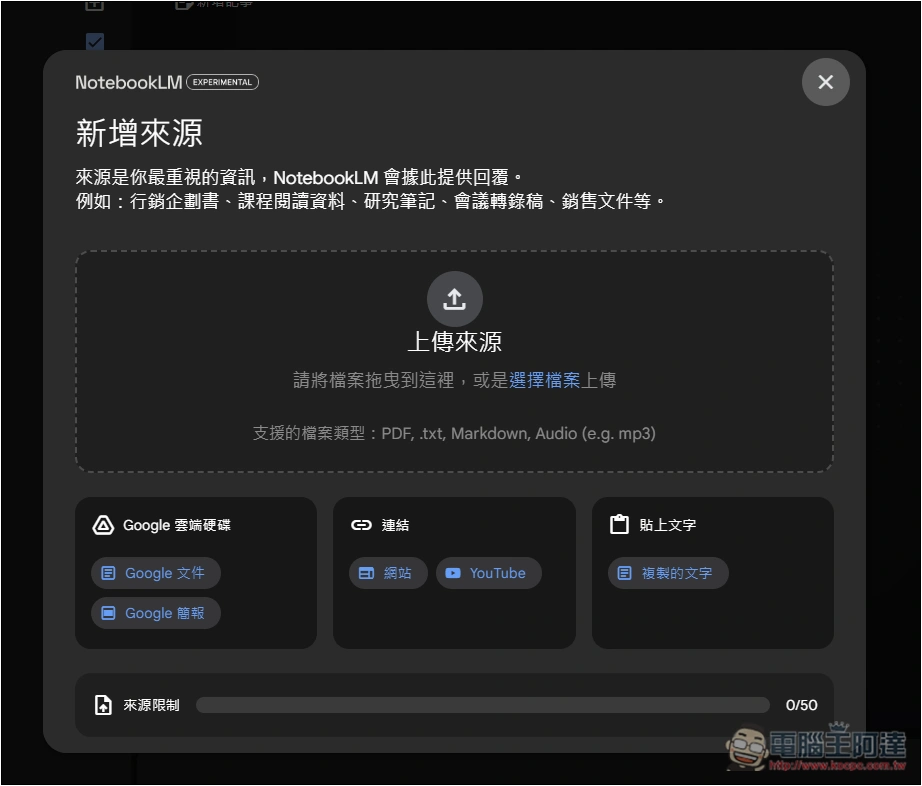
Next, in the link section below the Add Source menu, you can see “YouTube”:
Enter the YouTube URL, then click Insert at the bottom right:
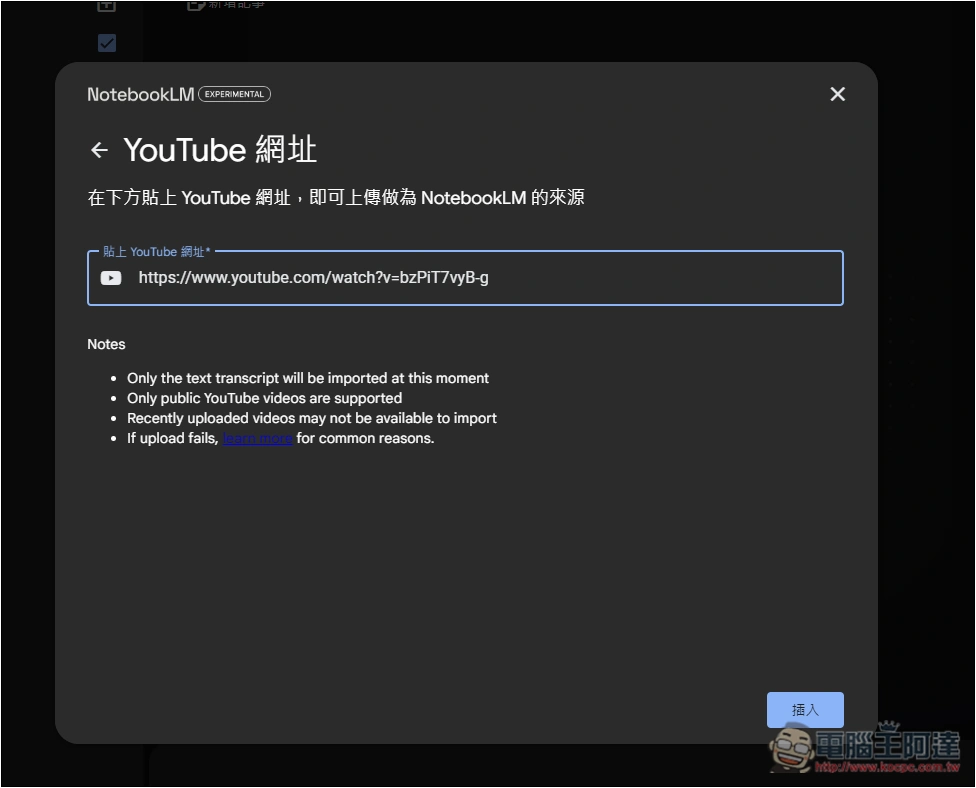
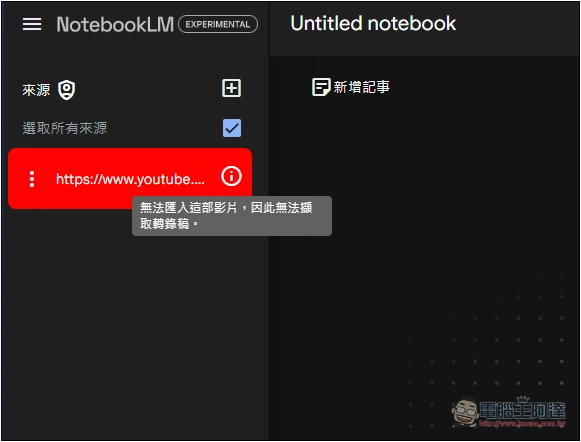
If the transcript cannot be retrieved, it will display in red:
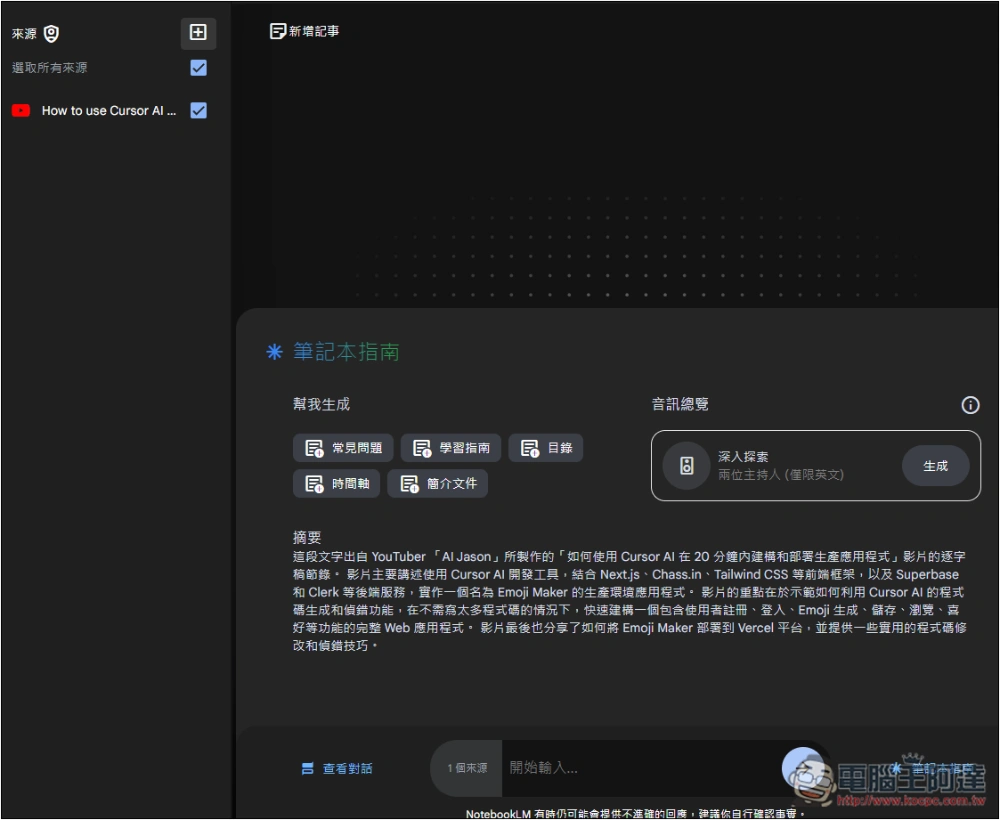
Once it loads successfully, a summary of the video’s key points will appear below. You can click “FAQ,” “Study Guide,” “Table of Contents,” “Timeline,” and “Overview Document” to generate the relevant content, or use the chat box below to start a conversation with the AI.
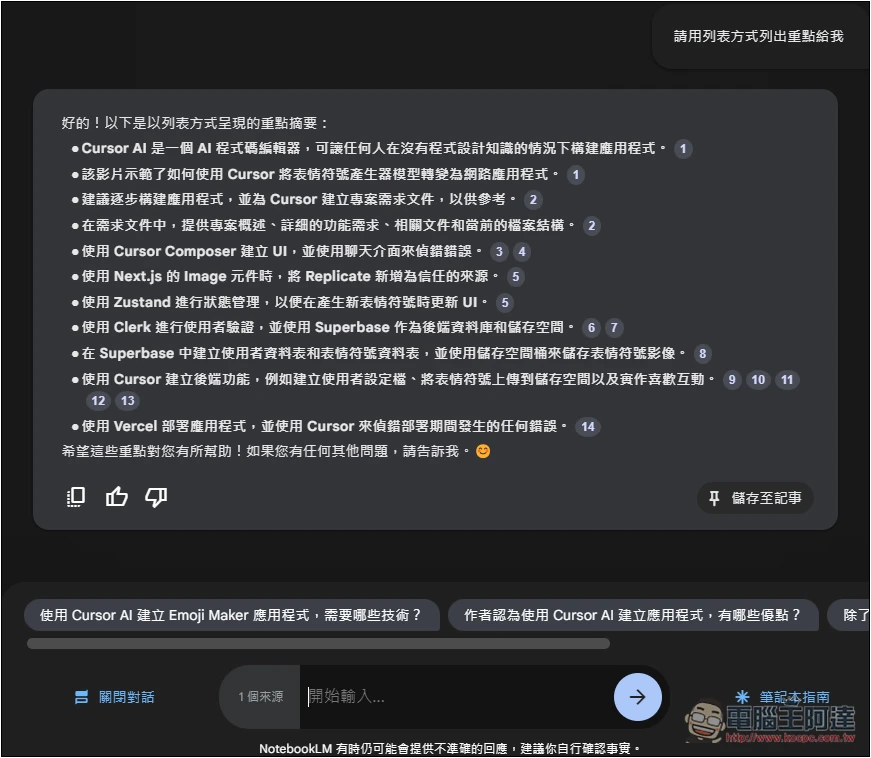
You can ask any question, such as asking me to organize the key points of this video in a list format:
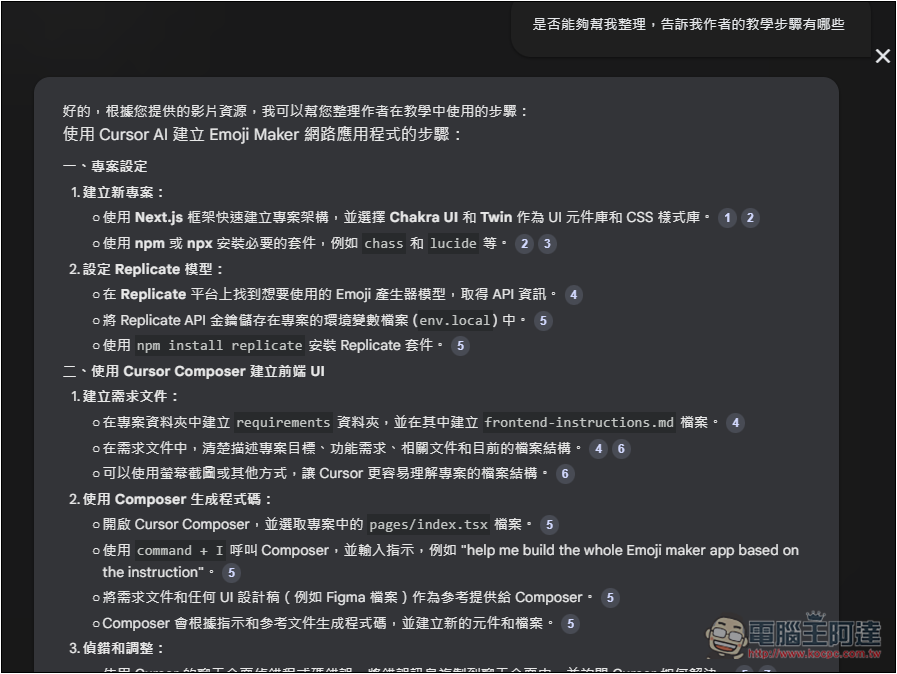
The video I tested was a Cursor AI tutorial, so I asked it to provide the complete teaching steps. With those details, I could quickly tell whether the tutorial content included anything I currently need or find interesting.
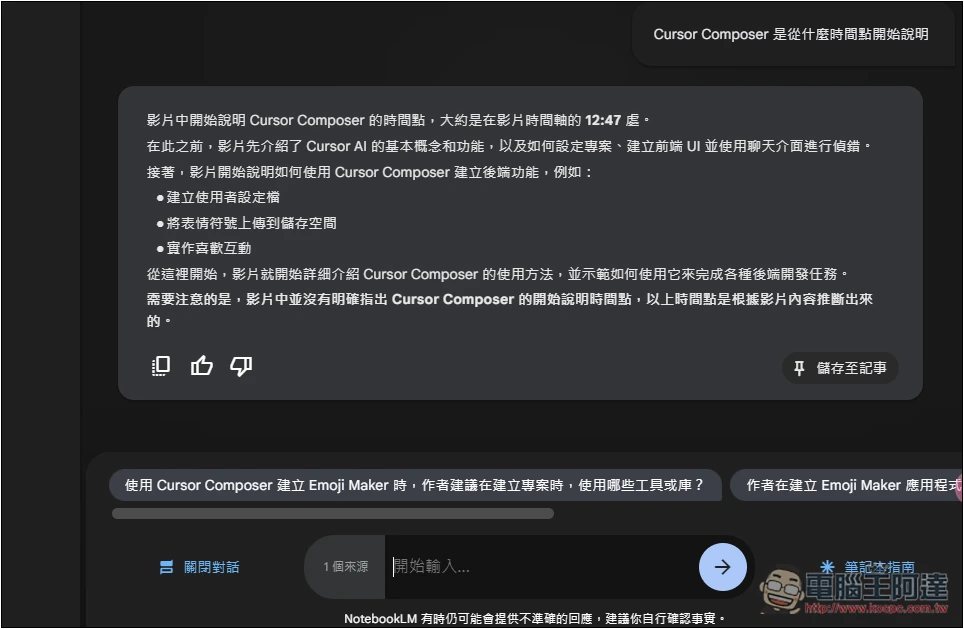
I also tested asking about the content I wanted to see, specifying which point in the video it appeared. It gave an answer, and at first I thought it could really quickly find the video segment I wanted. But after a final check, I found it was wrong—the timestamp it mentioned didn’t mention that content at all. This shows it’s hallucination:
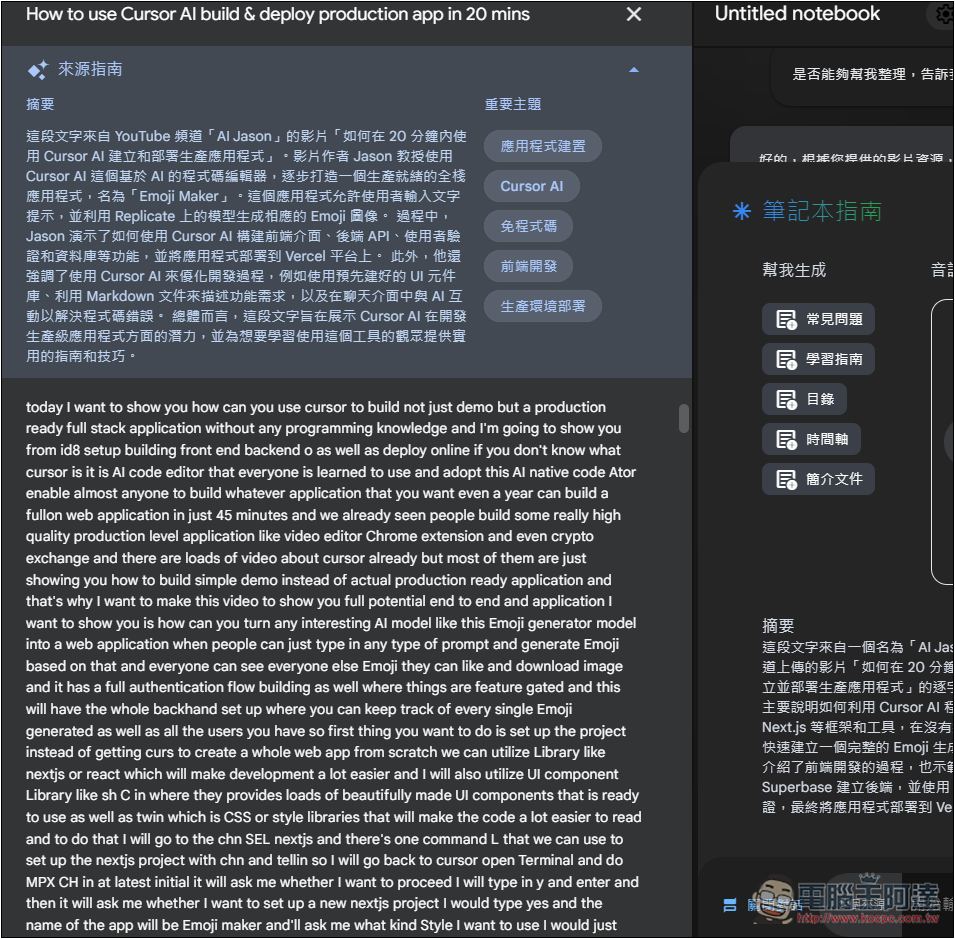
But when I checked the transcript content, there was no timestamp recorded, so no wonder it couldn’t find it:
Although using a conversational approach to understand video content is indeed much more convenient, you still need to watch out for AI hallucinations. For more important content, it’s advisable to cross-check.
Like asking him to provide the original content, you can go into the transcript and check whether it’s really there.
As for audio files, the usage is similar—just upload the audio file you want to use for your conversation with the AI, and then you can start.
Source: KOCPC Chinese