


follow The steps for retrieving the ㄅhalf input method (old phonetic input method) written during the Windows 10 update, now after updating to Windows 11, of course, you still have to continue to get the ㄅhalf back. You can also use the built-in function adjustments of Windows without installing plug-ins. Each stage is accompanied by a quick process for easy operation.
1. Add machine code
As in the case of Windows 10, please download the Win 11 half input method code first, such asIf you have downloaded it previously for Win 10, just use the same file.
Download point;Alternate loading point
After downloading, please click the left button twice to execute (For Windows 10, right-click and select Merge)
▼After downloading the semi-machine code, click the left button twice to execute
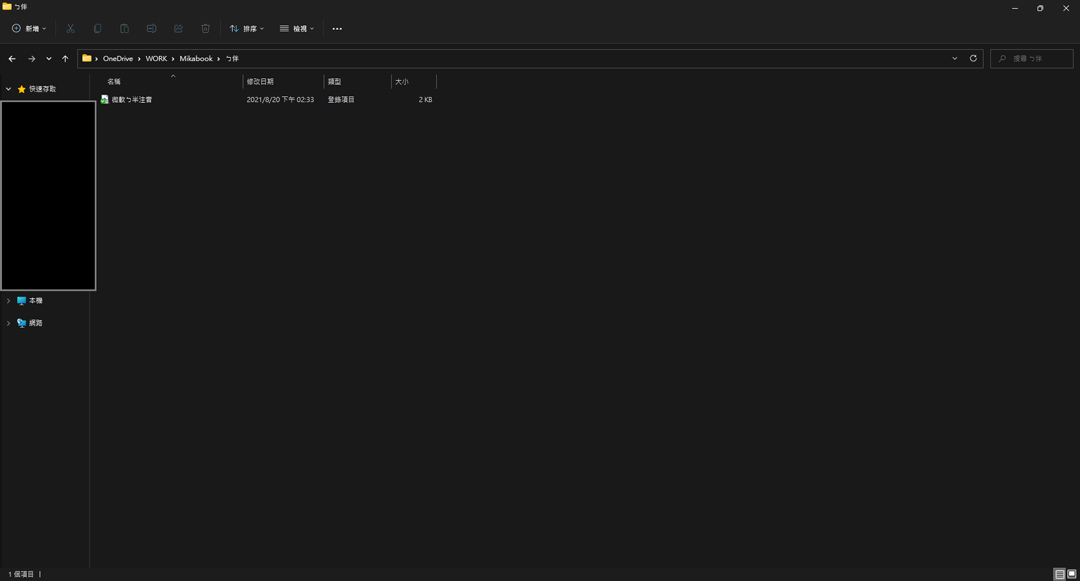
▼Please click “Yes” to confirm the merger.
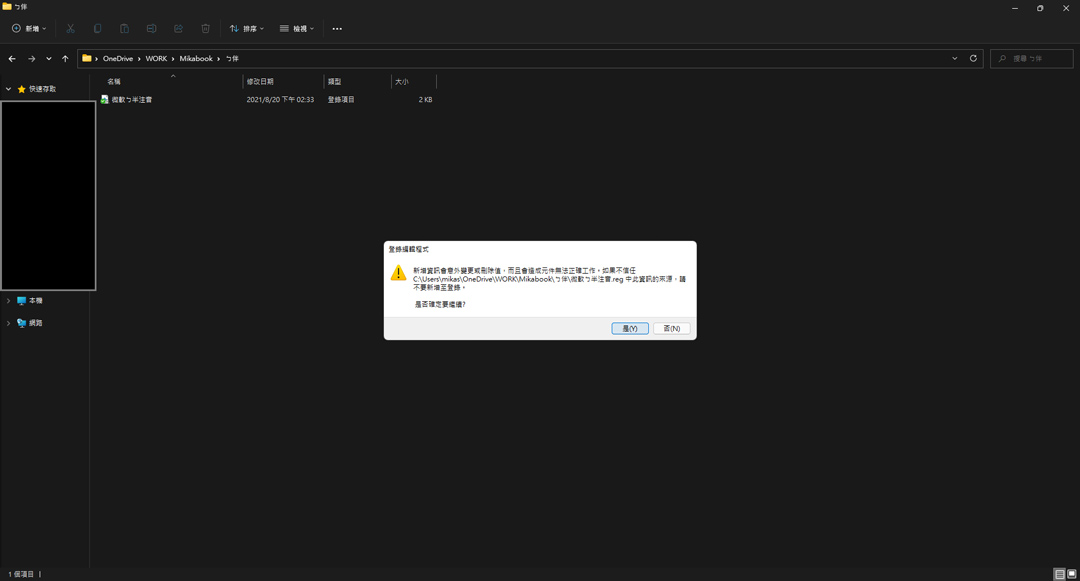
▼Completed, please click OK
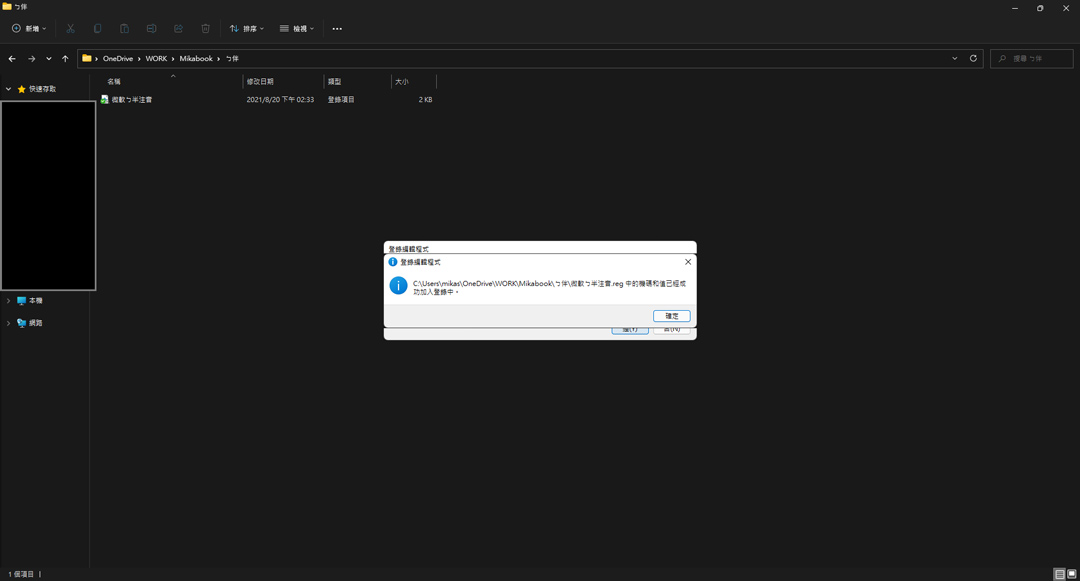
Quick process: Download the machine code > Left-click twice > Complete the merge
2.Switch the default display language
Windows 11 installs half input method, and Win 10 also needs to change the system language to English first., the following is the case where English has been added,If you don’t have English language yet, please click “Add Language” first。
Please see the picture for operation
▼Open the “Settings” screen like this, click “Time and Language”
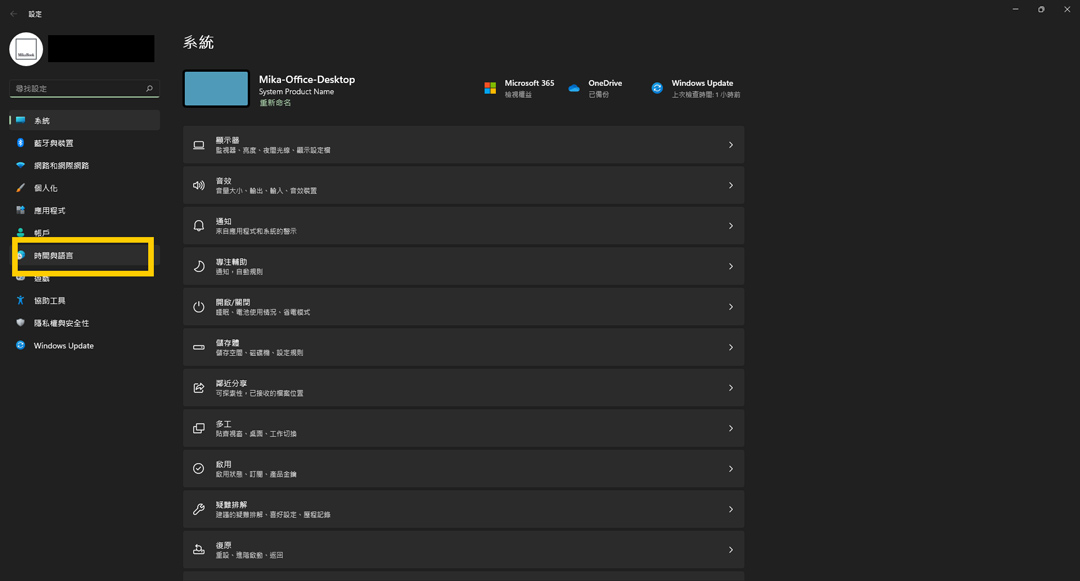
▼Enter the “Time and Language” menu and click “Language and Region”
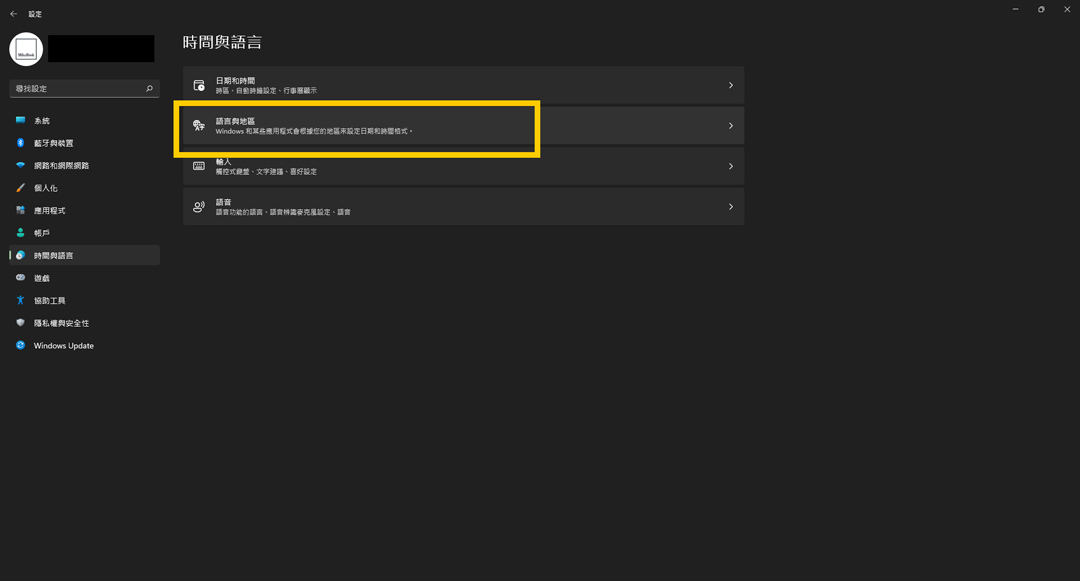
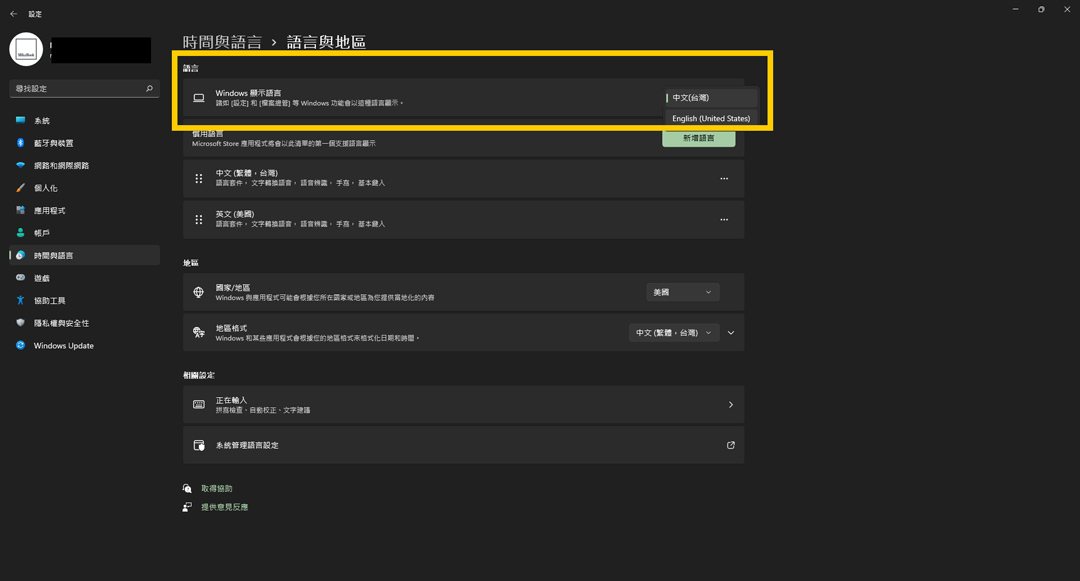
▼In the first item of “Language and Region”, click “Windows Default Language” and click the drop-down menu to change it to “English”. If there is no such option, please click “Add Language” first.
▼Please “log out” after changing the language
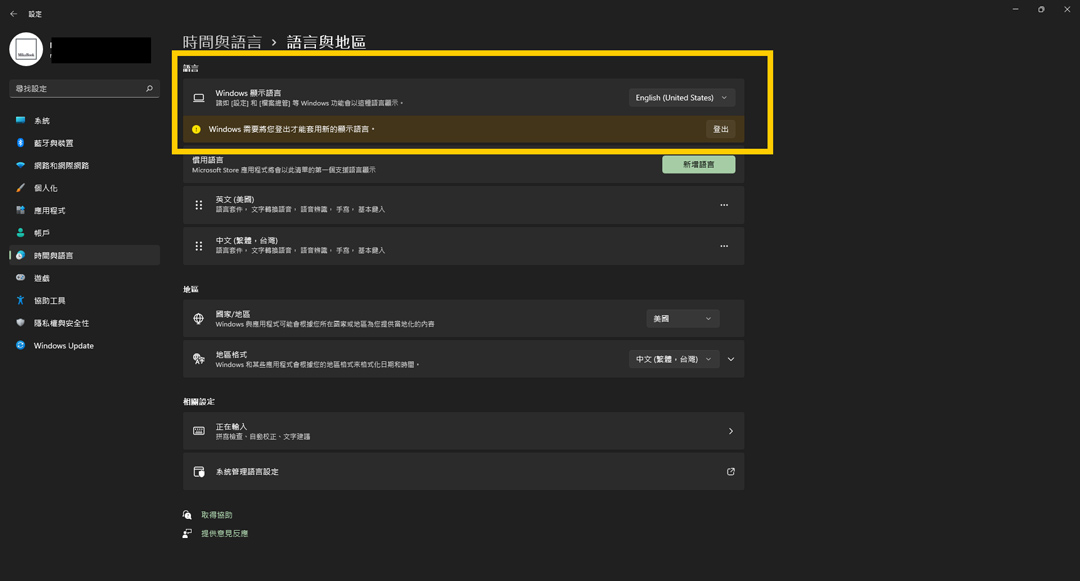
Quick process: Settings>Time and Language>Language and Region>Windows Display Language>Change to English (if not, please add a language first)>Log out
3. Added ㄅhalf input method (old phonetic input method)
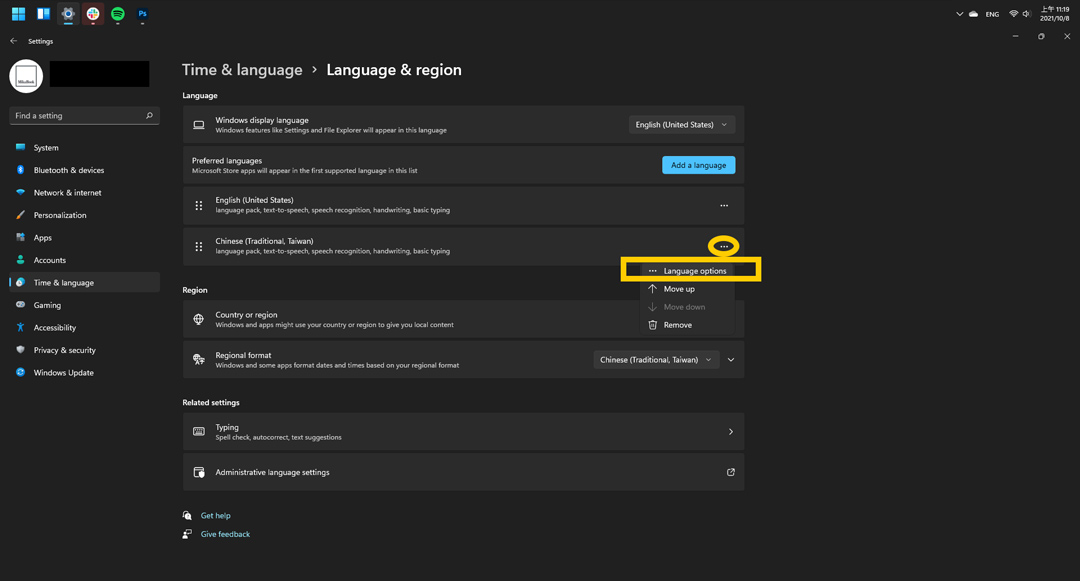
After logging in again, the language will change to English. At this time, you can start adding the ㄅhalf input method (Zhuyin input method) in Windows 11. Please see the picture for operation.
▼Similarly go to “Setting”>”Time & Language” and click “Language & region” on the right
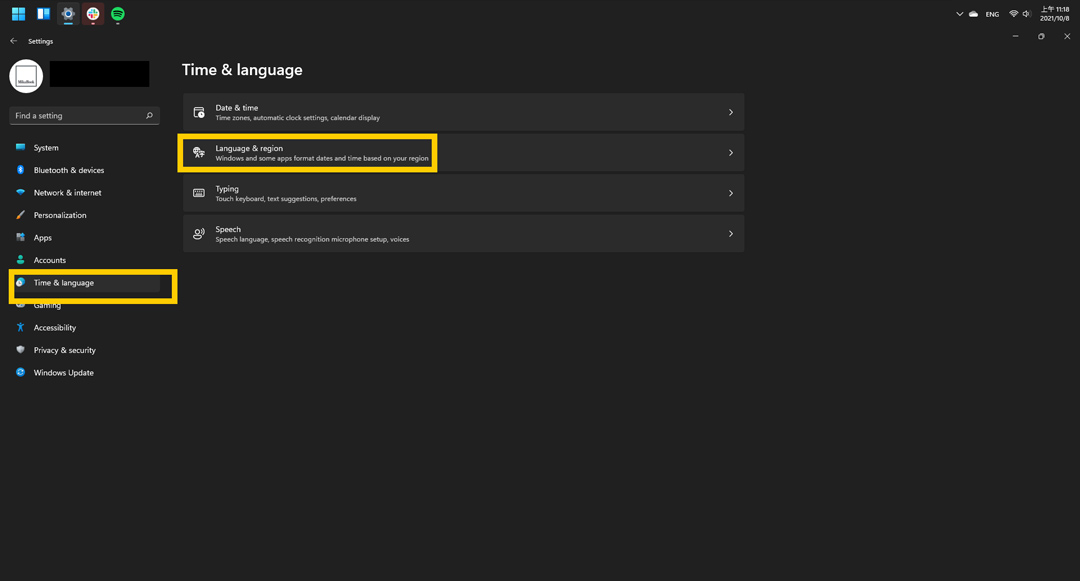
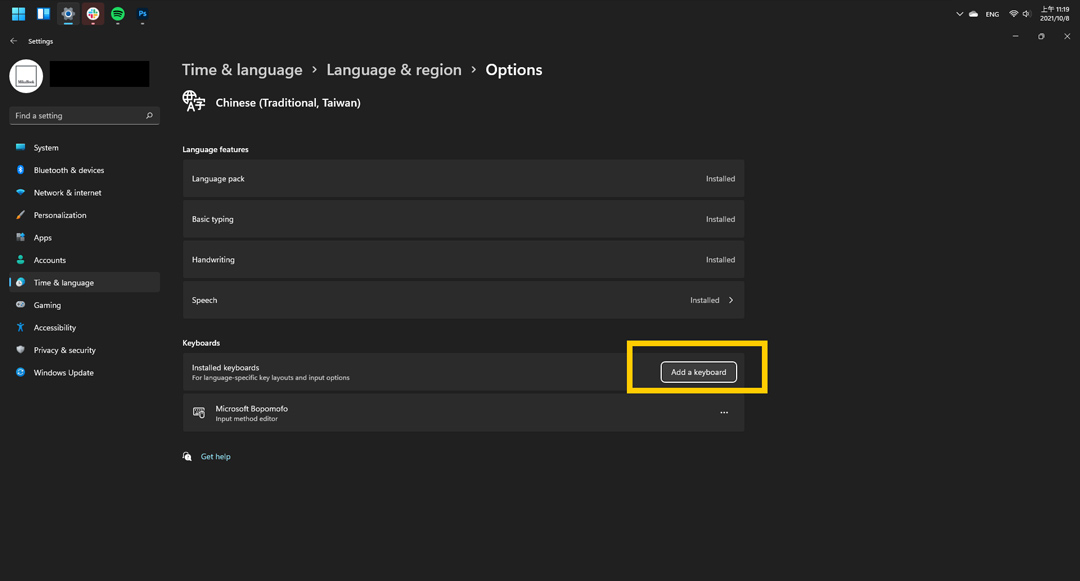
▼Click “Add a Keyboard” in the “Keyboards” area below
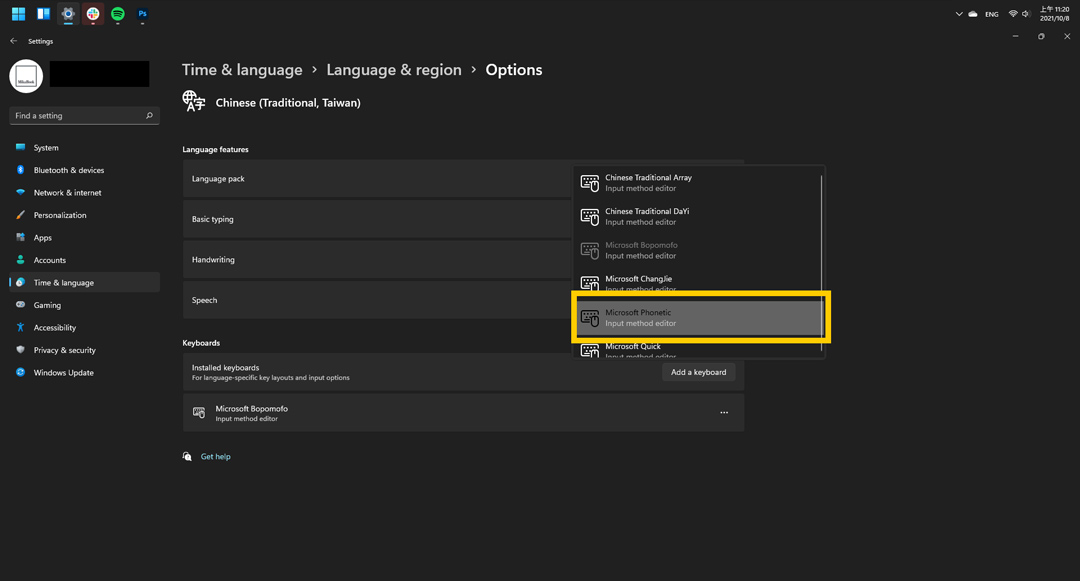
▼Find “Microsoft Phonetic” and click on it
▼Added ㄅ half phonetic notation completed!
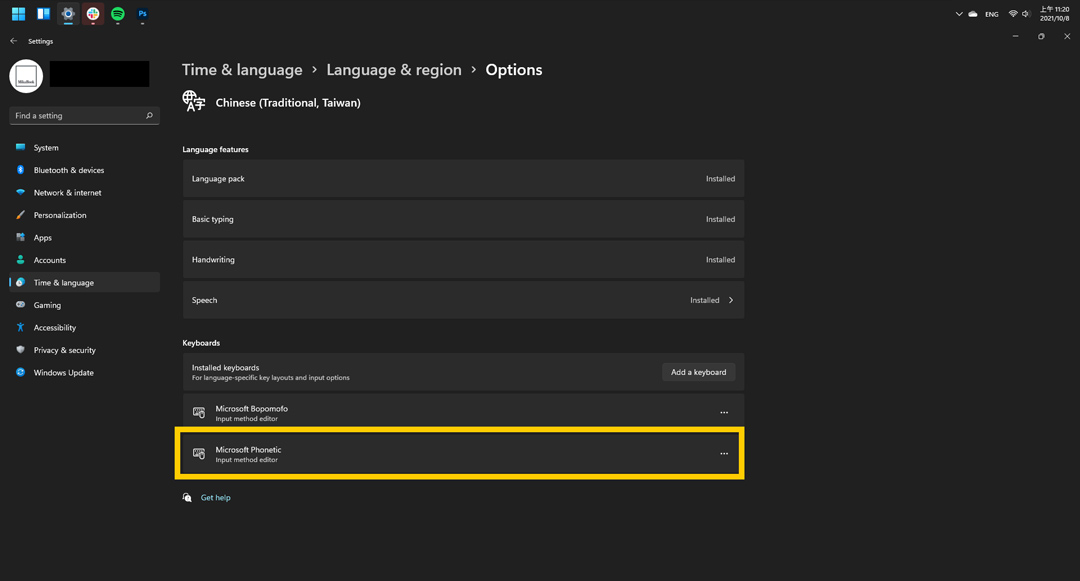
*For the convenience of reading, the quick process can be compared in English.
Quick process: Setting > Time & Language > Language & region > Chinese > … > Language options > Add a Keyboard > Microsoft Phonetic
4. Complete after switching the default display language
The last step is to change the system language back to Chinese, and you’re done. Please see the same picture.
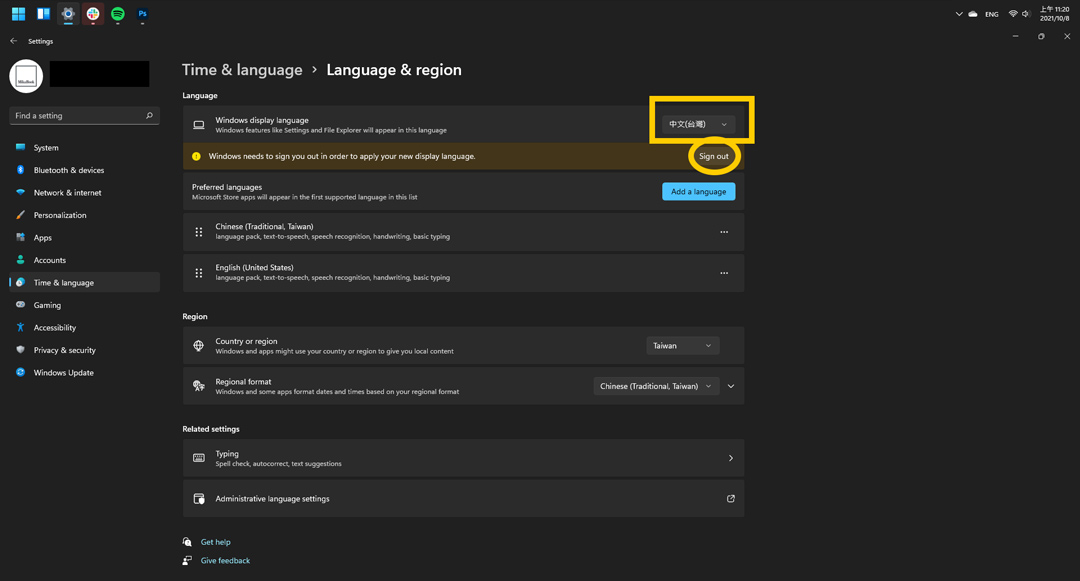
▼Go back to Setting>Time & language > Language & region > Windows display language and click the drop-down menu
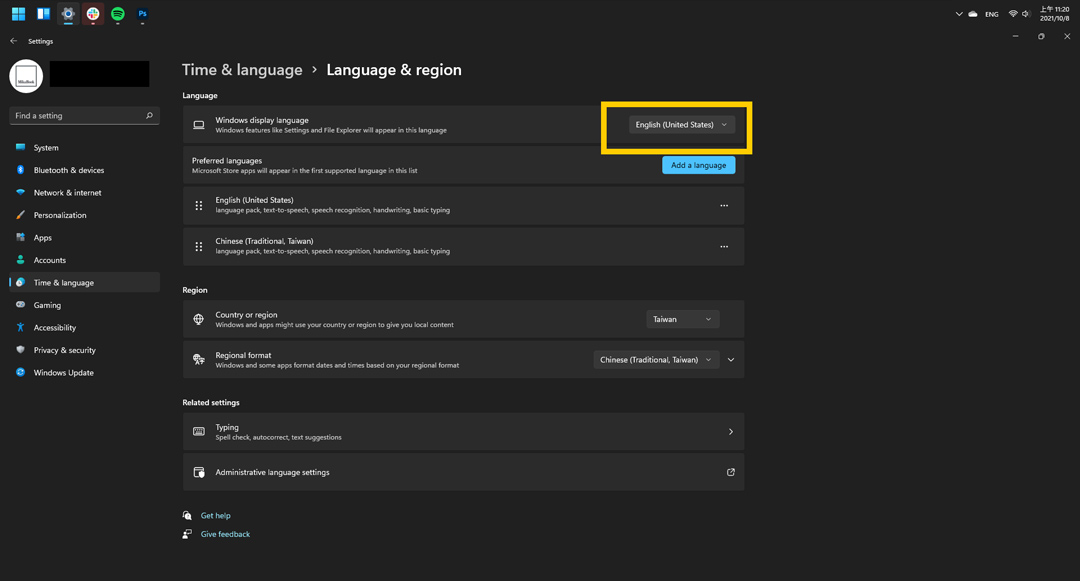
▼Change to Chinese Taiwan and click Sign out in the circle.
▼The one with the white background in the middle is the input method you need. Press Win + Spacebar to switch.

*For the convenience of reading, the quick process can be compared in English.
Quick process: Setting > Time & language > Language & region > Windows display language > ▼ > Chinese Taiwan > Sign out
If you need to add a new half input method to Windows 10, you can go to Mikabook for reference process. portal
Source: KOCPC Chinese