


The editor often needs to help clients with remote computer problems, but the most common problem encountered is that the other party has trouble opening remote applications, and currently the simplest Anydesk As long as the remote desktop tool is downloaded and executed, you can start remote assistance, but many elderly people still don’t know how to operate it. Today I will share this Screego remote screen sharing tool. You can share your desktop directly with friends with just a web page. You don’t need to install any software. You just need to give the other party a connection URL. It is a super simple and easy-to-use tool. If there are elders at home who need help teaching computer things, use this method to assist.
How to use Screego web remote screen
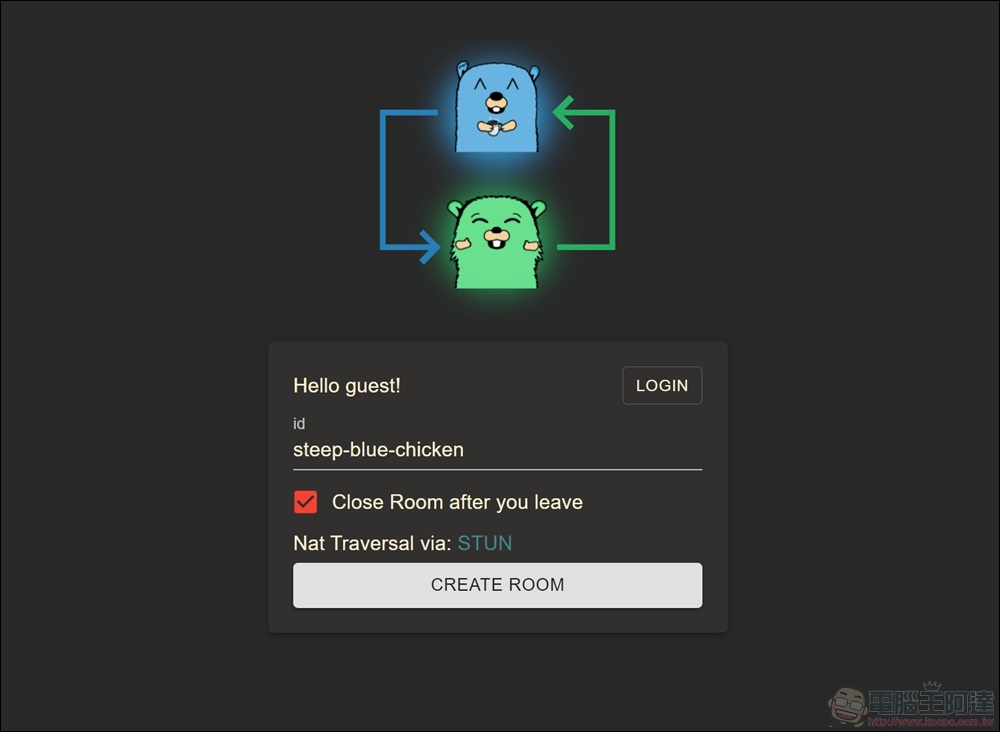
First enter the Screego connection URL, and you will see the connection screen below. In fact, just click “CREATE ROOM” below to create a connection room. If you want to let your friends know who you are more clearly, you can also change the id name below.
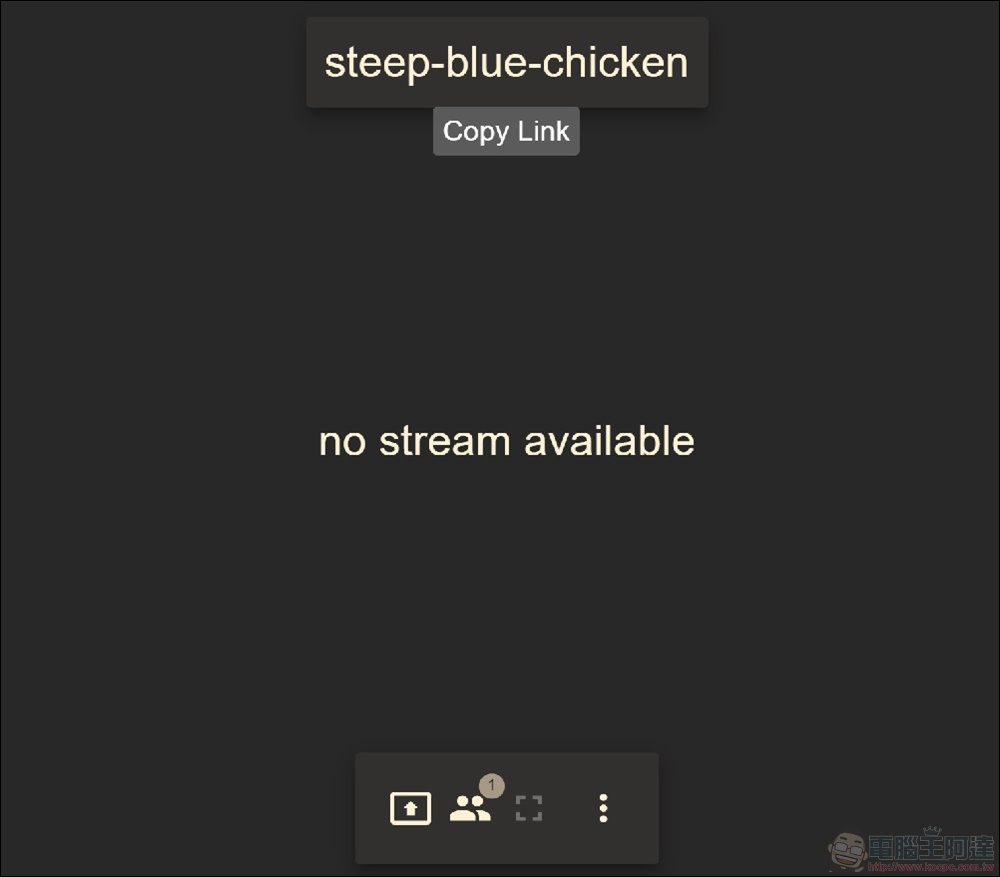
After entering, directly copy the link of the room name and share the link with your friends so that they can enter directly. Then continue to press Start Presentation below to start sharing the screen.
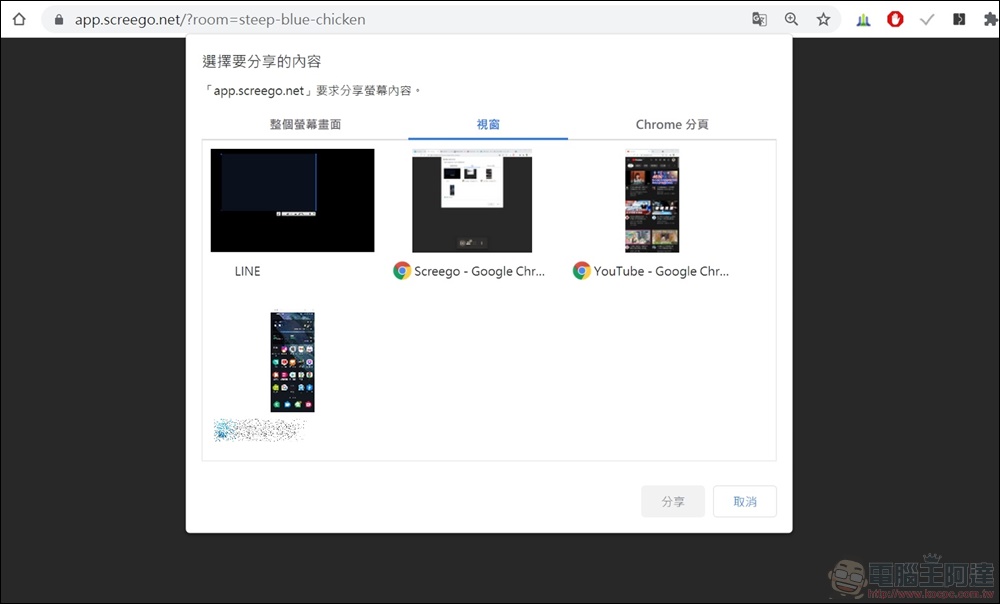
There are many options for sharing the screen. Whether the user wants to share the entire screen, a single window, or a single web page, the user can freely choose the screen they want to share. The entire screen will not be shared, and some privacy is retained. It is quite good and simple.
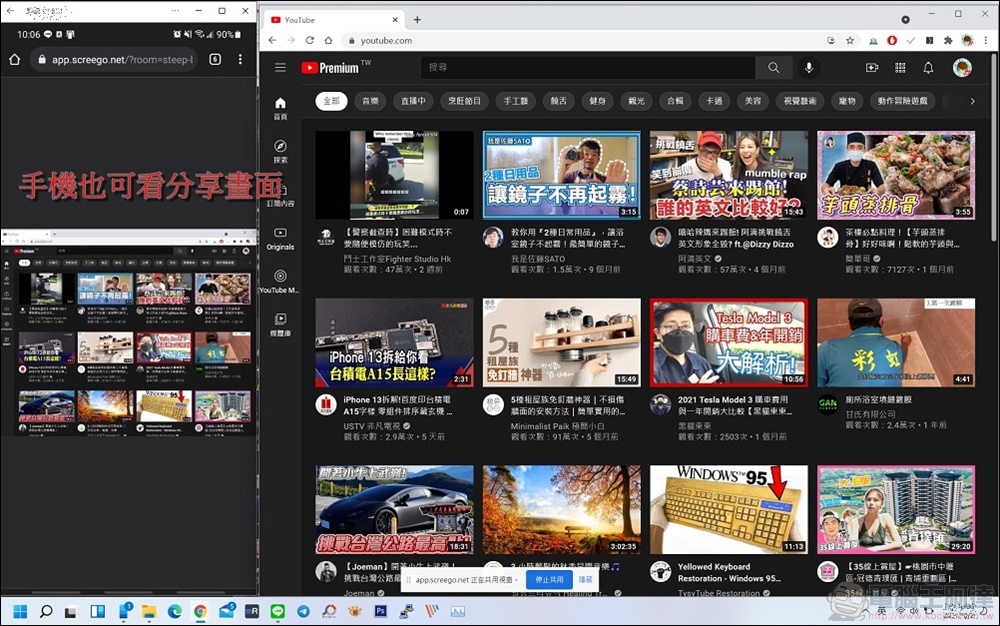
Even your mobile phone can directly see the computer screen you shared through the website. Isn’t it really convenient?
- Screego connection website:https://app.screego.net/
Source: KOCPC Chinese