


Although the screens of Android mobile phones have become larger and larger in recent years, they are still much smaller than computer screens, and many people will definitely hope to be able to operate Android phones directly through Windows computers. It is not only convenient but also multi-tasking, such as working and playing Android games at the same time. The AnLink recommended in this article can realize this dream. It supports two methods of USB and WiFi wireless connection. After the screen is connected to the Windows screen, you can operate it with a mouse and even type on the keyboard. Almost all Android It can be used on any mobile phone, completely free and ad-free.

AnLink free software introduction
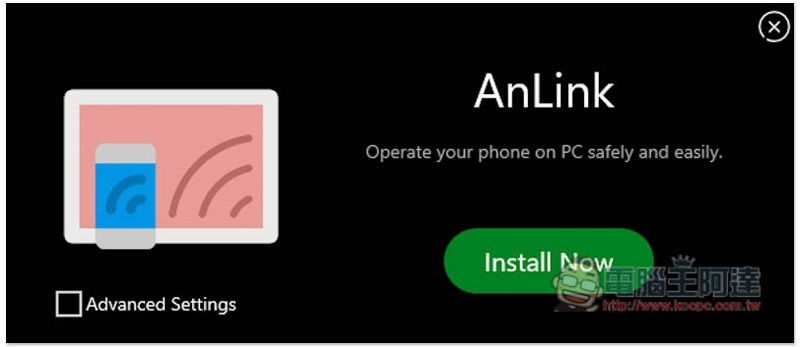
After downloading the installation file from the AnLink official website, click Install Now to start the installation. If you want to customize the installation process, you can check the Advanced Settings in the lower left corner:
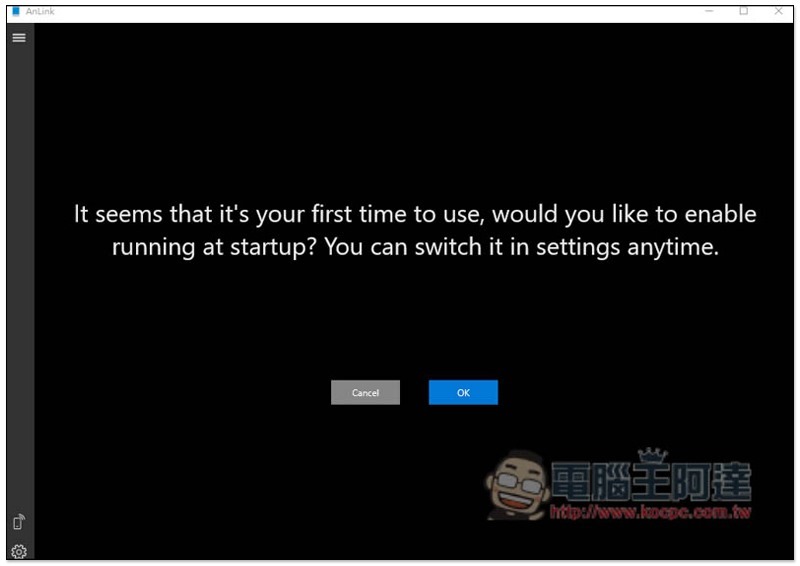
After installation is complete, this screen will pop up when you open it, click OK:
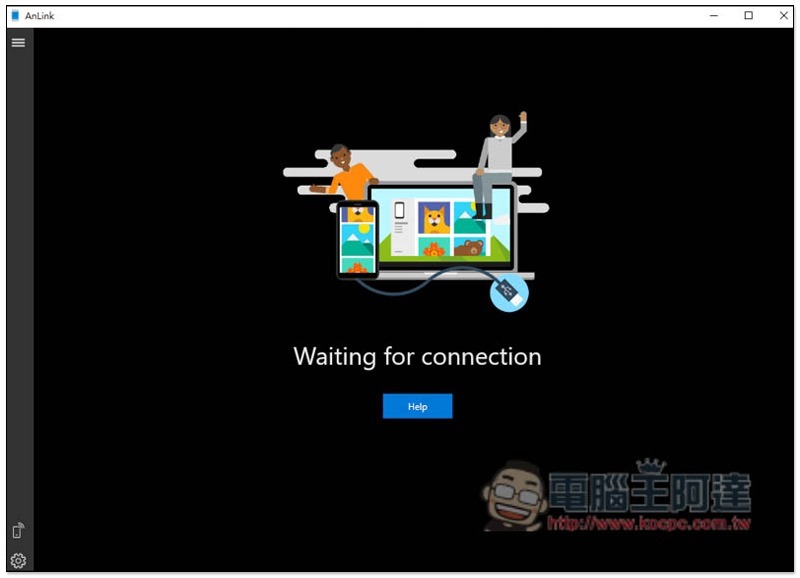
Then you can connect your Android to a Windows computer, but there are two functions that need to be turned on first, USB debugging and ADB. Those who don’t know how to turn it on can press Help:
You can view the tutorials for various brands of mobile phones, including Google, HTC, Huawei, Xiaomi, etc.:
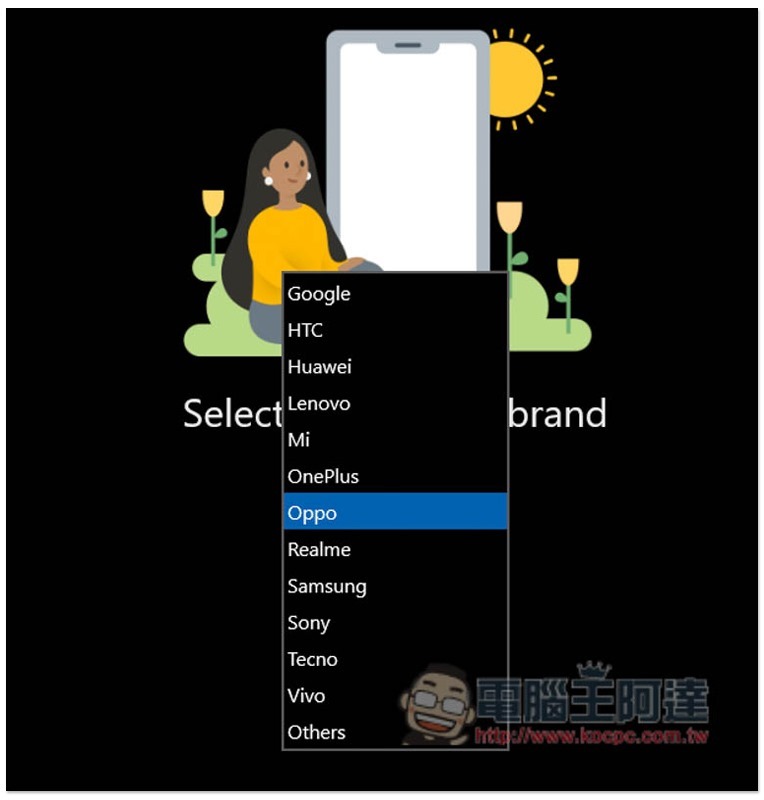
Each brand of mobile phone instructions will tell you step by step how to operate:
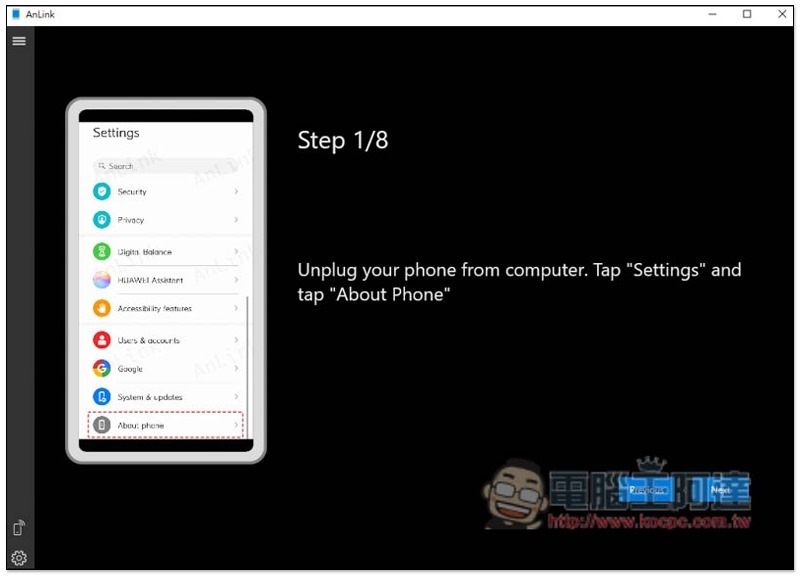
For Huawei phones, you must first enable developer options, then turn on “USB debugging” and “Allow ADB debugging in charging mode only”:
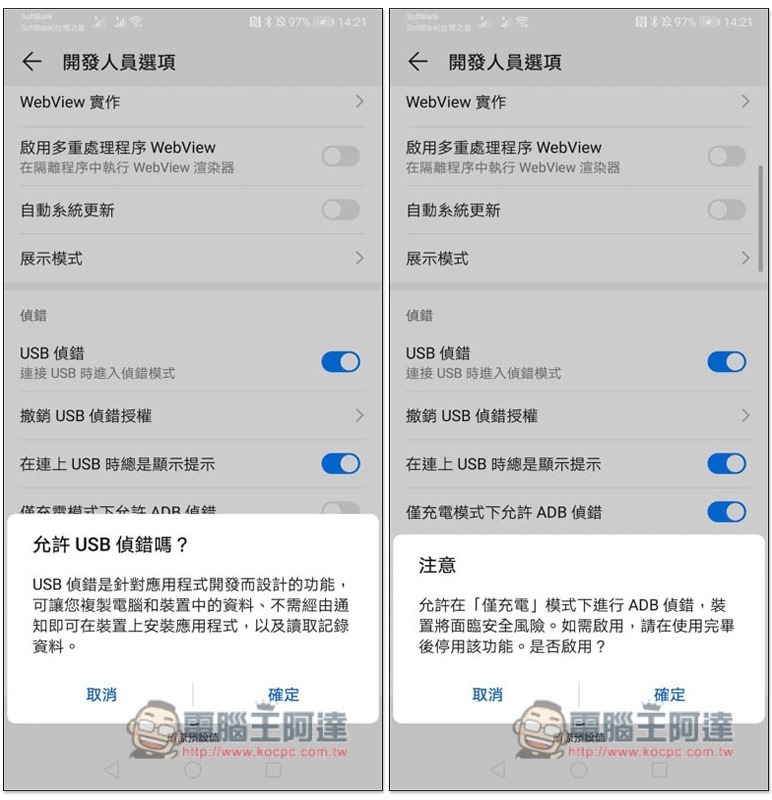
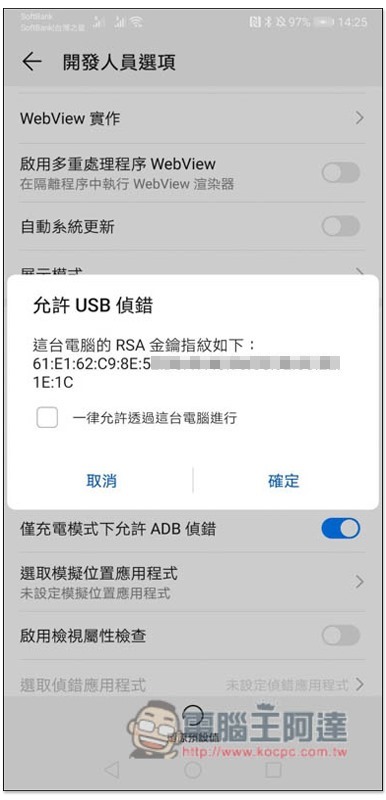
Then after the phone is connected to the Windows computer, this message will pop up on the phone. Check “Always allow access through this computer” and click OK:
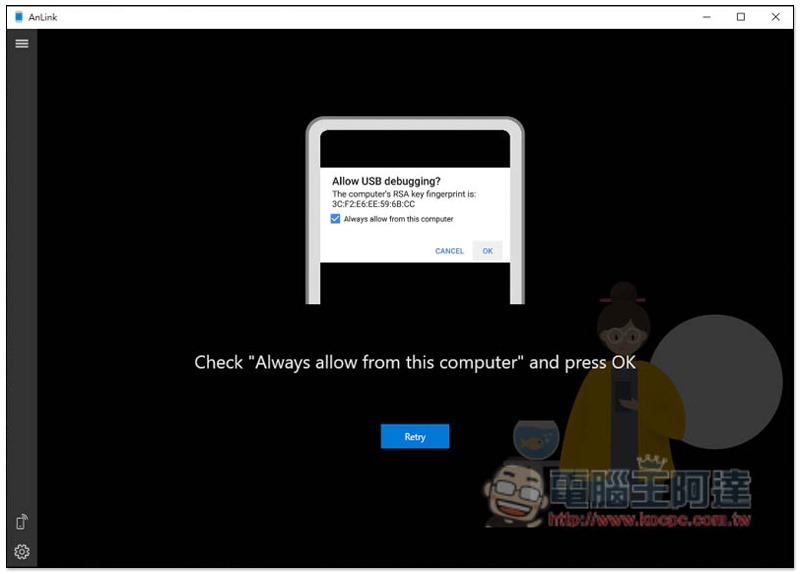
The AnLink screen will also tell you to do this:
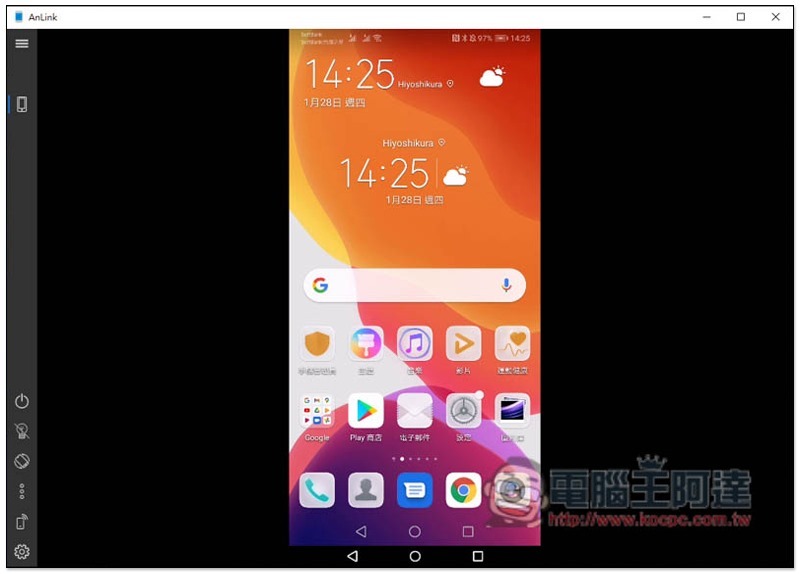
Once completed, the phone screen is projected to AnLink. Another thing to note is that the first time you use it, you must use a USB cable, and then you can switch to WiFi connection:
If you want to change to WiFi, click on the mobile phone wireless signal icon in the lower left corner, you will enter this screen, click Enable WiFi Connection in the upper right corner. Let me also remind you that WiFi speed will not be as smooth as USB, and sometimes it will be a bit stuck. People who care about this are recommended to use USB:
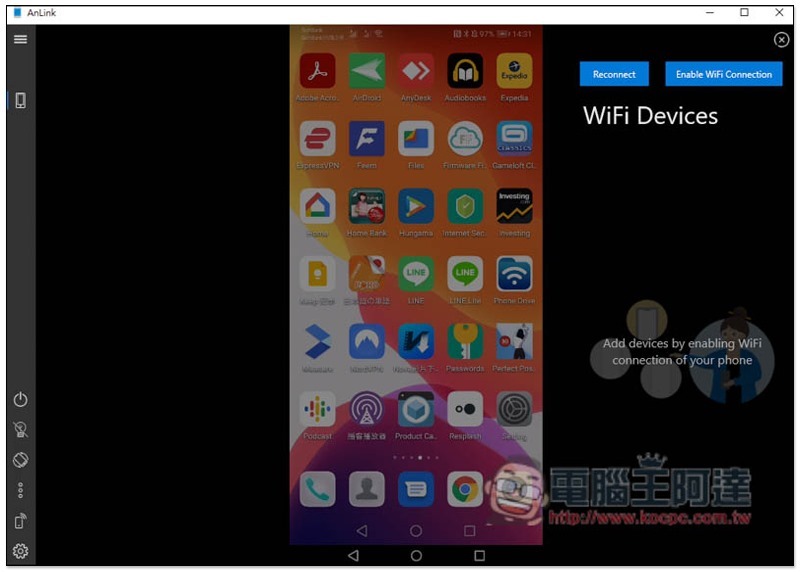
When the name of the phone is displayed below WiFi Devices, the setting is complete. You can unplug the USB and change it to WiFi connection:
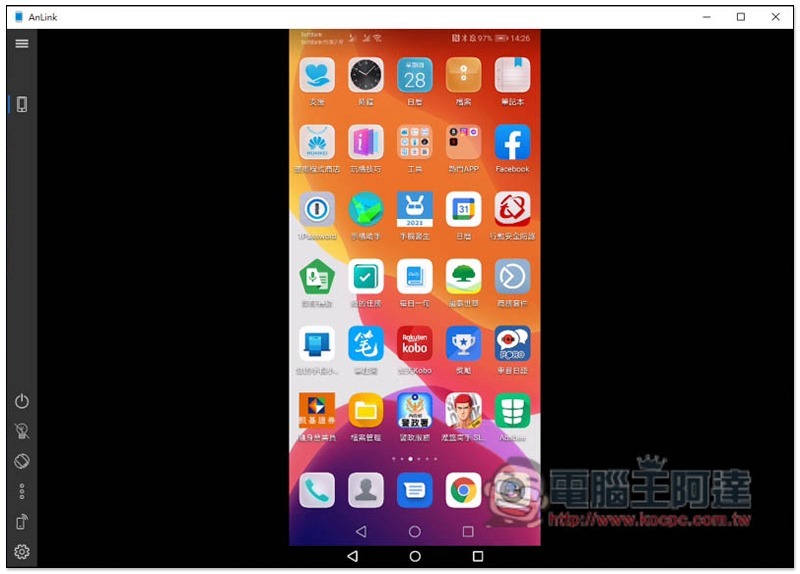
The operation method is also very simple. Just imagine that the mouse is your hand. For example: press the left button of the mouse and slide it to the left. The main screen will switch to the next page, click the App icon to open it, etc.:
Use a computer to slide the Android version of Facebook App instead:
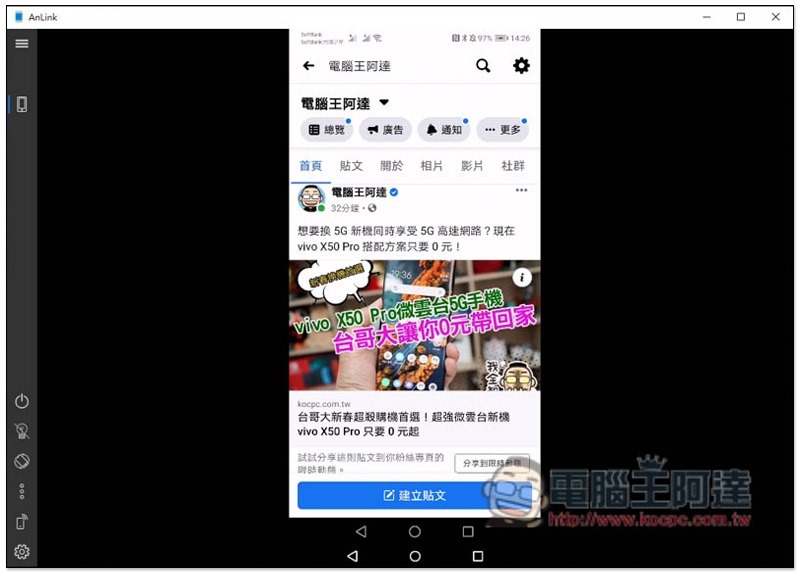
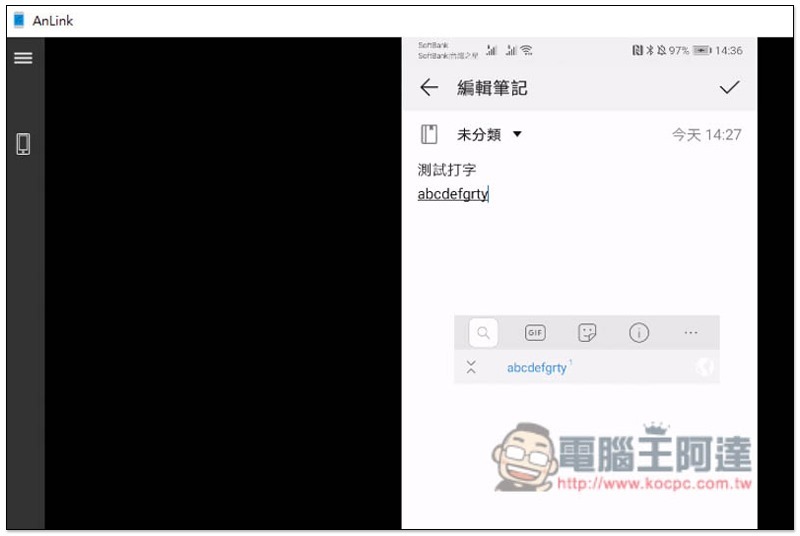
For the typing part, I tested that English can be typed directly using the computer keyboard, but Chinese doesn’t seem to be supported yet:
After opening the game Apps, the screen will automatically change to horizontal format:

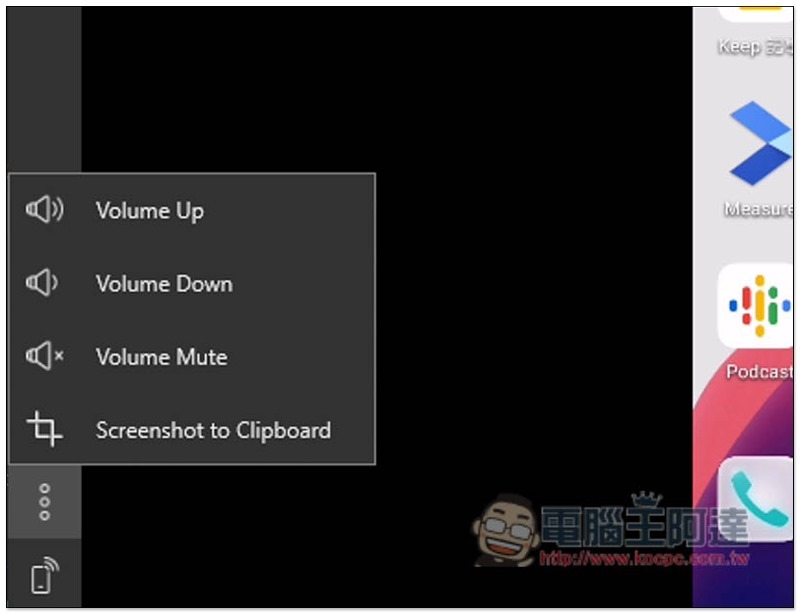
There are also functions in the lower left corner to adjust volume, mute and take screenshots to the clipboard:
Although this set of functions is not very rich, the USB connection speed is very good, the display is almost instantaneous, and the operation is also without lag at all. It is highly recommended for people who want to use Windows to operate Android phones.
Supplementary information
- AnLink official website:Click here to go
Source: KOCPC Chinese