


For people with weaker foreign-language skills, watching foreign livestreams, listening to foreign speeches, or joining online meetings will definitely feel challenging. Recently, I came across this incredibly useful open-source tool, “Cicada” (知了 Cicada). It can directly listen to the audio playing on your computer and then use AI to generate bilingual subtitles and meeting notes. It works with Zoom, Google Meet, and even YouTube livestreams.
Even more impressive, it also has a so-called “simultaneous interpretation” feature that translates what you say in real time, so the other person hears the translated speech.
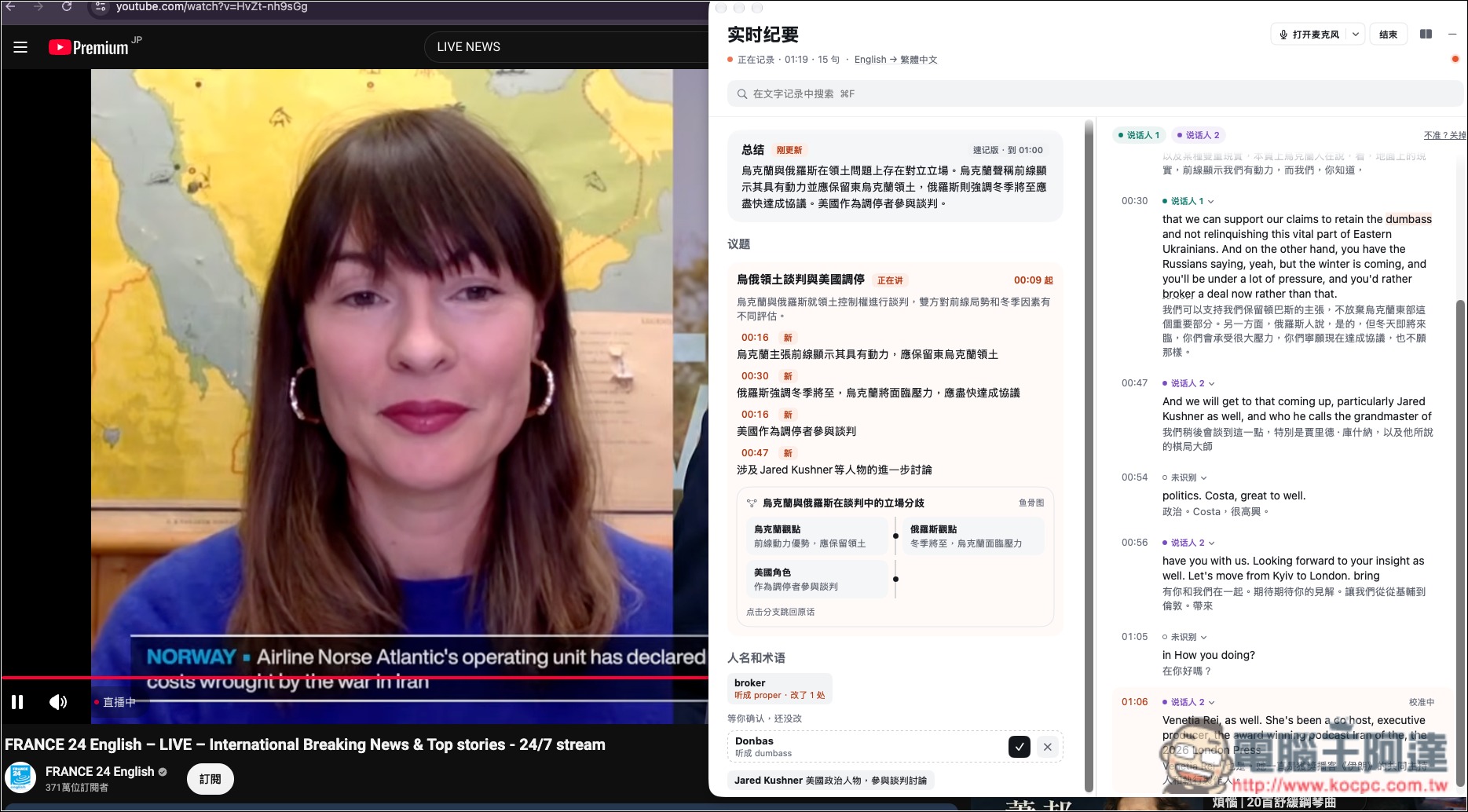
Introducing 知了 Cicada: Listen directly to system audio—real-time captions, meeting notes, and simultaneous interpretation, all in one.
Cicada (知了) is an open-source AI meeting assistant tool developed by wquguru on GitHub. It is licensed under Apache-2.0 and supports Mac, Windows, Linux, and Android.
It combines several AI models. On Mac, speech recognition uses Apple’s built-in model, while organizing meeting notes and translating full sentences are handled by large language models—by default Ant Group’s Ling, but this can be switched to OpenAI, Claude, or a local model. The voice used for interpreting is also AI-generated and can be cloned into your own voice.
It mainly has four functions:
- Real-time subtitles
- Real-time meeting minutes
- Simultaneous interpretation
- Bilingual text records that can be reviewed after the meeting.
“Zhiliao” doesn’t need to be tied to meeting software; it listens directly to your computer’s system audio. That means as long as your computer is playing sound, it can provide real-time subtitle translation—whether you’re using Zoom, Teams, Google Meet, Discord, X Spaces, Tencent Meeting, Feishu, or even YouTube and Bilibili livestreams.
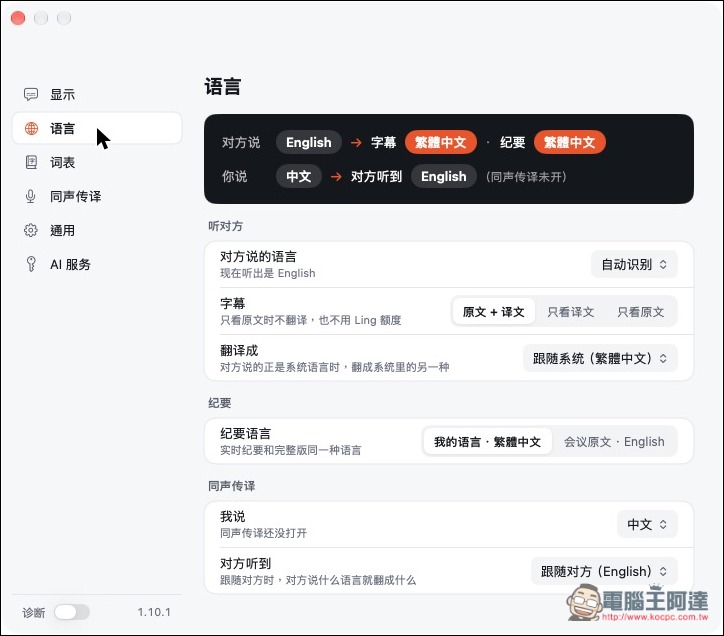
Once playback starts, it will identify what language the other person is speaking within a few seconds, then translate it into the language set on your system.
On a Mac with Apple silicon, speech recognition uses Apple’s built-in model, and translation defaults to Google Translate, so bilingual subtitles can be displayed normally even without entering an API Key. In my testing, the speech recognition was quite accurate, but the translation quality was very Google, so if you really want to fully understand it, I’d still recommend entering an API Key and testing it.
Subtitles can be set to display “original + translation,” “translation only,” or “original only”:
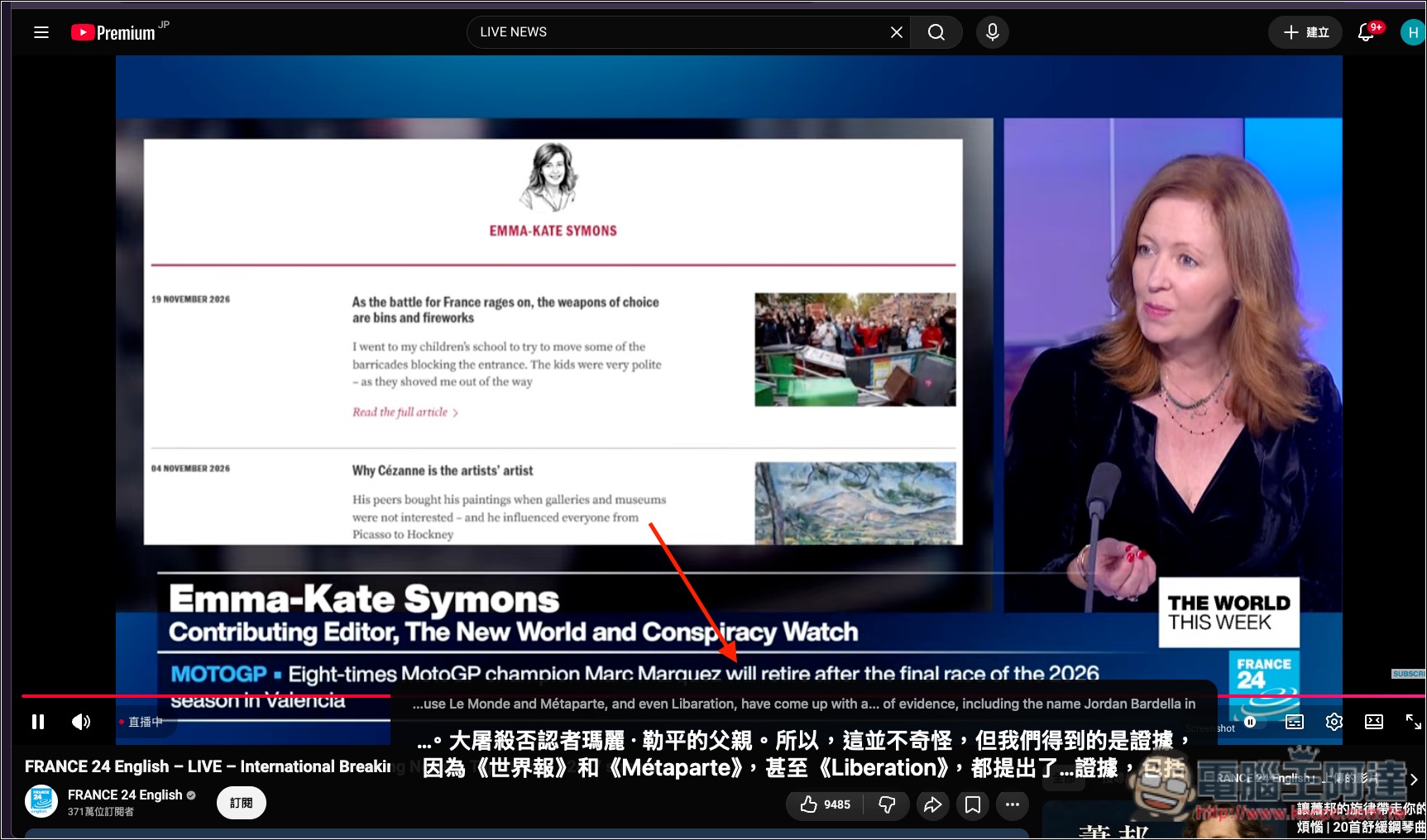
If set to display subtitles only, real-time bilingual subtitles will appear at the bottom:
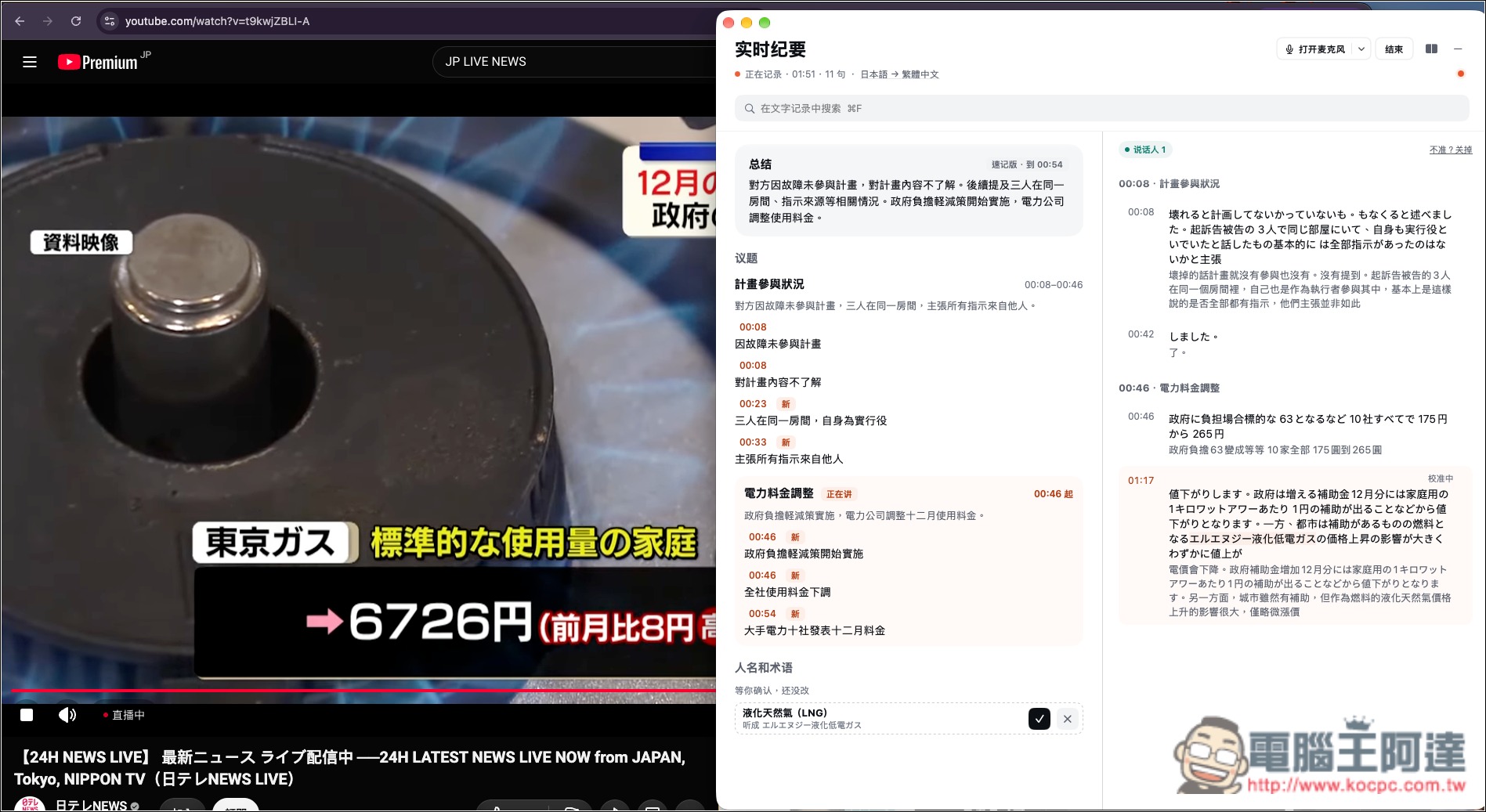
If you’re attending a live meeting, you can enable “Real-time Minutes” mode. Then, while the meeting is underway, 知了 will work alongside you to organize a summary, topics and key points, conclusions, action items, and a glossary. When it encounters passages discussing cause-and-effect relationships, it will also automatically draw a fishbone diagram.
I tested it with a Japanese news livestream, and the screen looks roughly like this: the AI summary is on the left, and the real-time bilingual subtitles are on the right. Also note that the AI summary requires an API Key to use:
The default recommendation for developers is Ling, the model service from Ant Group’s Bailing team. Officially, it is estimated that each hour of meetings costs about RMB 0.15–1, and Ling provides a monthly credit of RMB 10, which can be used for roughly 10–50 hours.
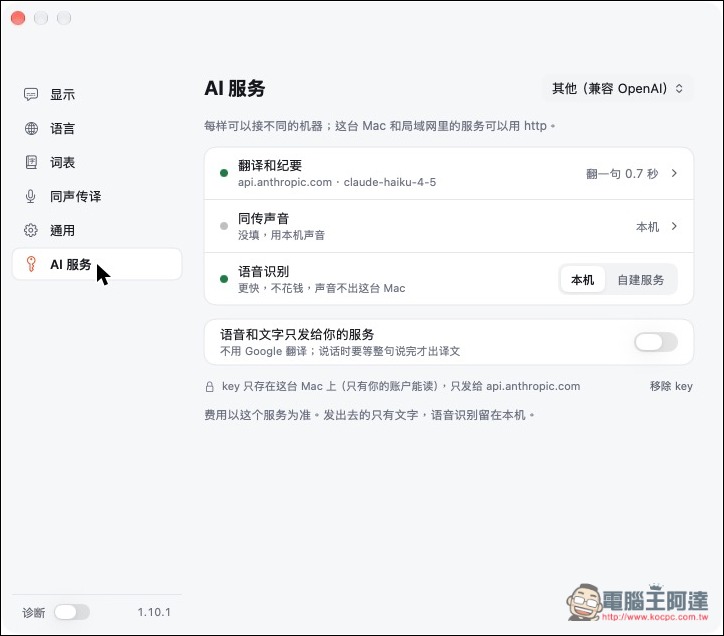
It doesn’t matter if you don’t have a Ling account—you can connect to OpenRouter, ZenMux, OpenAI, or any service compatible with the OpenAI format, and local models like Ollama and vLLM work too. I myself use Claude Haiku 4.5, and it takes about 0.7 seconds to translate a sentence:
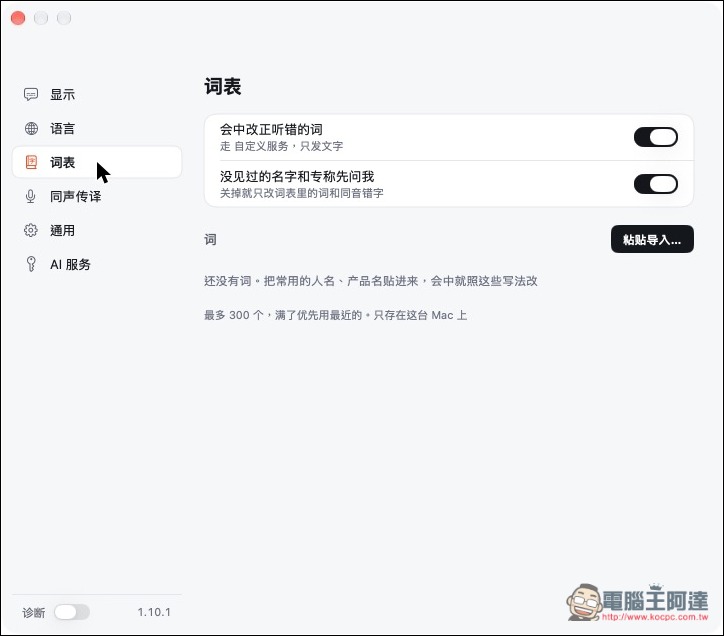
There’s also a word list feature that lets you paste in commonly used names and product names. If it mishears something during a meeting, it will correct it to match those spellings. You can store up to 300 terms, and they stay only on this Mac:
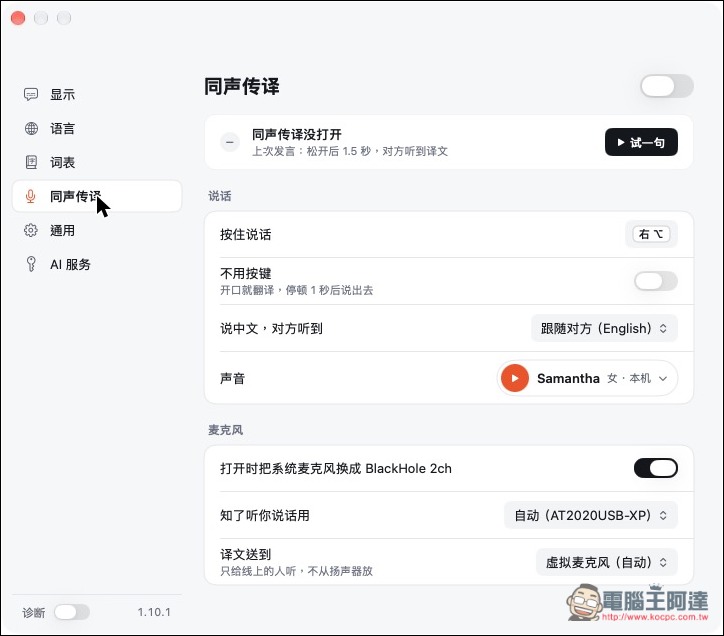
“Simultaneous interpretation” is what makes 知了 most different from other meeting notes tools. When it’s your turn to speak, hold the right ⌥ key on Mac (the right Ctrl key on Windows; this can also be customized) and speak Chinese. 知了 translates it and sends it into the meeting as speech, so the other party hears the translated English.
Its approach is to replace the system microphone with a virtual microphone called BlackHole 2ch. The first time you open it, you need to enter the administrator password to install it. On Windows, you need to install the free VB-Cable; on Linux, a virtual microphone is created automatically, so no additional driver installation is required.
If you don’t want to keep holding the key, the Mac version also lets you turn on “No Key Press”: just start speaking to translate, and it will speak it out after a 1-second pause.
The voice defaults to Mac’s built-in speech. With Ling Key, you can record 8–30 seconds of audio and clone it into your own voice:
The bilingual transcript, meeting notes, and recording for each meeting are all stored locally; click any sentence to start playback from there. It also automatically distinguishes different speakers, and the Mac version can “remember this voice,” so the next time you have a meeting it will automatically recognize who it is:
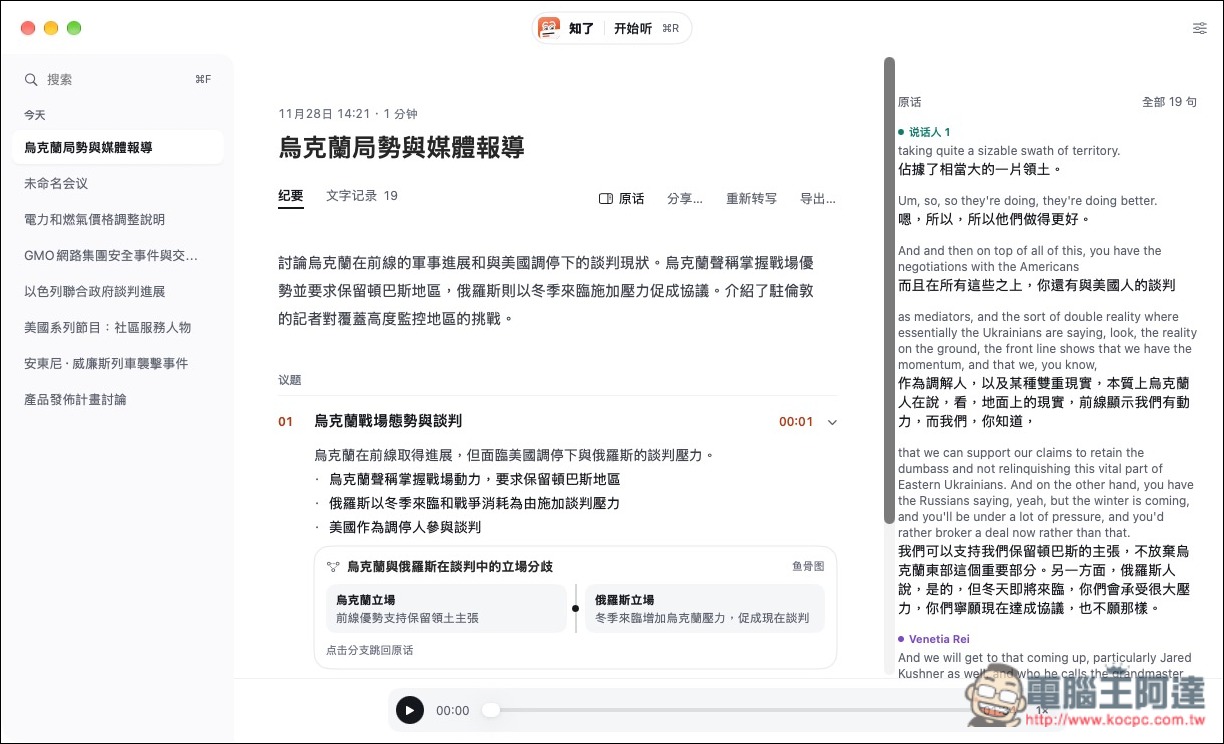
You can also export records as Markdown, Word, or SRT subtitle files, or save them directly to a notes folder such as Obsidian. You can also import existing audio or video recordings to generate meeting notes.
As for privacy, on Macs with Apple chips, recording and speech recognition are done entirely on-device, and only the recognized text is sent out. On Intel Macs, Windows, Linux, and Android, audio is sent in segments to Ling or to a service of your choice. Zhiliao itself has no servers of its own and does not collect usage data.
On Mac, the meeting notes window does not appear in screen sharing or screen recordings by default, so the other person cannot see what you are viewing. If you want them to see it too, you can turn it on in settings:
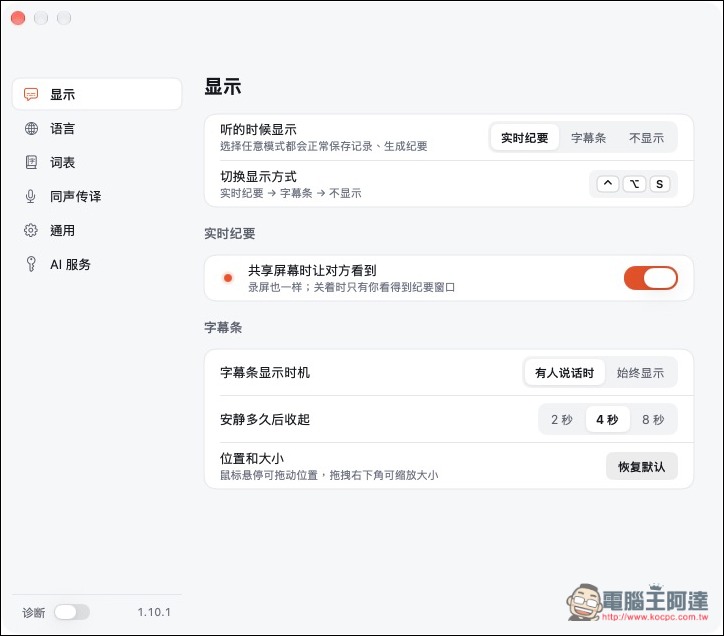
The Mac version has not yet been notarized by Apple, so it may be blocked the first time you open it. You’ll need to manually allow it in System Settings › Privacy & Security. The official website also mentions that version 1.11.0 will introduce a notarized Mac version.
If you’re using an Apple silicon Mac running macOS 14.4 or 15, you also need to turn on Dictation first and add the language you want to use; with macOS 26, you don’t have to.
The first time you open it, there will be a guided walkthrough that takes you through setting permissions and watching a sample meeting, and finally lets you decide whether to enter a Ling Key:
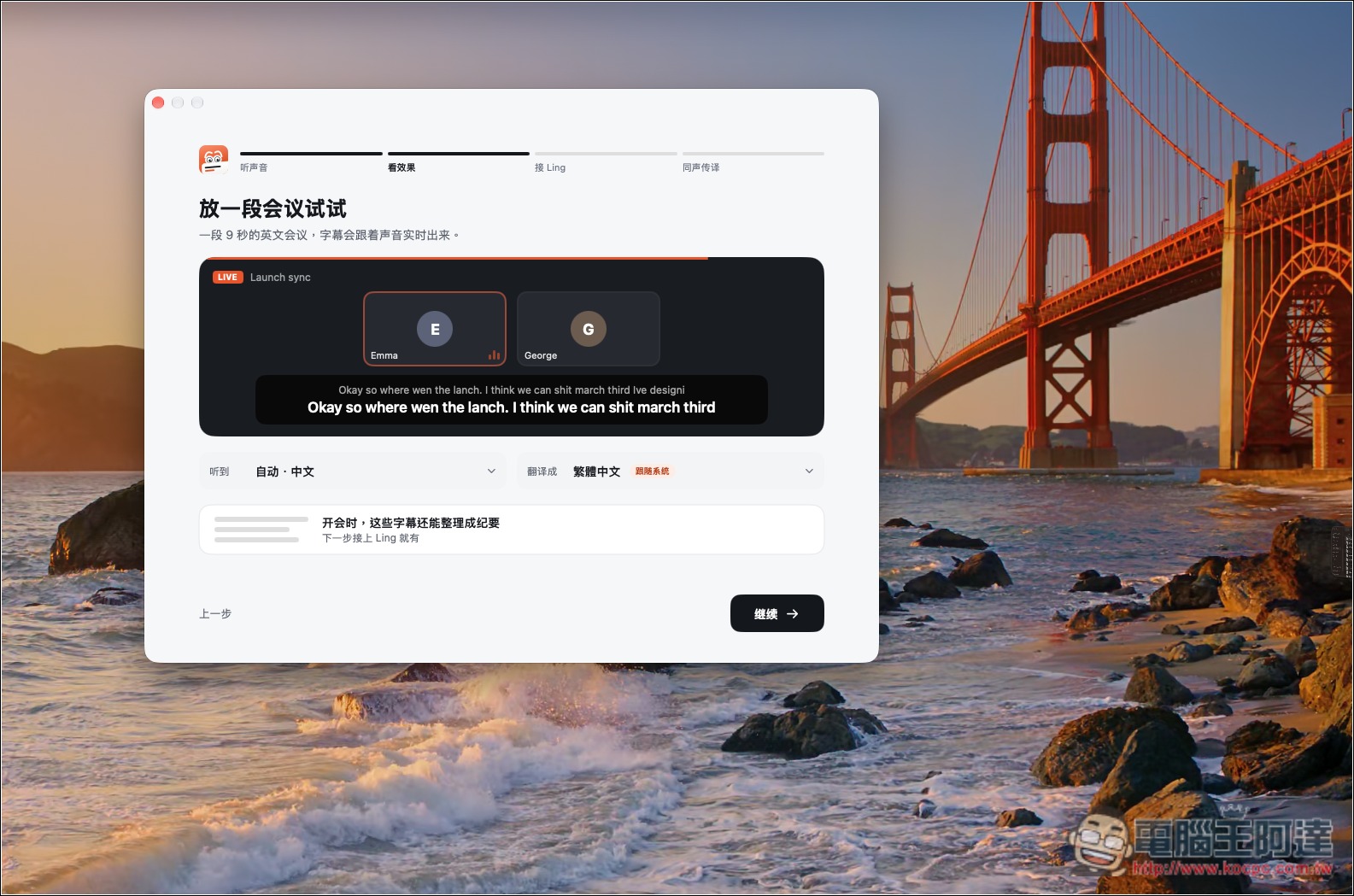
Note that, except for Macs with Apple chips, all other platforms require connecting to an AI service to work. The requirements for each platform are summarized below:
| Platform | System Requirements | AI service key | Remarks |
|---|---|---|---|
| Mac (Apple silicon) | macOS 14.4 or later | Subtitles, translation, records, and basic interpretation are not needed; AI meeting notes are needed. | Speech recognition runs locally. |
| Mac(Intel) | macOS 14.4 or later | Ling Key required | No local voice model. |
| Windows | Windows 10 version 2004 or later, x64/ARM64 | Need | Interpretation requires installing VB-Cable. |
| Linux | Ubuntu 22.04/24.04 Desktop Edition | Need | The meeting notes window is visible during screen sharing. |
| Android | Android 10 or above | Need | APK sideload, not yet listed in app stores. |
| iPhone/iPad | Preparing | — | — |
Source: KOCPC Chinese