


Nowadays, many people use AI tools like Claude and Codex to Vibe Code a website or small web tool, but AI training data doesn’t always keep up with the pace of web technology updates. Sometimes it may use approaches from several years ago, or even install a bunch of third-party libraries that aren’t actually needed. The functionality may work, but the code might end up getting increasingly bloated.
Google’s recently officially released Modern Web Guidance 1.0, a free and open-source AI Skills, was created to solve this problem. Once installed, it lets the AI tools you commonly use write more modern web code, and it can be used not only for new projects but also to scan and improve existing web projects.
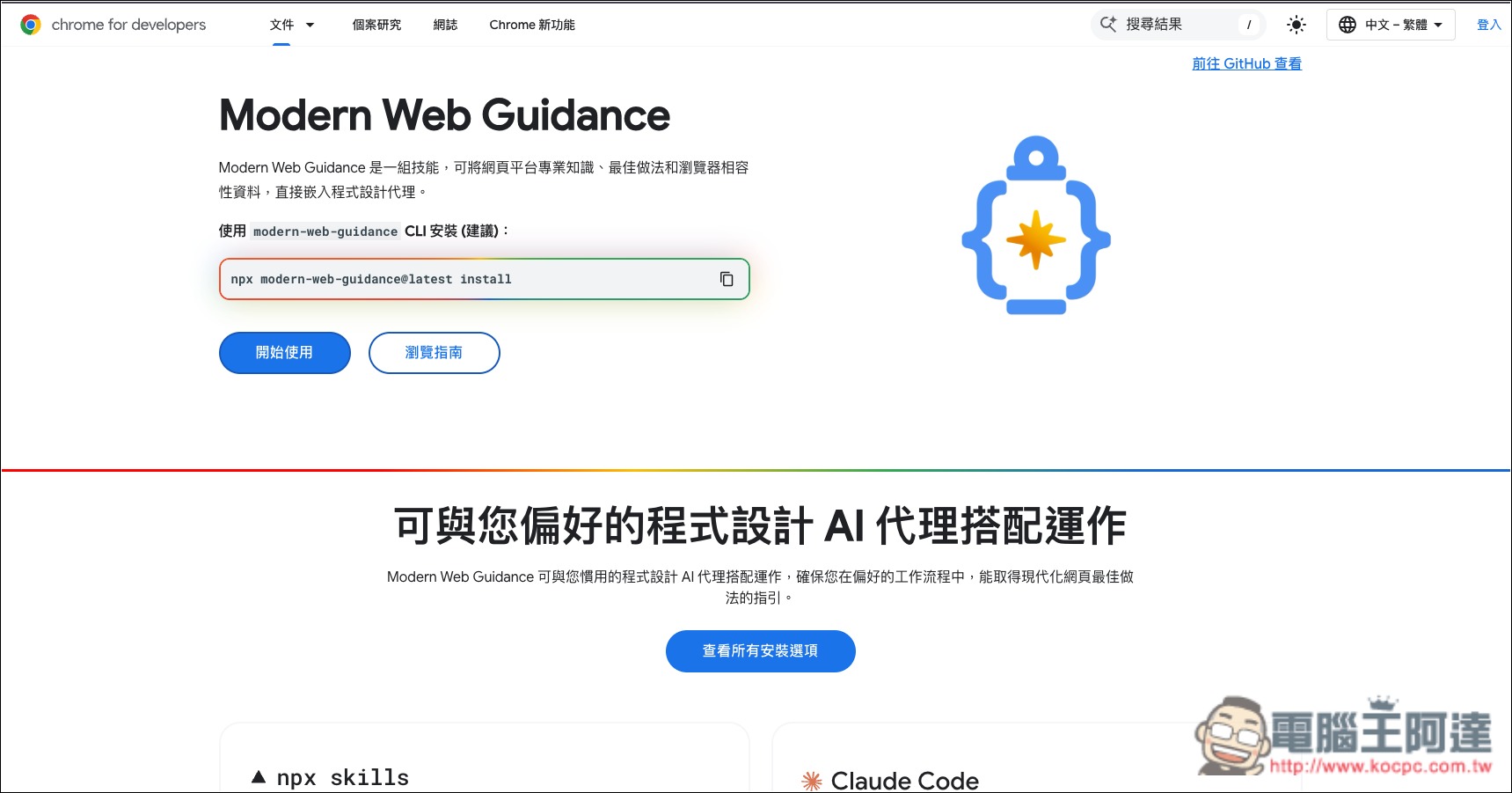
Google launches Modern Web Guidance 1.0, a free open-source AI Skills that stops AI from using outdated practices when building web pages, and lets legacy projects be scanned and upgraded too.
Modern Web Guidance It is a set of AI Skills launched by the Google Chrome team. It was first publicly previewed at Google I/O in May this year and has recently officially released stable version 1.0. In addition to adding a “modernization” feature that can scan existing projects, version 1.0 has also officially become a cross-browser collaborative project, with even the Firefox and Edge teams joining in to help maintain it.
Modern Web Guidance includes over 200 web development guides covering HTML, CSS, JavaScript, web performance (Core Web Vitals), accessibility, security, and web AI features, written by Chrome experts in each field.
Google also mentioned that every guide must be reviewed by the technical lead in that field, and guides related to the user interface are also tested for accessibility using real assistive technology (such as screen readers). In addition, it also integrates Baseline browser compatibility data.
If your project needs to support older browsers, it will also provide fallback code based on the target browsers you configure, so new features won’t break in browsers that don’t support them.
So what difference does it actually make after installing it? Below are several common development requirements and the differences between the old and new approaches:
| Development requirements | Traditional or older practices | Modern web technologies |
|---|---|---|
| Create a popup window | Custom JavaScript logic | HTML Dialog |
| Create a pop-up menu | Manually control show and hide | Popover API |
| The tooltip follows the button’s position. | Calculate coordinates using JavaScript | CSS Anchor Positioning |
| Responsive Web Design | Relying on window size for judgment | CSS Container Queries |
| Scroll animation | Listening for scroll events in JavaScript | CSS Scroll-driven Animations |
| Webpage transition animation | Custom animation code | View Transition API |
| Preload the next page | Write your own preload script. | Speculation Rules API |
Google also released an evaluation dashboard that gave the same web development tasks to AI coding tools with and without Modern Web Guidance installed, then looked at how many checks each passed.
Currently, the test pass rates of the three AI programming development tools are as follows:
| AI software development tools | Before installation | After installation | Extent of improvement |
|---|---|---|---|
| Codex CLI | 59% | 81% | +22 percentage points |
| Claude Code | 54% | 87% | +33 percentage points |
| Antigravity CLI | 65% | 91% | +26 percentage points |
Among the three tools, Claude Code showed the biggest improvement, going from 54% to 87%. The highest score after installation was Google’s own Antigravity CLI, reaching 91%.
Installing Modern Web Guidance is also very simple—it’s completely free and open source, and it supports any AI coding tool that can use Skills, including Claude Code, Codex, Cursor, GitHub Copilot, Antigravity, Gemini CLI, JetBrains WebStorm, Kimi Code, Grok Build, Goose, and more.
Before installing, first make sure Node.js is already installed on your computer. Then open the terminal, navigate to your project folder, and enter the following command:
npx modern-web-guidance@latest install
Once run, it will open an interactive installation wizard. Just follow the on-screen prompts to select the AI coding tool you use:
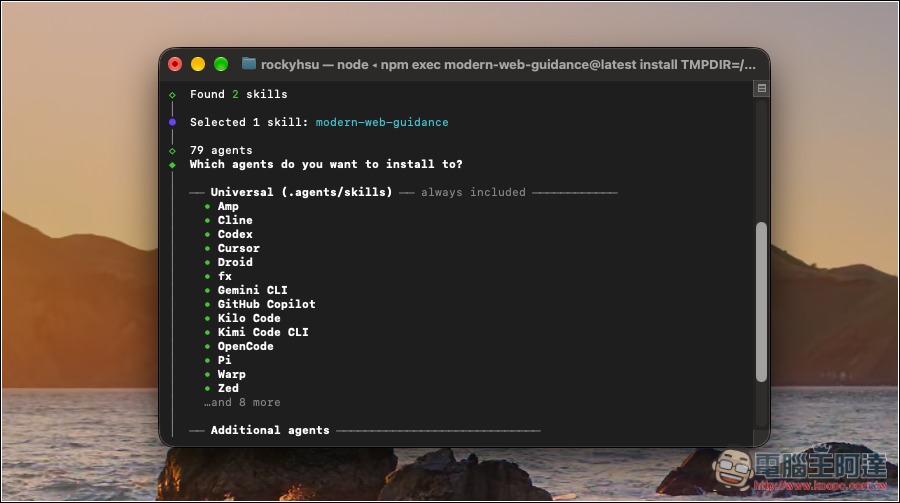
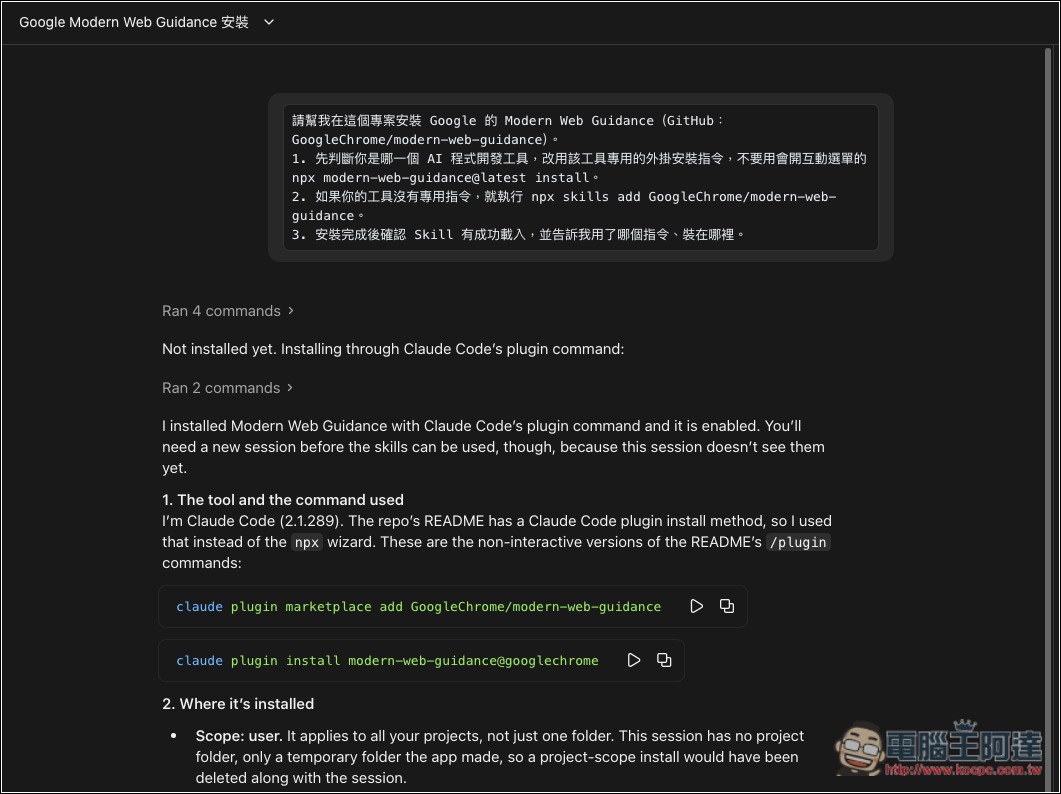
Of course, you can also just hand it to an AI agent to install, for example by giving it a prompt like the one below:
Please help me install Google’s Modern Web Guidance in this project (GitHub: GoogleChrome/modern-web-guidance).
1. First determine which AI coding tool you are, then use that tool’s dedicated plugin installation command instead of using npx modern-web-guidance@latest install, which opens an interactive menu.
2. If your tool doesn’t have a dedicated command, run npx skills add GoogleChrome/modern-web-guidance.
3. After installation is complete, confirm that the Skill loaded successfully, and tell me which command was used and where it was installed.
Source: KOCPC Chinese