


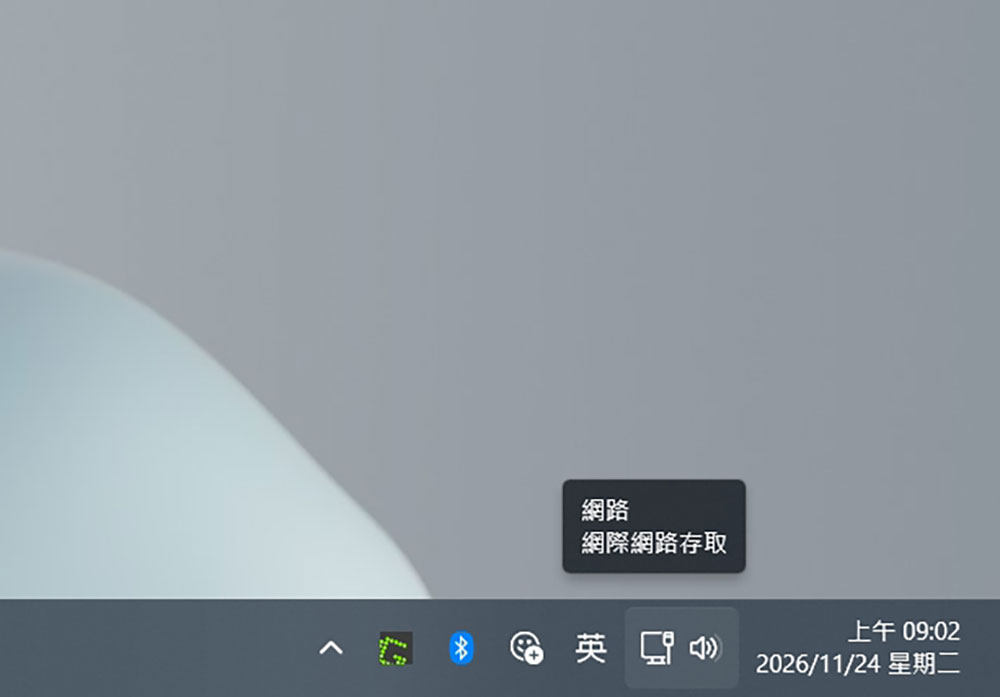
When it comes to stability, wired Ethernet undoubtedly beats Wi-Fi—provided your network cable is fine and your settings are correct. However, wired networks can still act up occasionally. If you notice the Ethernet icon in the bottom-right corner of the Windows taskbar constantly “flashing,” don’t rush to call for repairs; this is usually the system signaling a connection abnormality, and in most cases a few simple steps can easily resolve it.
Windows Ethernet icon keeps flashing? 5 quick troubleshooting tips for a wired network disconnection crisis
When you first boot up, if you see the Ethernet icon in the System Tray flashing, don’t panic. Move your mouse cursor over the icon; if it shows “No network connection, connecting to Ethernet,” that means Windows is working to establish a connection by handshaking with the router.
This usually takes 15 to 20 seconds. As long as the icon stops blinking after the countdown ends and the computer successfully connects to the internet, this is just a normal boot-up warm-up and requires no action at all. (Note: Depending on your network priority settings, the computer may first automatically connect to a known Wi-Fi network during this period.)
Flashing nonstop and won’t connect? 5 major troubleshooting and repair steps
If, after half a minute, the icon is still flashing nonstop and you cannot get online via a wired connection at all, the underlying cause may be an aging cable, a VPN software conflict, or a problem with the network adapter driver. Because Windows will not directly tell you where the “problem” lies, it is recommended that you troubleshoot one by one in the following order, from simplest to most complex:
- The reboot trick (computer + modem/router)
This is the oldest trick in the book, but also the most effective. Restart the computer, and at the same time unplug the modem and router from power, wait about 30 seconds, then plug them back in and power them on to clear the temporary network lockup. - Check the physical cables and ports.
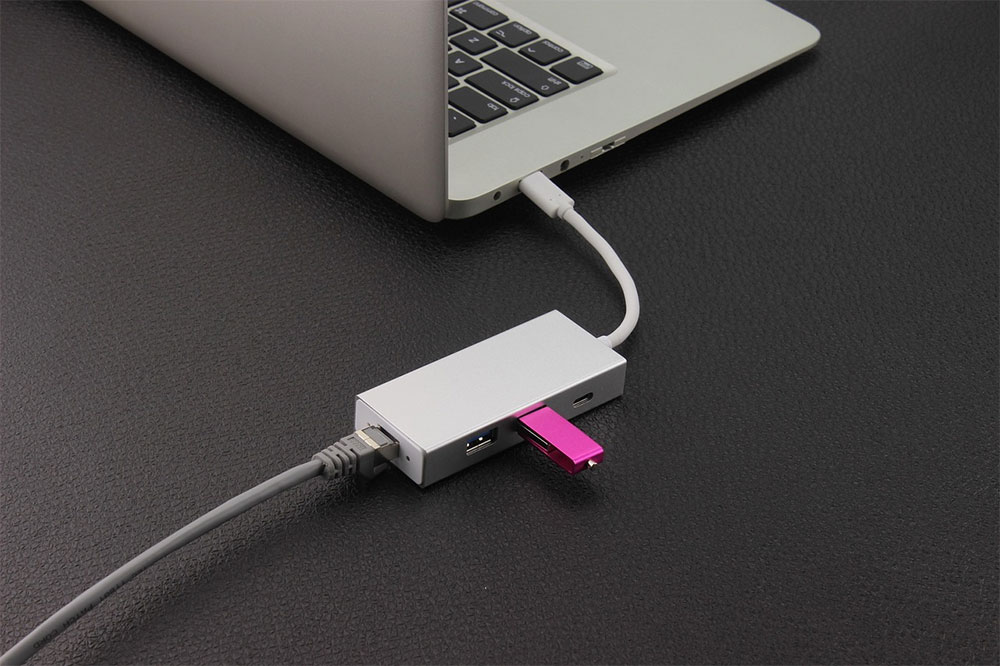
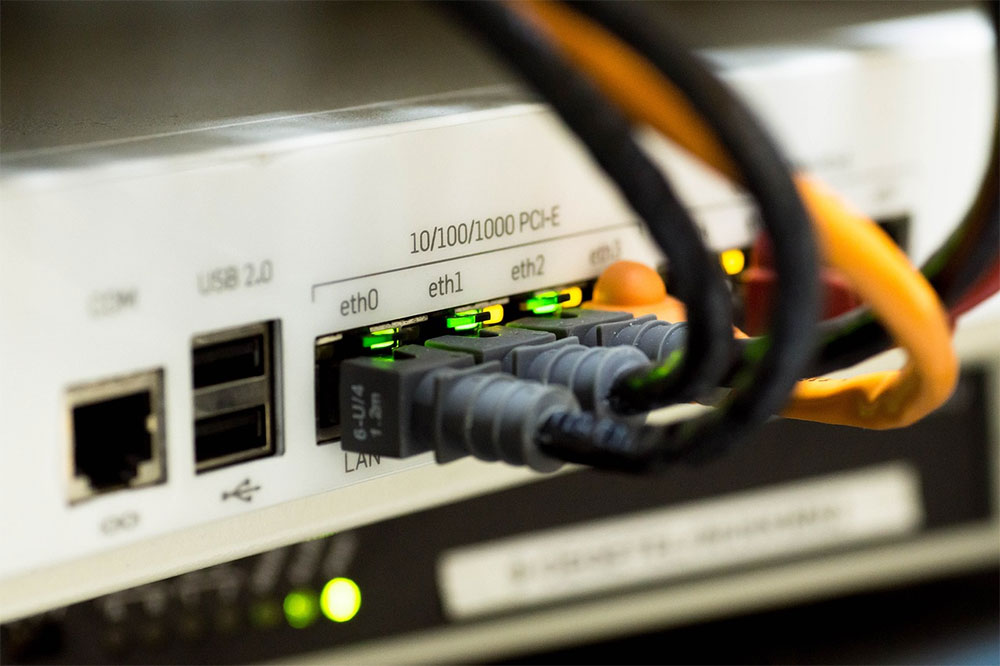
Check that both ends of the Ethernet cable are securely plugged in (you should hear a “click” to confirm it is fully seated). Try plugging the cable into another LAN port on the router, or use a spare Ethernet cable for cross-testing, to rule out an internal break in the cable or a damaged port.
- Troubleshoot conflicts between VPN and Kill Switch
If you normally use a VPN, try completely closing the VPN software and then reopening it. Pay particular attention to the fact that many VPNs have a built-in “Kill Switch” security mechanism; if your computer has previously shut down abnormally or crashed, this mechanism may lock up your network connection. According to the hands-on experience of multiple users in the Reddit r/pchelp community, when you encounter this kind of false disconnection, simply “manually connect to the VPN first, then disconnect normally” to successfully remove the network block. - Reinstall or update the network card driver
If all the above hardware and software troubleshooting steps fail, the issue is likely with the driver for the “Ethernet network adapter (network card).”- Preparation before you begin: It is strongly recommended that you first create a “System Restore point” and download the latest network adapter driver installer in advance from the official website of your computer or motherboard manufacturer (to avoid having no internet access to download it after removing the driver).
- Uninstall and reinstall: In the Windows search bar, type and open “Device Manager” >> expand “Network adapters” >> right-click your Ethernet device (the name usually contains Ethernet or LAN), select “Uninstall device,” and confirm. After that, restart the computer; Windows will usually automatically detect and install the default driver. If it still doesn’t work, run the latest official driver you downloaded in advance to perform a manual update.
- Last Resort: Reset the Router
If you confirm that other devices also cannot access the internet via a wired connection through that router, only then consider restoring the router to factory settings (Reset) as a last resort. Because resetting will erase all Wi-Fi passwords and advanced network settings, it is recommended to leave this step until the very end.
Source: KOCPC Chinese