


Whether it’s a desktop or a laptop, the back and sides of the device are often equipped with multiple video output ports such as HDMI and DisplayPort (DP); if a desktop also has a dedicated graphics card installed, the number of available ports increases even more. Many people building multi-monitor workstations often encounter a practical problem: if the graphics card or motherboard has only one HDMI port, but there is still an unused DisplayPort available, can the two be mixed and used to output video simultaneously?
The answer is yes, and on modern computers it’s almost “plug and play.”
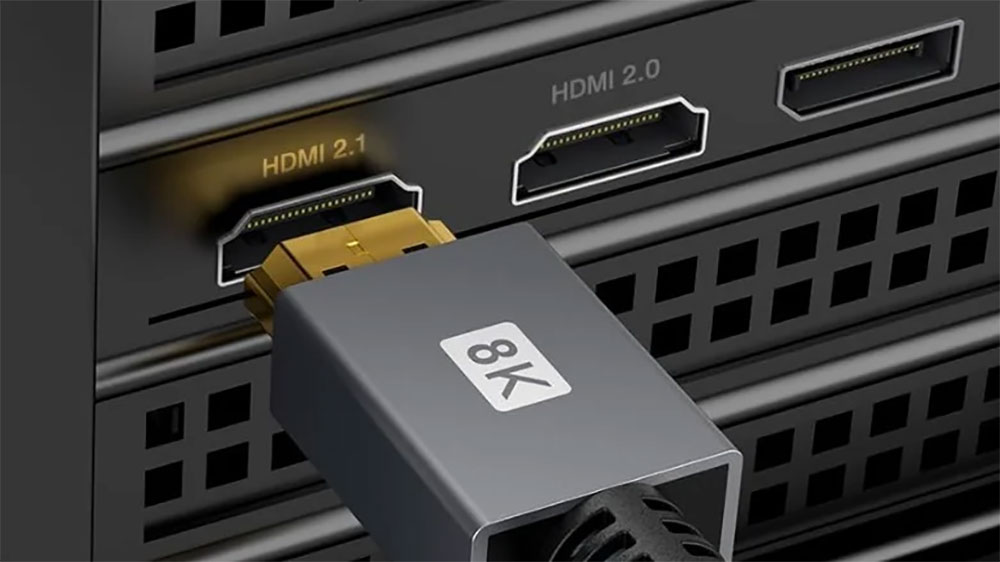
Is Mixing HDMI and DisplayPort Outputs Feasible? A Guide to Connections and Potential Limitations
For the vast majority of modern hardware, mixing different video interfaces poses no obstacle at all. As long as the hardware itself supports multi-monitor output, whether you are using Windows, macOS, or Linux, the system can smoothly recognize and extend the desktop (only a very small number of early older models are limited by chipset design and cannot enable dual output simultaneously).
In practical configurations, the most recommended golden rule is: “Connect the primary monitor via DisplayPort and the secondary monitor via HDMI.” This is because DisplayPort and HDMI differ in their signal transmission architecture; DP can usually provide more ample bandwidth and fully support advanced display technologies such as high refresh rates and variable refresh rate (VRR). Assigning the high-spec primary screen to DP and leaving HDMI to handle the secondary screen used for messaging apps, documents, or monitoring data maximizes hardware performance.

Not enough ports? Beyond mix-and-match, there’s also a “single-cable daisy-chain” solution.
Besides running separate cables for each display, there’s actually a more advanced multi-monitor connection method that makes cable management cleaner:
- DisplayPort daisy chaining: As long as the device supports DisplayPort 1.2 or later and the monitor itself has a “DP Out” output port, you can connect your computer to the first monitor with a single DP cable, then run a cable from the first monitor to daisy-chain a second monitor, greatly reducing cable clutter behind the computer.
- HDMI Hub Expansion: HDMI itself does not support daisy-chaining. To output to multiple monitors through a single HDMI port, you must additionally purchase a dedicated signal splitter or docking station (Hub) to achieve this.
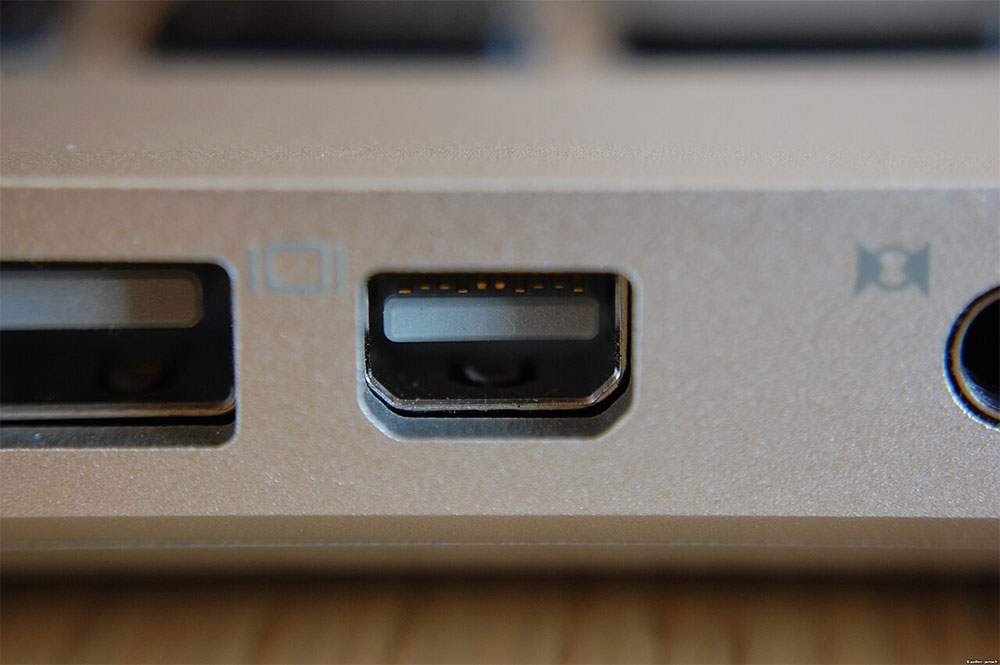
Mashups and integrations are not perfect: three potential limitations you must know before building.
Although mixing interfaces or daisy-chaining is quite convenient, there are still several physical and software limitations to keep in mind in practical applications:
- The bandwidth-sharing effect of daisy chains
When daisy-chaining multiple monitors through a single DP connection, all displays must share the total transmission bandwidth of the same cable. This means that when running multiple monitors simultaneously, a single monitor may not be able to achieve its maximum resolution or extreme refresh rate—a major drawback for gamers pursuing ultimate image quality and high frame rates. - Specification downgrades caused by the “wooden bucket effect”
On some laptops or certain GPU architectures, when outputs using different interfaces are mixed, the system may force the resolution and refresh rate of all displays to be limited to the “lowest common standard” among all connected devices. Although this is not absolute (depending on the hardware and driver tuning), it can indeed prevent a high-end primary monitor from reaching its full potential. - Cross-screen splicing and display consistency issues
If the secondary monitor is only used for browsing web pages or watching videos, the performance gap between monitors does no harm; but if you want to enable “multi-monitor panoramic gaming mode” to combine multiple monitors into one ultra-wide large screen, the refresh rate desynchronization, color accuracy and brightness deviations caused by different interfaces and panels, and the scaling ratio disorder when dragging windows across monitors will quickly significantly degrade the experience.
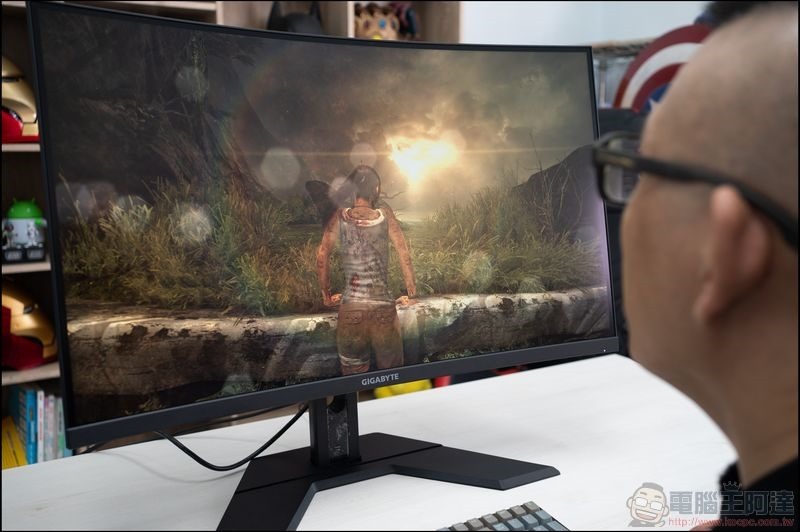
Overall, for everyday office work and multitasking, you can confidently mix HDMI and DisplayPort; however, if you are a hardcore gamer or professional color worker, it is recommended to use interfaces of the same specification and monitors of the same model as much as possible to achieve the most stable and consistent visual experience.
Source: KOCPC Chinese