


Luminar, which we introduced earlier, recently released an important fall update. Many of its AI photo-editing features have been significantly improved. I tested it, and the results are much better and more natural—this really amazed me. This also means that using Luminar’s AI features to edit photos is now much easier; you can get satisfying results with almost no adjustments. I’ll share them with you below.
Go to the official Luminar website
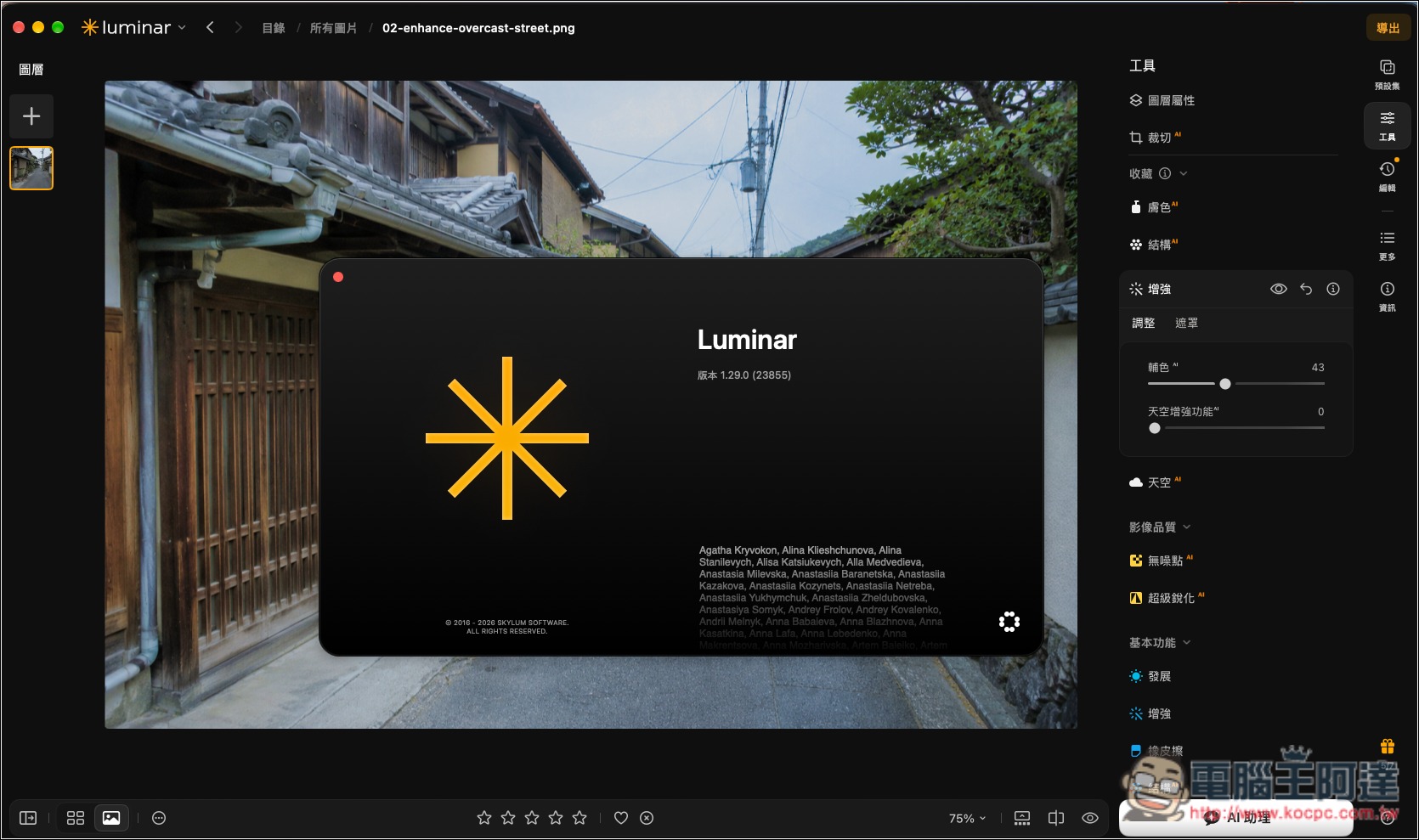
What changes are included in the Luminar 1.29 fall upgrade?
The Luminar 1.29 update mainly upgrades AI features, ranging from composition, enhancement, and haze all the way to generative erase, and also adds a printing feature so you can print out your satisfactory work.
What stood out to me most was the “AI Enhancement” feature—one-click AI photo editing, one of the features many people use most often.
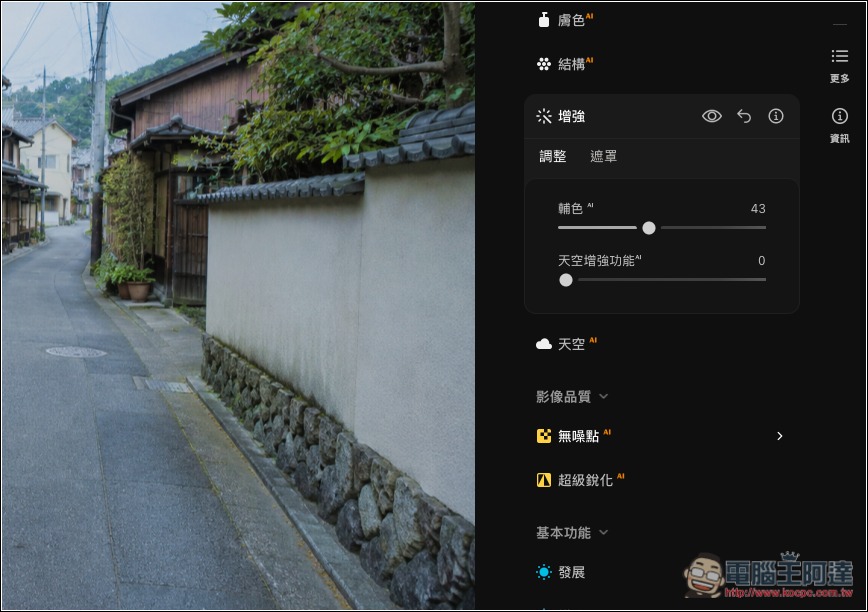
Compared with the previous version, version 1.29 adjusts its processing approach based on exposure, color cast, white balance, and sky conditions. For example, in backlit photos where the sky is very bright and the ground is dark, when you increase the enhancement strength, it balances highlight detail and shadow brightness while reducing edge halos or overly heavy colors. After testing, the AI-edited results really look very natural and harmonious, with almost none of that feeling that it has been over-edited (even if you push the strength to 100).
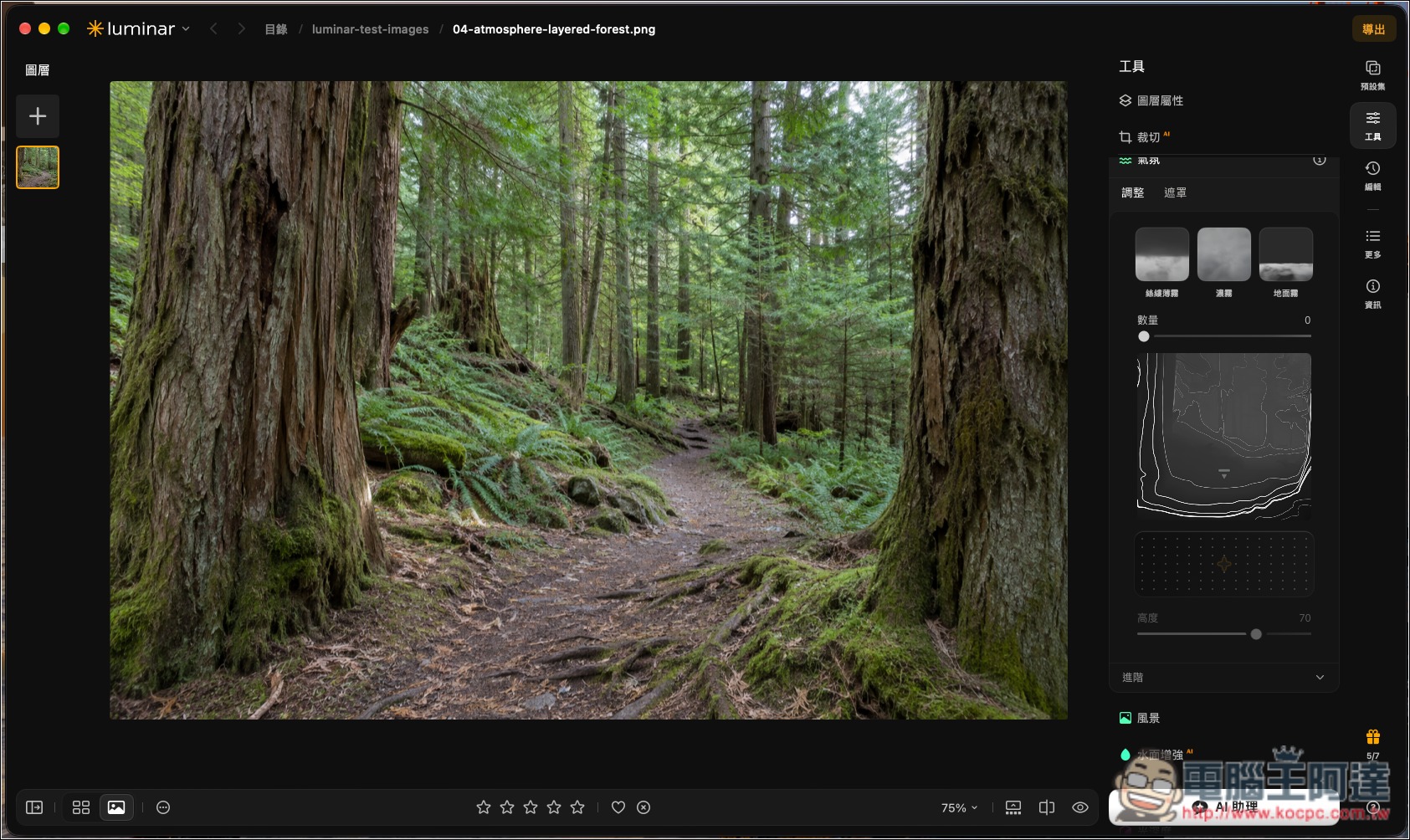
The “Atmosphere” feature is also noticeably different: it now uses 3D volumetric fog, estimates the distance of objects in the photo, and lets the fog be distributed in different locations in the scene. “AI Smart Composition” has also become more precise in detecting the subject, and it provides multiple cropping suggestions, including compositional methods such as the rule of thirds and the golden spiral, unlike version 1.28, which offered only one.
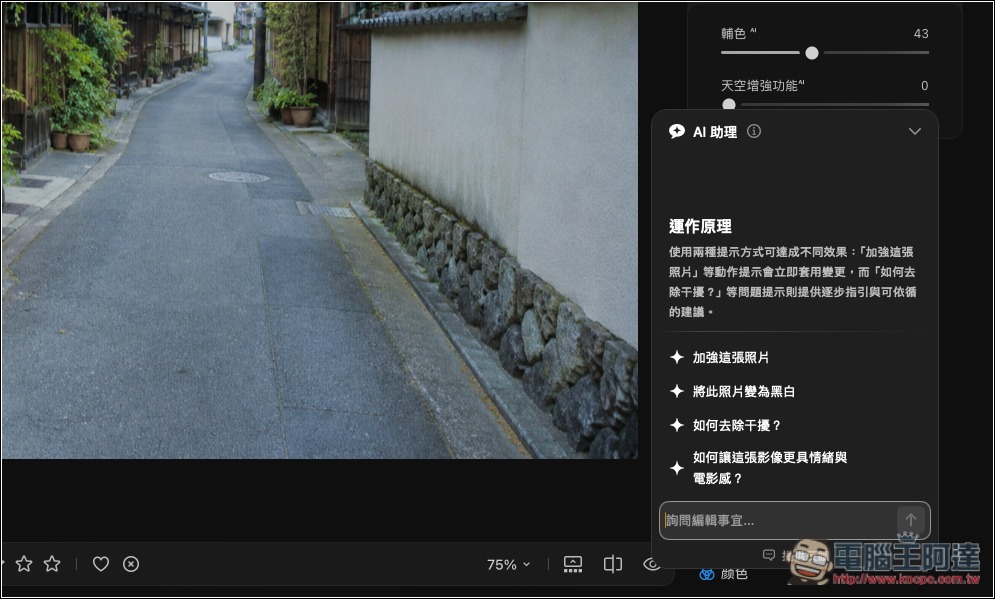
Another thing worth mentioning is the “AI assistant,” which has become a bit smarter now. It gives more accurate suggestions based on photos and also supports automatically operating more tools. Below I’ll show the before-and-after differences one by one.
Visit the official Luminar website.
AI enhancement: even when pushed to 100%, the new version looks completely natural.
Past AI enhancement features were pretty good too, but anyone who’s used them has probably felt this: push the slider too high and it looks a bit over-edited, with some colors even becoming too vivid; but set it too low and it feels like it’s missing just that little bit.
And the AI enhancements in version 1.29 this time are handled very well in terms of balance. First, let’s look at the most obvious 100% difference; below is the original photo:
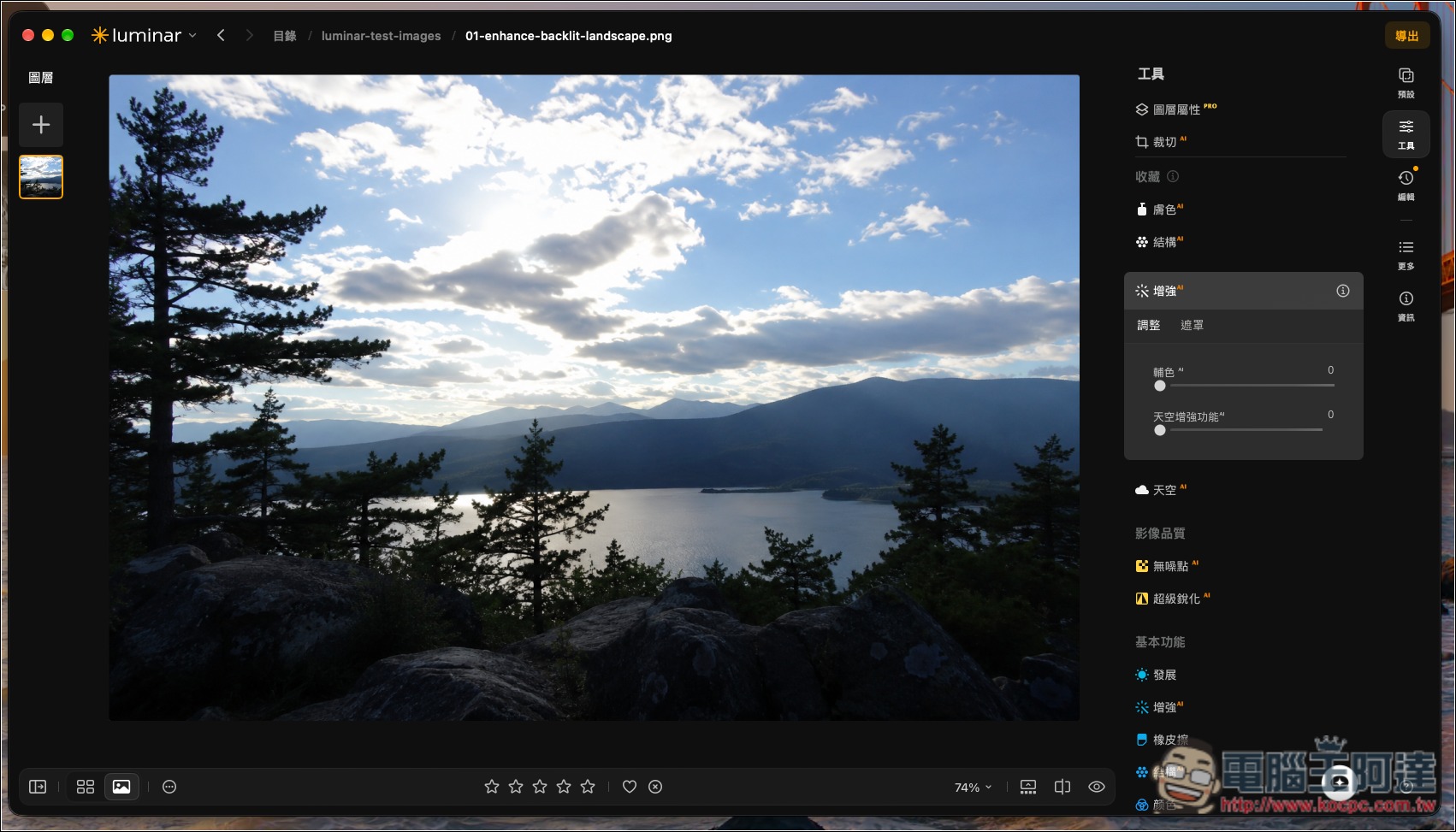
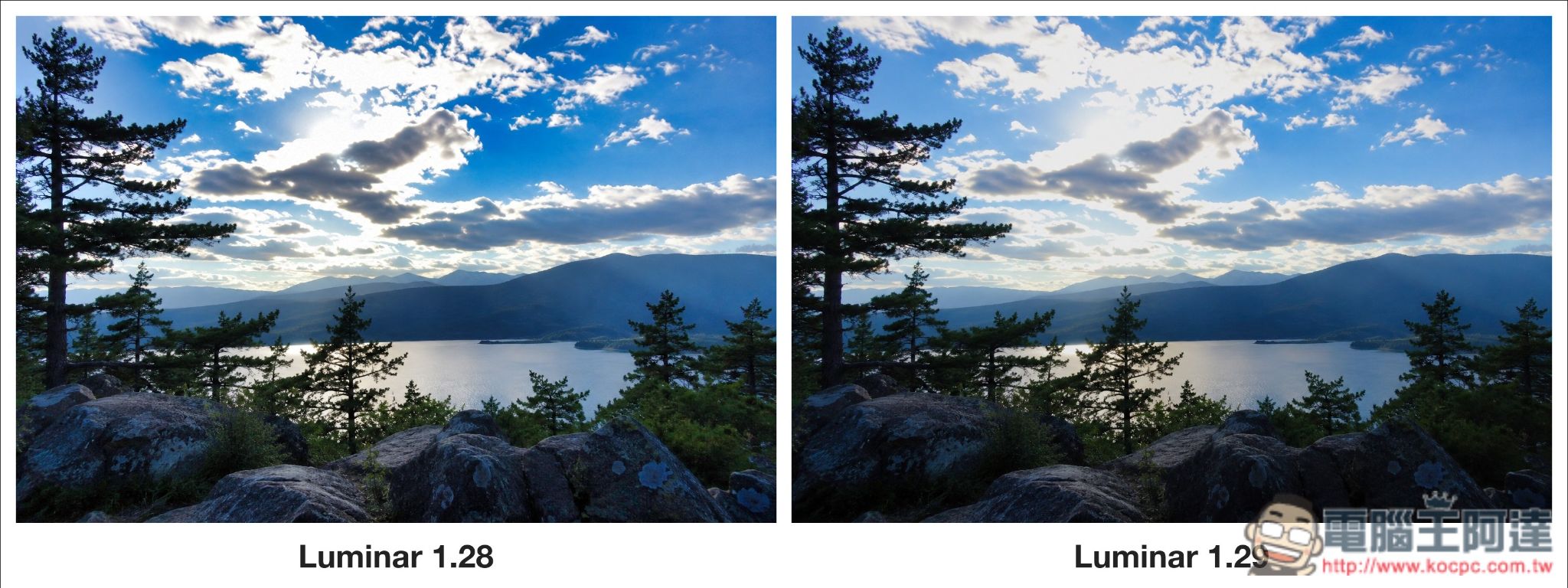
With the same 100% secondary color AI strength, 1.28 makes the sky’s blue more saturated, but it also causes the foreground rocks to lean more blue. In 1.29, the sky’s blue becomes softer, the transition between the bright white around the sun and the gray clouds is smoother, and more importantly, the foreground rocks still retain deeper shadows:
Now let’s look at the larger image.
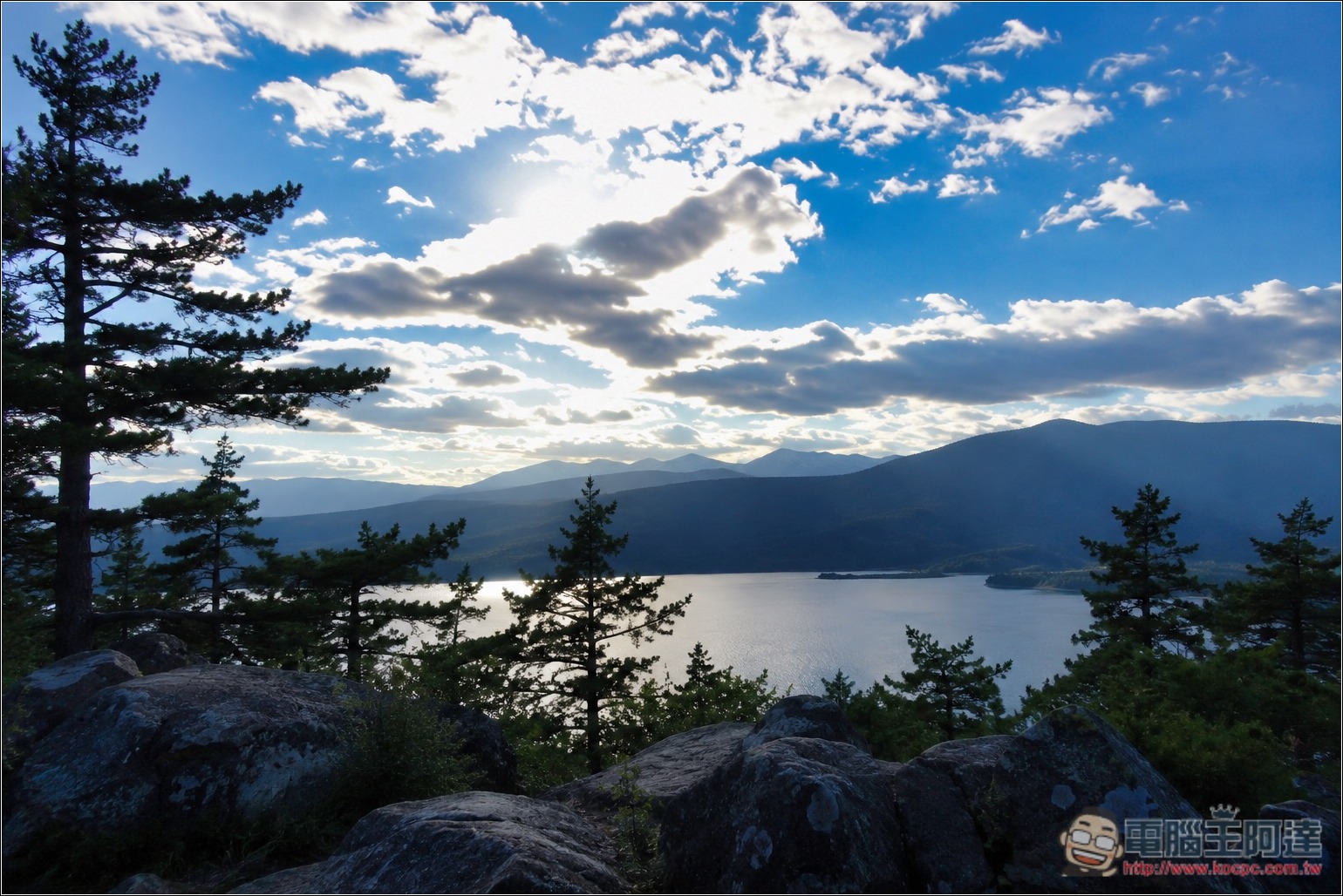
I set all the secondary color AI to 51% and the sky enhancement AI to 27%. It is clearly visible that in 1.28 the sky is a deeper blue, and the foreground rocks are also slightly brighter and a bit more blue, giving a slightly unnatural impression:
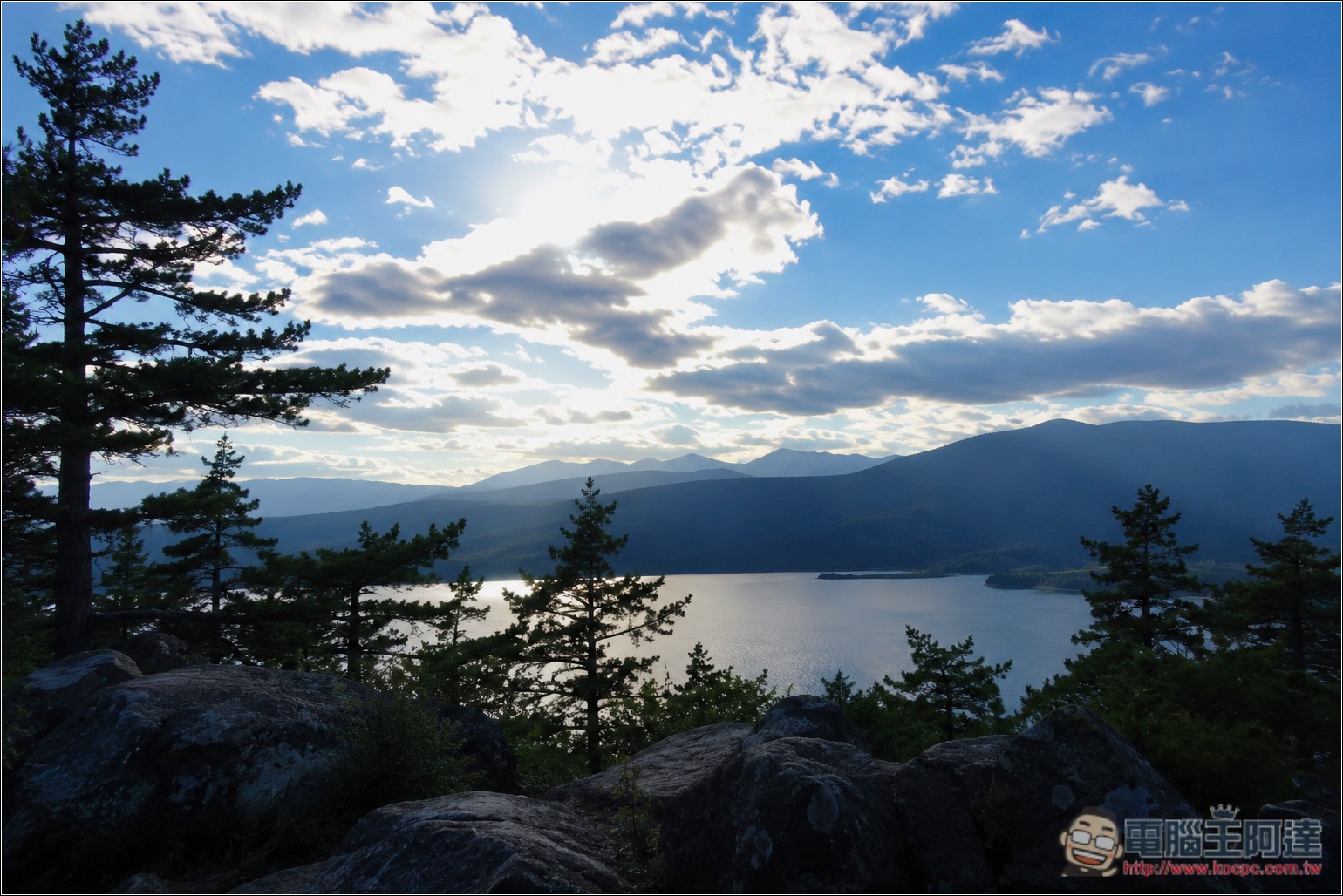
In 1.29, the blue of the sky is much softer, while the foreground rocks and bushes retain deeper shadows:
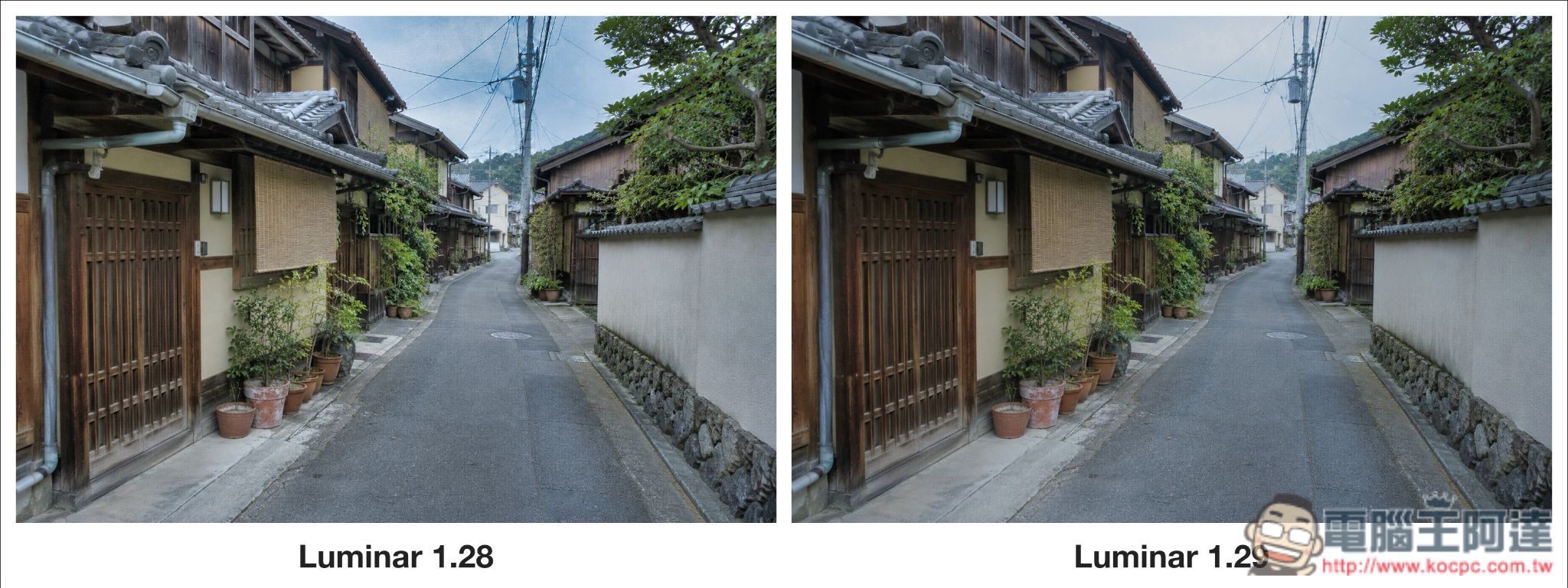
This photo too: I maxed out both the secondary color and Sky Enhancement AI features at 100%. In 1.28, the overall look was already pretty good, but the blue distribution in the sky was just weird. In 1.29, even with both maxed out, every part still looks natural:
The same applies to portraits, and it’s most obvious in the clothing. After using the AI enhancement feature, some areas of the clothing become more vivid. For example, in the photo below, with the same setting values, 1.28 makes the lower half of the blue top look almost like it has been dyed, while 1.29 does not have this issue:
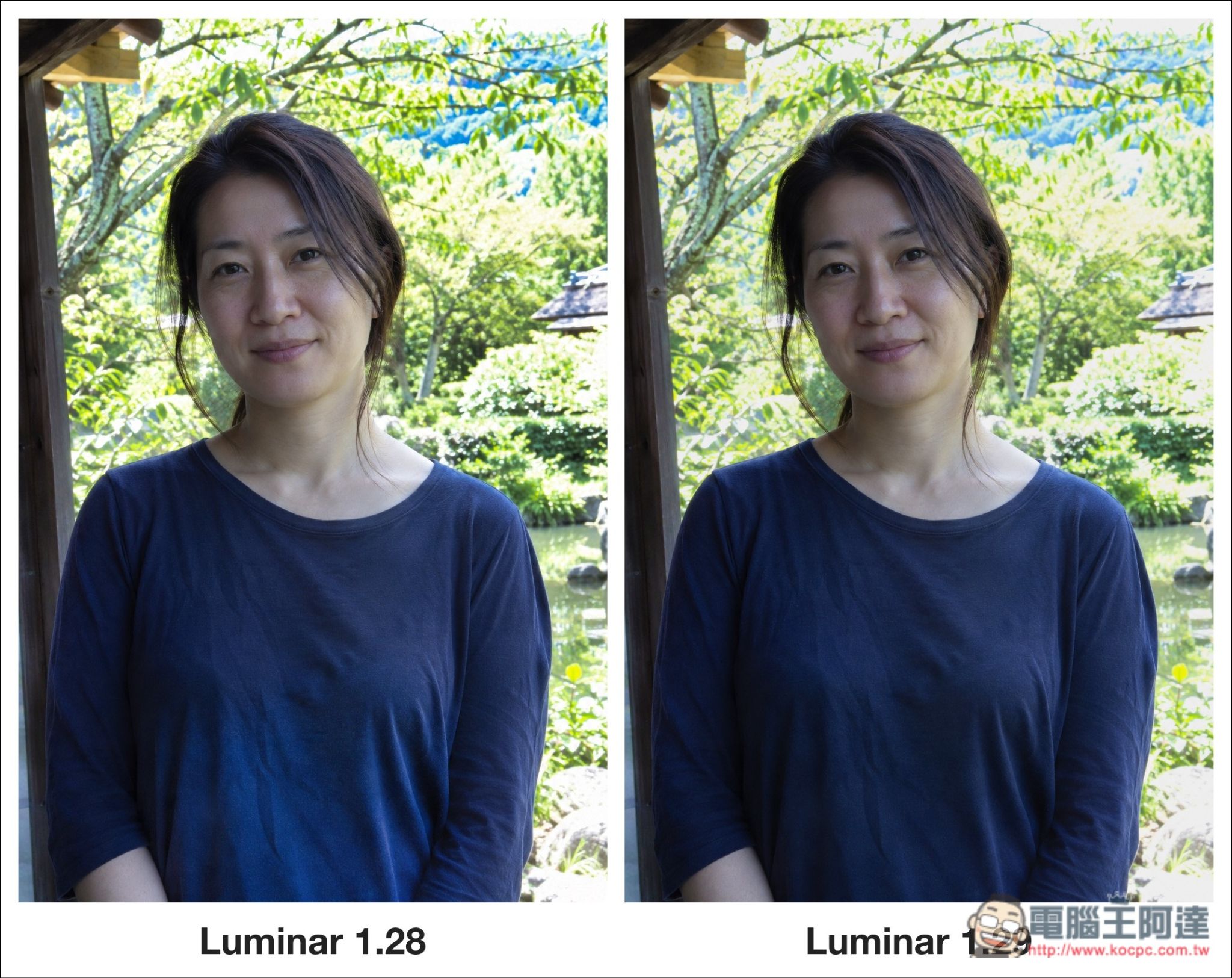
In other words, after upgrading to 1.29, you can more confidently let AI adjust and enhance your photos for you, and it will almost never overdo the edits.
Atmosphere: the difference in the 3D fog is extremely obvious.
Testing the Atmosphere feature really surprised me—the difference is huge. At 1.29, the atmosphere genuinely makes the photos look as if there’s actual fog, giving them more depth, unlike 1.28, which still has a slight post-processed feel.
The underlying approach of the fog mode in 1.28 was to overlay pre-made textures onto photos. Although the effect was good, it limited what the fog could actually achieve. In 1.29, it was replaced with 3D volumetric fog.
In other words, clouds and mist will be generated in 3D, interacting with light and shadows and drawing colors from photographs, so the mist will no longer be uniformly white.
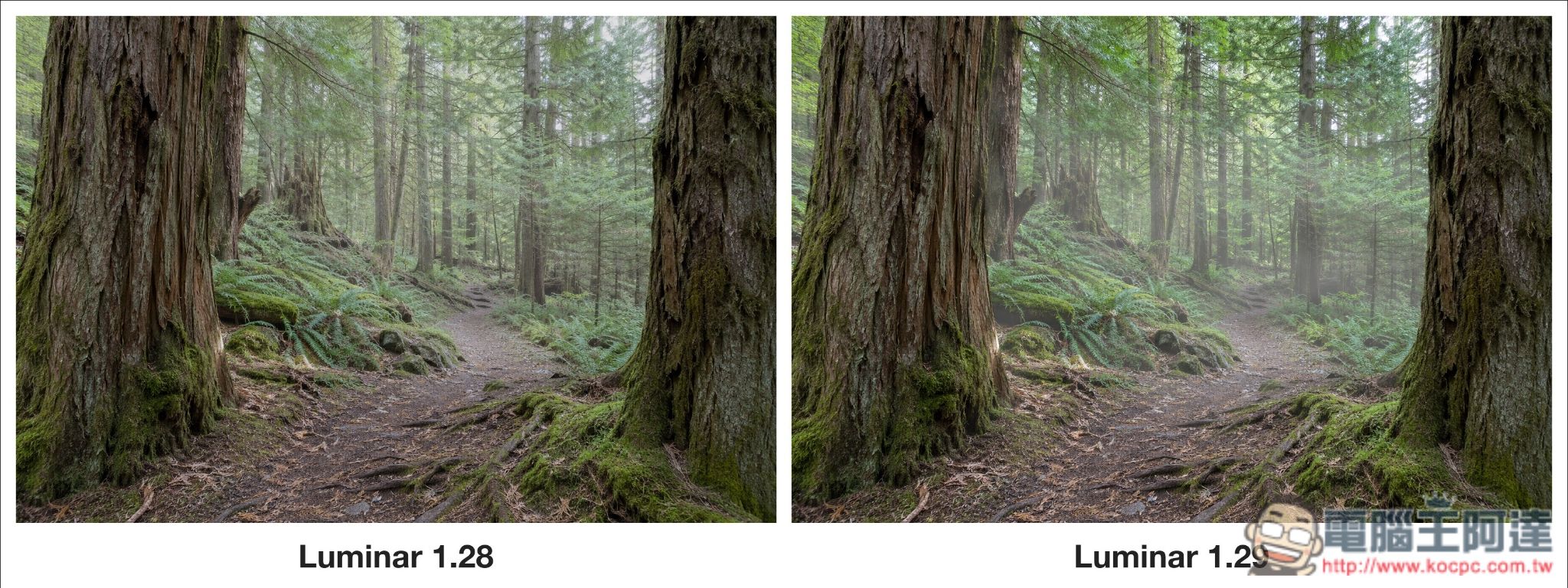
The image below is the original photo:
Below is a comparison image using the same values. In 1.28, the fog is spread more evenly through the forest, with a faint gray-white cast from the branches and leaves at the top of the frame to the tree trunks in the distance. By 1.29, the density and location of the fog are easier to see: the fog is more obvious behind the large tree on the left, at the bend in the trail, and below the woods on the right, while the branches and leaves at the top of the frame retain a more vivid green:
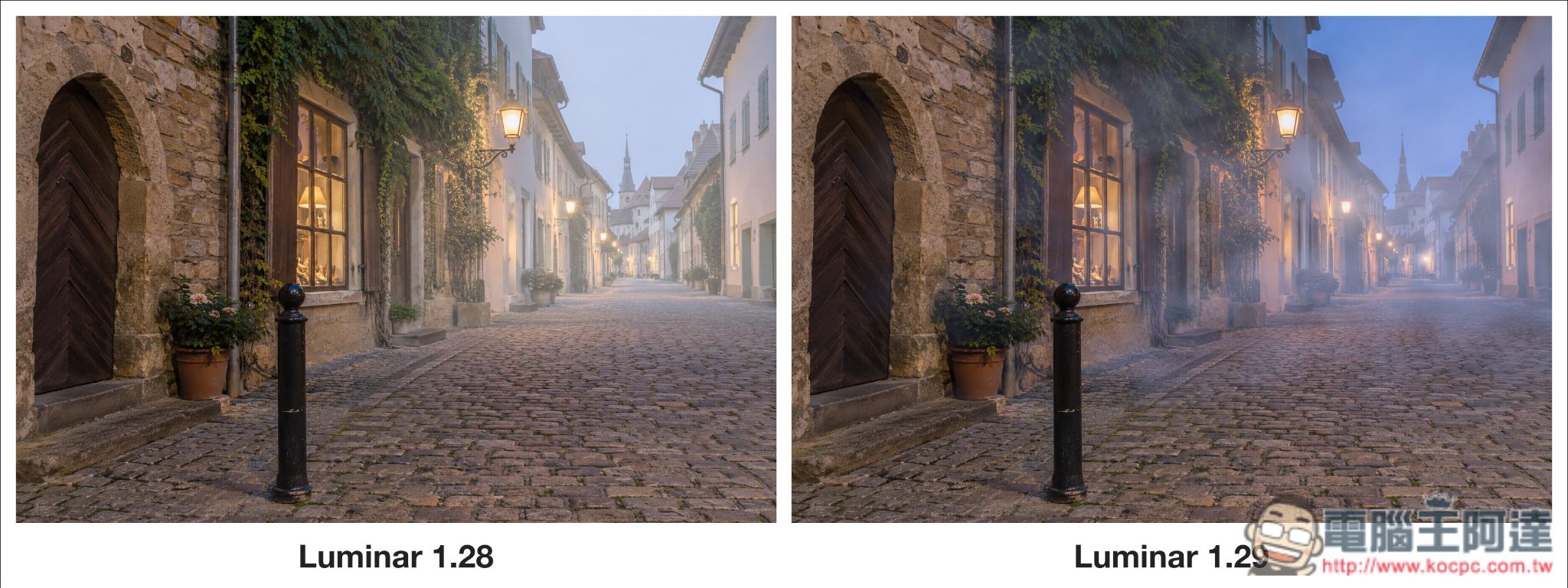
This comparison makes the difference clearer: with the fog applied in 1.28, everything takes on a grayish-white cast, from the middle of the street all the way to the distant rooftops and sky. It not only brightens the entire background, including the sky, but also changes the colors. The fog in 1.29, by contrast, preserves the sky’s original evening blue and gradually thickens along the street into the distance, giving the image more depth:
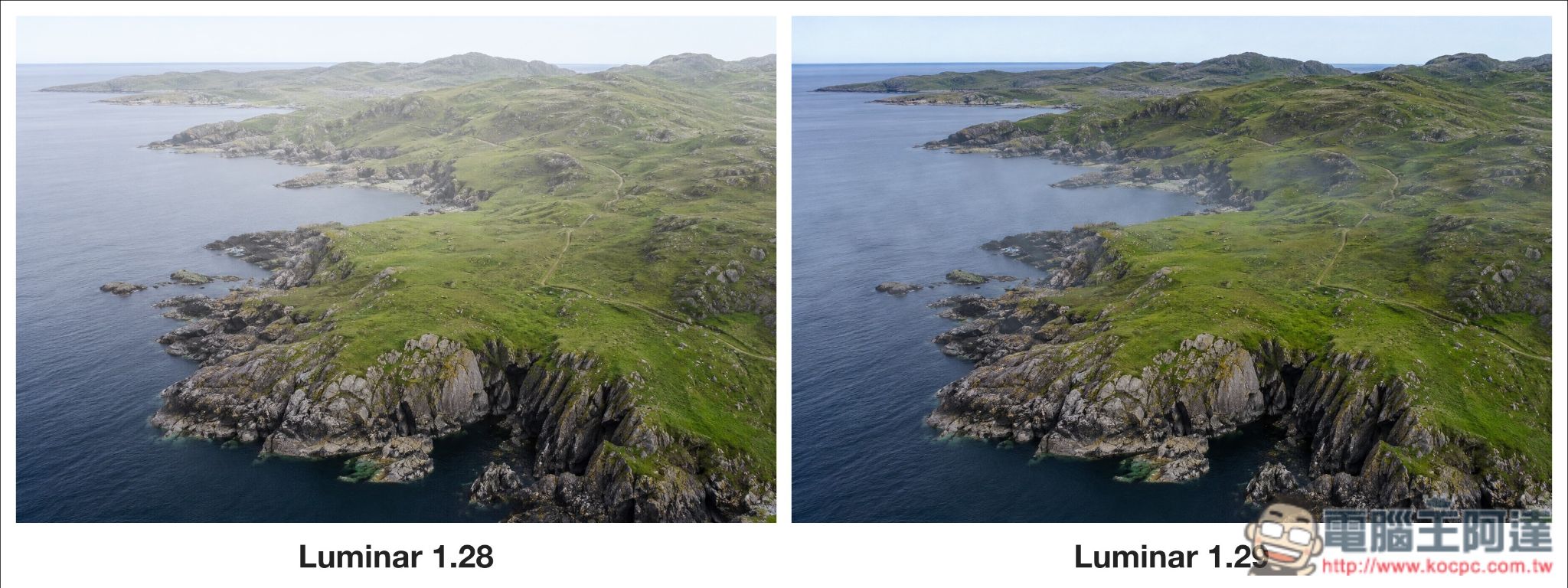
It is also obvious in the aerial coastal photos. In 1.28, the fog mainly spreads across the upper half of the frame; the distant hillsides and the sea on the left fade together, making it look as if visibility has dropped along the entire coast. In 1.29, the fog is concentrated in several bays and along the coastal rocks in the middle of the frame; the distant mountains are still clear, and the colors of the foreground rock walls and grass are more vivid:
AI Smart Composition: not only more accurate judgment, but also multiple composition options.
The AI Smart Composition (Composition AI) feature in version 1.28 is not very accurate at identifying the subject, so sometimes you still need to manually adjust the crop area suggested by the AI. In addition, since it provides only one composition suggestion, it may not always produce a better result for every photo.
After upgrading to 1.29, I noticed that the AI has a better understanding of what the main subject is, where the person is looking, and what the most important content in the frame is.
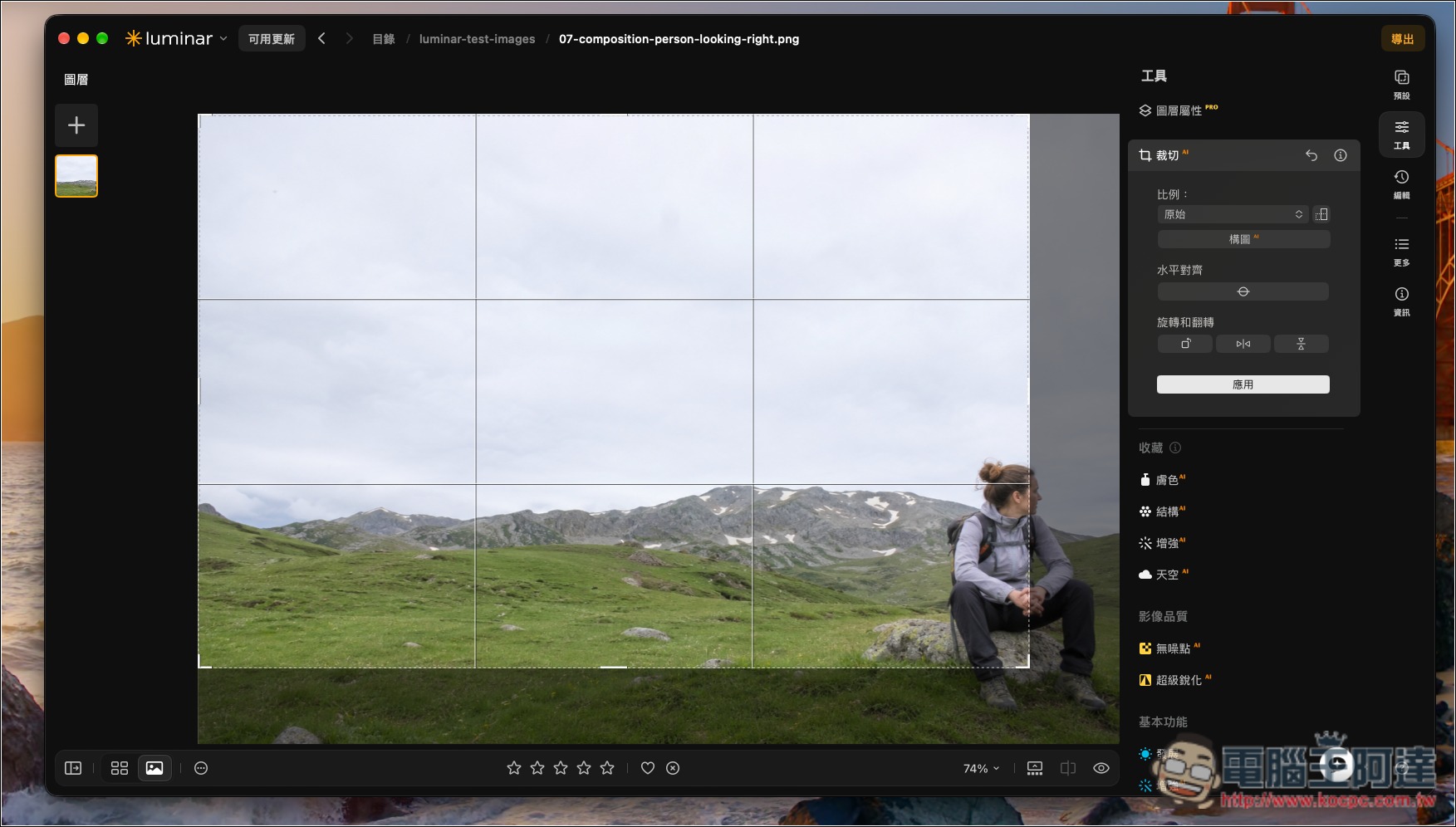
Like the photo below. 1.28 initially made the wrong judgment and kept the upper-left area, but the subject is in the lower right, so I ended up having to move it to the lower right myself:
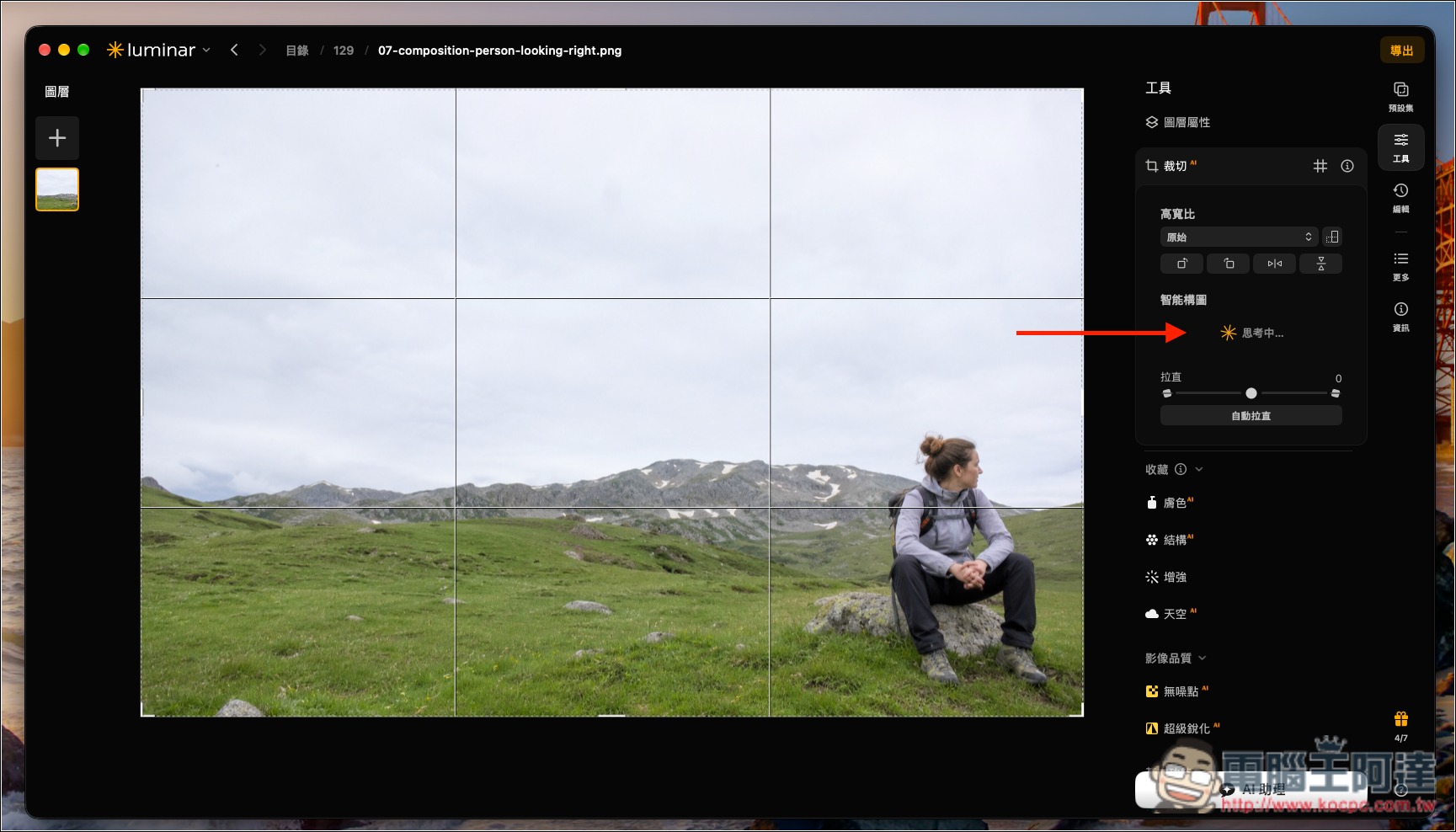
1.29 After turning on the Crop AI feature, Composition AI will be automatically enabled:
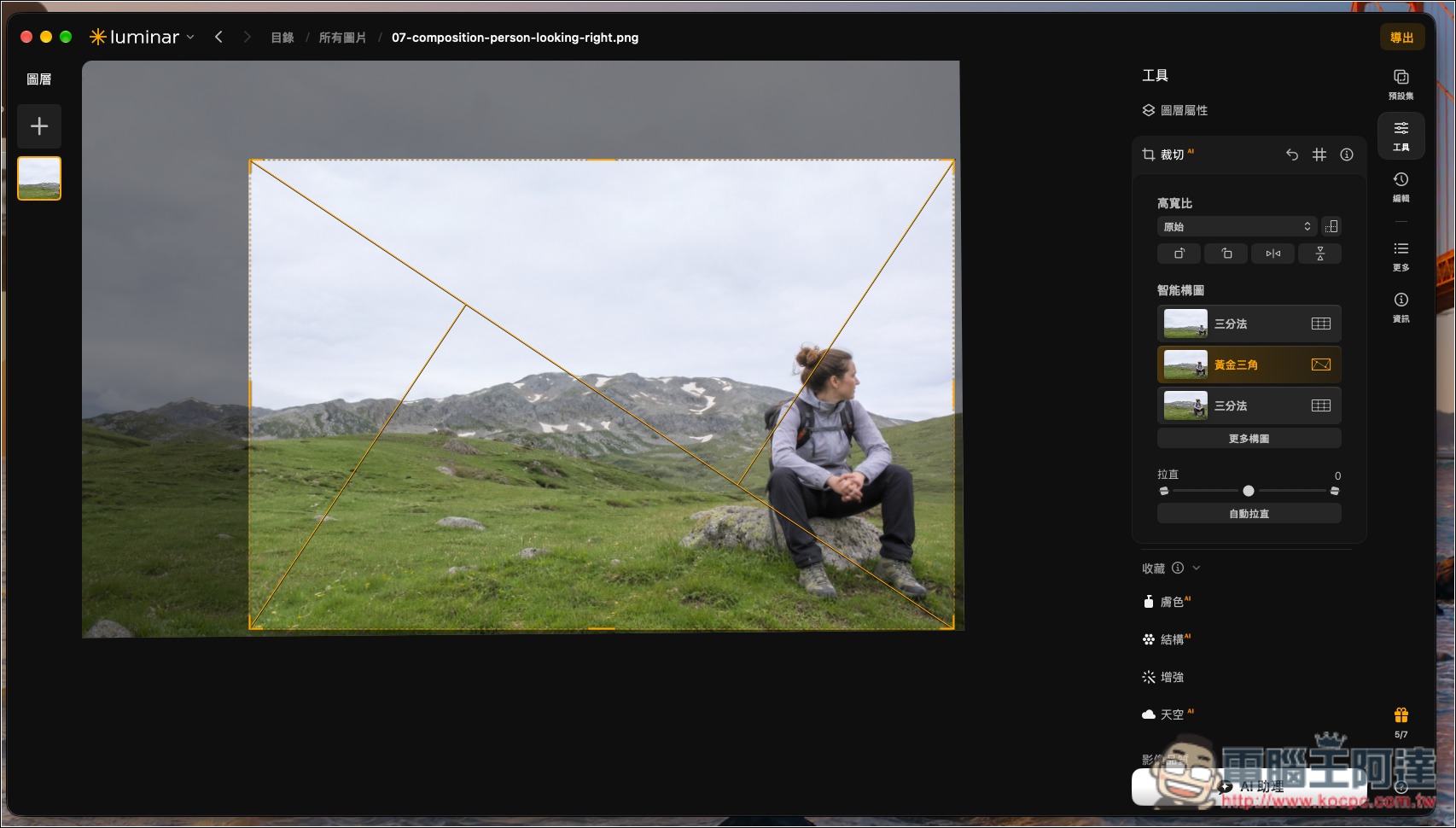
After the AI finishes analyzing, it will provide multiple composition options, such as the rule of thirds, golden triangle, golden spiral, and centered composition, and each composition accurately identifies the subject, so basically you no longer need to manually move it yourself:
1.29 also added a variety of AI composition suggestions, which is really great—it’s not only more practical but also makes it easy to try out different visual looks.
Take the following photo as an example. This is the original image, with a large expanse of sky and river surface. Although the person is on the right side of the frame, the first thing you notice is still the openness of the riverbank:
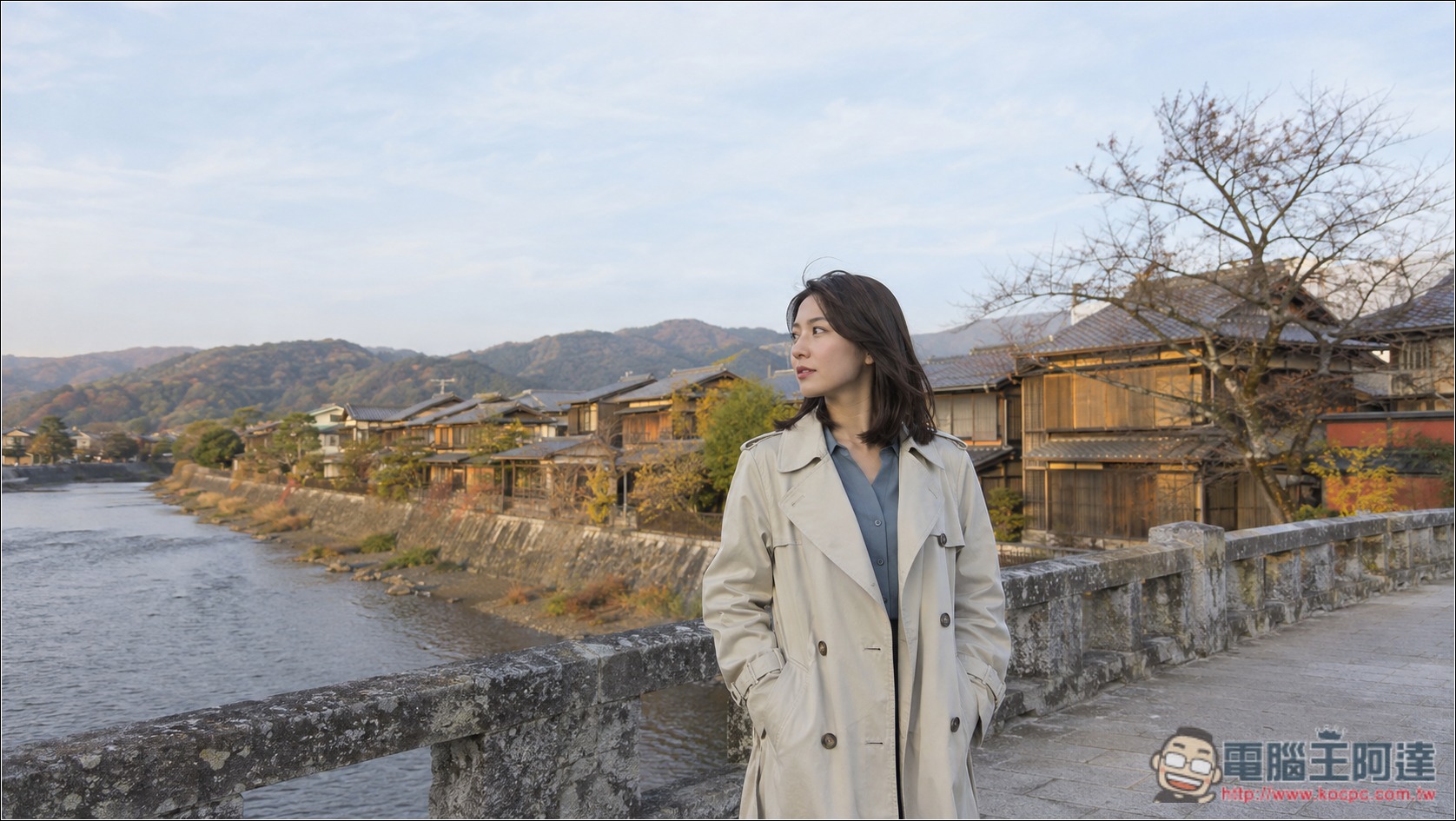
Below are three suggestions from the AI composition. “Center” crops more of the sky and the river surface on the left, drawing attention to her expression. “Golden Triangle” is similar to the original photo. “Golden Spiral” is my favorite of the three; although quite a bit of sky is cropped, the viewer’s gaze naturally follows her line of sight to the left, creating a feeling of looking at the scenery together with her:
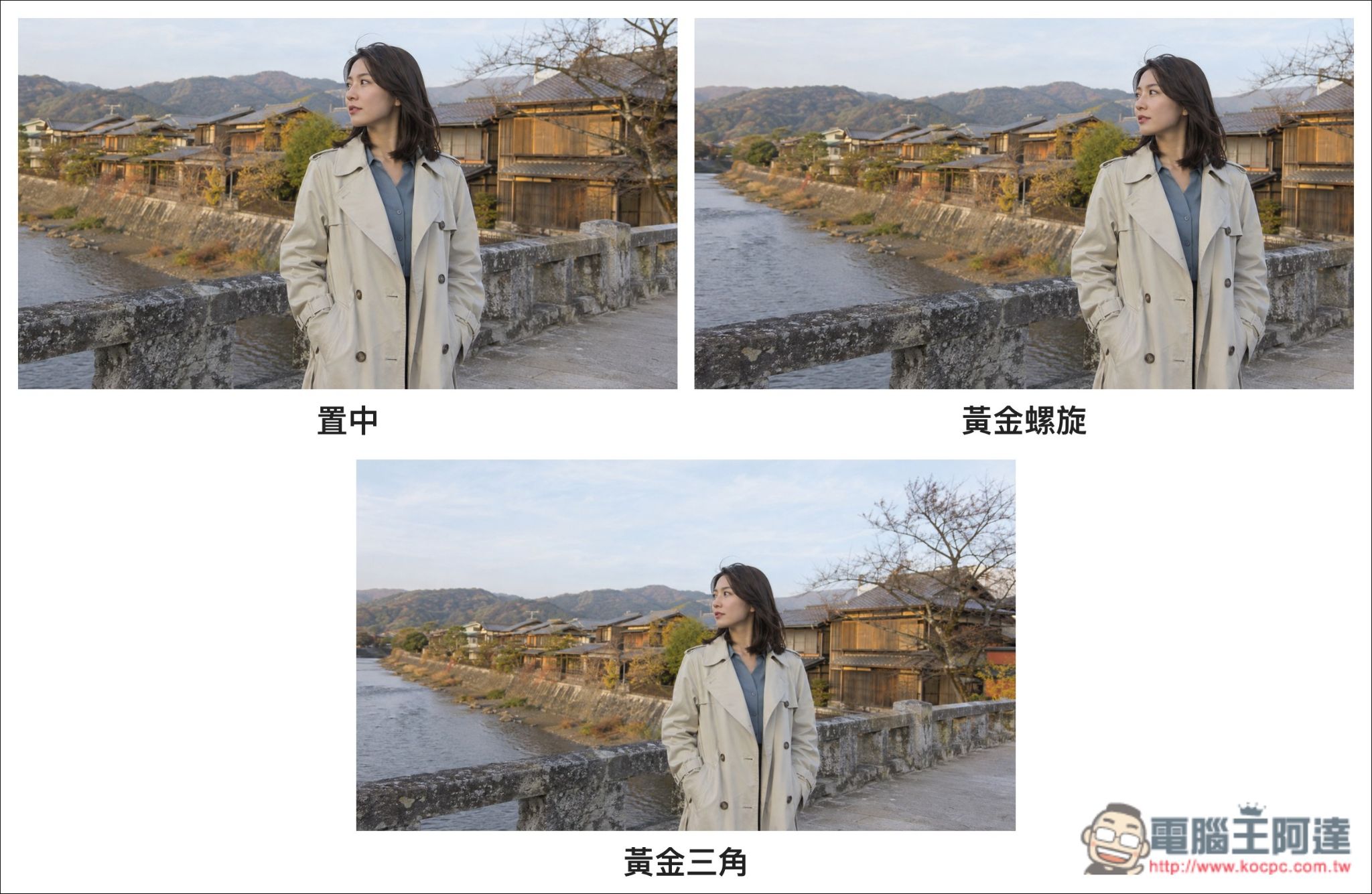
With Luminar 1.29, even if a photo’s composition isn’t great when you take it, you can easily use AI to correct it into the most suitable composition. Anyone can become a composition master—and can even identify exactly which composition technique is being used.
AI Assistant: Supports more automatic adjustments and provides more accurate answers.
Compared with previous versions, the AI assistant in 1.29 now supports significantly more Luminar tools—up to 22—ranging from basic light and color to Sky AI, Eraser, Face AI, and more, all of which can be processed automatically.
This also means that things the AI assistant originally couldn’t do in 1.28 will very likely be possible in 1.29. In addition, the AI assistant in 1.29 has further improved its understanding and response capabilities, enabling it to more accurately grasp users’ questions and provide more fitting answers, making the overall interaction experience smoother.
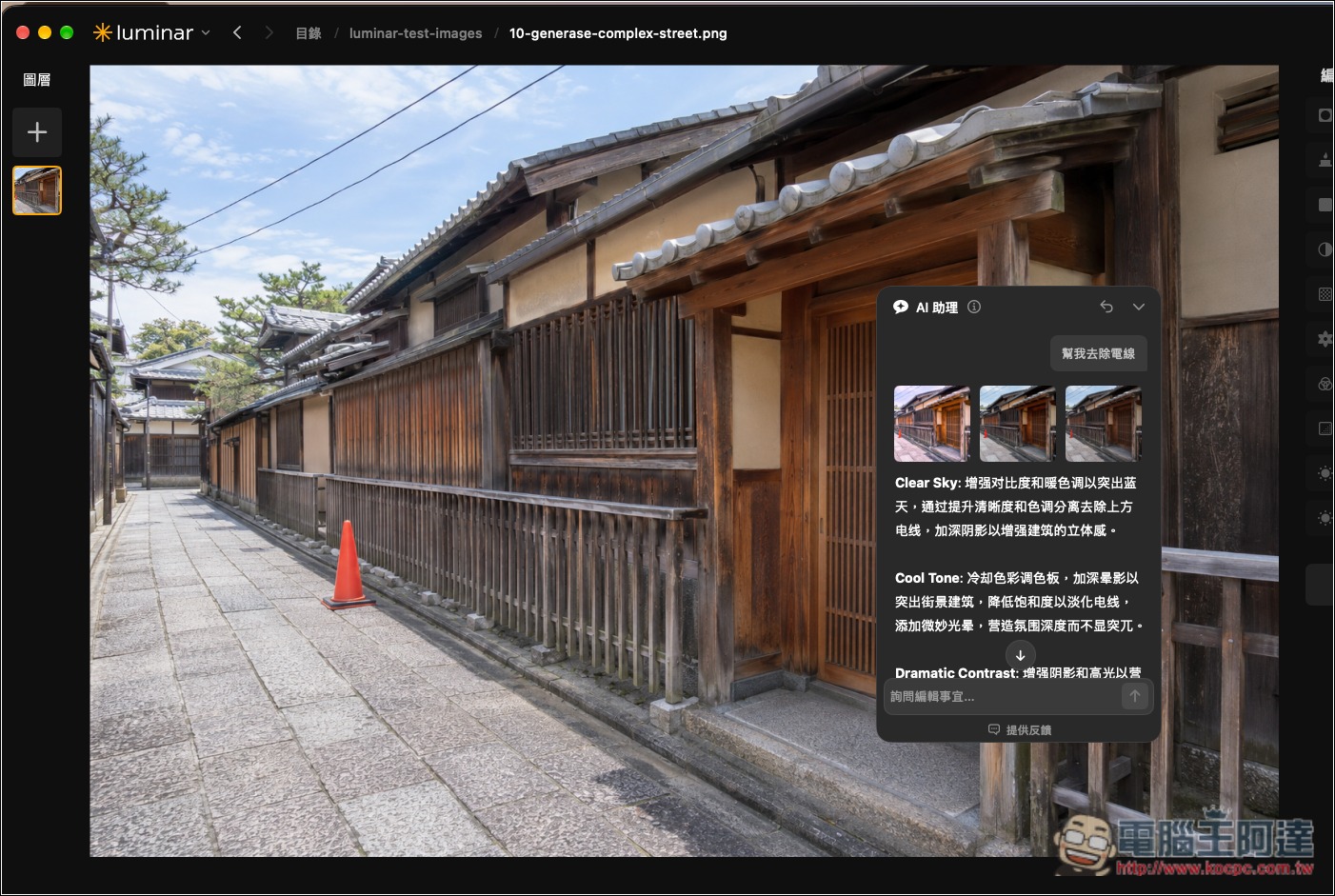
For example, when I asked the AI assistant to remove the power lines from a photo, version 1.28 not only couldn’t handle it but also answered incorrectly, giving me three photos with different styles applied:
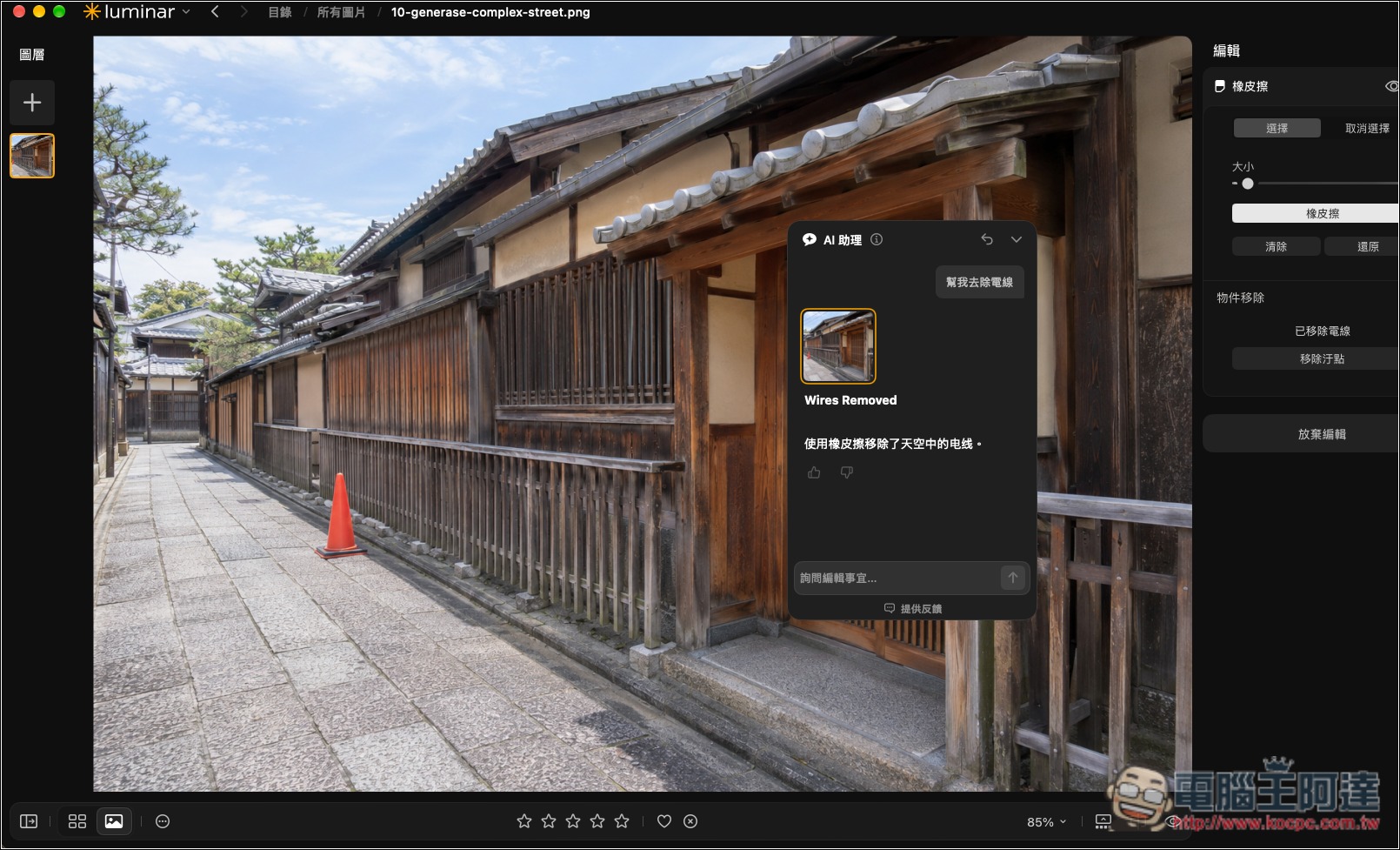
The AI assistant in 1.29 doesn’t have this issue, and it removes it directly on its own; the removal effect is quite beautiful, with almost no flaws:
Generative Erase: More Natural Object Removal
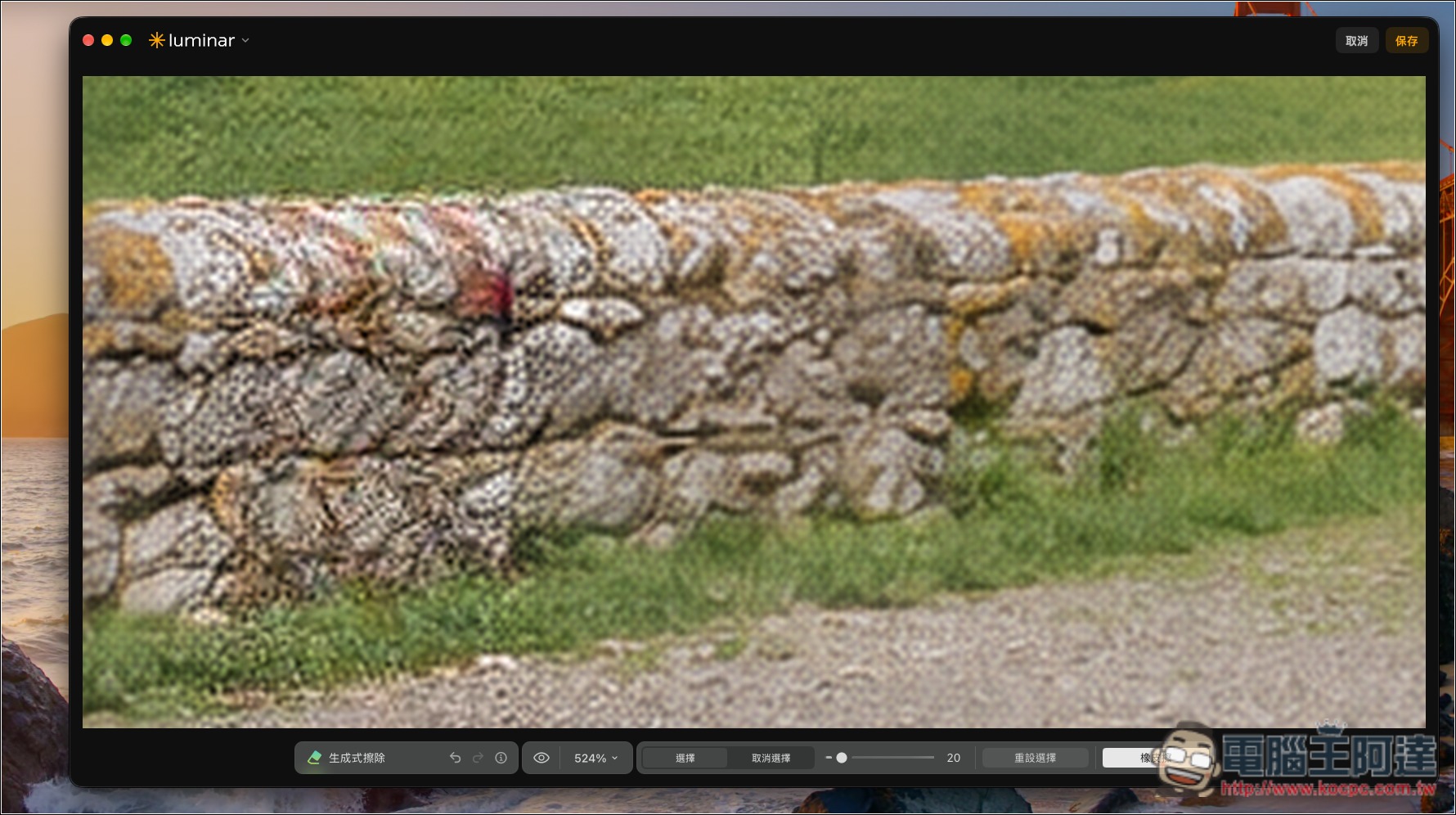
When I previously tested Generative Erase in 1.28, it was already quite good overall—from a distance, you could hardly tell there had originally been something at that spot in the photo, but if you zoomed in, you could still see a slight difference from the surrounding area. After upgrading to 1.29, this improved significantly; the background filled in after removing an object now blends more naturally with the surrounding image, and my hands-on testing confirmed this.
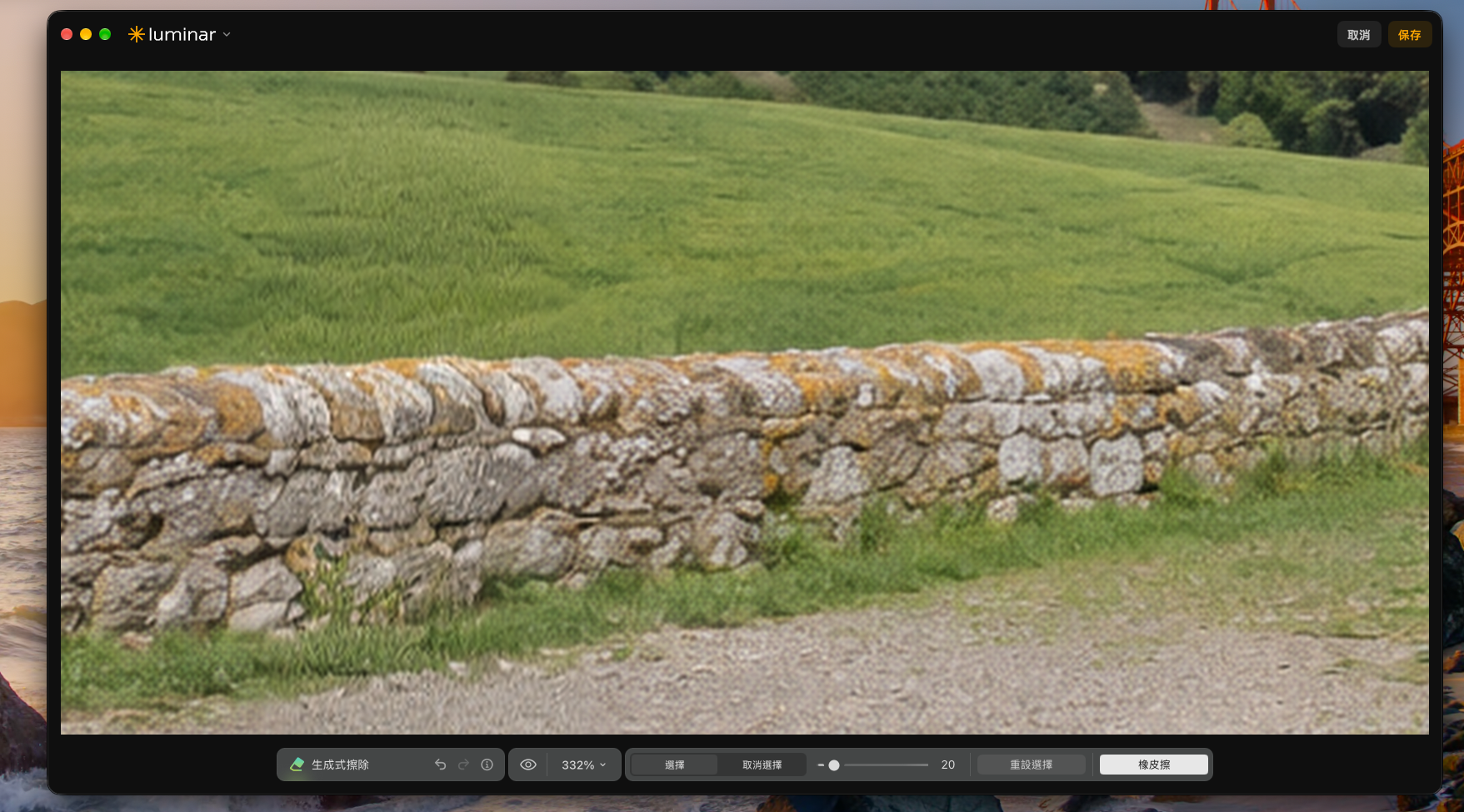
For this photo, this is the original image, and I want to remove the person in the bottom left corner:
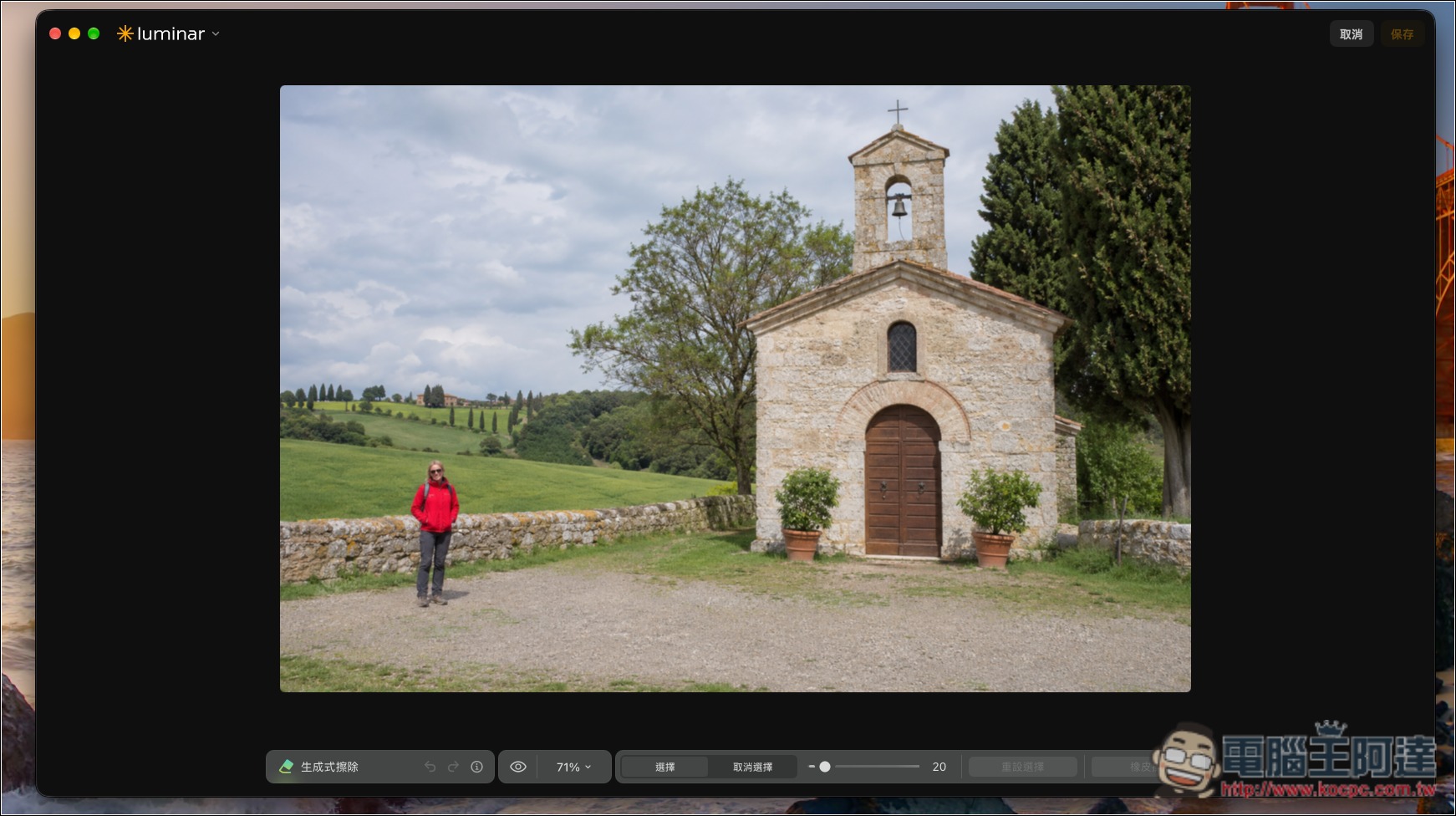
With the generative erase feature in 1.28, removing people is effortless, and the areas where the people were are filled in almost perfectly—from a distance, it looks completely natural:
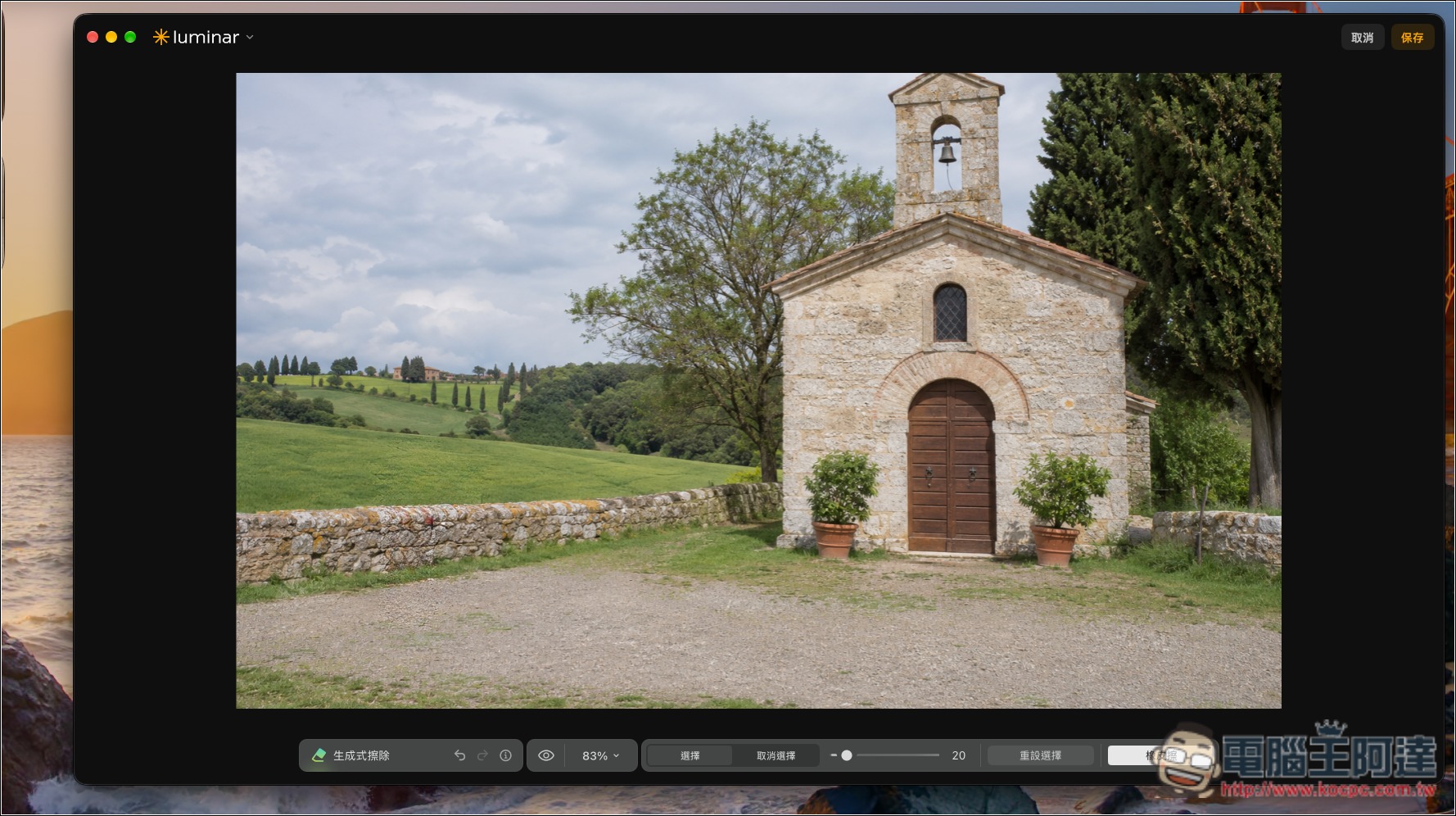
After zooming in, it becomes clear that the stone wall behind the original person’s position is sharper than the left and right sides:
Next, I’ll use version 1.29 to remove it—from a distance it looks just as perfect:
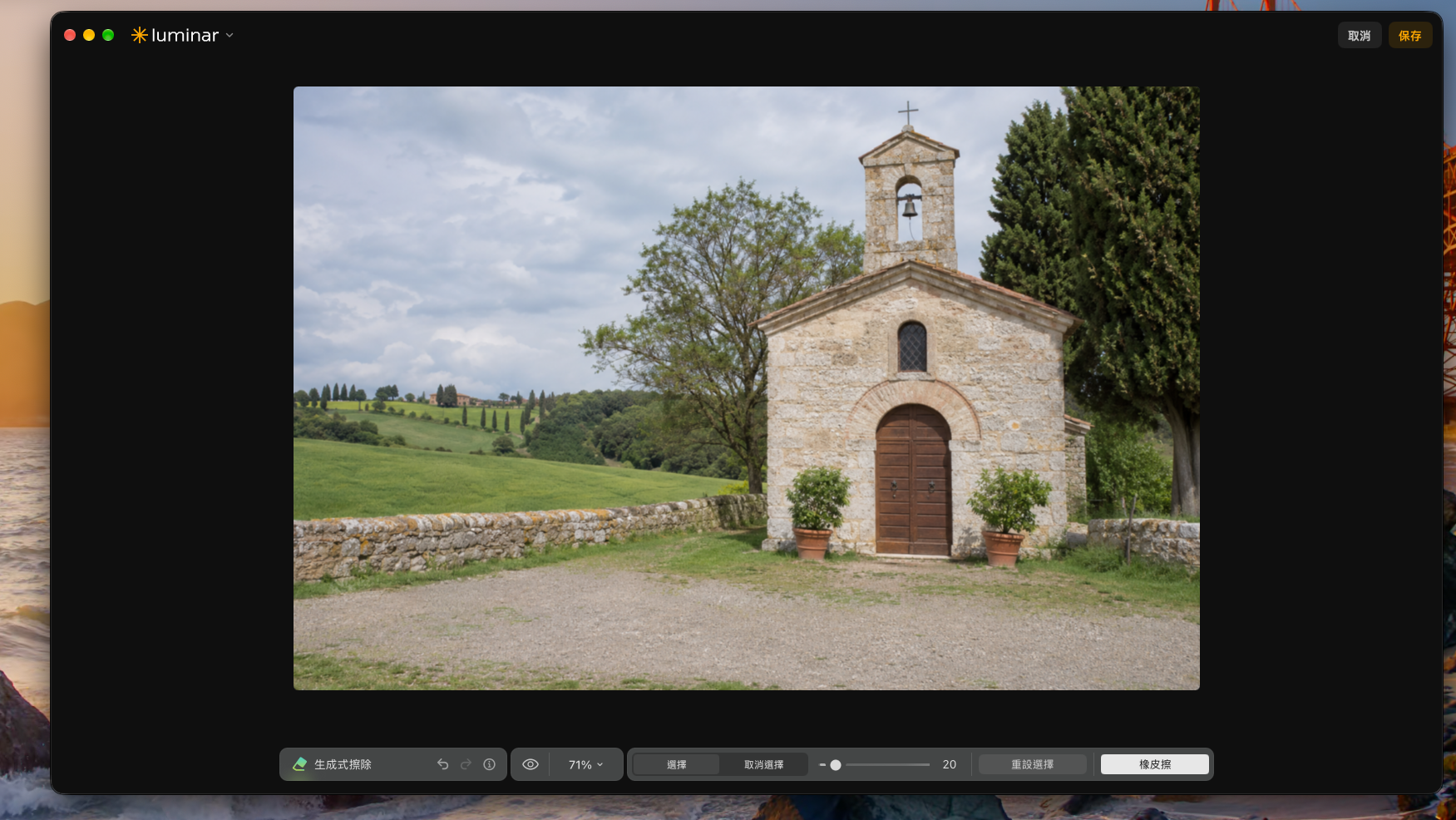
Looking closer at the stone wall behind the person’s position, it has been filled in almost perfectly; there is no longer the issue of 1.28 being too sharp, and it is very close to both the left and right sides:
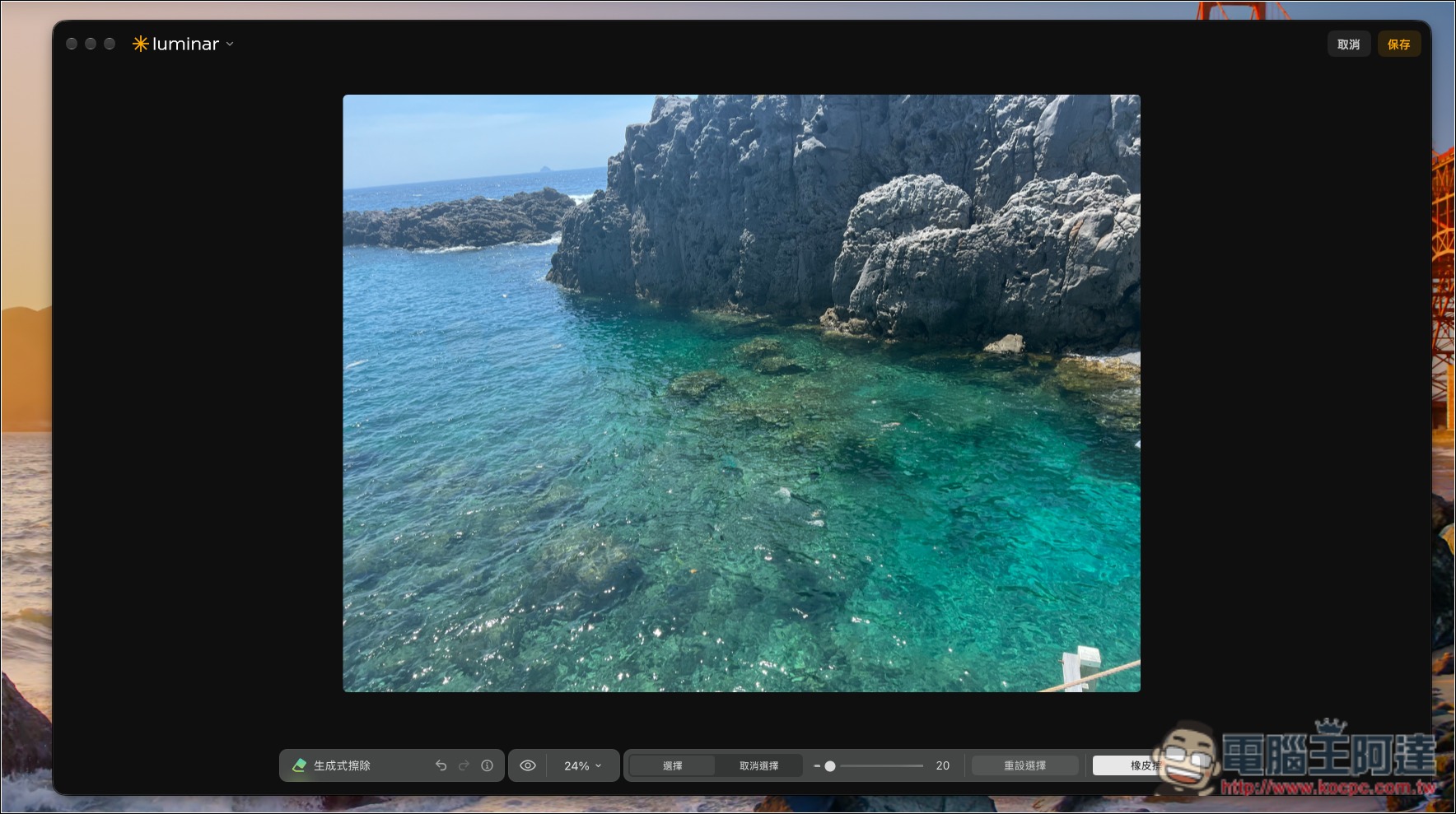
Now let’s look at another, more difficult one; I want to remove all the people in the image:
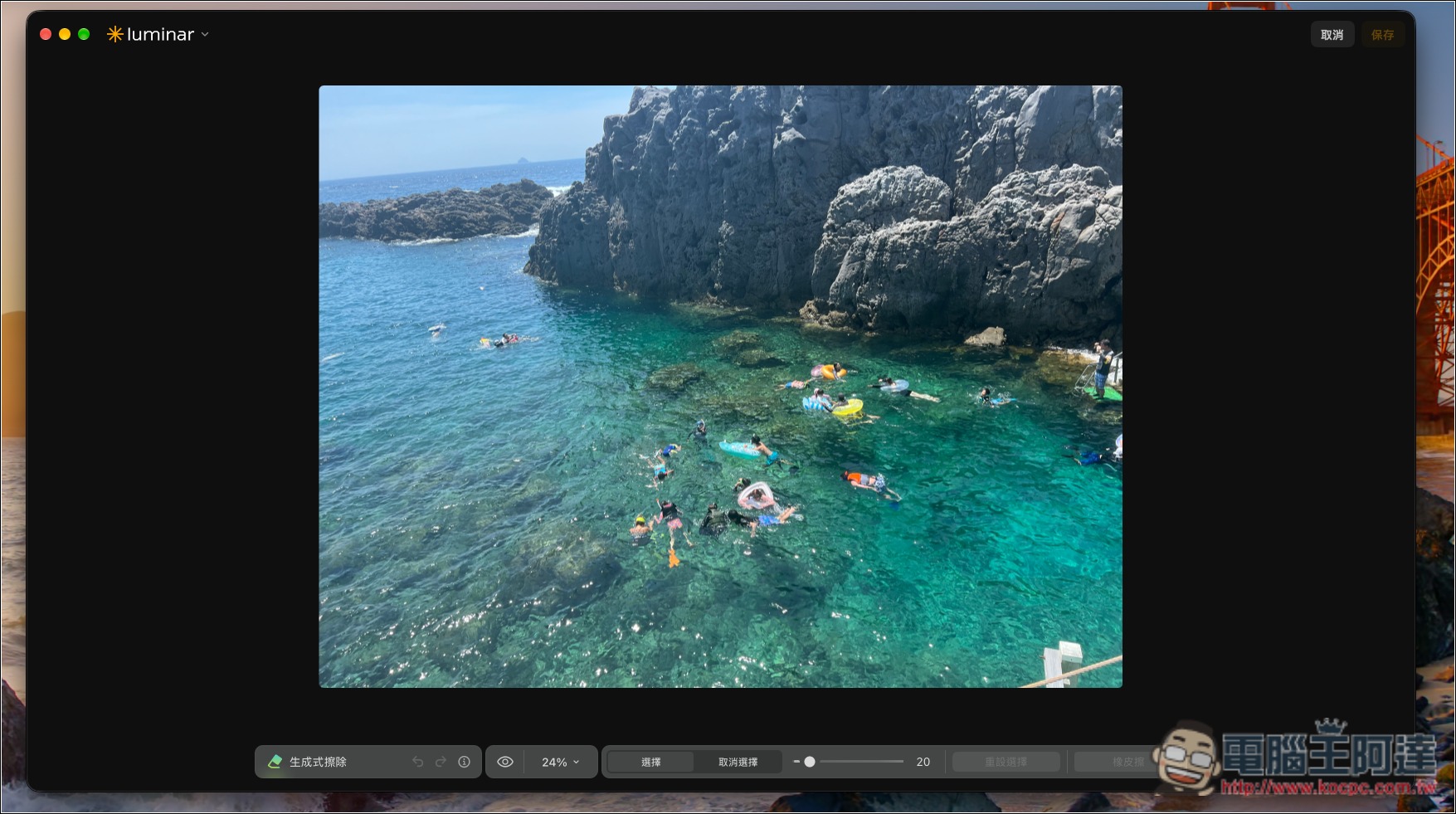
1.28 is handled very well too; it looks quite good from a distance:
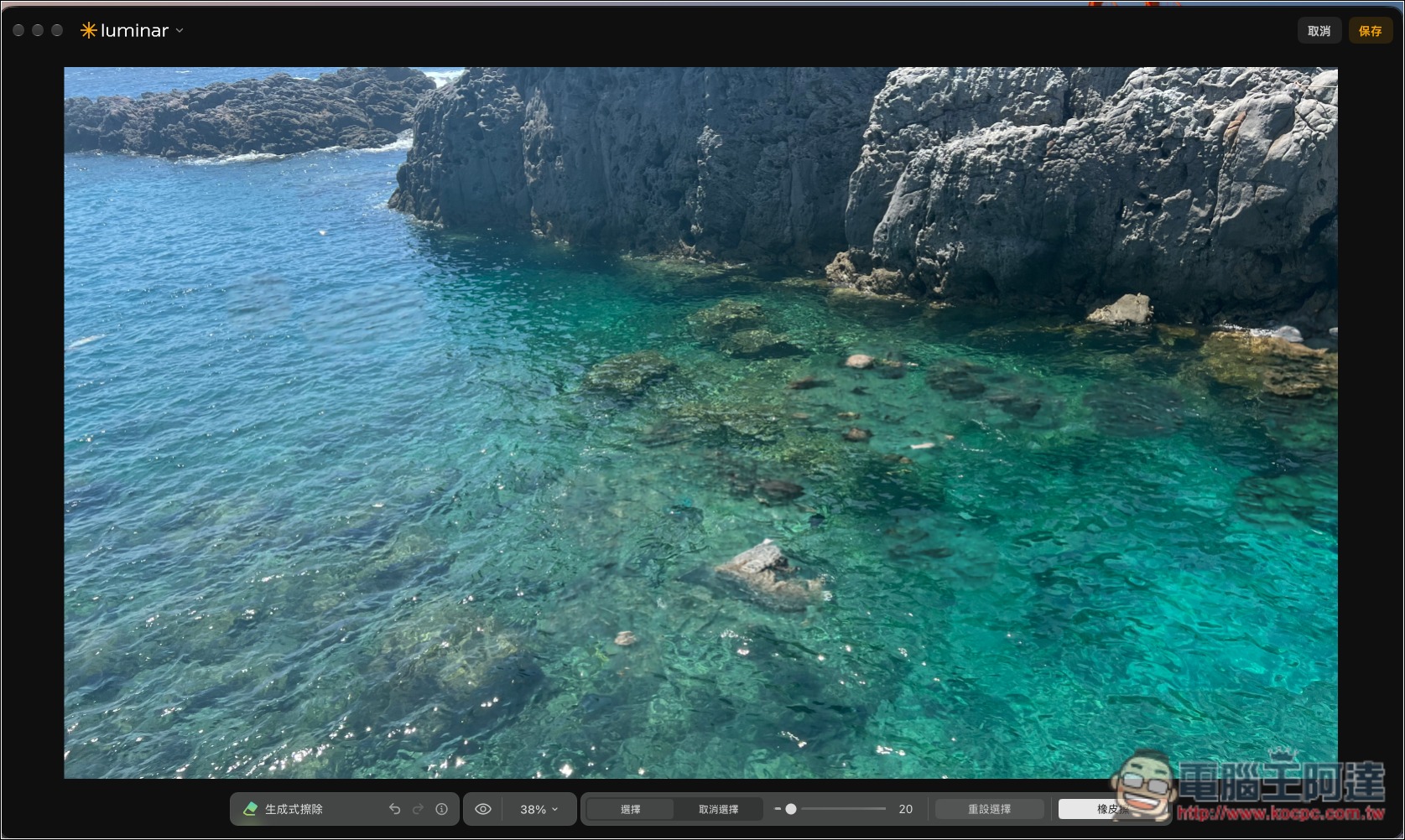
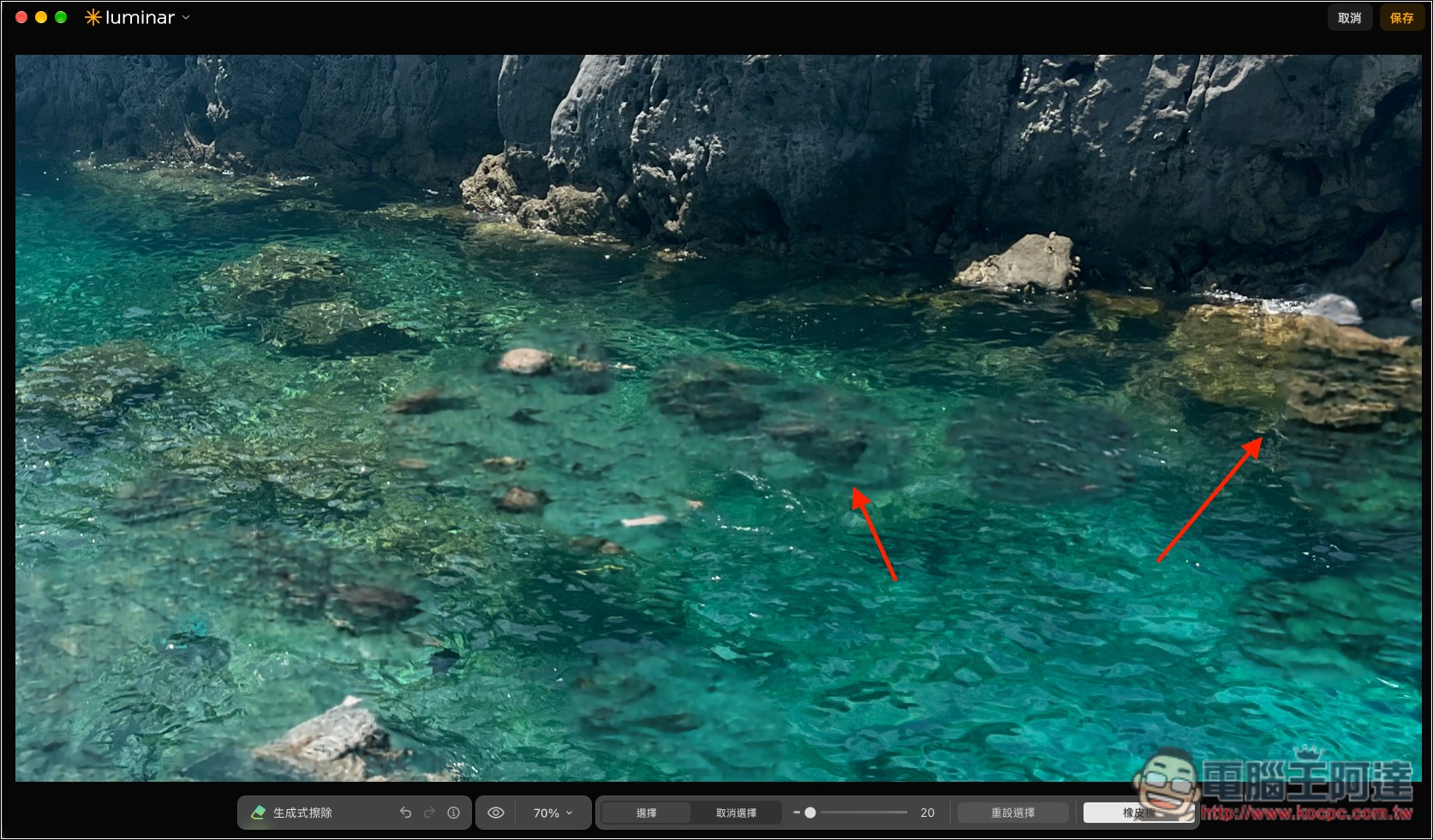
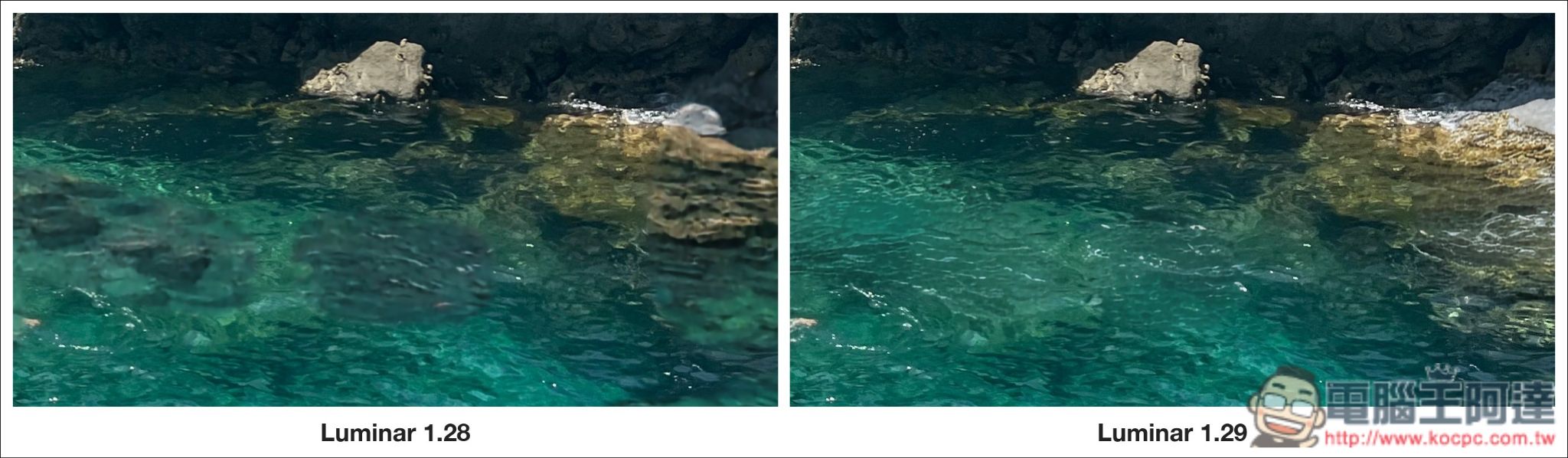
But once you zoom in, you’ll notice that the image in the area where the person and the far-right platform originally were has become blurry, and its transition with the surrounding water ripples isn’t very natural:
1.29 Of course, it can also be easily removed:
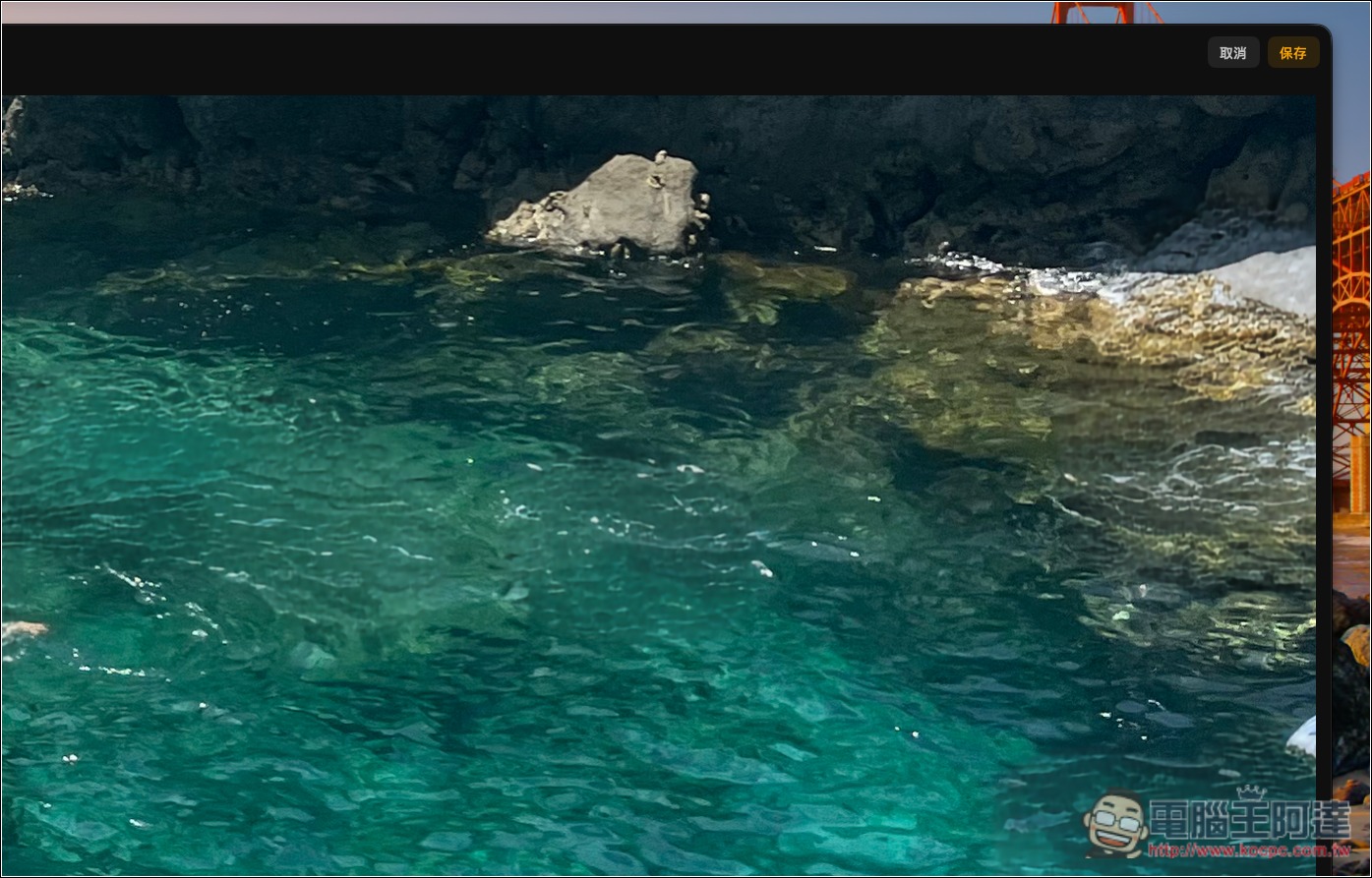
And when you zoom in, the people and platform areas not only no longer look blurry, but even the water ripples have been filled in; calling it perfect would not be an exaggeration:
It’s clearer when viewed side by side:
Is Luminar worth buying?
With the release of version 1.29, it is undoubtedly more worth buying than before. With Luminar, you no longer have to worry about photo editing in the future, and you can even use it to manage photos and images. Moreover, it is a perpetual license: pay once and use it permanently, and each serial number can be activated on two devices (macOS and Windows).
There are three plans, and a Black Friday promotion is currently running with discounts of up to 77% off.
- All platforms (including desktop, mobile, web, and cross-device editing): NT$2,999
- Max (all products across all platforms, Luminar Prime for one year): NT$3,999
- Desktop only: NT$2,499
Visit the official Luminar website

The only thing to note is “Luminar Prime.” Luminar Prime is subscription-based, and both generative features and the AI assistant are included in this package. If you buy Max, you can use it for one year; after that, you need to continue subscribing to use it.
AI features such as Enhance AI, Sky AI, Water Enhance AI, Twilight Enhance AI, Atmosphere AI, Face AI, Skin Tone AI, and Body AI are permanently available.
Summary
After using Luminar 1.29, what struck me most is that adjustments that used to take some time going back and forth between sliders and tools are now easier to get exactly the way I want in one go. That’s really great and saves even more time. For anyone who doesn’t yet have a photo/image editing software they’re used to, Luminar is well worth considering.
Visit the Luminar official website
Source: KOCPC Chinese