


Although there have already been many ways to play Windows games on Apple Silicon Macs in the past, the installation process has been quite troublesome. Especially for people unfamiliar with technologies such as Wine and Game Porting Toolkit, just setting up a game runtime environment, installing the relevant components, and adjusting various compatibility settings could take a lot of time.
Recently, I came across this more convenient free MaPC tool, which greatly simplifies the previously cumbersome installation and setup process. You don’t need to figure out Wine yourself or manually adjust various graphics translation settings—just follow the first-launch guide to complete the basic installation and you can start using it.
Even more conveniently, it also integrates mainstream gaming platforms such as Steam, Epic Games, and GOG, letting you directly manage, install, and launch games—so even beginners trying Windows games on a Mac for the first time can get started easily.
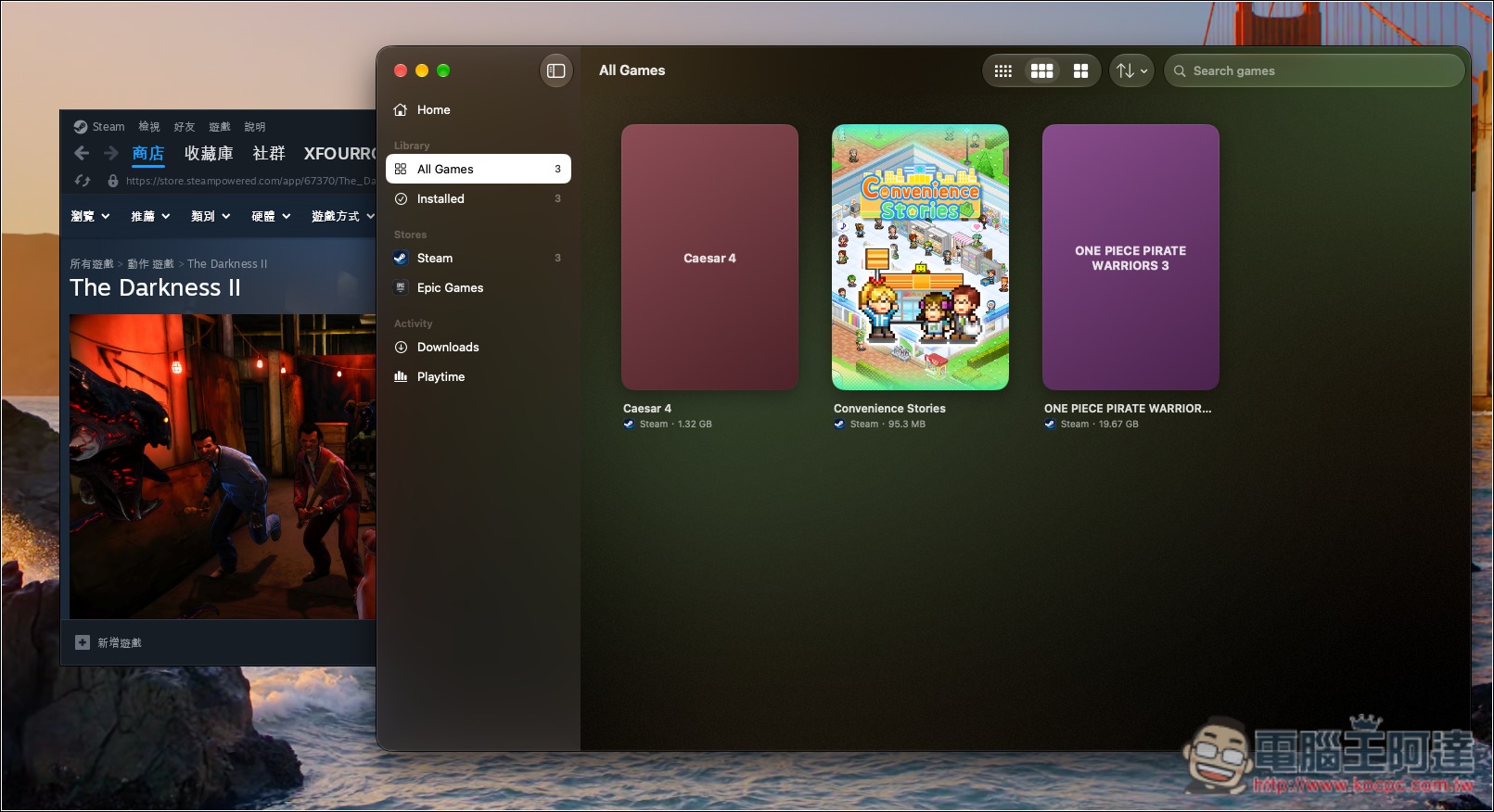
MaPC Introduction and User Guide! No complicated setup, integrates platforms such as Steam, Epic, GOG.
MaPC is a free Windows gaming tool built specifically for Apple Silicon Macs, and its biggest feature is that it greatly simplifies the process of installing and running Windows games on a Mac.
Integrates the three major gaming platforms Steam, Epic Games, and GOG, allowing users to log in directly with their own accounts and manage games from different platforms in a single interface without switching between multiple launchers. In addition to viewing their game library, users can directly download, install, launch, and uninstall games, with an overall experience similar to a regular gaming platform.
The installation process is also quite simple: just download MaPC, drag the app into the Applications folder on your Mac, and follow the prompts to complete setup the first time you launch it. MaPC will automatically download the required game engine and help install Rosetta 2, saving you the hassle of manually configuring Wine. After that, simply log in to the game platform, choose the game you want to play, and you can start installing it right away.
In terms of game compatibility, MaPC uses technologies such as Wine, DXVK, and MoltenVK to enable Macs to run some games originally developed for Windows, mainly supporting DirectX 9, 10, and 11. The software also automatically selects suitable graphics settings, so users do not need to research various complex parameters from the start. For advanced needs, users can also adjust the graphics backend, image quality-related options, and launch parameters for individual games.
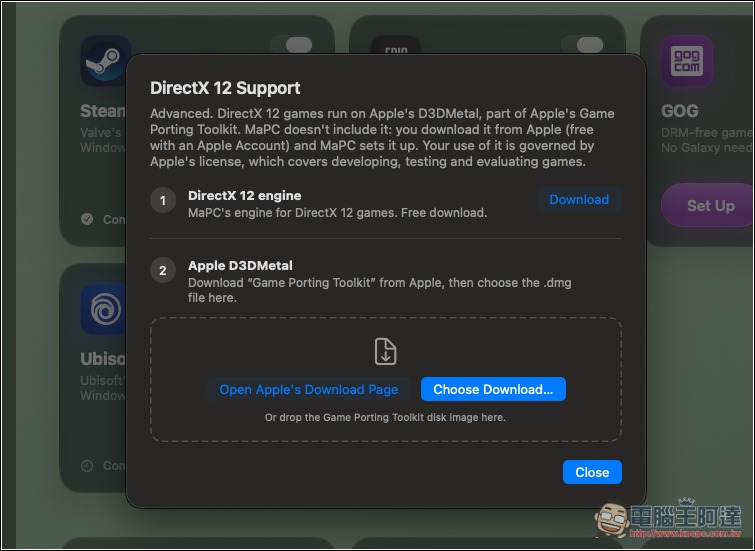
Please note that MaPC is still in Beta testing, so not all Windows games run properly. DirectX 12 games require an additional installation of Apple Game Porting Toolkit to attempt to run through an experimental feature, and some online games that use kernel-level anti-cheat systems cannot be used either.
Key Features
- Beginner-friendly: simplifies the traditional Wine setup process, with no need to manually create a game execution environment.
- Integrate the three major gaming platforms: centrally manage your game libraries across Steam, Epic Games, and GOG.
- Automatic game engine installation: automatically downloads the required components on first launch and guides you through installing Rosetta 2.
- Supports multiple DirectX versions: primarily DirectX 9, 10, and 11, while DirectX 12 offers experimental advanced features.
- Automatically adjust graphics settings: choose the appropriate graphics backend for the game, or adjust it manually.
- Per-game settings: save graphics parameters, launch options, and related settings for different games.
- Game controller support: Supports select PlayStation controllers and provides Xbox controller compatibility.
Visit the official MaPC website
Is MaPC there? GitHub In addition to the open-source code, you can also download the installer directly from the official website.
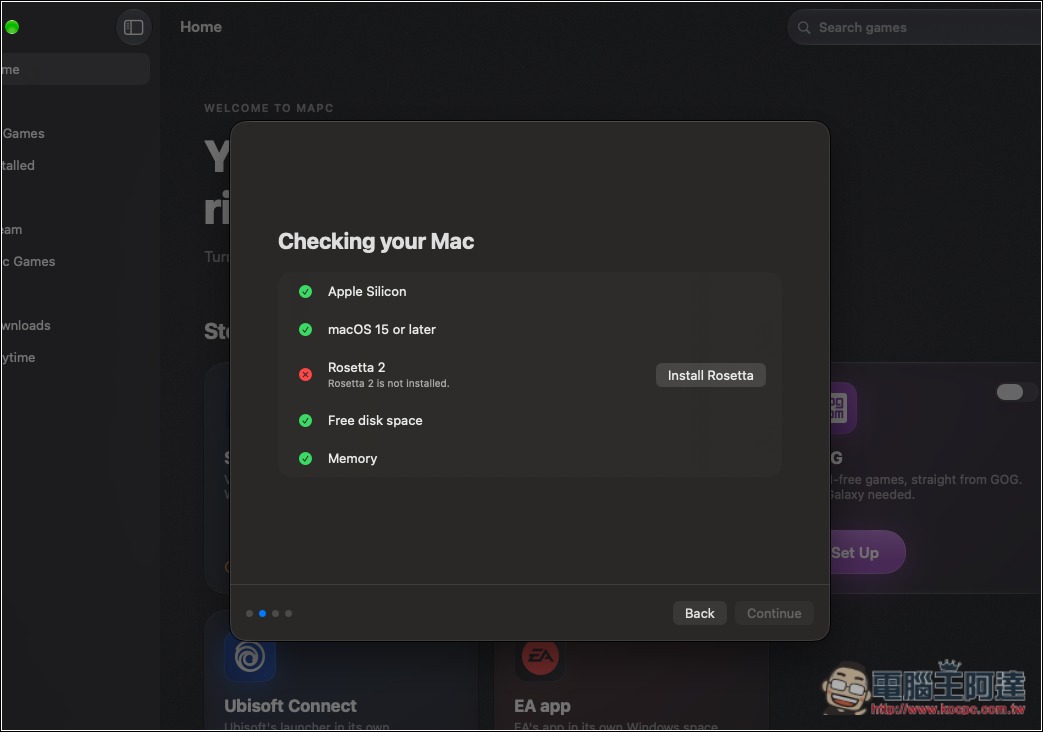
When you open it for the first time, it will first check whether your Mac environment meets the requirements and help you install Rosetta 2 directly. You just need to click Install Rosetta on the right, and the installation will begin:
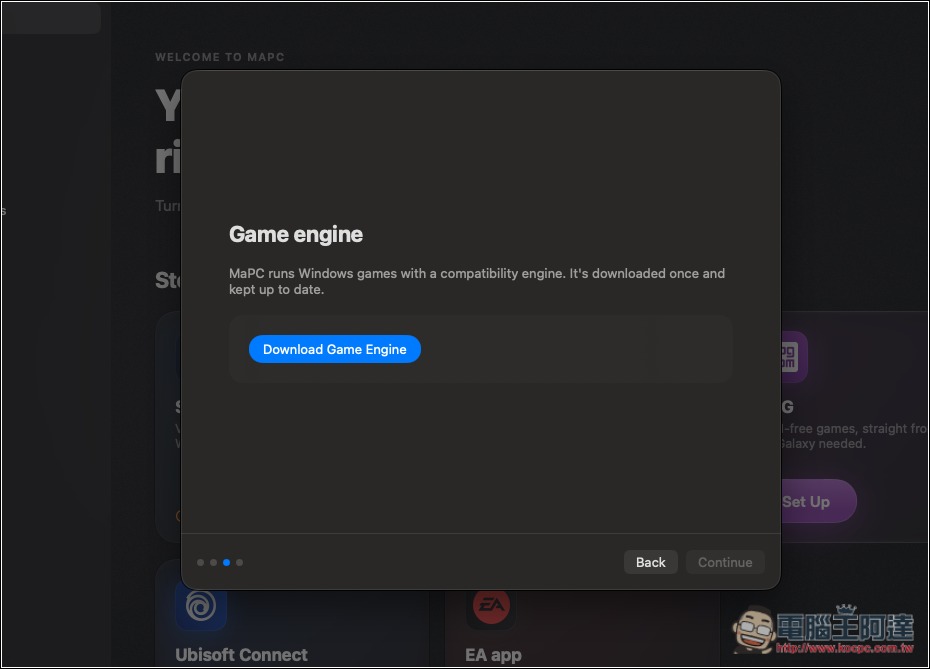
In the next step, you will install the game engine. Click Download Game Engine:
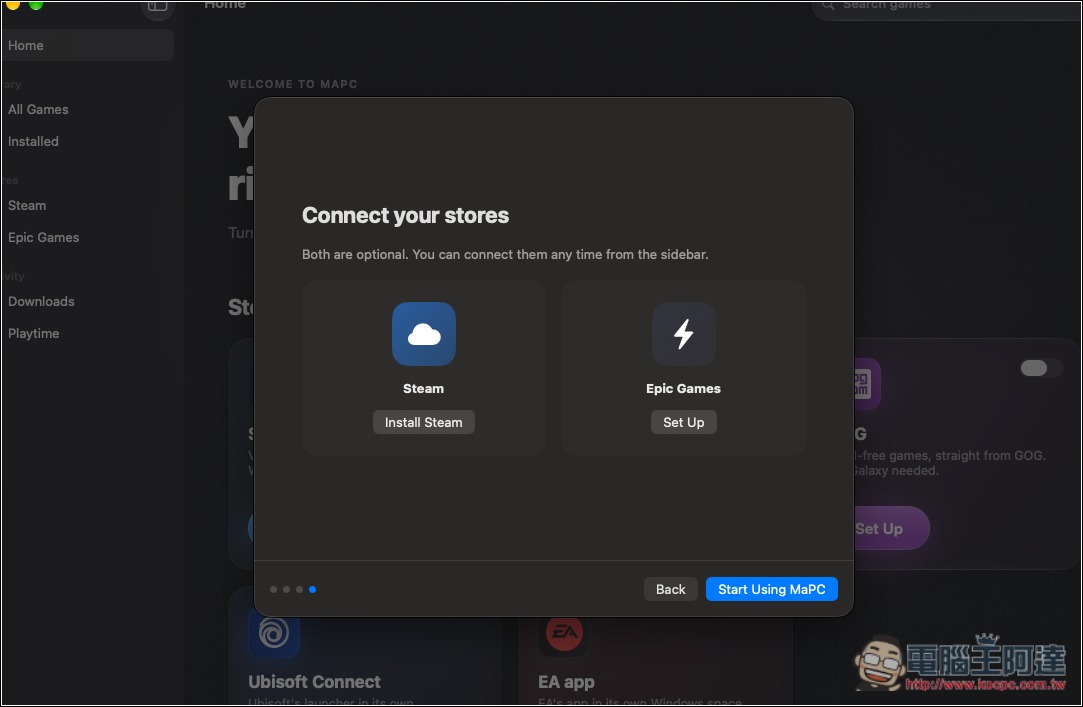
Next, you’ll be able to choose whether to link Steam or Epic. These aren’t the only supported platforms, and you can also set this later after returning to the MaPC home page:
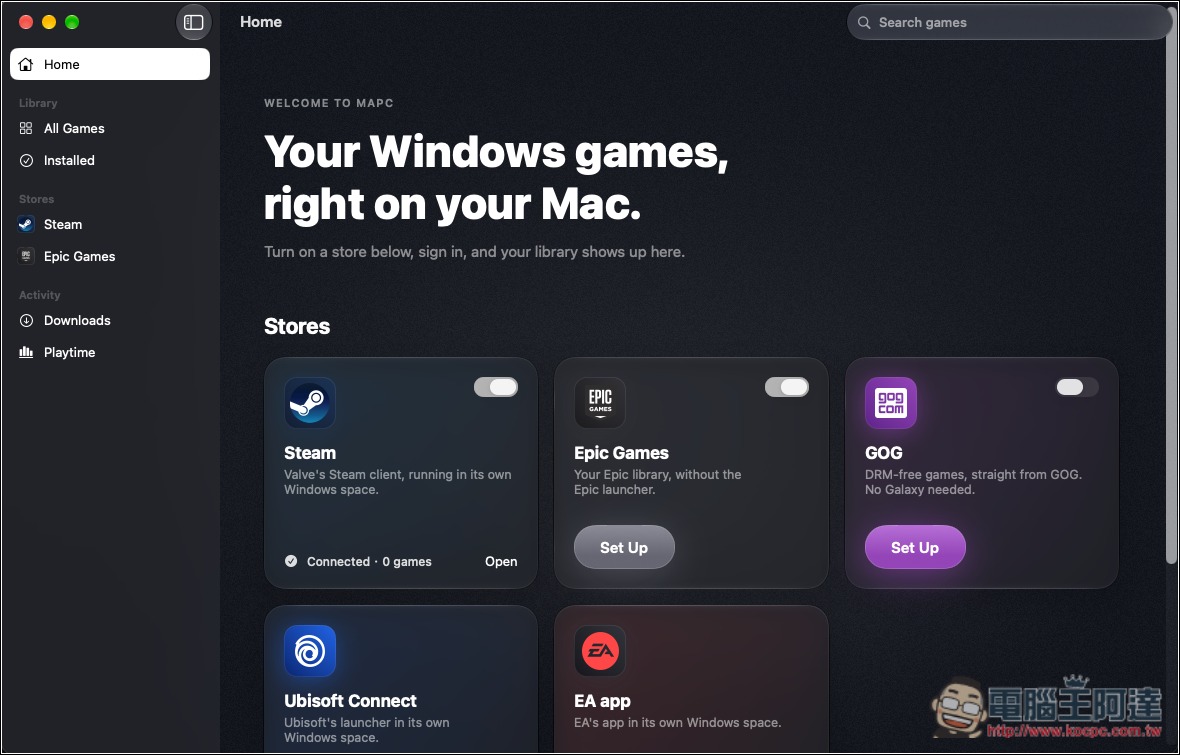
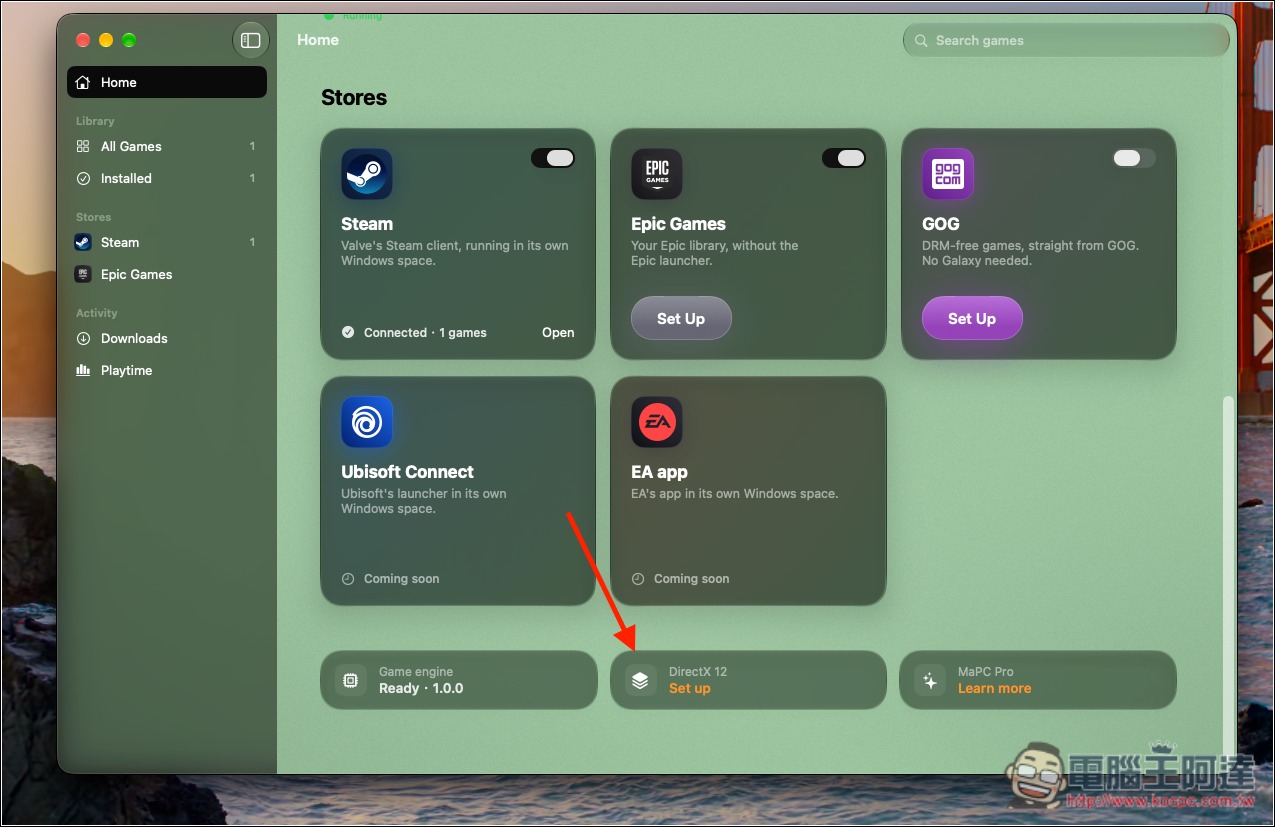
The image below shows the MaPC homepage. The store section currently supports Steam, Epic Games, GOG, Ubisoft Connect, and EA app:
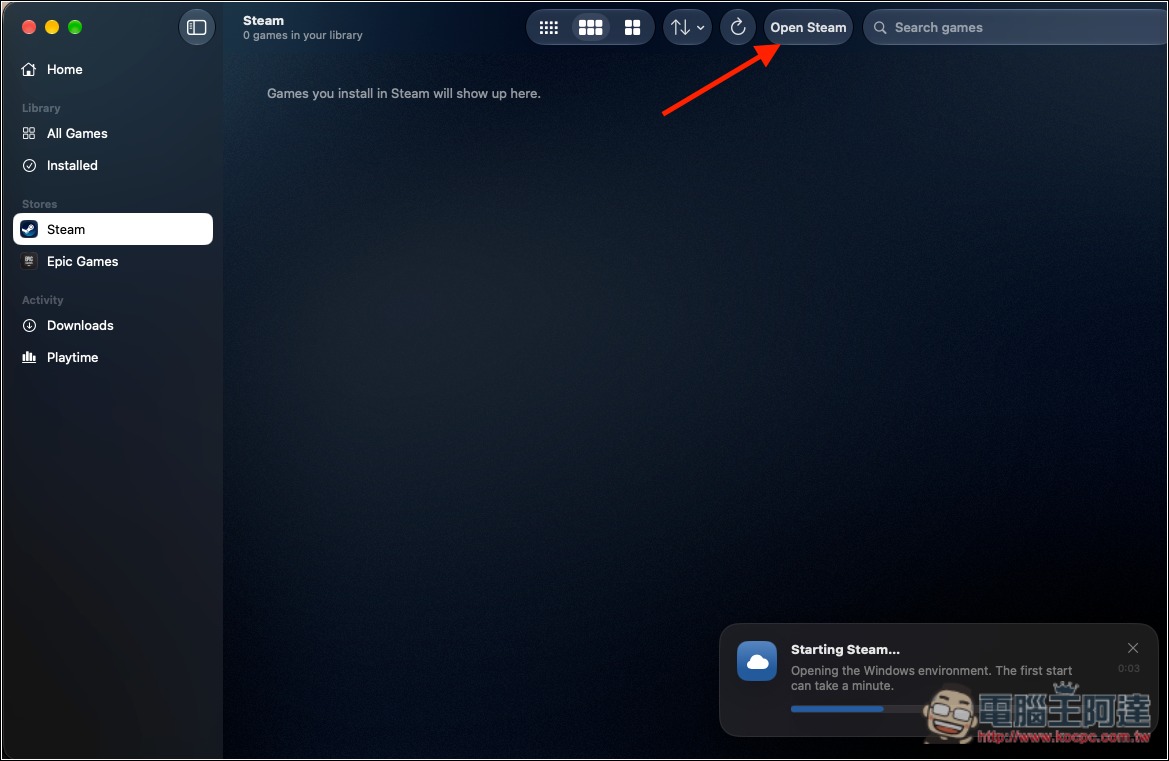
First, I’ll install Steam. Once it’s installed, select Steam on the left and click the Open Steam button:
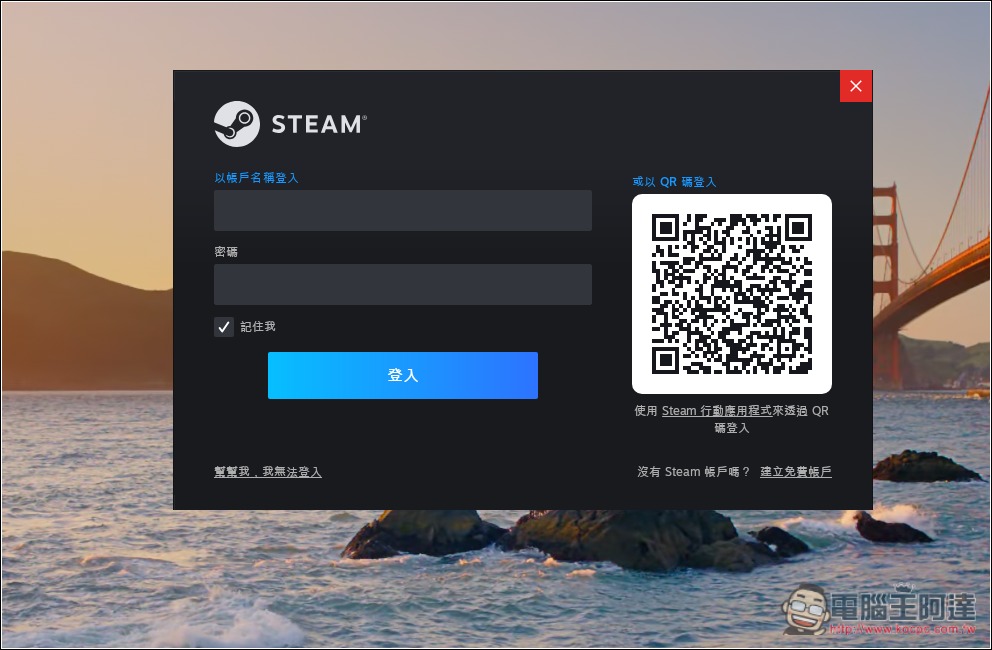
Once it finishes running, the Steam login screen will appear:
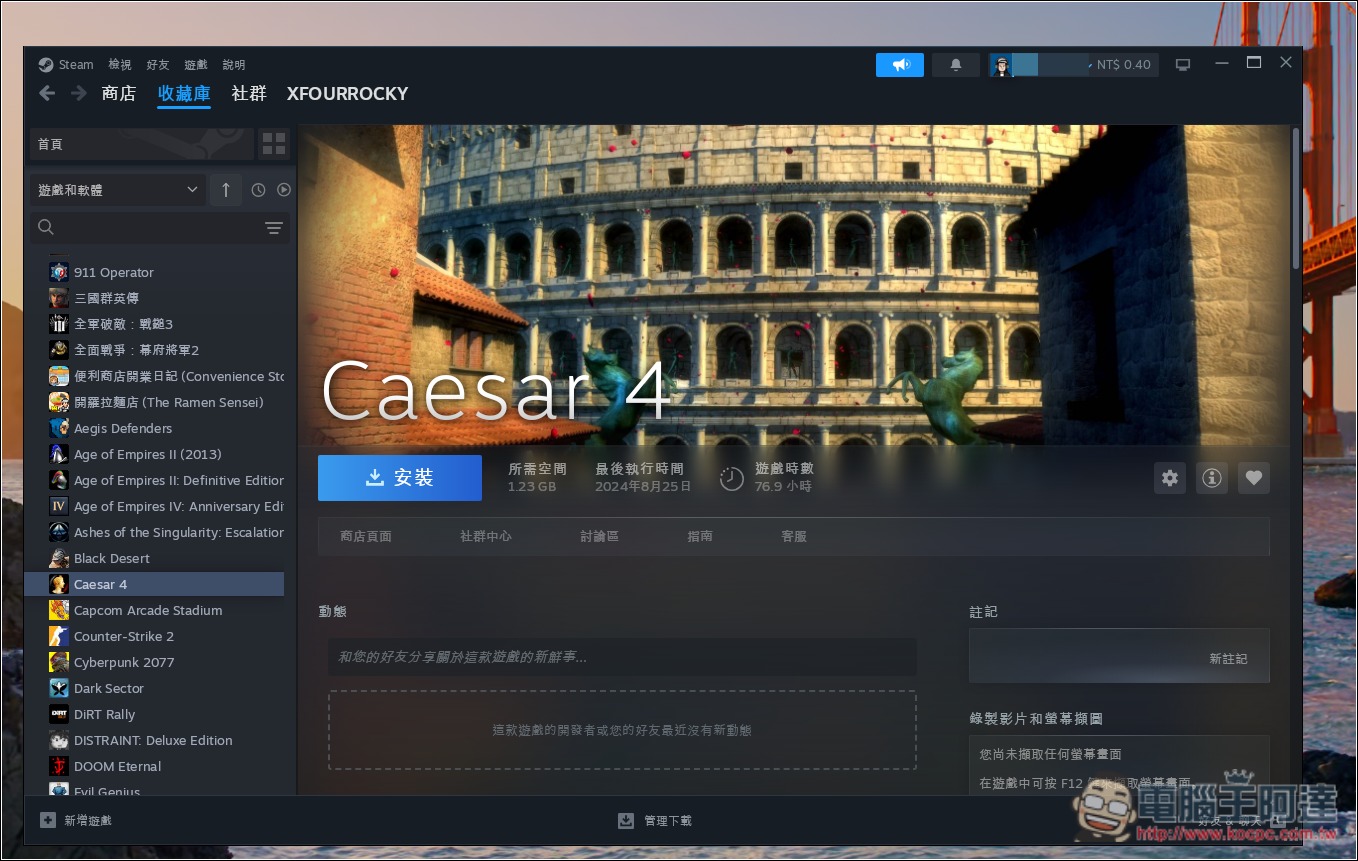
When you open your library, you’ll see that games that previously didn’t support Mac can now be installed:
Installed games will appear directly in the store’s list, and you can launch them from here in the future:
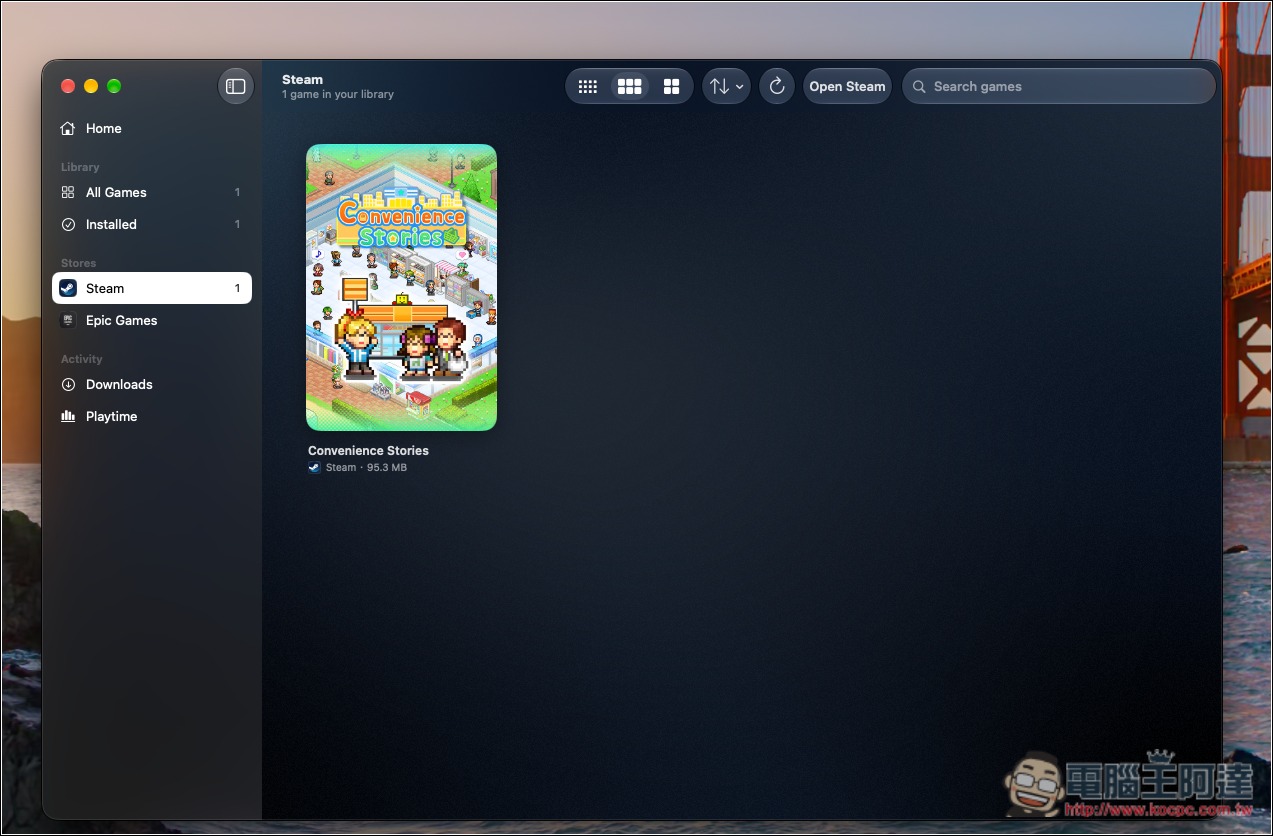
Tap each game’s cover image to access its dedicated settings page:
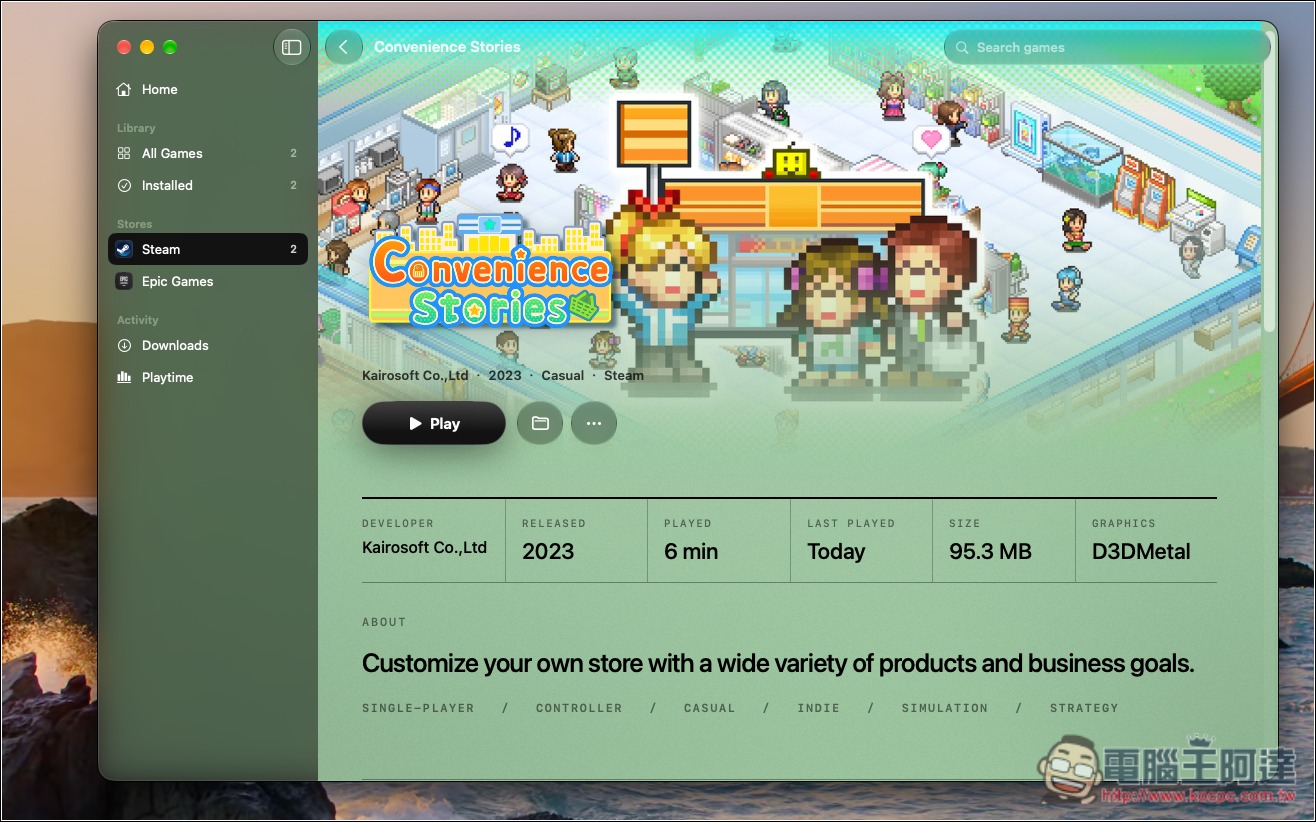
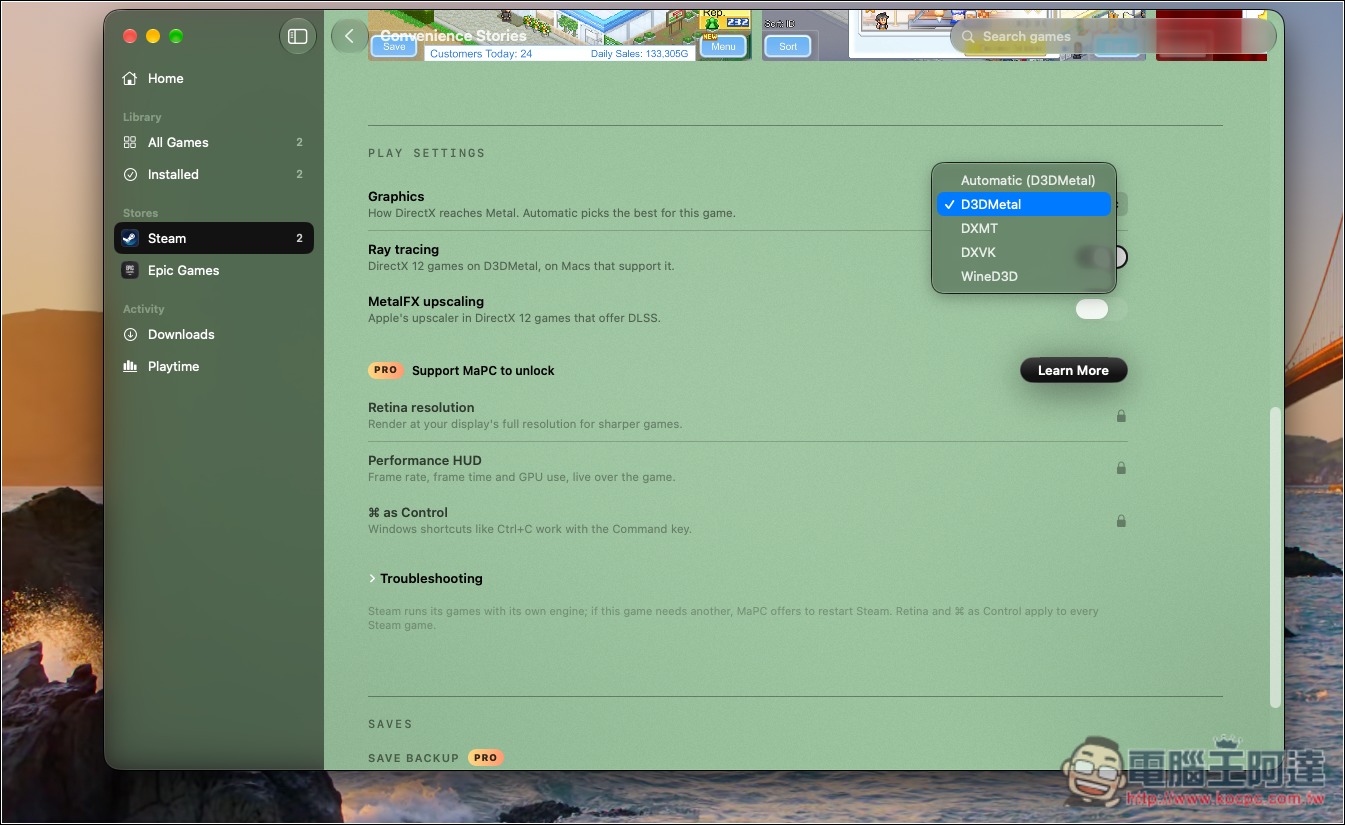
You can adjust the graphics used, with support for D3DMetal, DXMT, DXVK, and WineD3D, and you can also set whether to enable ray tracing and MetalFX upscaling. Below are several PRO features that require a paid sponsorship to unlock:
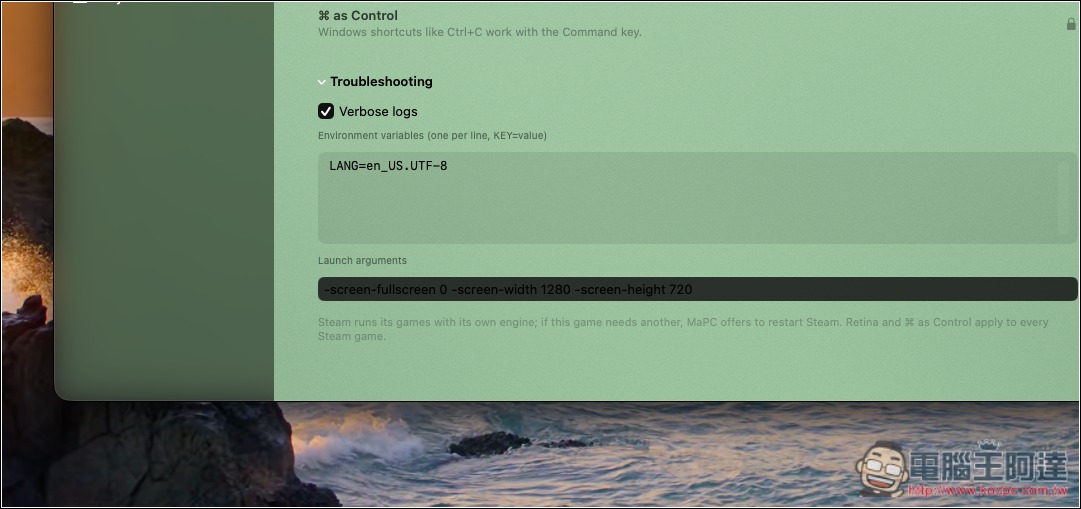
After opening Troubleshooting, you can also choose whether to enable “Verbose logs” for detailed logs, making it easier to troubleshoot issues such as the game failing to launch or running abnormally. You can also add environment variables and launch arguments yourself, for example to adjust how this game runs, the window mode, and the resolution, etc.:
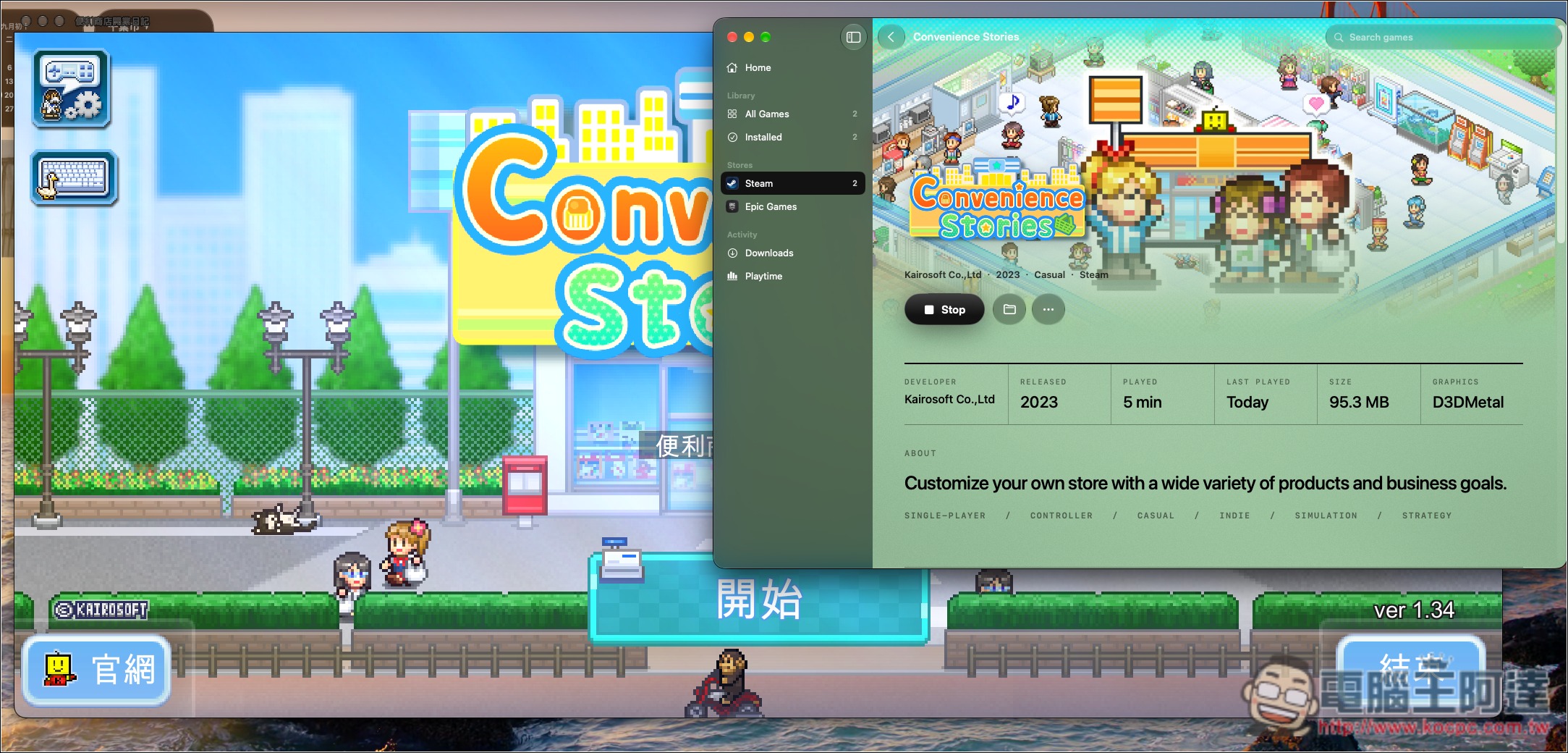
However, note that although the initial setup is simple, MaPC does not guarantee that every game will run properly. For example, when I tested Convenience Store Story, it errored out. I then used Claude to analyze the crash log and found that the Wine environment lacked Chinese fonts. After copying the built-in macOS Arial Unicode font into MaPC’s Fonts folder, it worked normally (of course, Claude also helped me fix this). So if you happen to be using an AI agent as well and a game won’t launch properly, you can also have the AI help you troubleshoot:
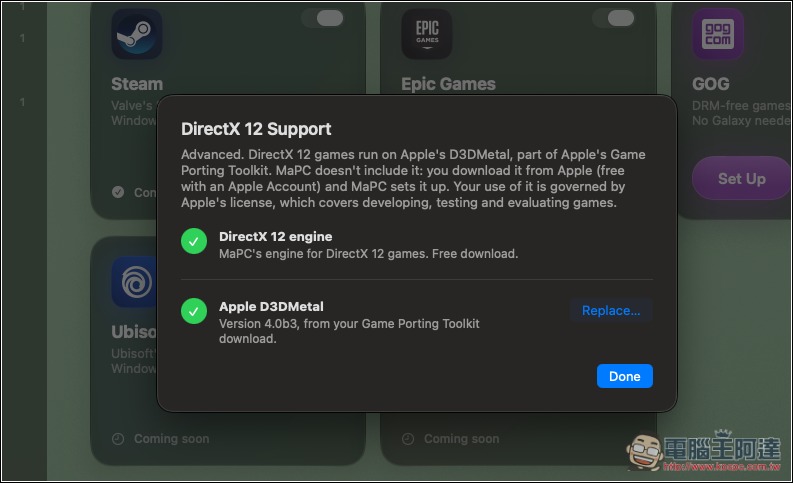
If you need DirectX 12, go back to the home page and scroll down to find the relevant settings:
The DirectX 12 engine can be downloaded directly by clicking Download, but Game Porting Toolkit must be downloaded separately. After clicking “Open Apple’s Download Page,” sign in to your Apple account:
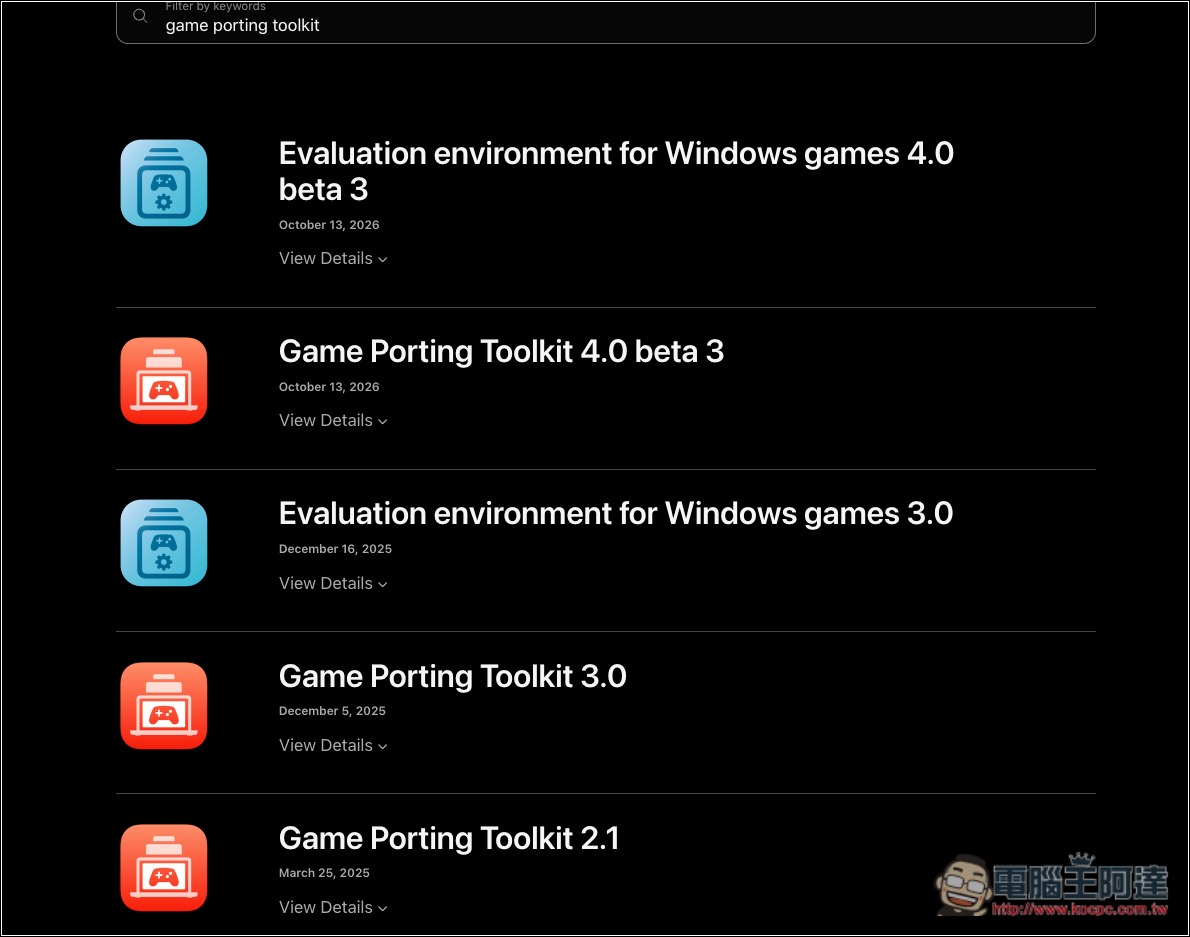
Choose the version you want to download:
Read it in and install, and that’s it:
Source: KOCPC Chinese