


Many people using AI agents nowadays tend to combine multiple software tools together. Besides Codex, I also use Claude—each one has its own config files, skills, connected external services, and so on. In the past, this kind of import feature was mainly a one-time data migration. Once the import was completed, if the original AI agent gained new work content, you’d usually have to go through the import process again, which was very tedious. Just recently, OpenAI rolled out a new feature to improve this workflow, announcing on their official X account that a new “sync feature” has been added to the ChatGPT desktop app, allowing users to easily keep other AI agents’ work in sync with ChatGPT Work and Codex.
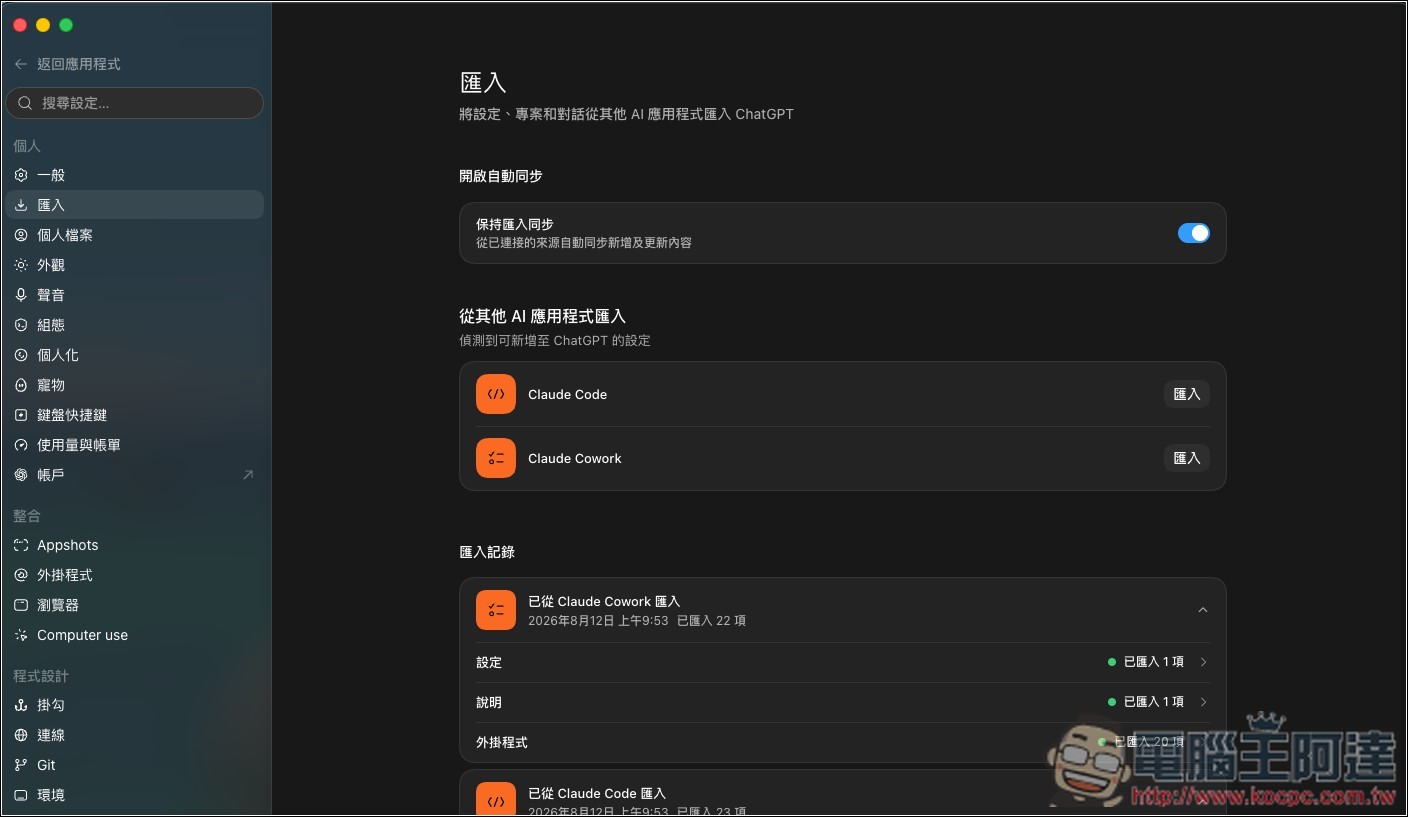
ChatGPT and Codex can now stay in sync with other AI agents, instead of relying solely on one-time imports.
OpenAI Developers recently wrote on their official account: “You can now keep other agents’ work in sync with ChatGPT Work and Codex; import projects, chats, skills, and plugins, review your import history, and choose to enable automatic updates in settings; now available on the ChatGPT desktop version.”
This also means that after turning on “Keep Import Sync”, ChatGPT will automatically sync subsequent changes to the imported work.
According to official documentation, the items ChatGPT can import include:
- instructions / instruction file → convert to AGENTS.md
- settings.json configuration → convert to Codex’s config.toml
- Skill
- Plugin
- Existing project folder
- Claude Code’s Project Memories
- Chat history for the last 30 days
- MCP Server Settings
- Hooks
- Slash commands
- Subagents
And the only AI agents currently supported are Claude Code, Claude Cowork, and Cursor.
However, OpenAI has not yet detailed which data types support automatic sync, so it remains unclear whether settings, Skills, Plugins, MCP, and other content will also be automatically updated in response to changes on the source side.
I also tested the chat history first. I originally thought it was real-time sync, but it doesn’t seem to be. My new chat in Claude didn’t immediately sync to ChatGPT, and even after waiting an hour, it still hasn’t synced.
This feature is currently available on the ChatGPT desktop app for macOS and Windows. If you don’t see it, you can check whether ChatGPT has been updated to the latest version.
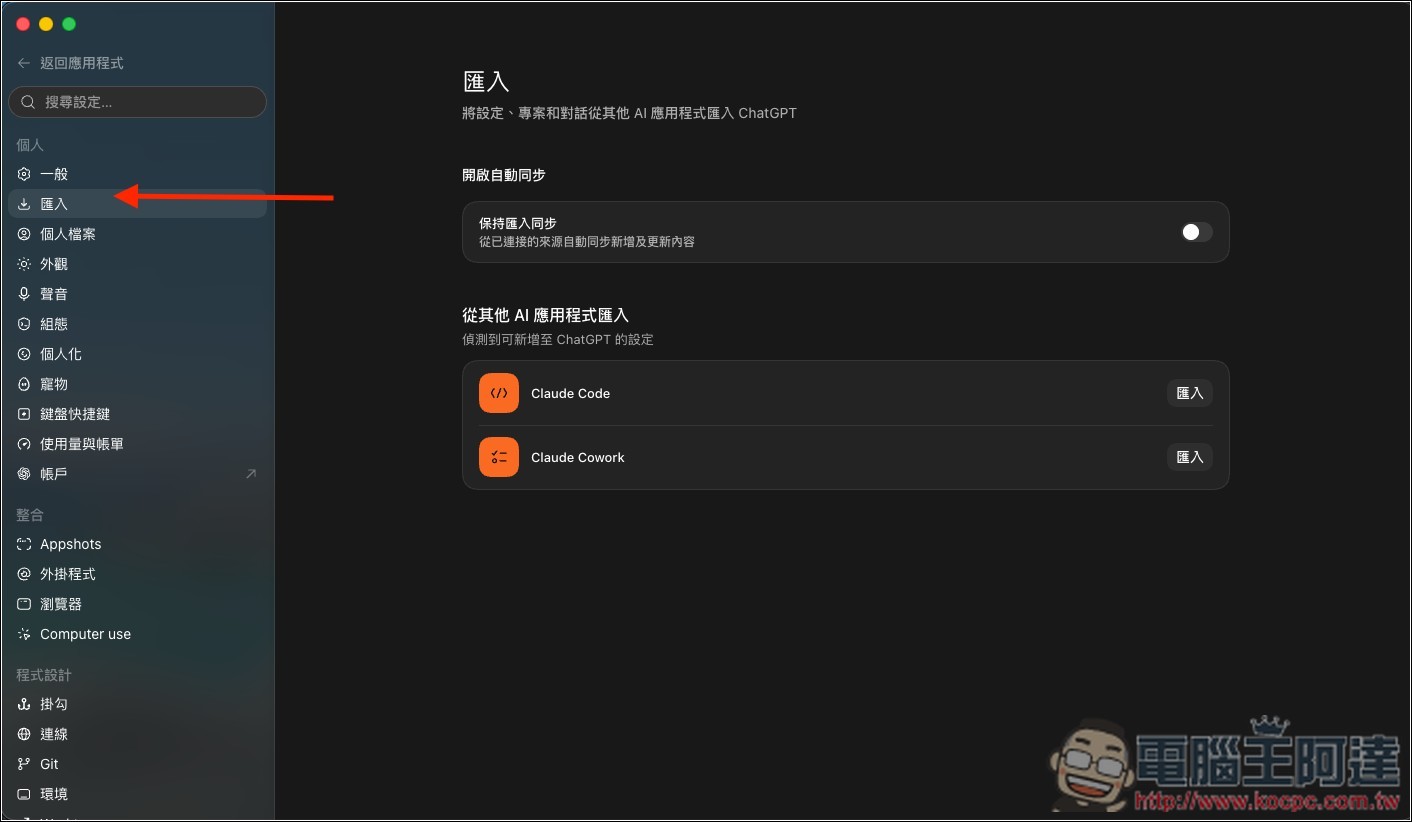
The related settings are also easy to find. After opening ChatGPT’s settings, you’ll see the import option on the left. Click into it to find the new “Keep Import Sync” feature and simply enable it. Below that, ChatGPT automatically detects which other AI applications on your computer support import:
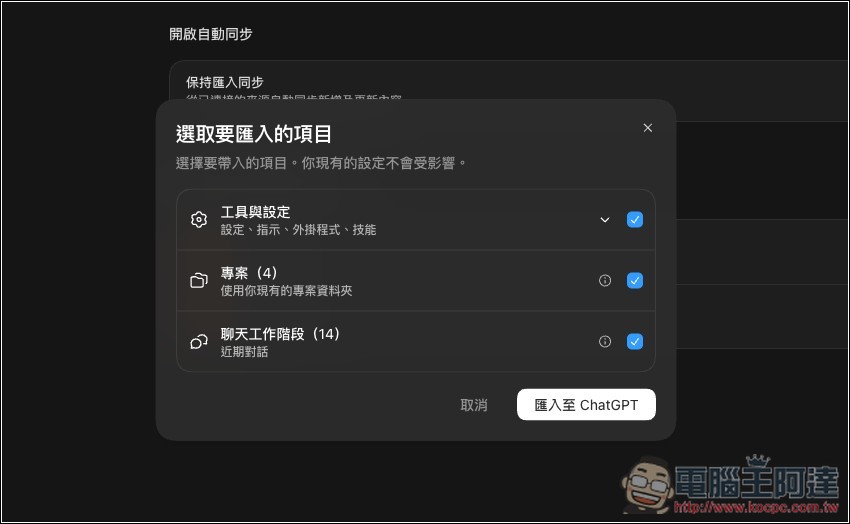
After clicking import, the available items will be displayed with all boxes checked by default. You can also manually uncheck any of them. Once ready, click Import to ChatGPT:
Source: KOCPC Chinese