


When using Codex, it’s usually not about asking it a question—instead, you hand it tasks like processing data, modifying code, or creating documents to work through gradually. For more complex tasks, you often have to wait a few minutes, and during that time we tend to switch over to the browser or another app to do other things. But this is where a common situation arises: you’re in the middle of something and suddenly remember the task you gave to Codex.
To solve this problem, OpenAI launched a very interesting feature called “Pets.” Once enabled, a small animal floats above other windows. Besides making it easy to quickly switch back to Codex, it also shows you the current status of Codex’s tasks through different states. More importantly, you can even create your own pet.
This article will give you a comprehensive understanding of the Codex pet feature.
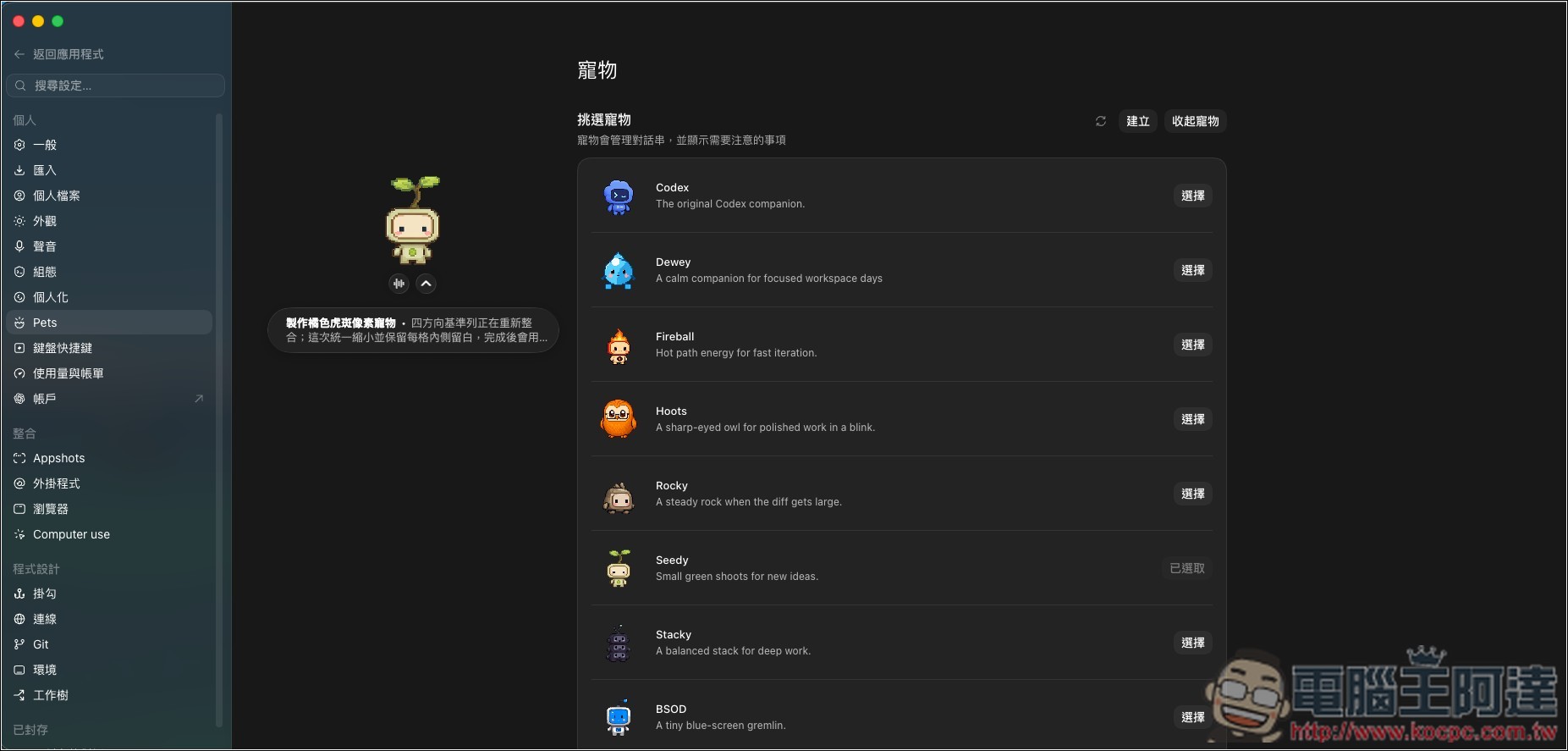
How to use the Codex pet feature? How to turn it on, check its status, and hide it.
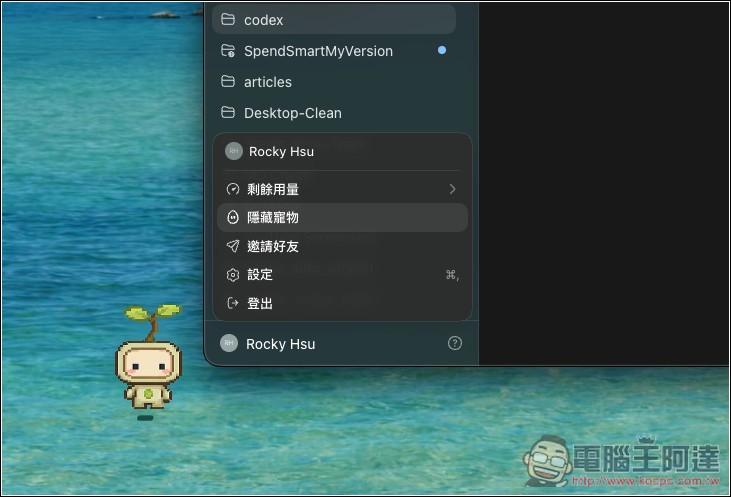
It’s simple to show or hide the pet feature. After opening the ChatGPT/Codex desktop app, click the profile menu in the bottom-left corner, and you’ll see the “Hide Pet” and “Show Pet” options.
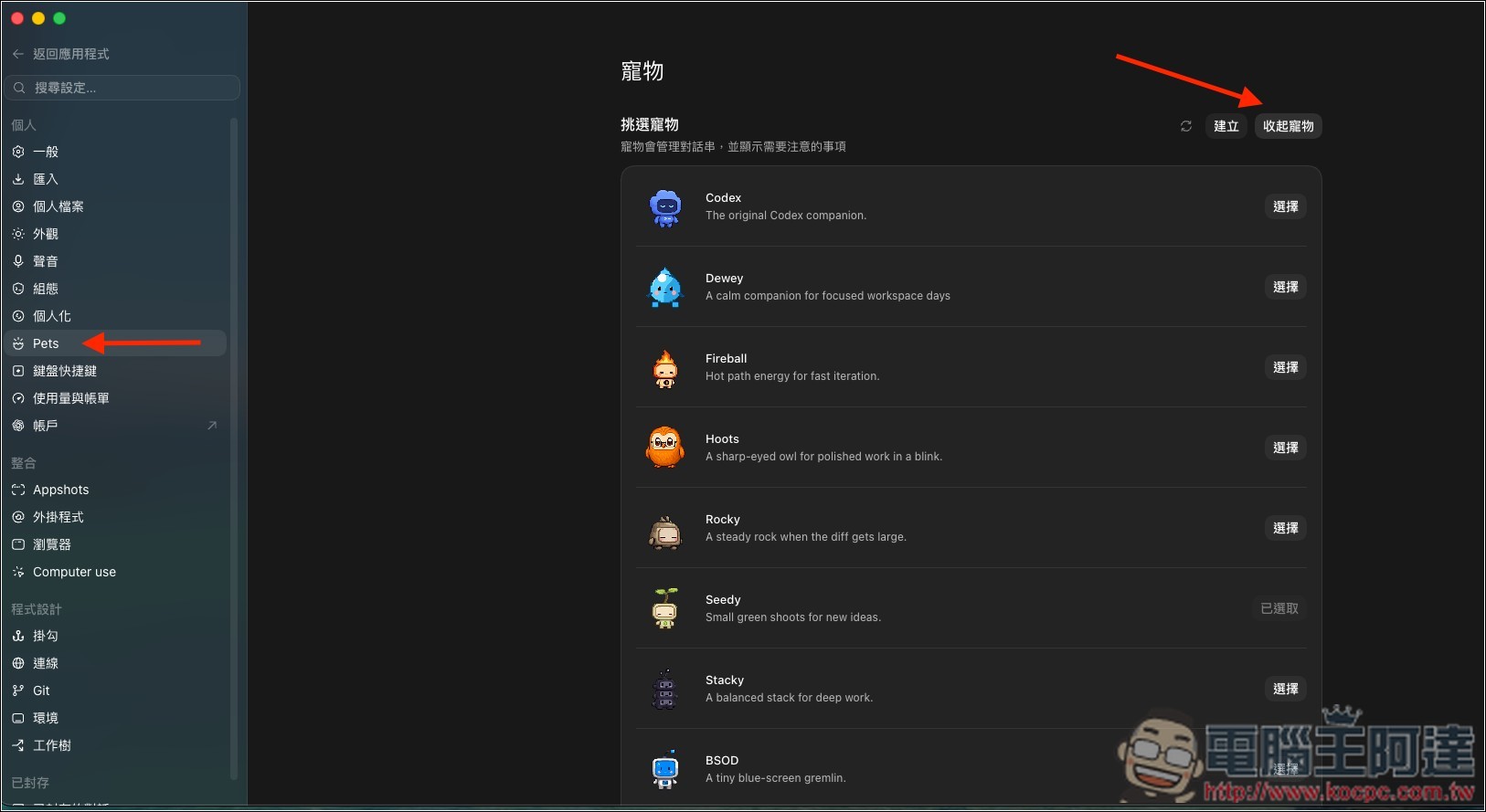
Additionally, you can also go into the Settings menu, and once you’re on the Pets page, you can select your favorite built-in character pets. You can tap the Collapse Pet option at the top to hide it, or wake the pet to bring it back.
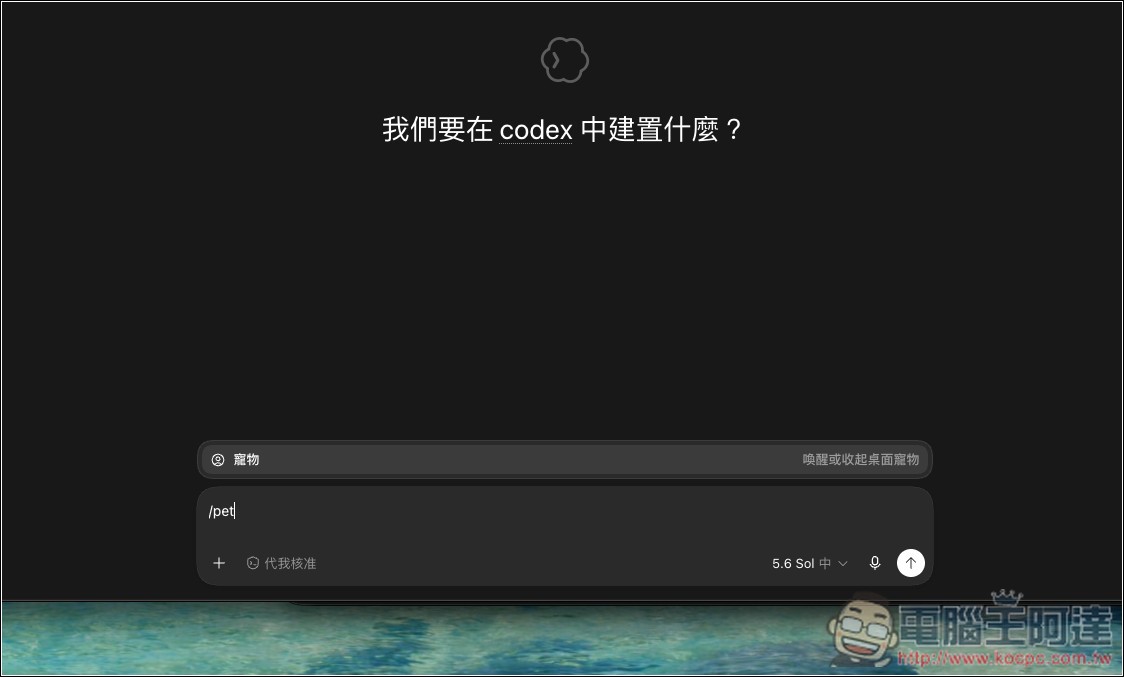
You can even type `/pet` in the input box and send it to bring the pet to your desktop (or hide it):
After successful wake-up, the pet becomes a small window floating above other apps, and you can drag it to reposition it without having to keep ChatGPT in the foreground. The pet’s position and character selection are automatically remembered, so you don’t need to readjust them the next time you open ChatGPT.
The pet isn’t just moving around on your desktop—it reflects Codex’s work progress through four states:
| Pet Status | representative meaning | What can the user do? |
|---|---|---|
| Running | A conversation is currently executing work. | You can go take care of other things first. |
| Needs input | The conversation is waiting for approval, a response, or other decisions. | Open the activity item and complete the operation. |
| Ready | The work is complete, and there’s progress that hasn’t been viewed yet. | Return to the conversation to check the results. |
| Blocked | Work failed or encountered a system error. | Open the conversation to view the reason for the error. |
When you run multiple Codex tasks simultaneously, the pet will prioritize showing the items that need the most attention. The official order is Needs input, Blocked, Ready, and finally Running.
In other words, if one task is still running and another is waiting for your approval, the screen will first alert you to the one that needs your action, so work doesn’t stay stuck in place.
Click the pet once to return to ChatGPT. If multiple conversations are active at the same time, you can also open the activity box to directly select the conversation you want to view.
macOS users who let Codex operate other apps can also pair the pet with Computer Use’s picture-in-picture mode. The small Computer Use window can attach next to the awakened pet, and when you move the pet, the window follows along:
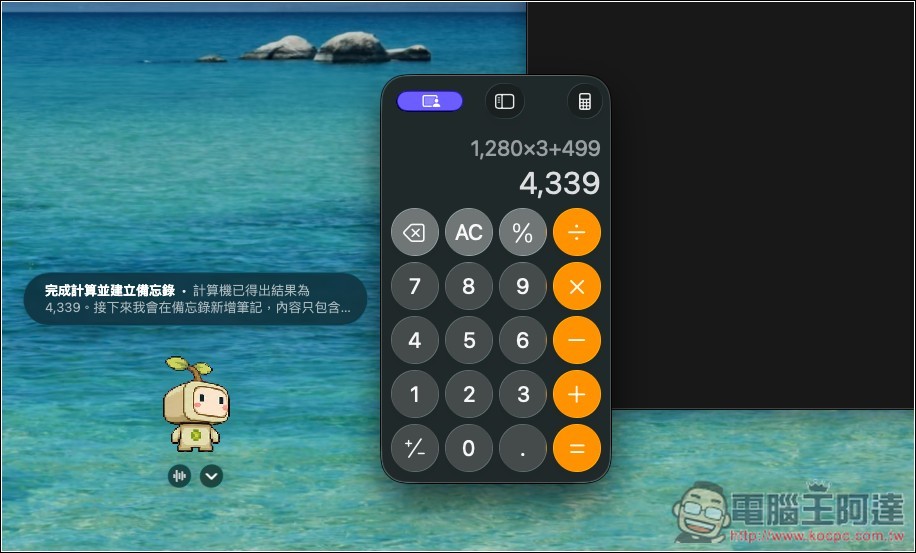
This way, in addition to seeing the working status, you can also observe up close what operations Codex is performing on the screen. However, the pet itself is just a carrier for the status and window—it’s not the one controlling the computer.
Not only built-in characters, but you can also create your own Codex pets.
If you don’t like any of the built-in characters, you can also ask Codex to create new pets.
After going to Settings → Pets, tap Create, and the app will automatically install the bundled `hatch-pet` skill, reload the skill, and then open a new conversation:
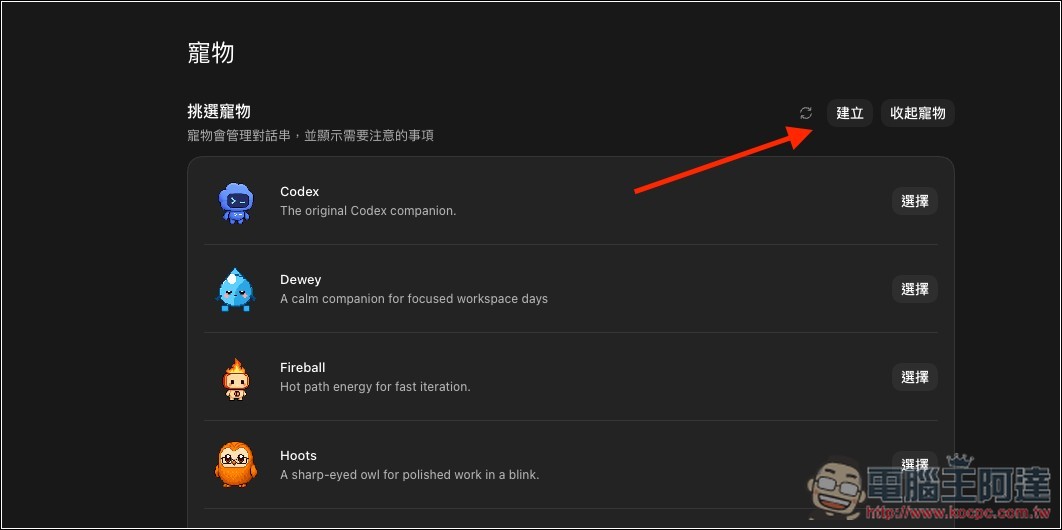
Then, you can simply describe the character you want in a normal chat format. Animal species, colors, accessories, and art style can all be specified clearly. If you want it to perform specific actions while working, waiting for a response, or completing a task, you can also include those in your requirements. For example:
Help me create an orange tabby cat pet wearing dark blue headphones, in a cute pixel art style overall. It should have a typing animation while working, hold up a question mark sign while waiting for my response, and wave happily after completing a task.

After Codex completes, go back to “Settings → Pets” and you will see the character you just created:
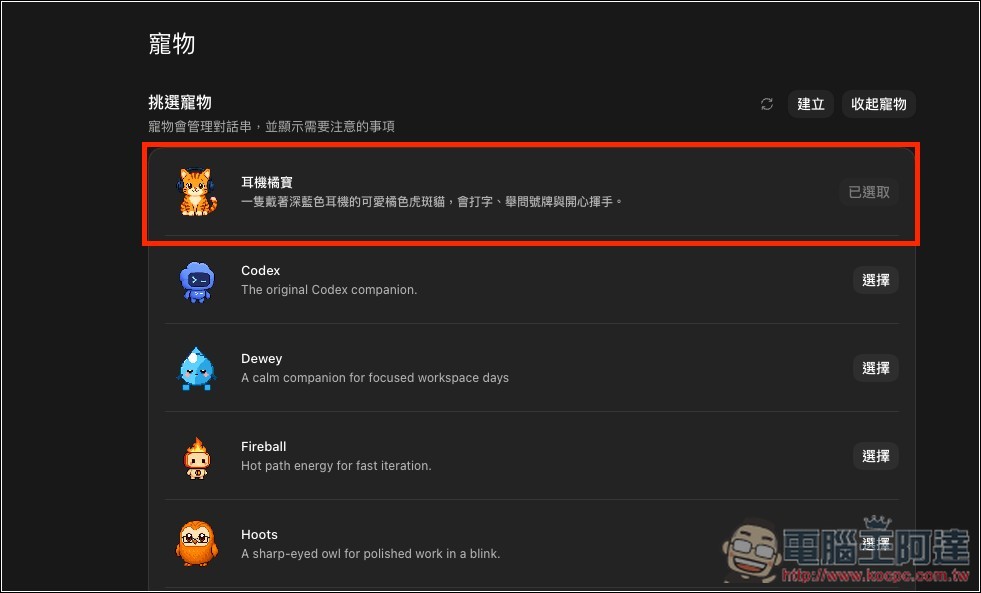
Custom pets created through the desktop version are stored locally and will not automatically sync to the ChatGPT web version.
The web version and Codex CLI can also raise pets, but the features are somewhat different.
In the web version, open it at “Settings → Personalization → Select Partner”:
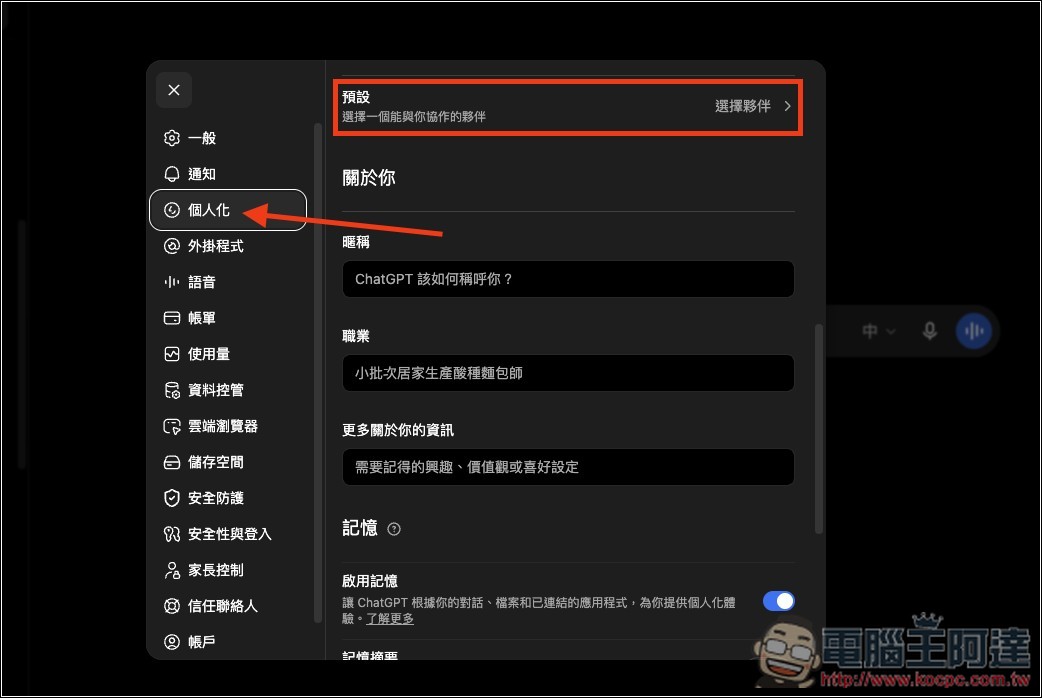
However, web-version pets only appear in supported ChatGPT Work conversations—there’s no floating window above other apps like the desktop version, nor an Activity Dock or `/pet` command. If you want cross-window reminders and multi-conversation progress tracking, you’ll still need to use the desktop version:
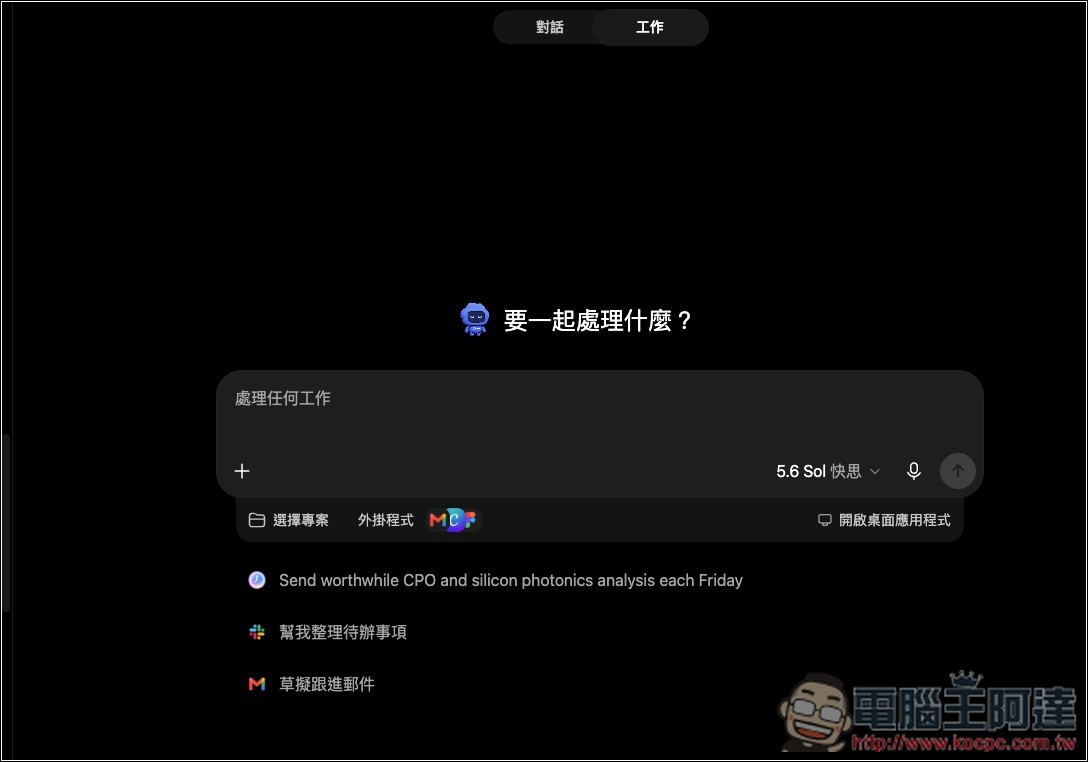
The web version also allows uploading custom characters, but you can’t just use any random pet image. The official requirements are transparent background PNG or WebP files, dimensions must be exactly 1536 × 1872 pixels, and file size cannot exceed 20 MiB. After uploading, you can edit, download, refresh, or delete the character on the same settings page.
Those who normally use Codex CLI from the terminal can also enter the following command to summon a pet:
/pets
/pets Pet Name
/pets off
Typing `/pets` or `/pet` opens the character selector; if you know the character name, you can use `/pets ` to switch directly; to hide it, type `/pets off`. The selector lists built-in pets and any compatible custom characters installed on this computer.
CLI pets also have four states: Running, Needs input, Ready, Blocked, but they only reflect the current terminal session.
The terminal emulator itself also needs to support image display. The official requirements are iTerm2 version 3.6 or above, or terminals that support Kitty graphics or Sixel; it cannot be used in tmux and Zellij.
Can’t find the Pets feature, or pets won’t move? Here are answers to some common questions.
If you can’t find the Pets feature in Settings at all, update the desktop version to the latest version and reopen it, then use the search function in Settings and enter “Pets”.
For the web version, features only appear once they are available for your account and workspace, so different accounts may see slightly different interfaces. If you can’t find an option, it’s not necessarily a mistake—it may simply not be available yet.
If the pet is displayed but doesn’t move at all, it isn’t necessarily a program malfunction.
According to OpenAI’s documentation, Pets will respect the operating system’s “Reduce Motion” setting. When this accessibility feature is enabled, pets will switch to a static image and will no longer play frame-by-frame animations.
Source: KOCPC Chinese