


Although you can now experience Copilot using a browser, Copilot integrated in Windows 11 has more functions. For example, you can ask it to help you open “Computer Settings”, “Open File Explorer”, etc., and it can be quickly activated with shortcut keys, which is much easier to use than the web version. However, Copilot for Windows 11 is currently only available in North America, not Taiwan. The good news is that there is a way to enable it early, and it doesn’t require a VPN. You just need to change some settings and download ViVeTool. After enabling it, you can directly talk to it in Traditional Chinese. The following steps will teach you how to do it.
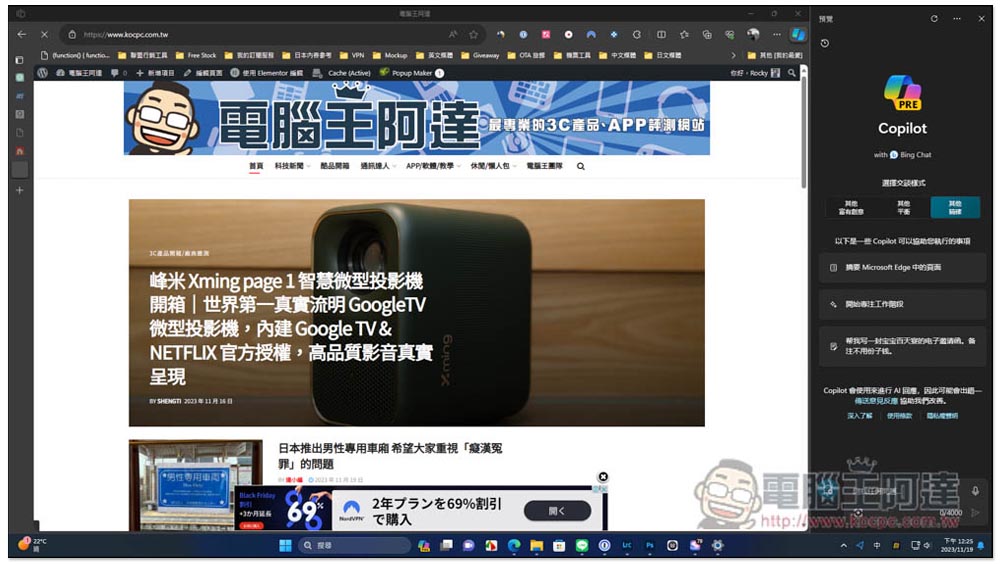
Teach you how to enable the latest Copilot AI function in Windows 11 first, even in Chinese
First of all, you must first obtain the latest update of Windows 11 in North America. This is not available in Taiwan, so you need to change the “Language and Region Settings” on your computer. After Copilot is installed, change it back to Traditional Chinese.
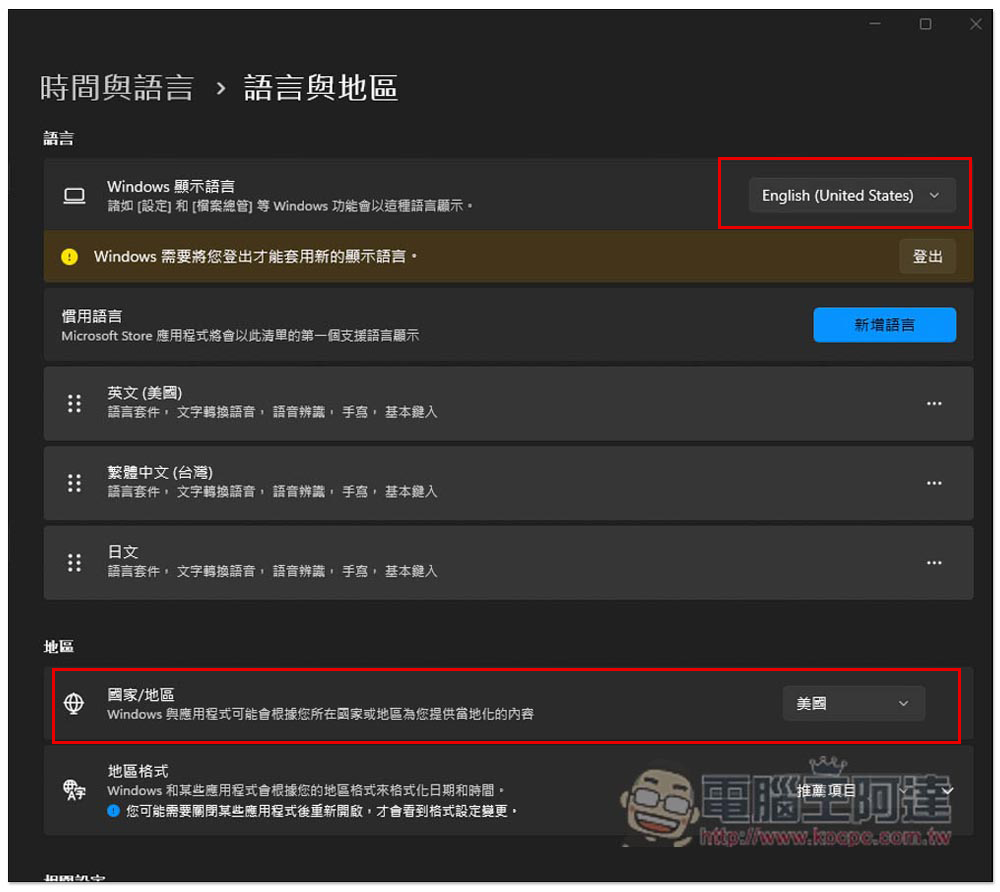
Open the Time and Language -> Language and Region menu in Windows 11, change the Windows display language to “English (United States)”, and change the country/region below to “United States”. Do not restart the computer yet:
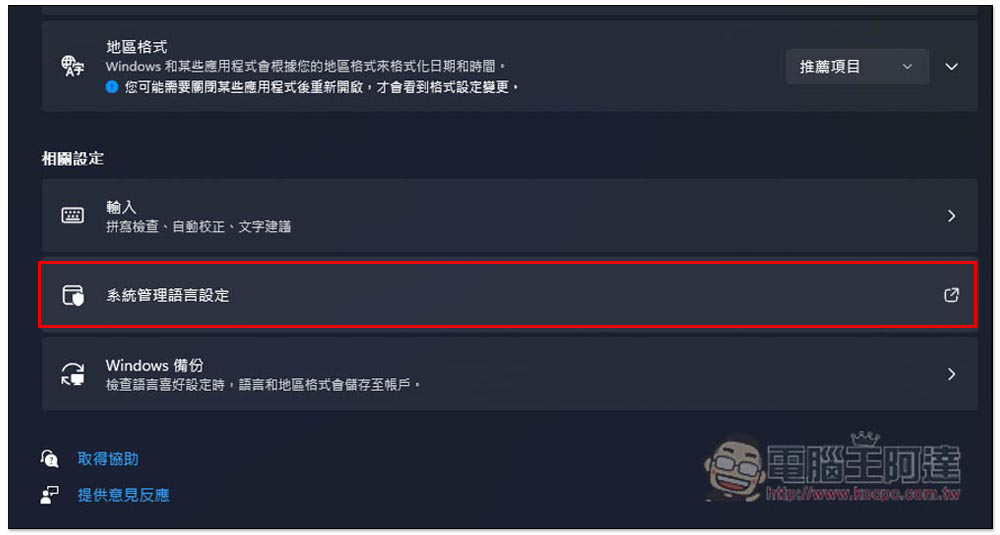
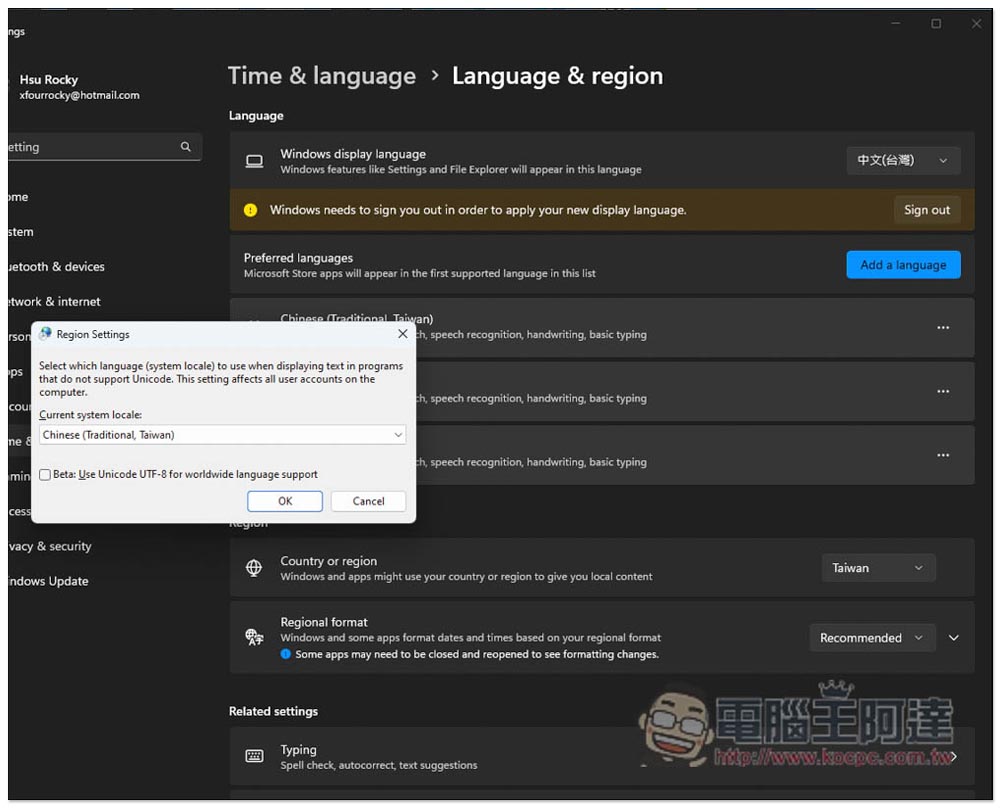
Scroll to the bottom and click “System Management Language Settings”:
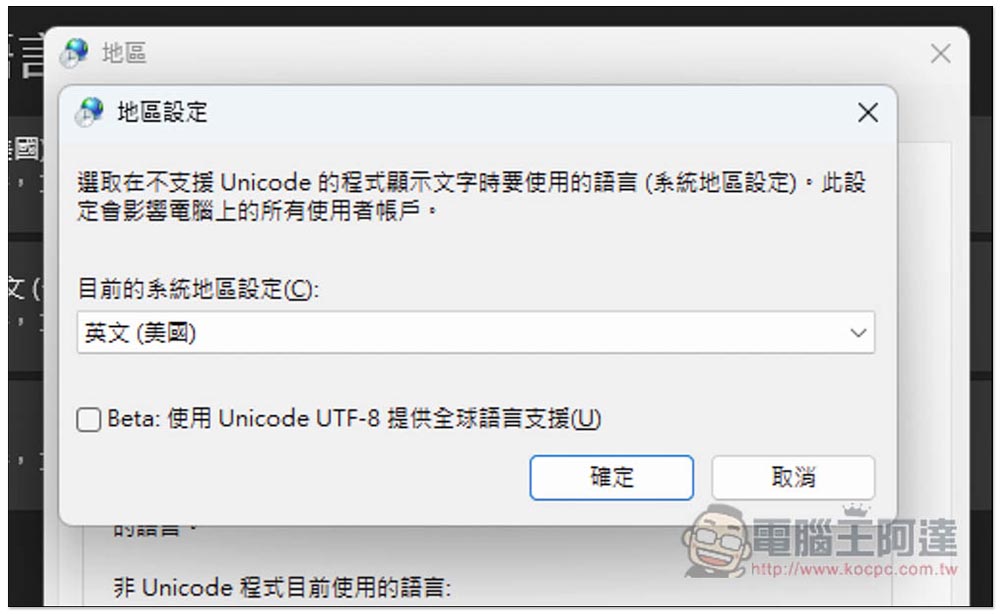
Change the region setting to “English (United States)” and click OK:
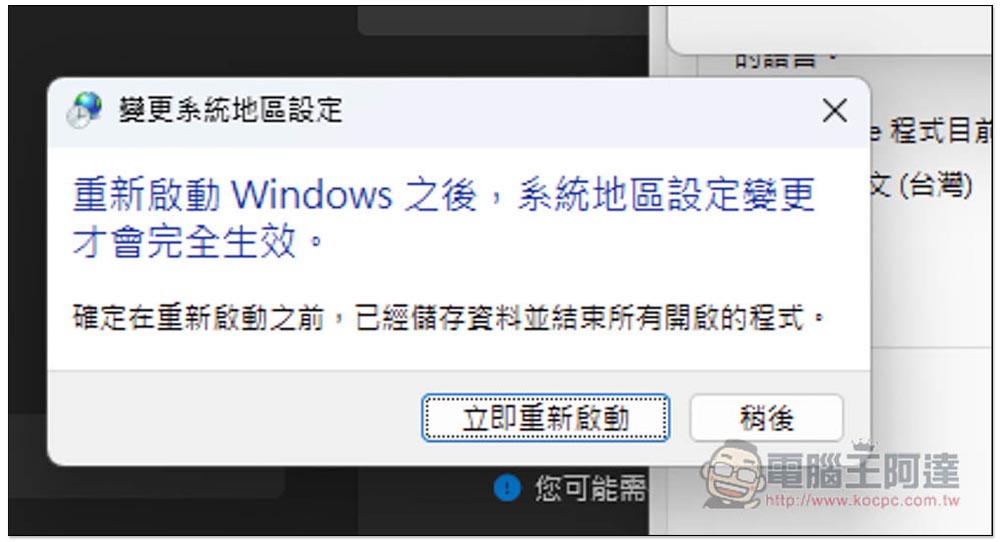
Then you can restart your account and click “Restart Now”:
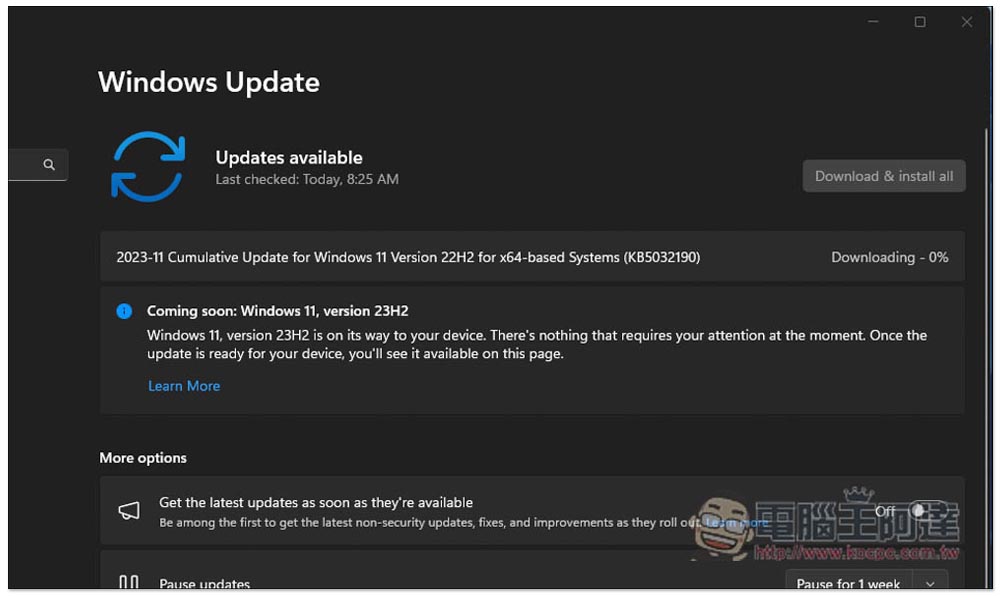
After the restart is complete, open Windows Update and you will find the latest KB5032190. The download and update are complete. Please restart your computer again:
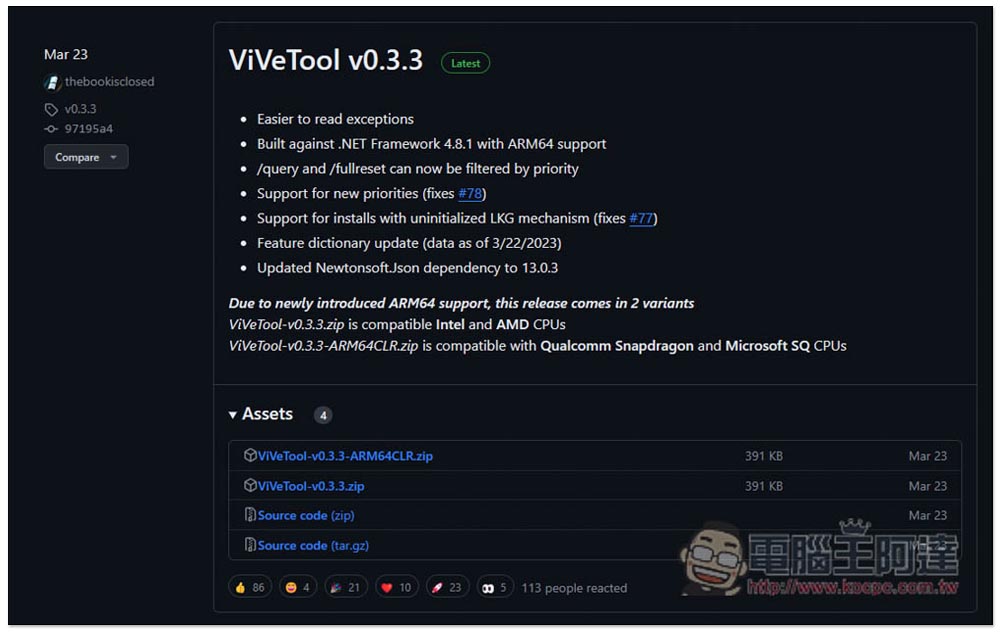
Next, you need to enable the Copilot function through the ViVeTool tool.Click me to go to the GitHub download page, the latest version is ViVeTool v0.3.3, download the .zip of the same name for Windows 11, and then unzip it to any location. I unzipped it directly in the download folder:
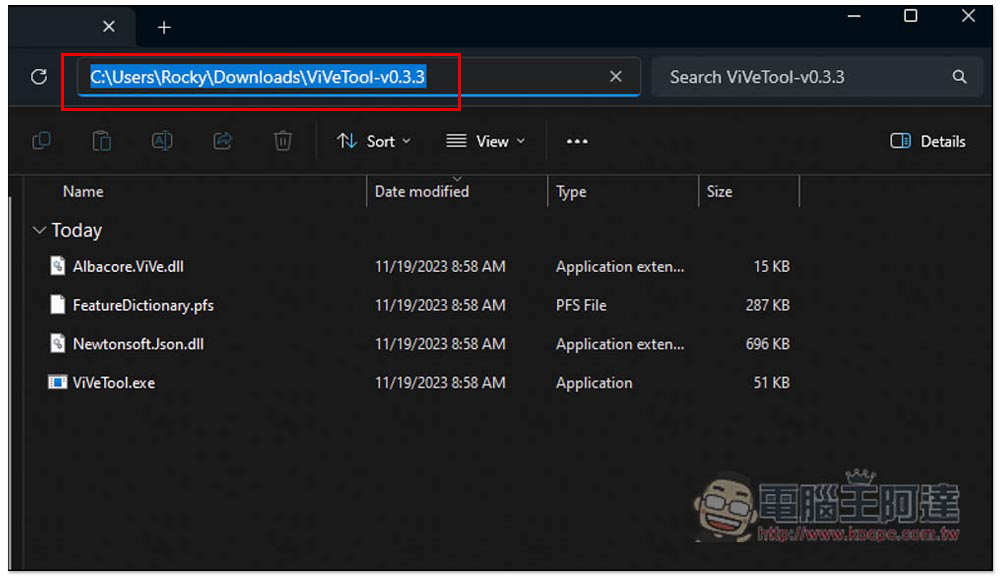
Then copy the ViVeTool folder path:
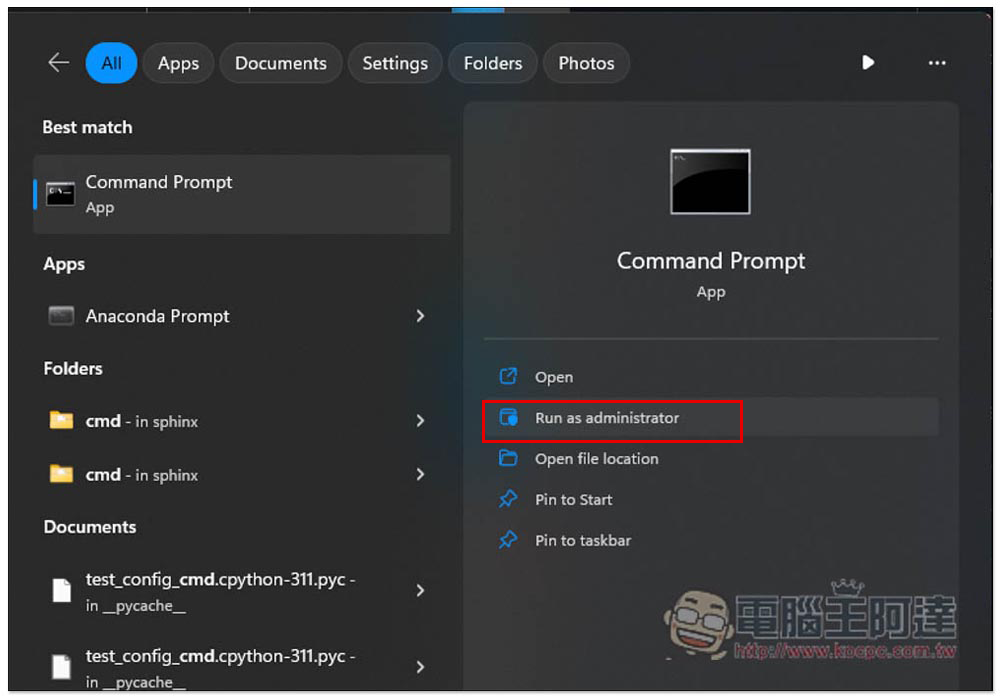
Enter CMD in Windows search and execute Command Prompt as system administrator (Run as adminstrator):
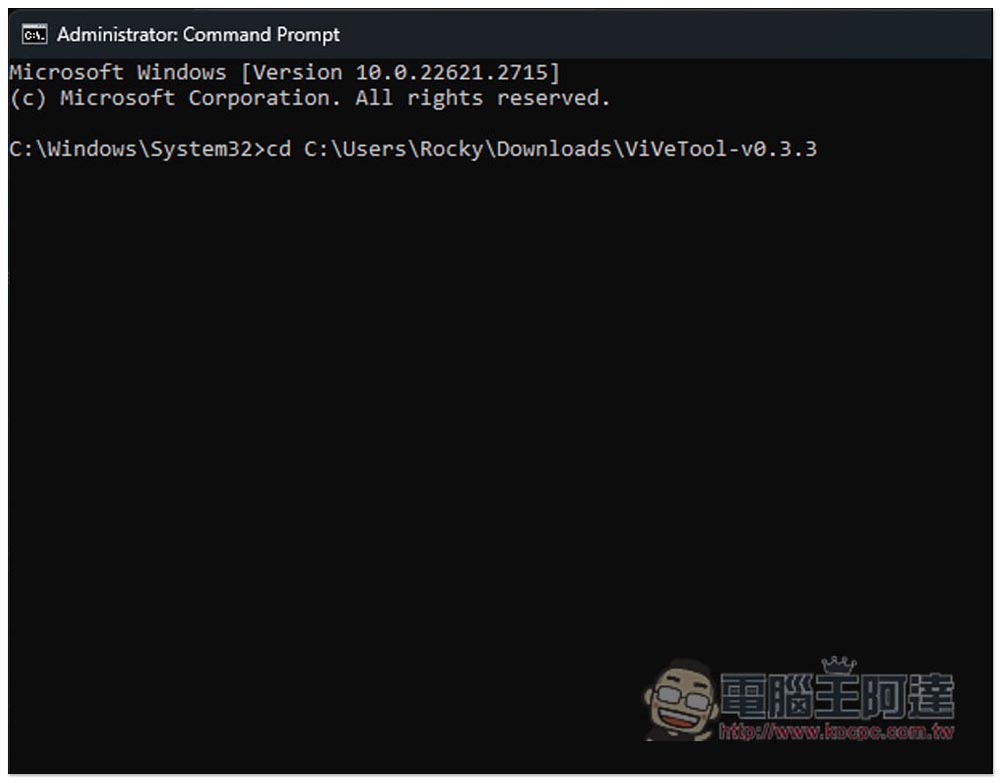
When you first open Windows\System32, you need to change the path to the ViVeTool folder, so please enter cd and paste the path you just copied to change the path:
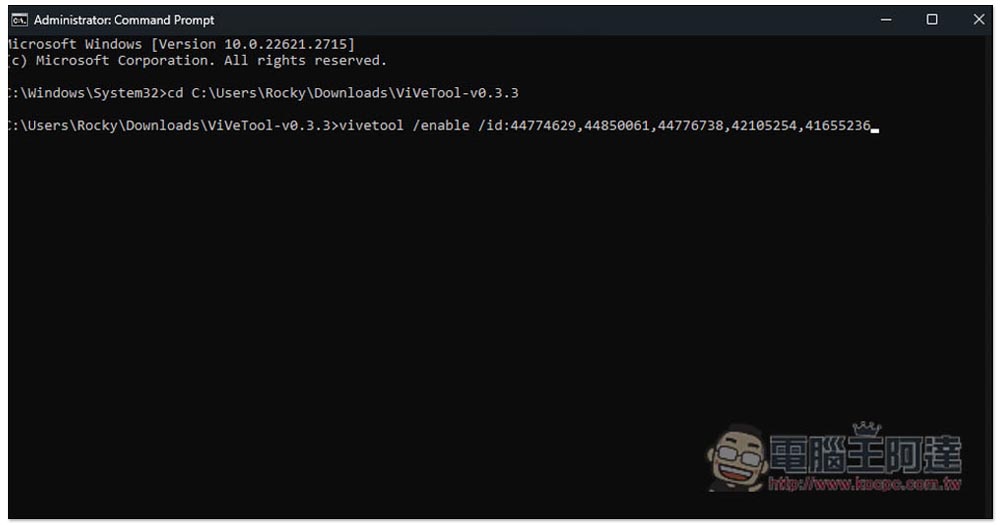
After changing the path to the ViVeTool folder, enter the following command and press Enter:
vivetool /enable /id:44774629,44776738,44850061,42105254,41655236
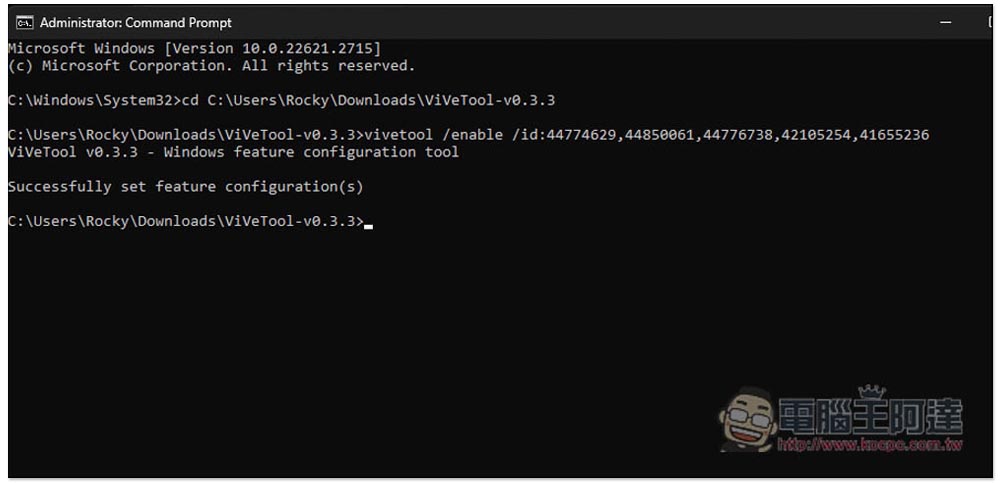
This will successfully enable Copilot:
You will see an additional Copilot icon on the right side of Windows Search:

Click to wake up Copilot, and the shortcut key Windows + C is also supported. Once everything is fine, you can change the language and region back to Traditional Chinese and Taiwan:
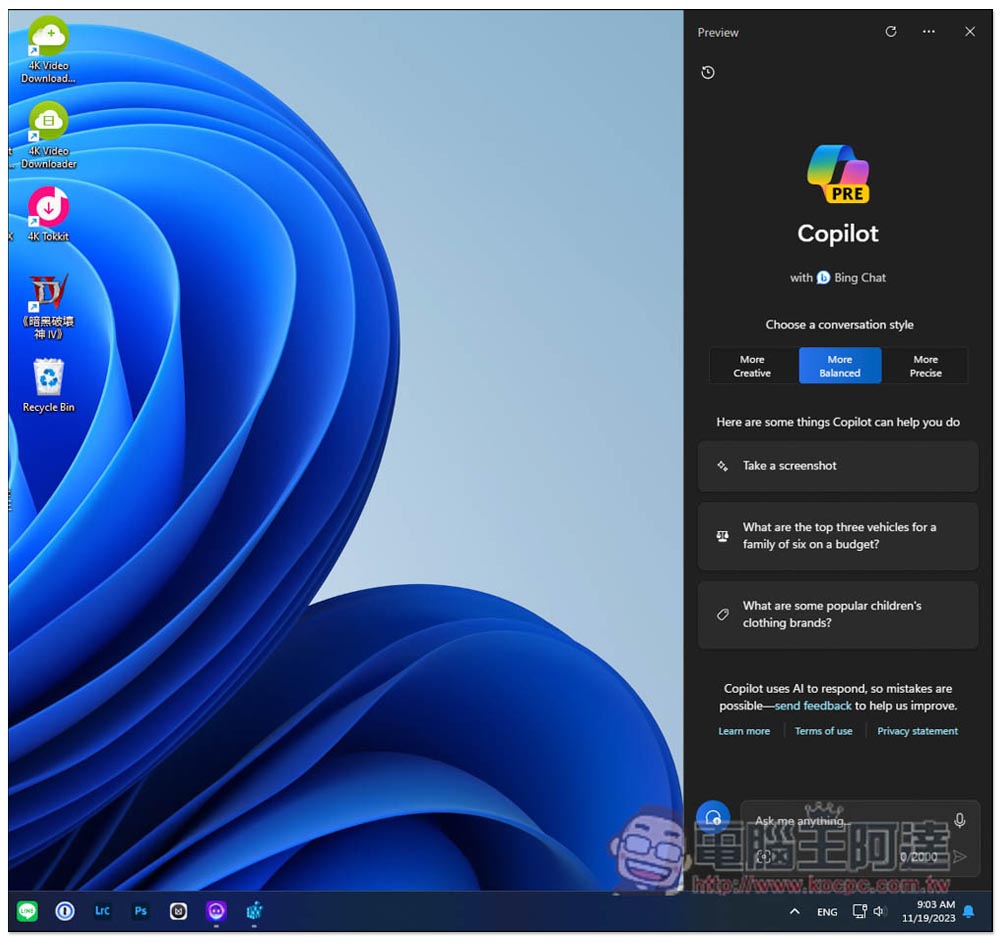
As shown in the figure below, restart after making all changes:
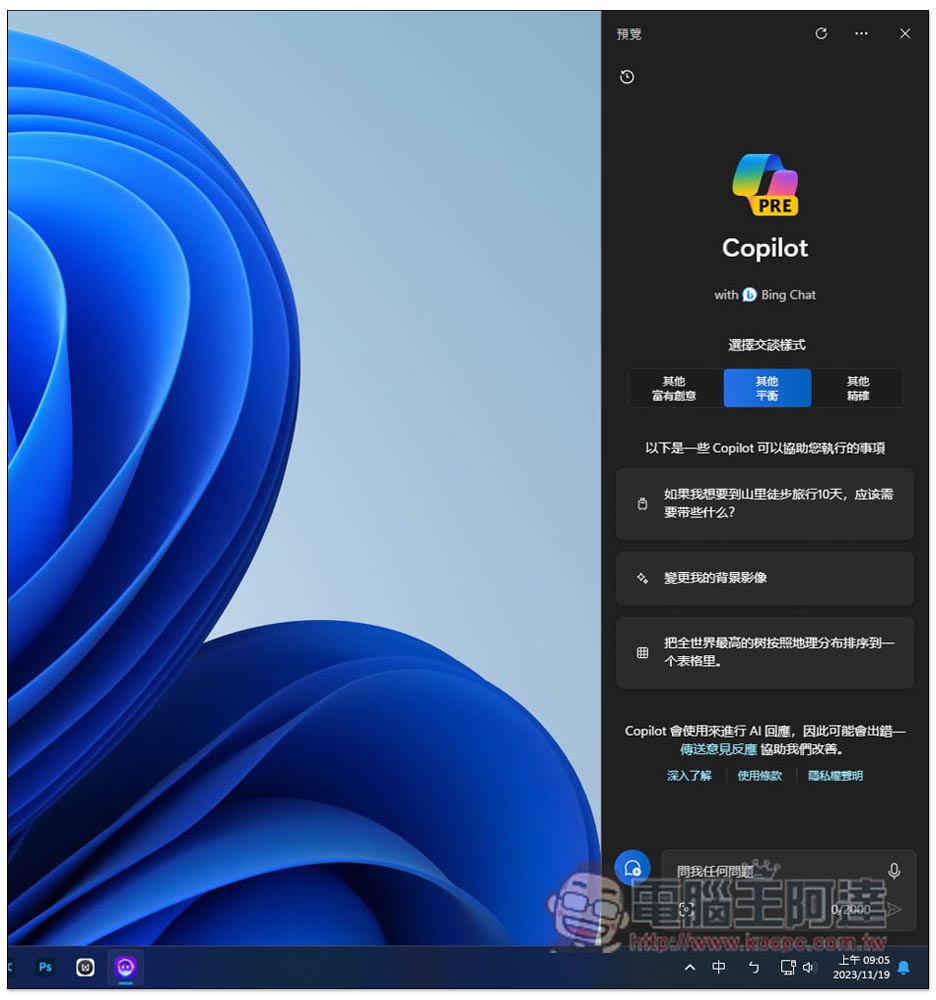
Go to the desktop, open Copilot and you will see that it has also changed to Chinese:
You can chat with it and ask questions in Chinese, just like using the web version:
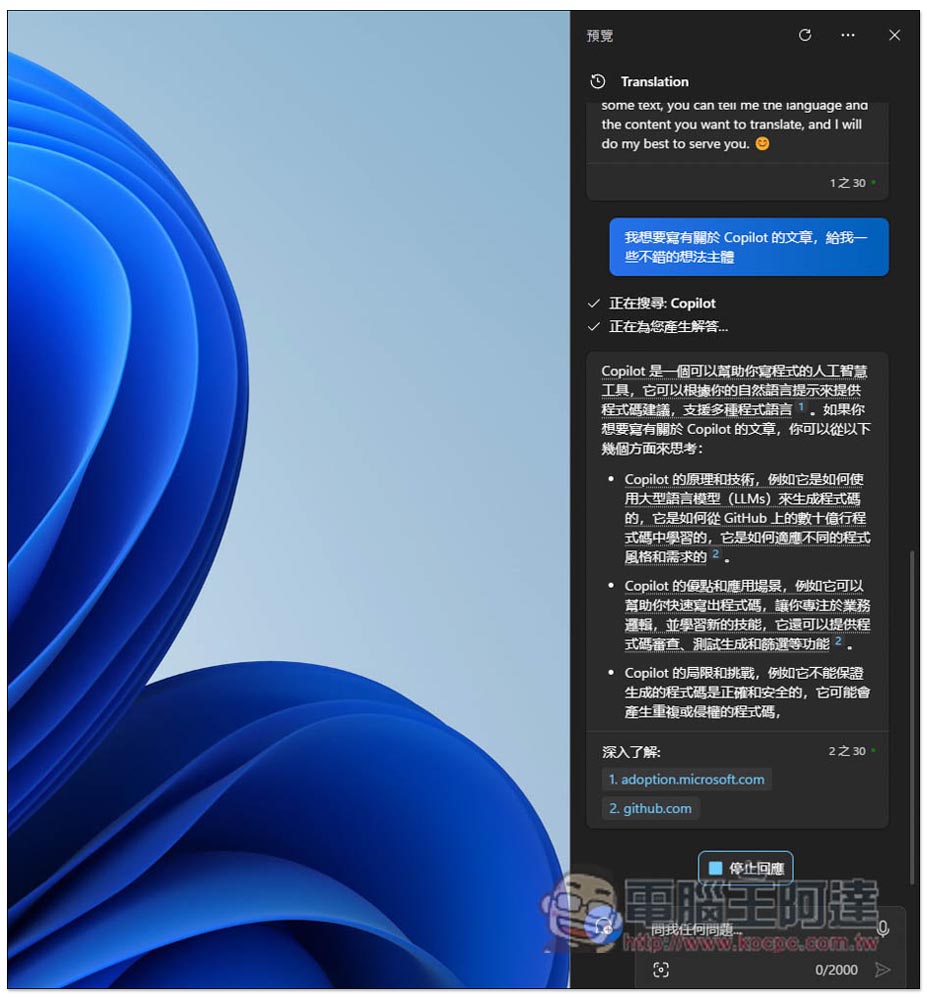
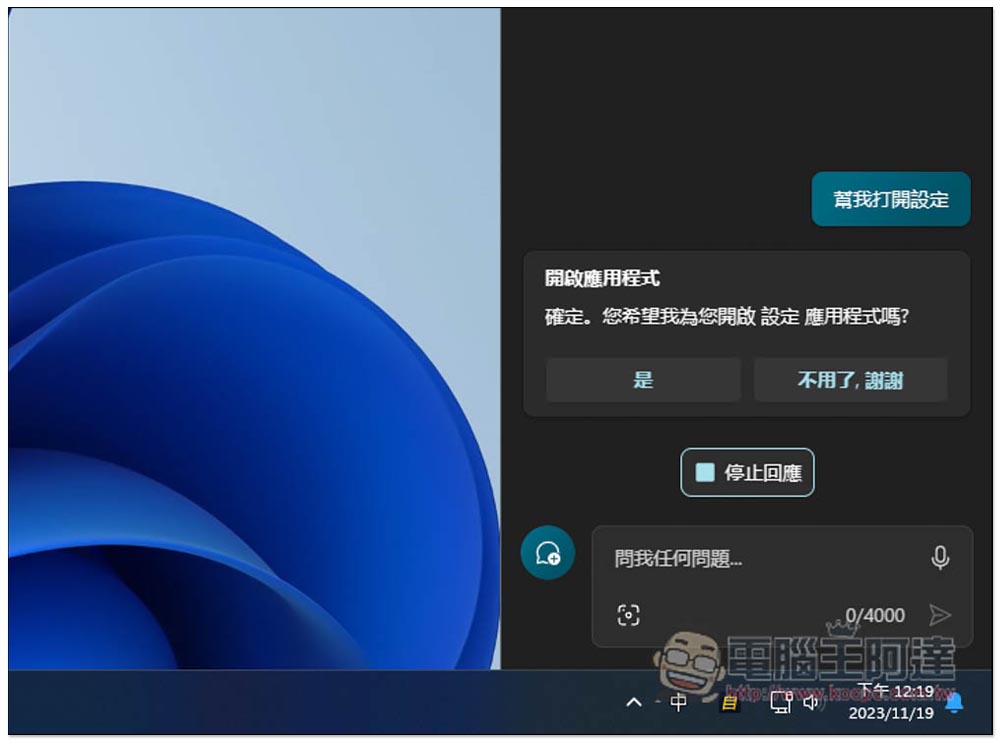
Because Copilot of Windows 11 is integrated into the computer, it can do more things, such as asking it to help open Windows settings. Click Yes to start. When you copy any text, Copilot will also ask you if you want to paste it into the chat window:
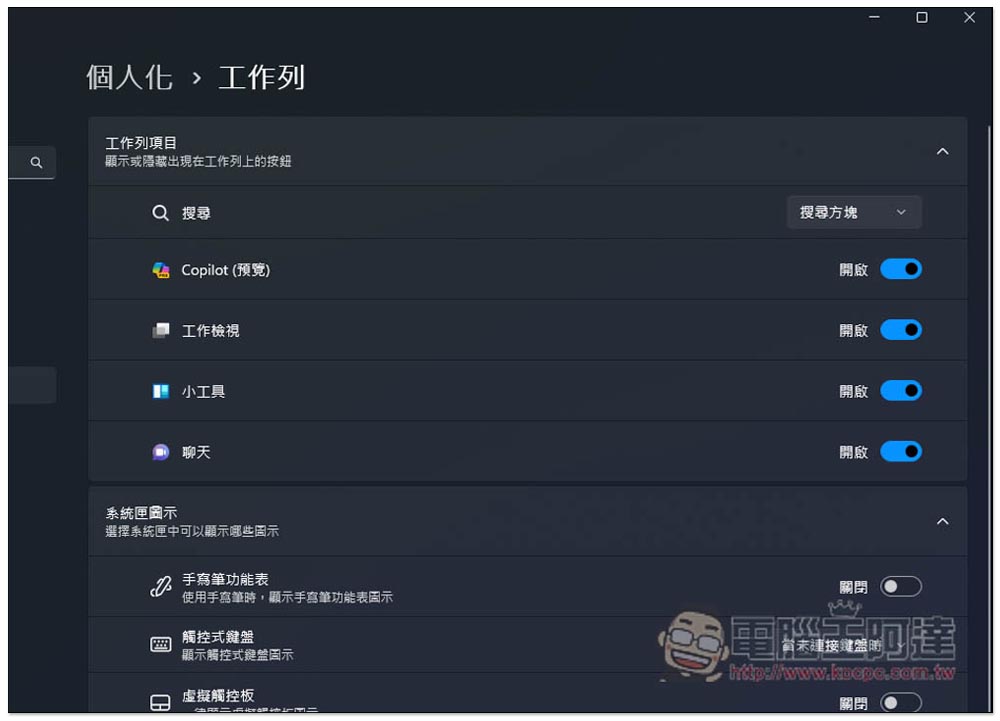
If you don’t want to see the Copilot icon on the taskbar, you can go to Personalization -> Toolbar in Settings and turn off Copilot:
Finally, I would like to remind you that Copilot is still a preview version and is not a fully official version, so you may occasionally encounter some problems in use.
Source: KOCPC Chinese