


Nowadays, many people should be like me. They spend a lot of time on YouTube every day, watching their favorite videos, learning some new knowledge, etc. YouTube also provides many practical functions to make it easier for us to use and control the video content. This article has compiled 7 good tips to share with you.

1. Modify the time to skip the video with two clicks
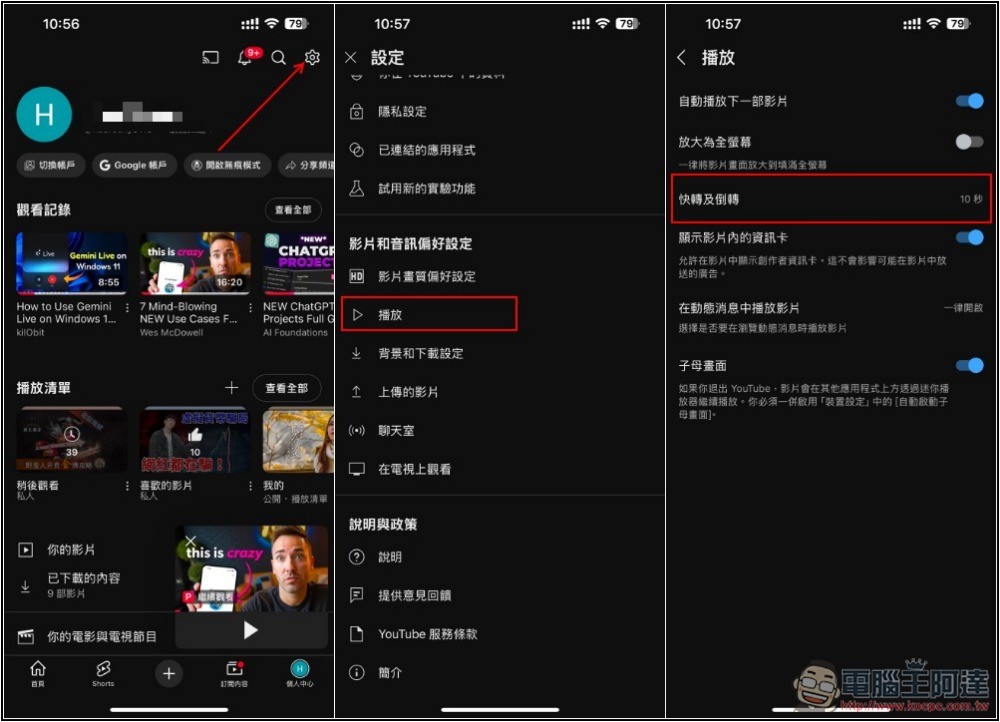
When watching YouTube videos, many people probably double-click the left or right side of the video screen to rewind and advance the video. The default YouTube time is 10 seconds, which is really a bit short. If you feel this way, you can actually change it to the time you like in the settings.
- After opening YouTube, go to the settings menu
- Scroll down to find the video and audio preferences and enter “Playback”
- You will see the “Fast forward and reverse” option, change the time you want, the longest is 60 seconds, the shortest is 5 seconds
2. Slide gesture to enter/exit full screen playback
When watching YouTube videos on mobile phones or tablets, if they want to play them in full screen, most people should press the full screen function icon or turn the device horizontally.
If you want a more intuitive and smooth switching, YouTube also has gestures to enter/exit full-screen playback.
- Enter full screen playback: slide the video up
- Exit full screen playback: swipe down the video
3. Always watch the highest quality videos
For those who have unlimited access to the Internet, they will definitely hope that when watching videos, the highest quality setting will be used at all times, so that YouTube will not automatically adjust to low quality due to some connection reasons.
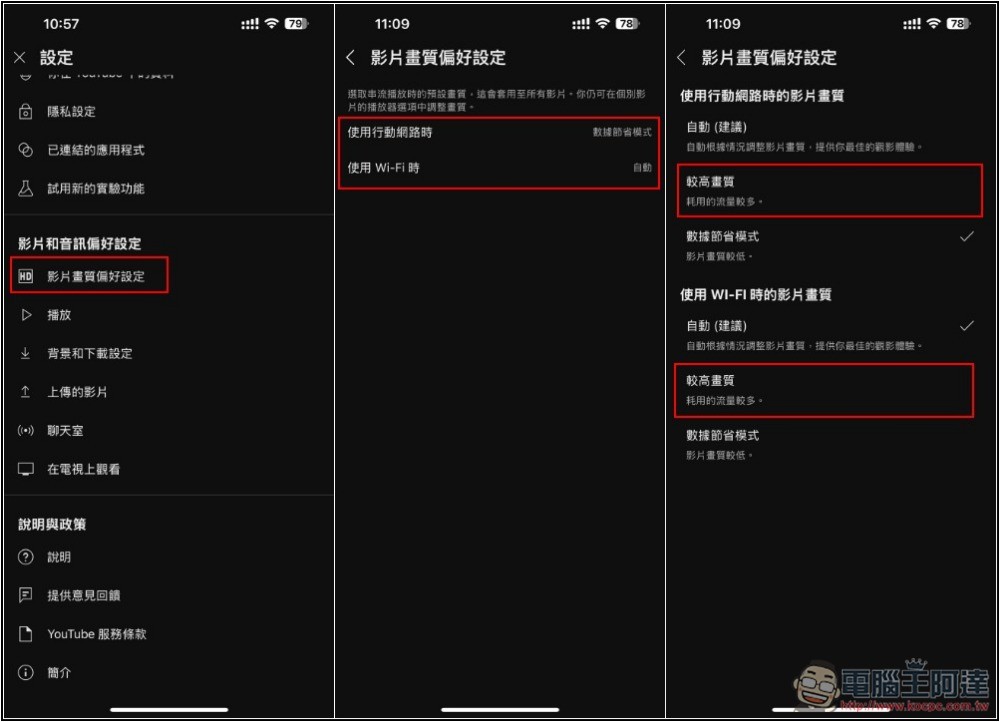
By default, YouTube is set to automatic, which will automatically adjust the video quality according to the current situation. You can modify it to a setting that always maintains a higher quality.
- Open YouTube and enter the settings menu
- In Video & Audio Preferences, go to Video Quality Preferences
- You can adjust it according to the mobile network and Wi-Fi conditions respectively. If you want to maintain high image quality, please change to “higher image quality”
4. Use incognito mode
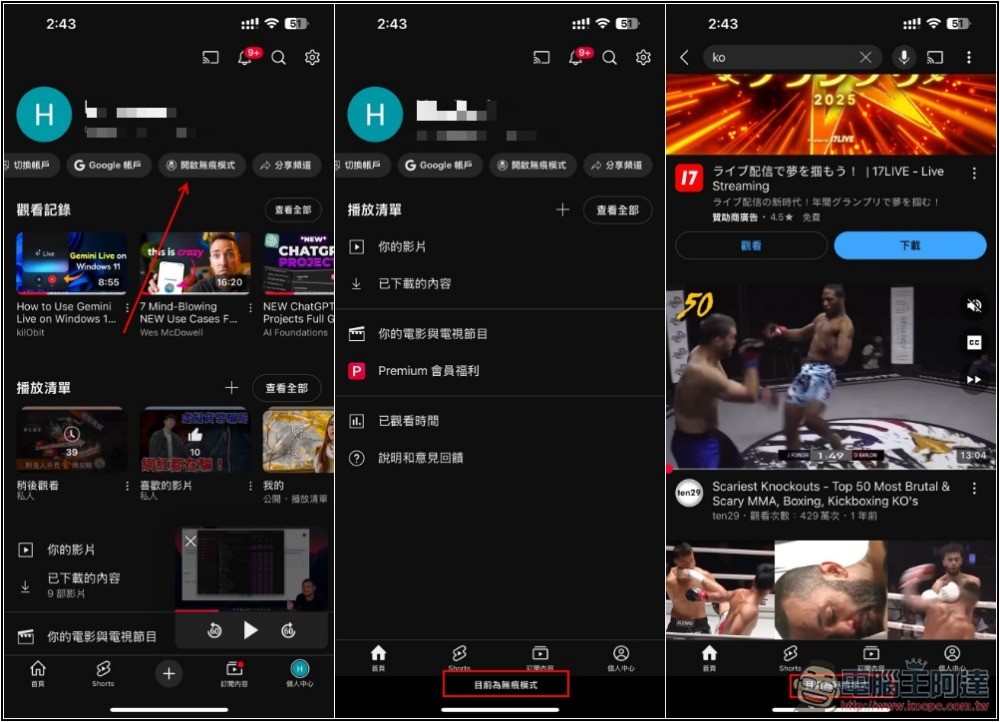
The YouTube homepage will recommend videos of interest to you based on your recent viewing history. Although this feature is very good, when watching certain types of videos, you don’t want others to know, and you don’t want other types of recommended videos to appear on the homepage. In this case, you can use the incognito mode. Many people may not know that YouTube also has it.
This function is hidden on the personal center page. After it is turned on, the videos watched in this mode will not be recorded. But be aware that even if you have a YouTube Premium membership, ads will appear in incognito mode:
5. Prevent children from seeing indecent video content
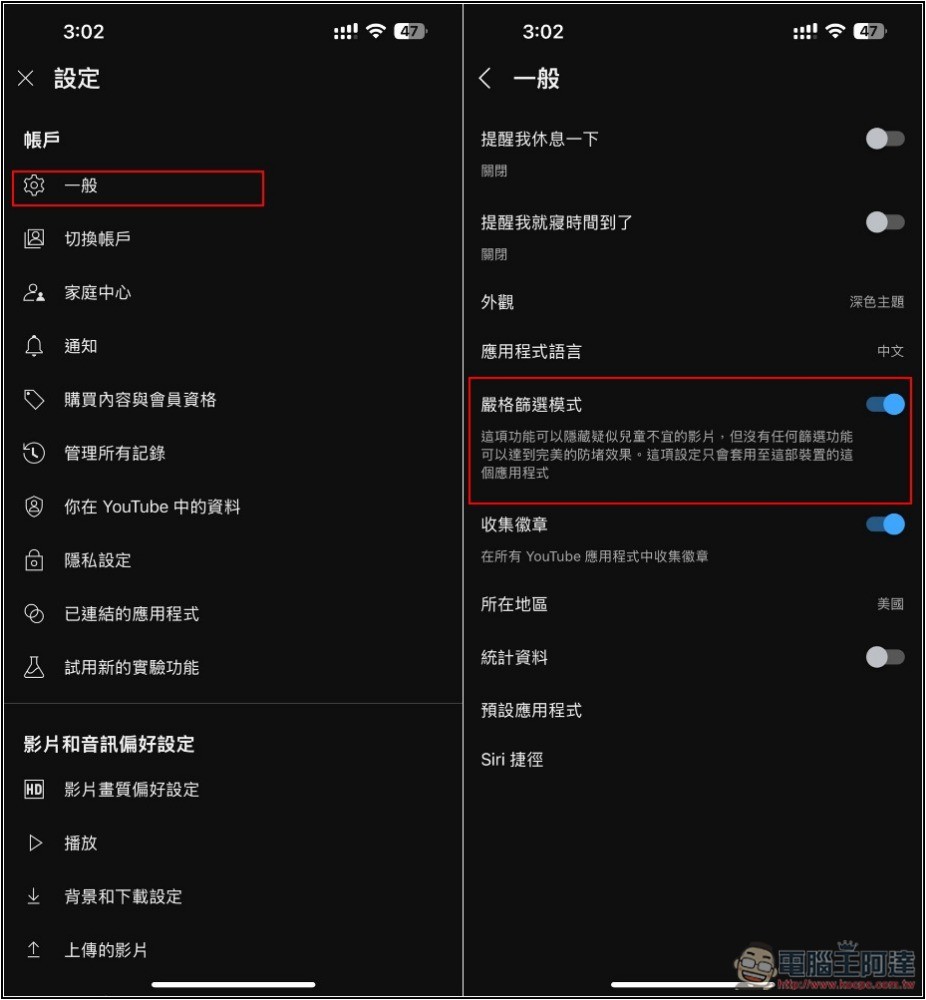
In order to increase traffic, there are actually many videos on YouTube that are not suitable for children to watch. Parents will definitely worry about children seeing them. In YouTube settings, there is a function that can block these indecent videos as much as possible. It is highly recommended to turn it on.
- In the settings menu, enter the general options
- Turn on the “strict filtering mode” function
However, please note that YouTube has stated that this feature cannot achieve perfect anti-blocking effect.
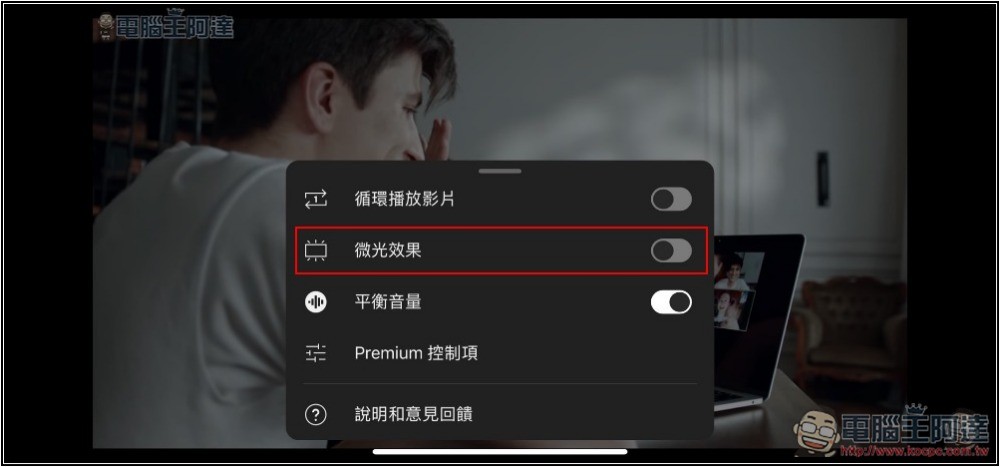
6. Turn off the shimmer effect in full-screen playback mode
YouTube’s shimmer effect enhances the video viewing experience by adding lighting effects. It displays the main color of the video being watched on the outer edge of the video player. However, not everyone likes this effect. If you don’t like it, you can turn it off.
- Play any YouTube video and enable full screen
- Go to the settings icon on the screen -> Other settings
- Turn off the shimmer effect
7. Enable YouTube’s automatic deletion of history
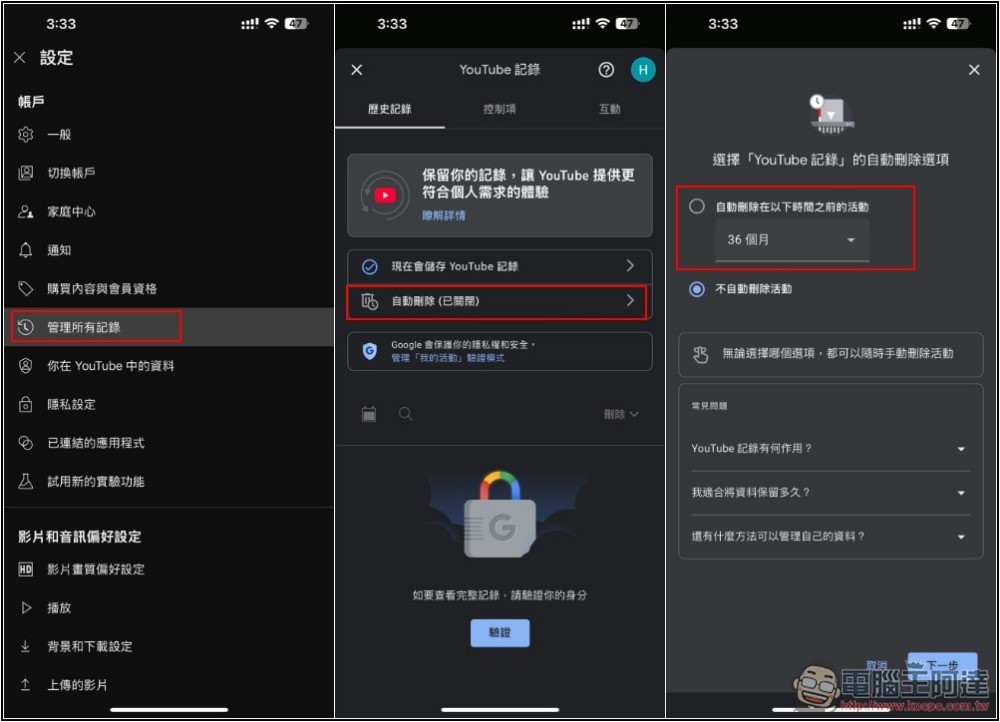
For some reasons, you may not want YouTube to keep your relevant viewing records. In this case, you can turn on the automatic deletion of records.
- Open settings
- Go to “Manage All Records” under your account
- Turn on the automatic deletion function, and you can set how long ago activities should be automatically deleted.
Source: KOCPC Chinese