


Poor sound quality often makes it impossible to enjoy watching movies, listening to music, or playing games, but you don’t necessarily know that just adjusting a few default audio settings on your Windows computer can make a difference. If you want to quickly improve the sound quality through some adjustments, you can follow the methods we have organized for you below.
8 Tips to Improve Audio Quality on Windows PCs
1. Enable audio enhancements
Windows provides a variety of audio enhancements that, when used correctly in different usage situations, can significantly improve the sound quality of your computer. For example, you can turn on “Bass Boost” to amplify low frequencies, which is the best enhancement for music styles with heavy bass characteristics, such as Hip-Hop or rock music. You can also enable virtual surround sound, which can improve directional audio like footsteps or gunshots, which is especially helpful for games. To enable these additional enhancements, follow these steps:
- Open the “Settings” application and click “System” on the left.
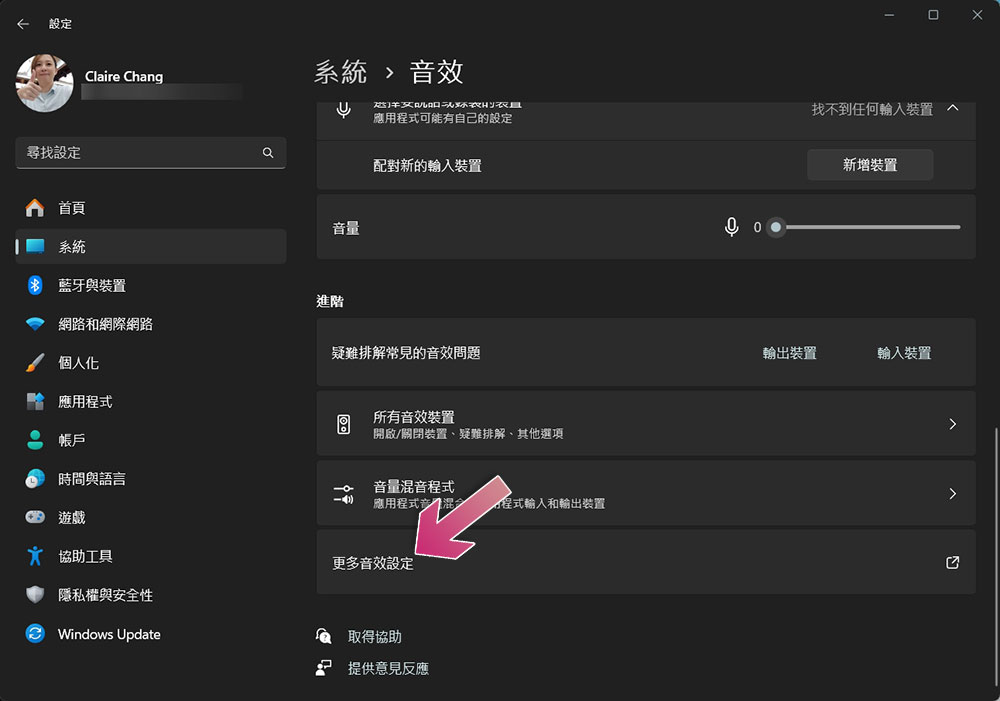
- Click “Sound Effects” in the system tab, scroll to the bottom and click “More Sound Effects Settings”.
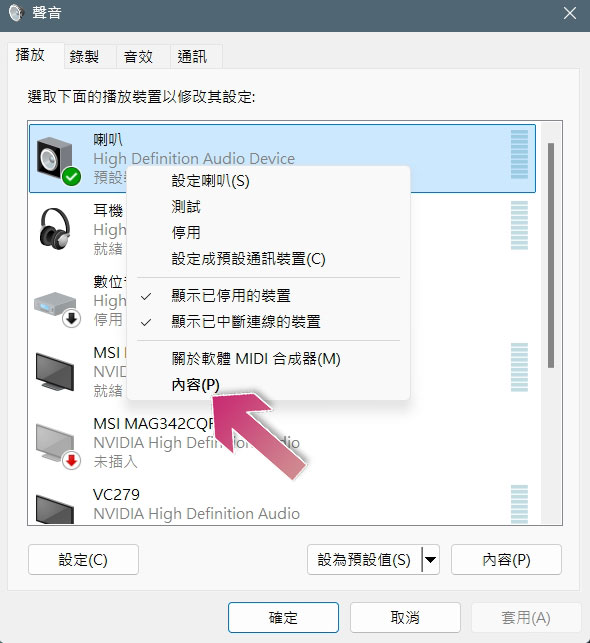
- Right-click the audio device you want to adjust and select “Content.”
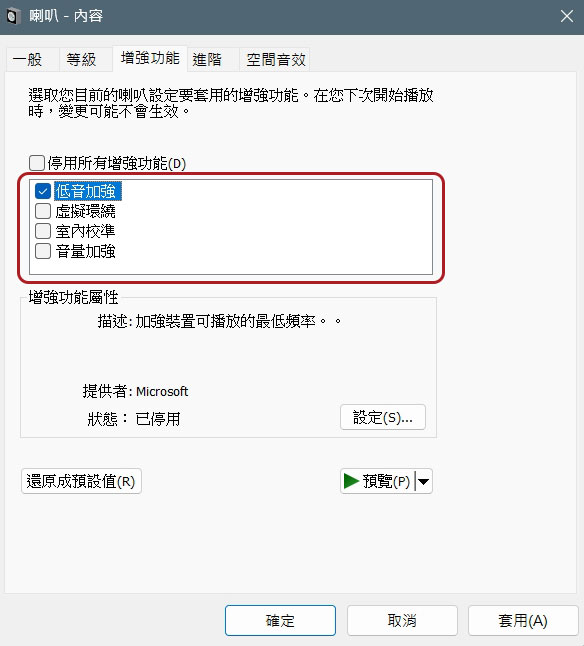
- Switch to the “Enhancement” tab, check the audio enhancement effect you want, and click Apply and OK.
2. Adjust sampling rate and bit depth
Increasing the sample rate and bit depth also improves overall audio quality. Higher sample rates capture more detail from the original sound, while higher bit depth reduces distortion and noise. These adjustments make audio playback clearer and more accurate, improving overall sound quality. However, you can’t just set both settings to the highest possible level. Instead, you should match these settings to the quality of the audio file you’re playing to prevent unnecessary scaling up or down. If you set your system to a higher sample rate and bit depth than the original quality of the file, you may produce artifacts that degrade the audio quality.
For example, if you are playing CD-quality files, 44.1 kHz – 16 bit is the ideal setting. If you have a higher resolution file, you can choose a higher bit depth and sample rate combination. If you want to adjust these settings, you can follow the steps below. If you encounter strange audio problems, especially when you hear some strange noises, this is also a troubleshooting method:
- Open the “Settings” application and click “System” on the left.
- Click “Sound Effects” in the system tab, scroll to the bottom and click “More Sound Effects Settings”.
- Right-click the audio device you want to adjust and select “Content.”
- Switch to the “Advanced” tab and select the desired sampling rate and bit depth from the drop-down menu.

3. Enable spatial sound effects
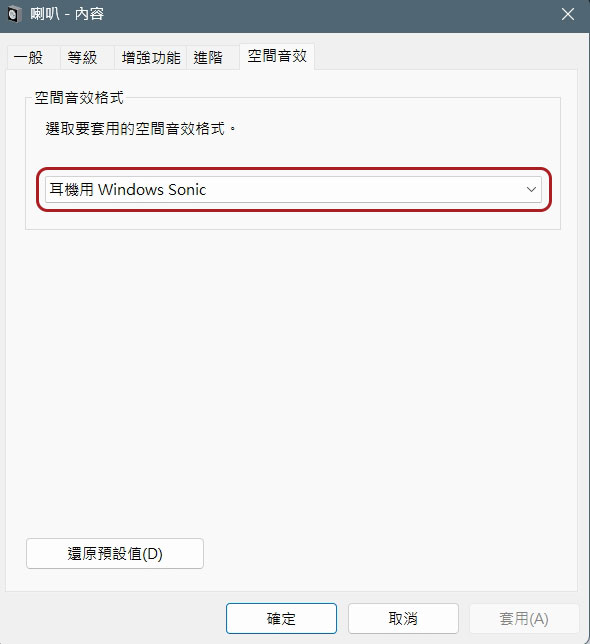
Spatial sound effects improve sound effects by adding a sense of direction and space, making it feel like sounds are coming from all directions, like raindrops falling around you. By default, Windows only comes with Windows Sonic, a free spatial audio technology. If you want an advanced audio experience, you can install Dolby Atmos. Unlike Windows Sonic, you’ll need a paid subscription if you want to use Dolby Atmos with standard headphones. If you want to try it for free or are willing to pay, pleaseDownload the Dolby Access app from the Microsoft Store, follow the on-screen instructions to set it up and enable it in the sound settings.
To select your preferred spatial audio format, follow these steps:
- Open the “Settings” application and click “System” on the left.
- Click “Sound Effects” in the system tab, scroll to the bottom and click “More Sound Effects Settings”.
- Right-click the audio device you want to adjust and select “Content.”
- Switch to the “Spatial Audio” tab and select the technology you want to use from the drop-down menu.
4. Check the sound quality in the app
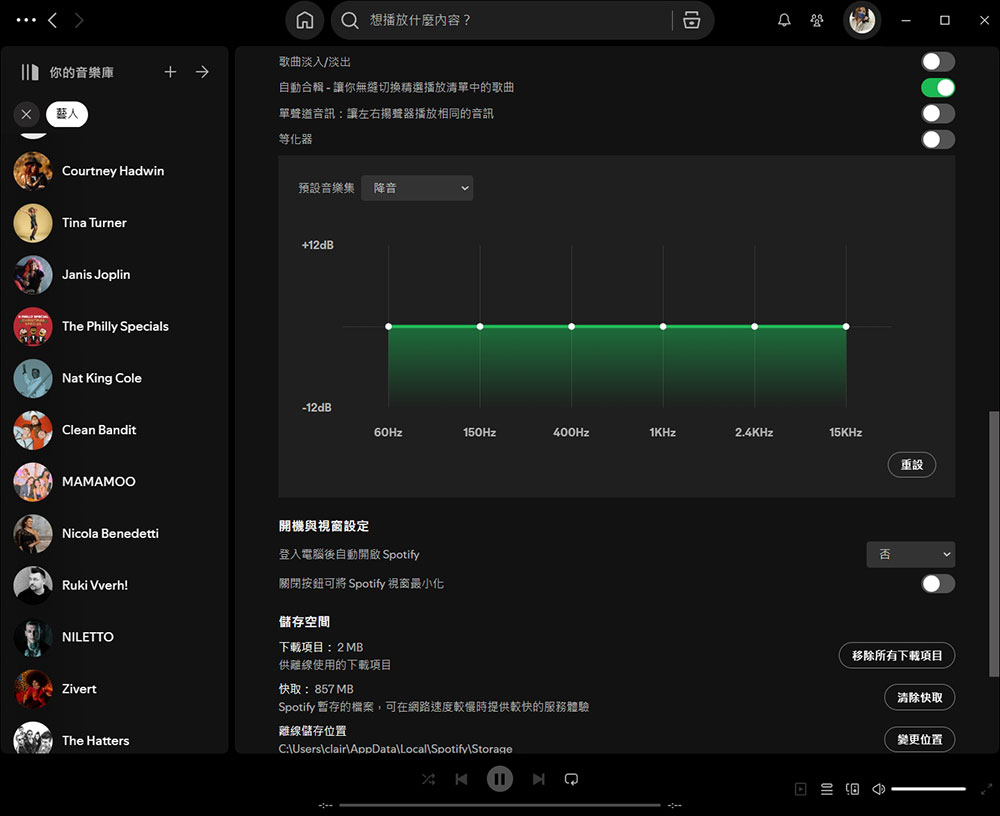
Some applications have built-in sound quality adjustment features. For example, many media players have an equalizer function that allows you to fine-tune the frequency response and apply other audio effects. Streaming services like Spotify also feature equalizers that can even bring studio-quality audio to your car. Likewise, many modern games offer options to adjust sound quality, surround sound, and dynamic range; Tocom apps like Discord feature noise suppression and echo cancellation settings for clearer audio. So check to see if the app you’re using has full customization options, and experiment to find the best audio quality you can fit and like.
5. Obtain high-quality audio files
The quality of the source audio file will affect your audio experience. For example, MP3 files may lose considerable audio quality due to compression, especially when the bit rate is below 192kbps. In contrast, lossless formats such as FLAC and ALAC maintain high audio quality and provide the best listening experience. To ensure the best audio quality, you should always download from a reputable music store, use a streaming service that supports lossless and high-resolution formats, and always check file quality before downloading. For a more detailed inspection, tools like Audacity can help you verify whether the file was desampled from a lower-quality source.
6. Use equalizer software
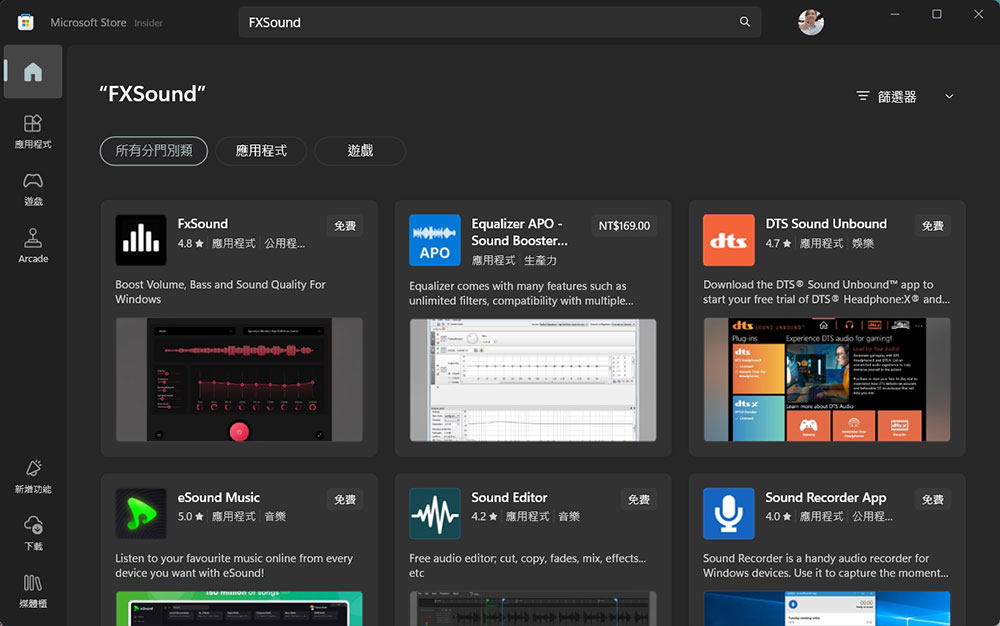
You can customize the sound using equalizer software, which allows you to adjust specific frequency bands to suit your personal preferences. If your device only has low-end headphones or speakers, an equalizer app can help offset the hardware limitations. However, if your hardware is too low-level, don’t expect it to have a major impact. You can use preset filters for activities like music, movies, and games, or if you have experience adjusting audio settings, you can create custom profiles. APO, FXSound and Boom3D are solid equalizer options for Windows, they can all be found in the Microsoft Store, try downloading them and playing around with the different profiles.
7. Update audio driver
Although updating audio drivers may not significantly improve audio quality, you should keep them up to date to get the best performance from your hardware. If you use a specific brand of headphones, please check the official website regularly for updates and install the latest updates in a timely manner. If you are using the laptop’s built-in speaker, you can update the driver through the device administrator or download the latest driver from the manufacturer’s website.
8. Use an external digital-to-analog converter or amplifier
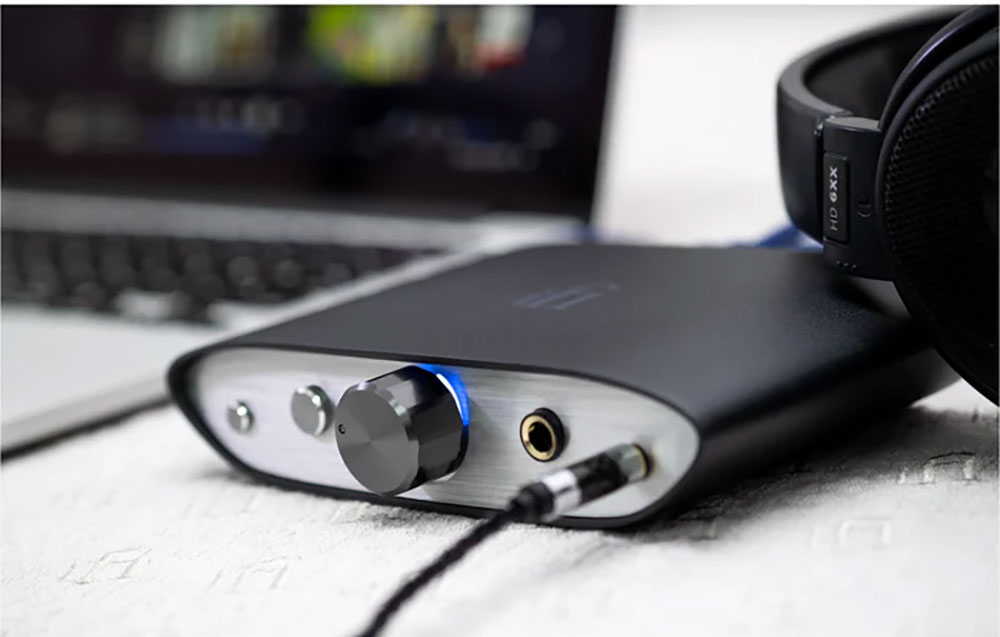
A digital-to-analog converter (DAC) converts digital audio signals into analog signals for playback through headphones. While built-in DACs do the job well, they are susceptible to electronic interference that can produce noise and distortion that affects audio quality. An external DAC can help solve this problem. The impact of using an external DAC on audio quality has been debated, in my opinion its effectiveness depends on your computer’s built-in audio quality, and if your computer’s sound is already clear and well-balanced, an external DAC may not provide a significant improvement. However, if the audio quality is sub-par, an external DAC can make a noticeable difference.
Likewise, you can use an amplifier to take a low-level analog signal and increase its amplitude, thus increasing the signal’s power. It also maintains audio quality at higher volumes.
You should get the best audio quality from the quality headphones or speakers you choose, and with these adjustments, you should see an improvement in your audio output quality. However, if you use low-quality headphones or speakers, these changes may not have much of an impact, so you should consider investing in higher-end equipment.
Source: KOCPC Chinese