


Ten years ago, the best-selling consumer products on the market were low-end computers, albeit with a few 4GB of RAM, low-end processors, and most without discrete graphics cards. Despite these limitations, we could still manage system resources wisely to avoid performance issues. These management methods are still very helpful today. If you are using a computer that you dislike but cannot replace, such as a business jet issued by a thrifty company), developing the 10 good habits taught to you today will help reduce system resource consumption.

The computer is not powerful enough and cannot be replaced? 10 habits to reduce resource consumption
1. Use lightweight applications
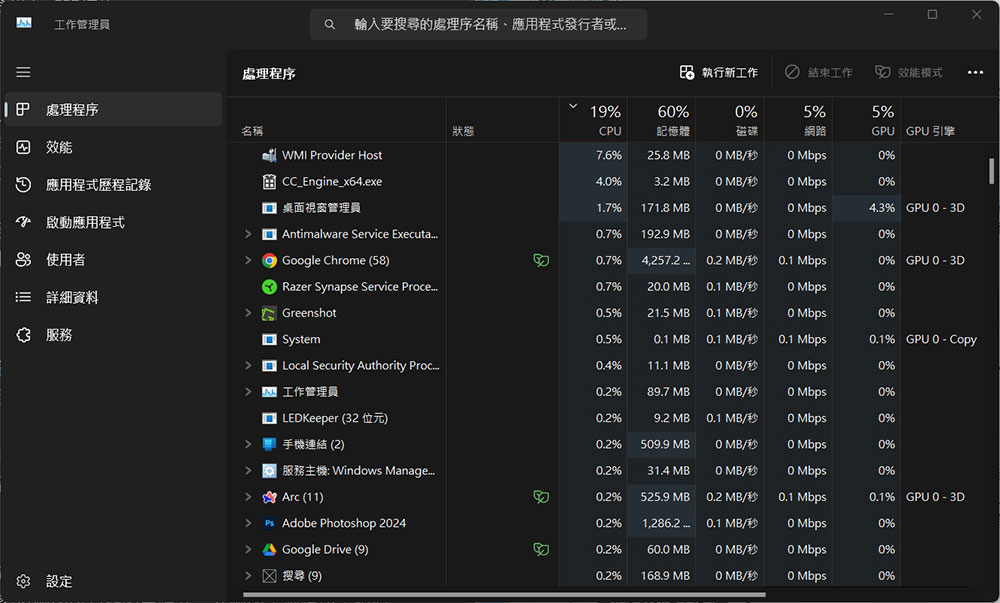
First, consider replacing resource-intensive programs with lightweight alternatives that don’t put a strain on RAM and CPU, such as LibreOffice instead of Microsoft Office, and lighter options like GIMP instead of heavyweight imaging software like Adobe Photoshop. In general, check the resource usage of your current application in the work manager, compare it with the amount of resources consumed by lightweight alternatives, and switch if possible.
2. Manage startup applications
Startup applications that automatically execute every time the device starts can significantly impact the performance of a low-end computer. Even if you close these applications, they will continue to run in the background and silently consume resources. In the past, when using low-end computers, apart from anti-virus software and some necessary programs, you tried your best to avoid letting any applications start at startup. Now, you don’t even need third-party anti-virus, because Microsoft Defender can effectively detect and eliminate threats.
To manage startup applications, you can use the following methods:
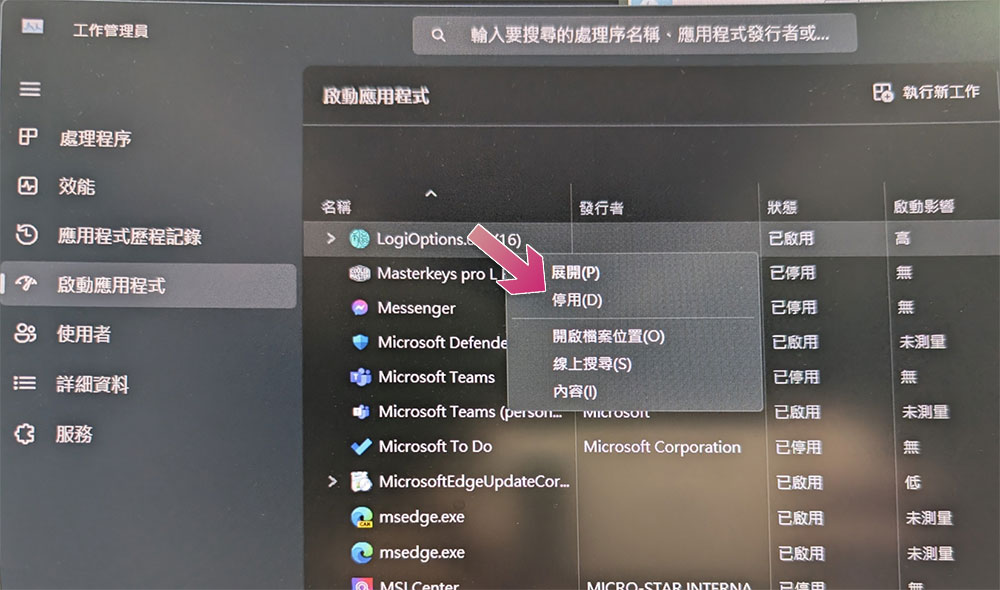
- Open the job manager.
- Click “Launch Application” in the left sidebar.
- Review the apps listed, then right-click any non-essential apps and select Disable.
3. Disable applications running in the background
Like launching apps, running apps in the background can consume a significant portion of your computer’s resources, even if you’re not actively using them. Many apps automatically gain permission to run in the background upon installation, which gradually increases the load on the system over time. To relieve stress on your computer, you should close unnecessary background applications:
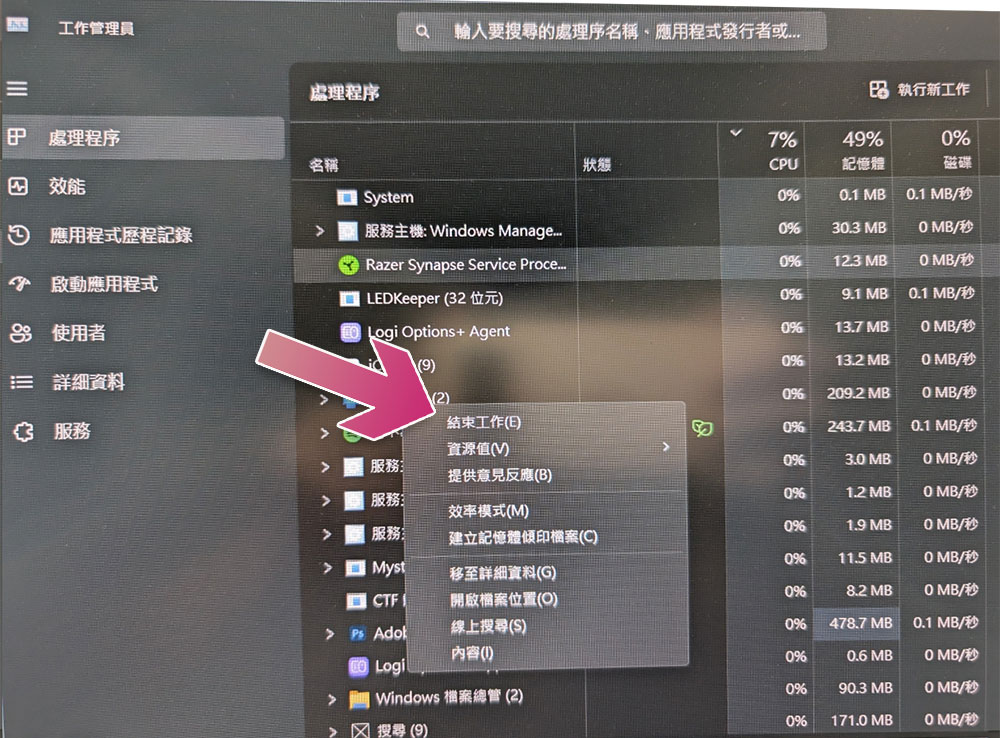
- Open the job manager.
- Switch to Processors and click the column headers for CPU and RAM to sort all programs by resource usage.
- Identify resource-intensive programs and right-click and click “End Work” to deactivate them.
Please be careful not to shut down important system processes or services. If you’re unsure about a particular program, a quick online search can help you determine whether you should disable it. As a rule of thumb, it’s safest not to disable anything related to antivirus, antimalware, or Windows updates.
4. Run the program with normal performance settings
Most applications allow you to balance resource consumption between performance and visual quality, with higher performance and graphics settings tending to use more resources. In order to reduce the pressure on low-end computers. I used to run most applications at lower graphics and performance settings, which affected the overall experience but helped keep resource usage to a minimum. In addition, you can turn off non-essential features of an application that you don’t use, and adjust other application settings that you don’t need. For example, disable hardware acceleration in the browser, use standard image quality instead of high-resolution image quality when playing media, turn off animation effects in games, etc. This approach can help you further reduce CPU, GPU, and RAM usage.

5. Disable visual effects
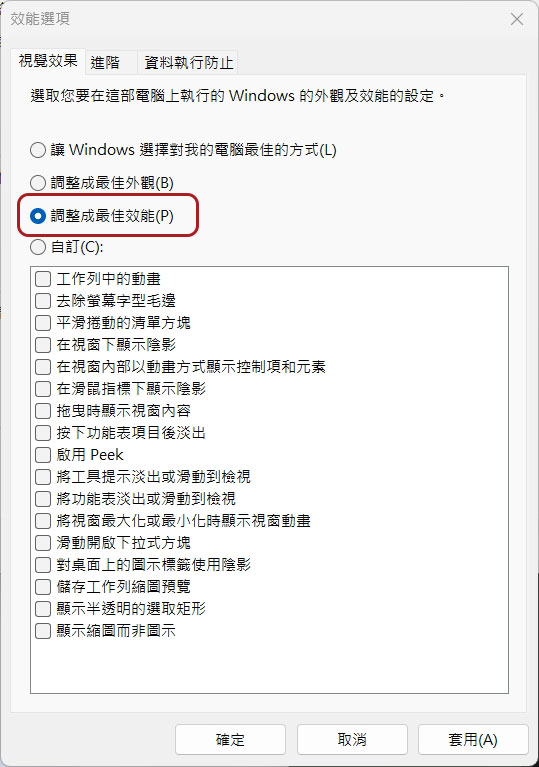
Visual effects such as animation, shadows, and transparency can improve the graphical appearance of a computer user interface, but these pleasing visual effects also take up system resources that could be better utilized. To reduce resource usage, you can disable most visual enhancements to reduce the load on your computer:
- Search for “sysdm.cpl” and open it to directly open the “System Contents” window.
- After switching to the Advanced tab, click “Settings” next to the “Performance” item.
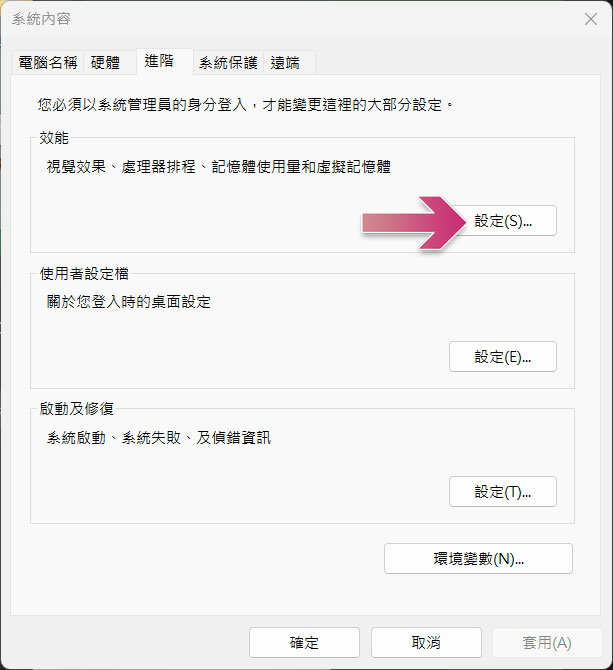
- Change the option to “Adjust for best performance.” This will minimize all visual effects and focus resources on other parts that are more needed.
6. Change resolution, theme, etc.
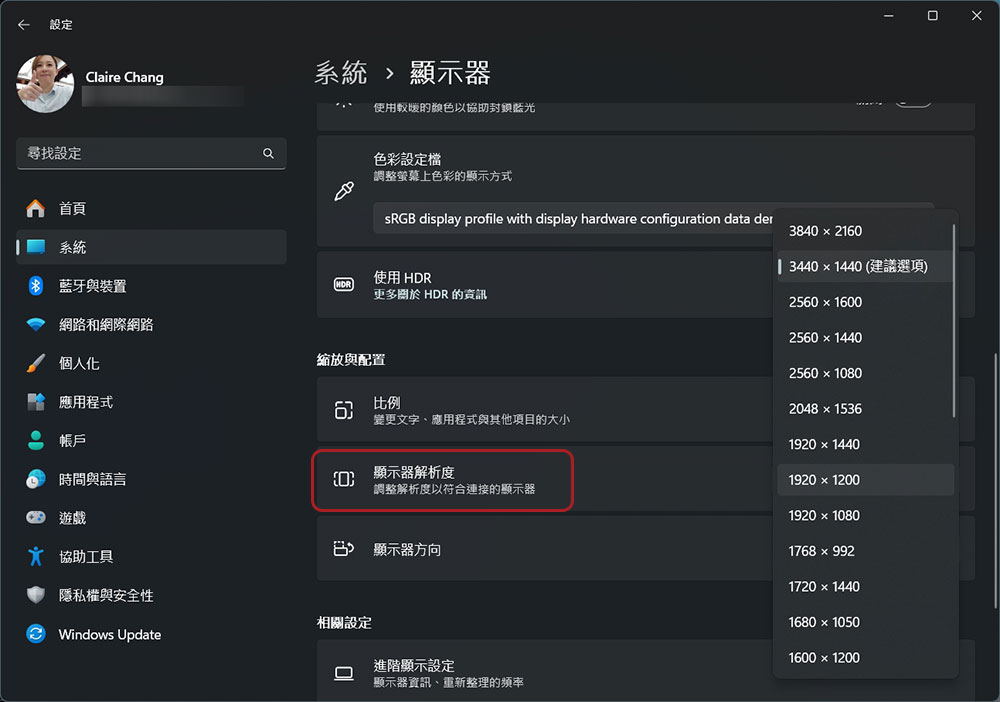
Lowering the computer resolution below the recommended settings is one of the most effective steps to reduce resource consumption. In other words, it reduces the extra pressure on the CPU and GPU to improve system performance. If you want to adjust the resolution, do this:
- Open the “Settings” app and click “System”.
- Click “Display” in the system menu.
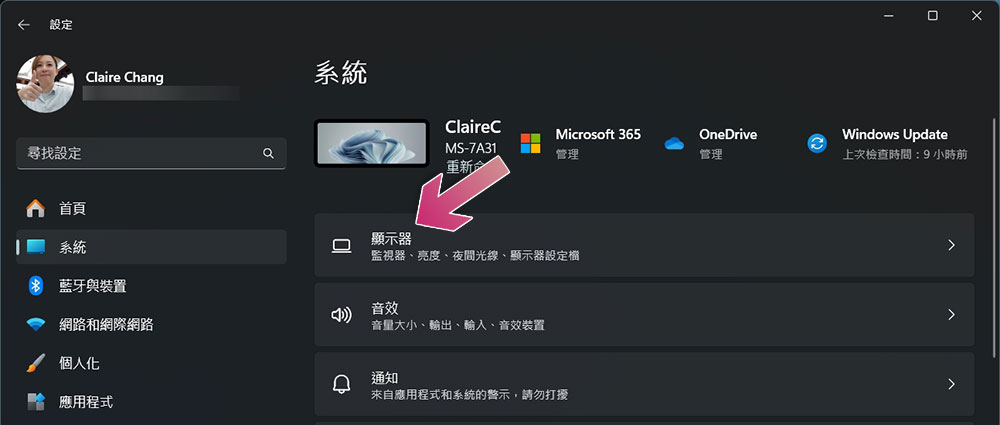
- Scroll down to find “Monitor resolution” and select a lower resolution from the drop-down menu at the back.
Similarly, graphics-intensive themes will put additional pressure on the CPU and GPU. If you choose a vibrant 3D theme, consider switching to a less resource-intensive option, such as the classic theme provided by Windows. This small adjustment can also help reduce the workload on your computer.
7. Solve system problems that arise
If you also pay attention to the dynamics of the work administrator, you should have noticed that random processes consume a lot of resources for no reason. After inspection, they are usually system processes. Today, common monsters include WMI Provider Host, Windows Modules Installer Worker, Service Host: Local System (Network Restricted), System Idle Process, etc. But you shouldn’t kill these processes hastily, as they are usually doing something important.
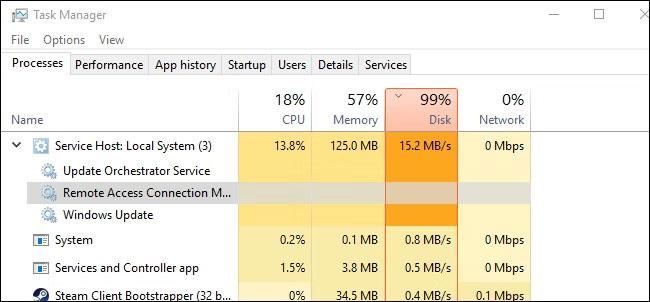
However, sometimes they also consume too many resources because associated applications or services run unnecessarily or have errors. Ignoring them can cause serious stress on the computer hardware. Make it a habit to keep a close eye on the programs that consume the most resources and take the necessary steps to fix the root cause and reduce resource usage. You must disable the unnecessary stuff or fix bugs to get the most significant reduction in resource consumption.
8. Avoid multitasking
Running multiple resource-intensive programs simultaneously can overwhelm low-end computers, potentially reducing overall performance and ruining the user experience. Before launching another demanding application, you should consider closing resource-intensive programs such as graphic design software, browsers, video editors, etc. In addition, you should always carefully manage the number of browser tabs that are open and close any unnecessary tabs. While any of the above actions may seem insignificant individually, overall they significantly reduce resource consumption. To keep your computer running smoothly, avoid multitasking and running multiple heavy applications at the same time.
9. Keep applications and operating systems updated
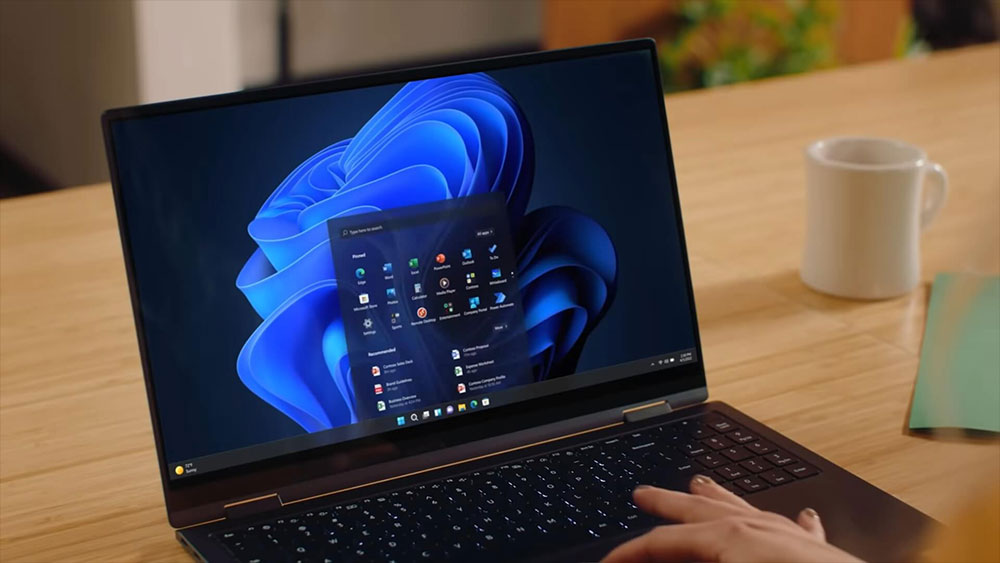
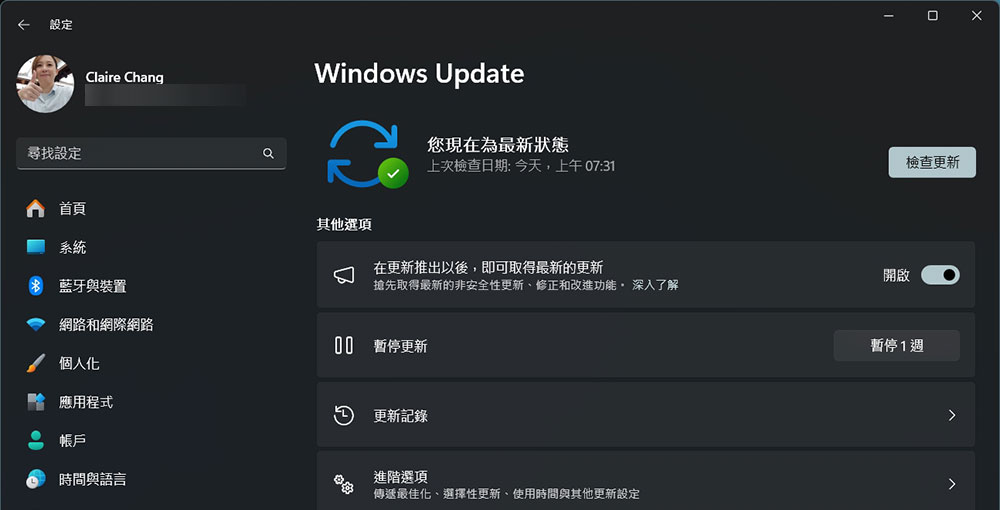
Potential bugs and issues in an application can cause excessive resource consumption, and developers often release fixes through updates to address these issues, helping the application run more efficiently. Therefore, you should update your app whenever a new version is released, and if the app offers the option of automatic updates, make sure to enable it. Likewise, you should keep your operating system updated to ensure it is using your hardware efficiently, and be sure to check for updates regularly and install them as soon as they are available.
10. Beware of PUPs, hijackers and bundled software
Potentially unwanted programs (PUPs) on your system can cause severe stress on your computer hardware. While these programs may not all be malicious, they can consume a lot of resources and severely slow down your computer’s performance. It gets even worse if your system is infected by a hijacker, as these infections (especially cryptocurrency hijackers) can remotely exploit your computer resources for mining and other activities. To resolve this issue, you should regularly monitor programs that consume high RAM or CPU resources in the Job Manager. If you find a process linked to a PUP or hijacker (which can be verified with a quick online search), you should perform a malware scan and take the necessary steps to remove the program or infection.
Source: KOCPC Chinese