


Apple’s latest Macs are packed with features and tools to help users maximize their productivity, not to mention a tight ecosystem that connects these computers to users’ other Apple devices. One of the most prominent examples of this seamless commonality is Airplay, which allows users to easily mirror media to larger displays.
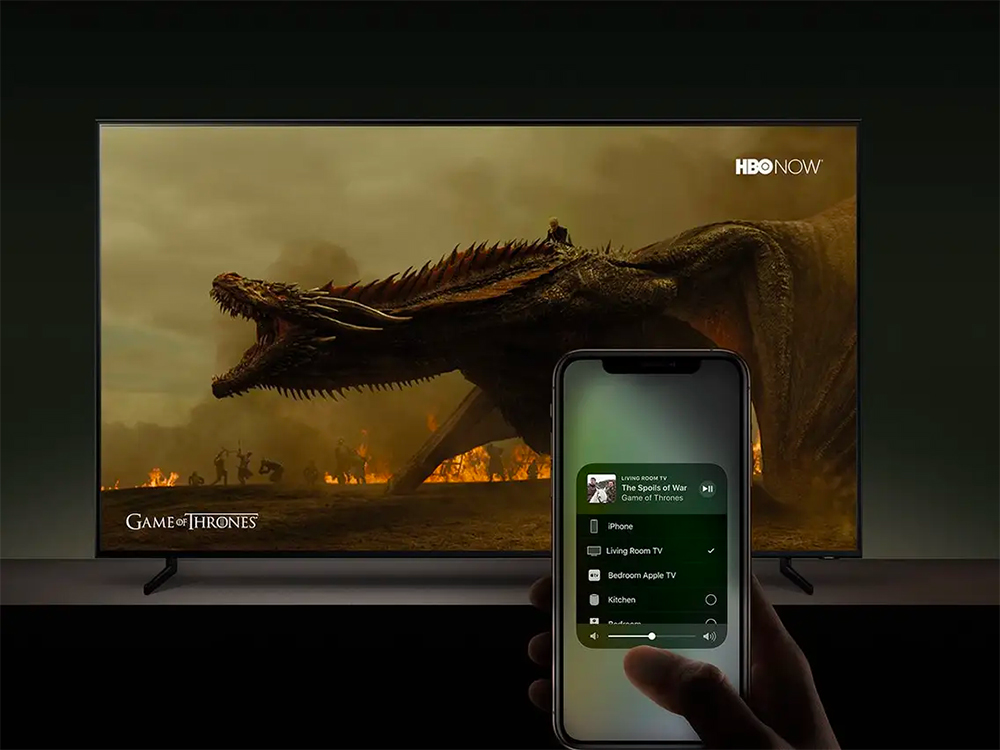
How do I use AirPlay to mirror content from other Apple devices to my Mac?
What is AirPlay?
First, let’s briefly talk about what AirPlay is. AirPlay is Apple’s native media delivery solution, like Google Chromecast, but built into Apple devices, third-party speakers, and smart TVs. By default, iPhone, iPad, and iPod users can cast their screen to Apple TV or any other AirPlay-equipped device.
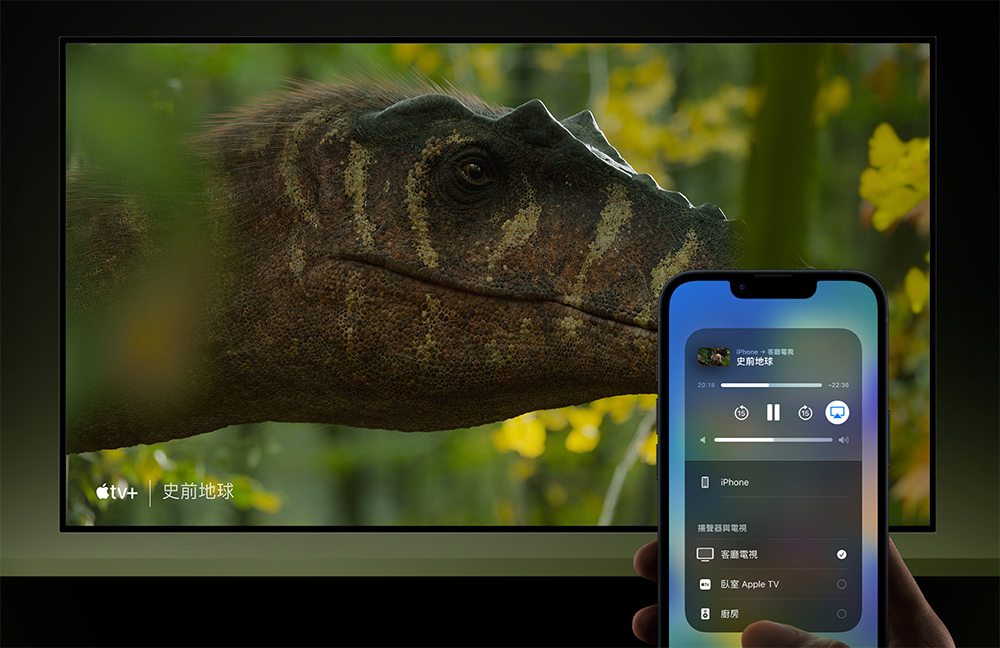
As long as both devices are connected to the same Wi-Fi network, this feature should work as expected. Users can share what they’re doing on their Apple devices or cast the video they’re watching to the big screen. They can also AirPlay for audio-only streaming, making them a very handy utility for family gatherings.
AirPlay on Mac
There have long been third-party apps that can turn your Mac into an AirPlay server, but most of them are paid software, making using AirPlay a barrier to a large portion of users. Additionally, they require setup after downloading, and the steps aren’t as simple as the average user might expect, not to mention the occasional interruptions and delays. The bottom line is that these third-party apps, while useful, are inconvenient for most people.
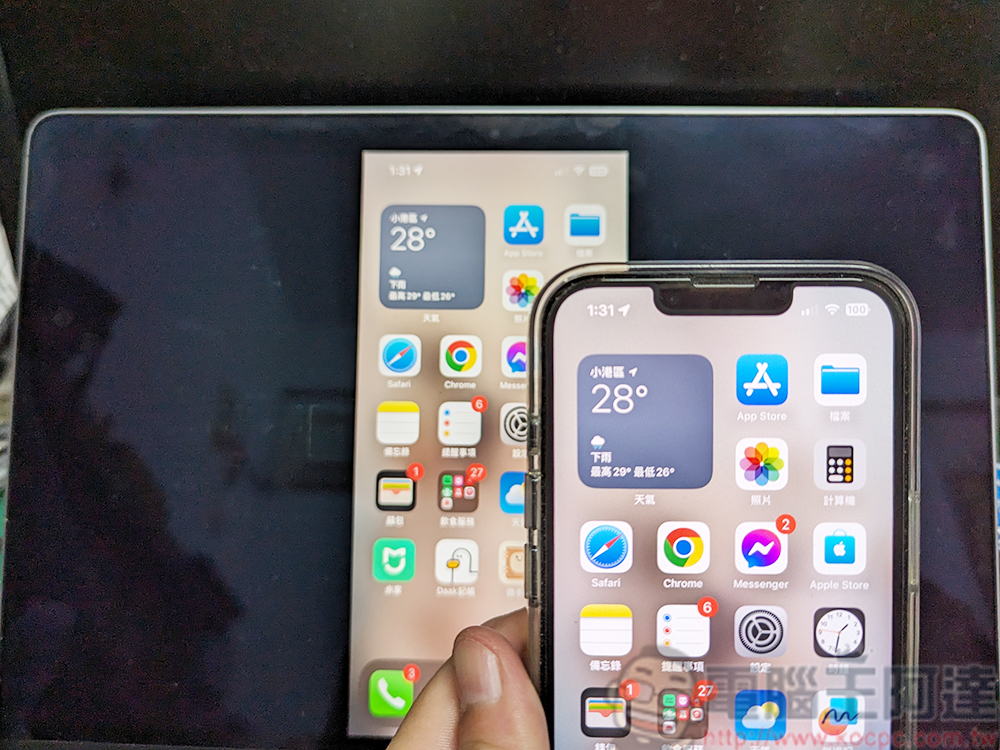
Set up AirPlay streaming on Mac with macOS Monterey and above
Since macOS Monterey, Apple has made AirPlay in Mac easier to use. You only need to set it up briefly to start streaming. If your Mac is already on macOS Monterey or later, you can follow the steps below to use it.
- Make sure your Mac and Apple device are connected to the same Wi-Fi network.
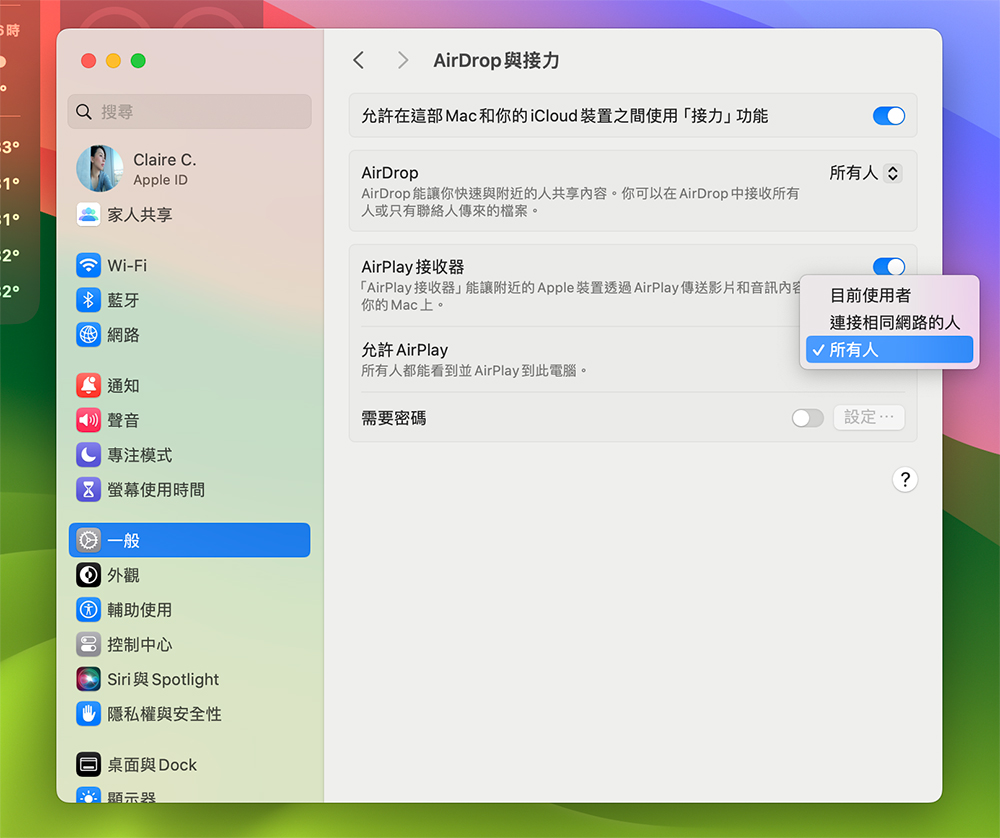
- Confirm that both devices are logged in with the same Apple ID. Or go to “Settings >> General >> AirPlay & Handoff” and change the “Allow Airplay” item to “People connected to the same network” or “Everyone”.
- Next, open the Apple device you want to launch (here I use an iPhone) and enter the “Control Center”.
- Click “Screen Mirroring” and your Mac should show up in the list of available casting devices.
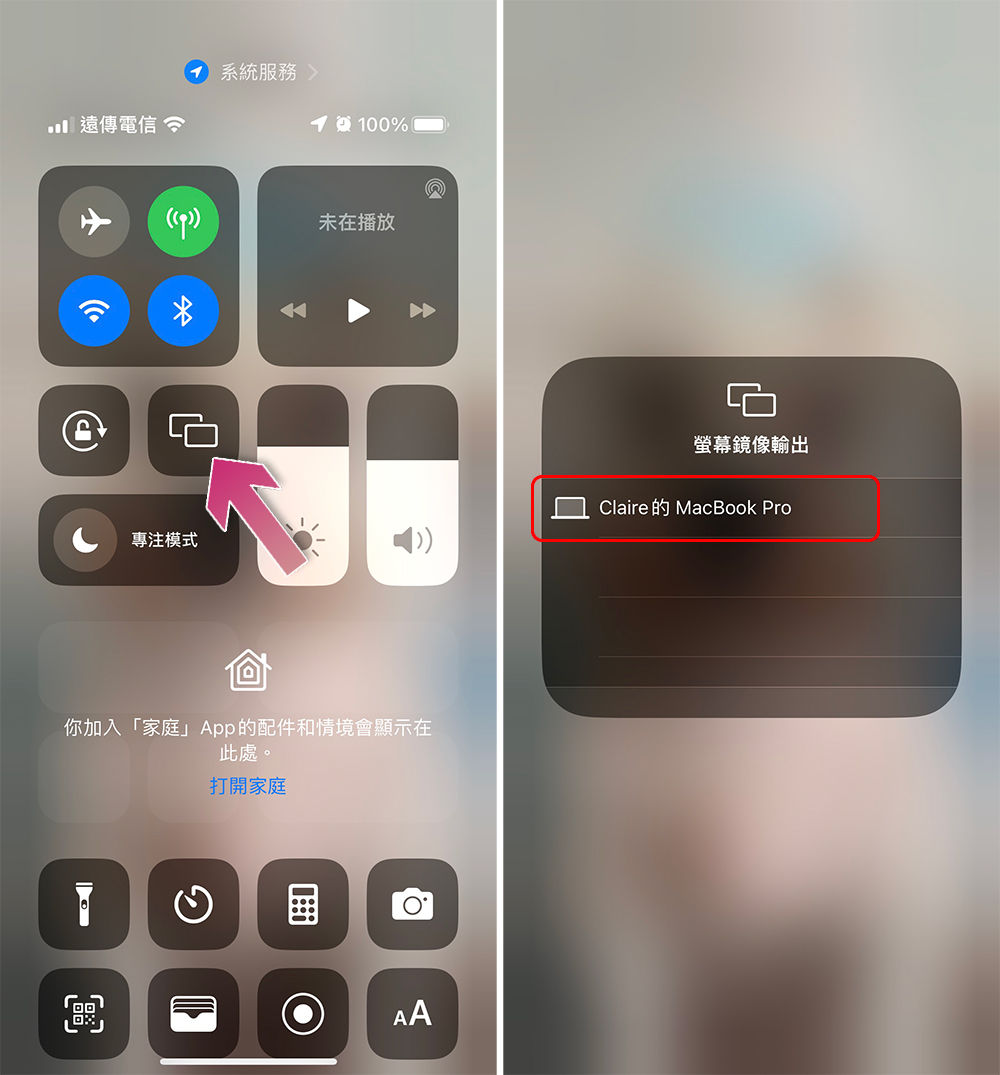
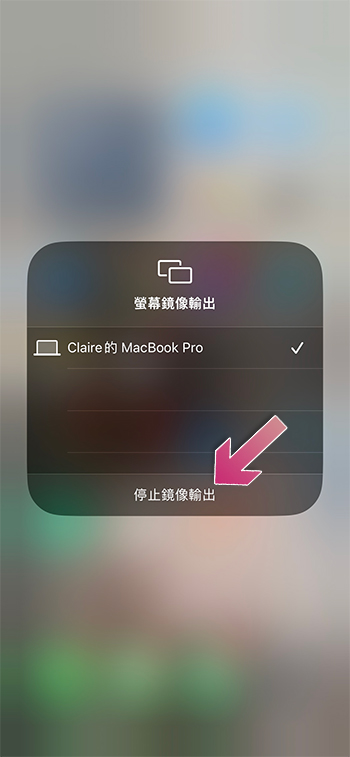
- Clicking on the Mac’s name will automatically drop the Apple device there. In the case of screen sharing or video playback, the Apple device’s screen will replace the original Mac screen. If it’s audio only, your Mac will become a wireless speaker for Apple devices, and the screen can continue to be used. If you want to stop mirroring, you only need to go to the Control Center and click Screen Mirroring again to see the “Stop Mirroring Output” option.
Source: KOCPC Chinese