


There are many excellent podcast programs abroad, but for those who aren’t proficient in foreign languages, listening can be quite challenging. This article recommends a very useful free app called Be My Ears, which gives iPhones real-time subtitle translation capabilities, powered by an AI model. In my testing, it works not only for podcasts but also for other video apps, meaning that even if the video app you want to use doesn’t offer Chinese subtitles, you can still use it to achieve real-time translation.
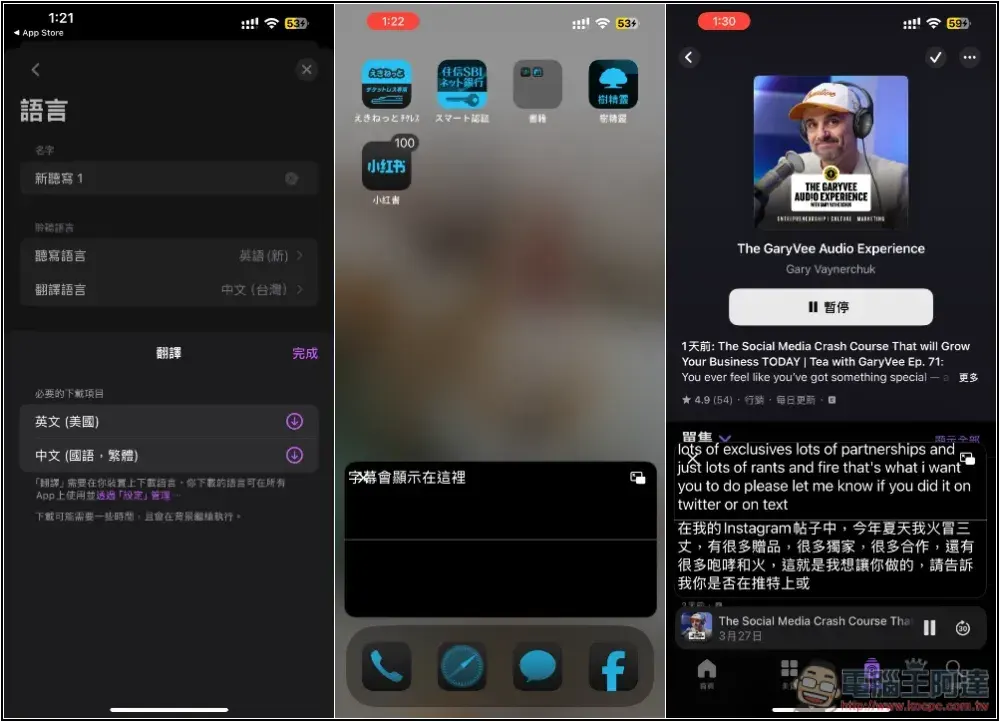
Be My Ears lets iPhone display real-time subtitle translation, supporting both apps and microphones.
Be My Ears is an app that uses AI models to generate subtitles and translate in real time. It handles 5 use cases, including local real-time subtitle translation, online meeting recording, real-time translation, multilingual subtitles, and app recording. It is currently completely free to use, though it’s uncertain whether it will become paid in the future.
Also, although this app can indeed do real-time translation, when it comes to reading, I find real-time subtitles a bit hard to read. At this stage, I think it’s more suitable for listening to podcasts.
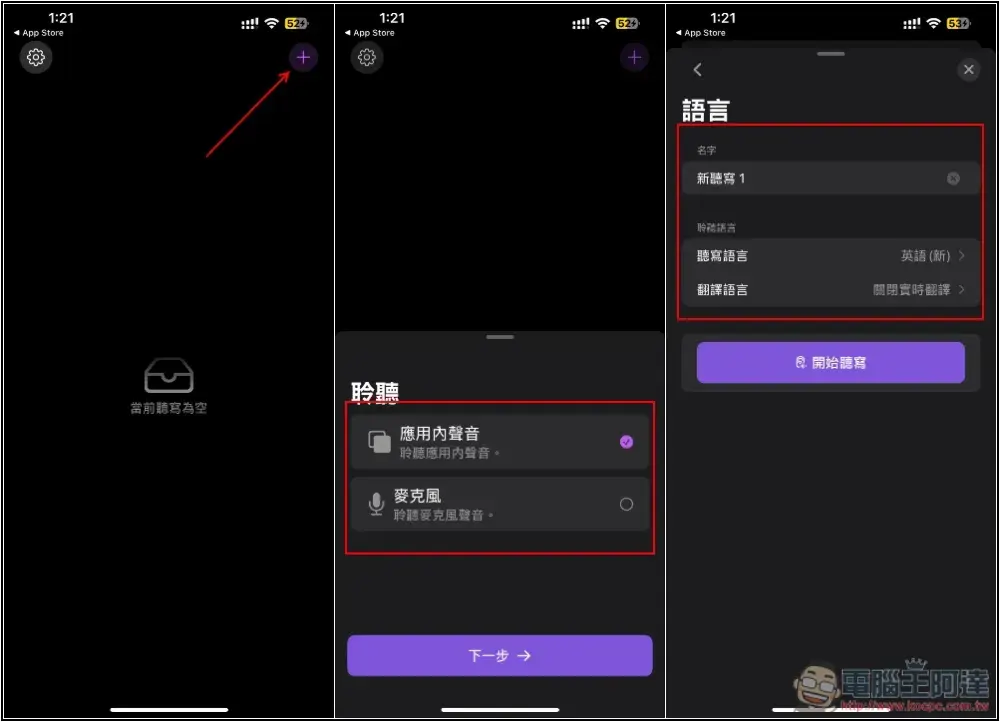
The interface is simple. After opening the app, tap the + in the top right to add a new task. Choose how you want to record audio. For apps like Podcasts, select “In-App Audio.” It also supports the microphone. Next, you’ll go to the listening language settings screen. You can set the task name first and confirm the dictation language is correct. If you don’t need translation and just want real-time speech-to-subtitles, you can turn off the translation language. To translate in real time, tap Translation Language.
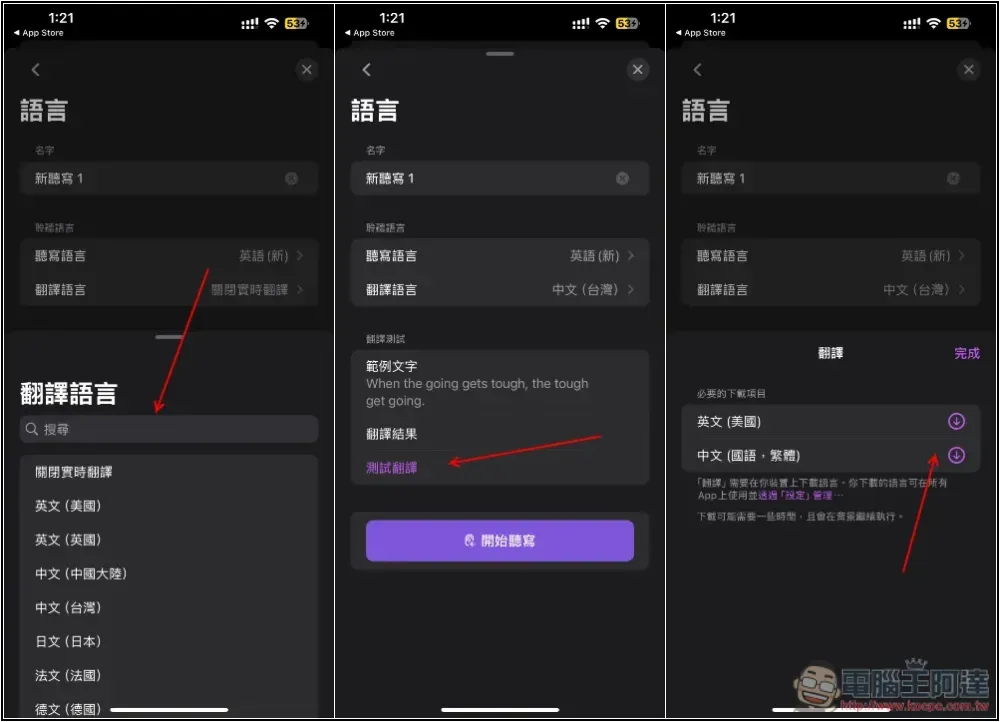
Select the language you want to translate into; for Traditional Chinese, choose Chinese (Taiwan). After selecting, click the “Test Translation” button below. On first use, you’ll need to download the model — click the download icon next to it.
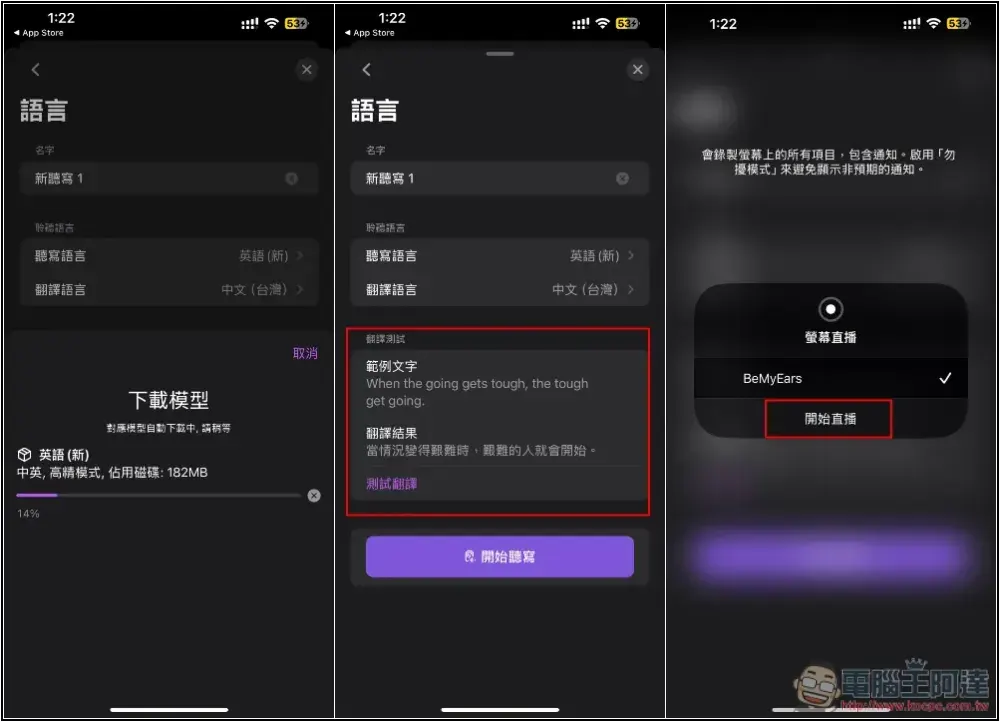
The model file isn’t very large. After the download finishes, if translation results appear, the setup is complete. Press start dictation and start livestreaming:
Next, enable the floating window. After returning to the home screen, you’ll see a subtitle display area appear on screen. Then play the audio/video content you want to translate—for example, when I play a foreign podcast, real-time English subtitles and Traditional Chinese translations appear. The floating window can be moved.
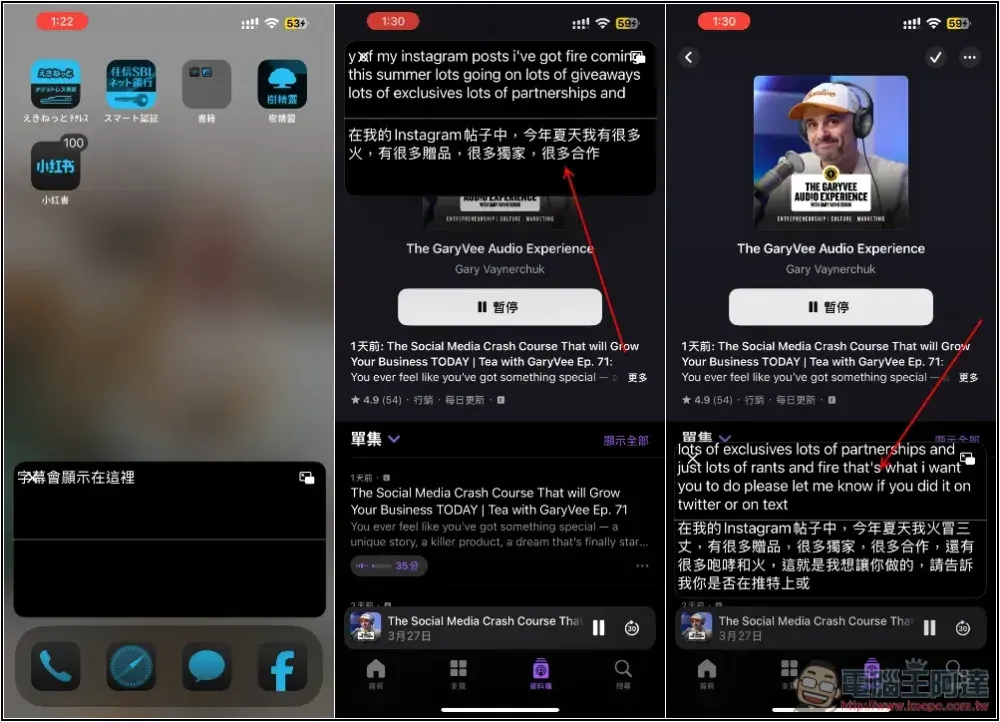
Unfortunately, it currently doesn’t display sentence by sentence but instead shows all the content at once, and it also adjusts the translation results based on the phrasing on the fly, making it quite hard to read. That’s why I said earlier that it’s not very suitable for video subtitles.
If it’s an audio program like a podcast, you can also return to Be My Ears and listen while reading real-time subtitles and translation results in full screen:
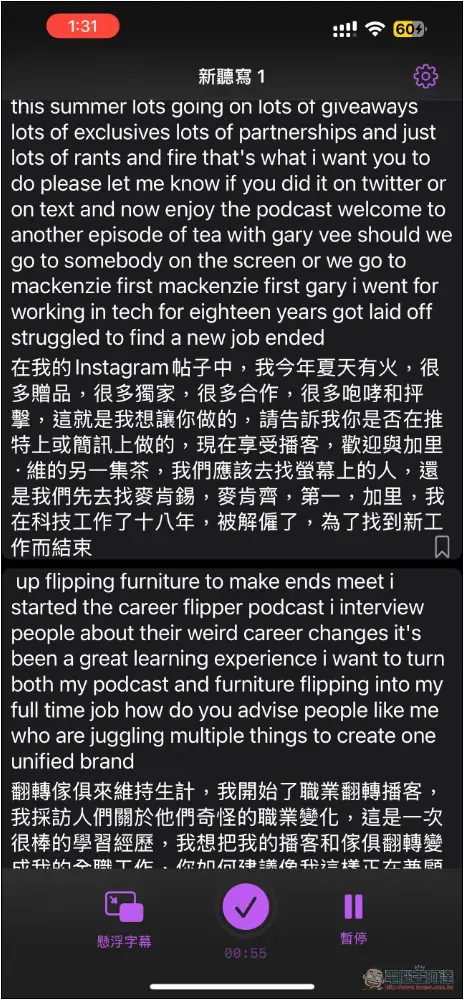
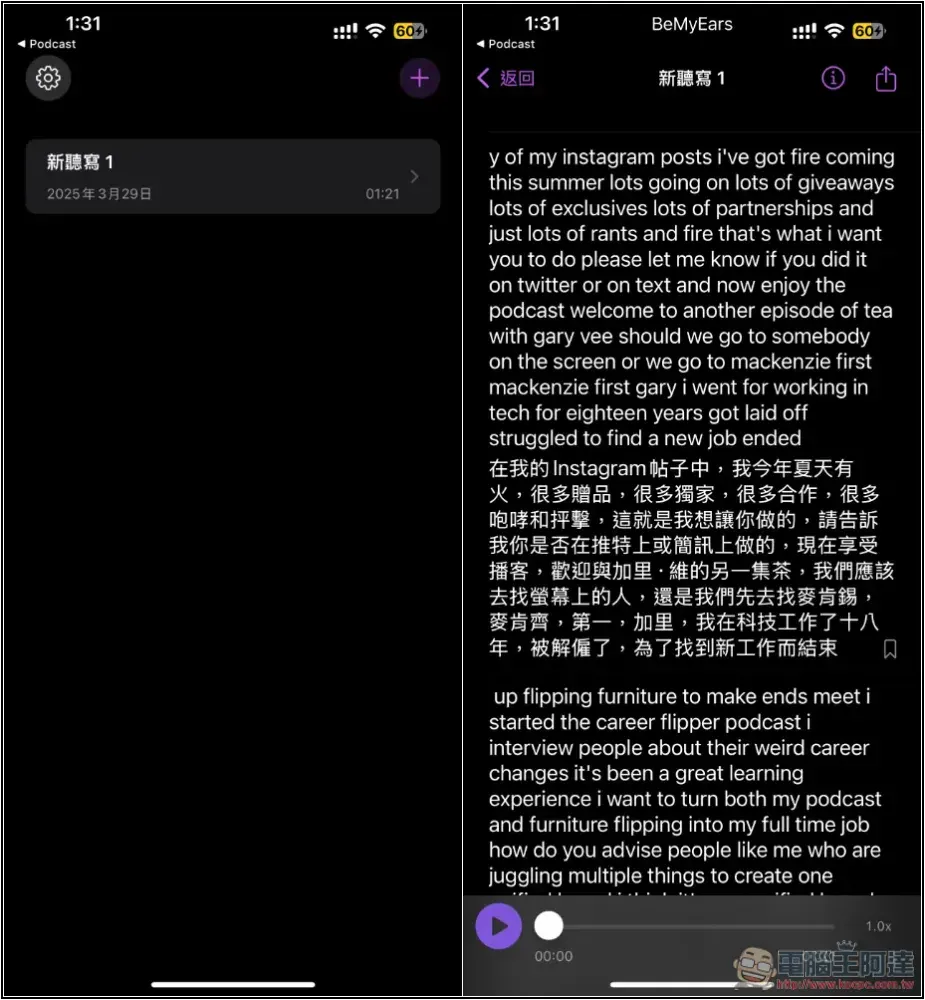
After pressing stop, the transcribed text and translation from just now will all be saved:
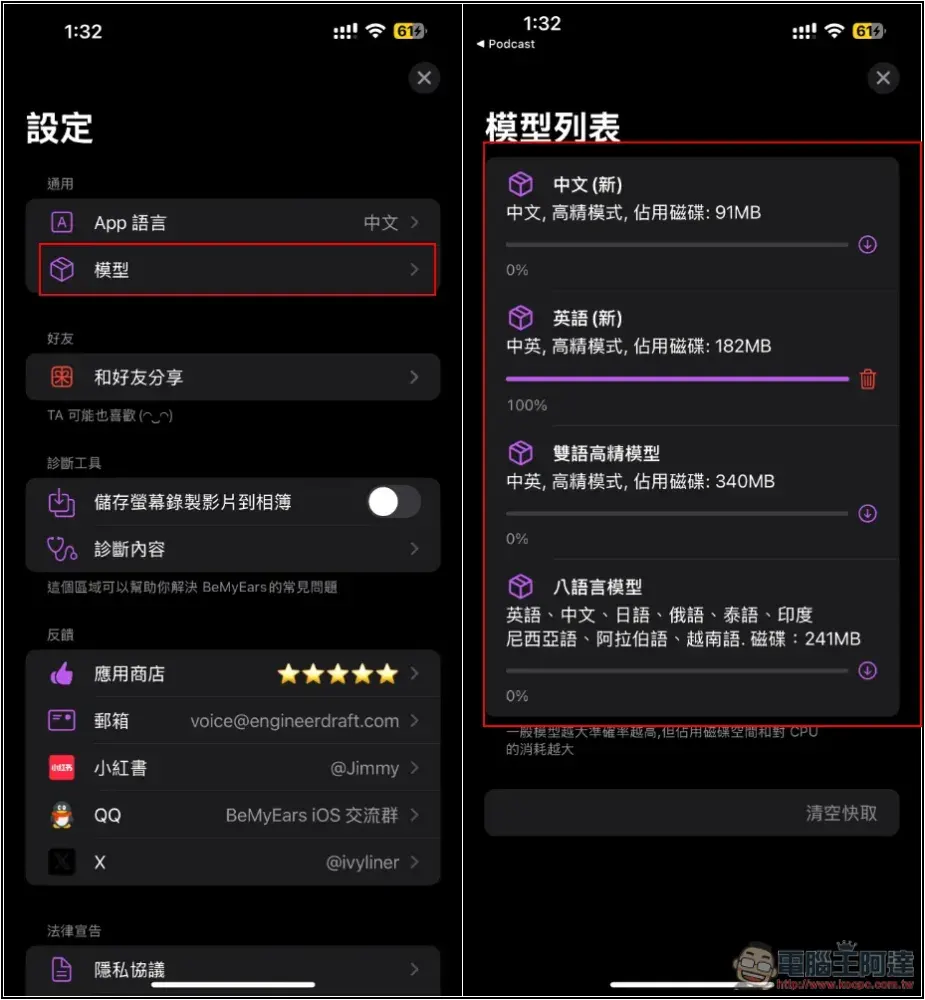
In the settings, you can find the model management menu. If you’re not satisfied with the translation results, you can try another bilingual high-precision model. The model size is almost double the default download, so logically speaking, the accuracy should be higher:
Currently there are no paid purchase options visible in the app, so it is completely free to use and has no ads either. However, I noticed that the App Store listing page shows in-app purchase options, which suggests a paid mechanism might be introduced in the future.
Source: KOCPC Chinese