


Although there are many free compression tools on the Internet, they all need to be uploaded to the website server and are not suitable for large files. Some friends are also worried about security issues. At this time, you can consider using the FileOptimizer free compression software. It supports hundreds of common formats, not just pictures, videos, PDFs, and Office files, but also compressed files (this is really amazing). It also claims to be lossless compression. Let’s quickly introduce it to you.
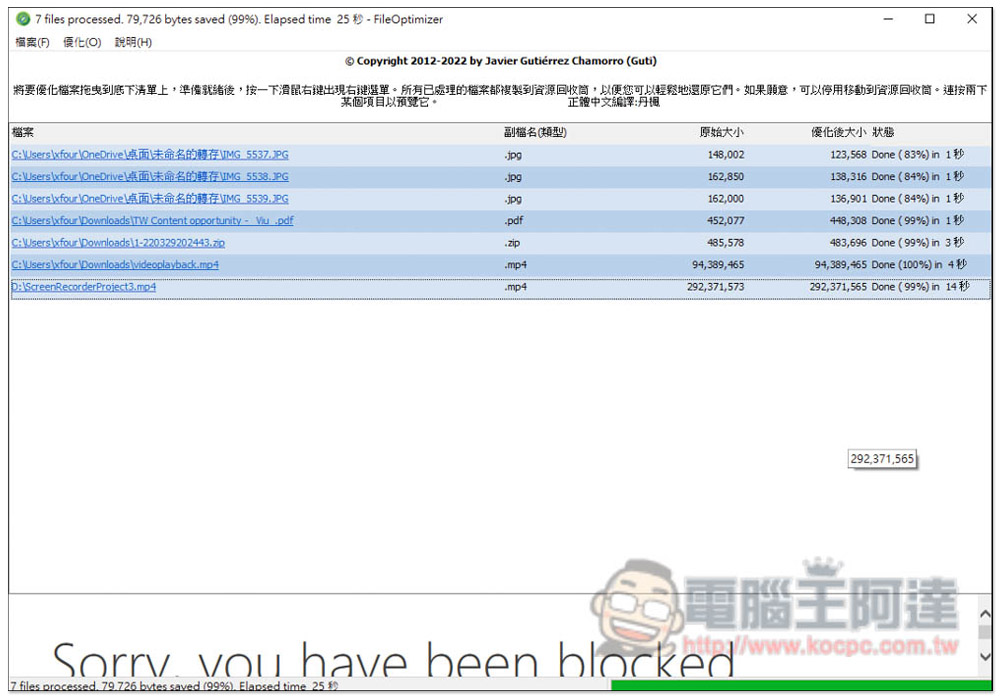
FileOptimizer supports lossless optimization and compression of hundreds of common formats, including pictures, videos, Office files, etc.
- Click here to go to FileOptimizer official website
- Click me to go to the FileOptimizer download point (provided by the official website)
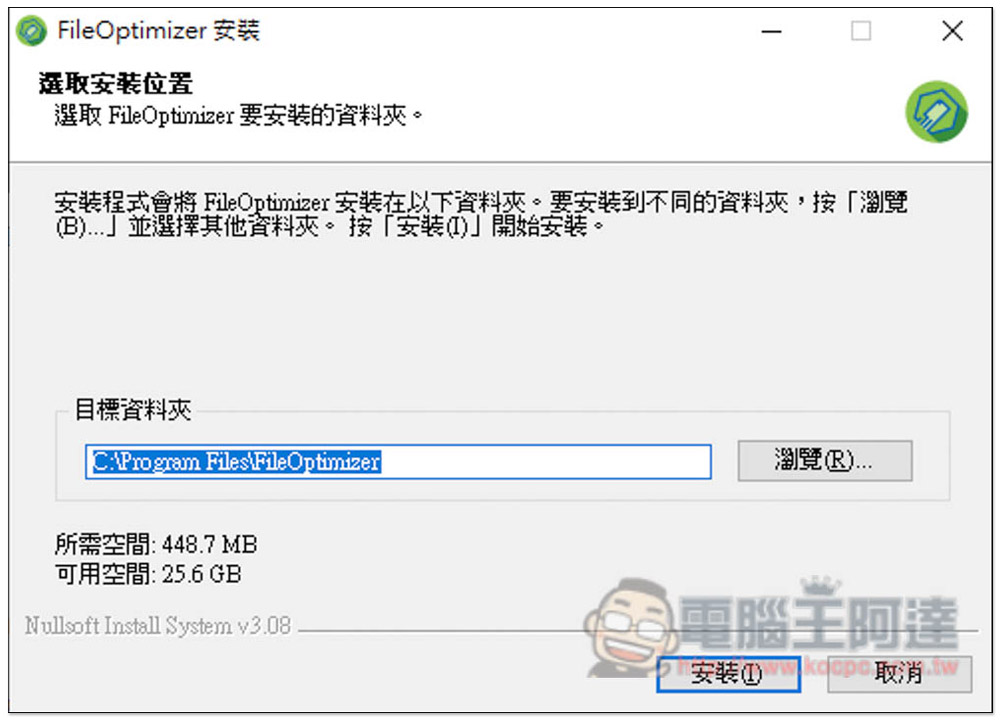
FileOptimizer supports Traditional Chinese interface, so there should be no problem in using it. Just keep pressing Next during the installation process. Approximately 450MB of storage space is required:
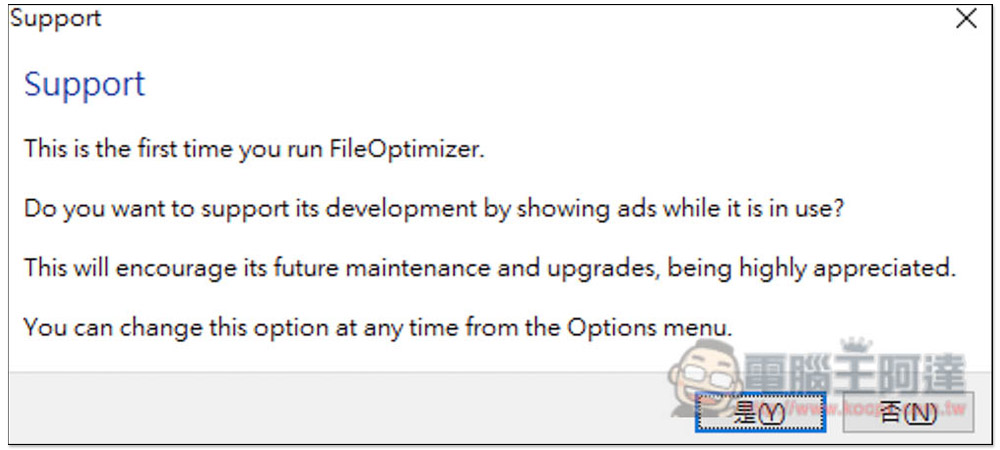
When you open it for the first time, you will be asked whether you want to display ads and support them. You can decide freely. If you really don’t like ads, click No. If you want to support, click Yes. Regardless of whether there is support or not, it is completely free to use:
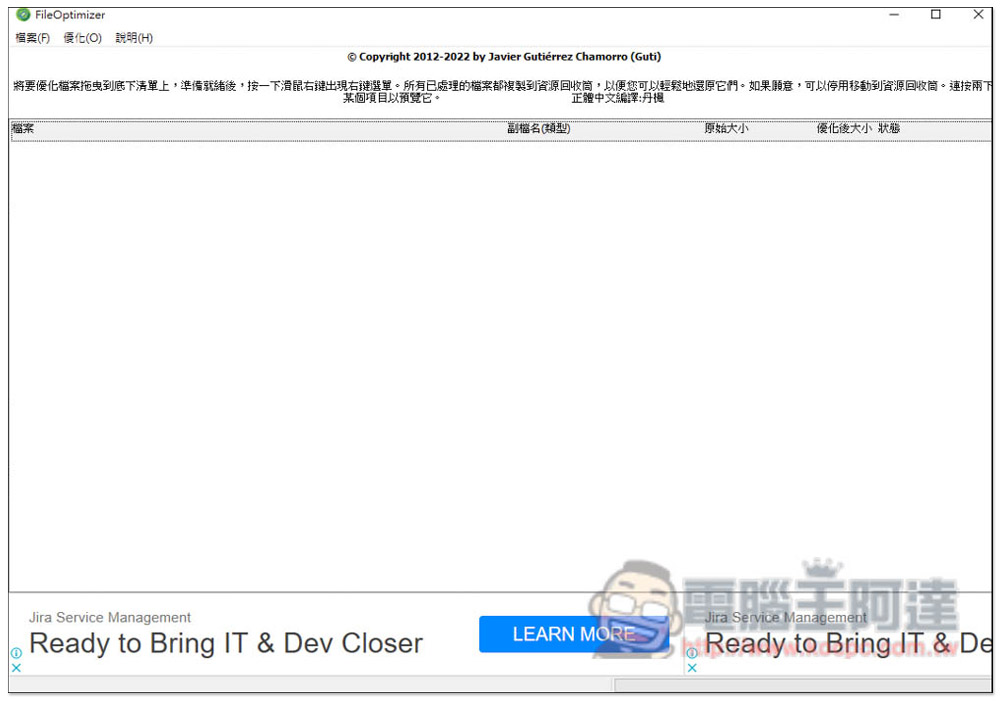
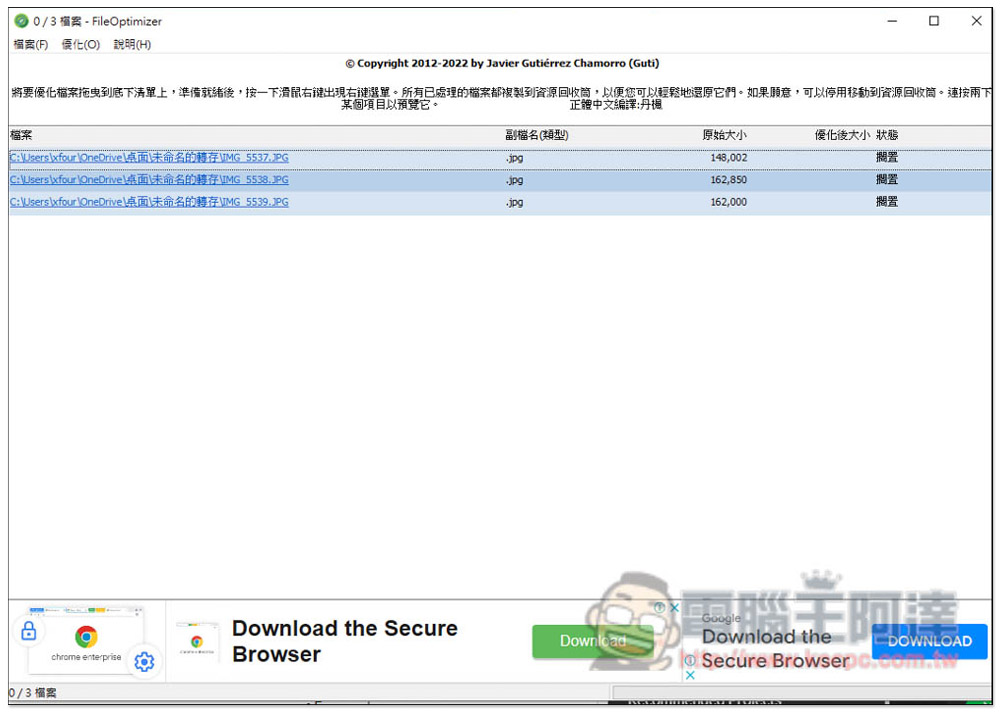
The operation interface is very simple and does not have many functions. After opening it, you can drag in the files you want to compress. You can drag multiple files at once. It does not matter whether it is supported or not. As long as it can be dragged in, it means it can be compressed:
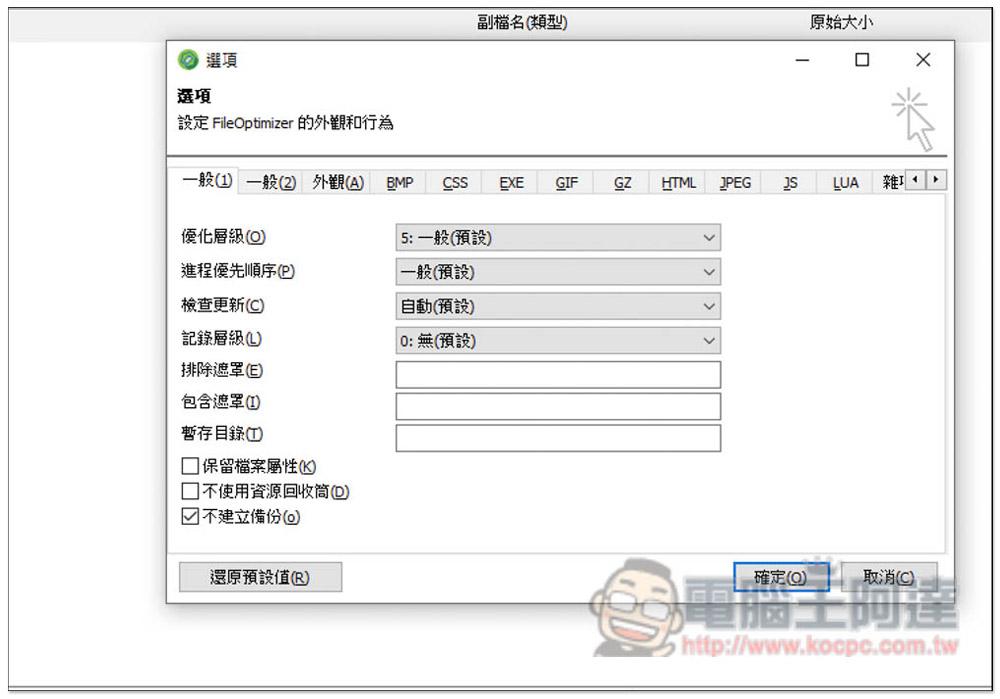
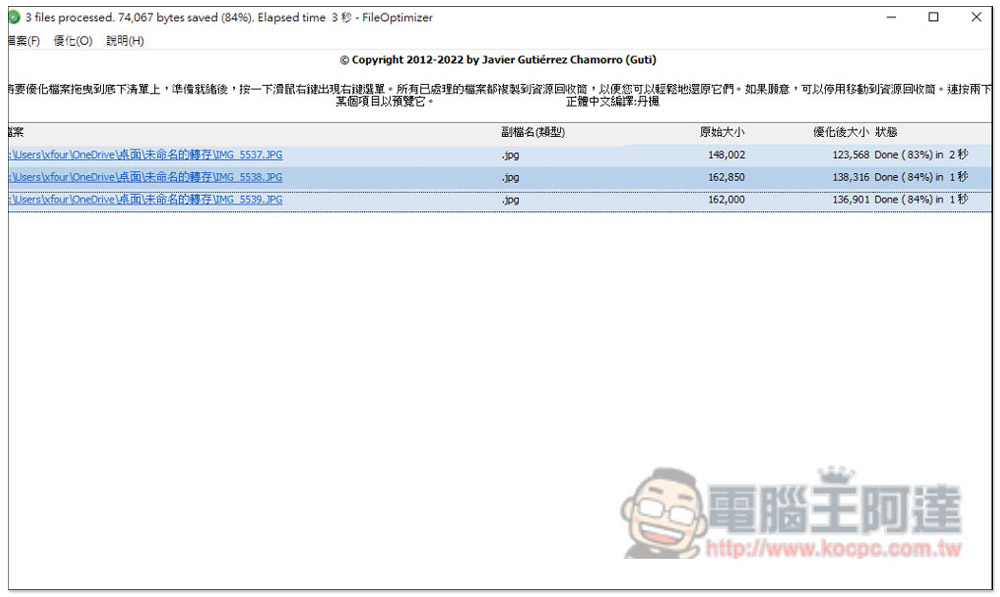
Like I tested 3 pictures first. After dragging them in, the file extension and original size will be displayed. Another thing to note is that after this compression, the default is to directly overwrite the original file. If you want to keep it, remember to adjust it in Optimization -> Options first:
As shown in the figure below, uncheck “Do not create backup”:
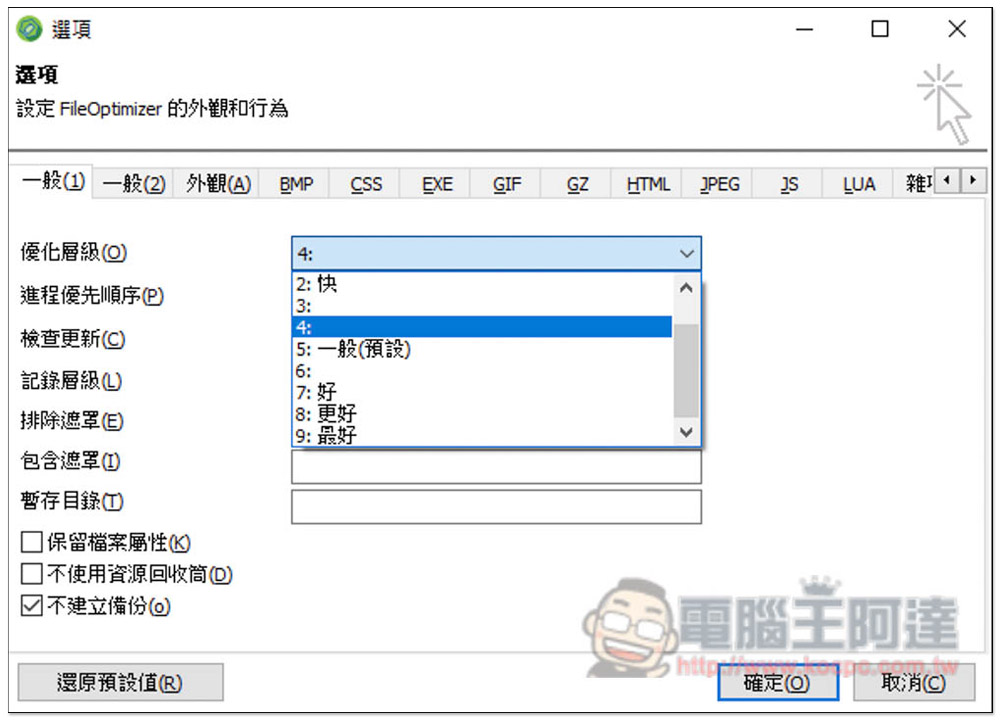
The default optimization level is normal. There are 0~9 levels in total, which means 10 levels can be set. You can try the default first and adjust if you are not satisfied:
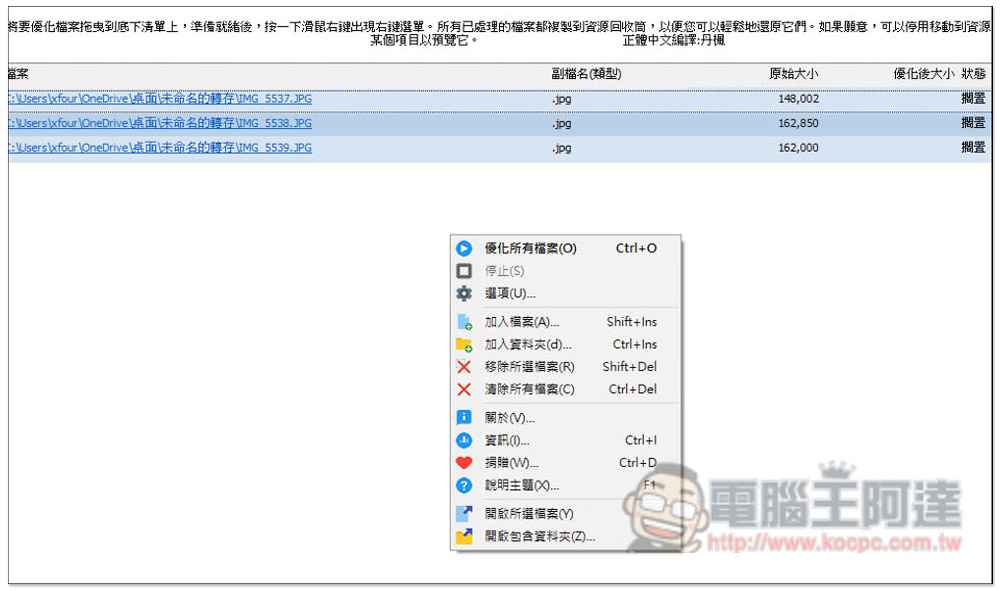
Right-click anywhere on the screen and open the right-click menu. You can find the “Optimize All Files” function. Click to start optimization. The shortcut key Ctrl+O is also supported. In addition to a single file, you can also drag a folder in to optimize all the files in the folder at once. This function is quite good. When you are short of hard disk space, you can drag a folder that stores a large number of files in and optimize it to see how much it can be compressed to easily free up more storage space:
I use the optimization level and use the default. Compared with some compression tools, this compression is relatively small. Each file is only compressed by about 16%~17%. This may be due to the pursuit of losslessness:
Although PDF, ZIP, and MP4 video files are also supported, the compression rate is not high, only single digits, and the video cannot even be compressed at all. You can try raising the optimization level:
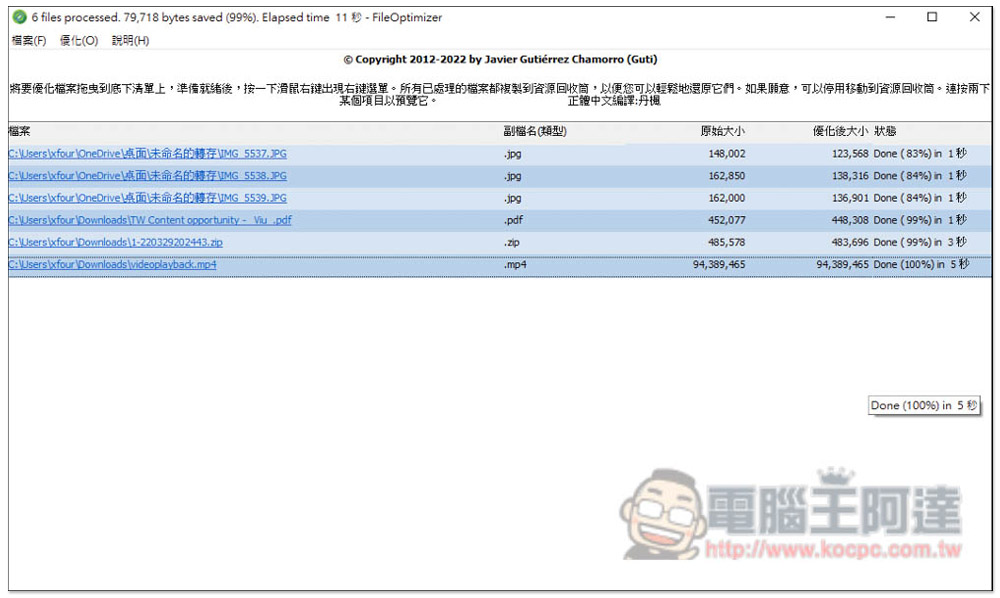
Overall, this FileOptimizer is more like optimizing files, trying to make files as small as possible in a lossless way. If you hope to compress the file size in large quantities, you may find other software that is more suitable, such as the one we introduced before. YouCompress、FileConverto、OptimizeImages、Optidash etc.
Source: KOCPC Chinese