


Affected by the epidemic, many people are now working remotely, and remote software has become very important. Not only must the remote functions be comprehensive, but the operation must also be smooth, so that you can work remotely as if you are in the office. In addition, extremely high security is also indispensable. AnyDesk is such an all-round remote desktop software. It is very simple to operate, supported by almost all platforms, and has all the functions required for remote operations, such as file transfer, video recording, text conversations, etc., and more importantly. “The speed is very smooth”, even if you need to directly control the company’s computer remotely, there will be no problem. I will share it with you below.
Click here to go to AnyDesk official website
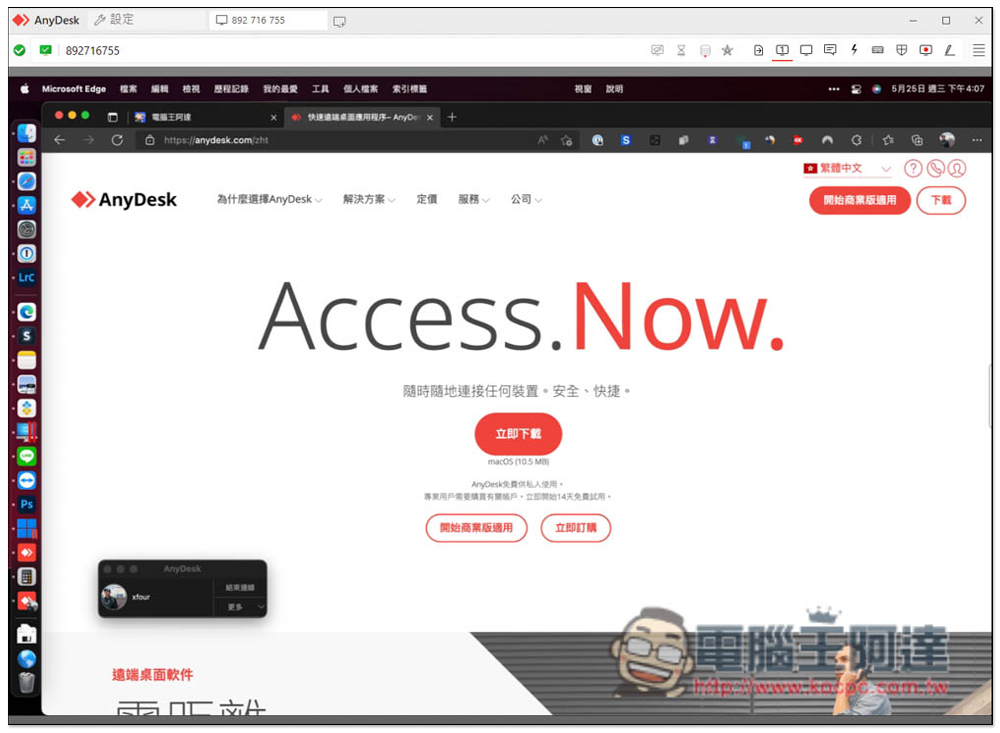
1. Easy to use and supports multiple platforms
AnyDesk supports multiple operating systems, including Windows, Mac, Android, iOS, Linux, and even Raspberry Pi, so it can definitely meet your remote work needs. It is worth mentioning that the Windows version was updated to version 7.0.8 last month. The biggest focus of this version is to fully support Windows 11. For users who have upgraded to Windows 11, you can use it with complete confidence. Detailed update instructions are availableClick me to read on the official website:
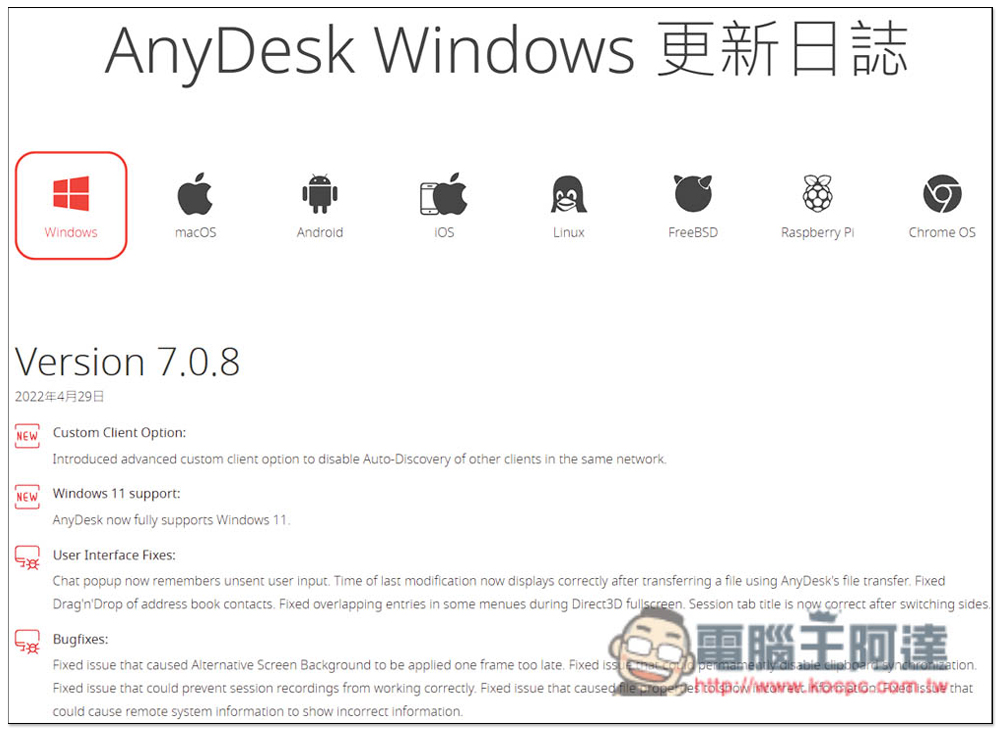
The method of use is also very simple. After downloading the software on both devices, you can start remote operations.
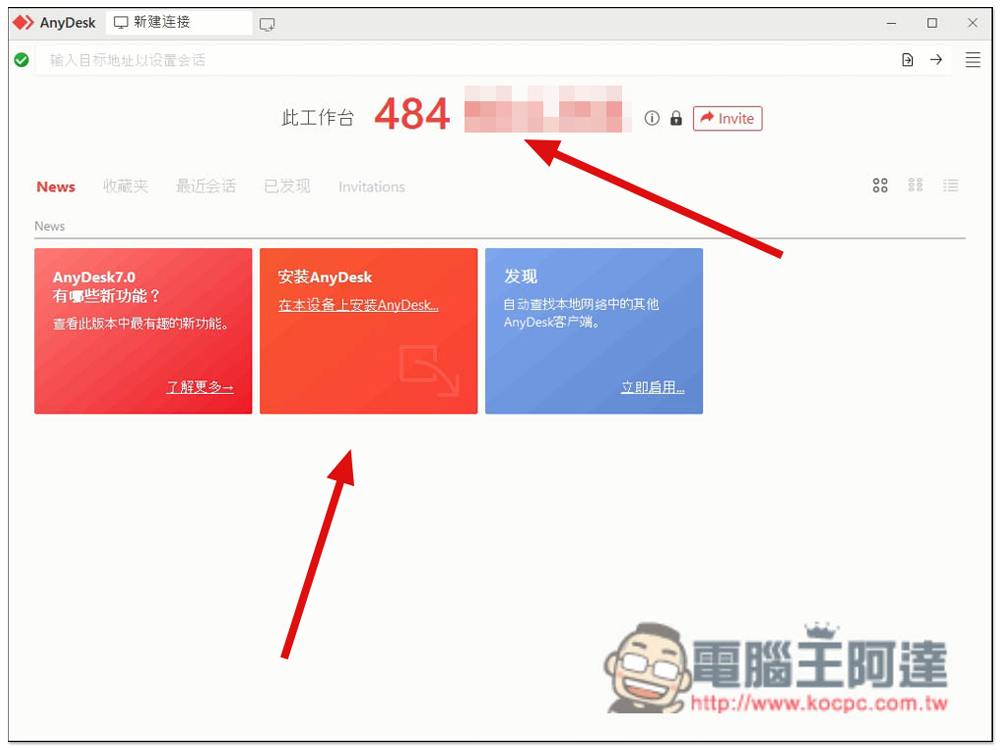
Taking Windows as an example, you can use it directly without installation. However, this is more suitable for situations where you only need a single remote operation, such as helping colleagues, family members, and friends to perform technical troubleshooting. Friends who work remotely for a long time still recommend the installation. Click “Install AnyDesk” on the screen. Each device is assigned a unique 9-digit number:
Enter the workstation number where you want to work remotely in the upper field to connect:
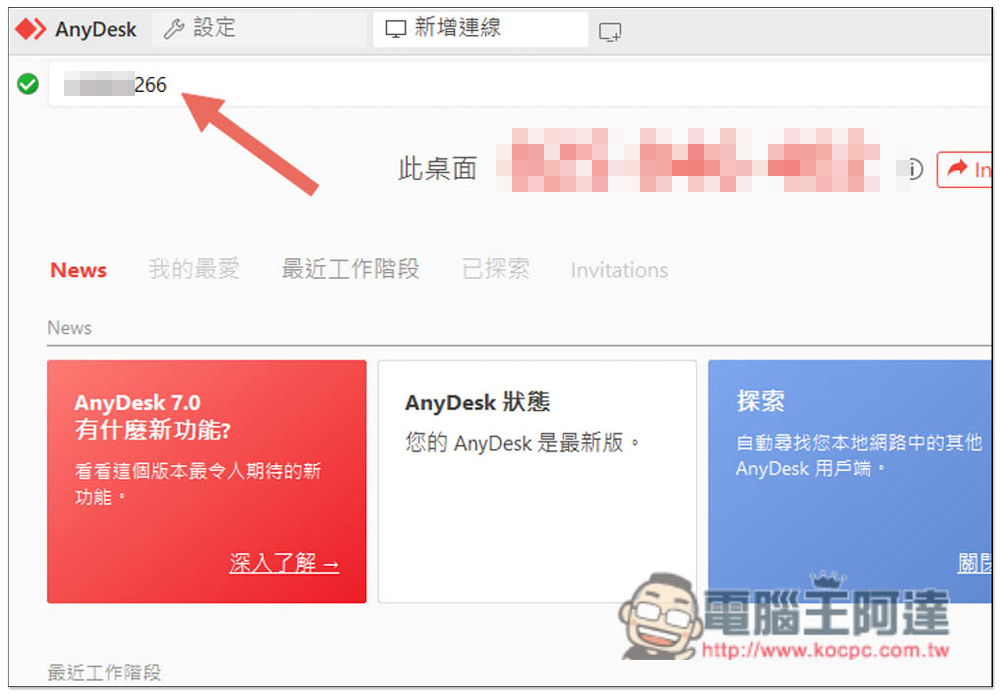
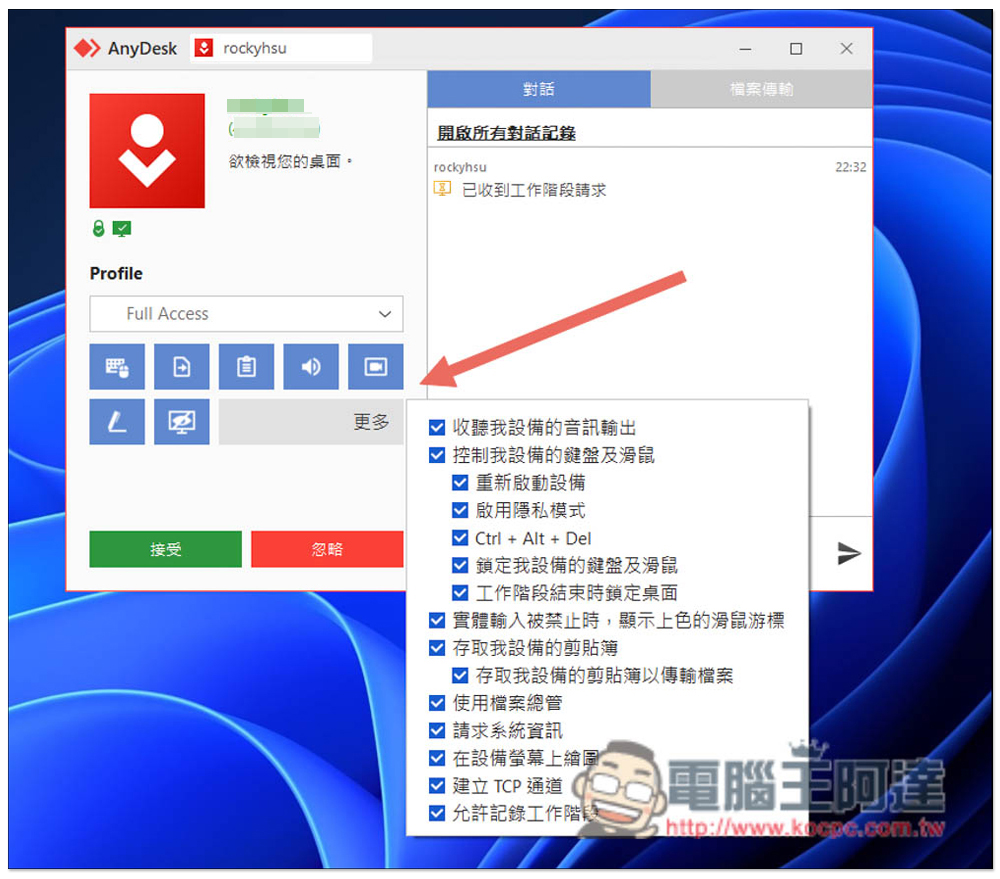
The remote device will receive this request and click Accept to start the remote operation. In the Profile section, you can set the permissions to be granted, such as whether to use file transfer, recording session records, keyboard and mouse, sound output functions, etc.:
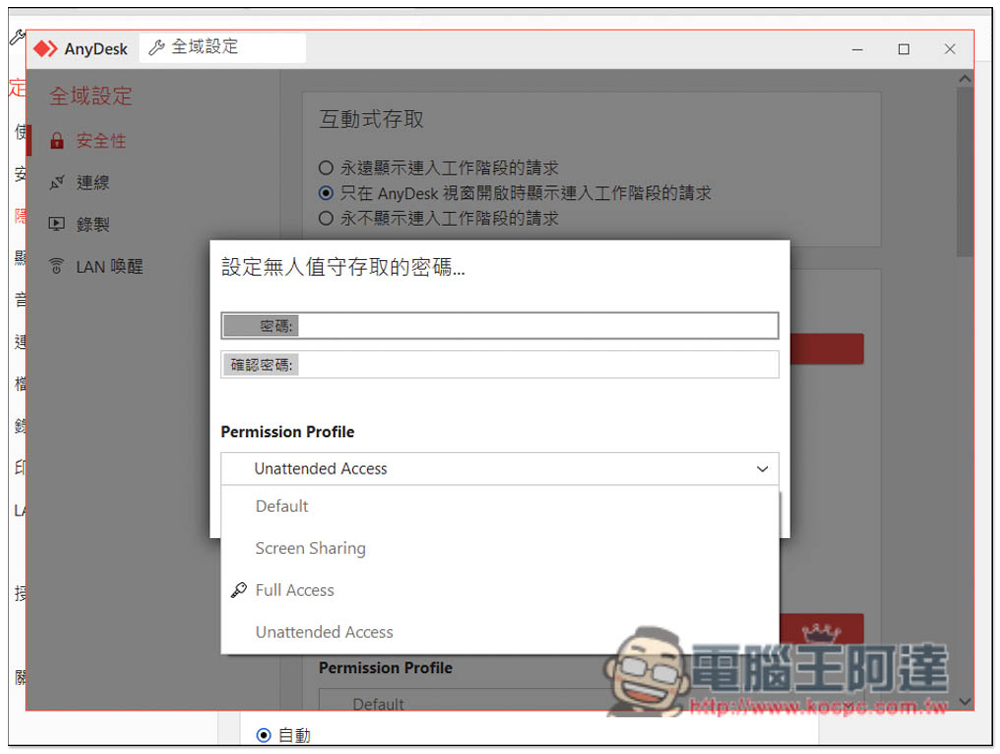
If it is a company or work computer, AnyDesk also provides the “unattended access” function. After setting the password, when connecting to this remote device in the future, you only need to enter the password to enable the remote connection without manually accepting the request. Permission Profile can also set permissions:
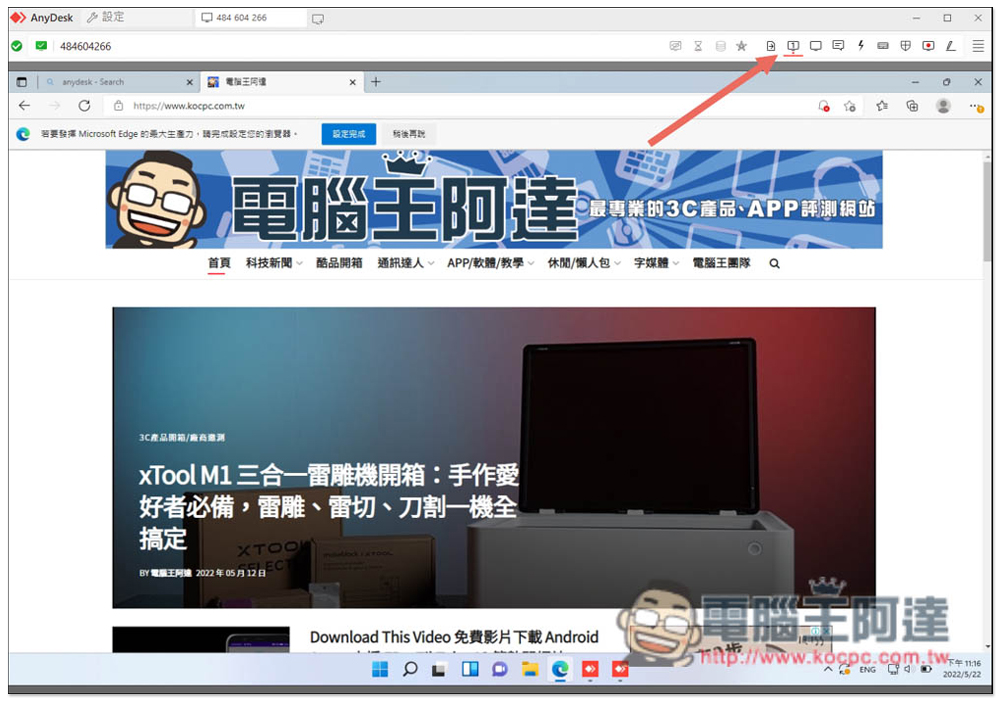
The picture below is the remote operation interface of the Windows version. The menu is located on the upper right and includes functions such as “Browse Files”, “Switch Monitors”, “Display Settings”, “Text Conversation”, “Actions”, “Keyboard Settings”, “Start Recording Session” and “Whiteboard”:
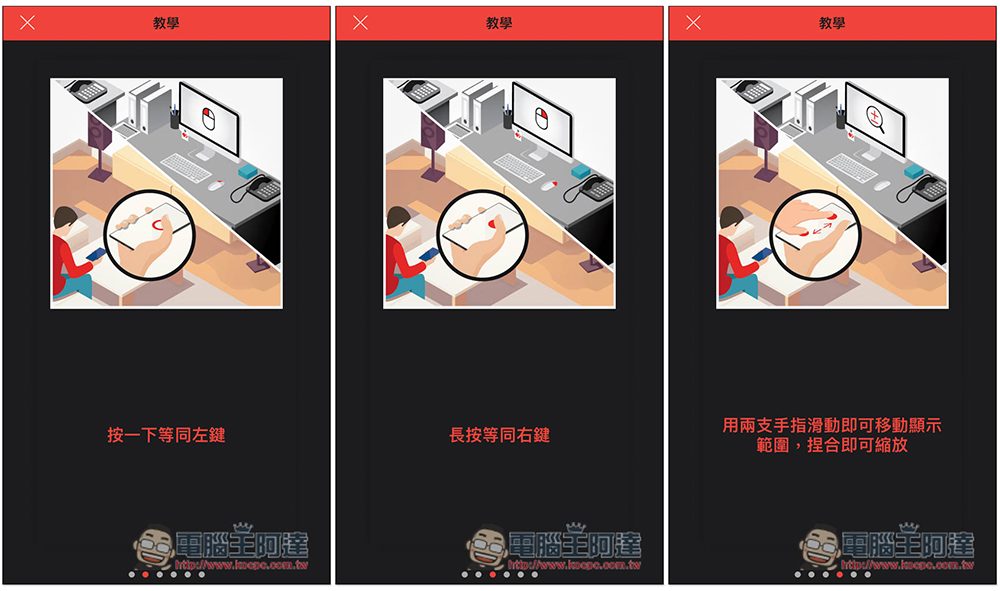
The connection part of the mobile version is also very simple. The picture below is of the iOS version. There will be a simple operation tutorial for the first time you use it. You should be able to do it after taking a look:
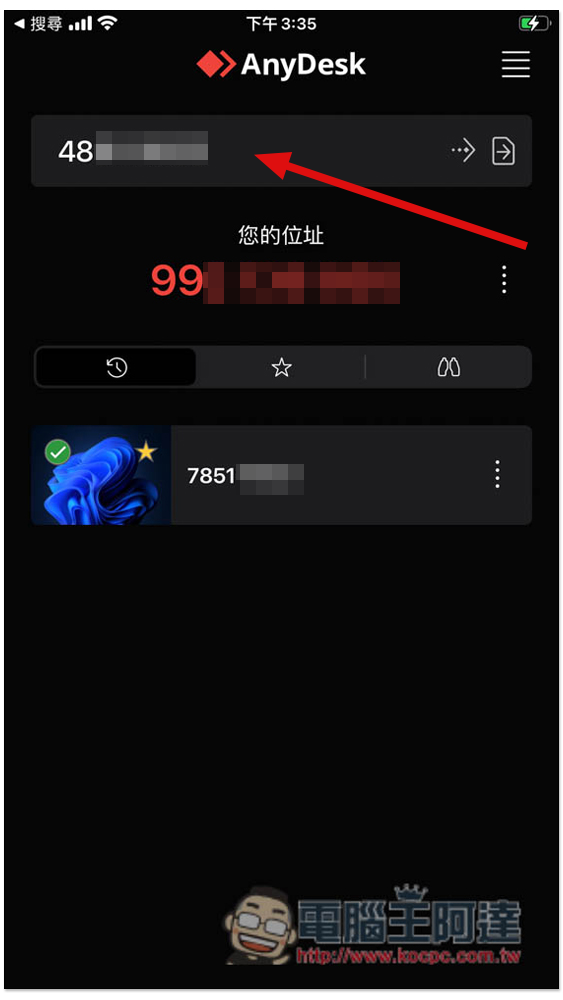
After opening it, enter the location of the device you want to connect to in the middle:
Then you will enter the remote desktop, which is in touchpad mode by default. You need to move the mouse to use the functions you want. In addition, it also provides a mode for directly clicking on the screen. Without a mouse, it depends on which one you prefer. I prefer the touchpad mode. The operation is more intuitive and it is less likely to press the wrong function:
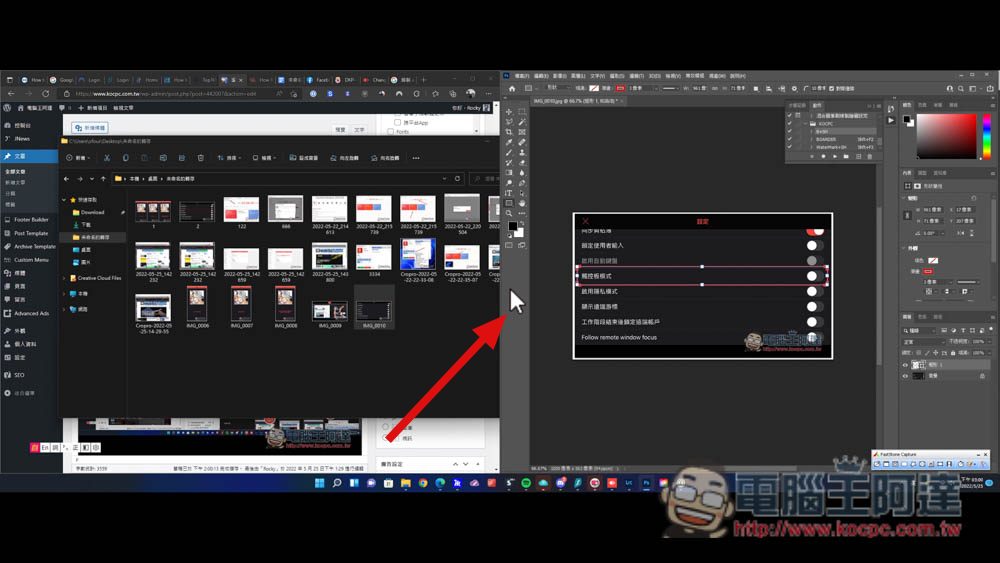
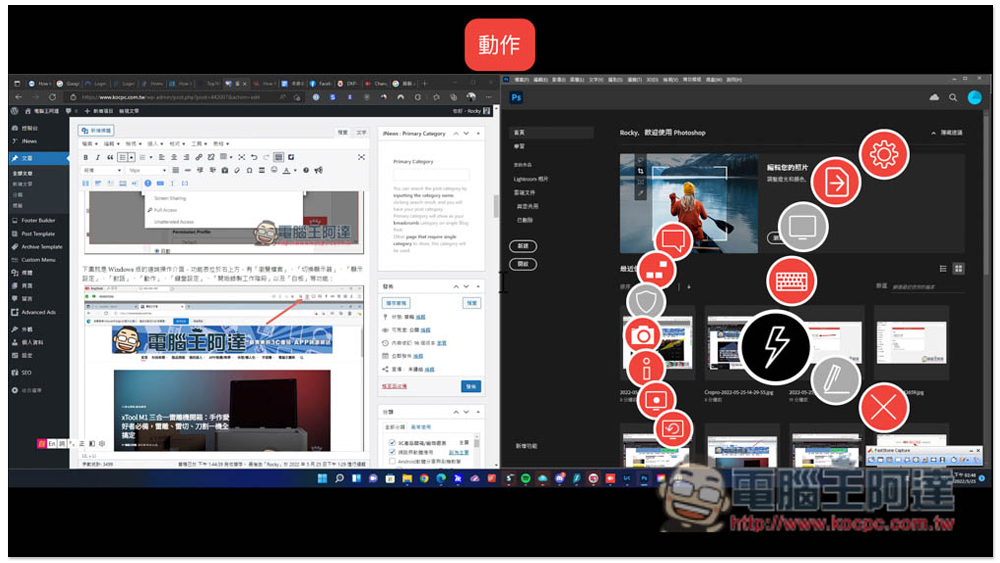
Swipe from the right to the left to open all menus:
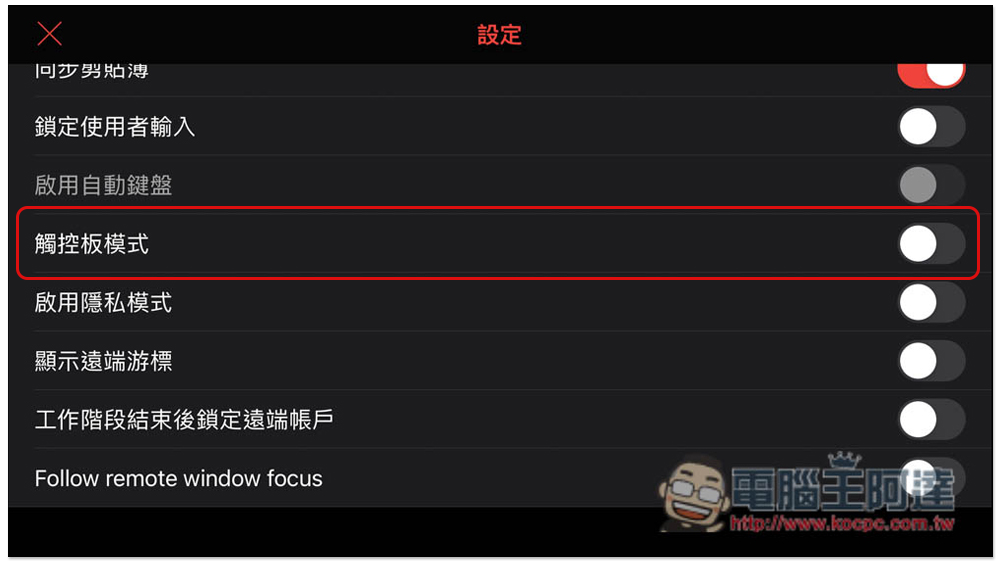
Open the settings and you will see the “Touchpad Mode” option. After closing it, the mouse will disappear and become a touch mode for directly clicking on the screen:
2. Smooth remote working connection quality, you can handle work remotely anytime and anywhere
For remote work, it is really important whether the connection is smooth or not. Only if it is smooth can it be like a person working in front of a remote computer, and all functions can be responded to immediately. A few days ago, I happened to be away from home and switched to using a laptop for work. I also took the opportunity to test the connection quality of AnyDesk for remote work. I have to say that it is really good.
All my work files are stored on my desktop computer. In the past, when I didn’t use remote software, I had to spend a lot of time organizing the files and storing them in the cloud the day before so that I could switch to working on my laptop. But with the AnyDesk remote software, I no longer have to do this step. When I want to work, I can directly connect to my desktop computer remotely. Typing and basic functions are very smooth. Especially typing, there is almost no delay. It is super convenient for a text worker like me. I am using AnyDesk when I type this article. Job:
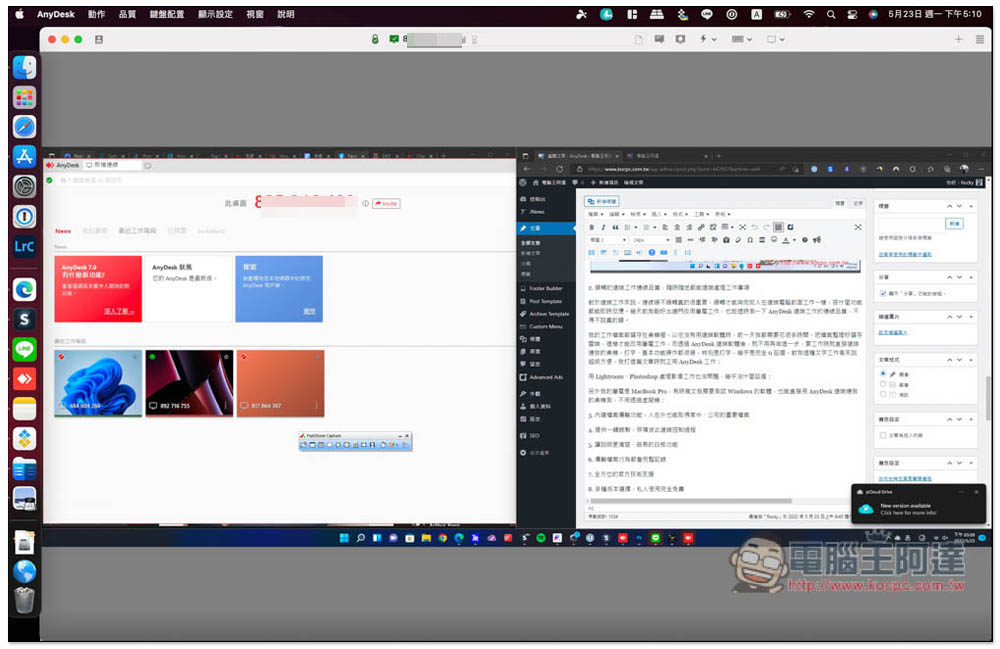
It’s no problem to use Lightroom and Photoshop to process image work, and there is almost no delay:
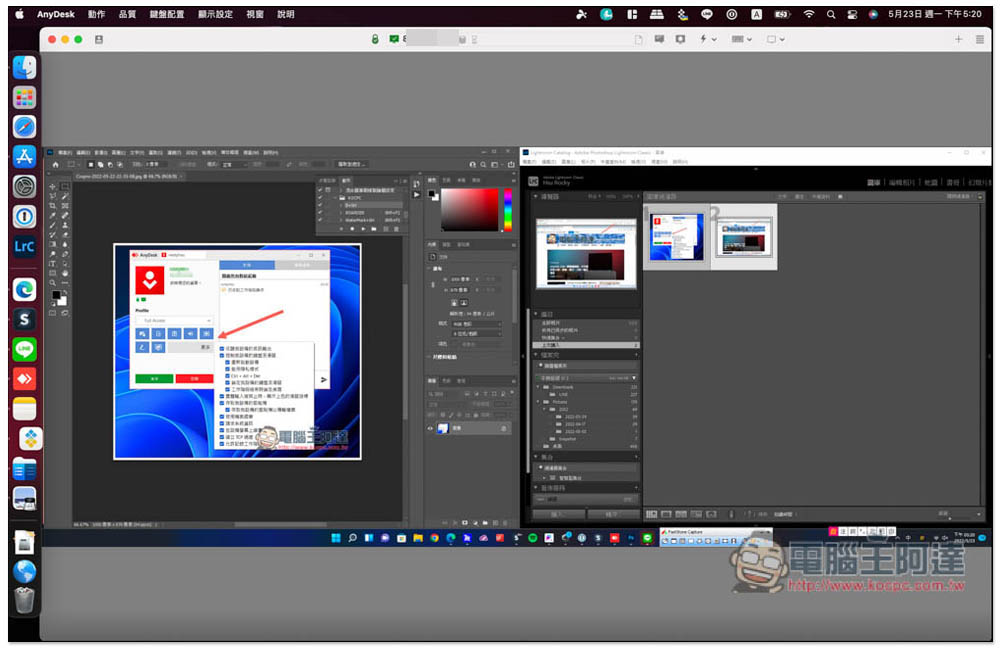
In addition, my laptop is a MacBook Pro. Sometimes I will test Windows software when writing articles. In the past, I had to use virtual machine software. Now I use AnyDesk to remotely connect to my desktop computer for testing. It is convenient and simple, and I don’t have to worry about the virtual machine not supporting it. I like this very much.
As long as there is an Internet connection, you can remotely log in to your computer to work anytime and anywhere.
3. Built-in file transfer function, people can access important files at home and company even when they are away.
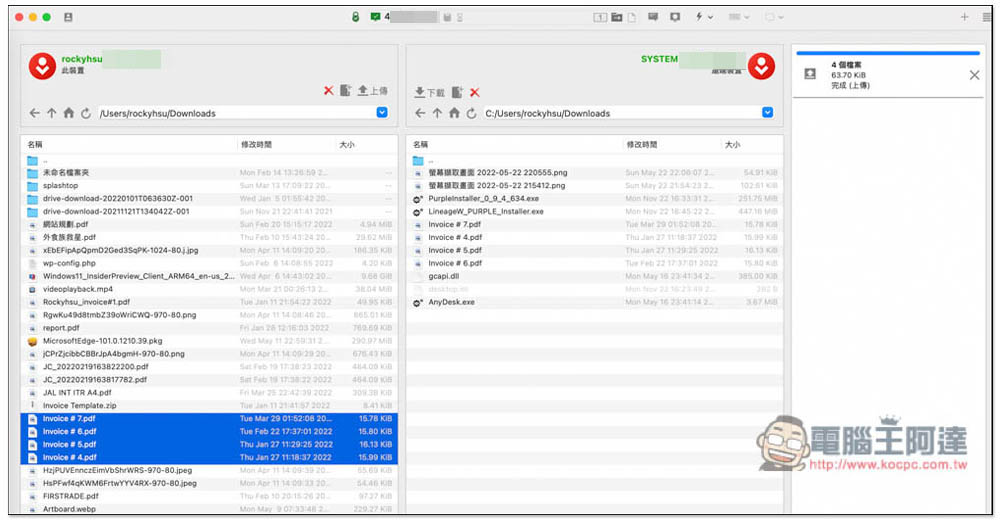
AnyDesk also has a very important built-in file transfer function. You can upload files to a remote computer or download files. Each transfer activity will be recorded so that both parties can know.
This file transfer operation interface is very easy to use. Your current computer will be displayed on the left, and the remote device will be displayed on the right. After selecting the file, click download or upload, and the file will start to be transferred, and the transfer speed is very fast. :
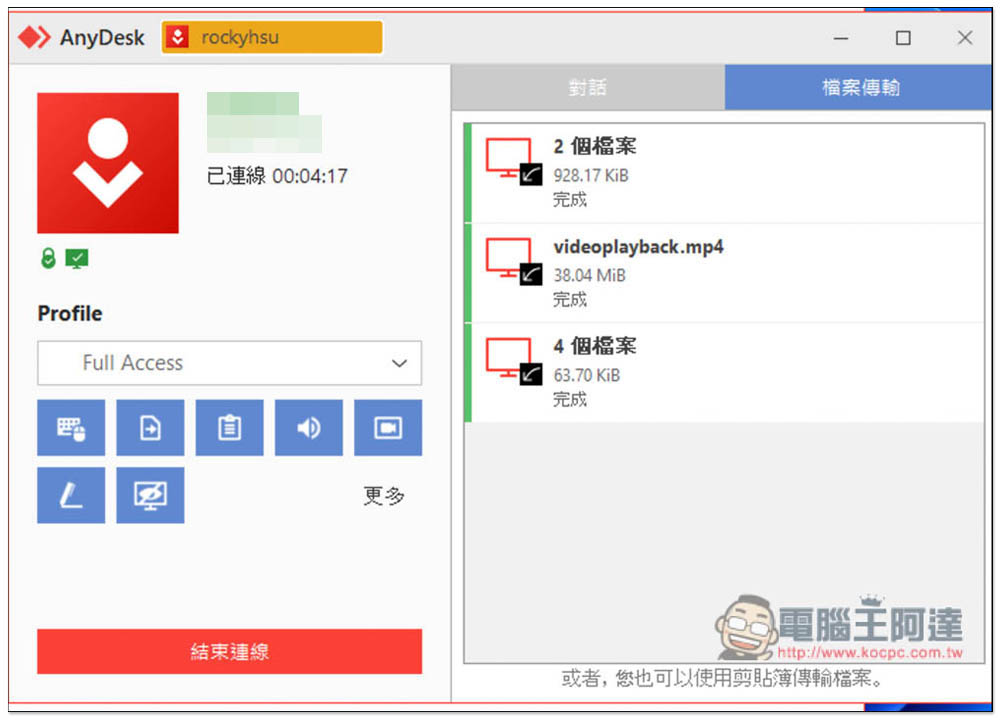
The picture below shows the AnyDesk control interface of the remote device. There is a file transfer page on the right, where you can check how many files have been transferred:
AES-256 encryption is performed during each file transfer to ensure that it cannot be cracked or stolen, so you can use it with complete confidence.
In addition, AnyDesk has many security features, including all remote connections having military-grade TLS 1.2 standard technology to prevent unauthorized connections, and using RSA 2048 asymmetric key encryption to authenticate each connection, making our remote work more secure.
For those who think that’s not enough, there’s also a two-factor authentication feature available, which requires a one-time password for every connection once enabled. In addition, when logging in to your my.anydesk.com account, you can also activate its two-factor authentication function to improve security requirements when logging in.
4. Provide one-click recording to protect your remote work process
The one-click recording function can be said to be very important. When working remotely, many companies and units will worry about security. Disputes may also arise when technicians help customers or company members repair computers remotely. In this case, record the entire remote operation. If you encounter any situation in the future, you will have video to protect yourself.
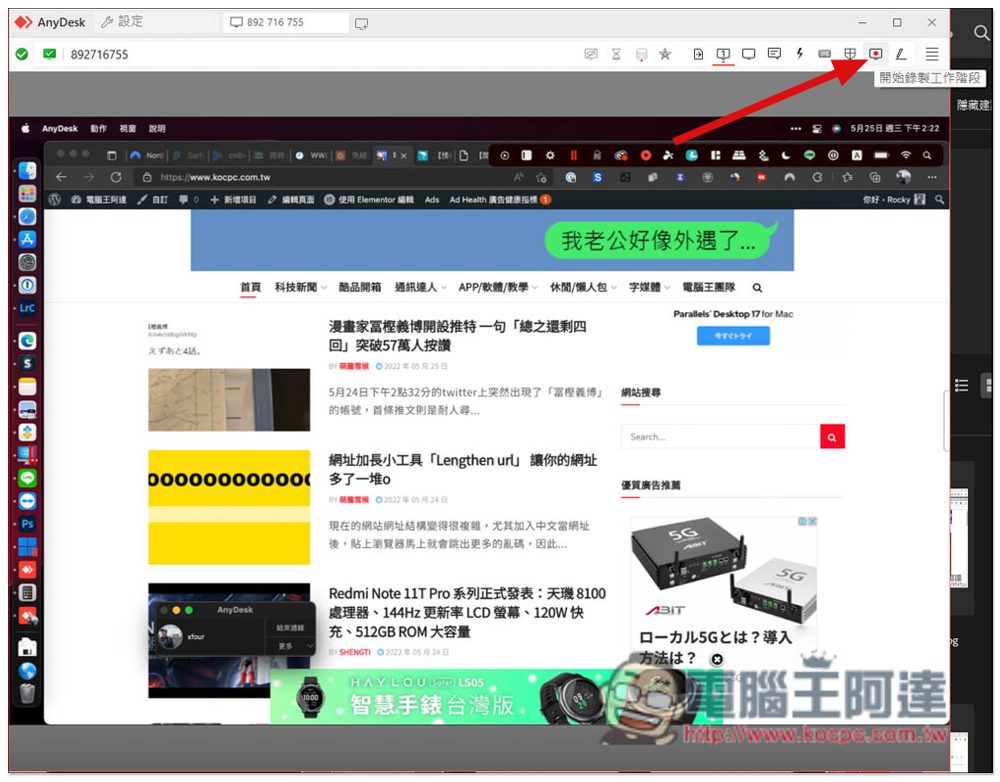
Click the recording function on the upper right corner and it will start immediately. Click again to stop. It is very simple to use:
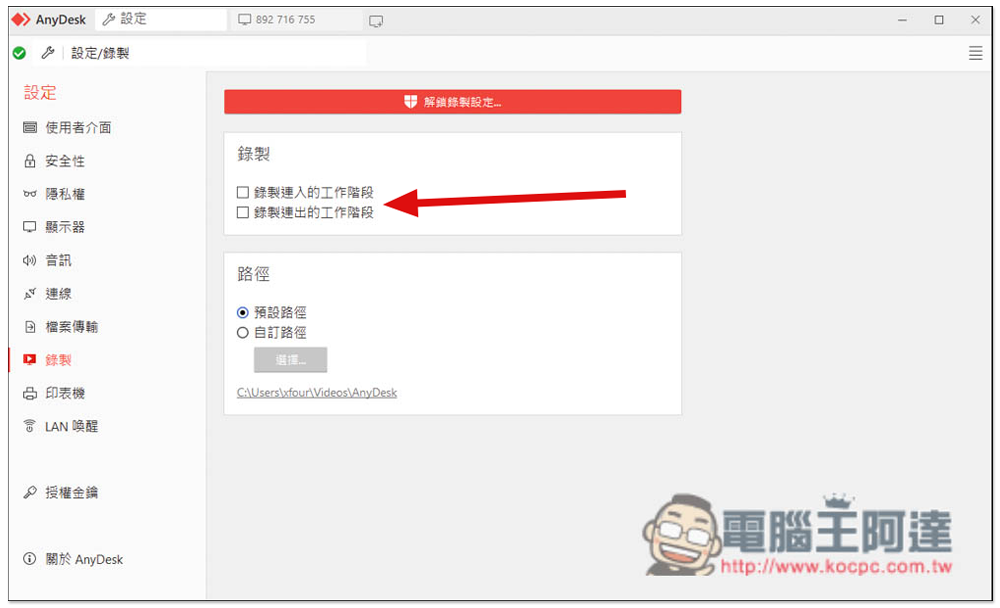
In the settings, you can also specify the automatic recording of the “connection” or “connection” session. You don’t have to manually enable it, which is quite lazy, and you don’t have to worry about forgetting:
In addition to protecting yourself, this recording function can also be used in teaching, such as remotely teaching clients or colleagues how to handle a certain task, or teaching parents how to use new software. After recording the process, if you forget how to use it in the future, you will have the video to play back without having to explain it all over again.
5. Whiteboard function that makes instructions clearer and easier
When conducting remote and short-term teaching and technical support, sometimes the other party may not know what you are talking about just by talking. AnyDesk also has a built-in practical whiteboard function. You can draw, add arrows, circle, etc. directly on the screen of the remote computer to let the other party quickly understand what you mean. However, the whiteboard function currently only supports Windows, Linux and iOS, not Mac and Android.
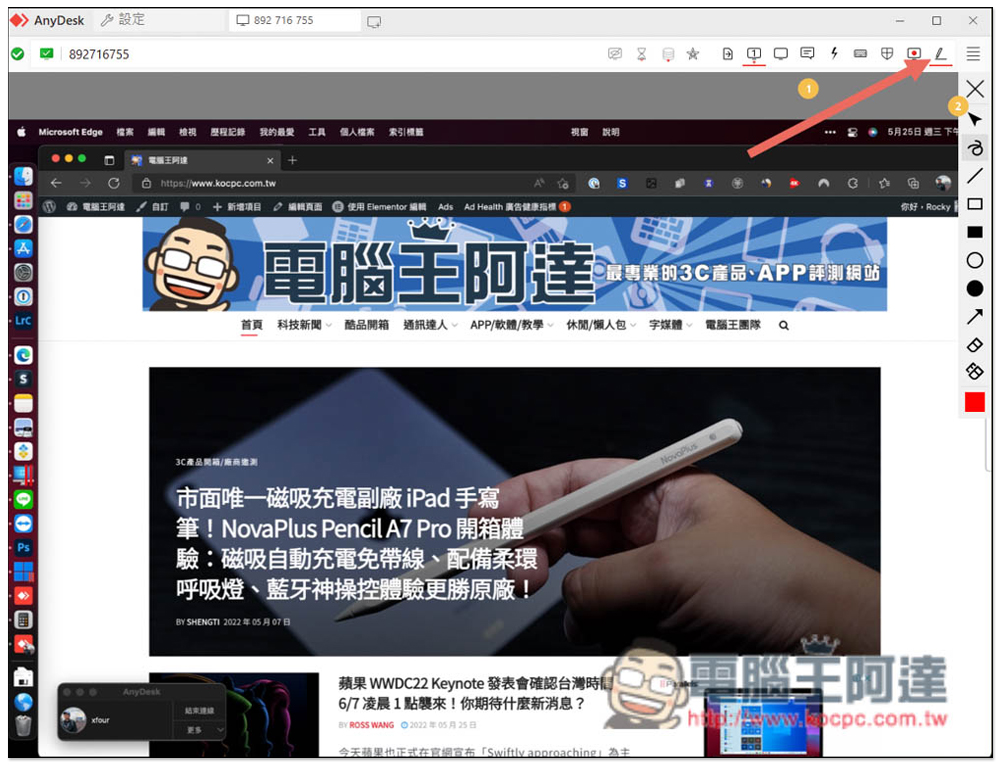
After opening the remote desktop, you can see the whiteboard function in the upper right corner. There are five tools: hand drawing, line, rectangle, circle, and arrow, and you can also adjust the color. This function is very practical for technicians. When helping customers or company members remotely repair computers, after discovering a problem, you can use the whiteboard to clearly explain to the other party, and how to solve the same problem next time:
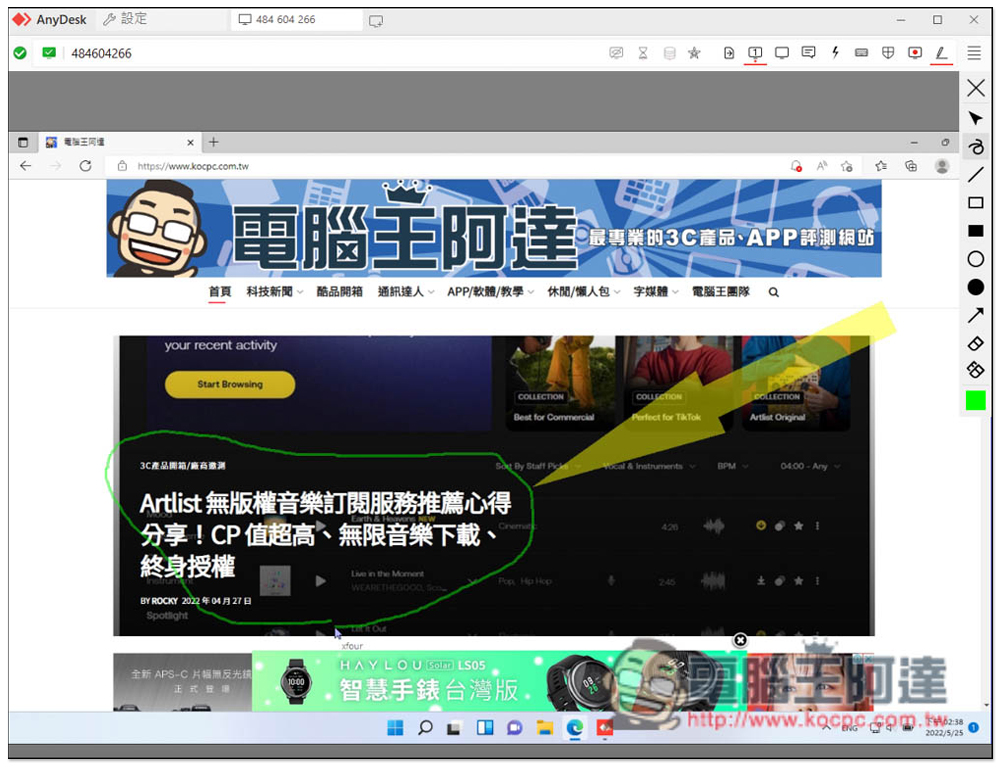
Like this, the other party will see what you draw immediately. After explaining, press the erase function below to remove it:
6. Multiple versions to choose from, completely free for private use
AnyDesk provides many version options. It is completely free for personal use only. However, if you are working remotely or doing business, you must purchase a paid version. There are three types, all billed on an annual basis, and provide “unlimited device connections (participation)” and “mobile device support”, but the details are different. In addition, the professional version has a 14-day free trial. You can try it first and then subscribe if you are satisfied:
- Basic version: US$9.90/month, individual user license, provides 1 mid-range device (unattended connection), 1 authorized user – can connect 1 device, etc.
- Professional version: US$19.90/month, up to 3,000 device management (not participating), up to 3 devices per account, Wake-On-LAN, etc.
- Enterprise Edition: US$29.90/month, unlimited device management (bit participation), unlimited simultaneous sessions, group policies, via MSI software, and more.
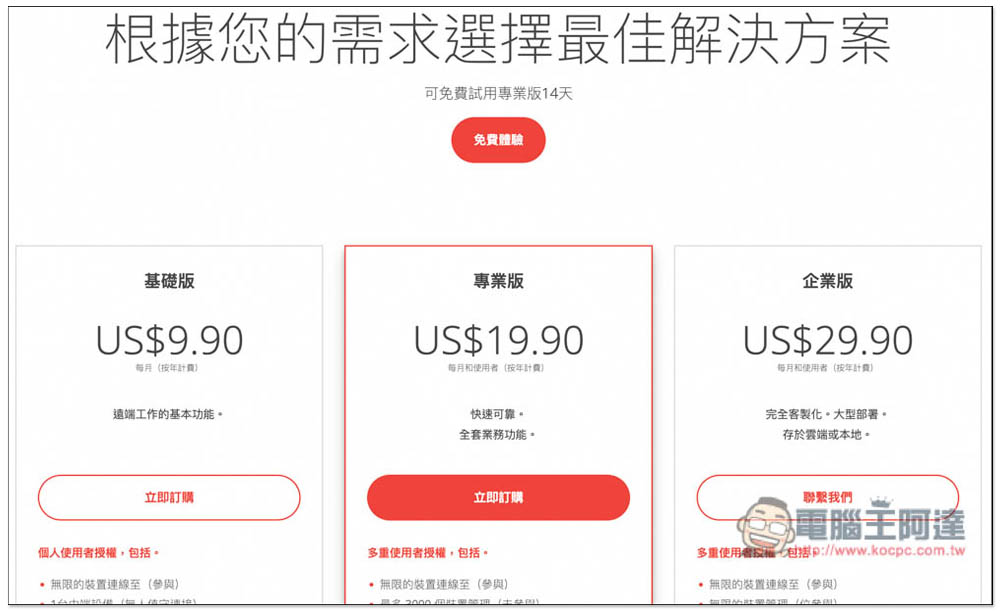
The official website has more detailed descriptions, including which versions of each function are available and which are not available, for those who want to know moreYou can click here to view the official website。
7. Comprehensive official technical support
For workers or companies who have never used remote software, they must be worried that configuration will be difficult? Regarding this, AnyDesk provides professional IT support and various solutions. If you have any questions about the installation or anything you don’t understand, you can contact us.Global support team。
In addition, when purchasing a subscription plan for the first time, AnyDesk’s account manager will provide exclusive services, such as basic plans: “Providing introductory guidance and training support through videos and online meetings” and “Help with AnyDesk configuration and settings.” Professional plans include: “Dedicated personnel provide consulting services and configuration”, “Provide introductory guidance and professional training (individual professional services will be charged)” and “Help you configure a customized AnyDesk client”, so basically you don’t have to worry about use or configuration at all, AnyDesk staff will carefully guide and help you.
There are also various usage instructions and Q&A on the official website, all in Chinese, which is quite good. If you encounter problems in future use, you can check here first:

8. You can also play games remotely and check the idle status of mobile games and online games at any time.
In addition to work, if you use a computer to play mobile games like me, then AnyDesk is also very easy to use. It has smooth connection quality and responds almost immediately when operating remotely. For example, when I play Paradise W, the official PURPLE of this game provides remote operation functions, but it can only control the game remotely. After switching to AnyDesk, I can work remotely while checking the current status of the game. Needless to say, I have to open PURPLE on my phone to view it, which is very convenient:
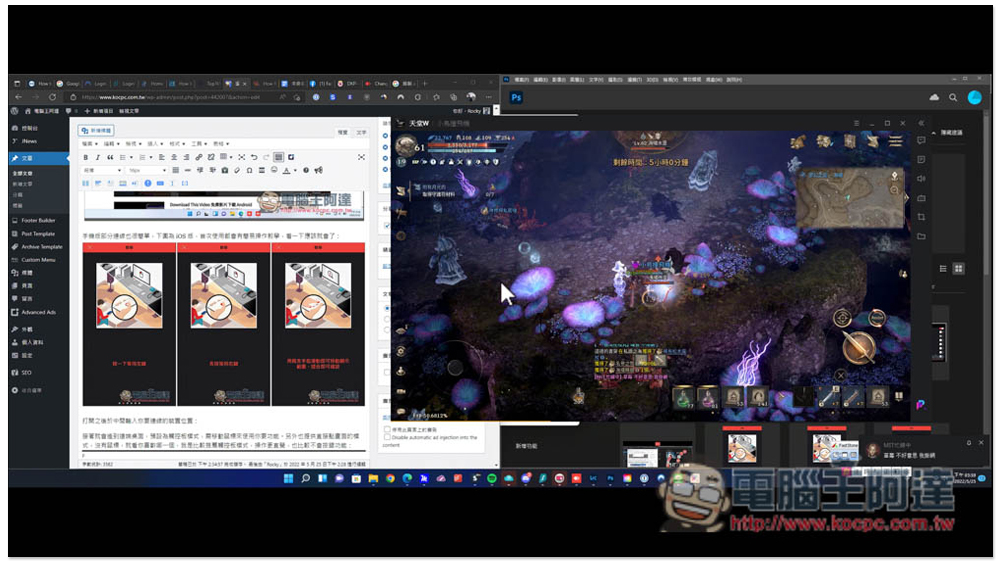
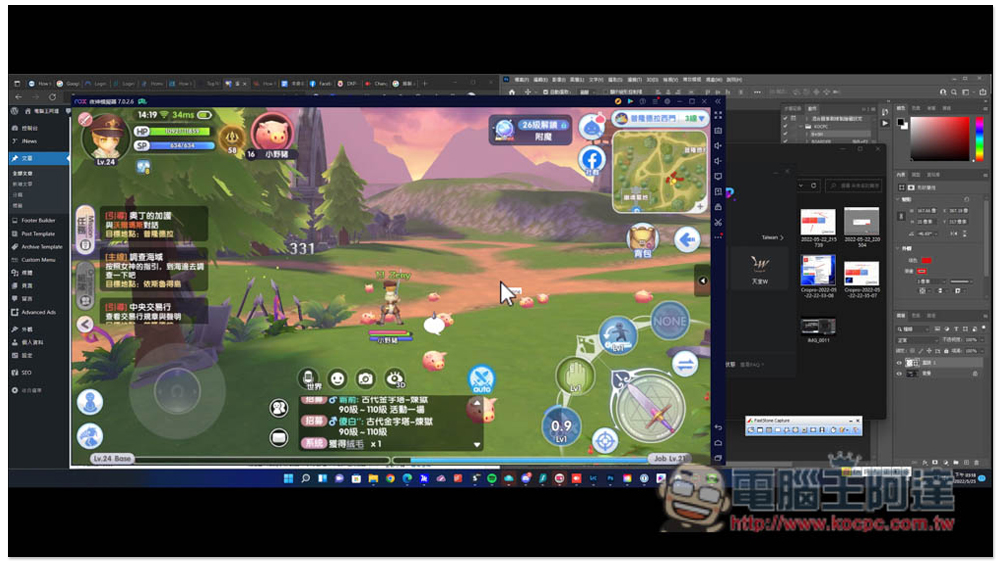
If you use an emulator to hang up a mobile game, you will need remote software such as AnyDesk. People can connect back to their desktop computer at any time to check the current hangup status of the mobile game:
Summarize
After testing, AnyDesk is really a highly recommended remote software. It is highly secure, easy to use, and has comprehensive functions. It is suitable for companies or workers with remote work and remote technical support. The operation is very smooth and there is almost no delay, which is very important for remote operations. With it, as long as there is an Internet connection, work is no longer restricted by location, and people can work seamlessly wherever they are.
Click here to go to AnyDesk official website
Source: KOCPC Chinese