


In this epidemic era, many people now spend more time at home than going out. Friends who use computers will definitely be curious about how much time they spend online. There is now such a “Timer Internet fee is expensive?” The extended function can help you record your online habits. Not only the time, but also divided into various websites, such as: How much time did you spend on the Computer King Ada website? Google How much did the website cost? In addition, there are also the total number of times you visited the website and the running time. It even provides functions such as whitelisting and limiting the usage time of a certain website. Those who need it can try it. Chrome, Edge and Firefox can all be installed.
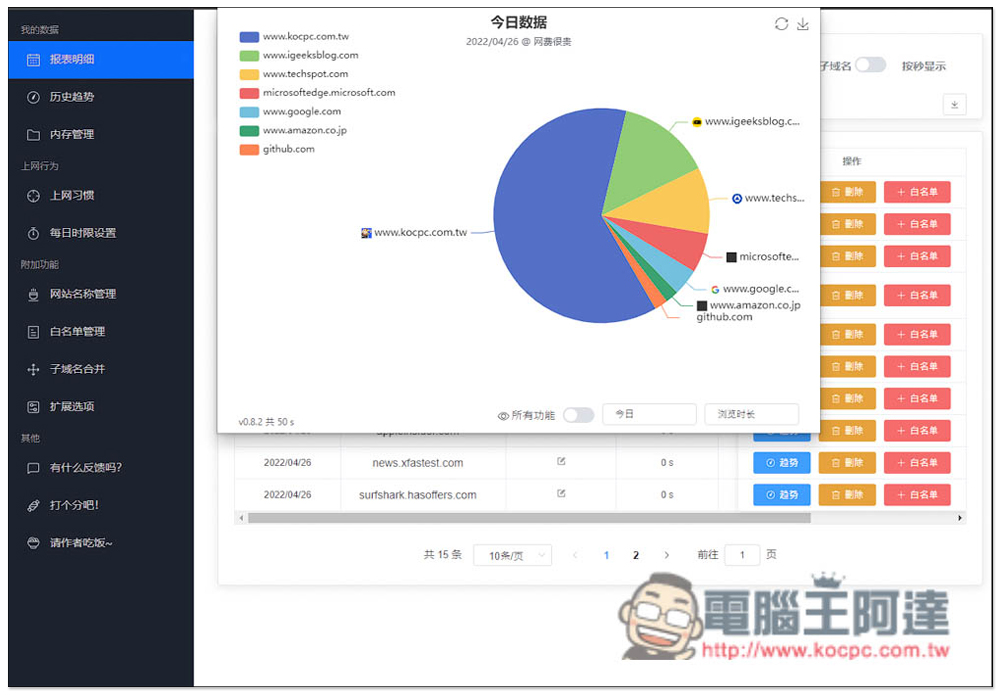
Timer Is the Internet fee expensive? A free extension that records your browsing time on various websites
Timer Is the Internet fee expensive? It is an open source tool that is listed on GitHub. The link attached above is GitHub. After entering it, find the browser version you want to install.
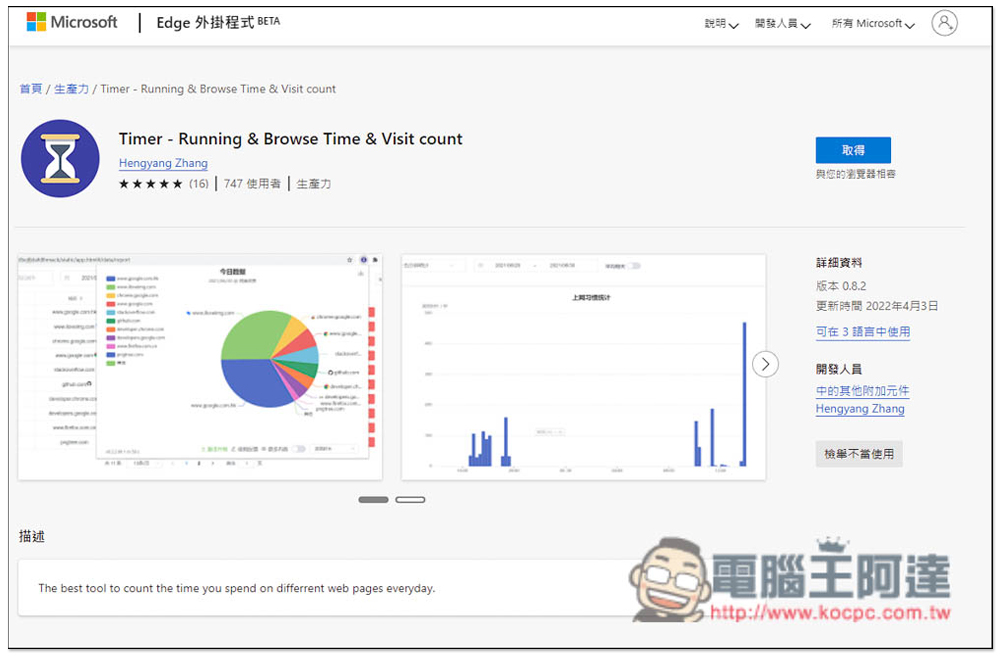
I’m taking Edge as an example, but other browsers operate in the same way. After entering the extension store, click Get to install:
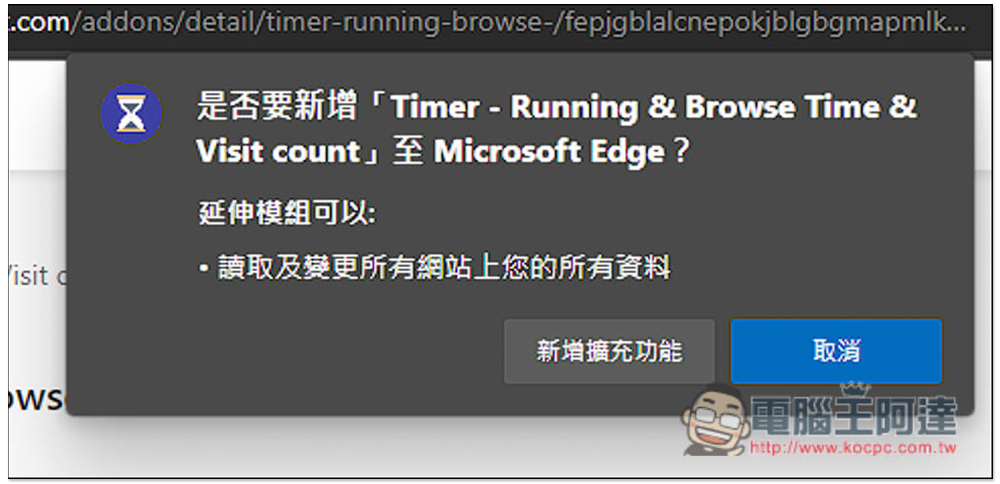
This message will pop up, click “Add extension”:
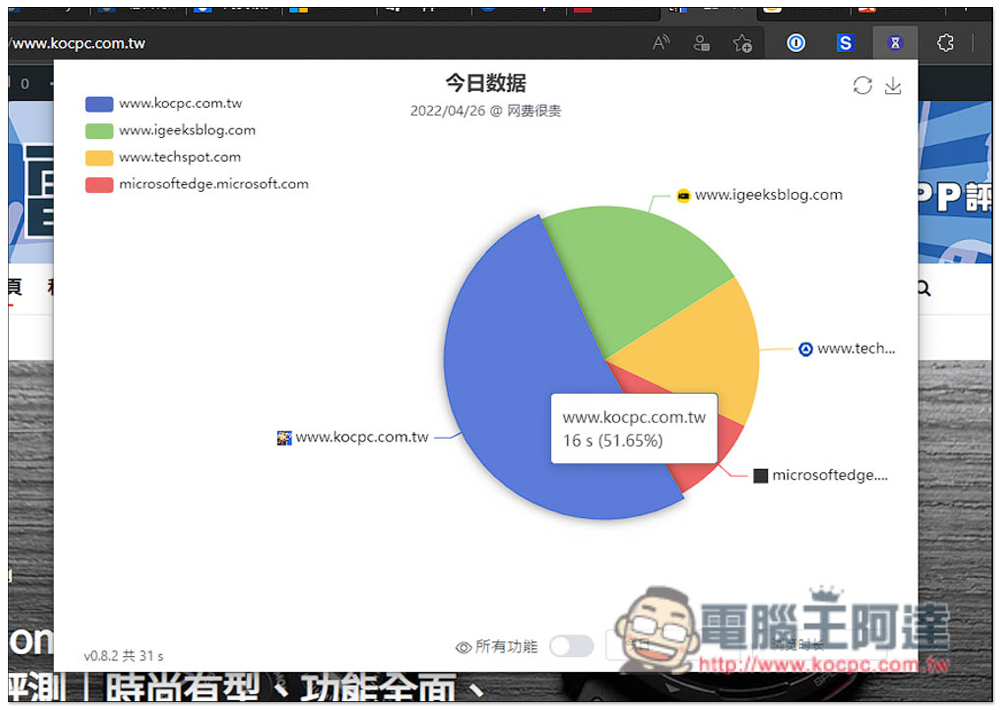
After installation, it will immediately start recording your browsing time for every website you open, and let you quickly know which websites spend the most time through a pie chart::
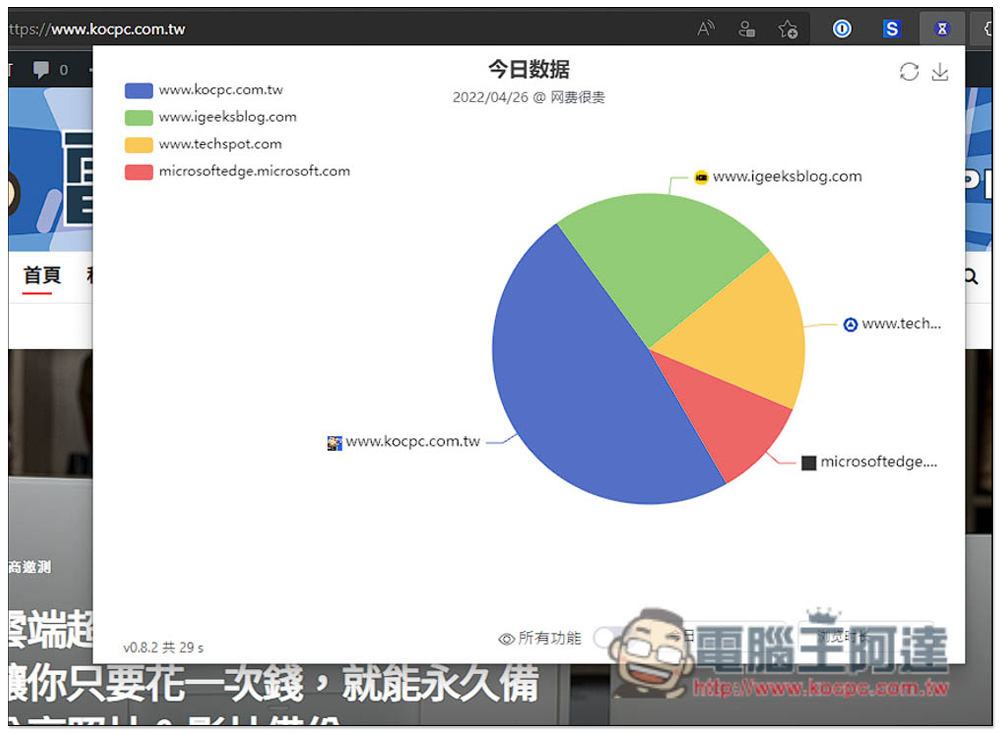
Move your mouse over it to see how long it took you to browse and what percentage of the website it occupied:
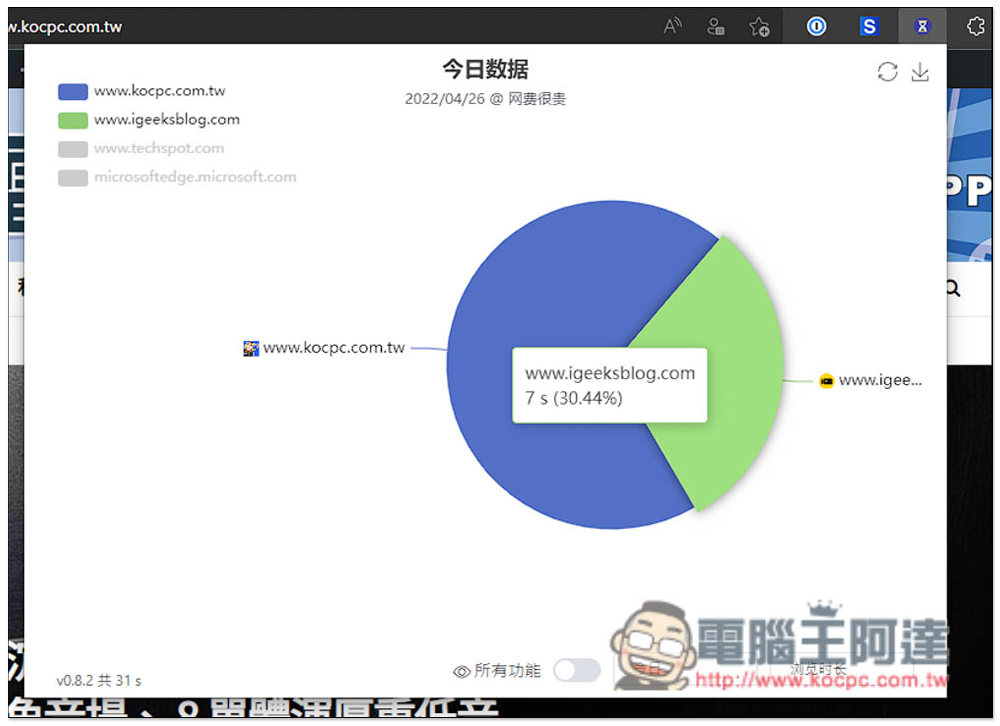
If you have a specific website you want to compare, you can click on the upper left corner to turn off the websites you don’t want to display, and the websites you want to compare will be left:
There are three options for displaying time: today, this week, and this month:
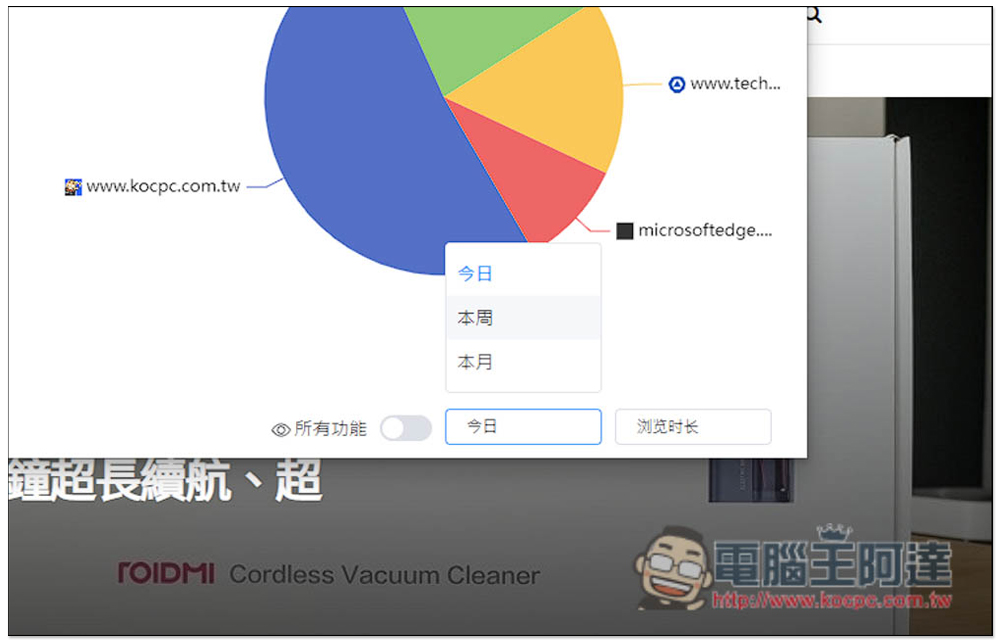
The statistics also have three options: browsing time, running time, and opening times. Browsing time is how much time you spend browsing these websites. The running time is calculated as long as the paging is open, even if you are not browsing. The number of opens is the number of visits:

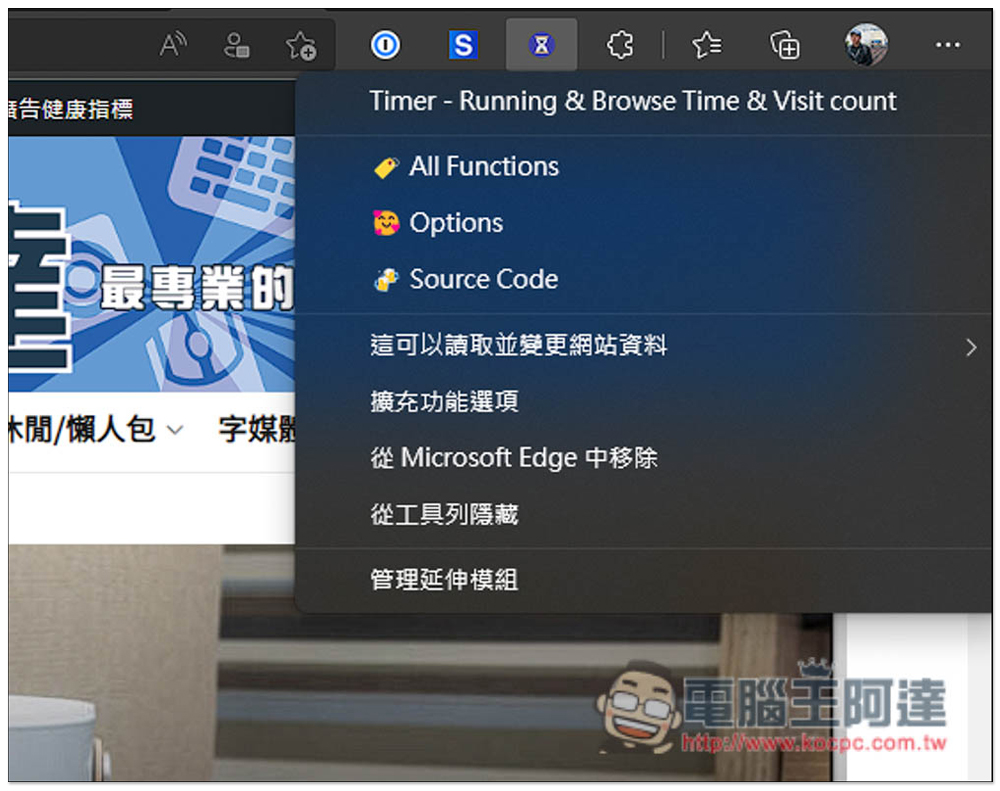
In addition to pie charts, this extended function background recording is also very powerful. Click All Functions:
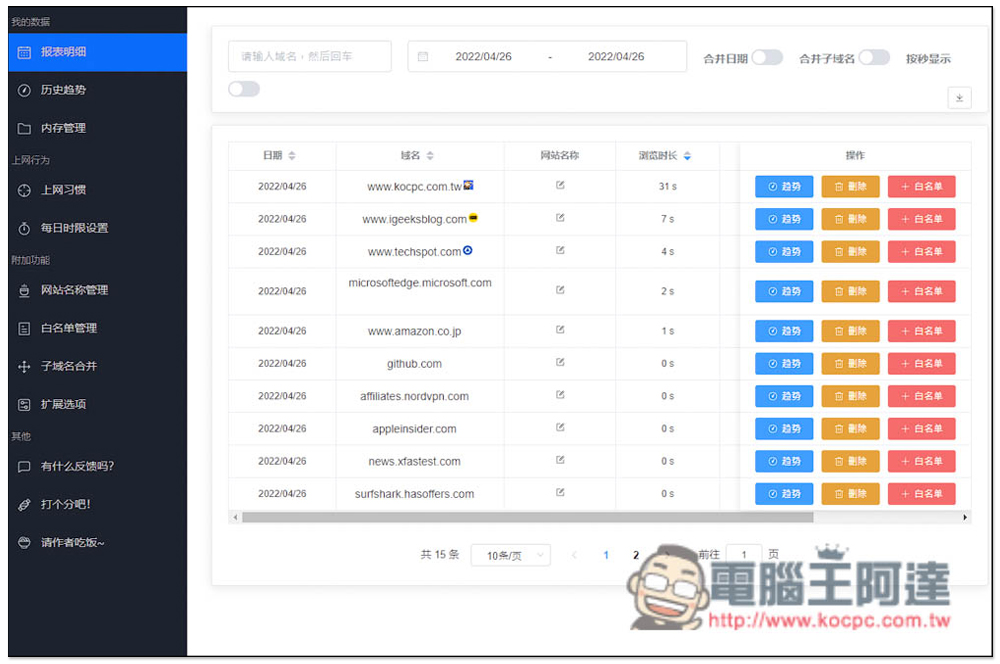
You will enter the Timer backend, where you can browse all records in a list. If you have websites you don’t want to display, you can also delete them manually from here, or add them to the whitelist:
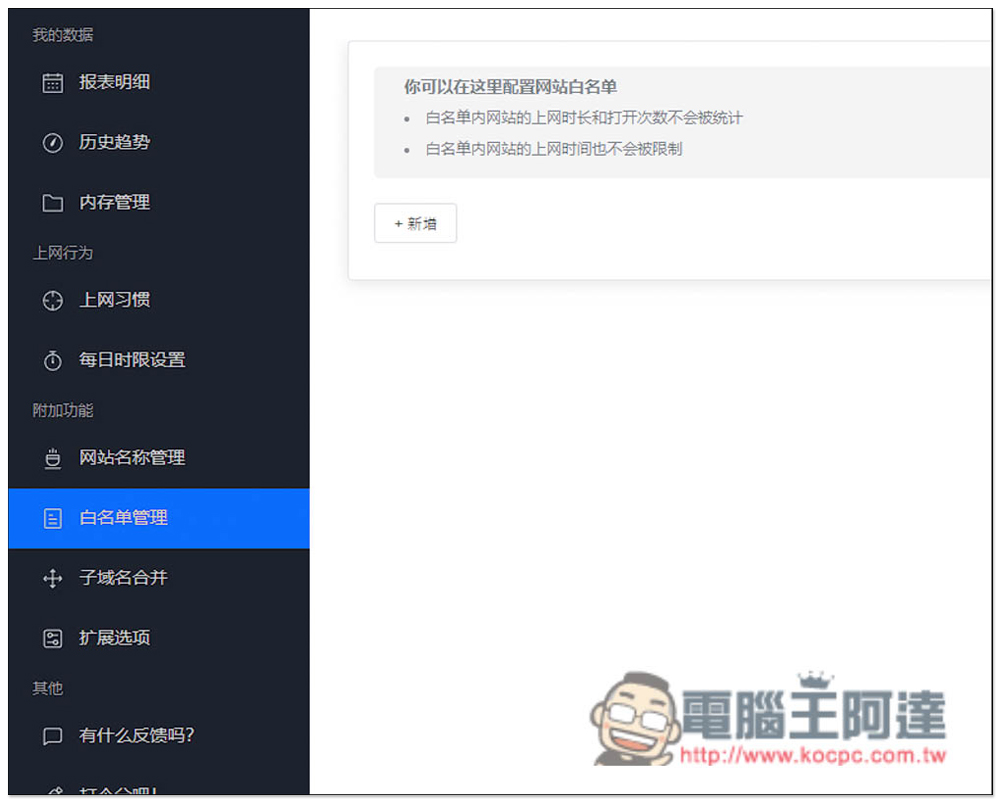
Websites in the whitelist will not be counted, so there will be no records of this website in the future, including the number of times it has been opened, the number of times it has been viewed, and the length of time it has been run:
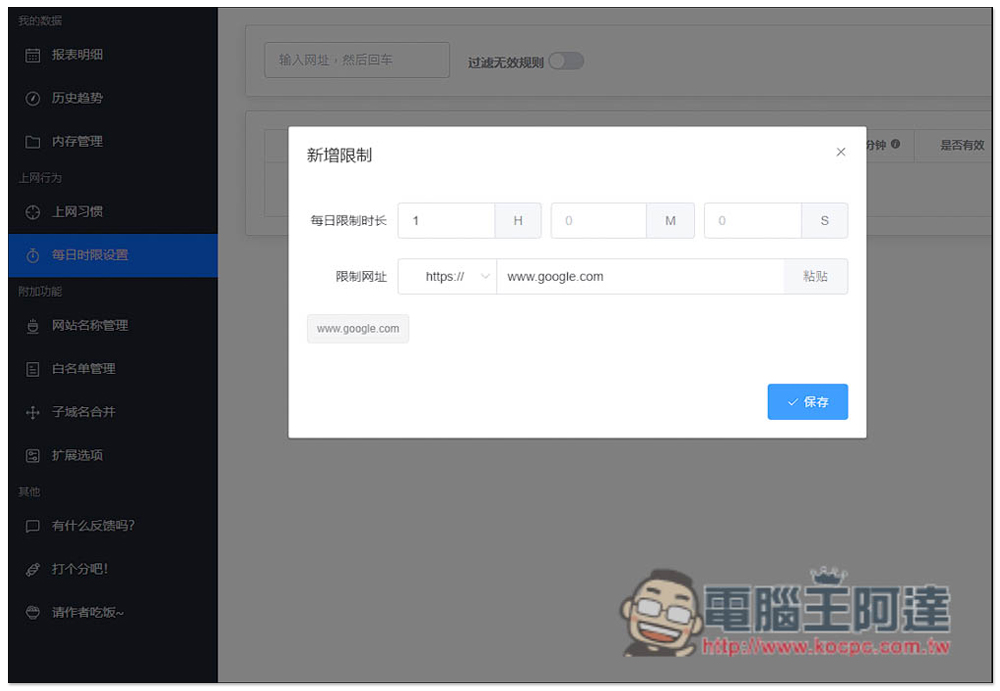
There is also a very special function: “Daily Time Limit Setting”. Here you can specify how long a website can only be browsed every day. If you want to quit a certain website, or have children using this computer together, you can try this function:
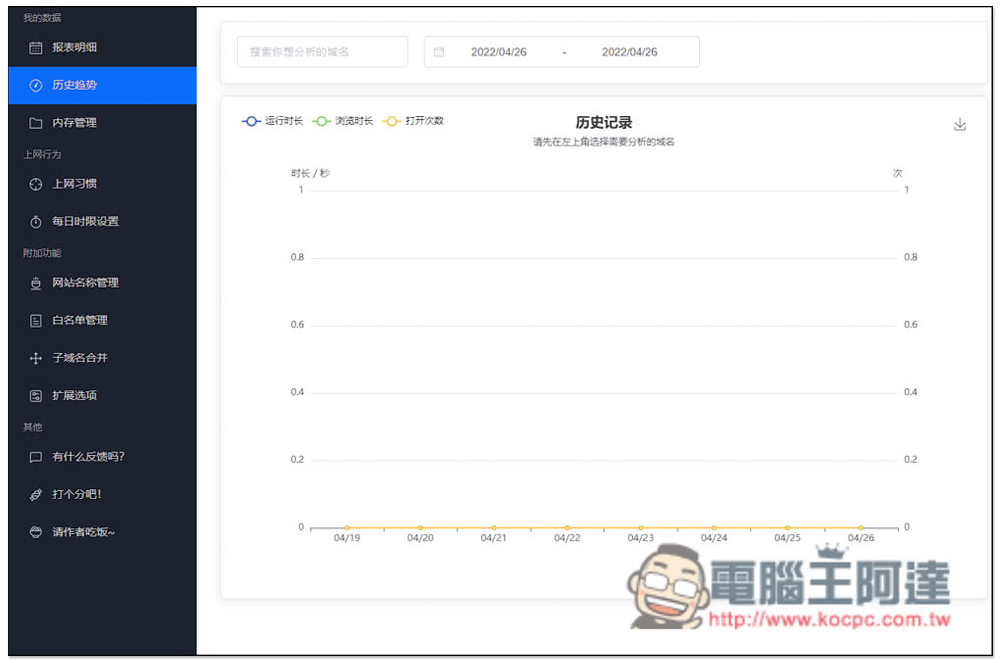
After using it for a period of time, some data from historical records and Internet surfing habits will be provided for your reference. In addition, the website name can actually be set by yourself, that is, you can change the name of the specified domain to what you want. You can modify it in the “Website Name Management” option:
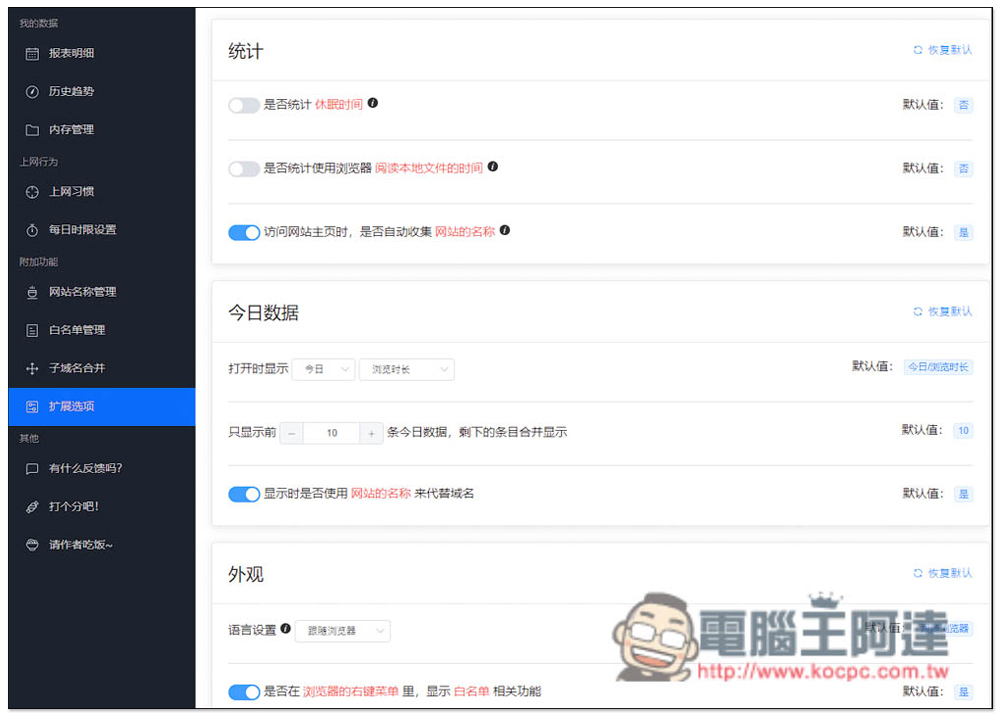
There are also some settings in the extension options that can be adjusted, such as whether to count sleep time, reading local file time, etc.:
Source: KOCPC Chinese