


AI can converse directly in natural language, and many people will surely want local file search to support this as well, so that even if they don’t know the filename, they can easily find the files they need.
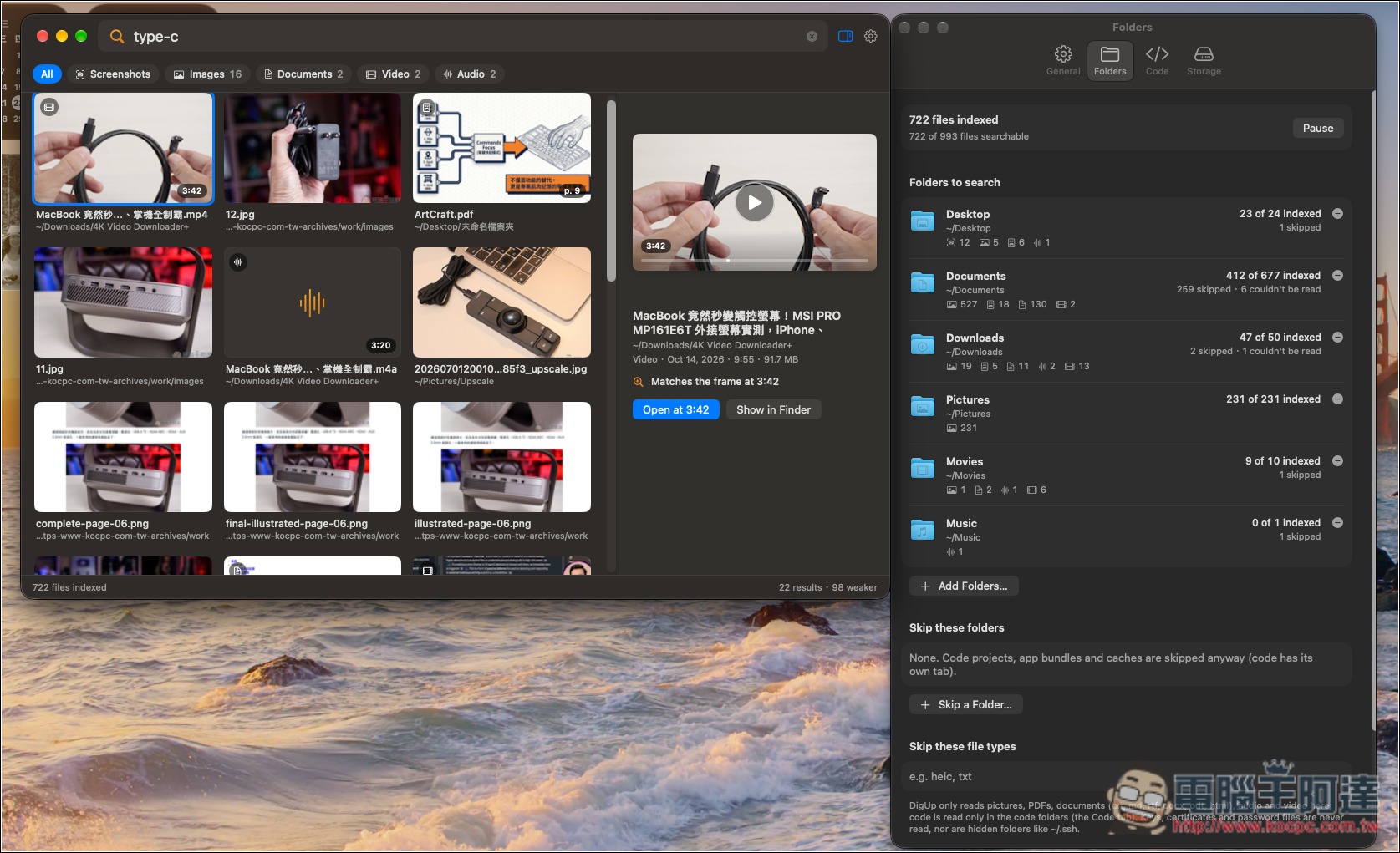
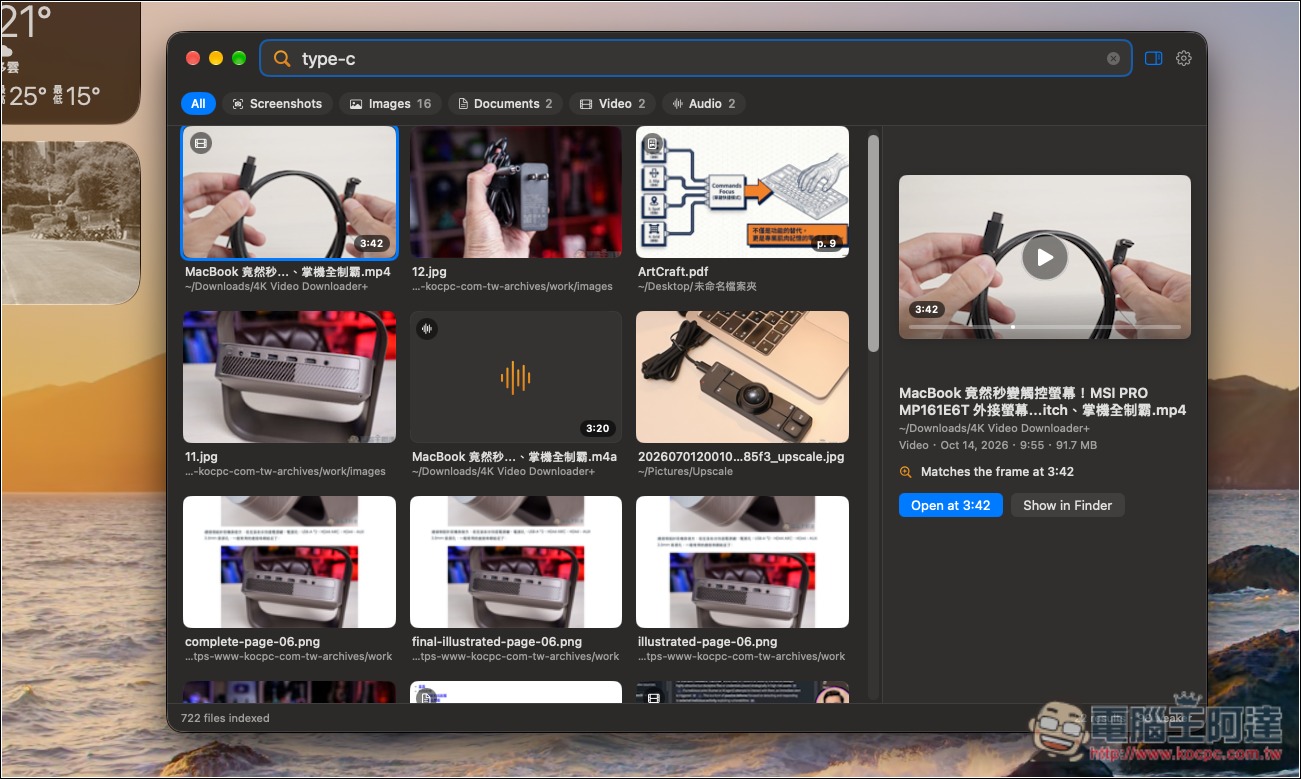
This article recommends a very powerful free and open-source tool called DigUp. Once installed, it lets you search files using natural language. It uses Google DeepMind’s EmbeddingGemma 2 multimodal model, and it can find not only images, PDFs, and documents but also videos and code. I tested the keyword Type-C: the video file I was looking for didn’t mention the term in its filename at all, but after searching with DigUp, it not only found it—it even found the exact point in the video where Type-C appears. More importantly, everything runs locally.
Supports Windows, Mac, and Linux. The Mac version is already an official release and is very stable to use.
Introducing DigUp: A Free, Open-Source AI-Powered Search Tool
DigUp is a free, open-source AI-powered intelligent file search tool. You don’t need to remember filenames or storage locations—just describe the content in natural language, and it can find relevant files on your computer. Unlike traditional search methods that rely on filenames and keywords, DigUp analyzes file contents using AI models, so even if your search terms differ from the filename, it may still find results.
It uses EmbeddingGemma 2, a multimodal AI model released by Google DeepMind, which can understand text, images, audio, and video. For example, if you enter “dog at the beach,” it can find photos matching the description, and it can even find the topic of recorded conversations or a specific scene in a video.
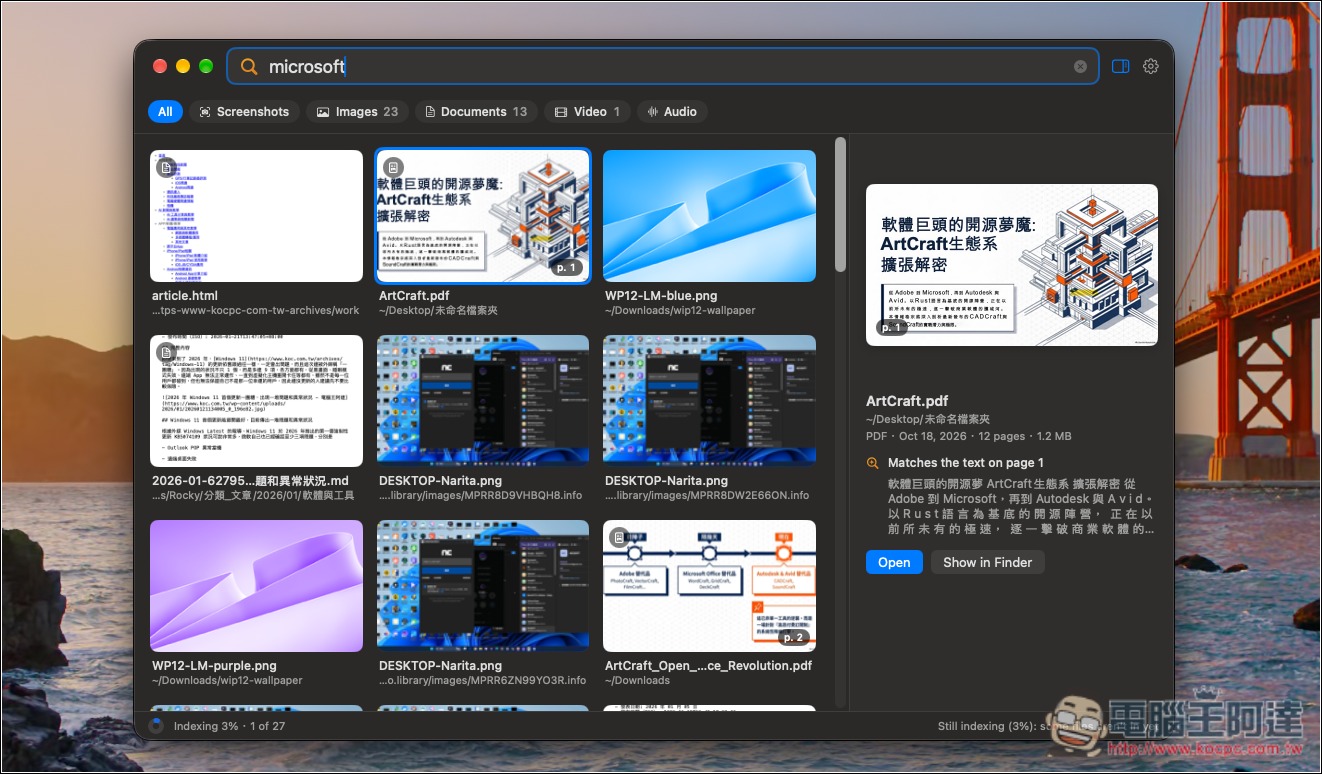
In addition to AI semantic search, DigUp also supports exact keyword matching, making it easy to find information such as invoice numbers, error codes, and names. Moreover, search results don’t just provide file names; they directly give you the specific page where the term appears, or the relevant timestamp in the audio or video.
The operation is also intuitive: after installation, first specify the folders to search, then use a keyboard shortcut to bring up the search window. When a file is found, you can preview its contents first, or open it directly in its original application.
For developers, there is also an opt-in code search feature. Simply start with code: to describe what the code does, and it will find relevant functions in the project and navigate to the corresponding code in supported editors.
The Mac version recently also added text search for Excel spreadsheets and PowerPoint presentations, and can read worksheet names, cell contents, slide text, and speaker notes. However, note that file support still varies across systems; for example, Windows and Linux currently cannot recognize the exact text in screenshots.
In terms of privacy, DigUp builds the index locally, and AI search also runs on-device. No account registration is required, and files are not uploaded to the cloud. On first use, you need to download an AI model of about 865 MB; after selecting a folder and completing the initial indexing, you can start searching.
Key Features
- Free and open source: licensed under MIT, no subscription required.
- AI semantic search: no need to remember file names—just describe the content and search.
- Multimodal search: supports images, PDFs, documents, audio, video, and other types.
- Precise content location: directly open the corresponding PDF page or the relevant audio/video timestamp.
- Keyword search: supports exact word matching in file names and document contents.
- Code search: Find functions using natural language and jump to the code location.
- Runs entirely locally: no need to upload private files to the cloud, and no account registration required.
- Auto-update index: After the initial index is built, continuously track newly added and modified files.
- Multilingual support: The AI model understands more than 100 languages and also supports cross-language search.
- Cross-platform support: macOS official release available, plus Windows and Linux beta versions.
After clicking the link above to go to DigUp’s GitHub project, download the installer suitable for your operating system:
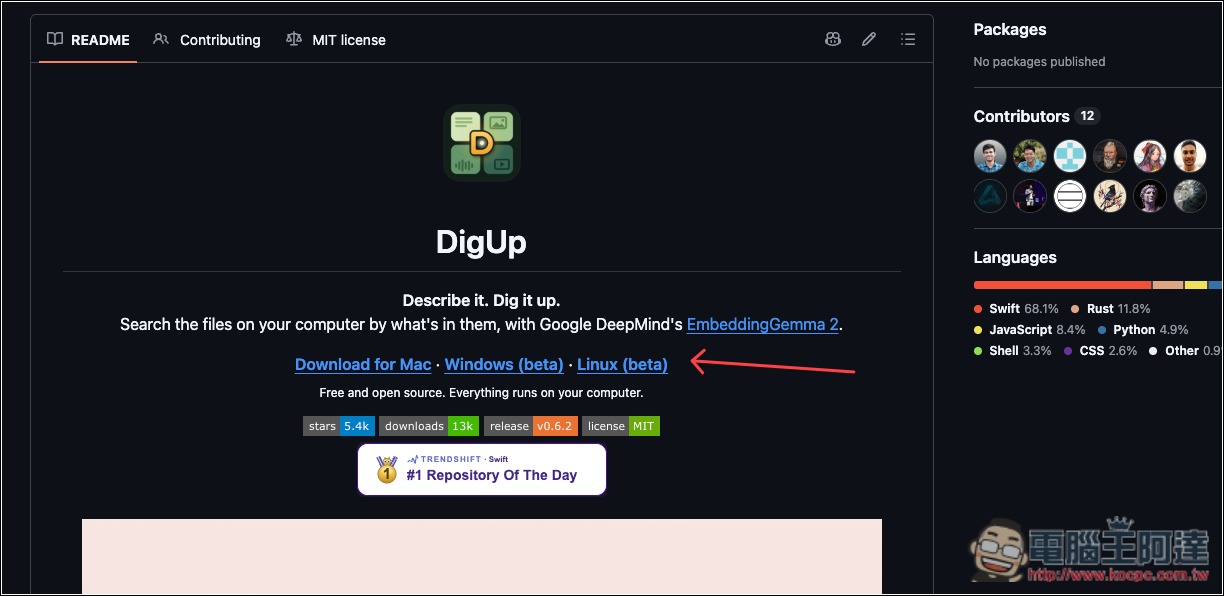
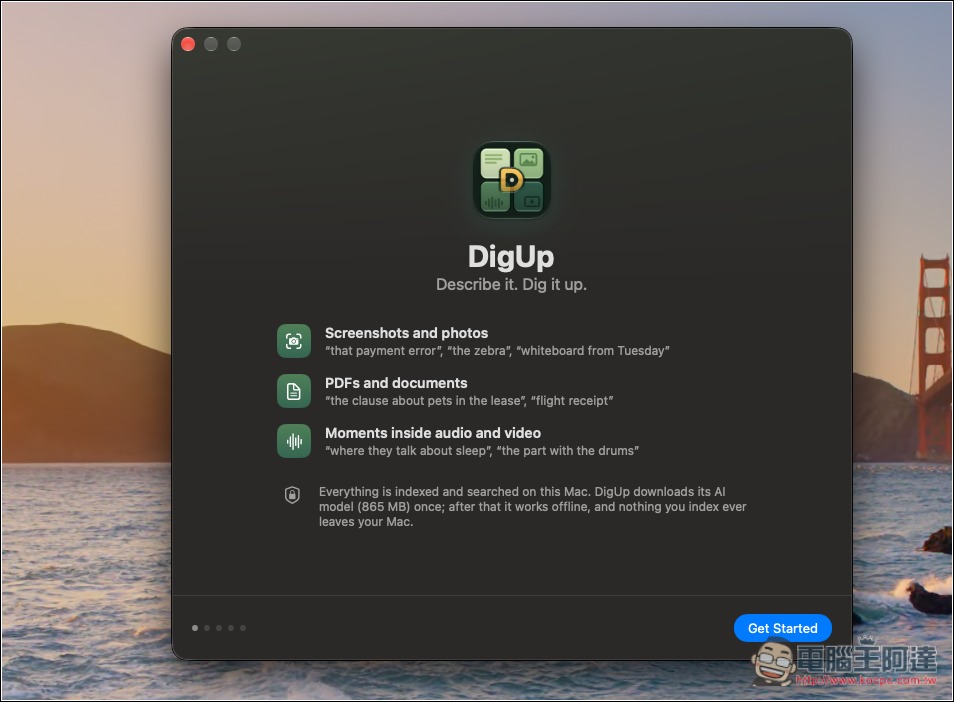
Here, I’ll use the Mac version as an example. After installing, open it, and you’ll first enter the initial setup screen. Just follow the instructions and configure each item one by one:
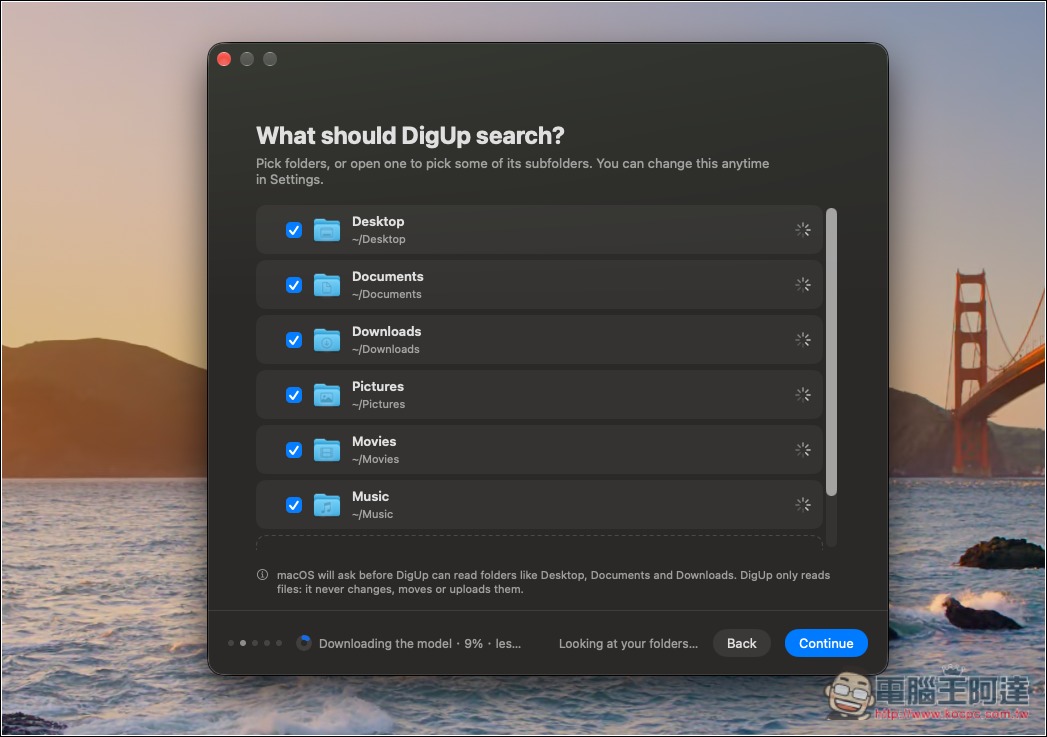
It lets you select the scope that DigUp can search. In addition to the folders predicted by the system, you can also add specified folders yourself:
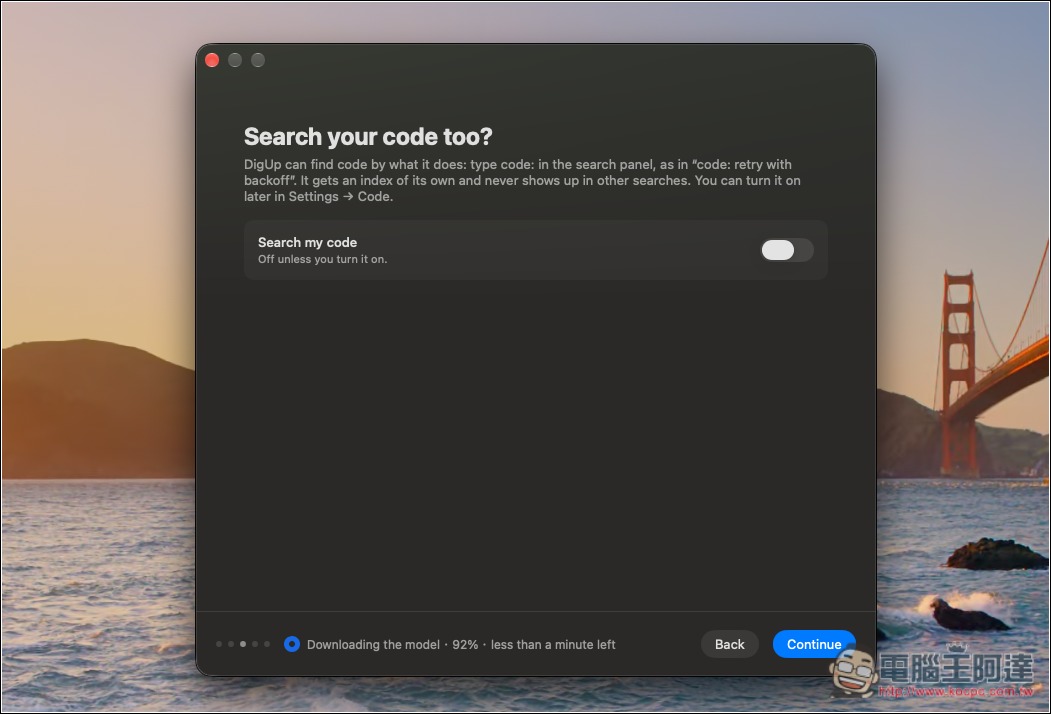
If you need code search, remember to turn it on—it’s off by default:
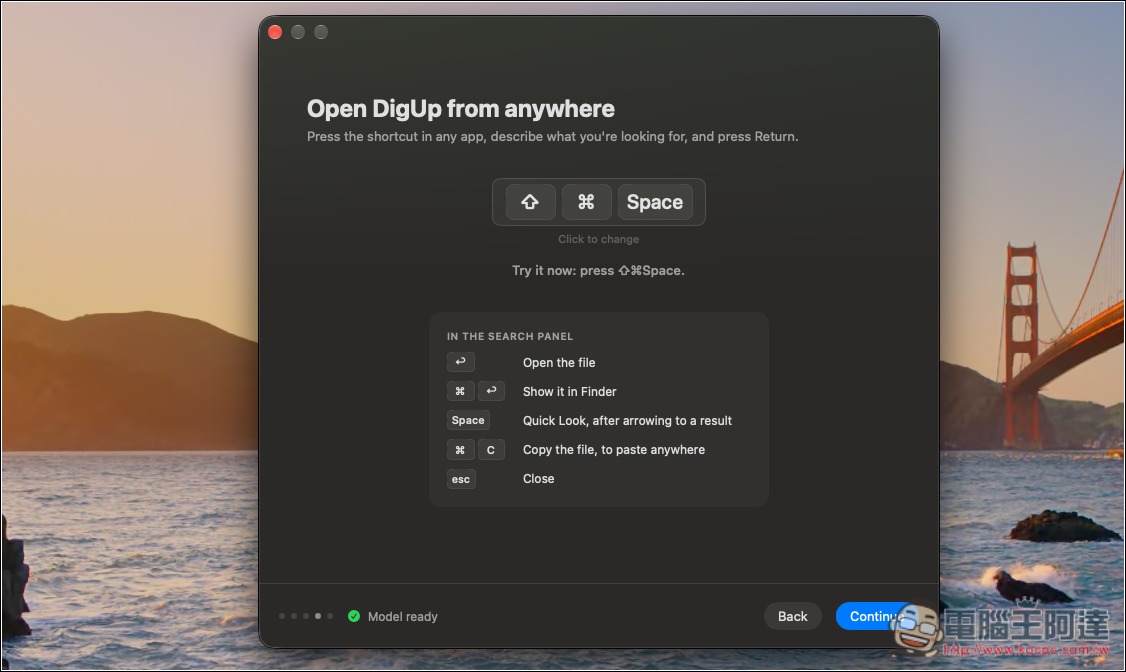
It also supports various shortcuts, and you can change them to what you’re used to:
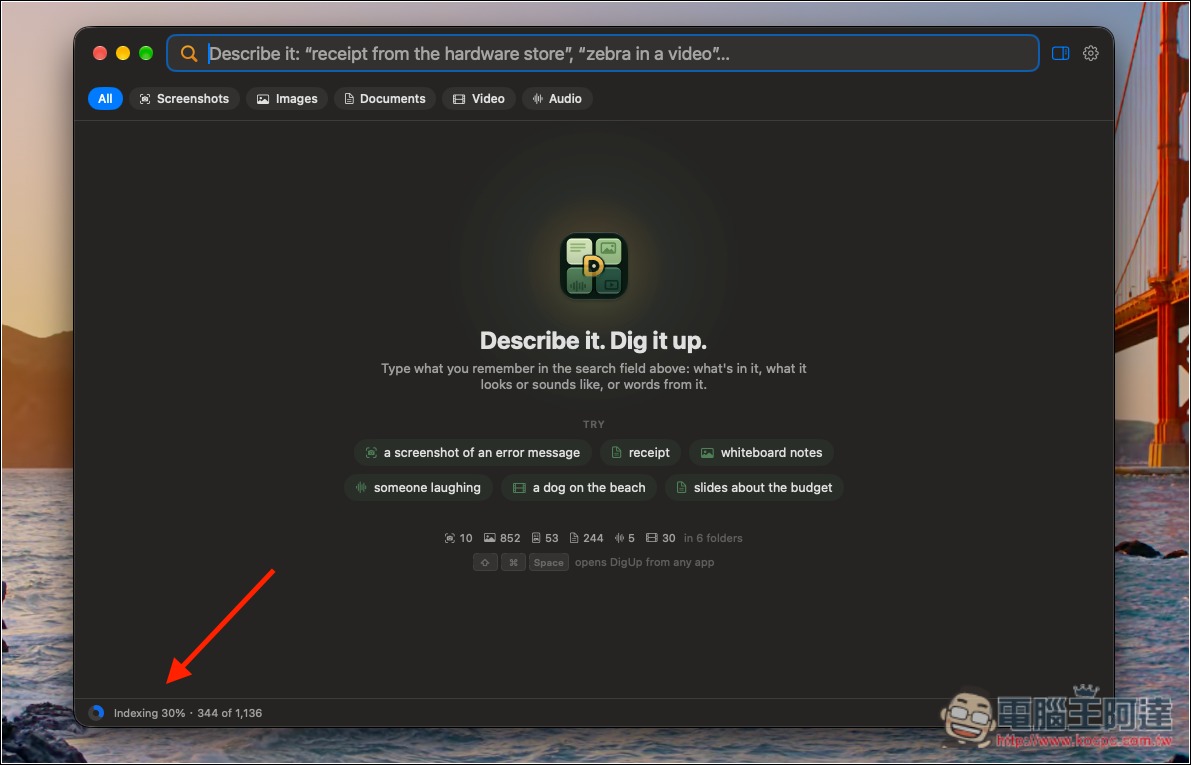
At first, it will index the files in the folders you allow, which will take some time. The real-time status will be displayed in the lower-left corner:
Indexing time depends on how many files you have—mine was pretty fast. You can still search even before indexing is finished. I typed in the name of this tool, digup, and it actually found the digup image I had just screenshotted, even though the filename didn’t contain digup at all:
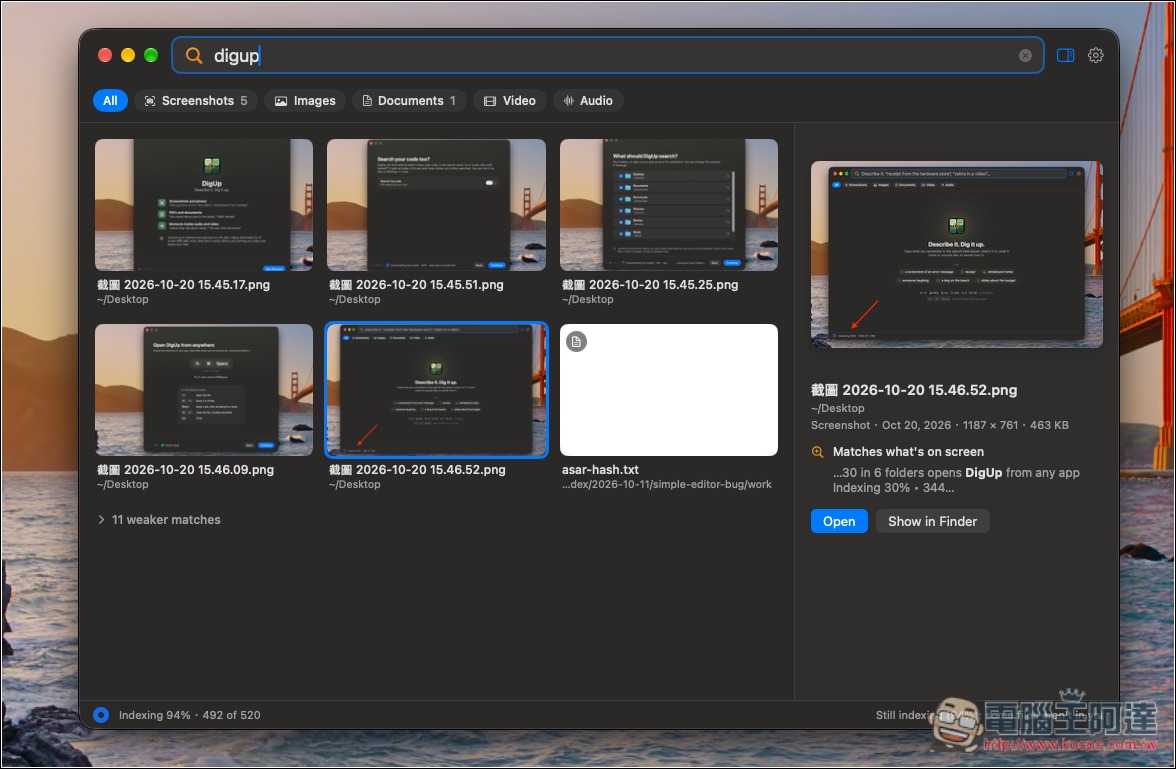
If you use Spotlight search, only files or features containing the keyword digup will be shown:
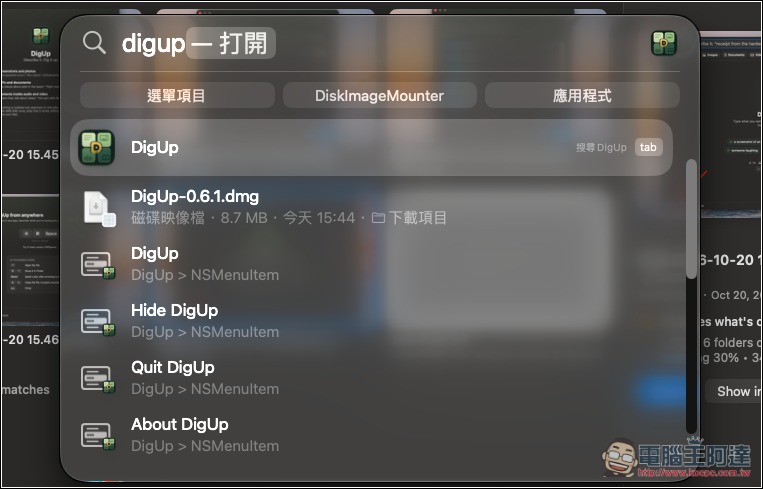
Next, I’ll test the PDF presentation file; the filename is ArtCraft:
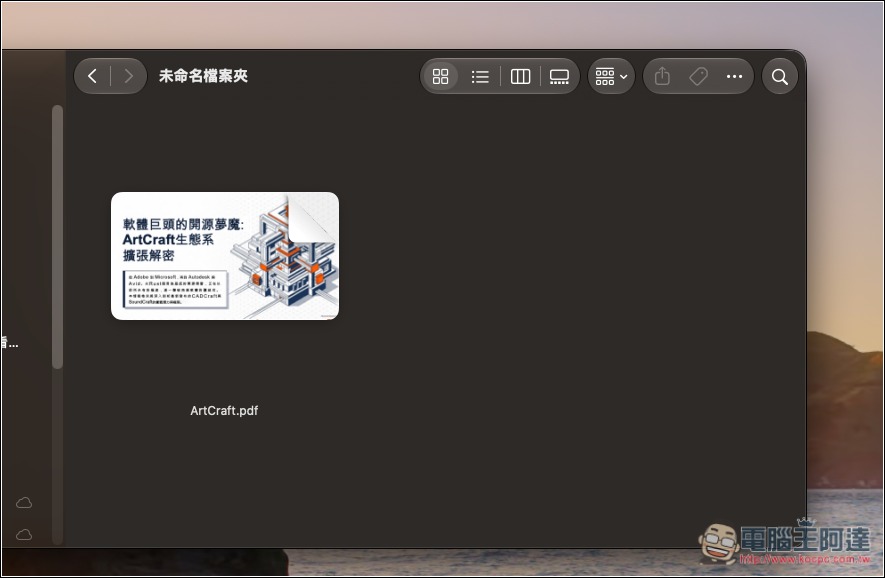
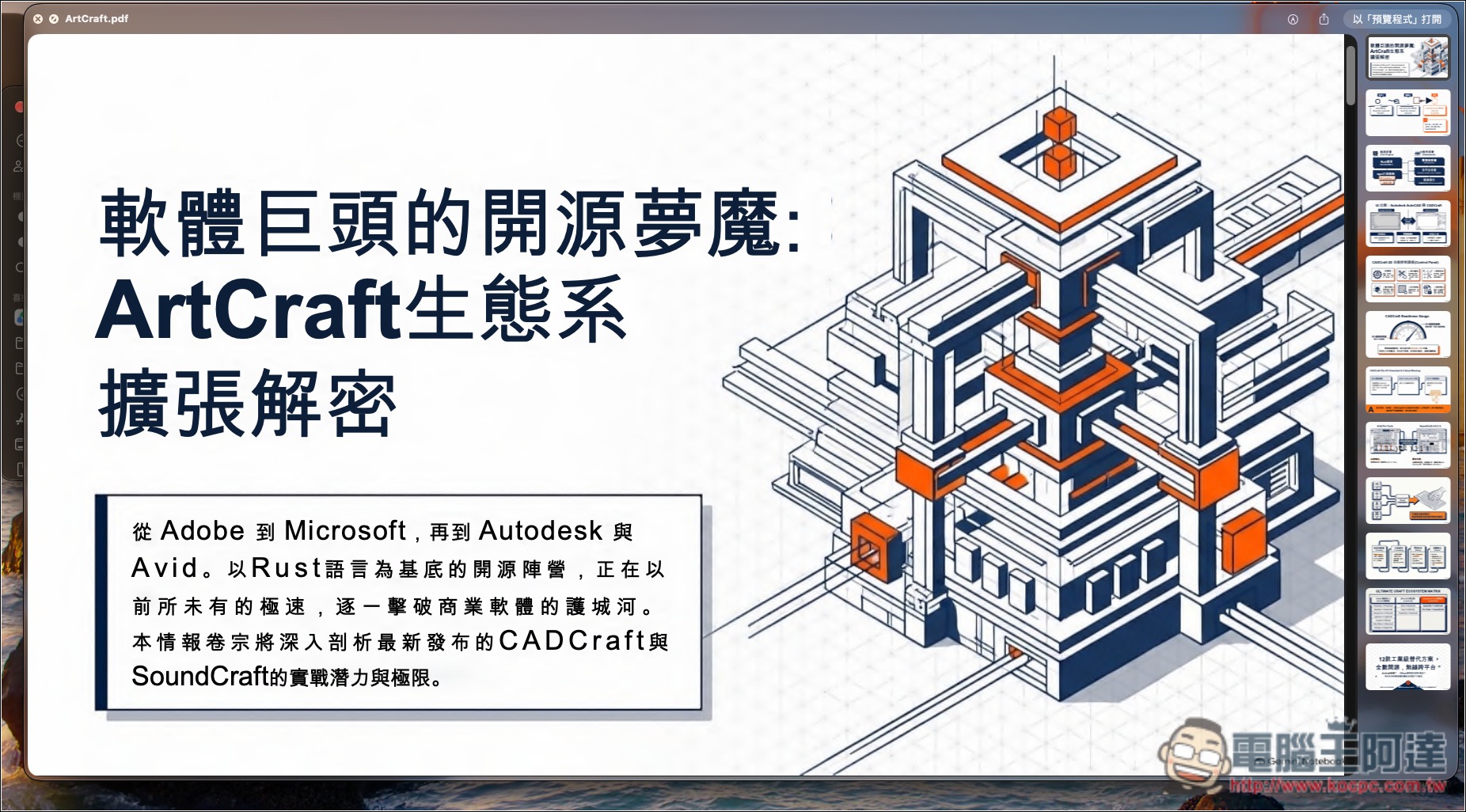
This file’s presentation mentions Microsoft:
I searched for microsoft with DigUp, and sure enough, it showed this presentation—specifically the first page where the word microsoft appears:
Next, this one is also impressive. The filename of A-da’s MSI PRO MP161E6T external monitor unboxing video doesn’t contain the Type-C keyword, but there’s a point in the video where it’s shown. I searched for type-c, and it actually displayed the frame in this video showing Type-C. DigUp’s features don’t stop there—the rest is for everyone to try out themselves. It’s really powerful; you definitely have to download it and give it a try:
Source: KOCPC Chinese