


Every time the new iPhone and other key new Android phones are launched in the second half of the year, many people will choose to buy new mobile phones during this period. Compared with the apps from the old phone that can be transferred to the new phone and re-downloaded on the new phone, and the photos and videos can be transferred to social media platforms or backed up on the computer hard drive, the most important thing to keep when changing phones is the chat history of LINE.
Recently, LINE officials have also introduced a new official backup package, which teaches you how to easily back up your chat history, and how to find the problem and eliminate obstacles when the backup fails!

▲Picture source:LINE Taiwan official BLOG
LINE Backup’s new official lazy package: chat history backup tutorial applicable to both iOS and Android
Recently, LINE Taiwan officially released the new “LINE Backup Official Lazy Pack”, which provides users with the preparation work before LINE backup, backup methods, and troubleshooting suggestions for backup failure. LINE’s official Lazy Pack video is also attached at the end of the article.
Preparation before backup
In order to make the backup of LINE chat history smoother, be sure to confirm the following four points before backing up LINE:
- Network connection quality:If you have a stable network environment, backup via Wi-Fi network will be more stable.
- Mobile phone battery:Sufficient power for backup
- Cloud storage space:Secure cloud storage space (iCloud for iOS, Google Drive for Android)
- System version:LINE App and mobile operating system have been updated to the latest version

iOS chat history backup
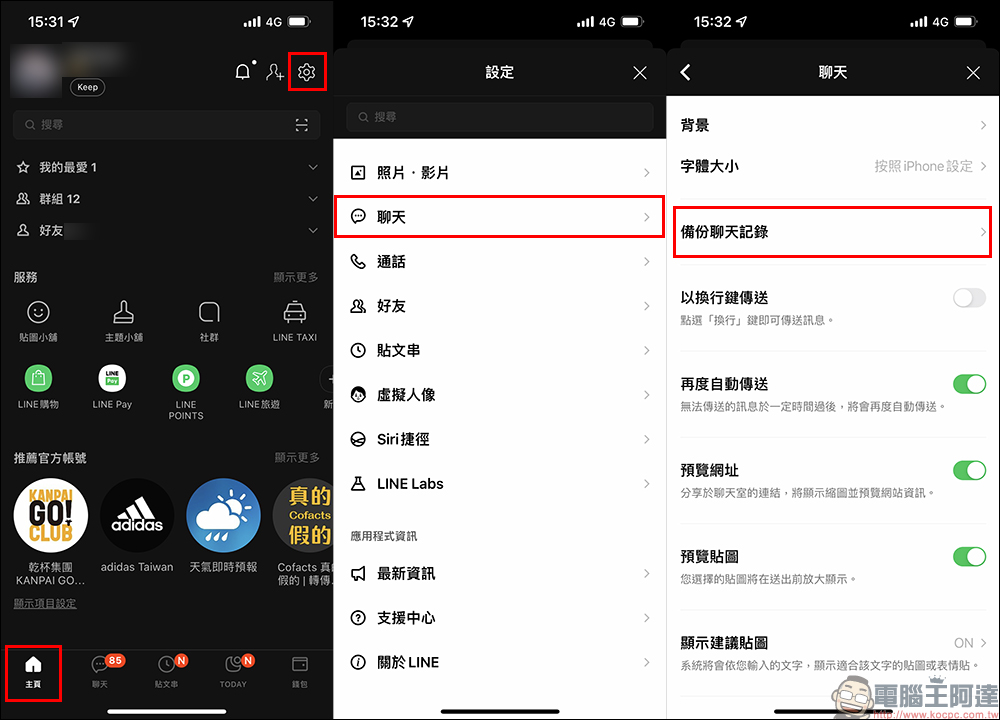
First, click Settings (gear icon) in the upper right corner of LINE’s “Homepage” to enter the settings page, then select “Chat” > “Backup Chat History”:
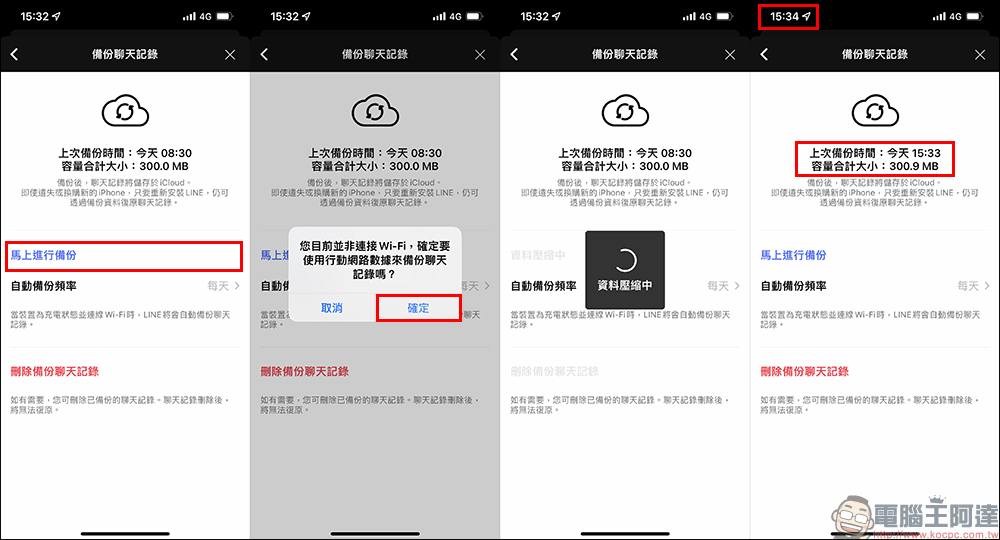
Then click “Backup Now” to start the backup operation (if you are not connected to Wi-Fi at this time, a reminder window will appear). If “Data Compressing” appears on the screen, it means that the chat history is being backed up. After the backup is successfully completed, the last backup time on the screen will display “today + the current time”, and you can also judge whether the backup has been completed based on the time point.
If the “Last Backup Time” and “Total Capacity Size” fields at the top of the screen do not display information after the backup is completed, you can try reopening the LINE application. If the last backup time and file size are successfully displayed on the screen after reopening, the backup is successful. If it still does not appear after reopening, you can click “Backup Now” again.
LINE chat history automatic backup
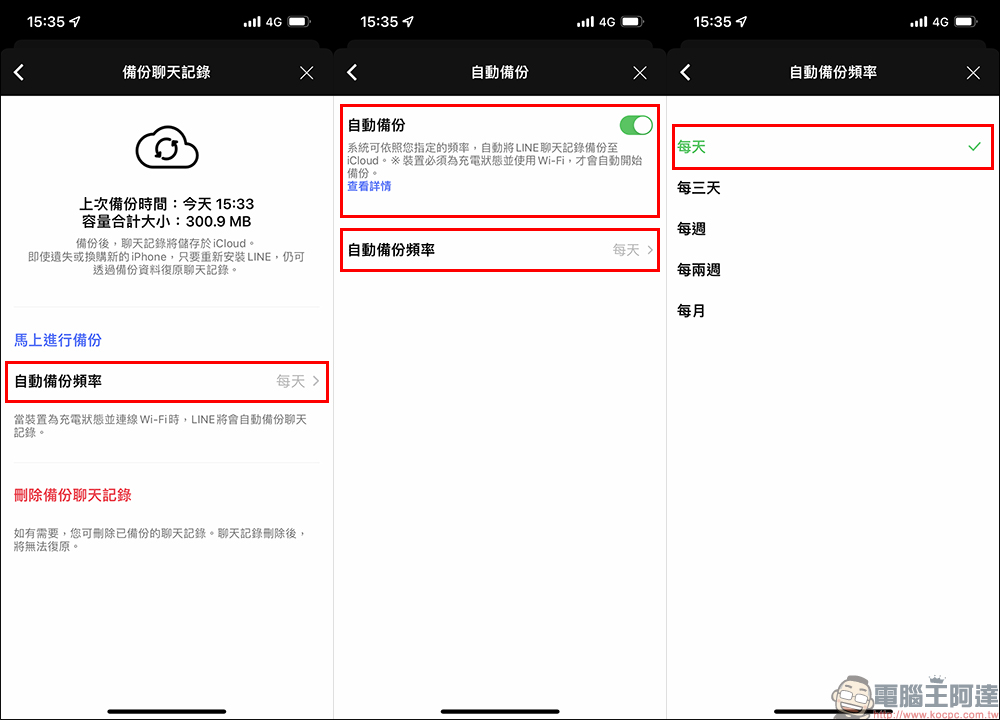
If you are worried that you will forget to back up manually, you can also select “Automatic Backup” to let the system automatically back up chat history when the phone is charging and connected to Wi-Fi. On the “Backup Chat History” page, click “Automatic Backup Frequency” and turn on “Automatic Backup”. You can also set the automatic backup frequency here (it is recommended to set “Daily”).
FAQ: When the screen displays “Error” halfway through the backup, what should I do to continue the backup?
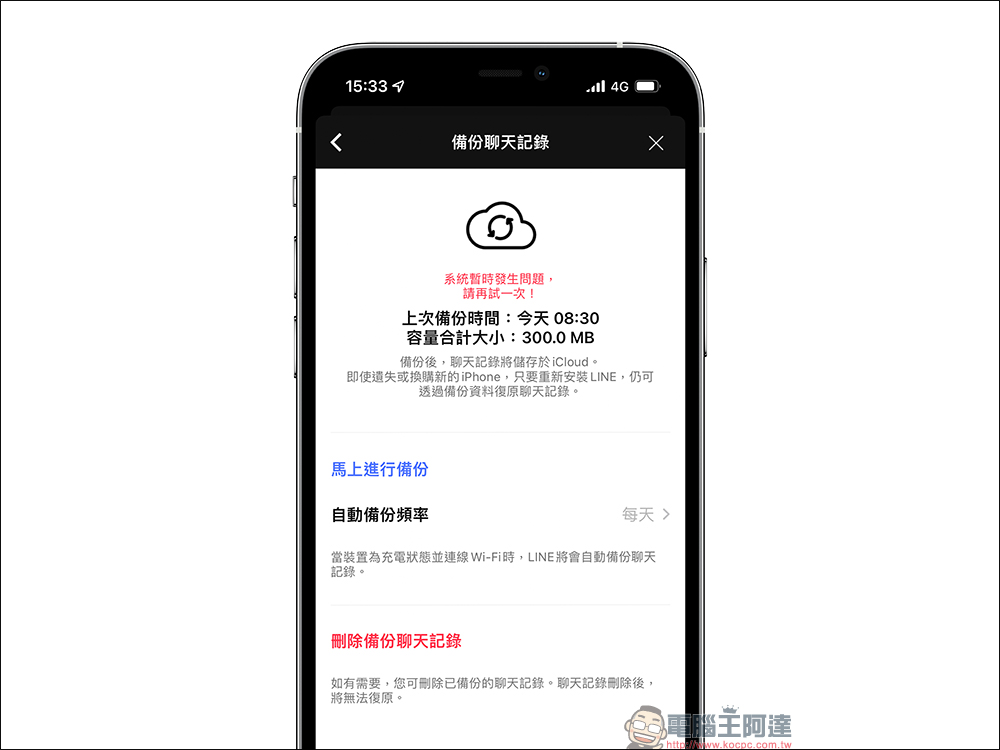
If you encounter the following screen when backing up, it may be due to insufficient remaining storage space on your phone. It is recommended to delete unnecessary applications or data on your phone device, or delete unnecessary data in iCloud. According to the author’s personal experience, backup errors are most likely to occur mainly withNetwork connection status、 Insufficient iCloud remaining spaceThere is a more direct relationship.
If the backup process displays nothing but“Error” or even crash, what should I do to continue the backup?
This may be due to a problem when the backup file is being compressed. You can refer to the following steps to try to troubleshoot:
- Update the LINE app and iOS system to the latest version.
- Confirm that the iCloud settings are correctly linked to your own iCloud account and that you can log in normally.
- Make sure there is enough remaining storage space on your phone and iCloud.
- Restart phone
- Try deleting the old backup: the path is “Homepage” > “Settings” > “Chat” > “Backup Chat History” > “Delete Backup Chat History”.
- Retry the backup operation with a good network connection
How to delete unnecessary data from iCloud?
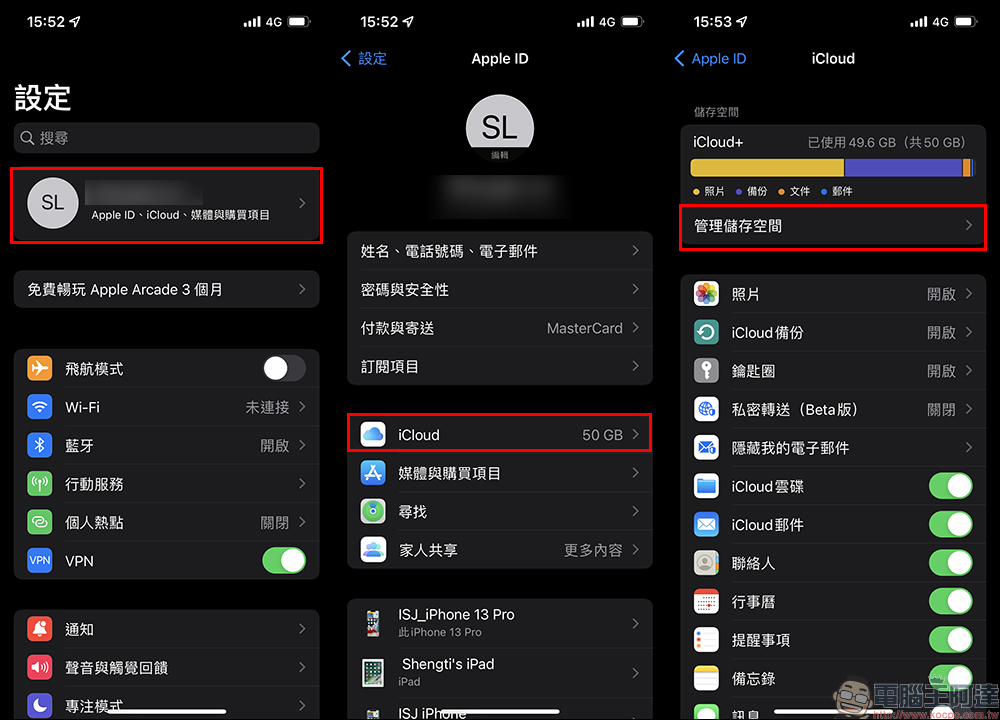
To delete unnecessary iCloud data, go to iOS System Settings, click “Apple ID User Name Field”, select “iCloud”, and then click “Manage Storage Space”.
As you can see from the picture below, the author’s iCloud space is almost full, which can also easily cause the backup of LINE chat history to sometimes fail.
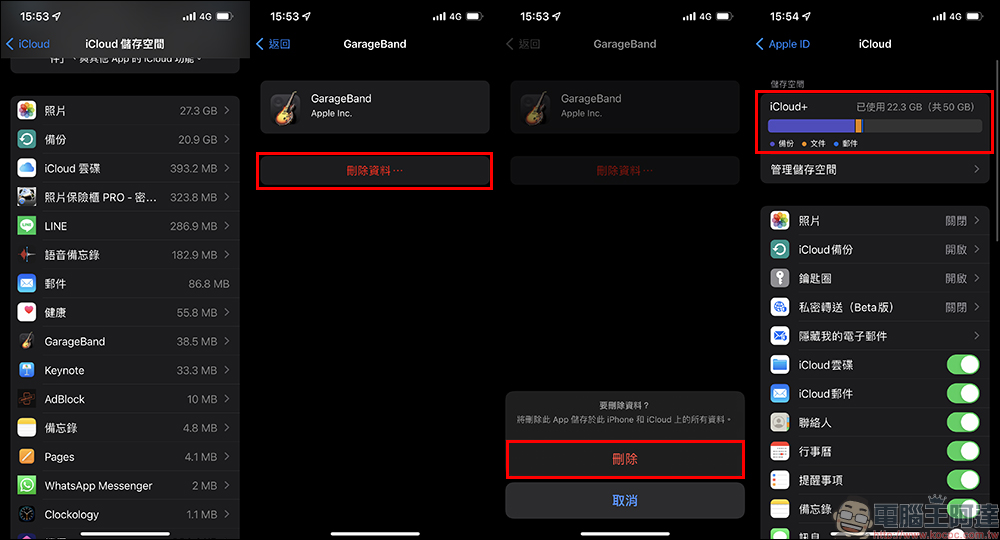
Then the data will be arranged from large to small in the iCloud management space. You can try to delete unnecessary data. After deleting and freeing up iCloud space, backing up chat history will go more smoothly.
Android chat history backup
The steps for backing up chat history in the LINE Android version are actually similar to those on iOS. In the same way, click “Settings” (gear icon) on LINE’s “Home Page” and then select “Chat” > “Backup and Restore Chat History”:
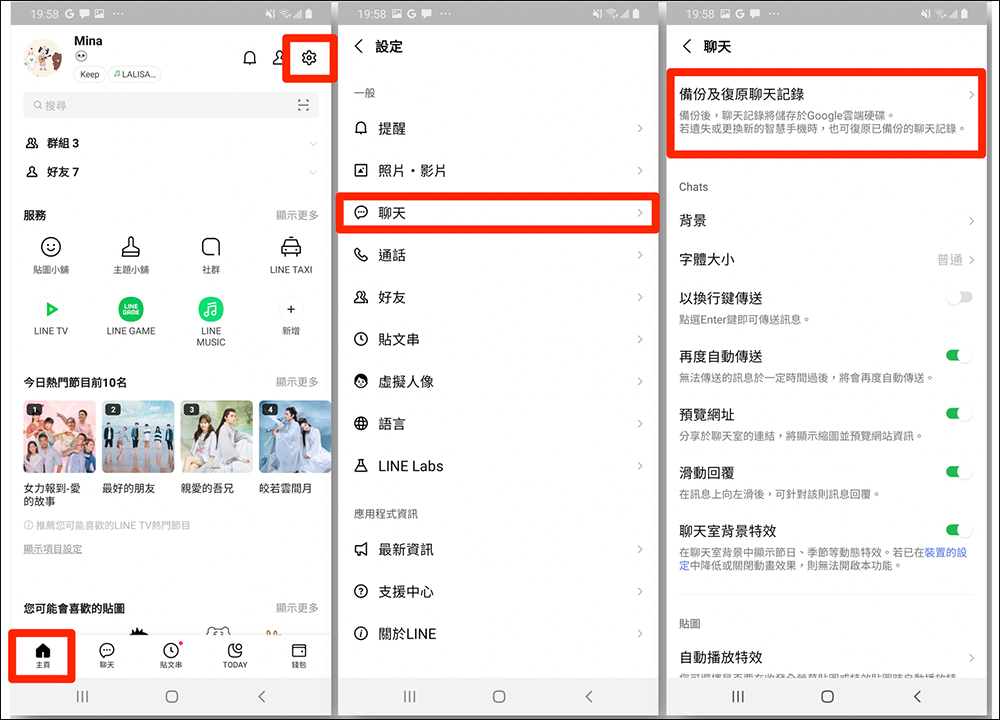
▲Picture source:LINE Taiwan official BLOG
The difference is that when backing up the Android version, the chat history is stored in Google Drive. Click “Backup to Google Drive” to back up.
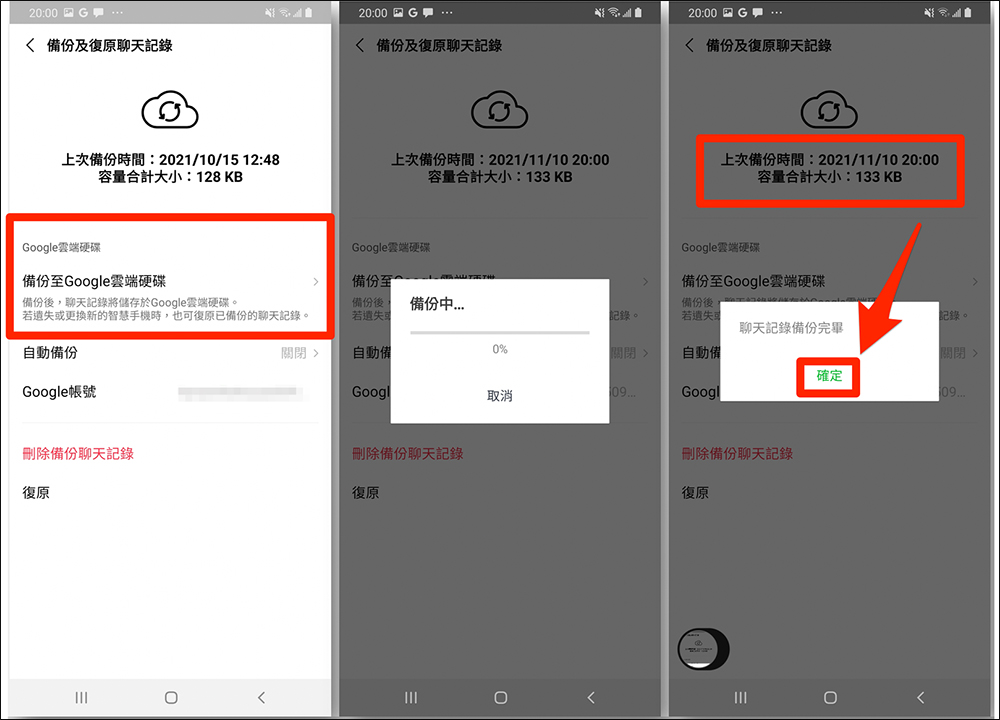
▲Picture source:LINE Taiwan official BLOG
If you want to set up automatic backup, just turn on “Automatic Backup” on the “Backup and Chat History” page. Users can also set the frequency of automatic backup.
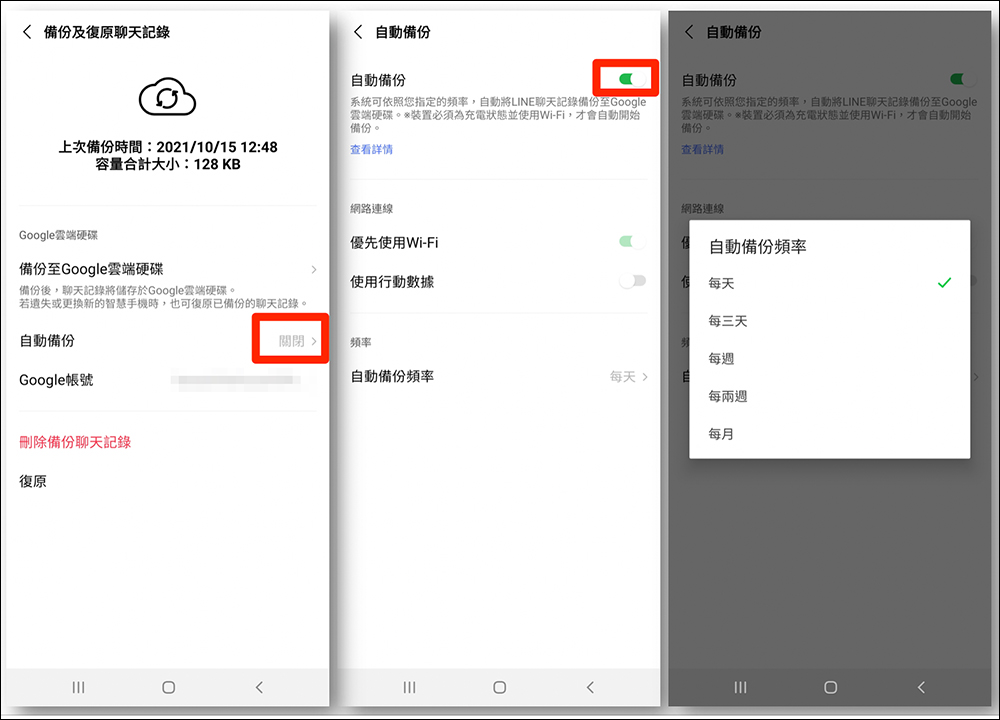
▲Picture source:LINE Taiwan official BLOG
What should I do if the message “Backup failed, please try again” appears halfway through the backup?
If backup failure occurs, it is recommended that you try the following steps to eliminate the obstacle:
- First close all active applications or restart directly
- Reopen the LINE app
- Upgrade the LINE app and mobile device operating system to the latest version
- Confirm that there is enough remaining storage space in the phone itself and Google Drive (it is recommended to install the “Google Drive” App first to easily confirm the remaining space)
- If the backup job still cannot be completed after a period of time, you can try to back up the chat history to another Google account.
LINE backup official lazy bag videos
Picture/Source:LINE Taiwan official BLOG
Source: KOCPC Chinese