


In remote work, file collaboration is an important way for everyone to communicate work content in real time. However, there is a problem. Google spreadsheets that are open for collaborative editing are sometimes modified without knowing who made them. In particular, some important table data cannot be mistaken. This time I will tell you how to view the editing records in Google spreadsheets.
How do I see edit history for a cell in Google Spreadsheets?
If you are collaborating with multiple people, it is often difficult to track every change in any Google spreadsheet. Especially in large tables, if you want to see whether a specific cell has been changed and who made the change, just browsing the historical version records to compare with each other is eye-catching. Being able to view the edit record of a single cell is obviously much easier.
In the editing record of Google Spreadsheet, the following three aspects are mainly recorded:
- Change the value in a cell
- Change hyperlinks within cells
- Change the formula in a cell
- Who made the changes to the cell?
However, this feature still has some minor limitations. Although you can see who edited a single cell, you can only see one change at a time. If you want to check changes made long ago, you still have to check it from the version history. Certain types of changes may also not appear in a cell’s edit history:
- Change the format of a cell, such as changing text format to date format, etc.
- Changes in formula operation results. For example, if the operation result is changed using a sum formula, you will not be able to see the change record of the value in the cell.
- Add or delete rows and columns
How do I view cell edit history in Google Spreadsheets?
The above has told you the relevant information about what can be seen and what cannot be seen. Now let’s take a look at how to use this function.
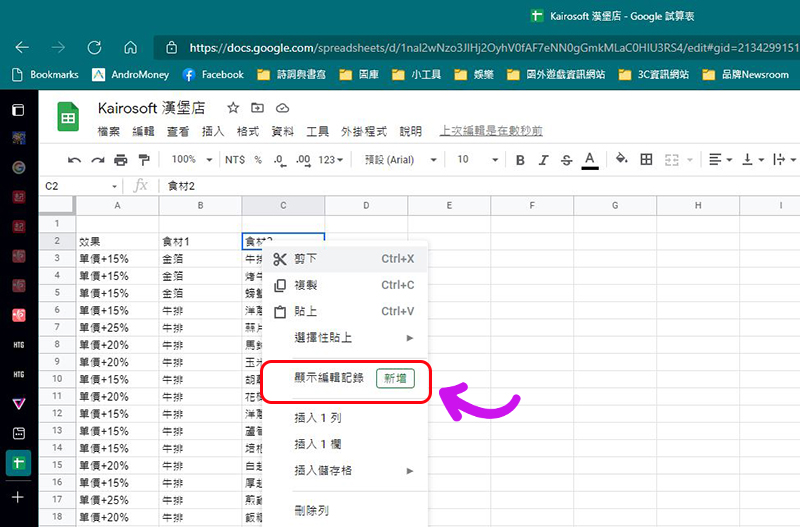
- Right-click the cell in your Google spreadsheet where you want to see edit history and select “Show edit history.”
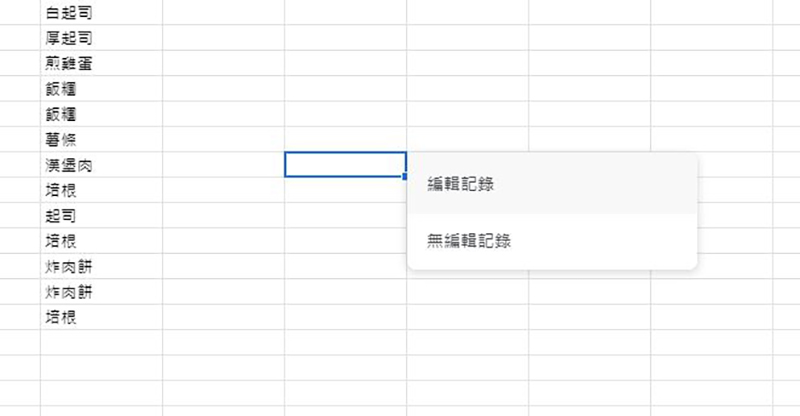
- If the cell is empty and has not been modified, the pop-up window will display “No edit history.”
- If the cell has indeed been edited, the editor’s name, editing time and related change details can be seen in the pop-up window.
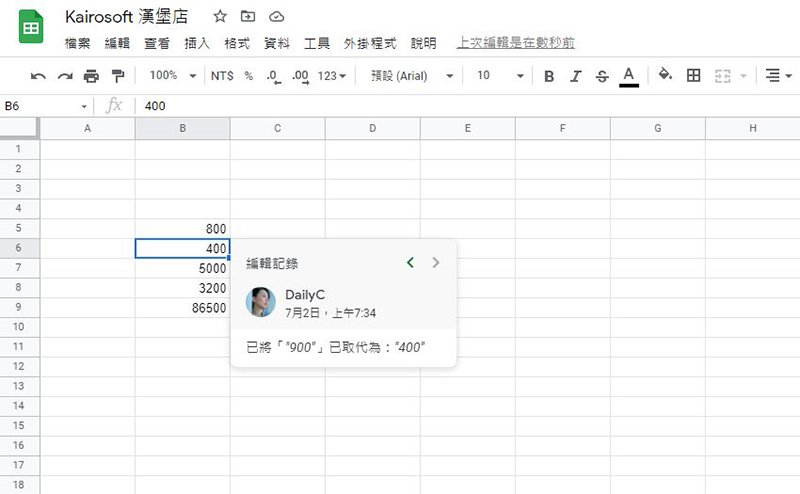
- Click the left and right buttons in the upper right corner of the pop-up window to see older or newer edit records.
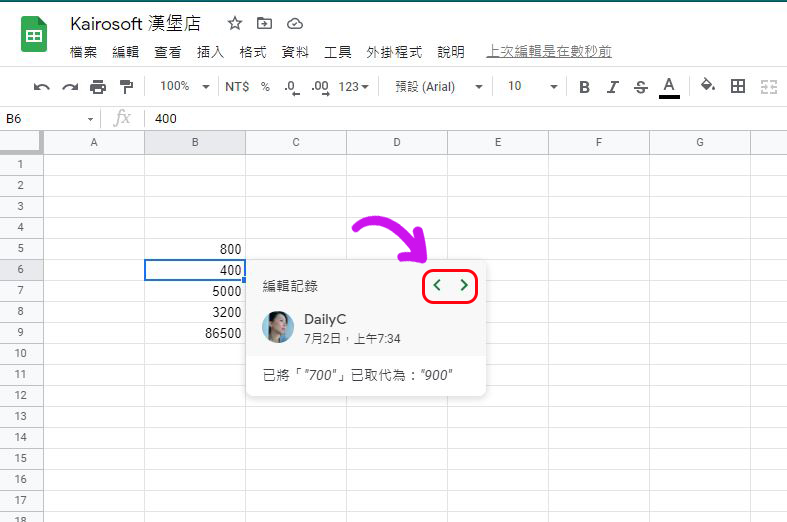
If you’re sure there are changes that don’t show up in the edit history, you can press「Ctrl + Alt + Shift + H」Further check and compare from the history of file versions whether this document has been edited in the past and where it has been edited.
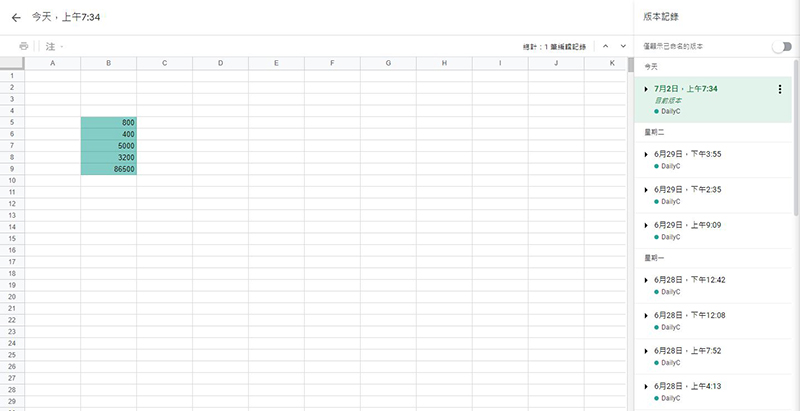
This function is very useful for forms such as inventory and accounting. It can help you confirm whether the carefully entered data has been changed accidentally by collaborators or yourself, quickly and immediately.
Source: KOCPC Chinese