


Nowadays, there are many free video recording tools on the Internet, and some are even completed through the browser, such as:Recordscreen.io, but there are few free recording tools like Berrycast, which is specially designed for the business field. After recording, the video will be uploaded directly to the cloud, allowing you to quickly share it with others. It is very suitable for people who often need to record teaching videos, explain explanations, or communicate with customers. Windows and Mac versions are available.
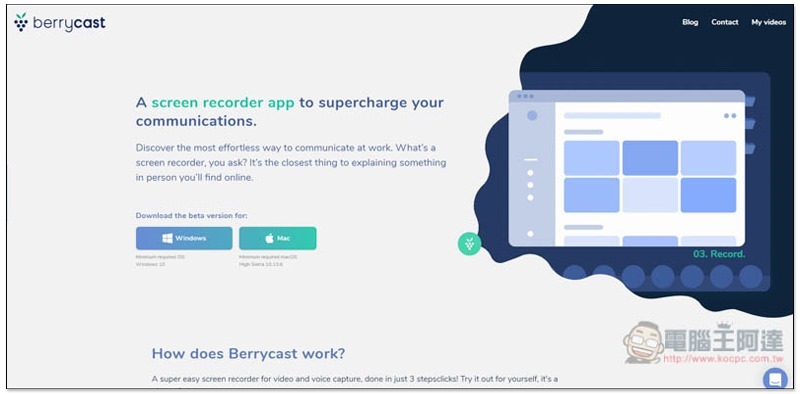
Berrycast Free Screen Recording Tool Introduction
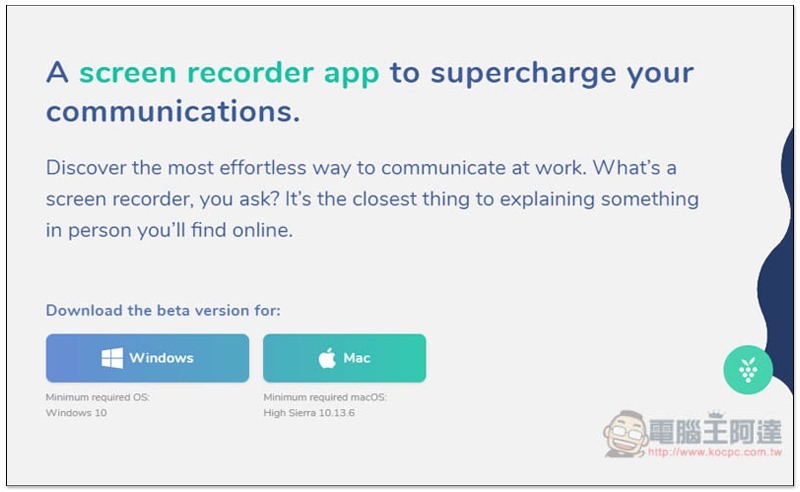
Click meAfter entering the official website of Berrycast free screen recording tool, select the version you want to download, Windows or Mac. Both should be installation-free files. You can open and use them directly after downloading:
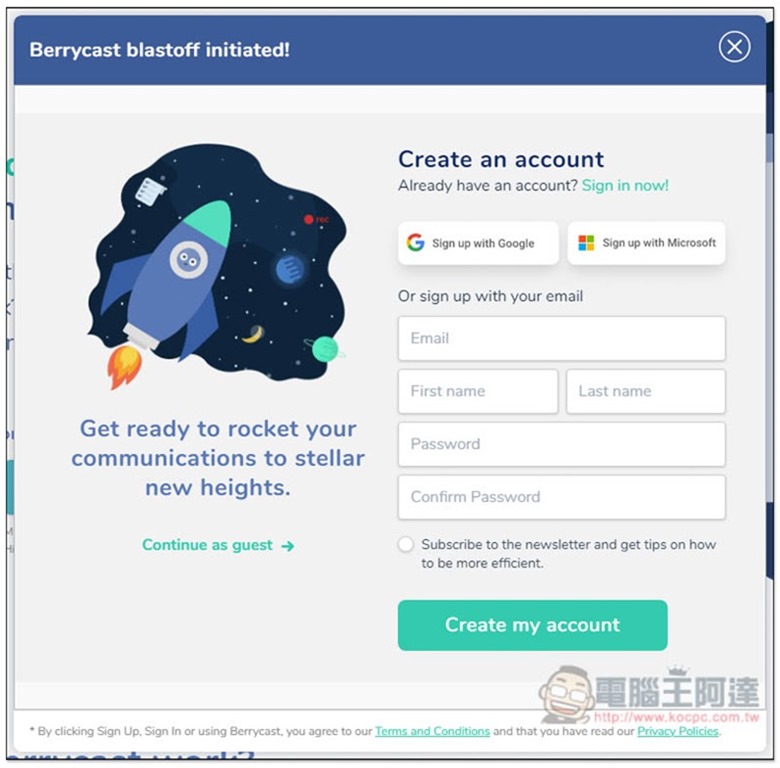
This window will pop up before use. It is recommended to register an account so that the uploaded videos will be placed under your account. If you don’t want to register and want to try it out first, there’s no problem. Click Continue as guest on the left to skip it:
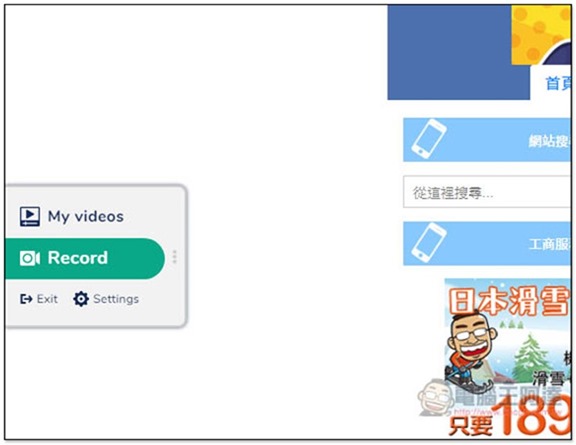
The functions of this set of tools will be hidden on the left side of the screen (there is a green bar). Move the mouse over to open the menu. There are only two functions, My videos and Record:
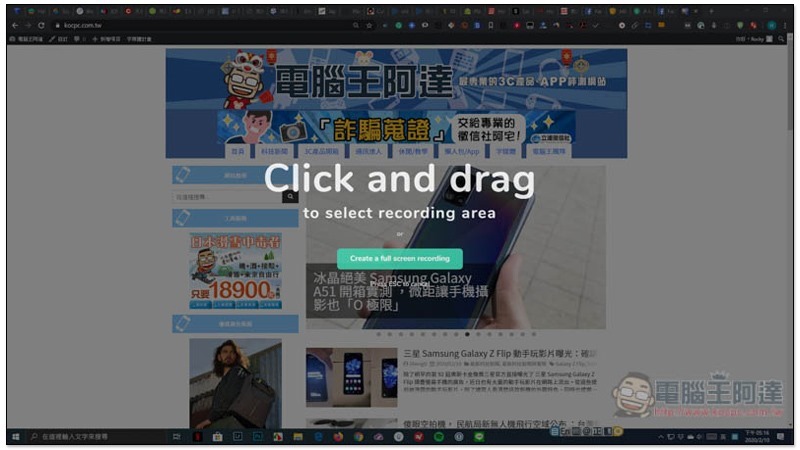
After clicking Record, you can draw the screen area you want to record, and you can also create a full-screen recording:
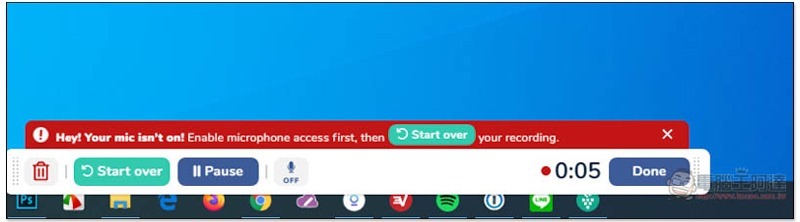
After starting recording, the control menu will be at the bottom, which also supports the microphone function. Friends who need it can open it. If you record the full screen, the resolution will be FullHD. After recording, it will not be stored in the computer, but directly in the cloud. You need to download it separately:
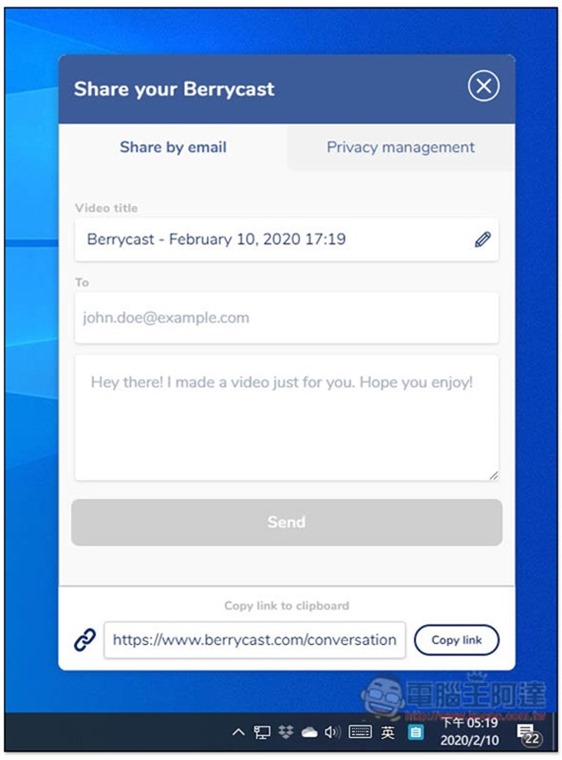
Press Done to stop recording, and this window will pop up on the right. Use Video title to modify the video name you want. If you want to send it to someone for viewing, you can enter the email and content in To. At the bottom is the link to this video:
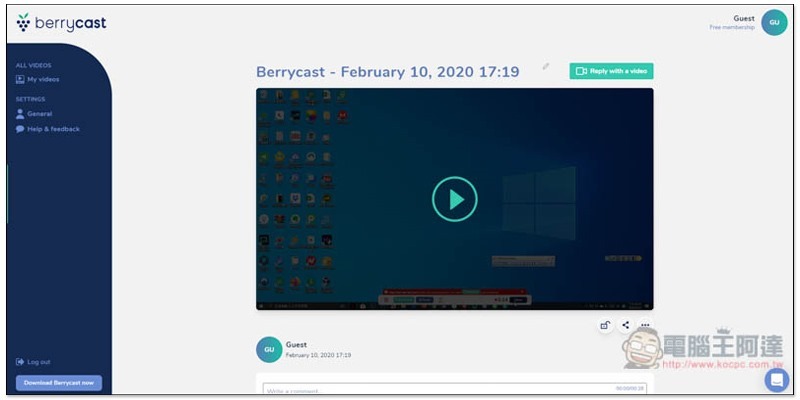
After pasting the link, you can watch this video online. Anyone who knows the link can do so:
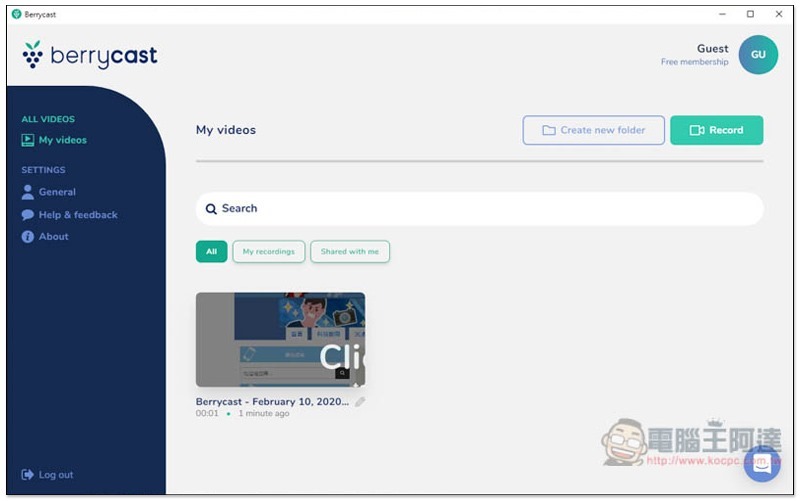
In the My videos menu, you can find all the videos you have recorded in the past:
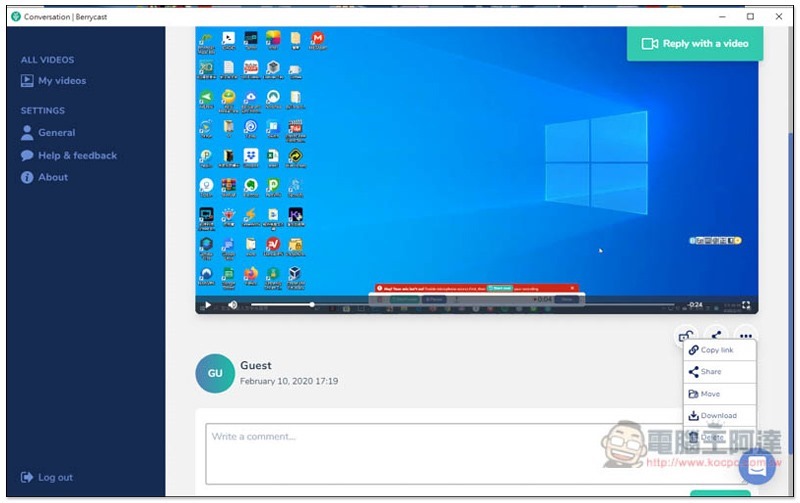
Go to the inner page and open the… menu in the lower right corner. You can find the Download download function. The format will be MP4:
Supplementary information
Berrycast official website:Click here to go
Source: KOCPC Chinese