


Finally, as previously reported,Gemini The desktop application has officially launched, and as expected, the top pick is macOS version, just like the others AI The tools remain the same. As for features, beyond what most web versions offer, it also brings a “quick invoke” feature that lets you press a shortcut key to instantly summon Gemini and chat. And the “desktop intelligence” everyone’s been waiting for is confirmed to be included—you can use this feature to share your Mac screen with Gemini.
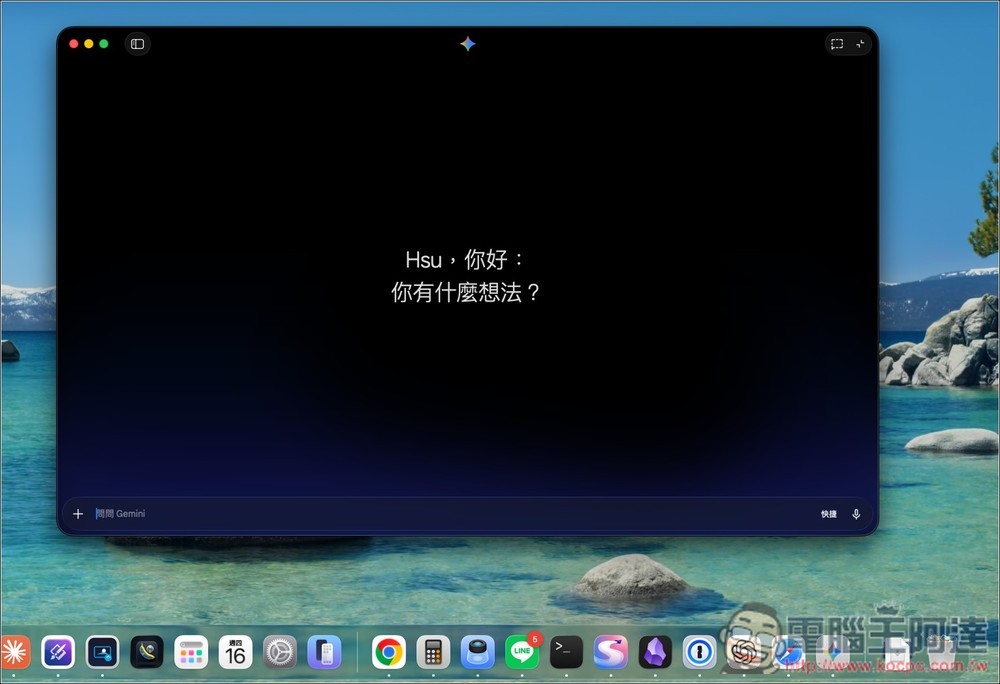
Gemini Officially Comes to macOS! Native Desktop App Launches — Features and Limitations Explained
Earlier today, Google officially launched the Gemini Mac app on its official blog. This is a 100% native Swift Mac application, not a web wrapper desktop app. Google says the team completed development of this app in under 100 days, with over 100 built-in features.
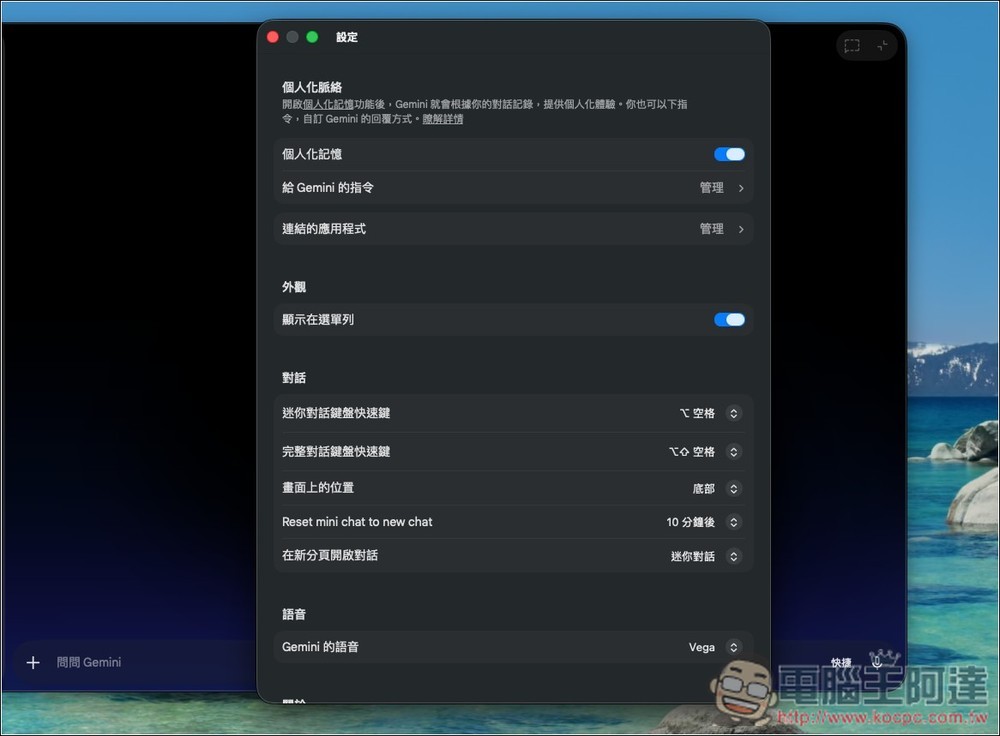
Since this is a desktop application, it naturally includes some exclusive features, such as “Quick Invoke.” After installation, you simply press Option + Space on your keyboard, and a compact chat window will appear on screen, allowing you to quickly chat with Gemini without interrupting whatever app you’re currently using. If you want a more complete conversation experience, you can press Option + Shift + Space to open the full version window. Of course, both of these keyboard shortcuts can be customized in Settings. In addition to the shortcuts, Gemini also appears in the menu bar at the top right corner.
In terms of features, it’s basically the same as the web version of Gemini, including
- Screen and window sharing: You can directly share what’s currently on your screen with Gemini for it to analyze. For example, if you’re viewing a chart, sharing the window lets Gemini help interpret it, and you can also share local files for it to help process.
- Image, Video, and Music Generation: Nano Banana, Veo, and Lyria 3 generation features are also available.
- Deep Research, Canvas, Voice input, etc.
As for whether it will come to Windows, that’s still unknown at the moment — Google hasn’t revealed anything yet, though it’s essentially a sure thing.
One thing to note about Mac is that the Gemini desktop app only supports macOS 15 Sequoia or later. It’s available to all users, with the same restrictions as the web version.
How to use Gemini for Mac
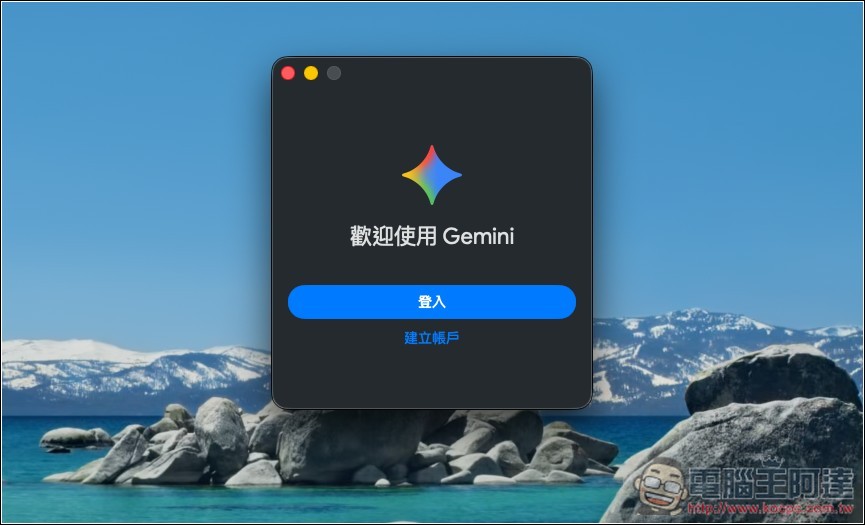
After installation, opening Gemini will prompt you to sign in:
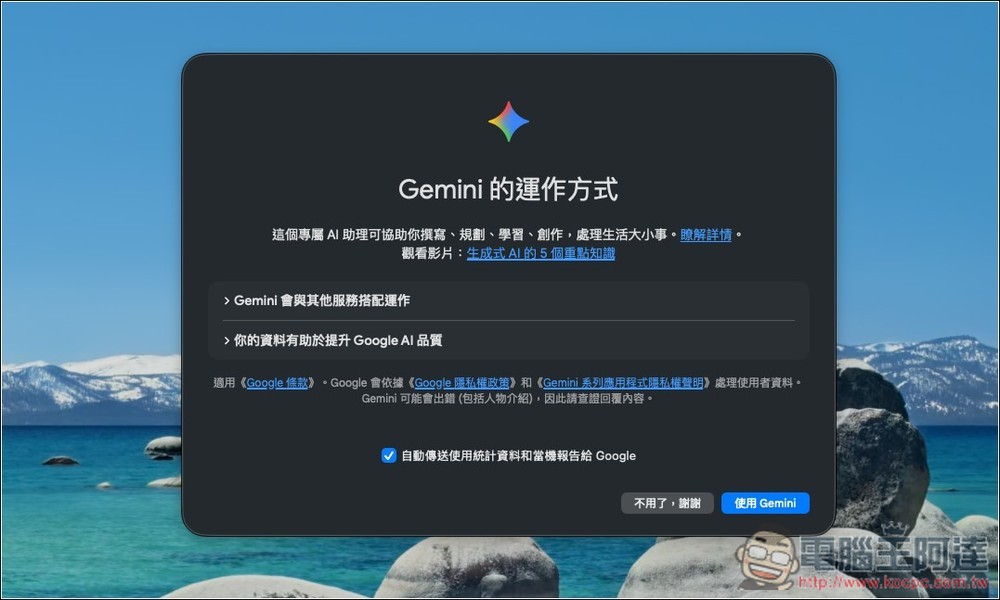
You’ll see privacy information asking if you want to automatically send usage statistics and crash reports to Google. If that’s okay, tap “Use Gemini”.
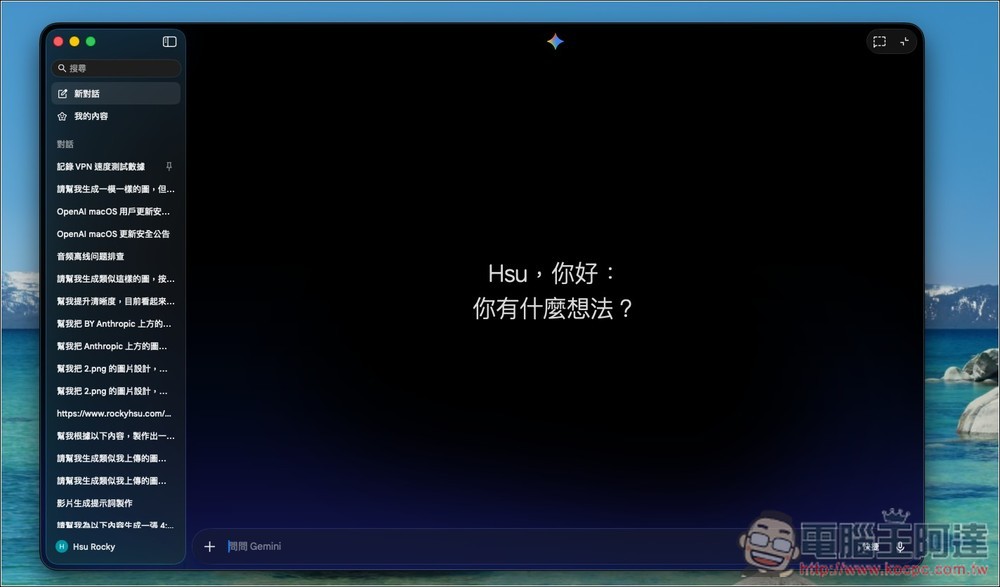
The image below shows the Gemini interface. Tap the icon in the top left corner to expand the chat history:
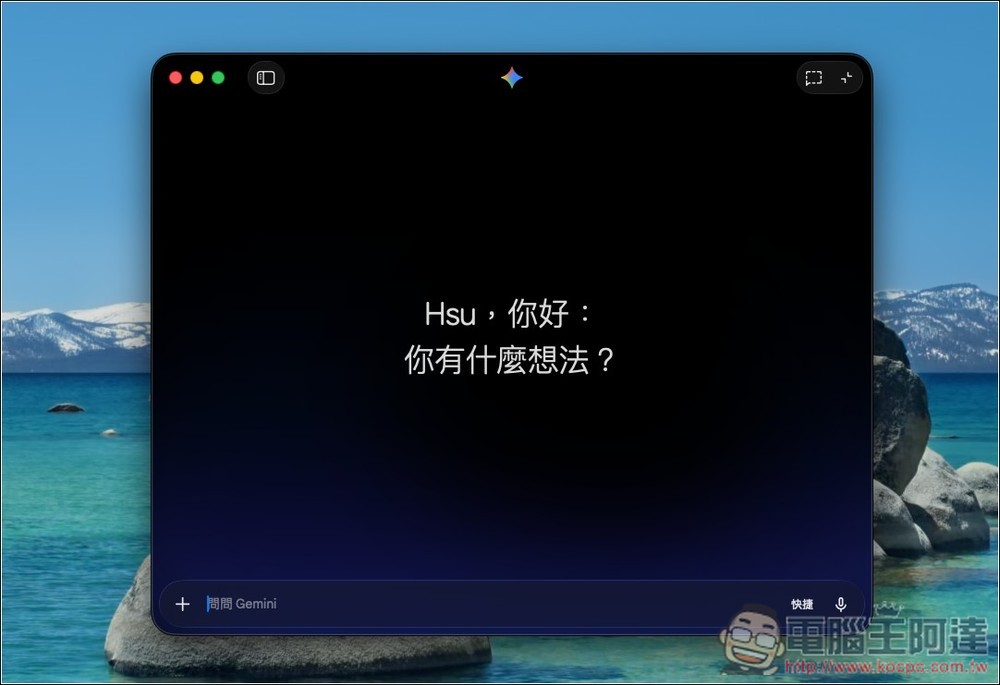
Chat history will sync with your Google account:
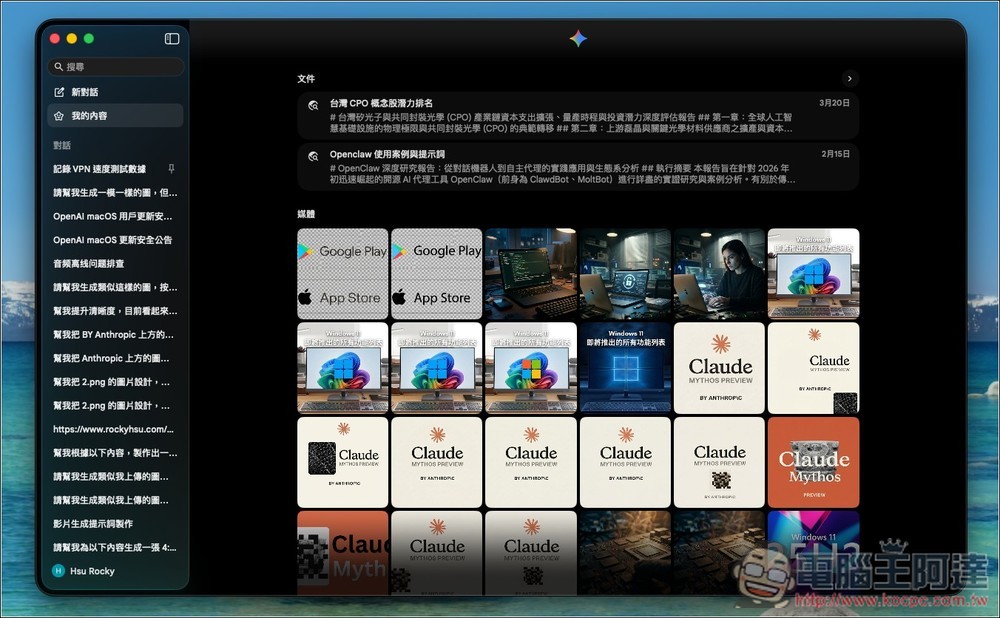
In the content section, you can find documents and media previously generated by Gemini.
There are also options you can adjust in settings, such as personalized memory, connected apps, shortcuts, and Gemini voice, among others:
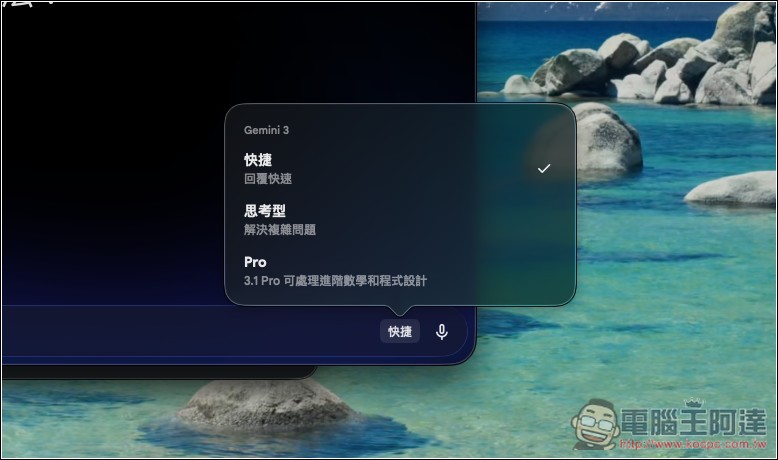
The model switcher is in the bottom right corner of the chat.
The + menu on the left enables sharing windows, generating images, creating videos, composing music, and other functions:
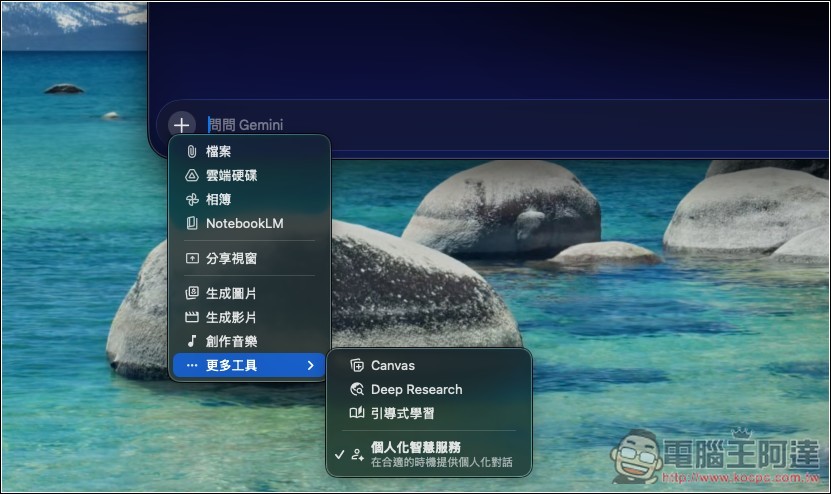
Option + Space Mini Chat Window:

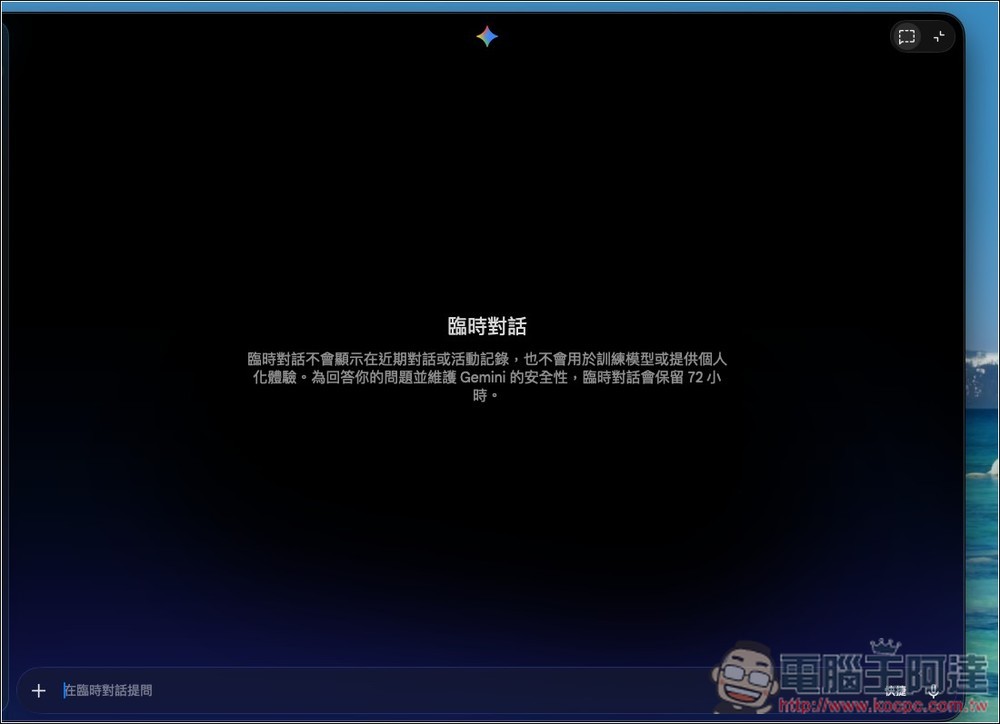
Of course, it also supports temporary conversations:
Source: KOCPC Chinese