


Although Windows 11 already introduced a CPU acceleration mechanism called the “Low Latency Profile” back in May, it didn’t support most applications at the time, only making the Start menu, Search, Notification Center, and the like a bit faster, so the effect wasn’t very noticeable. However, the recent Patch Tuesday update has finally filled in this gap. After hands-on testing, external media outlet Windows Latest confirmed that opening general software now also triggers this CPU acceleration.
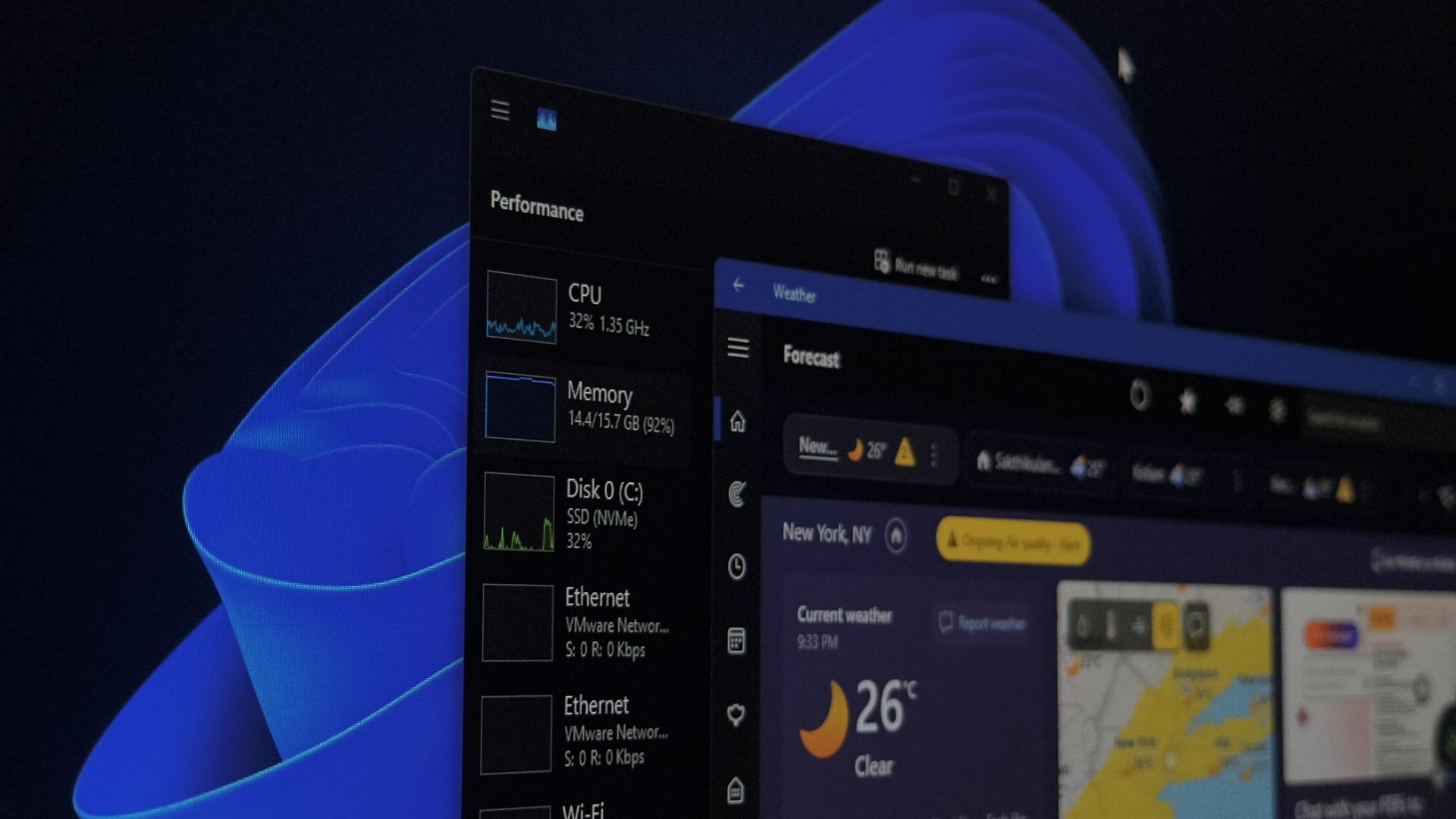
Image source: Windows Latest
Windows 11 app launch is finally faster! This time the low latency profile actually applies to apps. Here’s how to check and enable it manually.
Released a few days ago with Patch Tuesday, Windows 11 KB5121003 is a mandatory security update. After installing it, Windows 11 24H2 will move to Build 26100.9168, and 25H2 to Build 26200.9168. Besides the low-latency profile, this update also includes improvements to File Explorer and recent files stability, stuttering when switching between multiple desktops, Windows Search now finding installed apps even with typos, and File Explorer displaying file sizes in MB/GB, among other things.
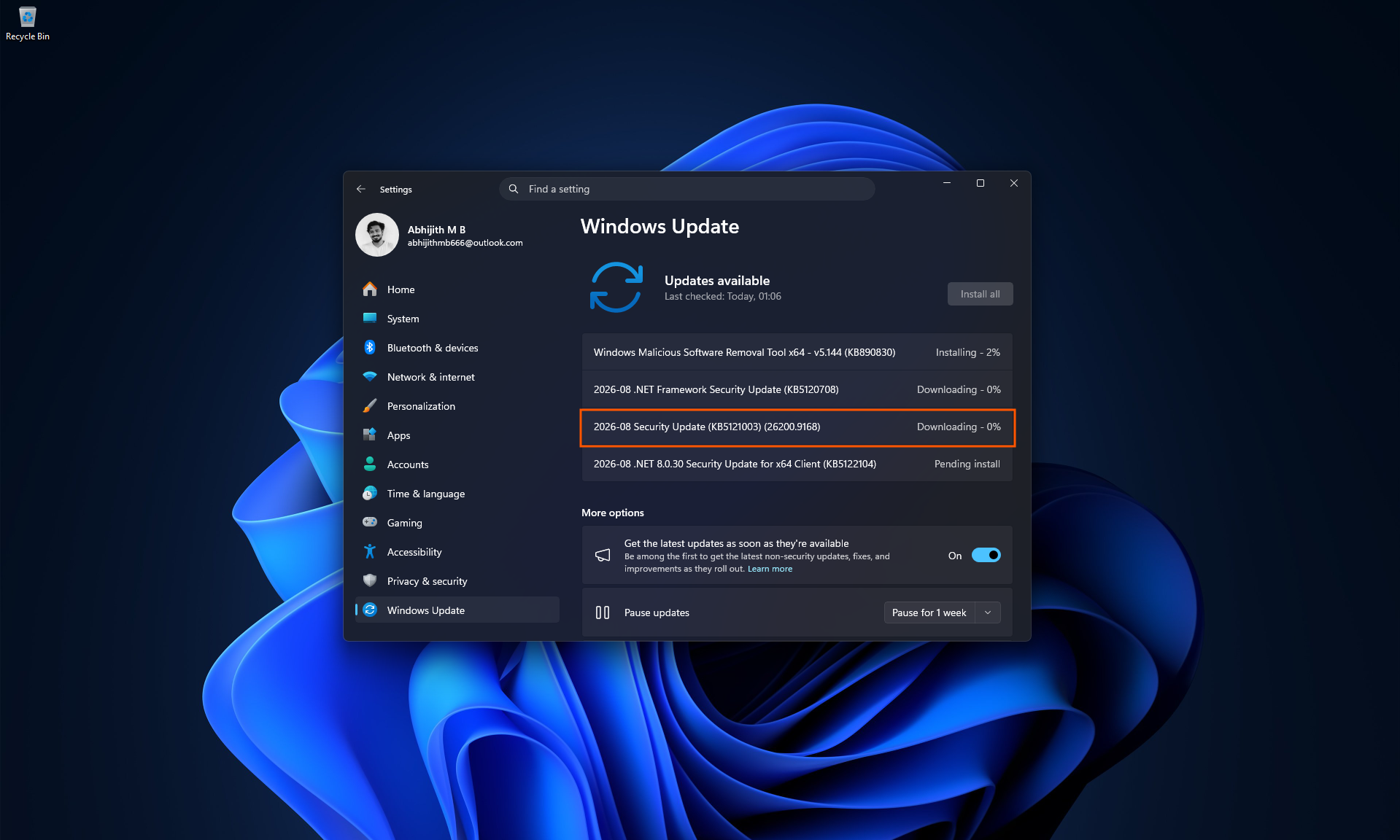
Image source: Windows Latest
The low-latency profile isn’t anything new—it was already released back in May, and we’ve covered it before. However, at the time, foreign media testing found that the only things triggering the acceleration were the system’s own pop-up windows, such as the Start menu, search, notification center, and right-click menus. The same acceleration effect was not observed in regular built-in apps or third-party software.
After this update, foreign media Windows Latest Testing was conducted on a laptop equipped with an Intel Core i5-13420H. When launching an application, the P-core (performance core) clock speed approaches the processor’s upper limit of 4.6GHz, and the E-core (efficiency core) also reaches 2GHz. This lasts for about 1 to 3 seconds before dropping back. It is clearly much faster than when it is not enabled:
Real-world Test: Windows 11 Weather App Launch Speed Comparison (Before and After Update)
Windows Latest tested quite a few software programs, and they all got faster, such as Calculator, Notepad, Chrome, PowerPoint, VLC, Epic Games Store:
Hands-on testing: After installing the Windows 11 August update, launching an application instantly triggers the CPU low-latency profile.
As for the power consumption and heat that many might worry about, previous real-world testing showed almost no impact. The key is that clock speeds spiking doesn’t mean usage rates spike. During the tests, while CPU clocks jumped to 4–4.5GHz, the usage rate didn’t move at all, staying at 10–25% when idle and 20–30% under background load. Even continuously clicking through various system menus to trigger it didn’t affect the usage rate.
The trickier part is that Microsoft currently doesn’t provide any settings option that lets you check whether the low-latency profile is enabled, so you can only observe CPU clock speed changes yourself. If it doesn’t take effect after the update, you can enable it using ViVeTool, an open-source utility.
Please go to Download from GitHub’s ViVeTool release page.Be careful to choose the correct version. For Intel/AMD processors, grab the package with IntelAmd in the filename. For ARM64 machines like Snapdragon (e.g., some Copilot+ PCs), grab the SnapdragonArm64 package. If you grab the wrong one, it won’t run.
After downloading, extract the archive and put it in a location you prefer, such as C:ViVeTool. Then open “Command Prompt” as administrator and enter the following command:
cd C:ViVeTool
If your location is different, remember to change it, then run the command below.
vivetool /enable /id:58989092,58989177,61391826
After seeing the success message, restart the device and it will take effect.
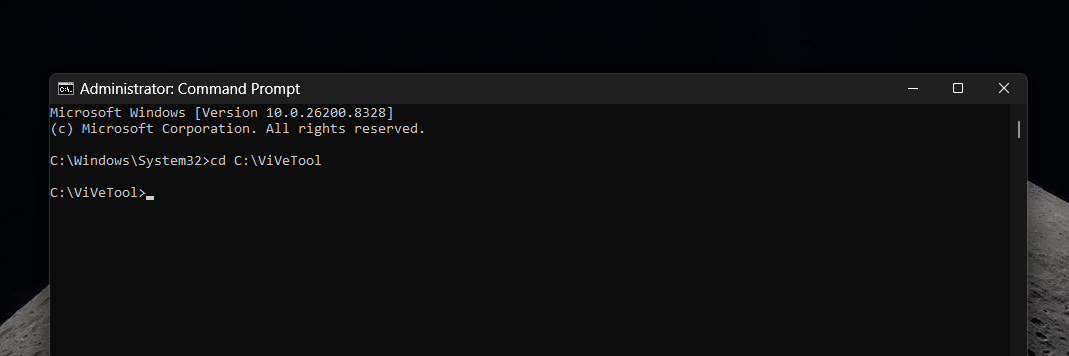
Image source: Windows Latest
Source: KOCPC Chinese