


Fujifilm’s film tones have always been a romance in the hearts of many photography enthusiasts. From the highly saturated Velvia, to the famous ASTIA for soft skin tones, to the beloved Classic Chrome, they all have a unique image atmosphere. Surprisingly,FujiRecently, we have officially released a number of our own film-style LUT Free and open for download, not only camera users can benefit, but even iPhone users can directly apply these LUTs, so that mobile phones can take photos and videos with a strong film feel.
This article will start with what LUT is, and teach you how to install, import and use Fujifilm official LUT on iPhone, with freeJiying camera With the app, you can easily capture Fuji’s classic tones.
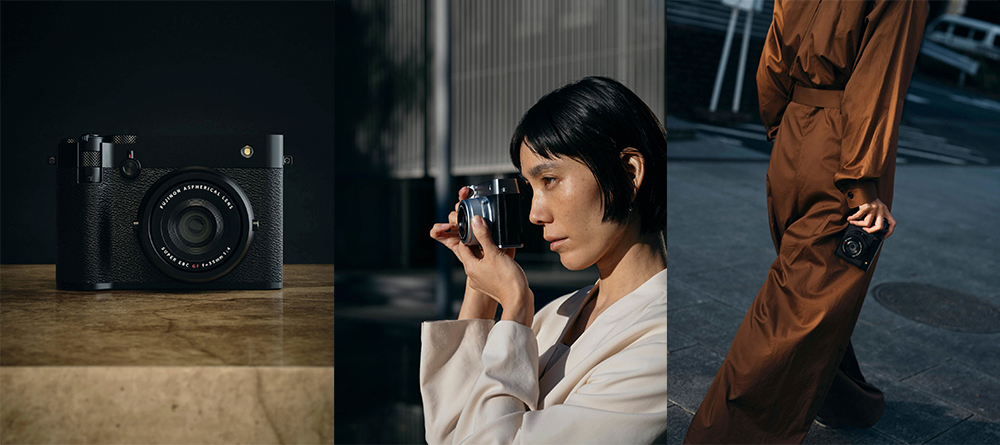
▲Image source: Fujifilm
Fujifilm official LUT color grading files are free to download and can also be applied to iPhone (tutorial)
Fuji Fujifilm The color tone of the negatives is no longer limited to the photography circle, but has spread to ordinary life recorders. For those who like to take photos with their mobile phones, 80% of them have imitated Classic Chrome or ETERNA. The calm, bluish, slightly matte tones always make the photos look more story-telling.
This time Fujifilm directly LUTs many of its own films freeThe release is not only a surprise for users of other brands of cameras, but it is also a complete benefit for mobile phone photography players. Because LUT is almost equivalent to “putting Fujifilm’s color science directly into your camera”, so that your photos and videos can be close to Fujifilm’s native style. In other words, you can experience the taste of Fuji even if you don’t buy a Fuji camera.
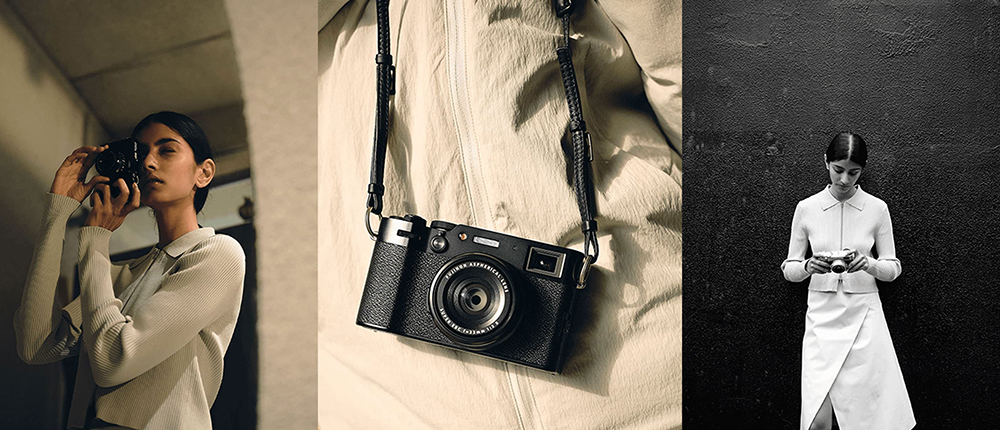
▲Image source: Fujifilm
What is a LUT?
The full name of LUT is Look-Up Table, which can be regarded as a complete set of color conversion formulas. When you apply a LUT to a photo or video, it will redistribute the brightness, hue, and saturation according to the settings in the LUT, ultimately presenting a specific style.
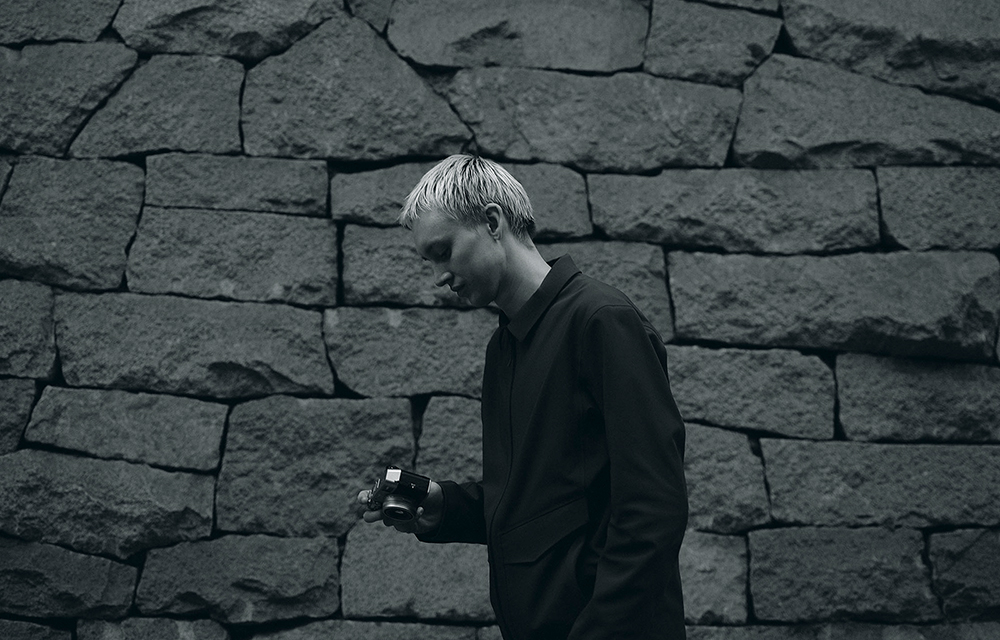
▲Image source: Fujifilm
Take Fujifilm as an example. Each film simulation is originally based on Fujifilm’s color science. Therefore, after being transferred to a LUT, any imaging device can simulate the same tonality. Not only cameras and photo editing software can be applied, but the iPhone can also achieve similar effects through the camera app that supports LUT. In other words, the taste of Fuji films is no longer limited to Fuji cameras, but can also be easily owned on mobile phones.
What LUTs does Fujifilm officially provide for free?
The LUTs currently released by Fujifilm are all provided in .cube format, and the types are quite complete, covering many of its star series, including:
- ETERNA style of Fujifilm’s cinematic models
- GFX medium format flagship common rich skin tone LUT
- Film simulation used on various X series bodies
- Iconic shades of the popular X100VI and other models
These LUTs are all recoded according to F-Log2 color science, ensuring color accuracy and full representation of the unique gamut, contrast and color characteristics of Fujifilm films. Simply put, the LUTs that can be used are native, non-imitated versions. This is why this wave of free resources is so hotly debated.

▲Image source: Fujifilm
Fuji official LUT color correction file free download (Fujifilm official website)
The following is a collection of download links for LUT color grading files for various Fuji cameras from Fujifilm’s official website, so that you can download them directly.
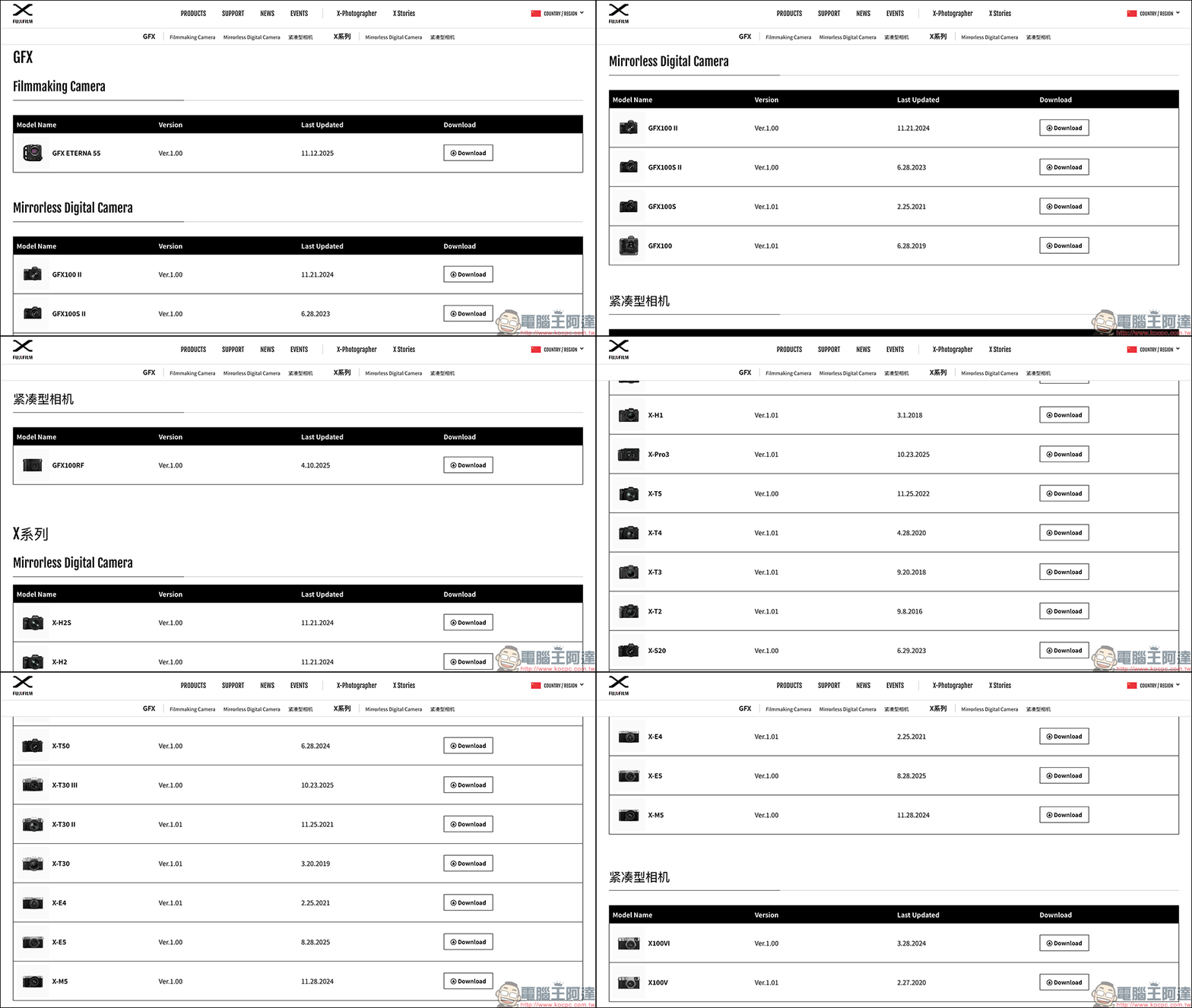
- X100VI:Free download (Fujifilm official website)
- X100V:Free download (Fujifilm official website)
- X-H2S:Free download (Fujifilm official website)
- X-H2:Free download (Fujifilm official website)
- X-H1:Free download (Fujifilm official website)
- X-Pro3:Free download (Fujifilm official website)
- X-T5:Free download (Fujifilm official website)
- X-T4:Free download (Fujifilm official website)
- X-T3:Free download (Fujifilm official website)
- X-T2:Free download (Fujifilm official website)
- X-S20:Free download (Fujifilm official website)
- X-S10:Free download (Fujifilm official website)
- X-T50:Free download (Fujifilm official website)
- X-T30 III:Free download (Fujifilm official website)
- X-T30 II:Free download (Fujifilm official website)
- X-T30:Free download (Fujifilm official website)
- X-E5:Free download (Fujifilm official website)
- X-E4:Free download (Fujifilm official website)
- X-M5:Free download (Fujifilm official website)
- GFX ETERNA 55:Free download (Fujifilm official website)
- GFX100 II:Free download (Fujifilm official website)
- GFX100S II:Free download (Fujifilm official website)
- GFX100S:Free download (Fujifilm official website)
- GFX100:Free download (Fujifilm official website)
- GFX100RF:Free download (Fujifilm official website)
Fujiflm official 3D-LUT page
How to use Fuji LUT on iPhone? The complete tutorial is here
The following will teach you the complete steps from downloading, organizing to formal shooting. There is no need for advanced software, no need to jailbreak, or even no need to pay. You can do it with your iPhone.
Step 1. Install a camera app that can import LUTs
Currently on the iPhone, the app that supports importing LUTs is the Jiying Camera App recommended today. This app, formerly known as Fotogear, is specially built for iPhone and is not only completely free, ad-free, and full-featured.
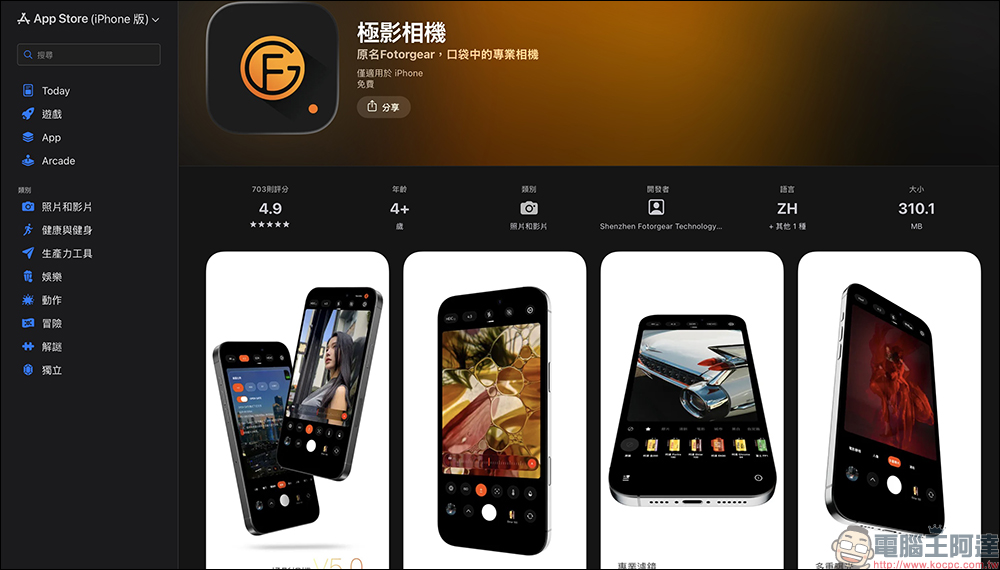
Feature highlights include:
- Photo shooting supports LUT
- Video support LUT
- Shooting in RAW files
- 4K120FPS video recording
- AppleLog2, ProRes format
- Lots of built-in filters
- Manually adjust complete exposure parameters
- The most important thing is: it can import .cube filter files.
Jiying Camera App download (App Store)
Step 2. Download Fujifilm official LUT to iPhone
After opening the download page provided by Fujifilm in Safari, click the download button to save the compressed file directly to your iPhone. After the download is completed, open the download item in Safari and find the Fujifilm LUT compressed file. The screen will jump to the “File” App.
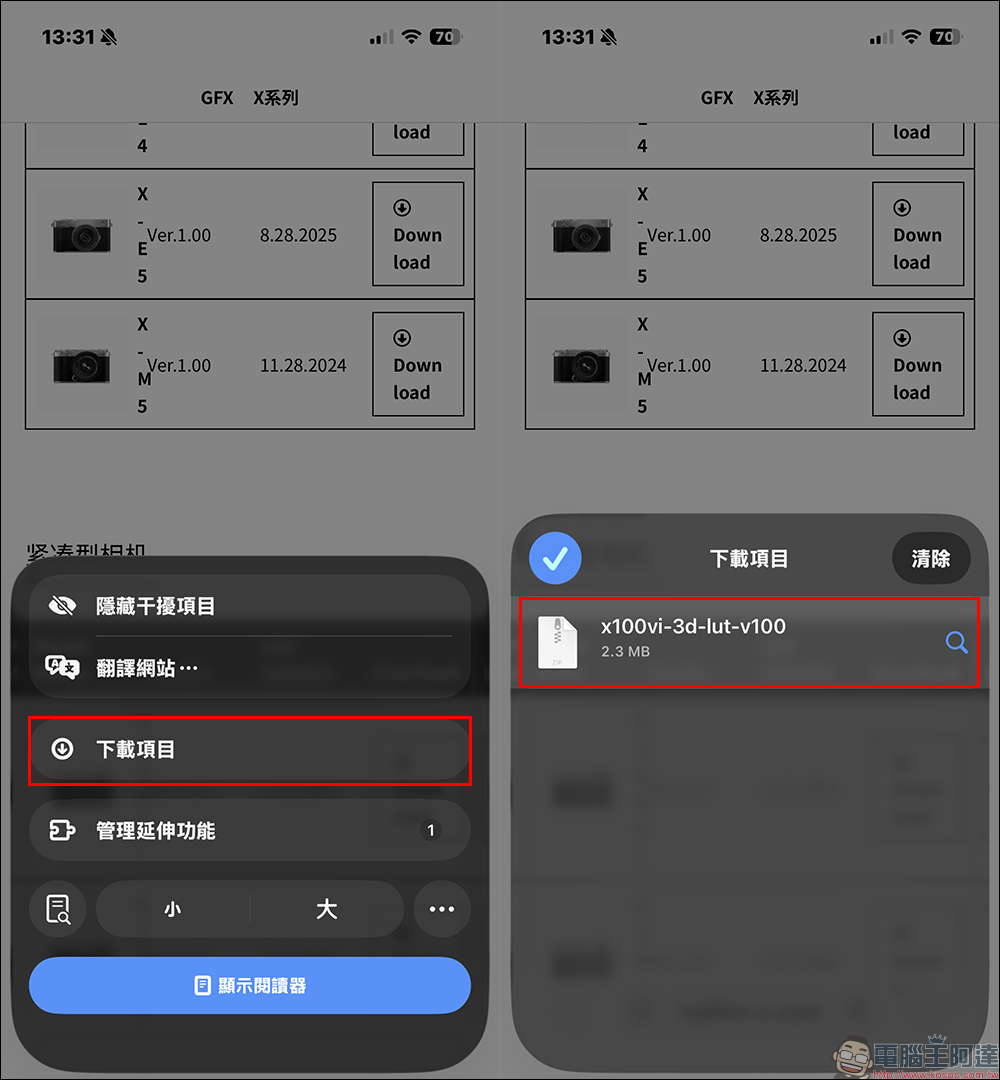
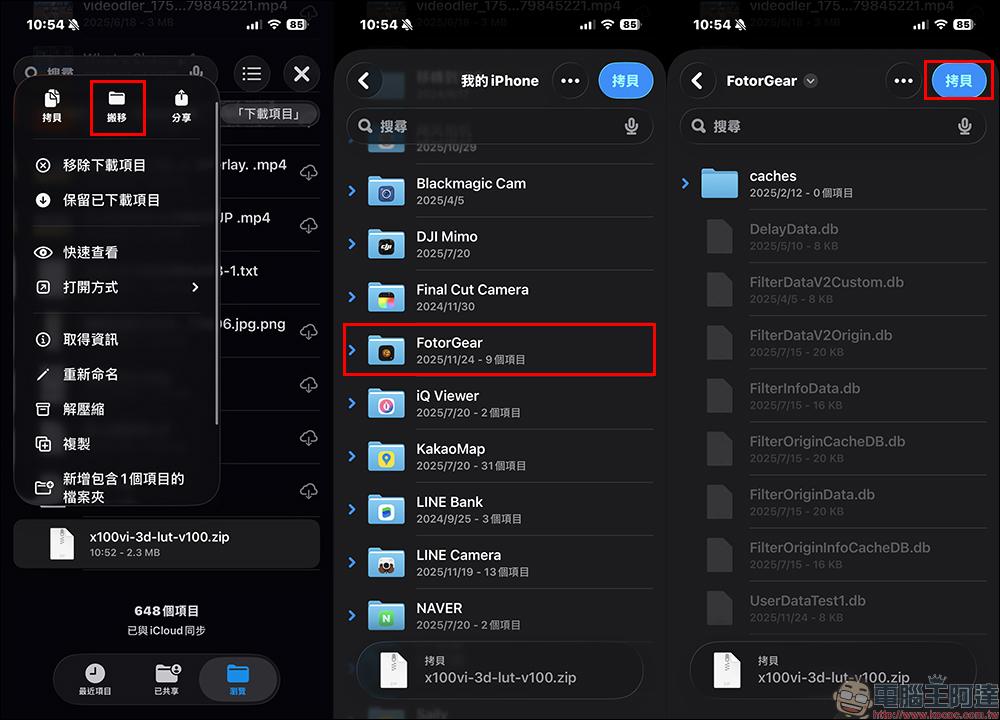
Long press the compressed file to select “Move” and move it to the folder you want to store it in (the FotoGear folder is used as an example here). Click on the compressed file in the folder to automatically decompress it into a folder
. It is also recommended to create a separate folder dedicated to “Fuji LUT”, which will make it more convenient to import and manage LUT files later.
Step 3. Open the Jiying Camera App and import the LUT file
When you open the Jiying Camera App for the first time, a permission prompt will pop up. Just allow everything. Click “Filter” on the toolbar at the bottom of the app and find “Customize” on the far right. Then click “Import Filter” and select “.cube format”.
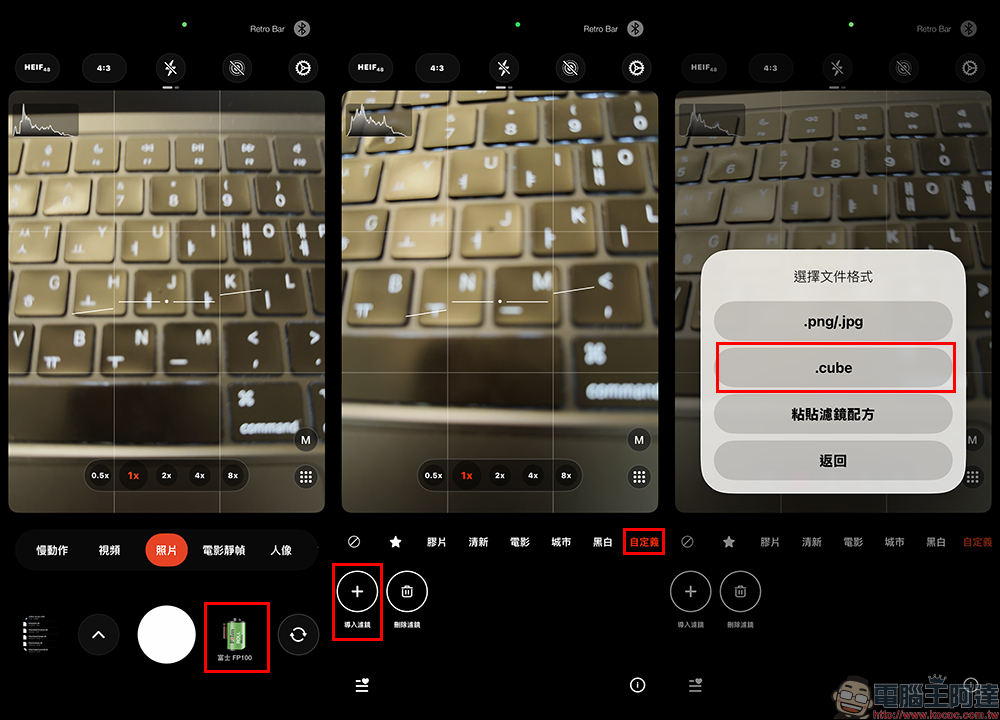
Check all Fujifilm LUT files and these LUTs will become your personal filters.
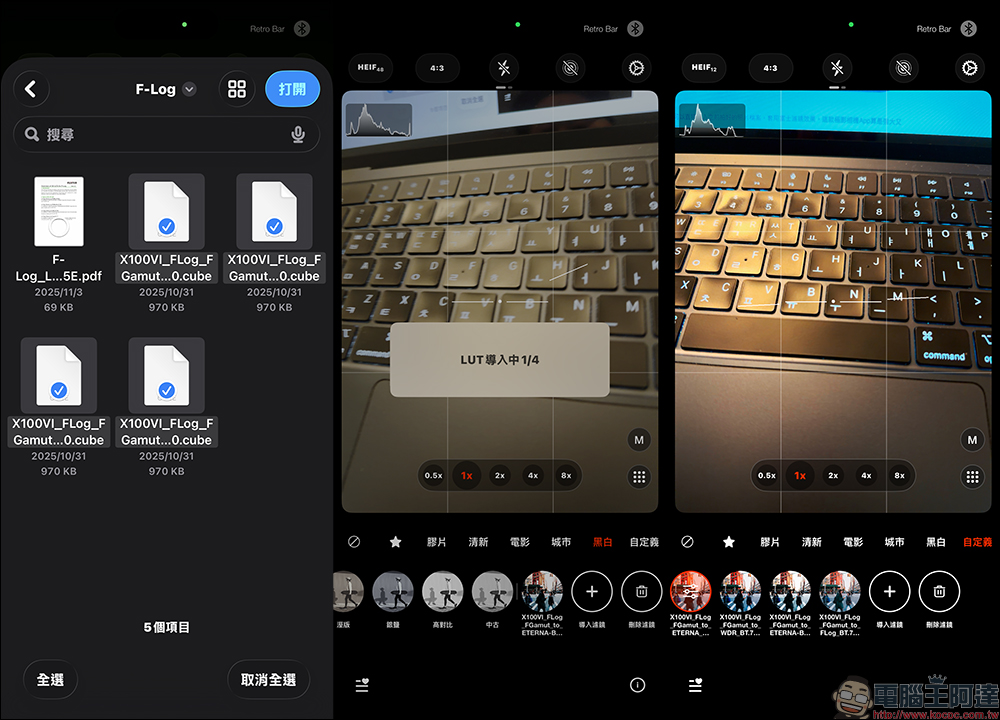
Step 4: Start shooting with iPhone to look like Fujifilm
Now go to the photo interface, just switch to “Filter” → “Customize” and you can immediately see various Fuji colors.
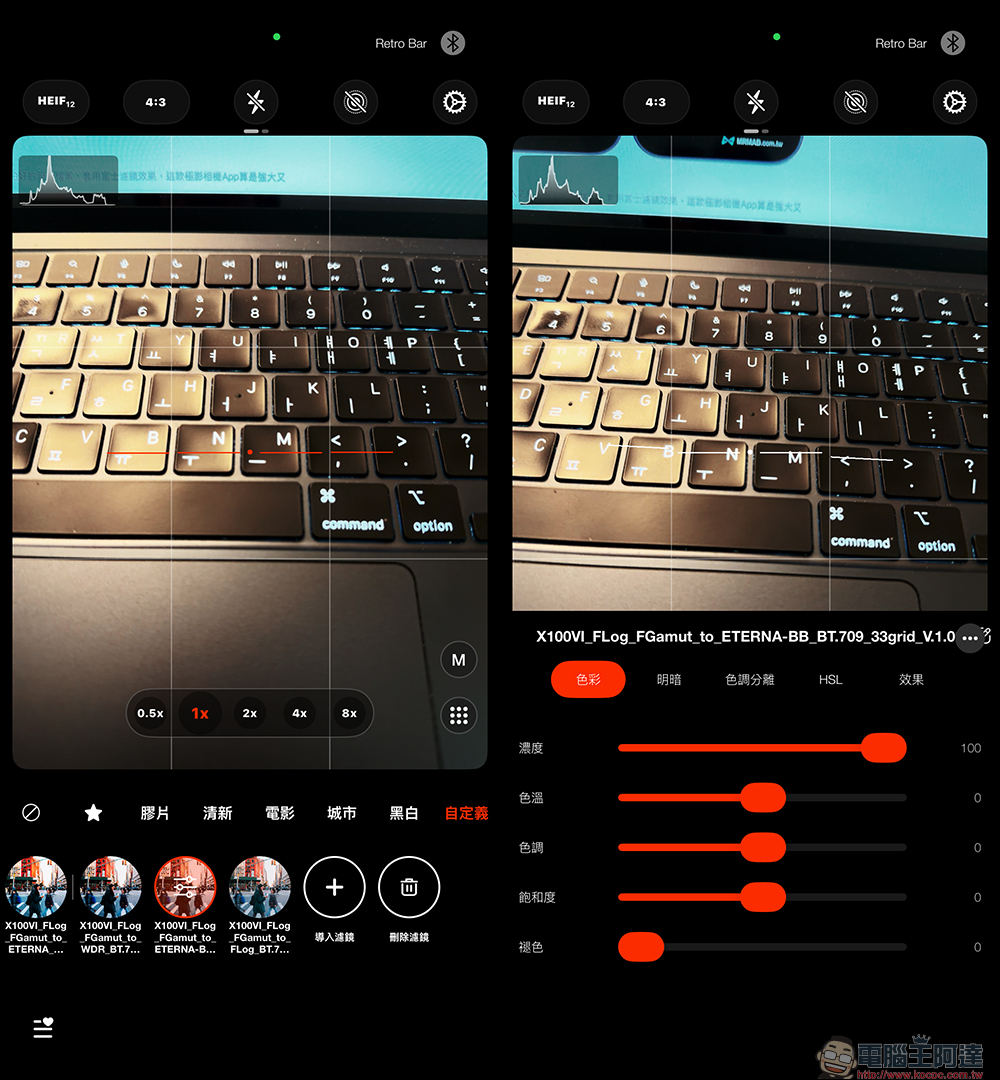
The practical effect is especially obvious in the following scenarios:
- Portrait (ASTIA, Classic Chrome)
- Sunset, city night view (Velvia, ETERNA)
- Daily Street Photography (Classic Negative)
- Nostalgic Neg
You can also fine-tune the exposure and white balance again to make the effect closer to the film flavor you want.
Tip: Can also be applied to old photos
The Jiying Camera App provides an album import function in the lower left corner. You can select a previously taken photo and apply it directly to Fujifilm LUT, and adjust the intensity, color and details. This method is very suitable for repairing travel photos, daily records, and portraits, and quickly creates a consistent style.
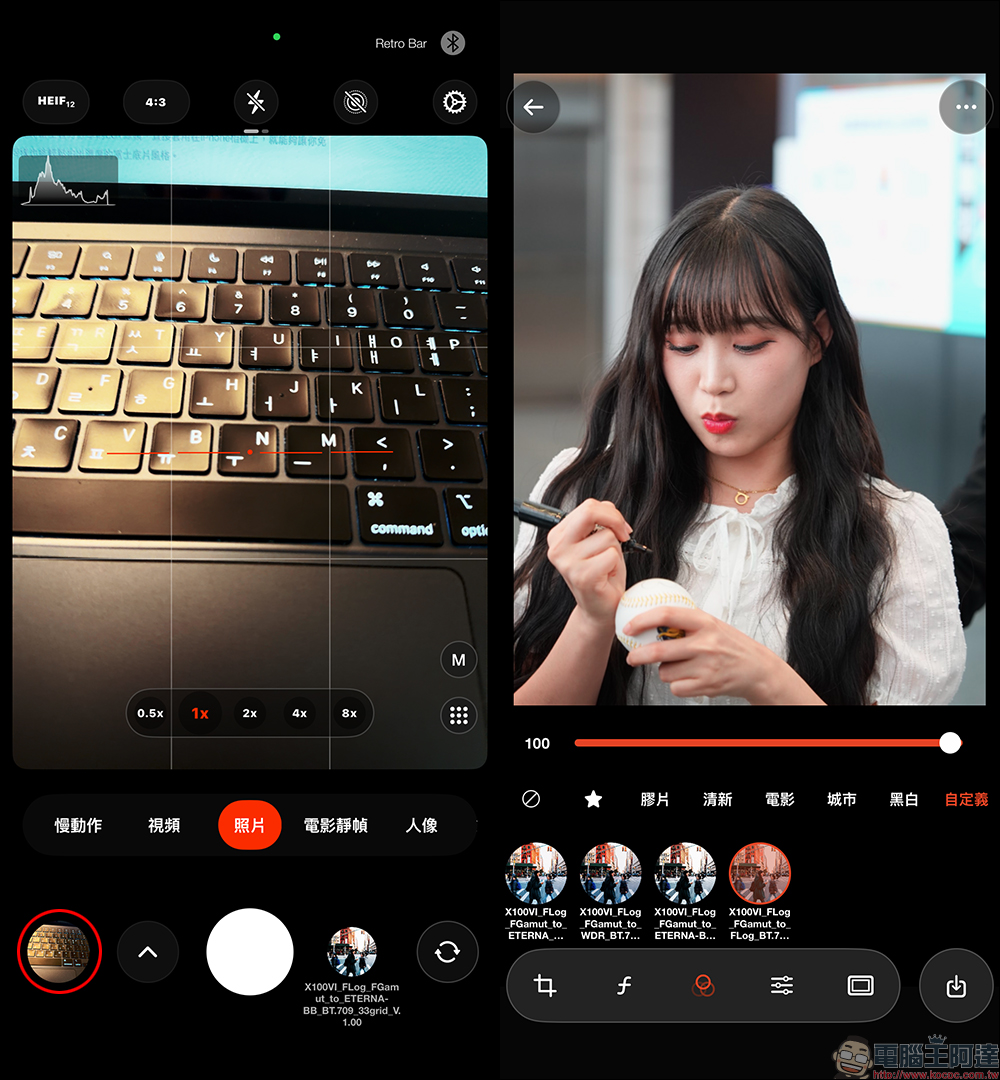
Advanced technique: Organize all LUTs at once for easier application
If you find it too troublesome to move files one by one on your mobile phone, you can also process them in batches on your computer:
- Download all official Fuji LUTs at once on your computer
- Unzip and organize them into one folder
- Then compress the folder into zip
- Transfer to iPhone
- Use the “File App” to decompress and use it (the import steps are the same as those on mobile phones)
The organized LUT file structure is simpler and the import speed is faster.
Why is Jiying Camera App worth recommending?
Jiying Camera App was previously called Fotogear. This name may be familiar to some users who pay attention to iPhone camera accessories. Last year, after the iPhone 16 Pro series was launched, the team developed a retro camera photography protective case specifically for the iPhone 16 Pro series, and subsequently launched the powerful, completely free, ad-free Fotogear (now known as “Jiying Camera”) App.
Previously, Jiying Camera App had quite a lot of built-in camera filters, including simulated film styles of Kodak, Fujifilm, Leica, and Ricoh, as well as other fresh, cinematic, and urban-looking filter options, and it was completely free.
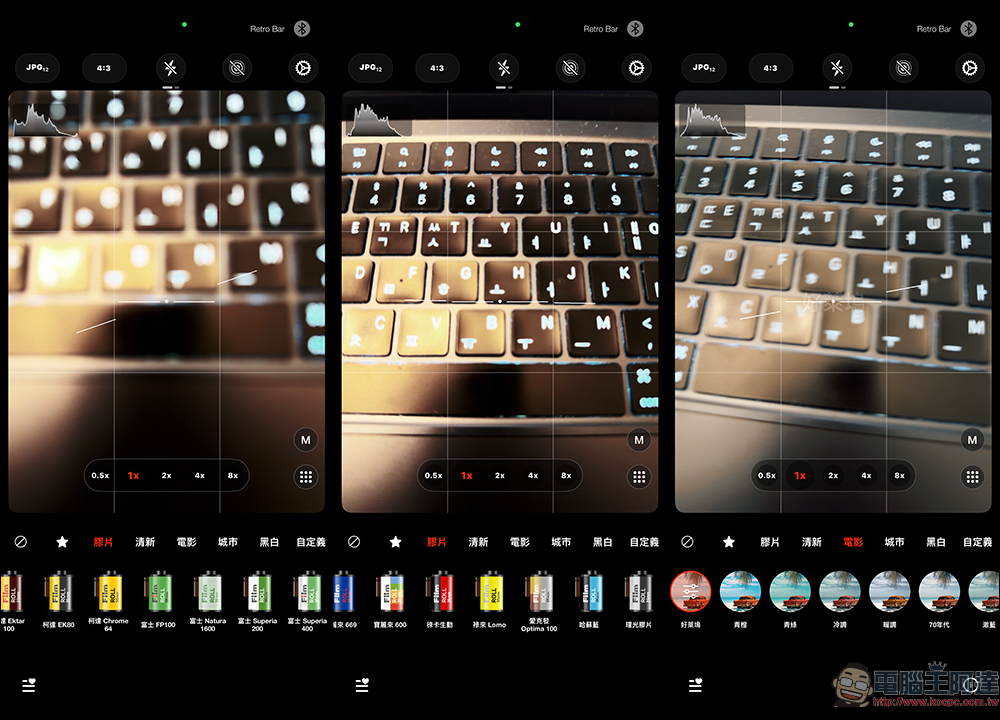
This app also has quite complete customization options for photo shooting. It can also directly shoot RAW format files and Live Photos. In terms of video recording, Jiying Camera App currently supports up to 4K 120FPS and can also shoot in AppleLog2 and ProRes formats.
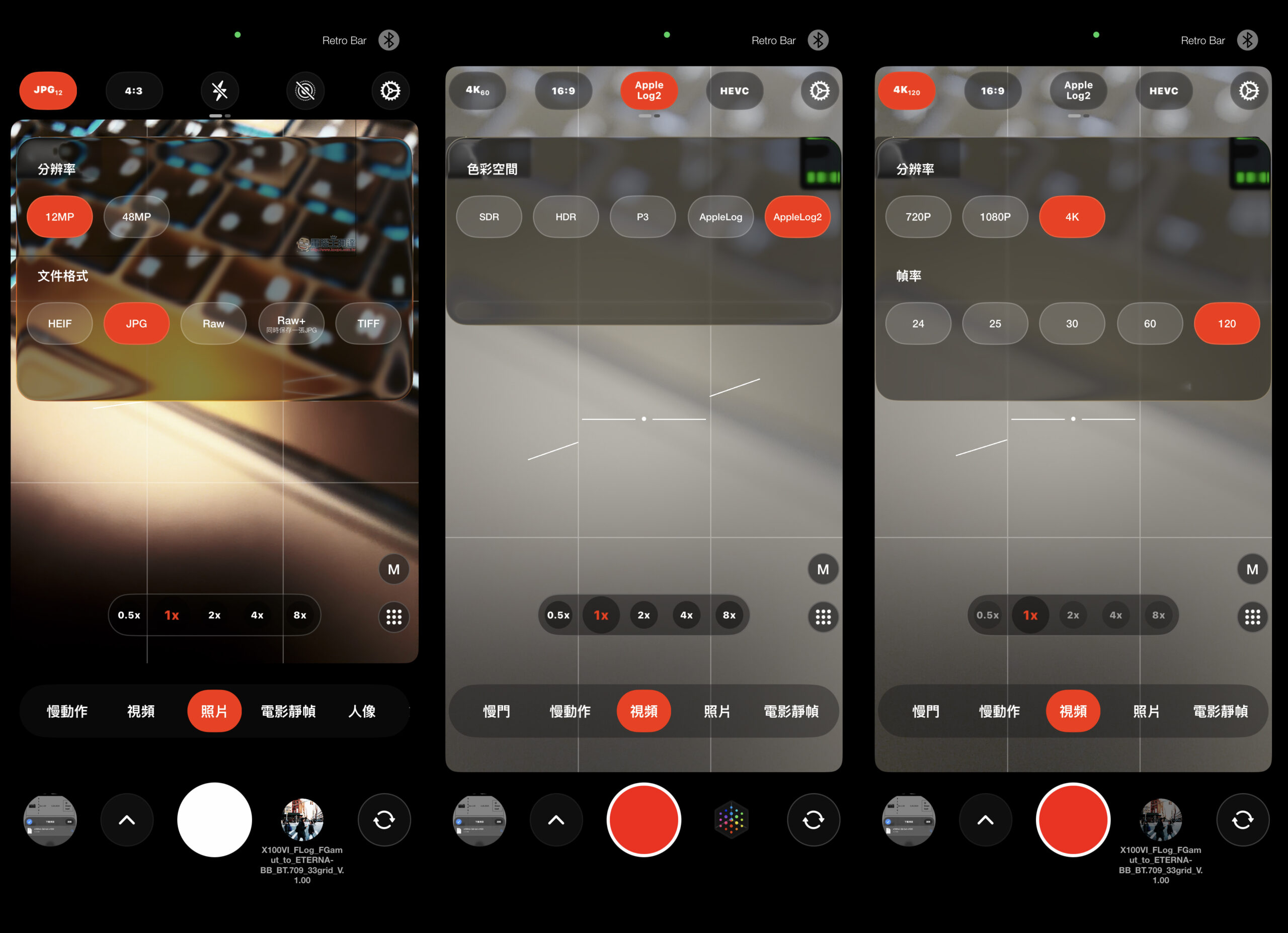
For iPhone users who don’t want to spend money on photography software, Jiying Camera App is almost a must-install tool. Especially now combined with Fujifilm’s official LUT, it can elevate the iPhone’s photography capabilities to another level.
Some time ago, Fotogear professional add-on lenses were also released, which can be used with a dedicated mobile phone case and can be used to shoot through the “external lens” function in the app.
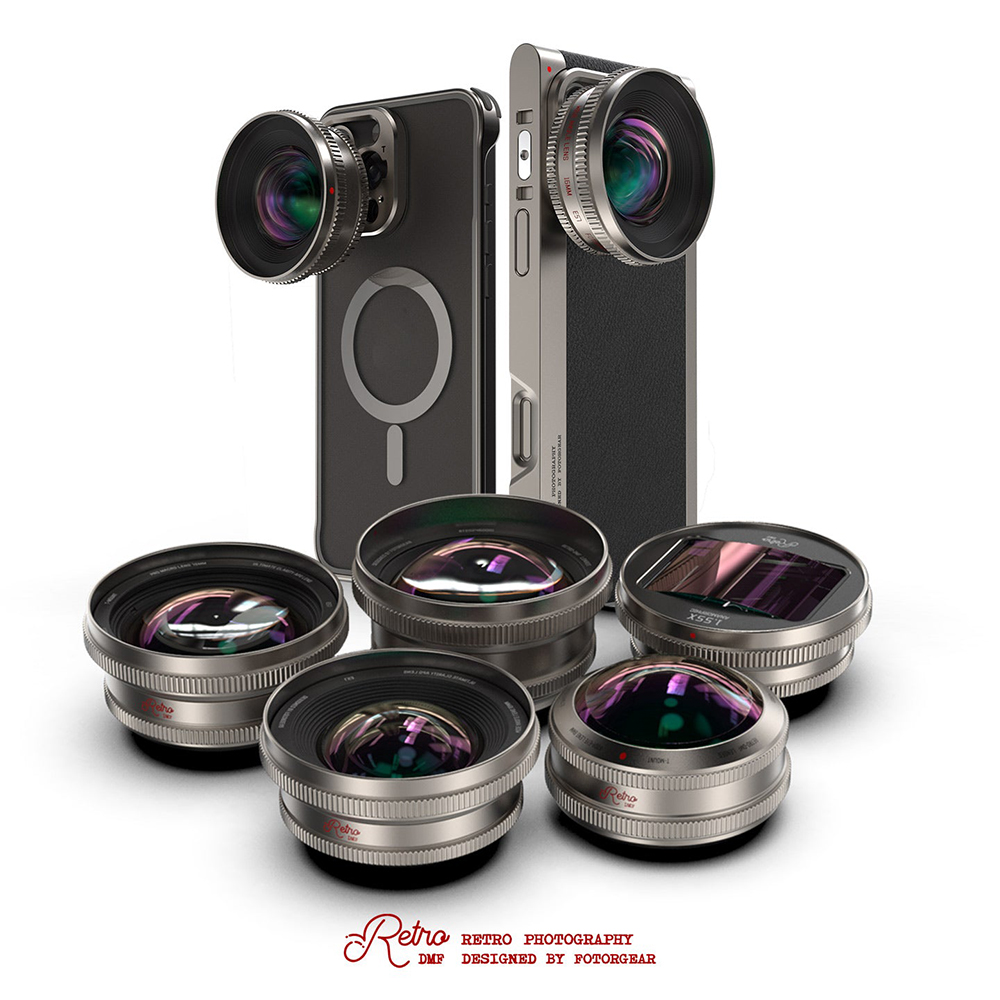
▲Image source: Fotogear
Recently, the team has also developed photography phone cases for the iPhone 17 Pro series.
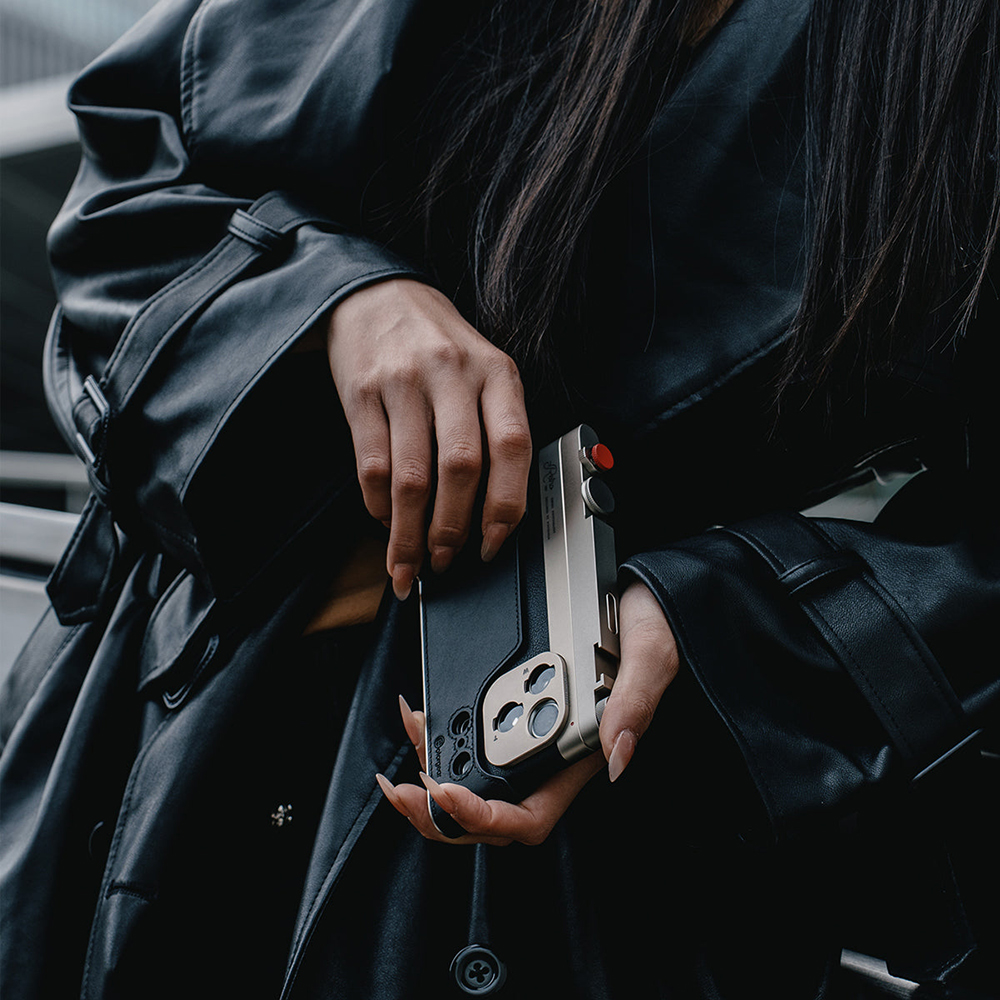
▲Image source: Fotogear
Conclusion|The iPhone can also take photos with the flavor of Fujifilm, and now is the best time
Fujifilm officially released a variety of film LUTs, making classic tones that could only be enjoyed with a camera instantly become a free resource that everyone can use. Through the Jiying Camera App, the iPhone can not only take photos with a Fujifilm quality that is close to that of a camera, but it can even surprise people in some situations. Isn’t this really taken by a Fujifilm camera?
There is no need to spend extra money on filter packs or pursue expensive cameras. Now you only need an iPhone to make your daily photos full of negatives. Whether you’re a newbie, a veteran, or just want to add a story to your photos, this method is well worth a try. If you haven’t installed the Jiying Camera App or downloaded the Fujifilm LUT, you might as well follow the article and implement it now, and you will be able to create your own Fujitone image style in no time.
Links to this article:
Further reading:
Source: KOCPC Chinese