


iPhone Taking photos is very convenient, so everyone should have a lot of photos in their photo albums, which take up a lot of storage space. If your iPhone does not have a large capacity, it will often be almost full, or you may want to back it up to the cloud, but too many photos lead to too large files and insufficient cloud space. Compress Photos Pro is a very good compression app that can significantly reduce the capacity while retaining the quality of the photos, and can also specify the conversion to JPG, PNG or HEIC.
More importantly, a lifetime version is now available for free. As long as you get it during the event, you can compress photos permanently and unlimitedly. Every iPhone is worth getting.(The lifetime free version has ended)
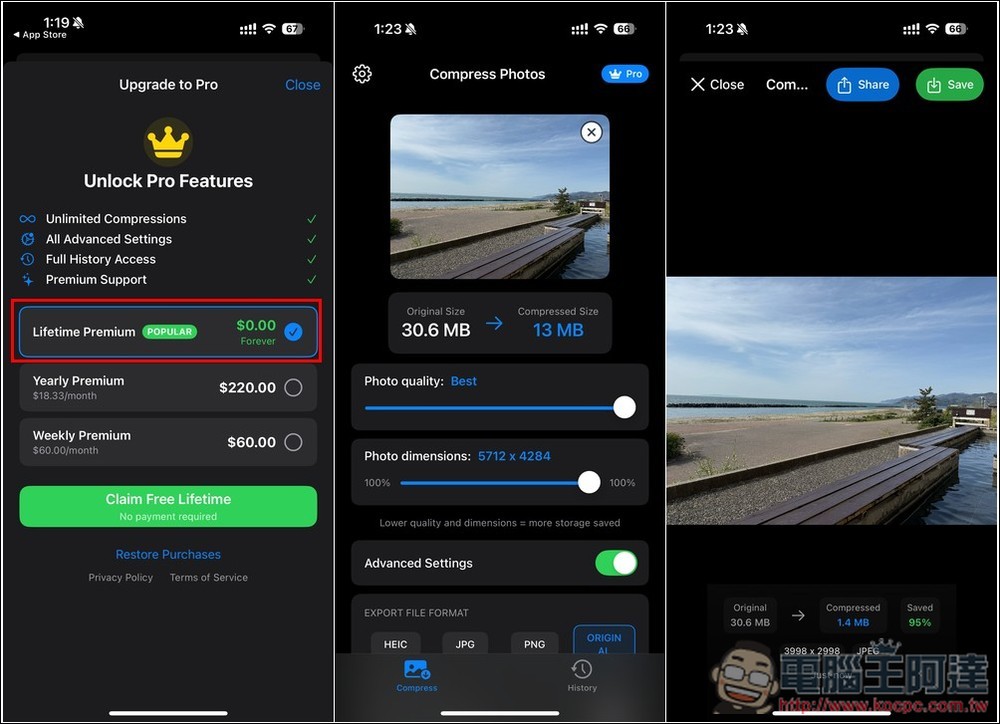
Compress Photos Pro is a photo compression tool that not only significantly reduces storage capacity, but also supports conversion functions.
Compress Photos Pro is a program that claims to reduce file size without affecting photo quality, making it ideal for shrinking photos, resizing images, and saving storage space. Whether you’re sharing, emailing or uploading a backup, this tool can compress your photos to the size you need.
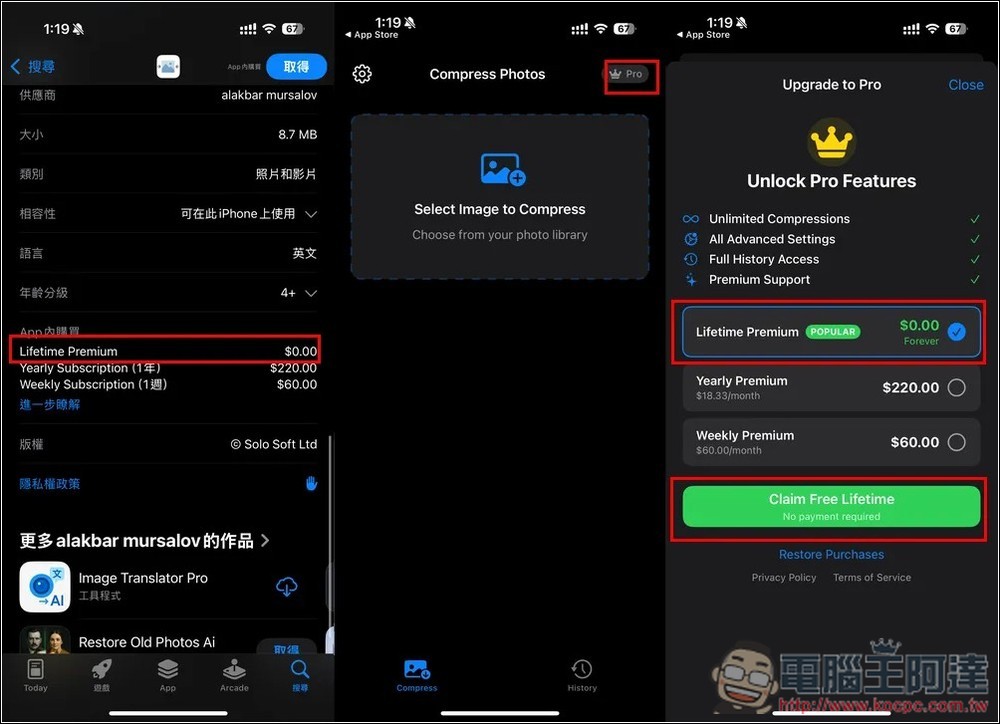
Before starting the introduction, let me remind you that the developer did not say when the lifetime version of Compress Photos Pro will be limited to free. Therefore, before making any payment, you must pay attention to see if there is any amount. If there is no amount, it means that the limited free version is still available. If there is, the original price will be restored.
After clicking the link above to enter the App Store page of Compress Photos Pro, you can scroll down to see if the in-app purchase of Lifetime Premium is $0.00. If so, there is a high chance that the lifetime version is free. After opening the App, press Pro in the upper right corner of the main screen, and the paid subscription menu will pop up. The first Lifetime Premium is the lifetime version with a limited fee of $0.00. After selecting, press Claim Free Lifetime:
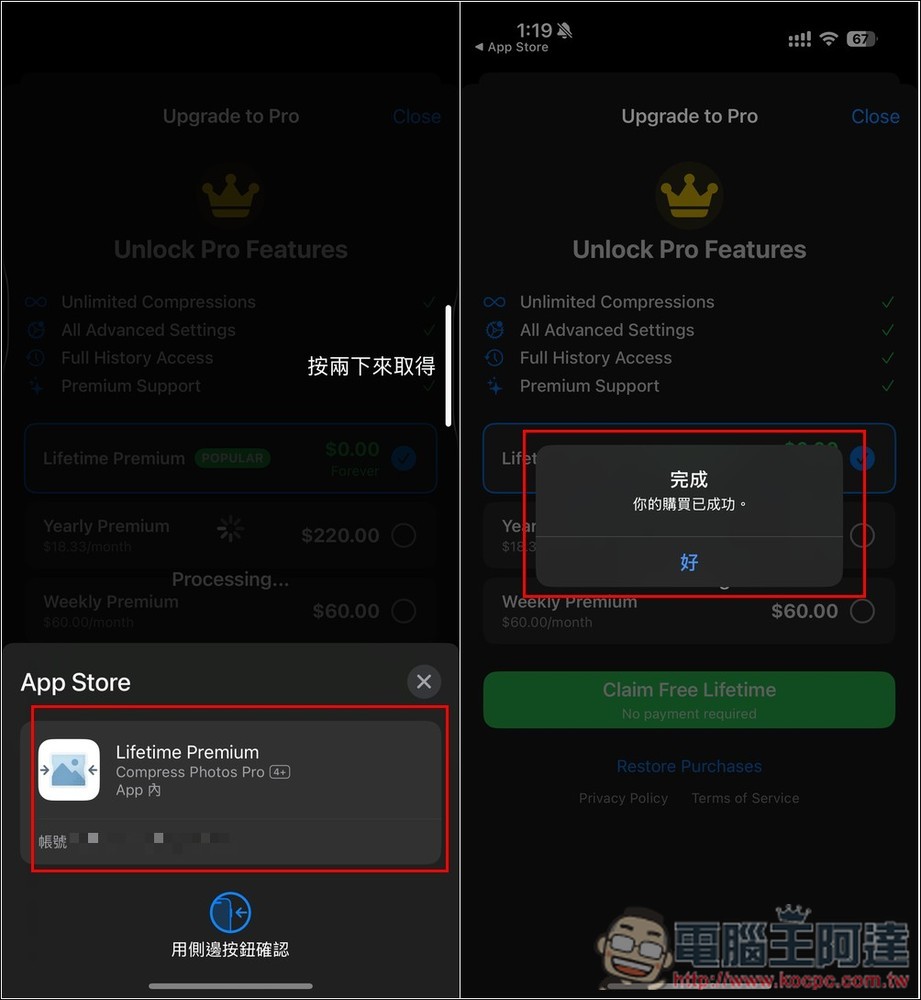
Then confirm whether the amount is available. If not, you can press twice to get it. If there is, don’t press it. “Your purchase has been successful” is displayed to indicate completion:
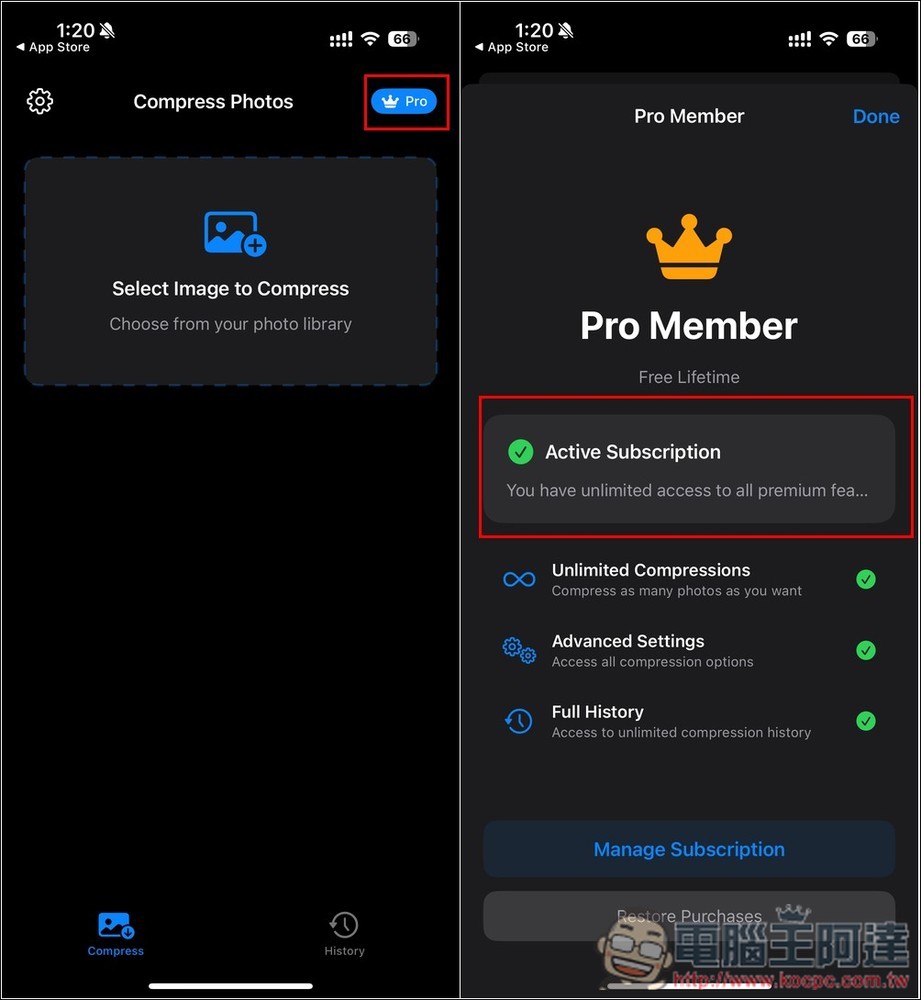
When you return to the main screen, you will see that the Pro icon in the upper right corner lights up. When you open the menu again, the screen will also change to Active Subscription:
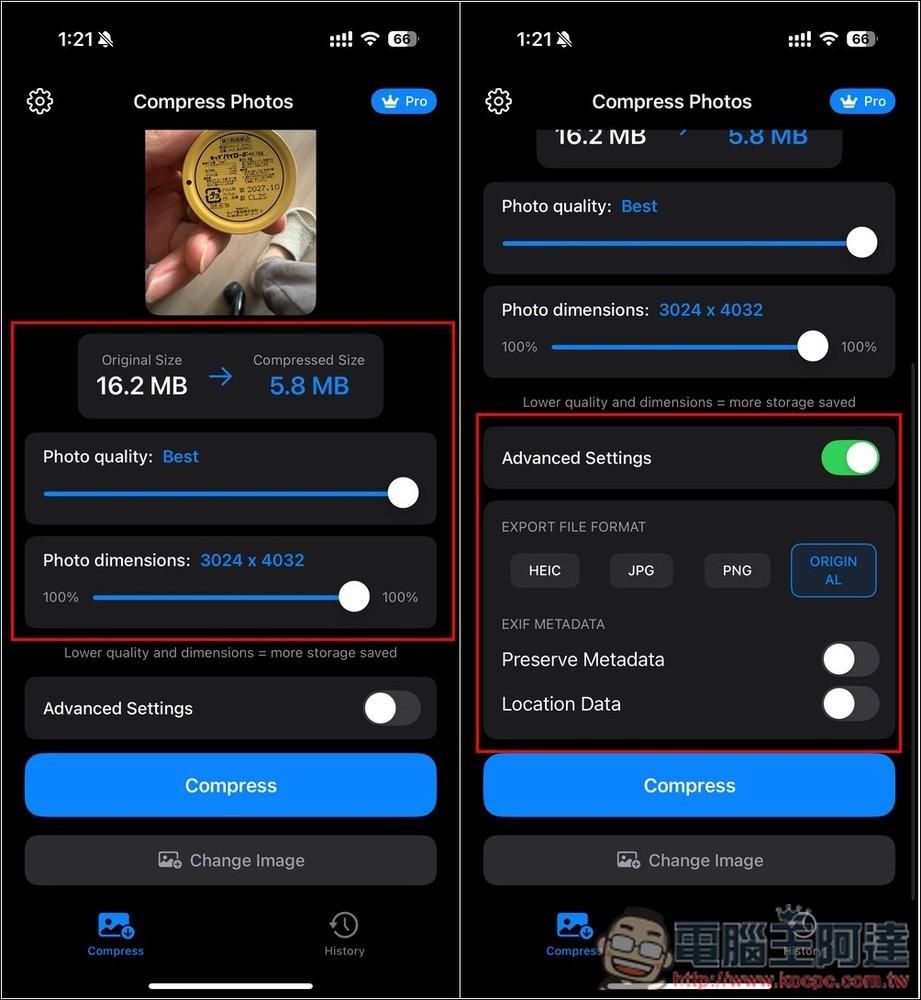
Compressing images is very simple. Just read in the image you want to reduce the file size, adjust the Photo quality and Photo dimensions, and the Compressed Size above will also change in real time, letting you immediately know how much you can reduce. Open the Advanced Settings below and you can see the output format options, including HEIC, JPG, PNG and ORIGIN AL. You can also decide whether Metadata and Location Data (geographical information) should be retained. This also means that if you want to remove the shooting information of a photo, you can also do it through this app:
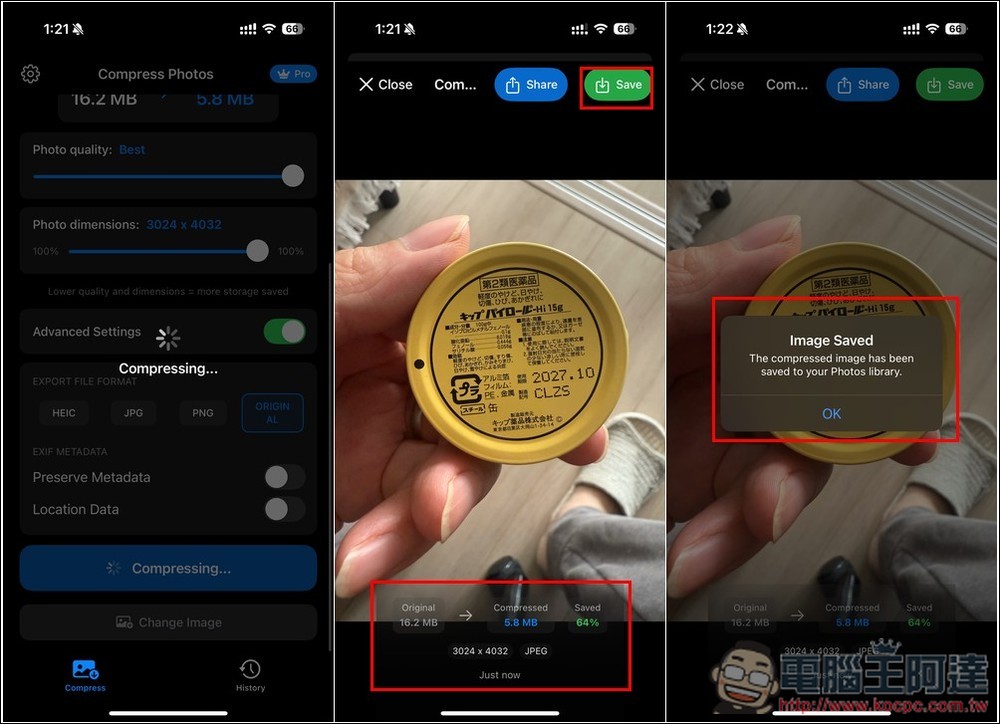
After the compression is completed, you will be allowed to preview it. If you are satisfied, click Save in the upper right corner to save it to the album. Also note that the original photos will not be deleted. You still need to delete them manually if you don’t want them:
Source: KOCPC Chinese