


Recently, many netizens discovered thatYouTube Computer version of “Incognito mode“Seems to have disappeared quietly?” In fact, it does not disappear, but changes the way it is used. If you don’t want to keep viewing history or clear recommended content, you can make good use of the incognito mode function built into the mobile app, or simply use the browser’s incognito window to watch videos. This article will fully explain how to turn on the incognito mode on mobile and computer versions of YouTube, and what changes will occur when using it. It is suitable for you who want to follow dramas in a low-key manner without being disturbed by the algorithm.

YouTube silently cancels incognito mode? How to open the mobile version and computer version? Read this article
In this era where videos are flying all over the place and algorithm recommendations are ubiquitous, sometimes you may just want to “watch a video in peace” without leaving any viewing records, nor do you want to be recommended a bunch of content that you are not interested in at all. At this time, YouTube’s “incognito mode” comes in handy!
But recently some users have discovered: Huh? It seems that the computer version of YouTube can no longer directly enable incognito mode? This is true, but there are alternatives. Now I will take you through how to turn on and use the incognito mode of YouTube on mobile and computer versions!
Mobile version: Directly built-in incognito mode, super simple to operate
The incognito mode of the YouTube App on mobile phones is quite considerate. It only takes a few steps to switch it on and no additional settings are required. The steps are as follows:
- Open the YouTube App.
- Click the “Personal Center” icon in the lower right corner (that’s where your avatar is).
- Under the account page, you will see the option to “Turn on incognito mode”, click on it and you’re done!
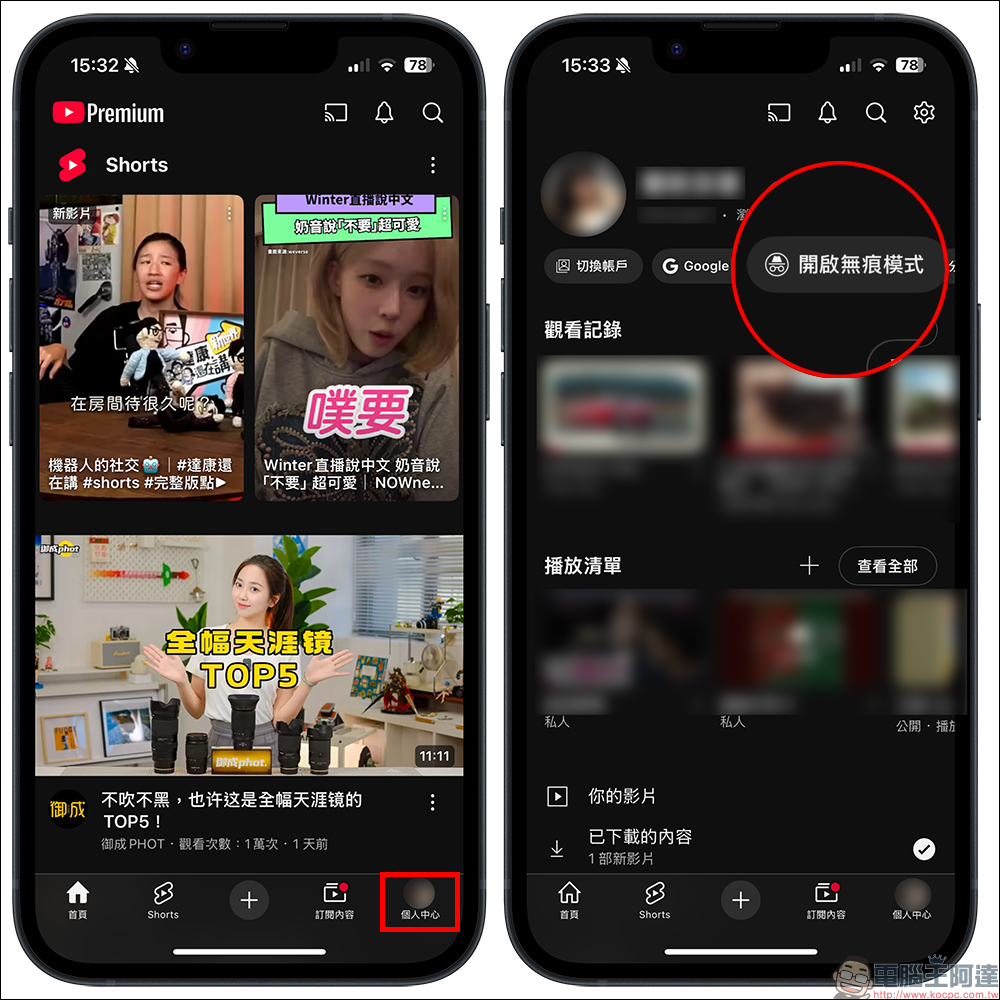
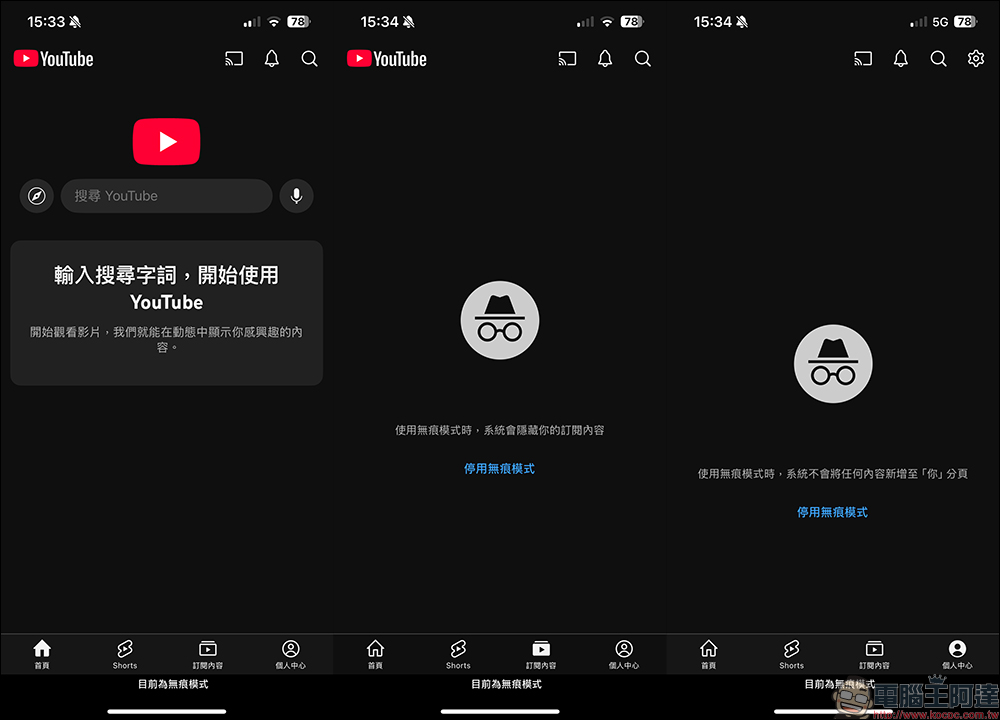
After turning it on, a prompt “You are now using incognito mode” will appear on the screen, and the homepage will become clean and no recommended videos will be displayed. You can use the search function to find videos to watch yourself, and these videos will not be recorded in your viewing history.
In addition, there are many restrictions in incognito mode:
- The list of subscribed channels will not be displayed.
- All personal center information cannot be seen.
- Video preferences and message interactions will be temporarily disabled.
Only the “Shorts” page will continue to display various random short videos. This function is especially useful when you want to watch certain videos temporarily but don’t want the algorithm to remember them, such as helping a friend look up information, checking videos for work, or wanting to “catch up on dramas secretly” to avoid being bombarded with recommendations.
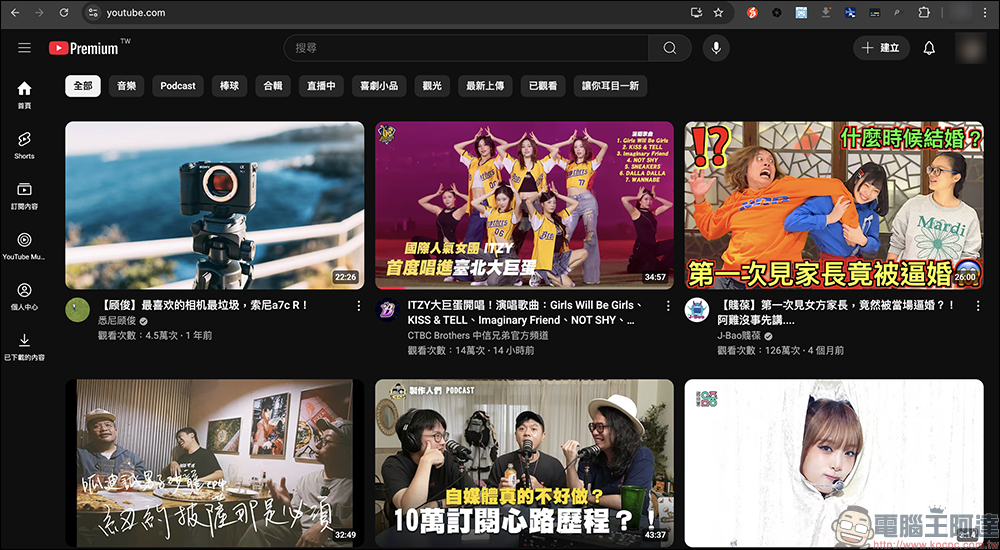
PC version: YouTube’s own incognito was removed? Then use your browser to help!
In the past, when watching YouTube on a computer, you could turn on “Incognito Mode” directly from the account menu, but this feature has been quietly removed. Google has not publicly stated the reason, but now if you want to watch videos on your computer without leaving records, there is actually a solution. That is: directly open the browser’s “Incognito Window”.
Whether you use Chrome, Safari, Edge or Firefox, these major browsers all have incognito mode built-in. Just open an incognito tab, log in to the YouTube website, and watch videos without leaving any browsing or viewing history.
Users can also turn on incognito mode through computer shortcut keys, for example:
- In Chrome: Press the shortcut “Command + Shift + N” (Mac) or “Ctrl + Shift + N” (Windows) to open it.
- If Mac users use the Safari browser, press “Command + Shift + N” to open private browsing.
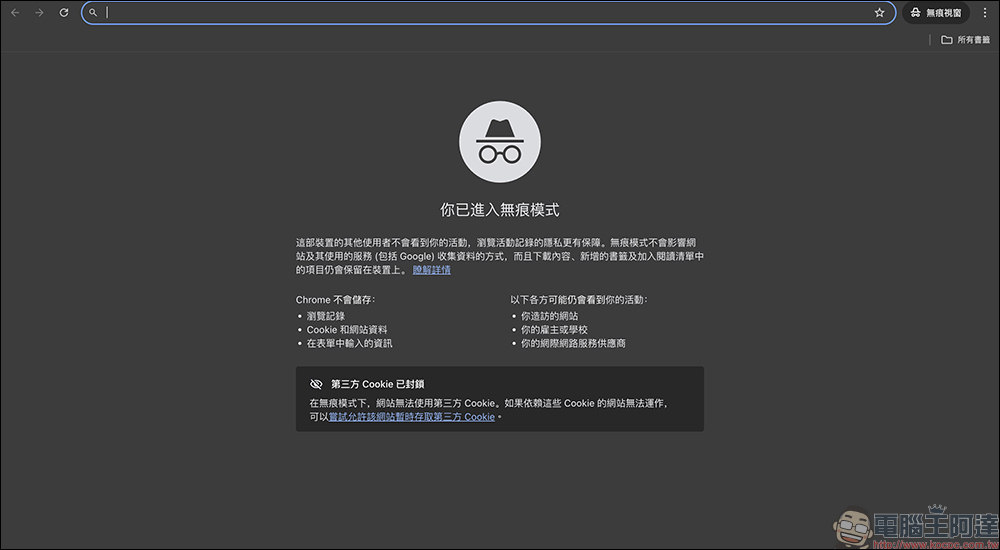
After entering the incognito window, you can watch videos without logging in to your account, and any account record updates will not be triggered. Even if you are logged in, it will only be temporarily recorded before the end of the window, and the data will be cleared after closing. However, unlike the mobile version of YouTube incognito mode, browser incognito means that the entire browsing behavior will not be recorded, not just YouTube.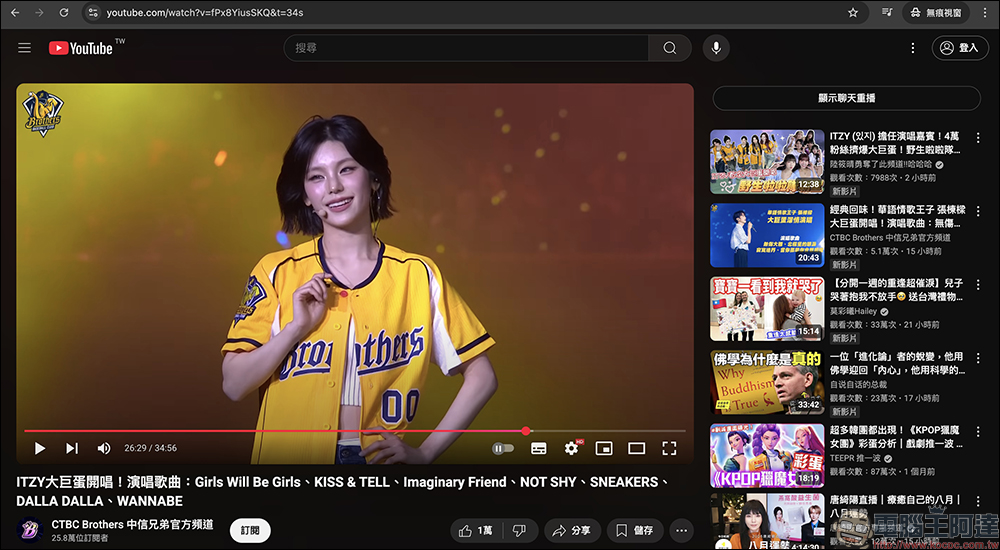
What situations is Incognito mode suitable for?
- Help friends and family search for algorithms that don’t want to interfere with their own accounts
- Want to know what recommended videos you will see based on your viewing habits?
- Want to watch sensitive content or videos of private interest anonymously
- Reduce the chance of being accurately hit by advertisements
- Don’t want to leave browsing history on devices shared by multiple people
This mode is very similar to “come quietly and leave quietly” without leaving any traces. It is suitable for you who want to keep a low profile and temporarily escape YouTube tracking.
Small reminder: Incognito mode is not an “invisibility technique” for logging into your account, but it temporarily treats you as a “passerby”
According to Google’s instructions, in fact, when you turn on YouTube’s incognito mode, the entire app will treat you as a “not logged in user.” In other words, the information in your account—such as subscription list, viewing history, and recommended videos—will not affect your viewing experience during this period.
Simply put, everything you do during this invisible period will not be recorded in your account, nor will it affect the algorithm’s judgment of you. However, YouTube will still process usage behavior-related information in accordance with the Google Privacy Policy, but this information will not be tied to your account.
In addition, there are a few small details that you should also pay attention to:
- Incognito mode will automatically turn off if it is idle for more than 90 minutes, and the system will help you switch back to the account you originally logged in to.
- If you manually end incognito mode, it will automatically return to the account status before you enabled it.
- The next time you open the YouTube app, you’ll also receive a prompt telling you that Incognito mode is turned off.
- In incognito mode, you cannot perform any operations that require logging in, such as liking videos, leaving messages, subscribing to channels, etc. These functions will be temporarily disabled.
Therefore, the incognito mode is more like allowing you to “borrow YouTube” as a viewer and browse freely without leaving any records or interfering with your main account. If you suddenly want to participate in interaction and follow the creator, you must first return to the logged in state. You need to understand these differences before use so that you don’t get confused.
Conclusion
Although the PC version of YouTube has canceled the native incognito switching function, it can still be easily implemented through the incognito window of the browser; the mobile version remains simple to operate, and you can watch videos incognito with one click. Whether you want to keep a clean homepage or don’t want to leave traces on your viewing history, the incognito mode is a super practical tool. It is recommended that you turn it on in a timely manner according to your needs to protect your viewing habits and privacy!
Further reading:
Source: KOCPC Chinese