


Most people find notifications in Windows annoying and often ignore them or simply ignore them. However, there are some things that cannot be ignored. Some notifications are telling you that there is a serious problem in your system, and ignoring it may put your device at risk. Below, we will tell you there are 6 major categories of warning signs that you should not be heedless of.
6 Windows Notifications You Shouldn’t Ignore
Not enough disk space
When your system hard drive (usually the C drive) is low on storage space, you will receive a low disk space reminder. Windows needs free space to handle tasks such as staging archives, installing updates, and managing virtual memory. Without enough space, your system may slow down, freeze, or even crash, and important security updates may fail to install.
Since this can severely impact performance and stability, you should take such warnings seriously and free up space. To do this, follow the steps below to check what’s taking up the most space. You can delete temporary files, uninstall unused apps, empty the trash, or move large files to a different hard drive, external drive, or cloud storage.
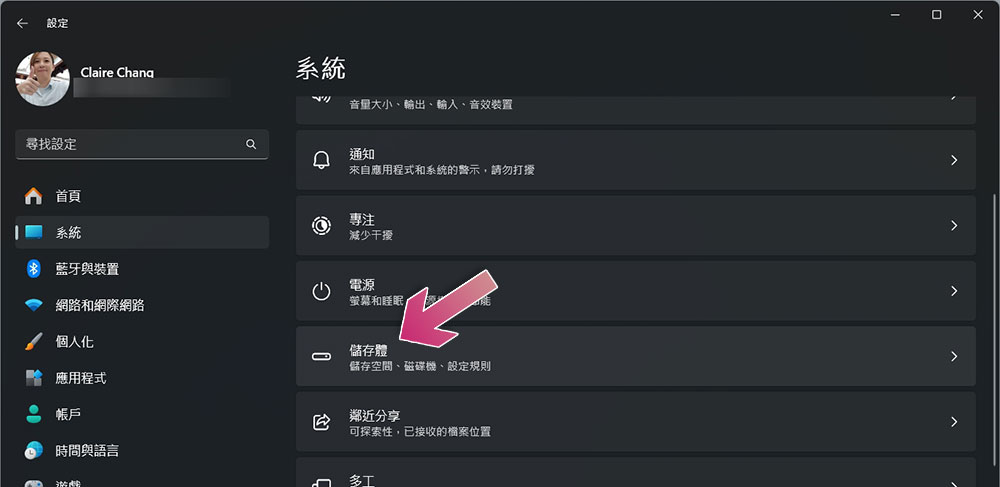
- Open settings.
- Click “System” in the sidebar.
- Then click to enter “Storage”.
Windows Defender detects threat
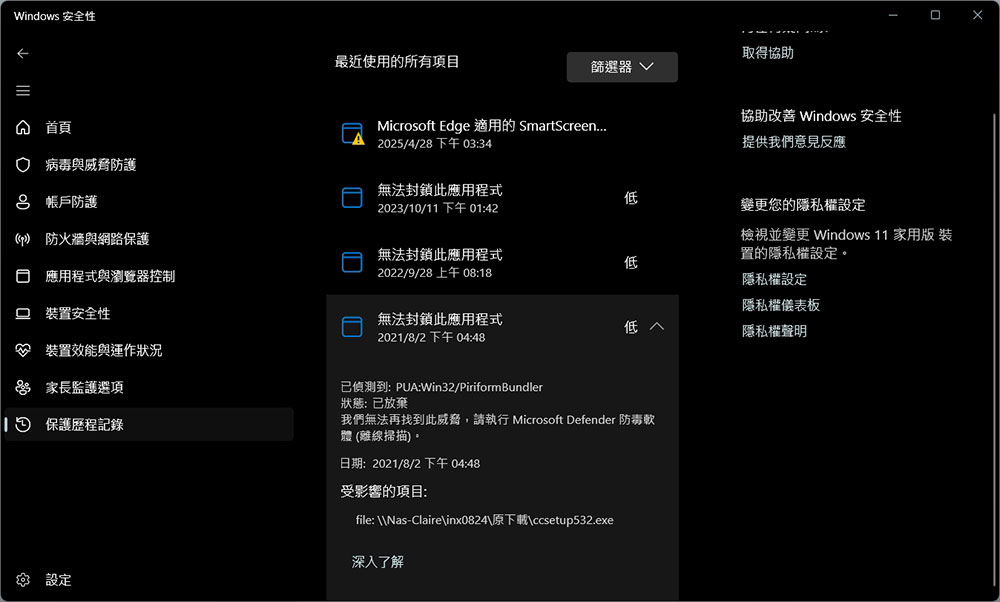
When Windows Defender detects malware or potentially harmful software (such as viruses, Trojans, spyware, or ransomware) that could compromise your device, it displays a Threat Detected alert. While Defender typically quarantines archives to protect your system, you may still need to take manual steps to completely neutralize the threat and keep your device safe.
When you see this alert, here’s how to view recent threats, view details of the latest events, and take recommended actions.
- Search for and open “Windows Security” on your computer.
- Click “Protect History” in the right sidebar.
- Click the down arrow next to each item to expand and view details.
Frequent blue screen crashes
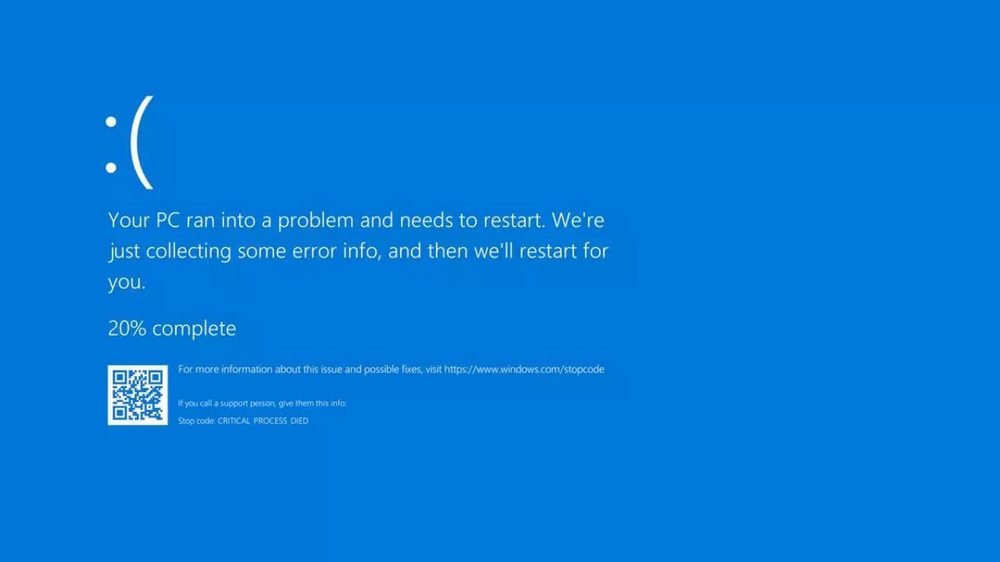
When Windows encounters a serious error that cannot be recovered, the blue screen of crash (BSOD) that we are all familiar with occurs. While it’s not uncommon to see it occasionally, sometimes even due to poor Windows updates, don’t ignore it if it starts happening frequently. Recurrent BSOD may indicate a serious hardware or software issue.
To determine the cause of the crash, pay attention to the error codes displayed on the BSOD screen, which will give you directions. For example, “MEMORY_MANAGEMENT” indicates a memory-related problem. You can use this information to run specific checks and troubleshoot issues, so no matter what error occurs, you can go online to search for the cause and find a solution.
Warning mark on the battery
The red triangle warning pattern on the battery icon is a signal you should not ignore. There are many reasons for this phenomenon. It may be that an incompatible or too low-power charger is used, the battery is not charged correctly, or the battery itself is faulty. Sometimes, it may also be a problem caused by the driver. When you see this flag, generate a battery health report to check the situation.
- Search for and open “Command Prompt Characters”.
- Enter the command “powercfg /batteryreport”.
- Go to the report storage path to check the battery report.
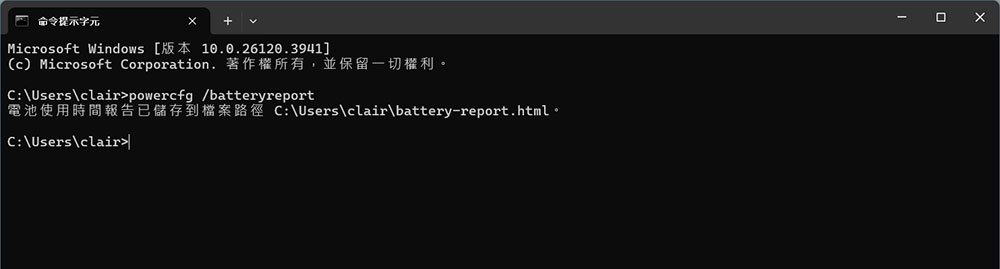
Next, please update your battery drivers to eliminate any software-level issues. If you are using a third-party charger, please replace it with the original charger; if the battery is very old and you suspect that its health has declined too much, you need to consider replacing it.
There is a problem with the hard drive
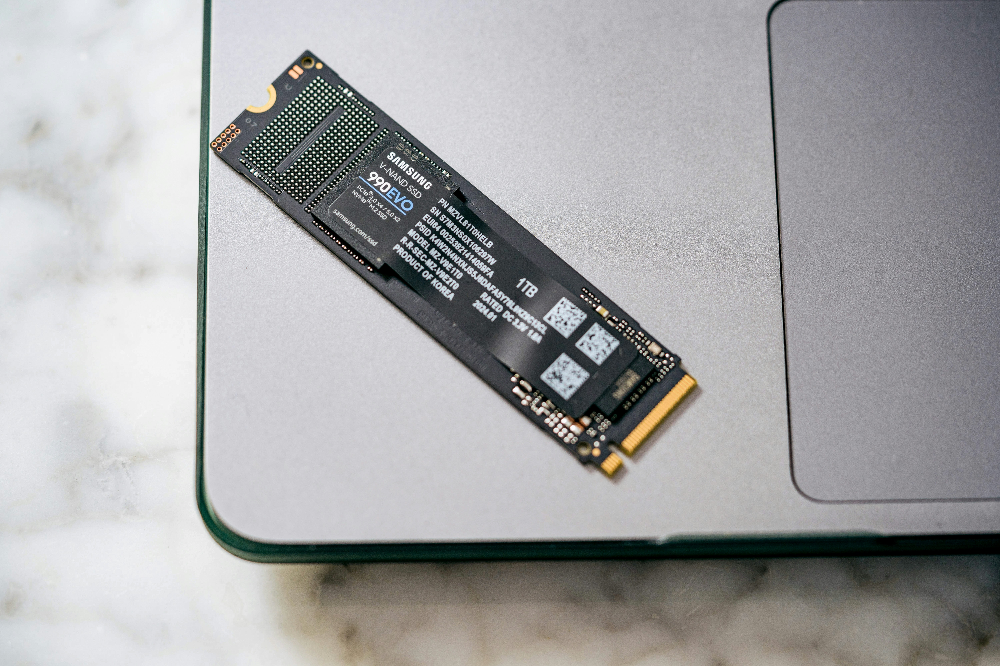
When Windows detects a problem with a storage device you connect to your computer, it tells you there’s a problem with the drive. This error often occurs when it was deleted by mistake since the last connection, however, it can also be caused by system corruption, malware on the hard drive, or hardware issues. When an error occurs, Windows will provide the function of scanning the hard disk and repairing the damaged file structure. If the problem is small, such as an incomplete write job, it can usually be repaired smoothly after scanning. However, if the warning still pops up after scanning, you may need to back up your data and reformat the hard drive. If the problem persists, it may still be a hardware problem, and the hard drive needs to be replaced.
Unusual login activity detected
When Microsoft detects suspicious sign-in activity, such as logging in from a new location, logging in from an unknown device, or multiple failed sign-in attempts, it will send an alert that unusual activity has been detected via a pop-up, text, or email. Since your Microsoft account is associated with Windows and various Microsoft services such as OneDrive, Outlook, etc., you must take this notification seriously.
If you recognize the login as your own, such as logging in from a new device or while traveling, you can safely ignore it. However, if you think someone else is trying to log into your account, act quickly.
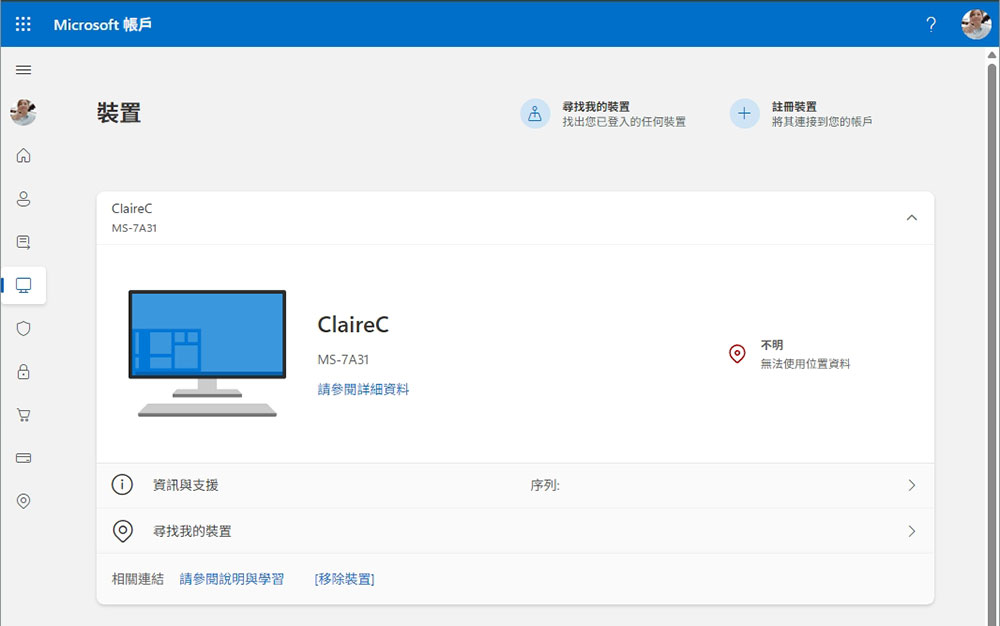
- Go to Microsoft Account Settings.
- Remove unfamiliar devices.
- Change password
- Be sure to enable two-factor authentication.
Rather than treating each notification as a distraction, take the time to browse important notifications (like the ones mentioned above), confirm their meaning and take the appropriate steps to resolve the issue. Ignoring them may cause more serious problems, even compromise the security of the device, put your data at risk, or affect the hardware performance of the device.
Source: KOCPC Chinese