


A few days ago iOS 26 At launch, Apple officially announced Apple Intelligence An article introducing Traditional Chinese support was released, which made people think the feature had been opened up. But after testing, it still wasn’t available, still showing that it couldn’t be used in Traditional Chinese. But this time it’s for real! In the iOS 26.1 Beta developer version released earlier, after updating, you can enable Apple Intelligence in Traditional Chinese. Here’s how to do it, and I’ll also round up the Apple Intelligence features you definitely need to know about.

Upgrade to the latest iOS 26.1 Beta version and you can use Apple Intelligence in Traditional Chinese.
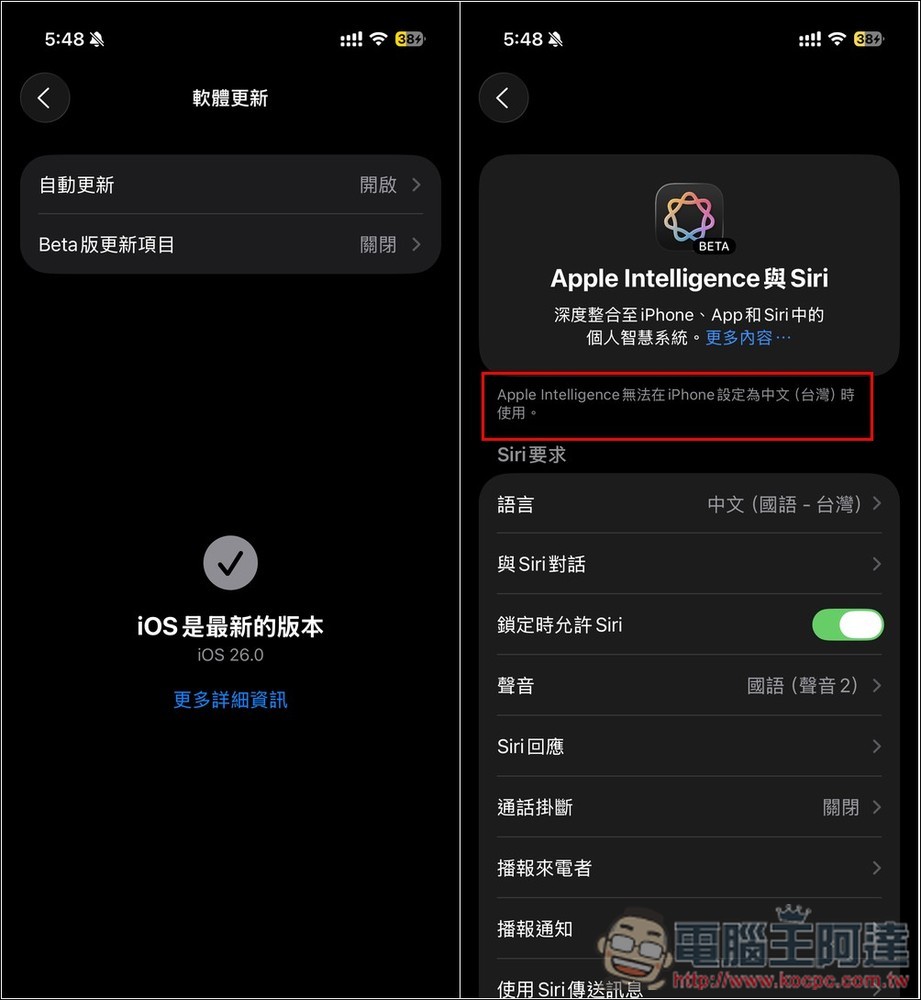
Below is my screenshot from before the update. You can see that the official iOS 26 release cannot enable Apple Intelligence, and it shows “Apple Intelligence is not available when iPhone is set to Chinese (Taiwan).”
If your system doesn’t have a Beta option available, please seeThis one opens.:
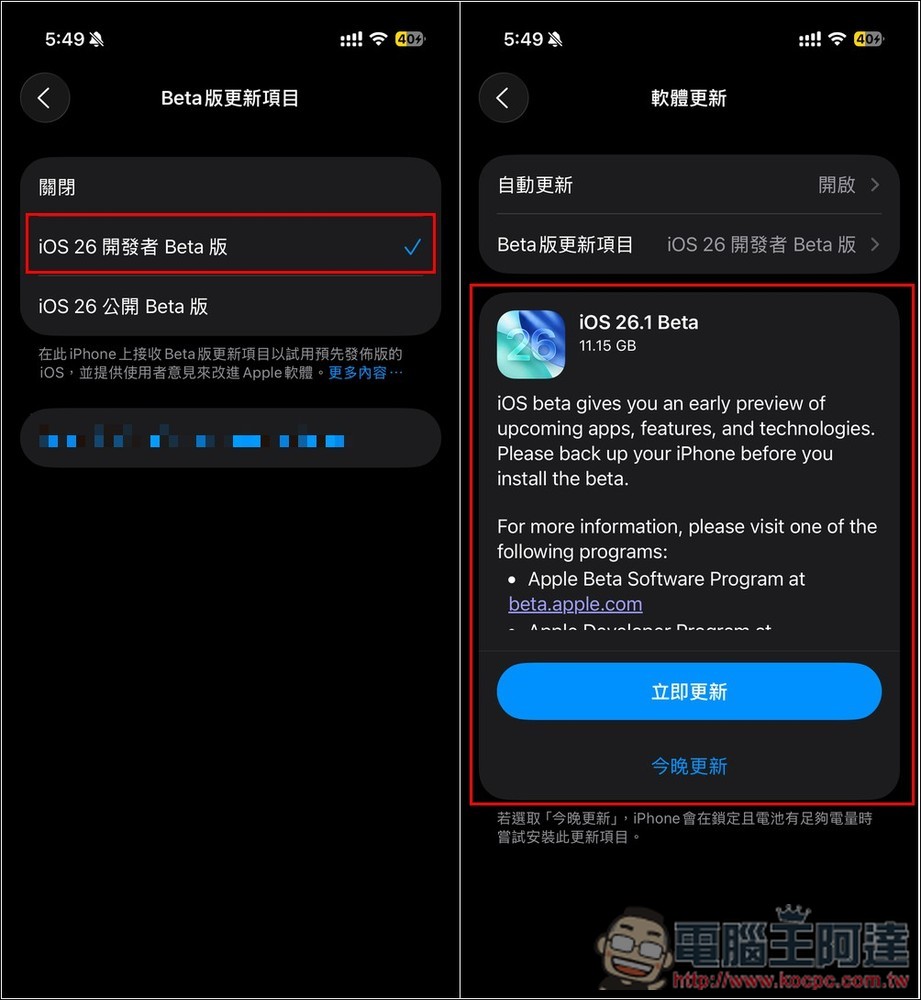
Next, go to Settings > “Software Update” > “Beta Updates”, then select “iOS 26 Developer Beta”. Returning to the Software Update page, you’ll see iOS 26.1 Beta, which requires 11.15 GB of storage. Although the description doesn’t mention anything about Apple Intelligence supporting Traditional Chinese, testing confirms it can indeed be enabled:
I should also remind you here that this is, after all, a developer beta, so its stability won’t be as good as the official release. If you really care about that, it’s better to wait for the official version. Normally, the official release comes out 1–2 months after the developer beta.
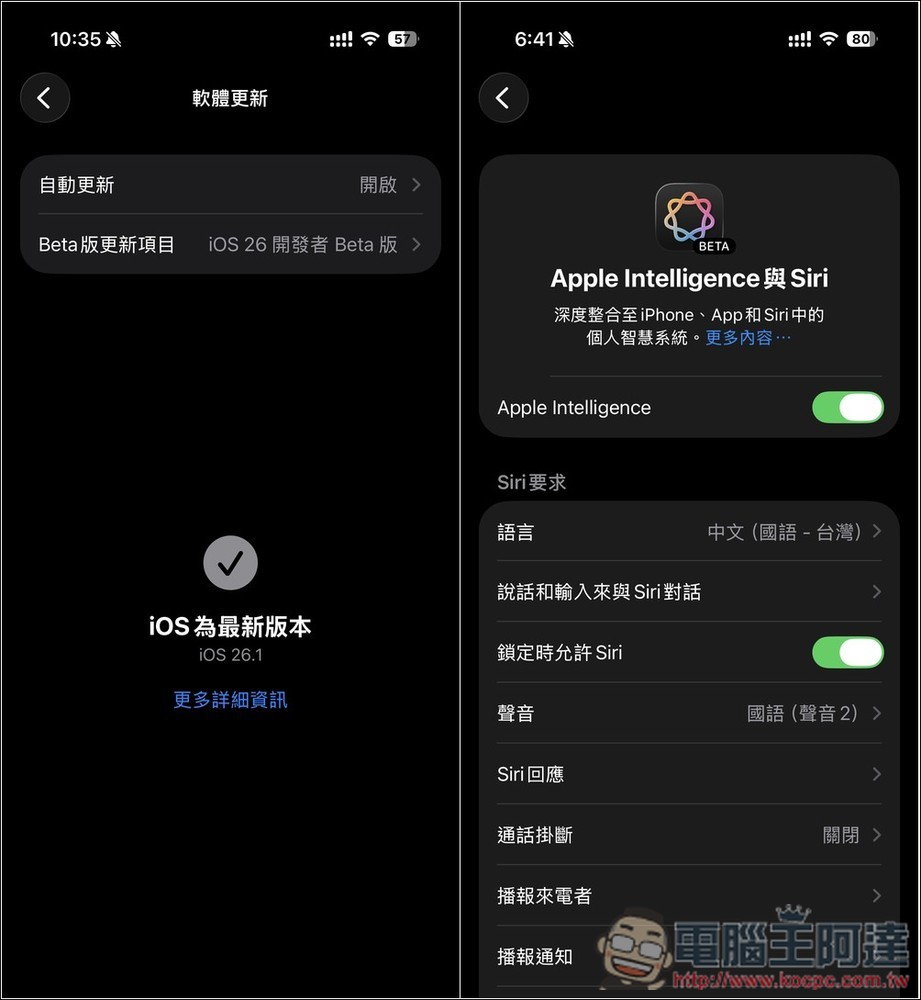
After updating, when you open Apple Intelligence and Siri settings again, you’ll see that the previous prompt messages are gone and it works normally. Initially, you’ll need to download the model—just make sure your iPhone is plugged into charging and connected to Wi-Fi.
Apple Intelligence hardware requirements: only these iPhones are supported.
Apple Intelligence is not available on every iPhone; it must be iPhone 15 Pro series or higher. This also means that iPhone 15, iPhone 15 Plus, and models below them cannot use it, even if you update to iOS 26.1 Beta.
Also, some Apple Intelligence features are not yet available in Taiwan. Apple’s offerings differ by region and language/regulations, so not every feature may be usable. If you have a specific feature in mind, you can check whether it’s available first, then decide whether to update.
6 Apple Intelligence features you need to know
1. Writing tools
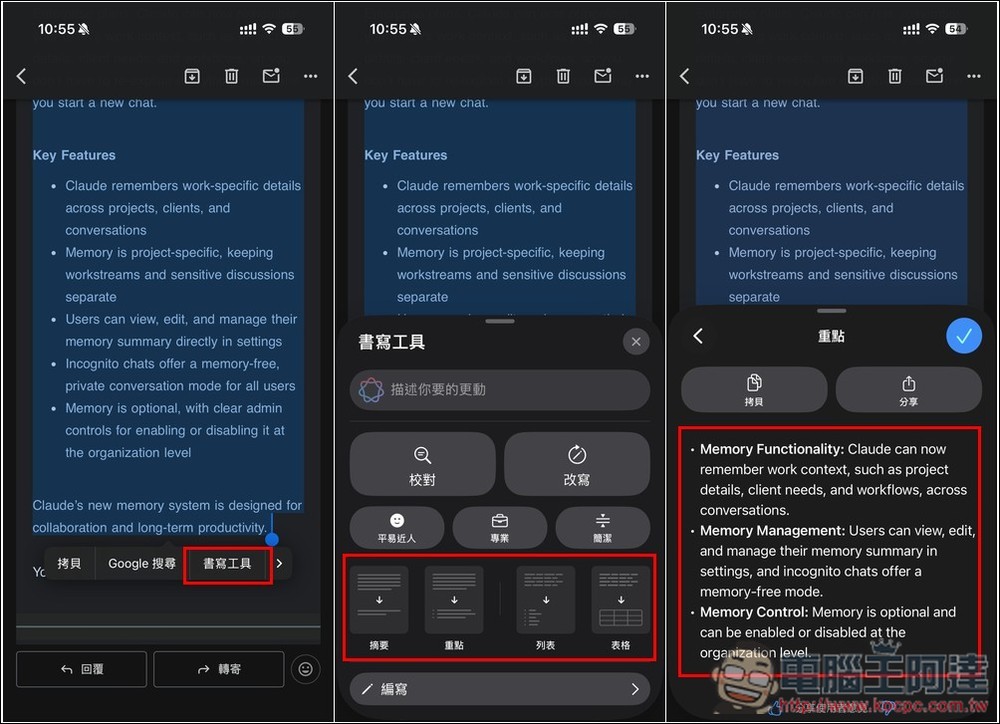
With the addition of Apple Intelligence, simply selecting text now brings up “Writing Tools,” which can help you rewrite content, organize key points, create tables, and even work with ChatGPT.
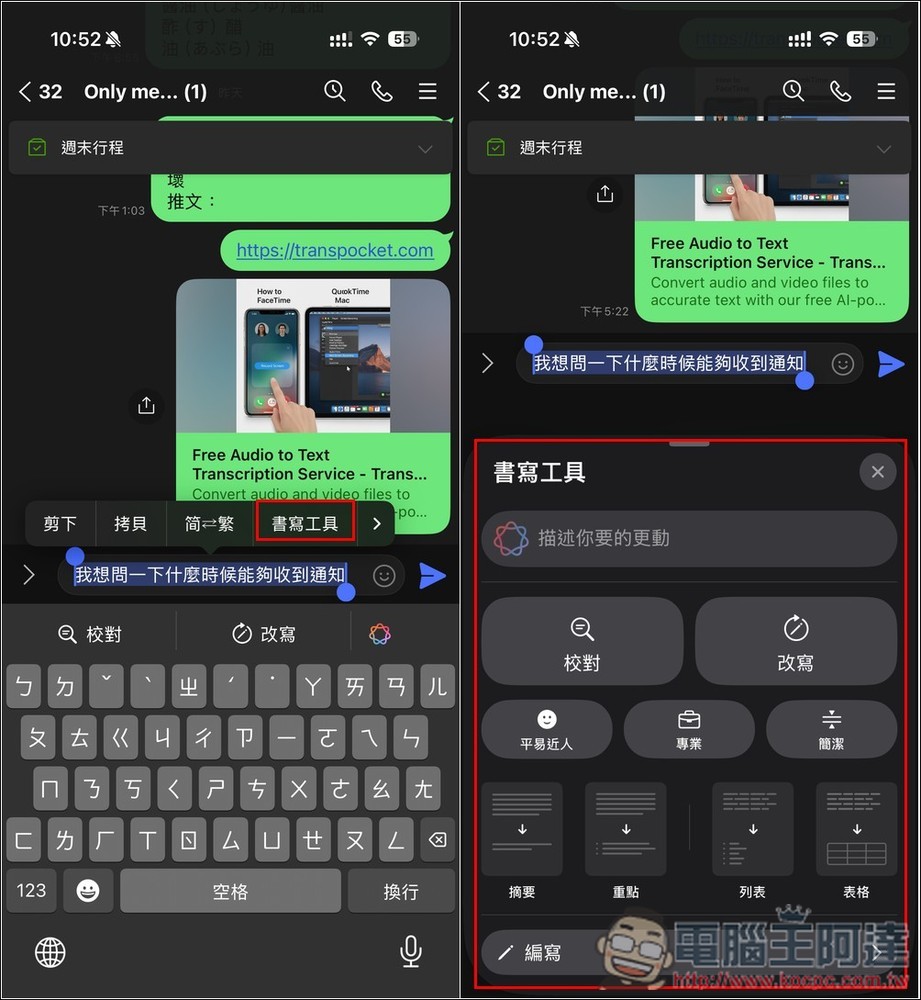
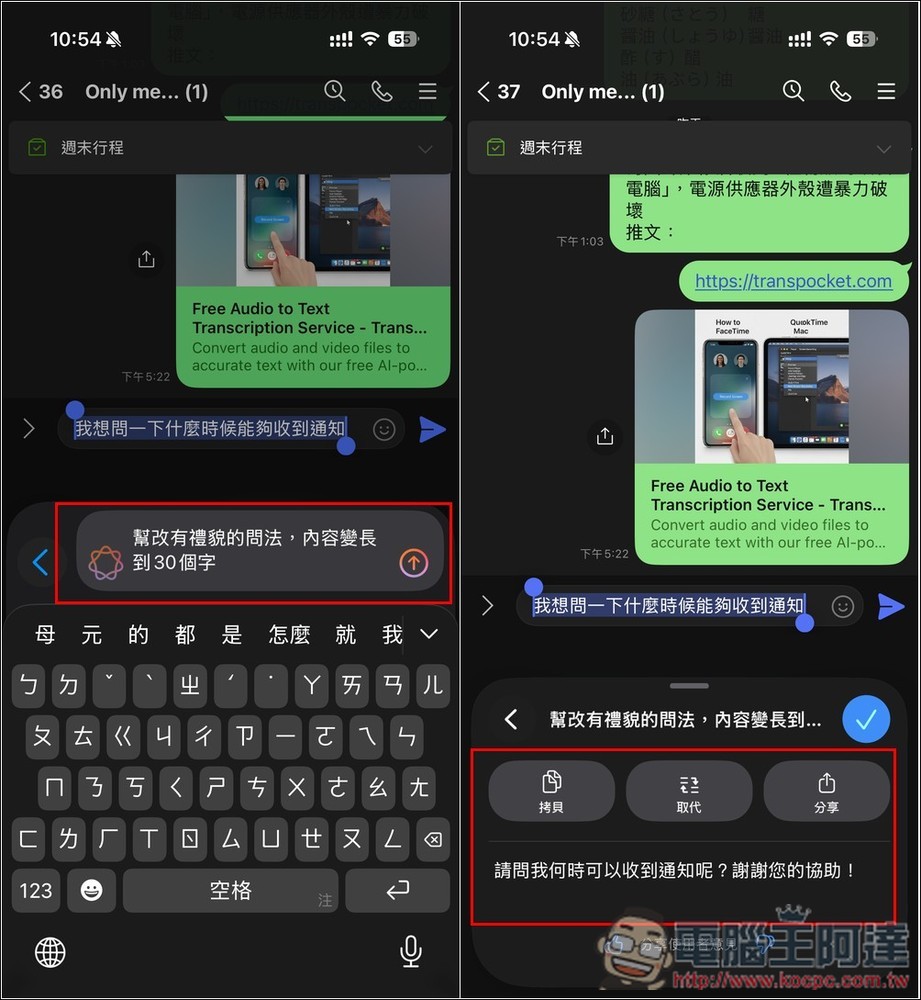
For example, after I enter content in LINE, I select the text I want to rewrite, and I see a writing tool in the menu. Then a menu pops up below, which, in addition to letting you input changes yourself, also offers some common functions, such as: proofreading, rewriting, approachable, professional, concise, summarizing, key points, lists, and tables:
For example, when I asked to make it more polite and longer, Apple Intelligence changed the original “I wanted to ask when I could receive the notification” into “May I ask when I will receive the notification? Thank you for your assistance.” However, keep in mind that Apple Intelligence does not directly replace the original text; you need to press “Copy” or “Replace”:
When encountering long-form content, you can also use writing tools to quickly get summaries, key points, or lists.
2. Genmoji generates AI-customized emoji.
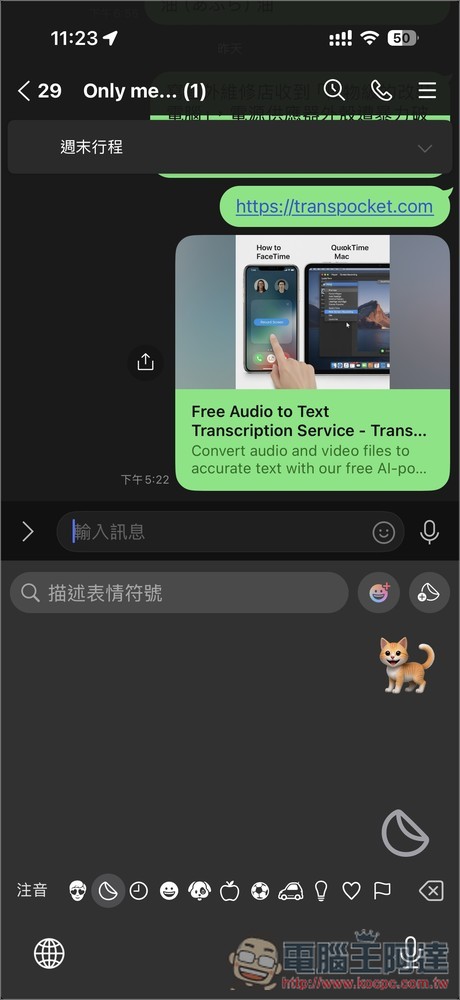
Genmoji is an image generation tool that lets you freely create emoji. It’s available right from your keyboard, meaning you can generate whatever emoji you want anytime in any text input field. Although I think its output isn’t as rich as Gemini’s, it’s still worth trying out—maybe future updates will bring major improvements.
Open the emoji keyboard, and you’ll see the Genmoji button in the top right corner—that’s where you can create.
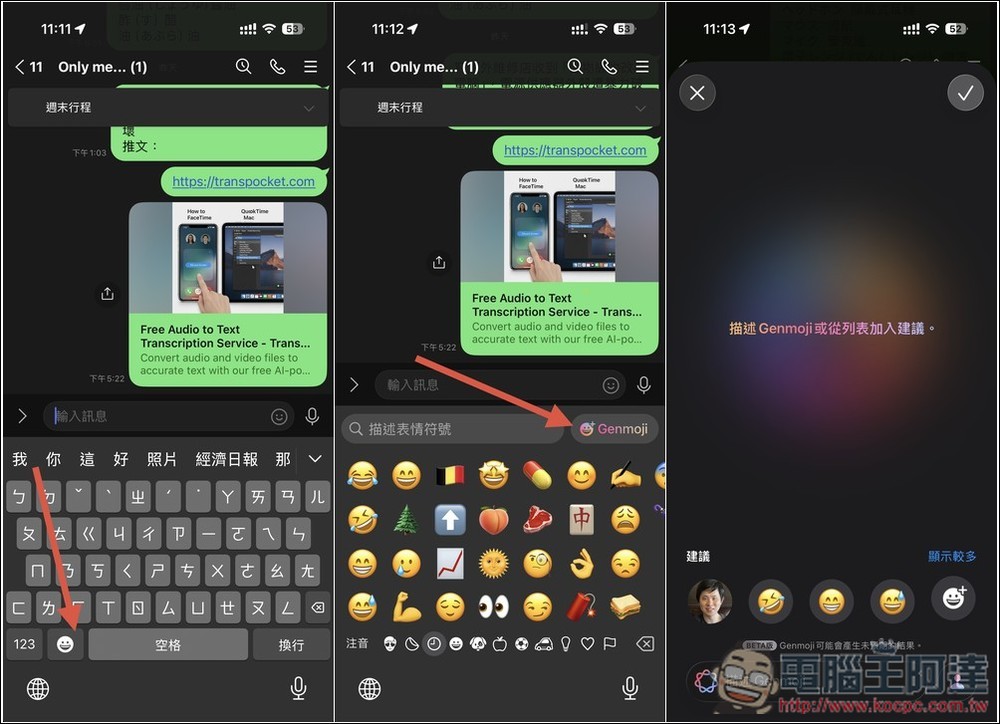
You can enter the emoji you want to generate, or let the AI get creative from the suggestions:
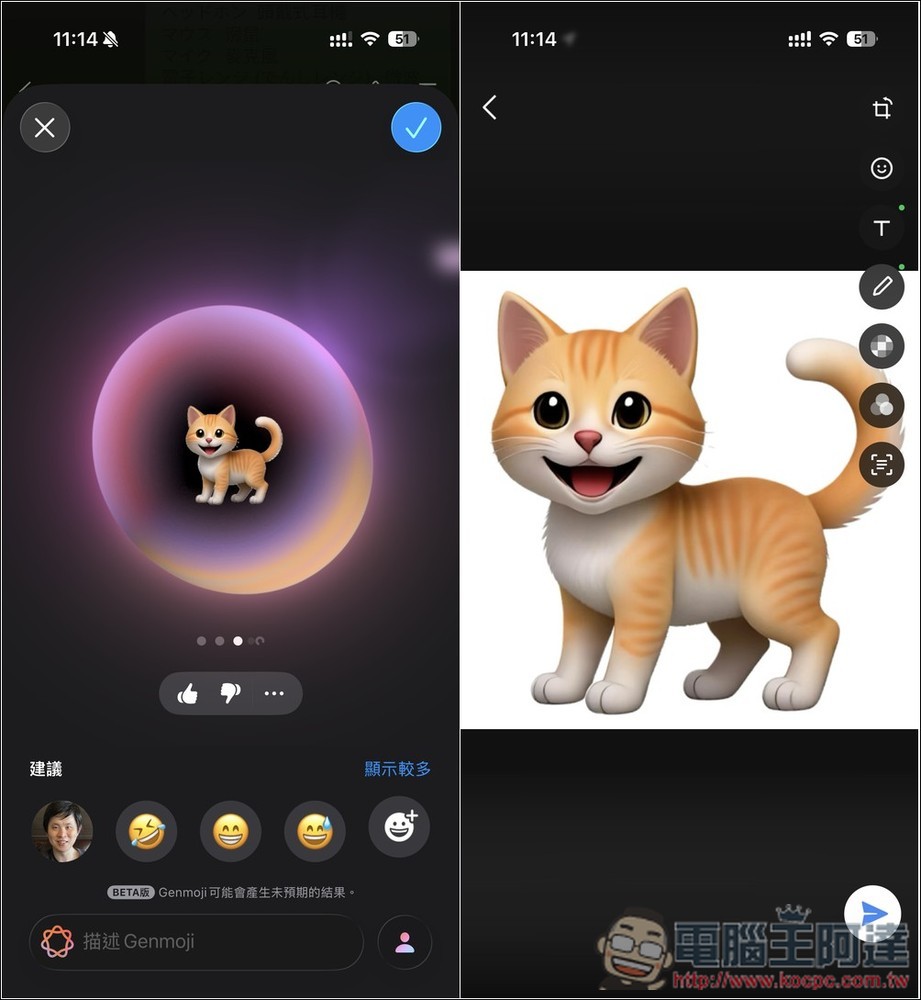
Newly generated emojis will be saved in the emoji keyboard for convenient reuse:
3. Image Paradise
影像樂園 is the AI image generation tool built into iPhone. If you need any AI images, you can generate them directly from here, completely free and without any restrictions. Of course, the generation quality is still not on par with Gemini and ChatGPT, and the style options available are also fairly limited.
After enabling Apple Intelligence, you can find the Image Playground app and start using it. Like other image generation tools, you enter a description of the image, and Apple Intelligence will start generating. I entered “a cat playing at the beach”:
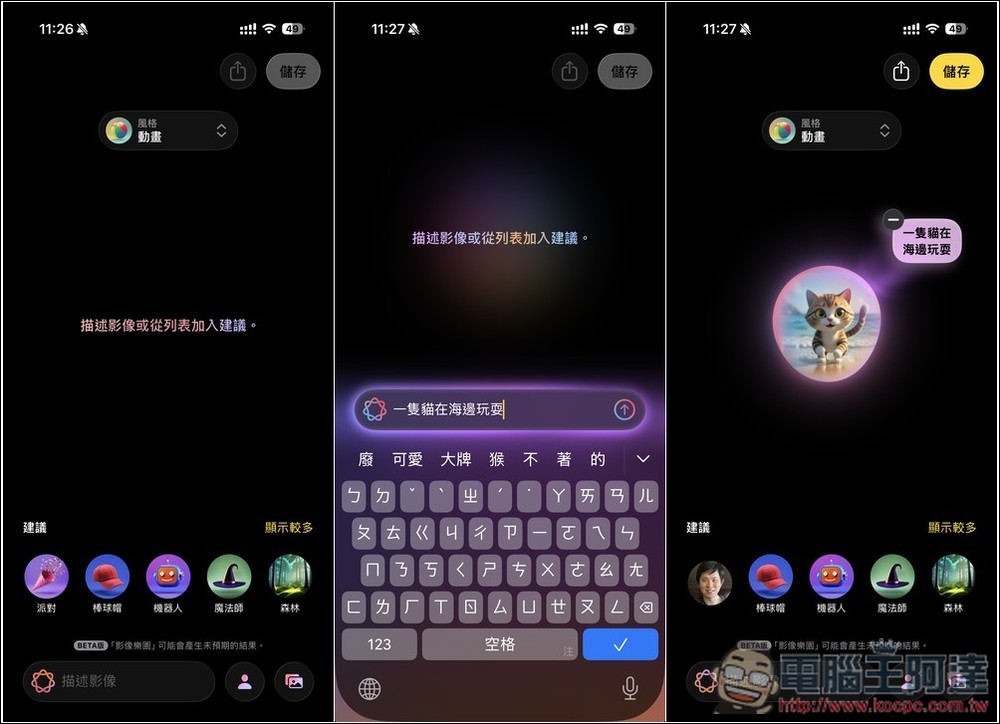
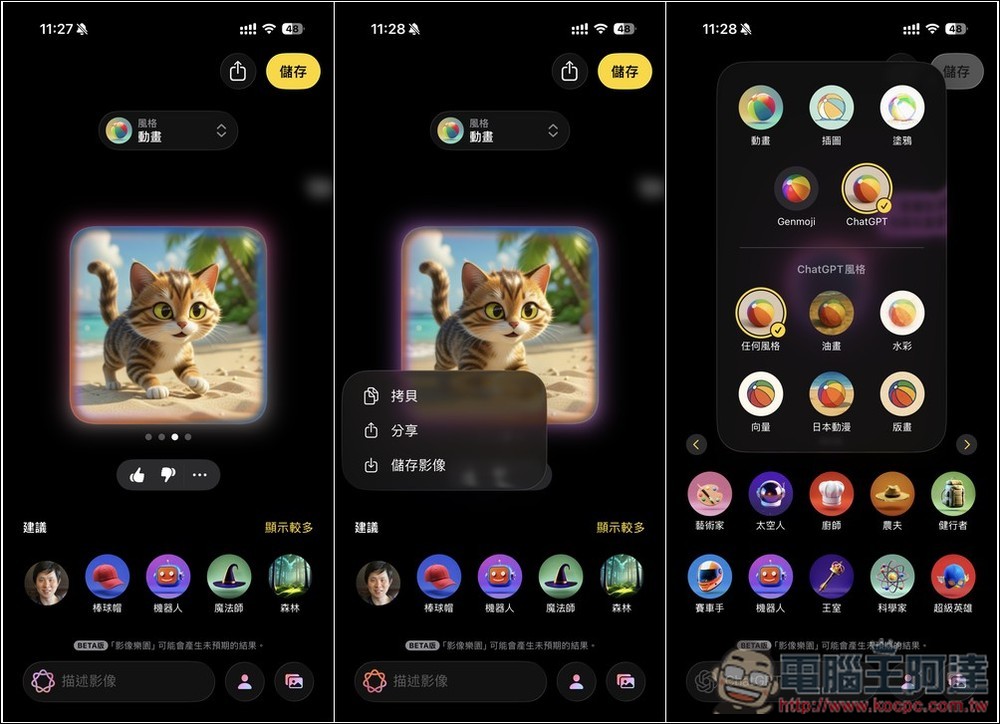
It will generate four at a time. If you’re satisfied with any, open the … menu to find the save function. Currently there aren’t many styles for generation; built-in ones include animation, illustration, and doodle. You can also switch to ChatGPT, where you can set any style. Additionally, there are oil painting, watercolor, vector, Japanese anime, and printmaking:
4. Remove unwanted objects from the photo
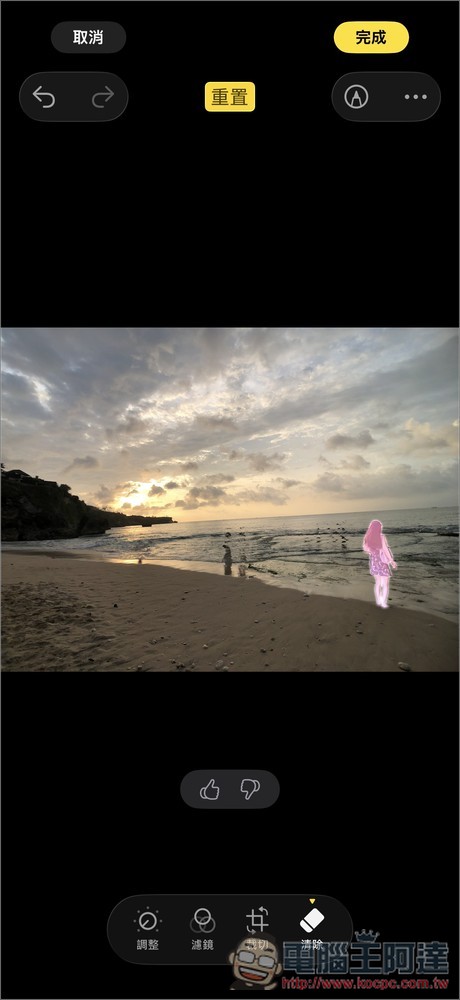
When taking landscape photos, you’ll sometimes notice passersby in the frame. With Apple Intelligence, you can now remove them directly in the Photos app, no need for a third-party app.
The usage is also very simple. After opening the photo you want to remove objects from, go to the adjustment interface, and on the right side you’ll see a new “Clear” function. The first time you use it, a download is required, and once complete, the AI will automatically identify objects in the photo that can be removed and highlight them with a bright glow:
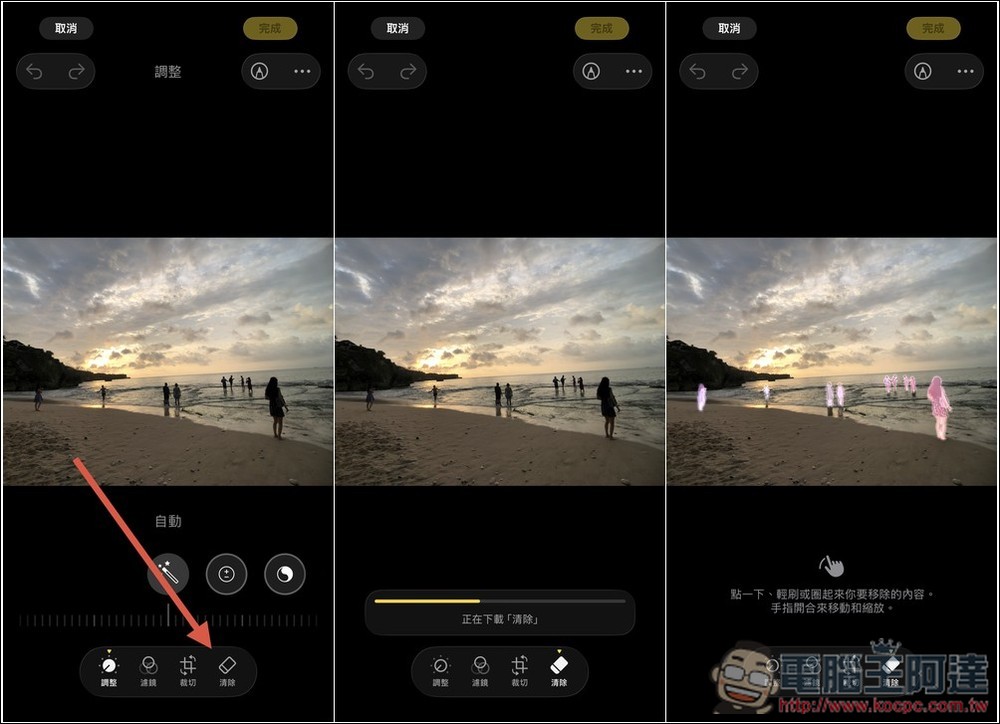
At this point, just tap, swipe, or circle the content you want to remove, and that object will disappear. However, I think the removal effect is just so-so; when it comes to trickier images, it might look a bit unnatural.
5. Use natural language to quickly find the photos you want.
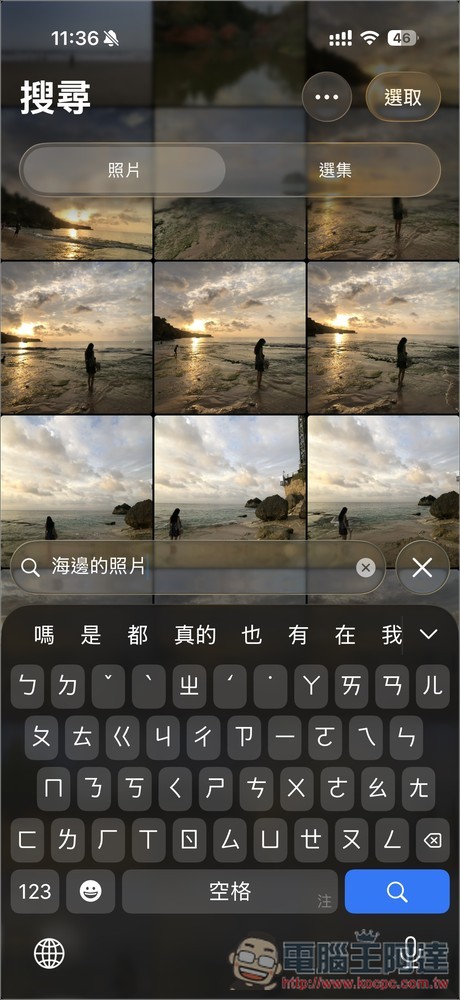
Besides clearing, you can now also search for photos using natural language. This means you don’t need to worry about keywords—just type in “what kind of photos” you want. For example, if I type “photos of the beach,” it’ll list photos that match that result. It’s pretty convenient:
6. Visual Intelligence
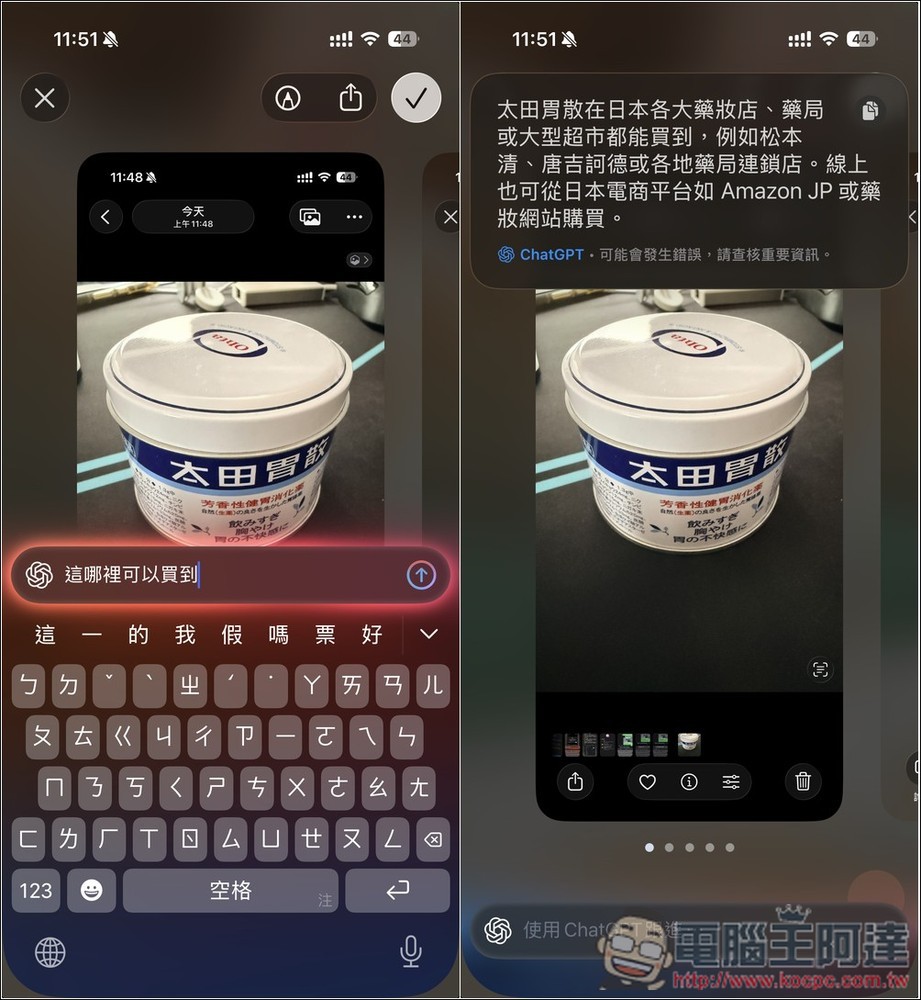
The screenshot interface has changed significantly. In addition to the existing features, it now includes Visual Intelligence, which lets you ask or query the AI about the content of the image.
This is the new post-screenshot interface, with added ask and search functions at the bottom, and you can also use your finger to point out content on the image.

For example, you can directly search Google for similar images:

Or you could ask ChatGPT anything you want to know, such as: where can this item be purchased:
Visual intelligence has quite a few uses. This is just a brief overview—feel free to explore more on your own.
7. Real-time translation feature
Summary
Besides the above, there’s also the smarter Siri, but based on the current user experience, Apple Intelligence is still lagging far behind ChatGPT, Gemini, and others. I just hope Apple can catch up quickly—they’ve fallen too far behind in the AI race.
Source: KOCPC Chinese