


Everyone knows that Spotify is a music streaming platform, but few people may remember that it is also a music player that can play songs stored on your phone directly. But sometimes Spotify will show off. What should you do if you find that you can’t see the music files stored on your phone through Spotify on your phone? There are many reasons and we provide 5 of the easiest solutions you can try.

Spotify can’t read the music stored on your phone? You can try these methods
As mentioned earlier: Spotify will not sync music stored on your computer to your phone.
Although I’m going to teach you the solution this time, there’s one thing I’d like to explain to you before I start, so that you don’t spend time messing around. If you want to try to play local music files from Windows or Mac computers on Spotify on your mobile phone, we are sorry, Spotify no longer allows you to synchronize computer music with mobile devices, and this function has been cancelled. This means that if you want to play music from your computer in Spotify on your iPhone or Android phone, you must first transfer the files to your phone.

Method 1: Enable Spotify’s local file option
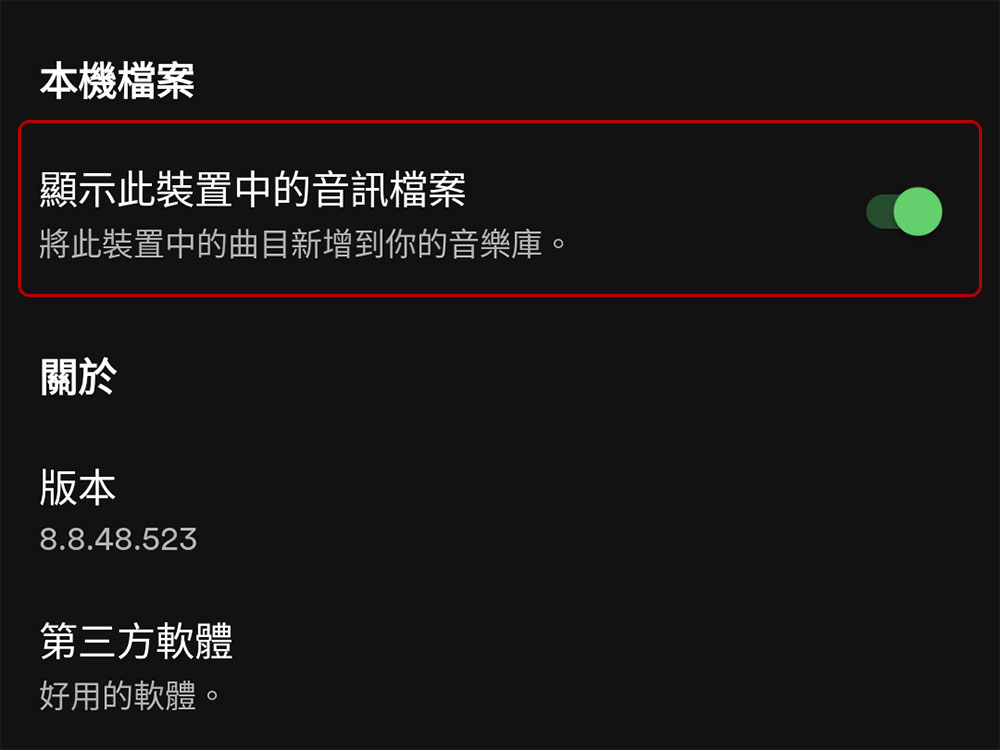
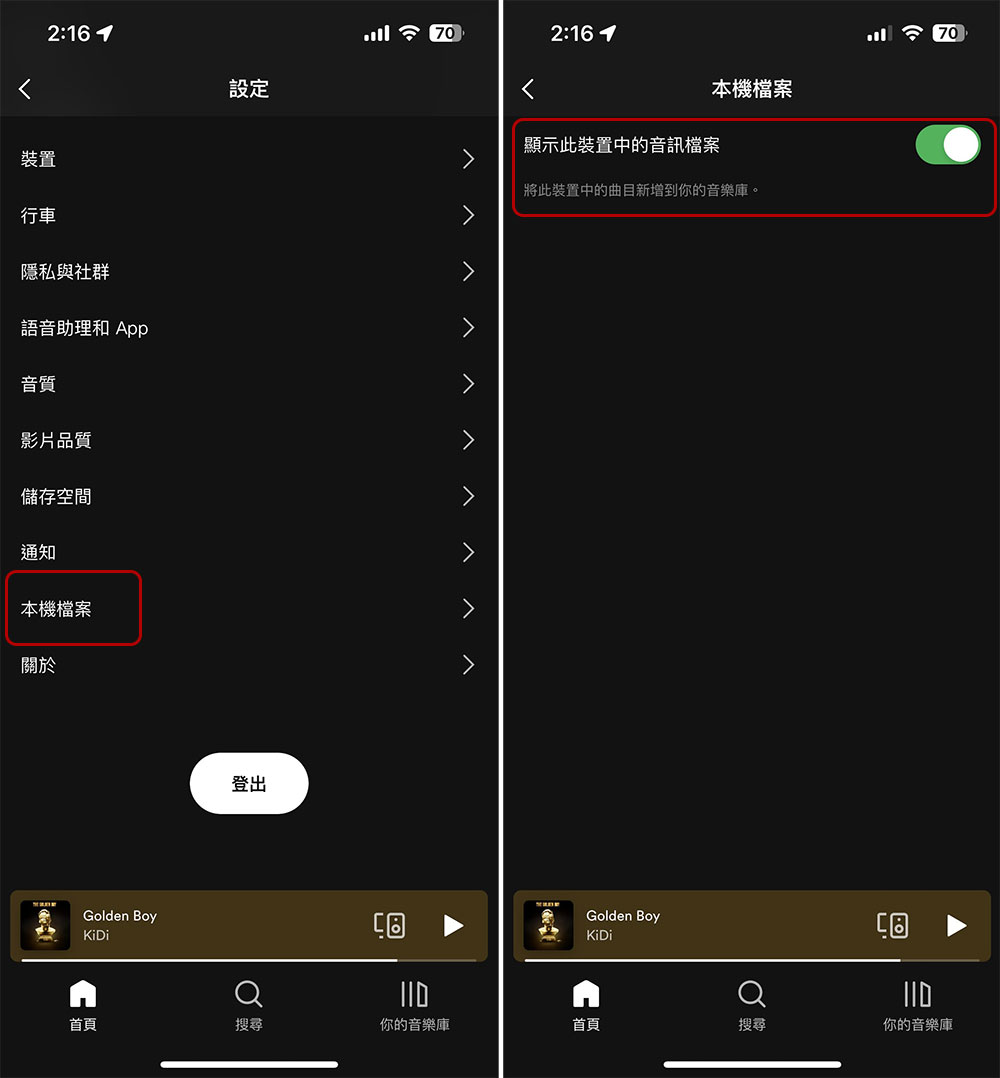
Even if you do have native music tracks on your phone, you have to manually enable the option in the Spotify app on your phone if you want them to show up on Spotify. If it’s not turned on (the default is off), you won’t see any music stored on your phone. To enable it:
【Android】
- Open the Spotify app and click Settings (gear) in the upper right corner.
- Scroll down to almost the bottom, and you will see the “Local Files” category (above About).
- Just turn on the switch behind “Show audio files for this device”.
【iPhone】
- Open the Spotify app and click Settings (gear) in the upper right corner.
- Click to enter “Local Files”
- Just turn on the only option inside.
Method 2: Check Spotify app permissions on your phone
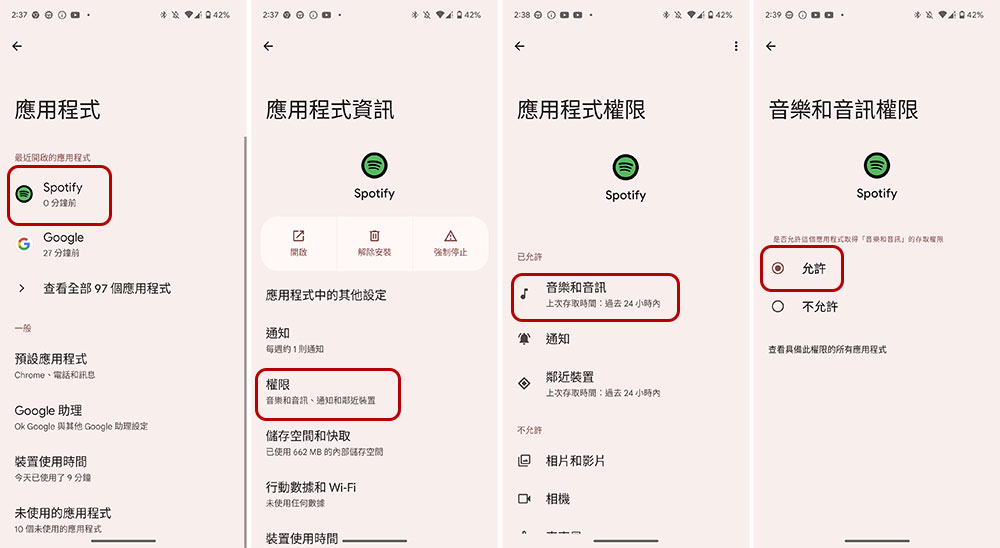
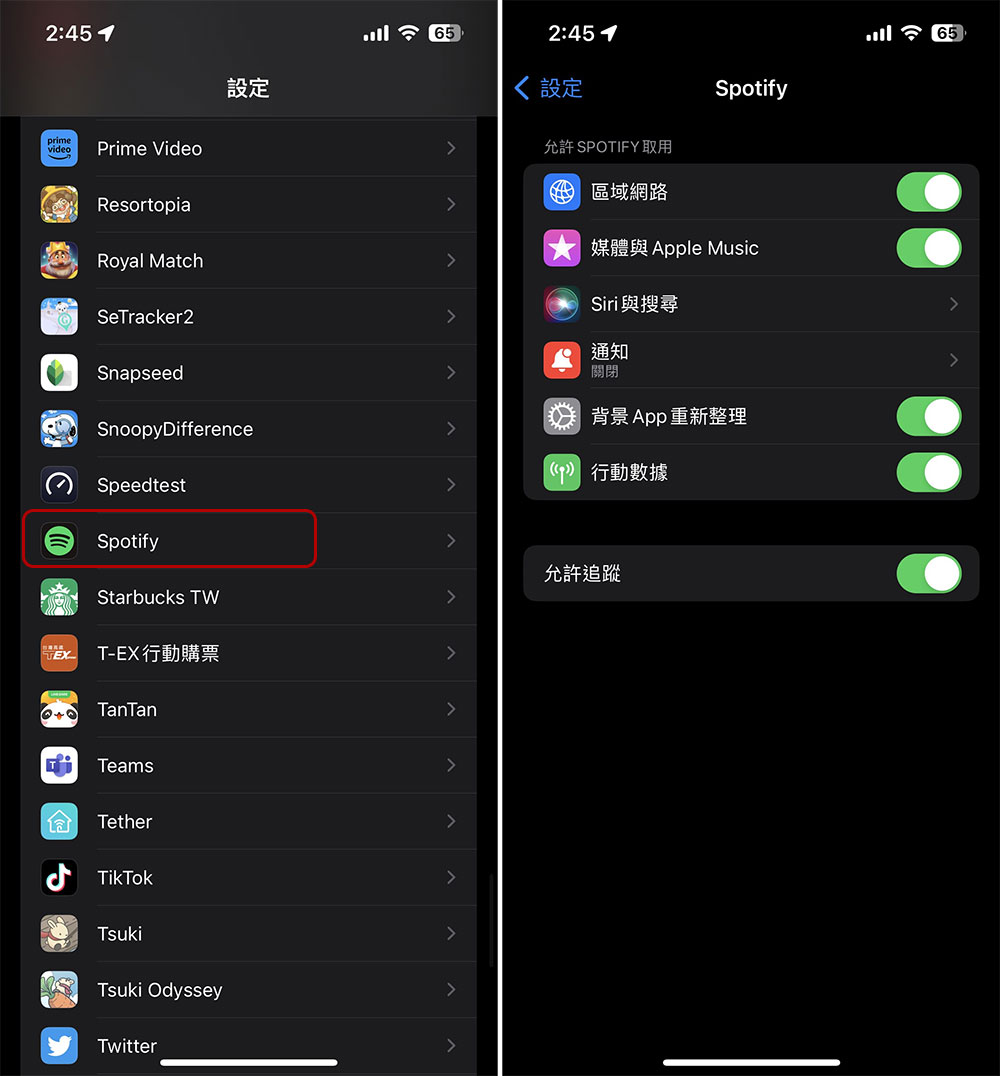
Spotify needs to access your phone’s local storage in order to scan music files and add them to the app. If you deny this permission on your phone, this may be why you can’t see local music files in the app. Check the Spotify app permissions on your phone and make sure the app has all the required permissions.
【Android】
- Open the “Settings” of your phone and enter the “Applications” item.
- Find Spotify, click in, and click “Permissions.”
- Just set “Music & Audio” to Allow.
【iPhone】
- Open the “Settings” of your phone.
- Scroll down or use search to find Spotify and click on it.
- Confirm that Spotify has been granted all required permissions.
Method 3: Make sure your music is in a format supported by Spotify
For local music files to be displayed in the Spotify app, the file format must be MP3, M4P, or MP4. MP4 files must not contain videos, which means they must be audio-only. Check to make sure the local music files are in one of the supported formats, if not, you must first convert the files to a supported format before you can play them in the application.
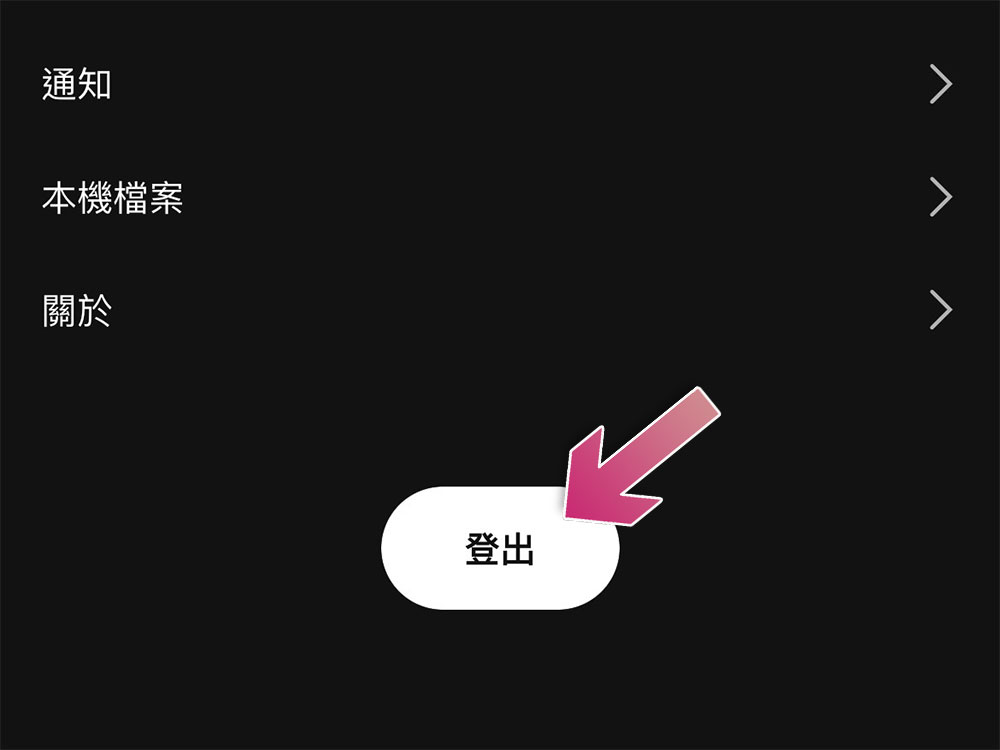
Method 4: Sign out and back into your Spotify account
Sometimes, application login errors will prevent local files from being displayed in the application. In this case, please log out of the Spotify application and then log in again to solve the problem.
Method 5: Uninstall and then reinstall Spotify
If you’ve tried the above and the native files still don’t show up in your app, Spotify’s core app files may be corrupted. This corruption has the potential to disrupt many of the application’s features, including the ability to display local files. In this case, resolve the issue by uninstalling and reinstalling the app on your phone. You won’t lose your playlists or other data when you do this, but you will have to log back into your account and authorize it in the app.
Source: KOCPC Chinese