


Whether at work or in school, you may come across PDF files that are only in a foreign language. If the content is short, translating is fairly easy—just copy and paste it all into a translator. But if the PDF is dozens of pages or more, it becomes very time-consuming. Now there’s a very powerful free AI translation tool called BabelDOC that can not only translate all PDF content at once, but also preserve the original layout after translation, and offers a bilingual reading mode that lets you compare the content before and after translation side by side.
BabelDOC is an open-source tool that can be hosted locally and used with AI models or APIs. Immersive Translate has launched an online version using the same technology. This article introduces the BabelDOC service from Immersive Translate, which is also free to use and comes with a very generous monthly quota—enough for most people.
Immersive Translate BabelDOC: Introduction to the Free Online PDF AI Translation Tool
To use BabelDOC from Immersive Translate, you need to register for a membership first. Free members can translate up to 1,000 pages per month, while Pro members get ten times that, with a quota of 10,000 pages. Also, note that it currently only supports translation into Chinese (Traditional and Simplified), and does not offer translation into other languages.
After entering the immersive translation BabelDOC page, log in to your account. If you don’t have one, just register for free:
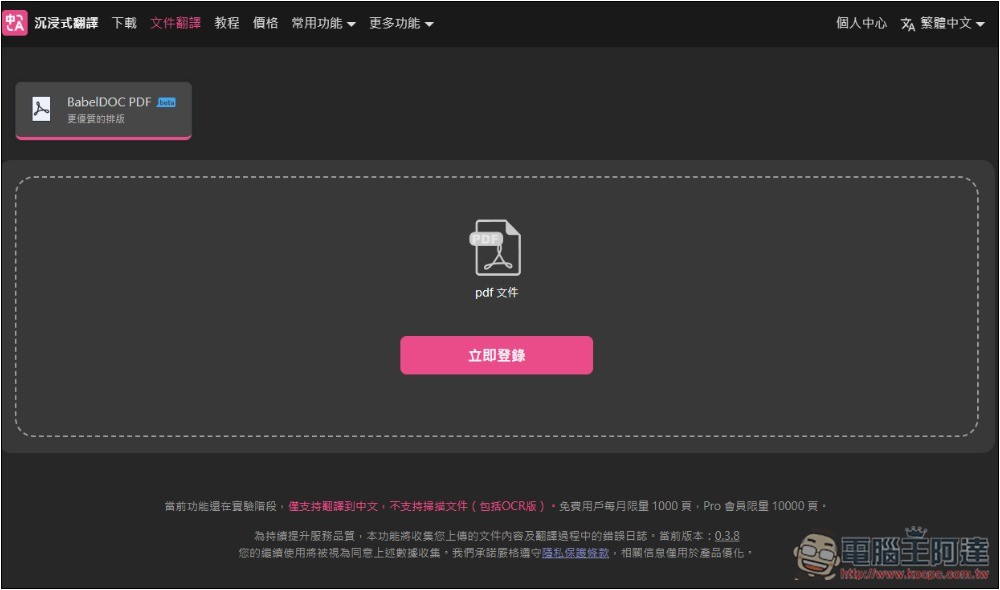
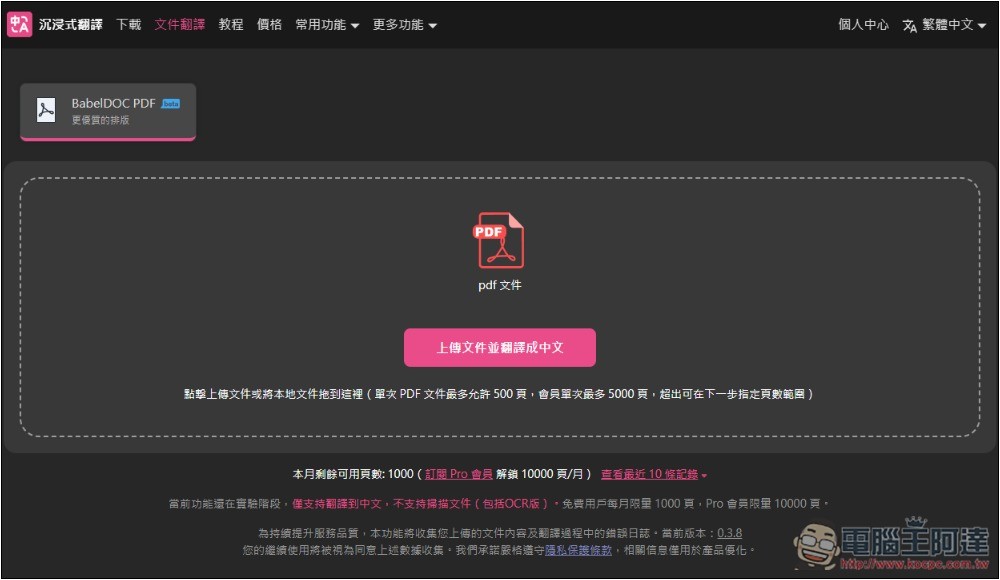
Once you log in, you can upload the PDF file you want to translate. Free members can translate up to 500 pages of PDF per submission. Of course, you can also specify which pages to translate, so you don’t have to translate the entire PDF. The remaining PDF translation count for this month is shown below; if you’ve forgotten, you can check here:
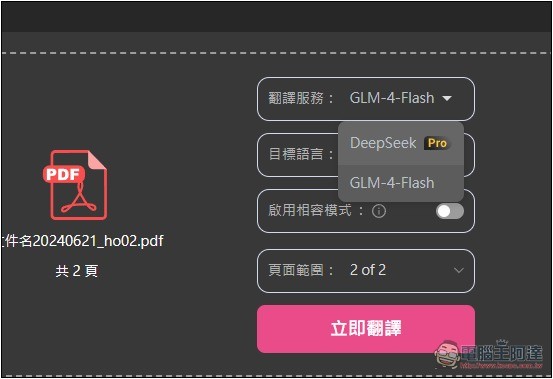
After uploading a PDF, there are four adjustment settings: “Translation Service”, “Target Language”, “Enable Compatibility Mode”, and “Page Range”:
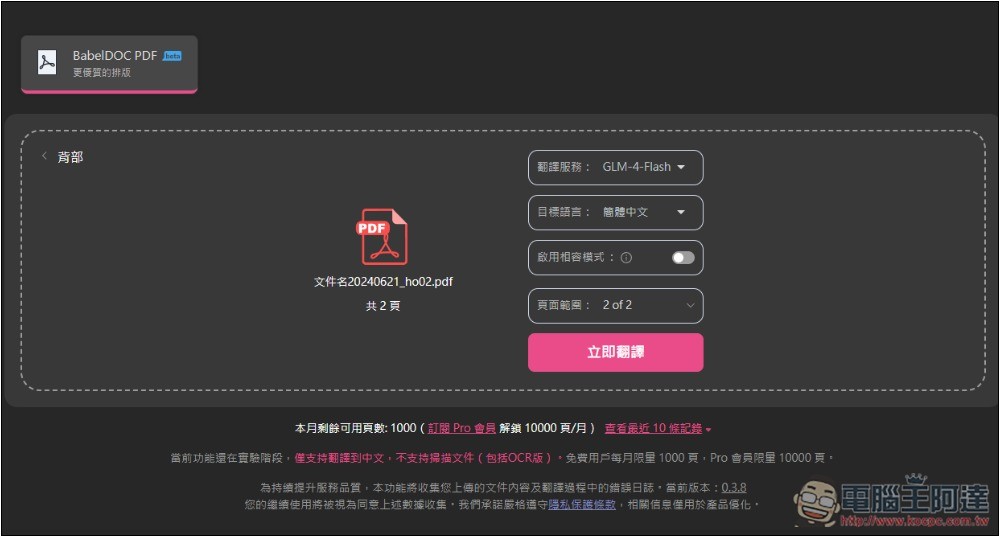
There are currently two translation services: GLM-4-Flash and DeepSeek. DeepSeek is limited to Pro paid members; the free version can only use GLM-4-Flash. The translation quality is already quite good, much better than machine translation like Google Translate:
There are two target languages, Simplified Chinese and Traditional Chinese. I’m not sure if it’s due to the model or other reasons, but when I test translation into Simplified Chinese, the recognition effect is better. For Traditional Chinese, there may be cases where it doesn’t get translated.
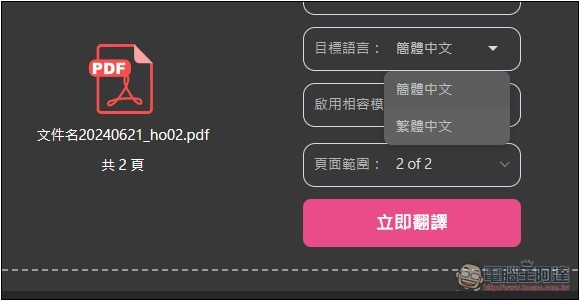
Enabling compatibility mode will improve PDF compatibility, but the output file size will be larger, so it depends on whether you need it.
After pressing “Translate Now”, it will start processing. The PDF I tested had two pages and only took a few dozen seconds to complete. The screen will also show the completion percentage.
After the translation is completed, it defaults to opening a bilingual comparison, making it easy for us to check whether everything has been translated and whether the translation is correct. The layout after translation is exactly the same, with nothing misaligned—this is really impressive. Also, the PDF document I tested was in Japanese. After translating it into Traditional Chinese, some content was not successfully translated, such as several notes at the bottom of the first page that are still in Japanese:
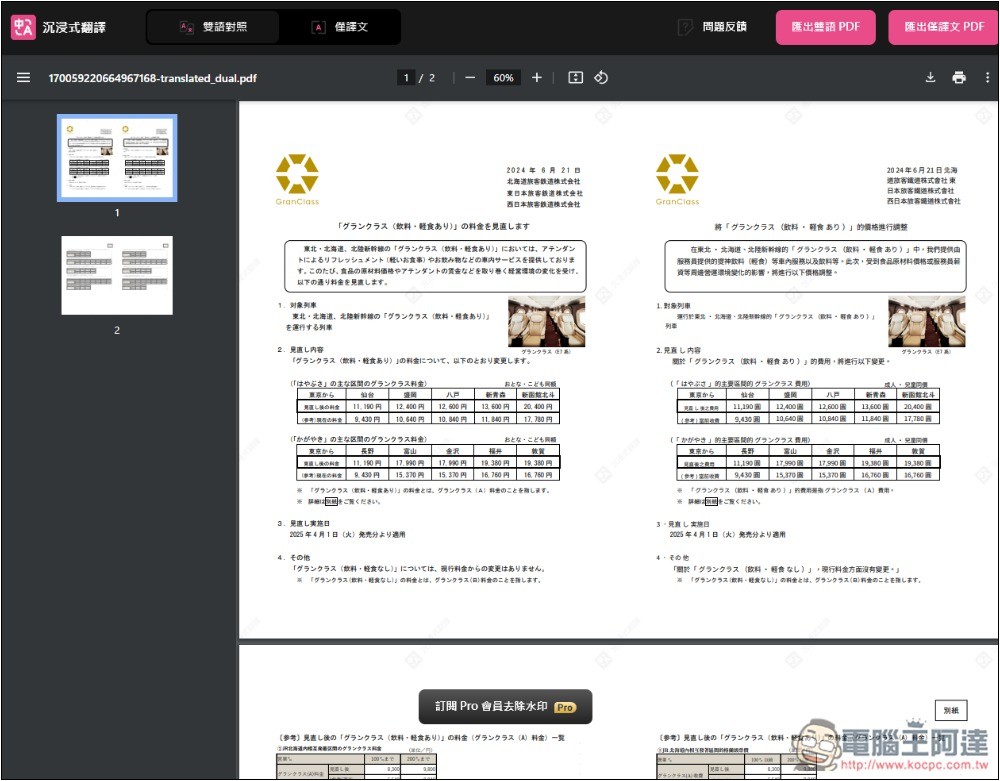
This one is clearer, and much of the content wasn’t translated successfully:
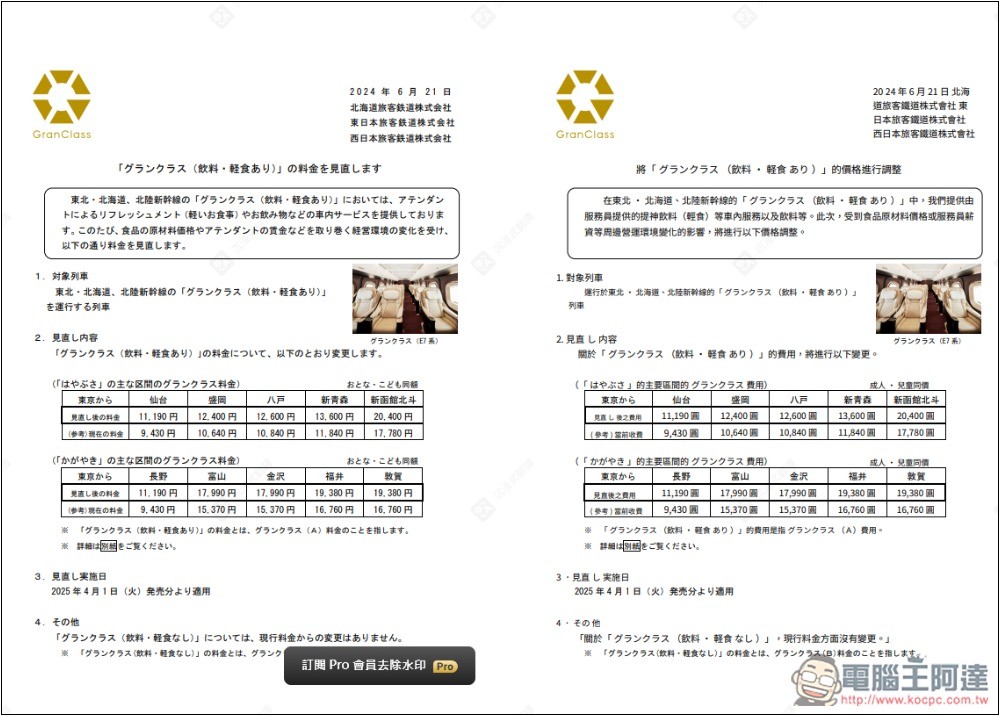
Next, I tried translating into Simplified Chinese, and surprisingly everything was translated without errors, unlike Traditional Chinese which had omissions. I suspect it might be due to the model. Those with a Pro membership can try to see if DeepSeek has this issue.
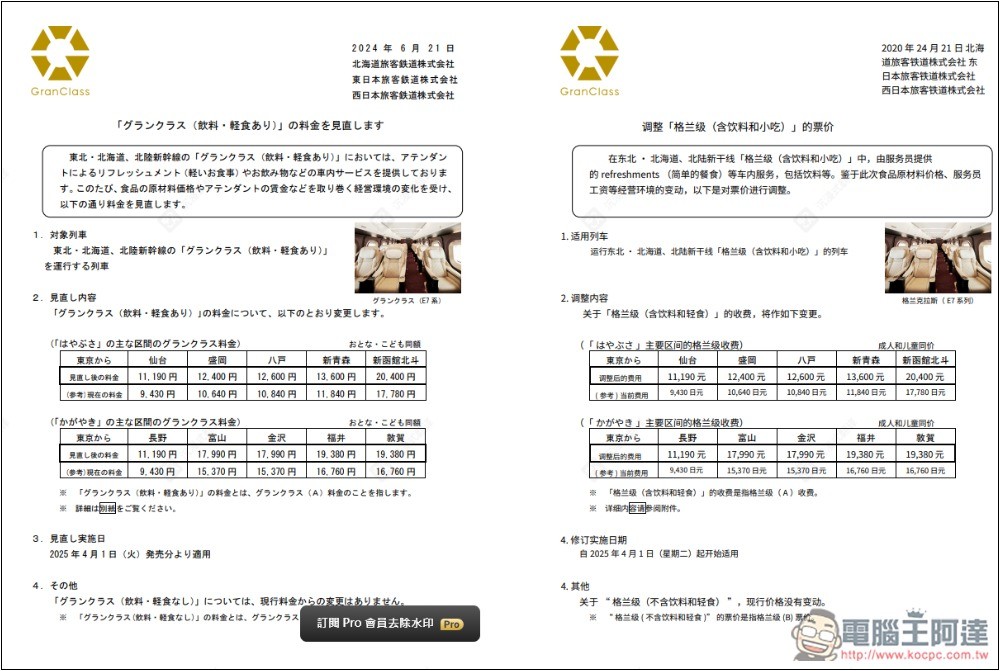
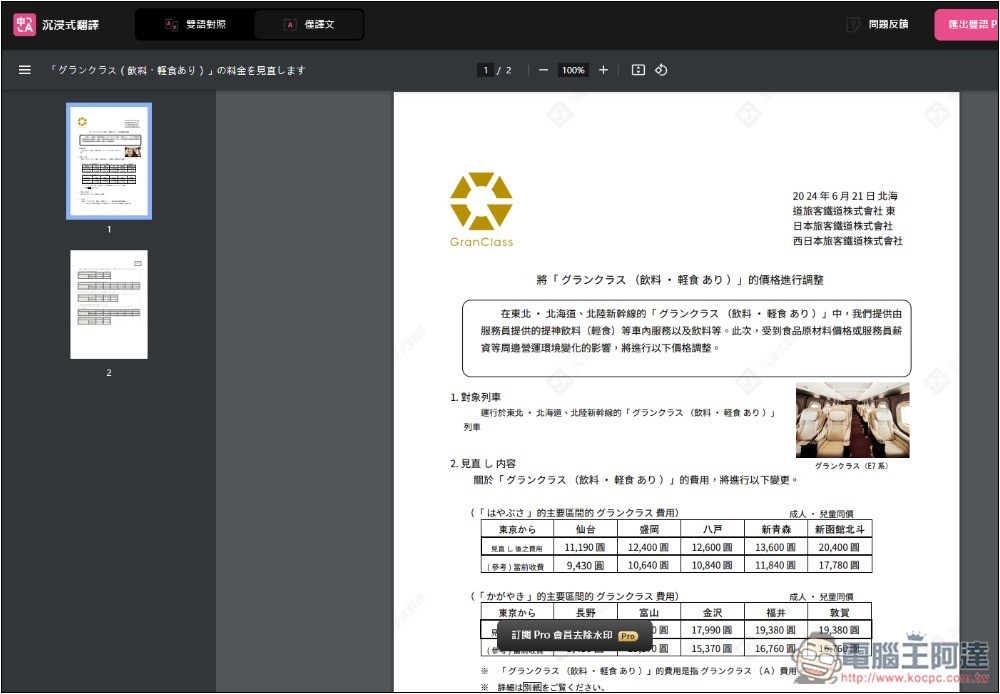
While browsing, you can also switch to displaying only the translated document (top-left). If everything looks good, click Export in the top-right to download either the translated document or a bilingual version:
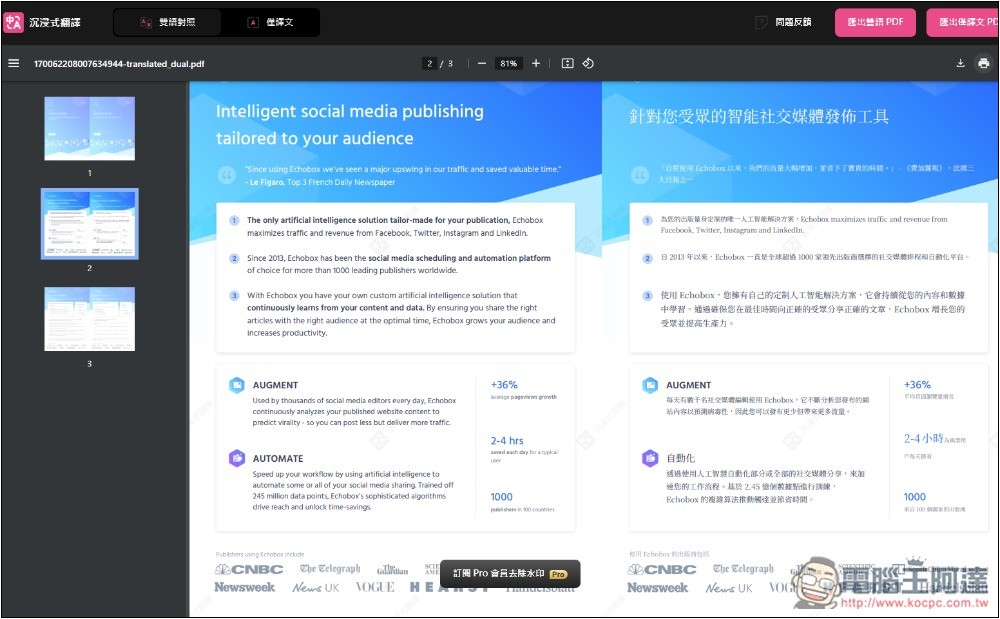
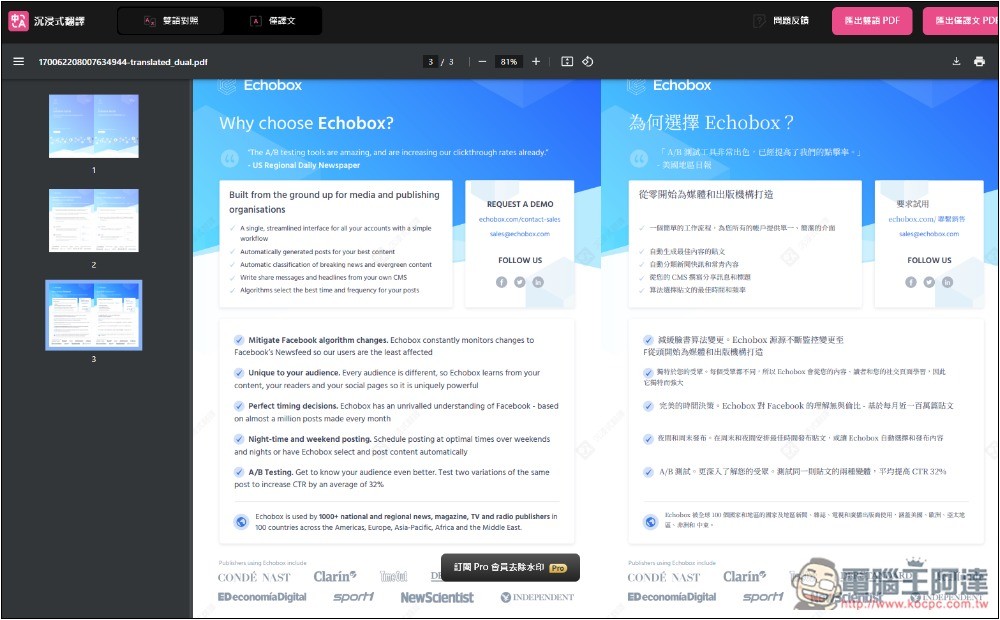
Next, I tested an English PDF, and English doesn’t seem to have the missing content issue like Japanese did. All the content was translated into Traditional Chinese, and the layout was exactly the same:
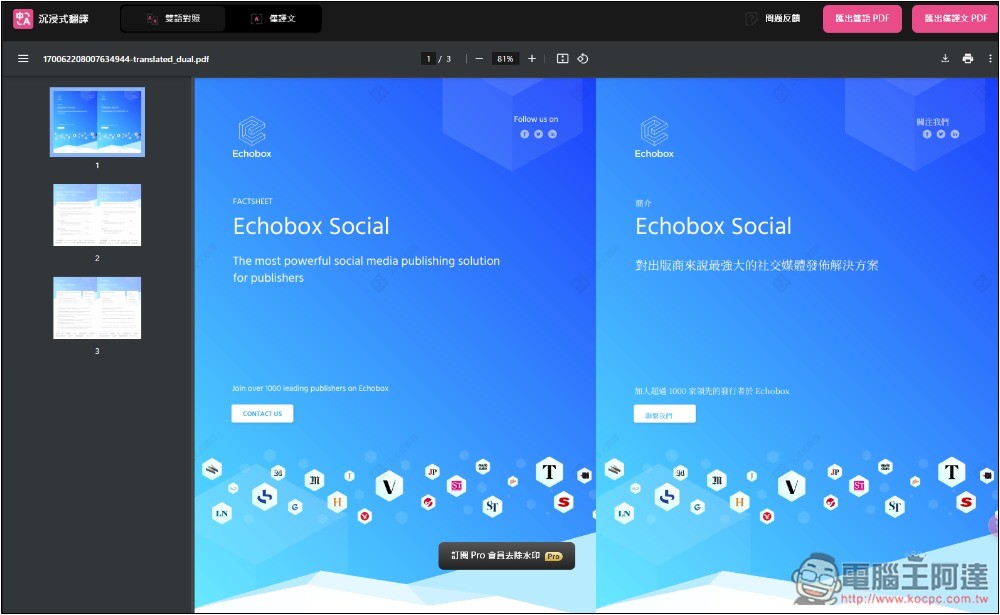
Content that was originally all in English suddenly turned into Chinese:
For those interested in setting it up locally, you can go to BabelDOC ProjectCheck how to install; currently no installation file is provided.
Source: KOCPC Chinese