


When practicing English listening, many people will definitely want to use their favorite movies and American TV series. If your videos are stored in the computer, then you will definitely like the Typing Learner recommended in this article. After importing your favorite videos, it will automatically split the subtitles and corresponding video clips, allowing us to watch and listen to a certain section of the video repeatedly. Not only that, this product also supports the creation of vocabulary notebooks for videos, and can also be used to enhance vocabulary use. Windows and Mac support it.
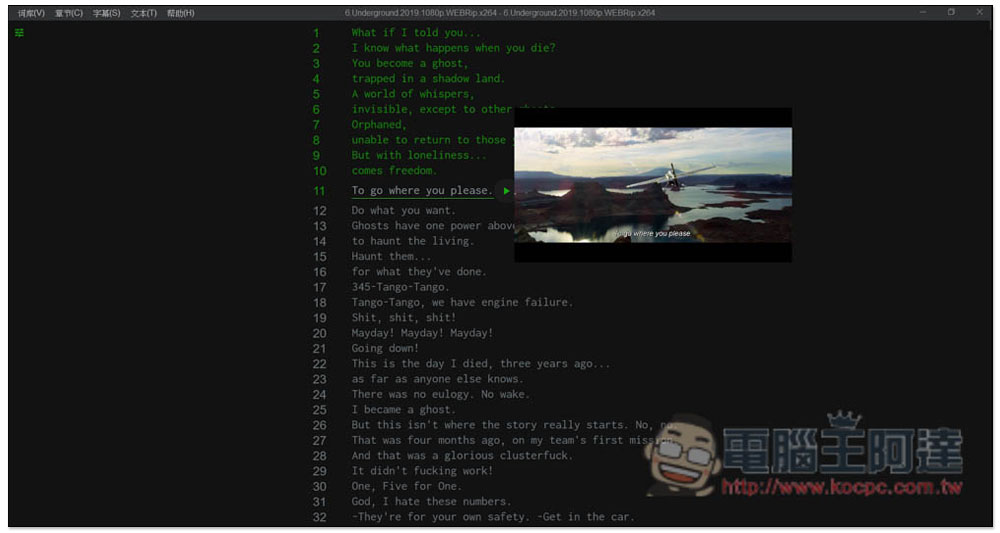
Typing Learner is a great helper for practicing English listening and vocabulary using movies and American TV series.
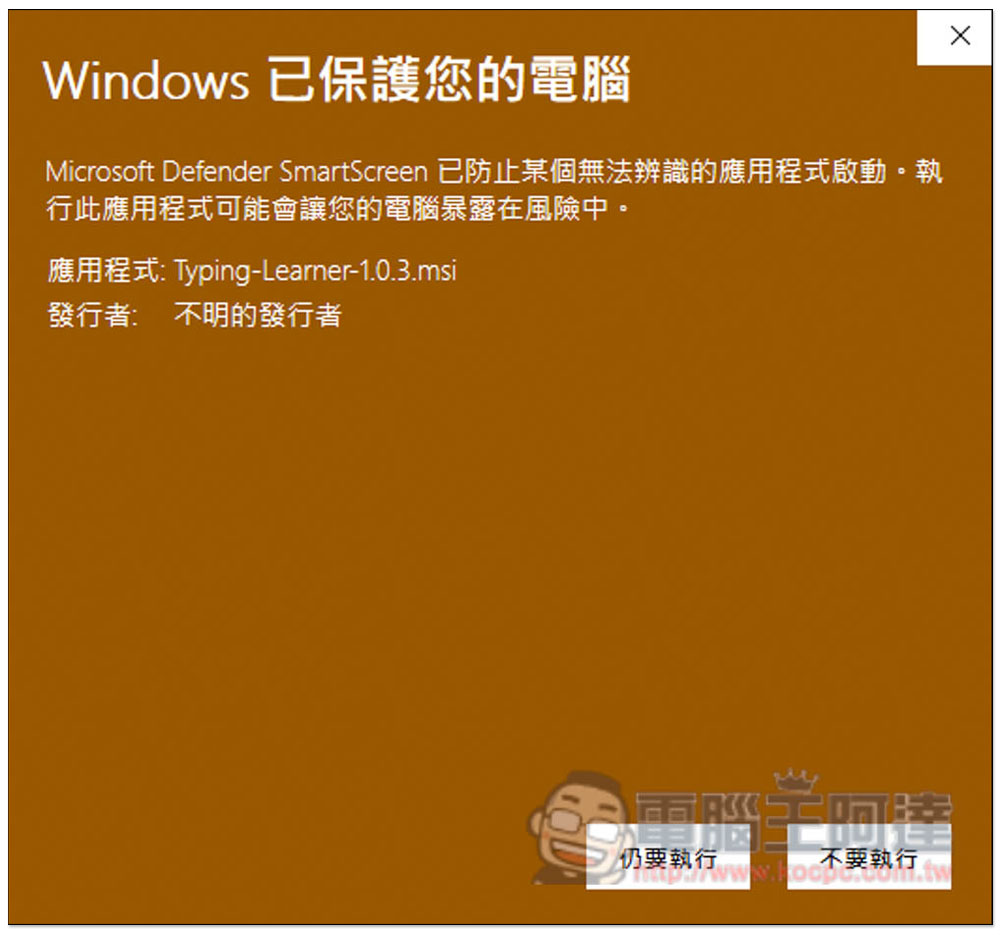
Typing Learner is a free open-code software that is publicly available on the GitHub website, and the download link is also on GitHub. This warning may pop up when opening the installation file, click “Execute anyway”:
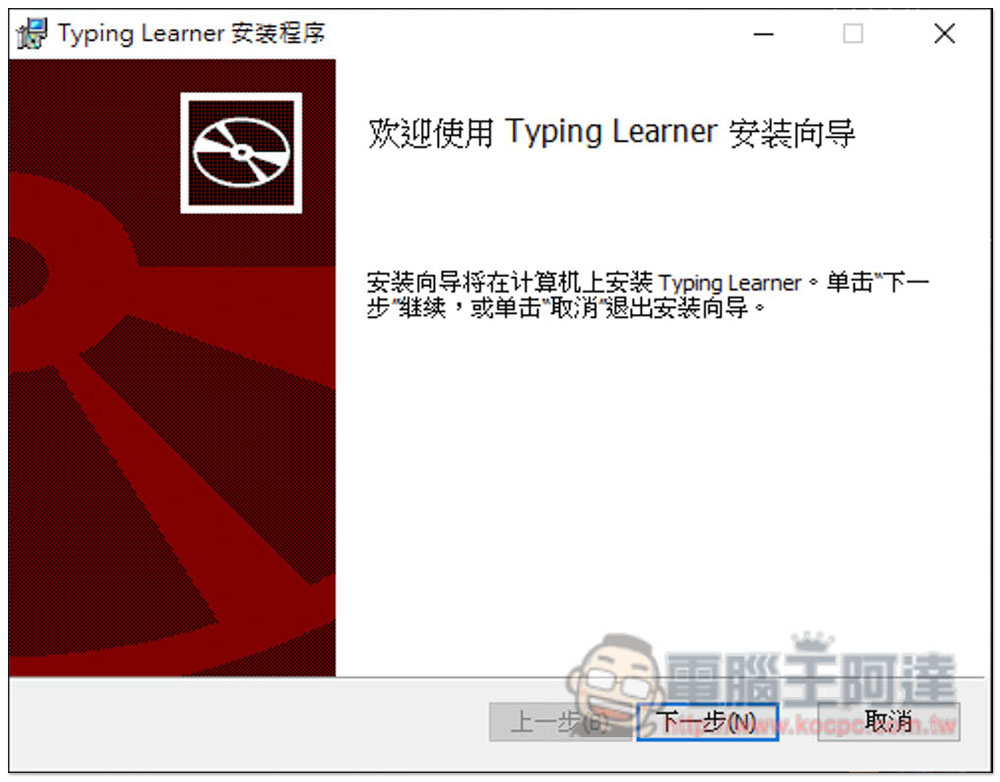
Just keep pressing Next during the installation process. If you have no special needs:
Then you can start using it. This product has a built-in vocabulary book with 4000 words, so you can use it directly to practice words:
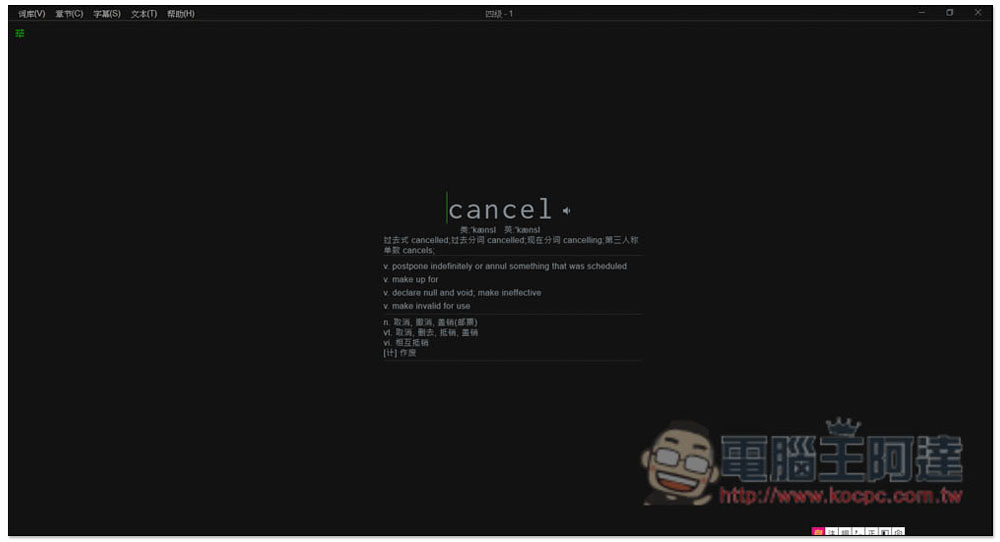
After clicking on a word, you can use the keyboard to enter the word. The green display on the right indicates that you have entered “right” several times:
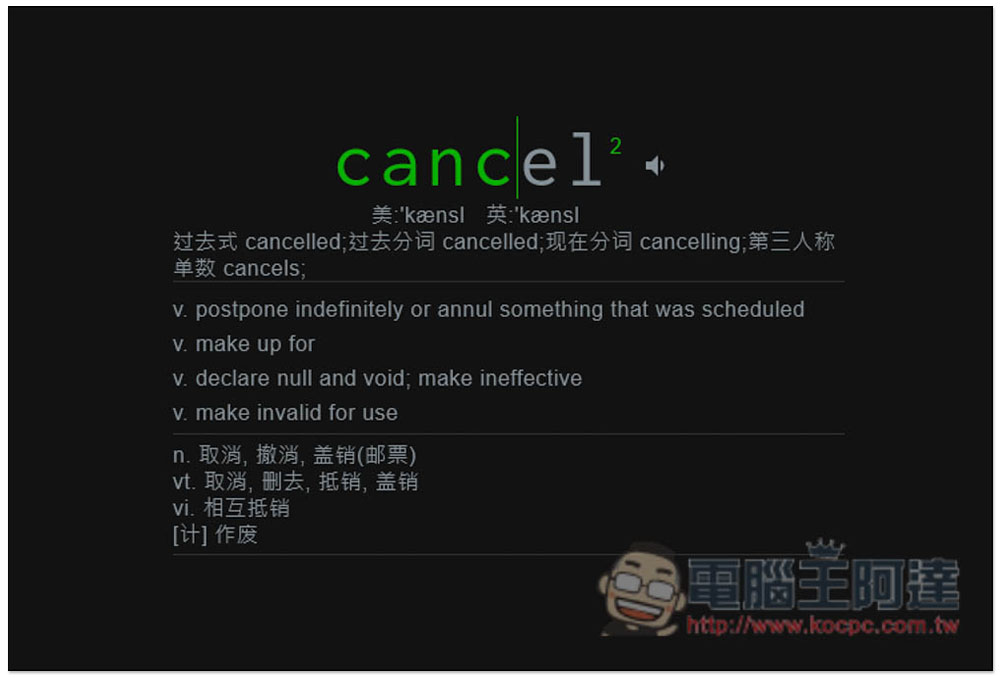
If you want to use movies and American dramas to enhance your English listening and vocabulary, please open the subtitle menu above, and then choose to copy subtitles. You need to prepare MKV videos (already built-in subtitles), or SRT subtitle files + MP3, WAV, AAC, MP4, MKV, just drag them in:
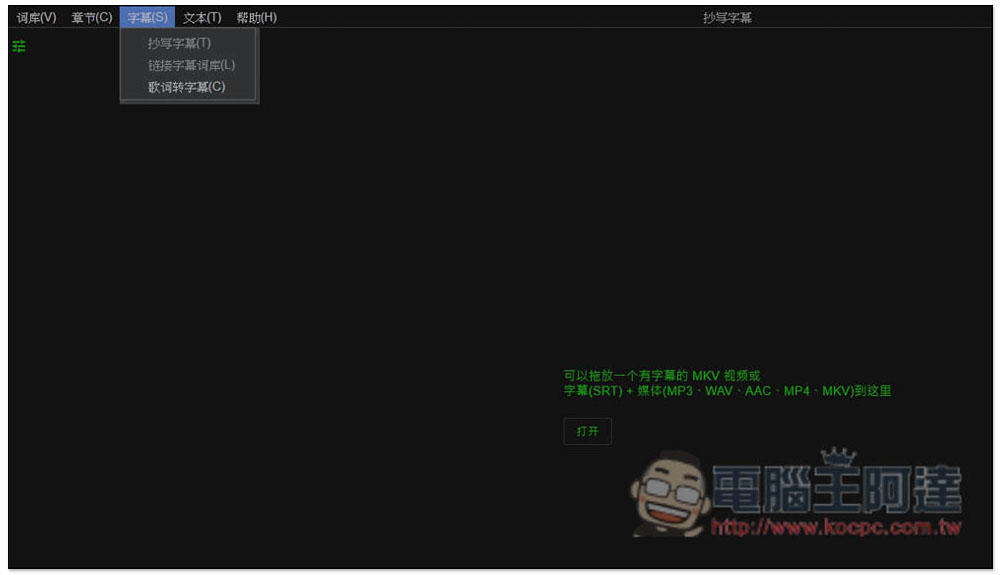
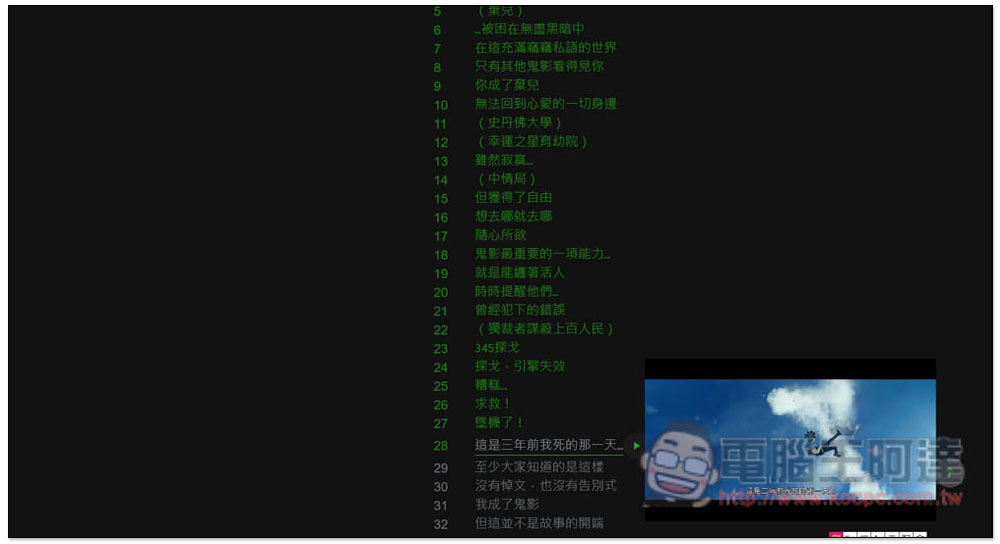
The one I imported is a Chinese subtitle file + a movie video. Every line (subtitle) will be listed one by one from the beginning. There is a play button on the right side. Press it and the video of that section will be played. This means that you can keep pressing it and listen to this sentence repeatedly until you understand every English word. You can even write it down with a notebook. Once you are confident, compare it with the English subtitles of the sentence:
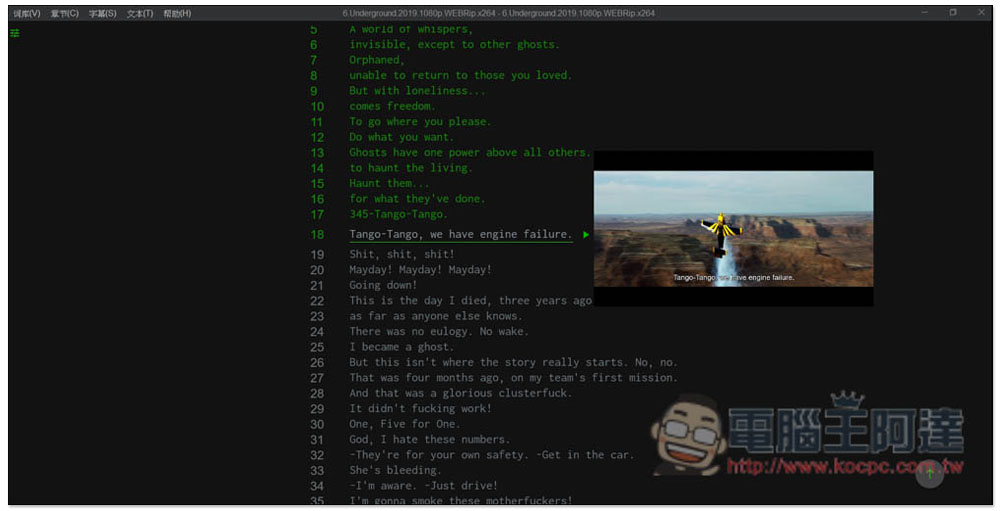
Of course, English subtitles can also be imported, which is very useful to enhance spoken speaking. Keep listening to this sentence repeatedly, and then speak it yourself until the intonation is similar:
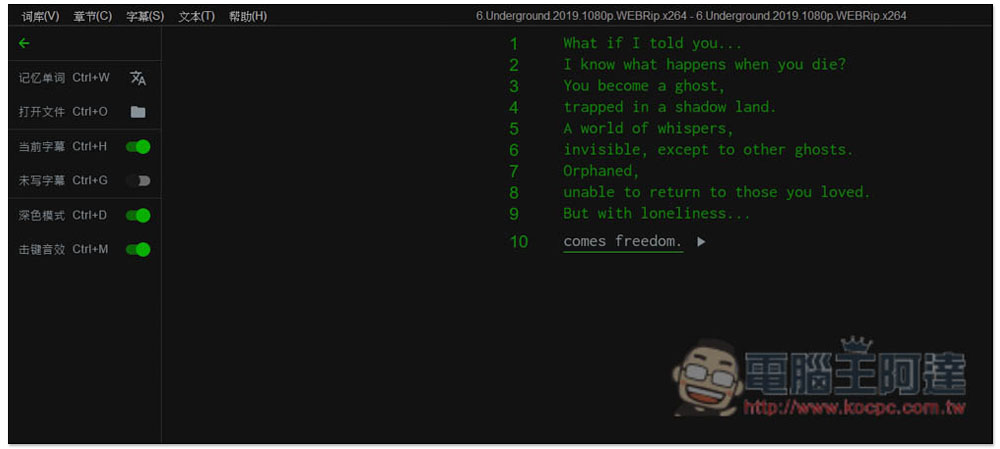
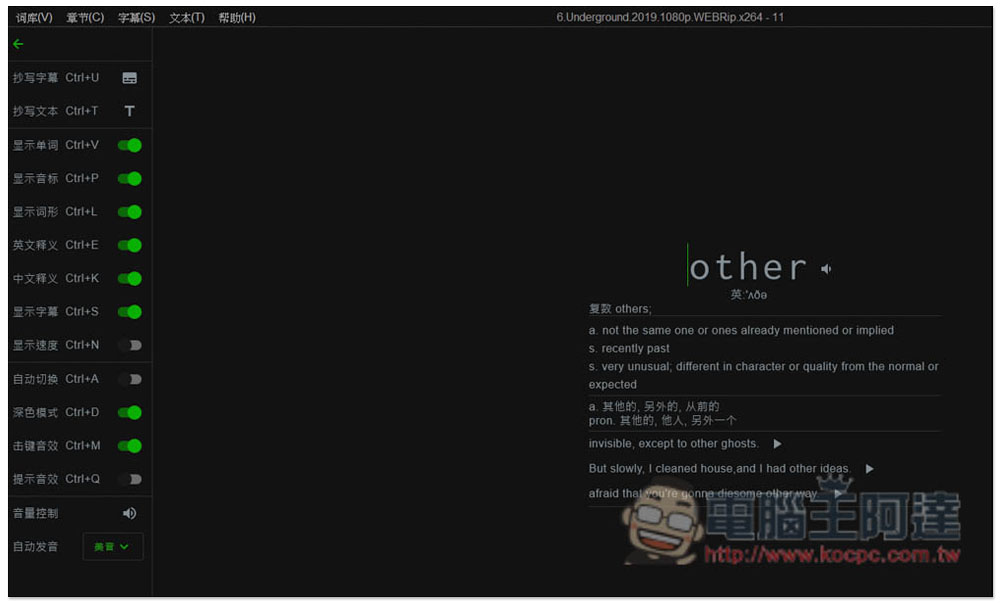
Click on the leftmost menu to expand some function options, such as current subtitles, unwritten subtitles, etc., and supports shortcut key functions:
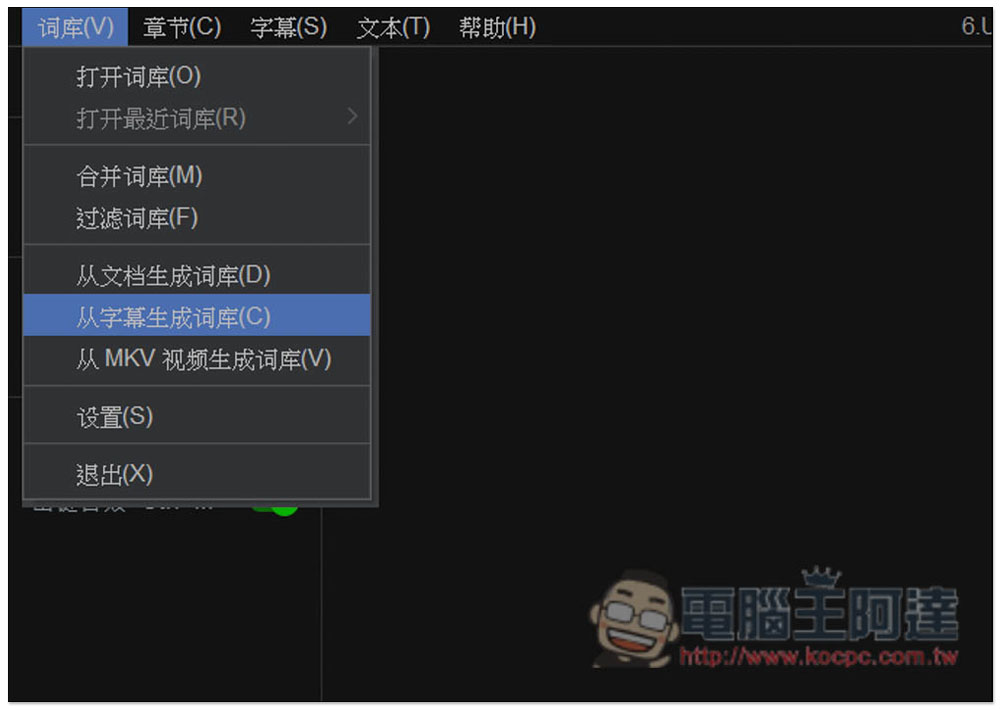
And if you want to turn the subtitles of movies and American TV series into a list, please open the vocabulary menu in the upper left corner and select “Generate vocabulary from subtitles”:
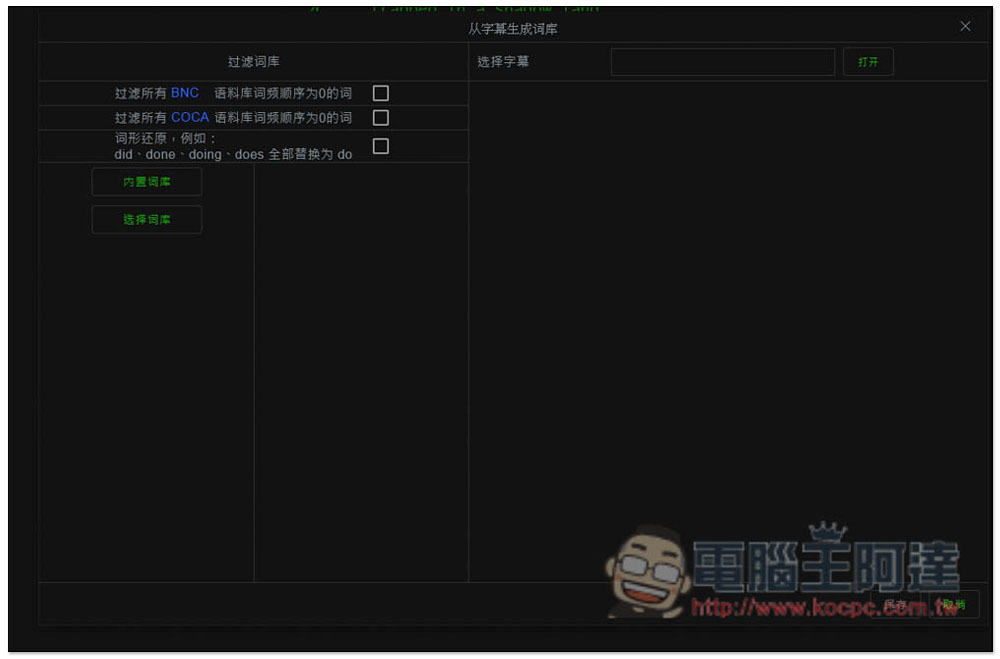
This window will open, click “Open” to the right of the selected subtitles:
After selecting your SRT subtitle file, click Analyze on the right and all words in the subtitle file will be listed. In addition, it is recommended to set “Select the corresponding video” so that when you learn a word later, you can also play the video clip in which the word appears with one click:
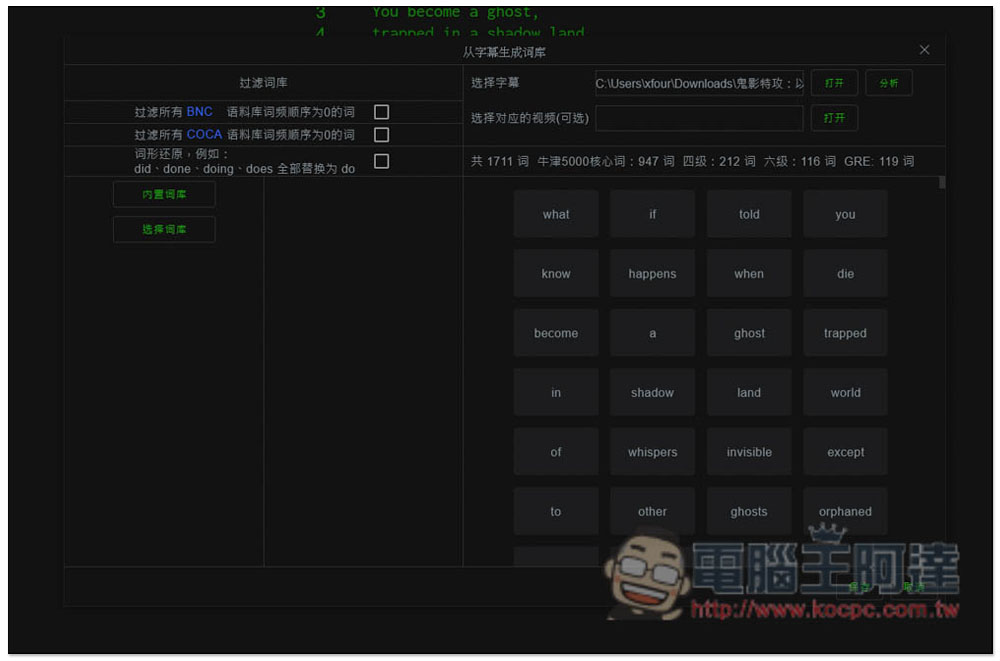
Delete all the words you already know. Move your mouse to the top and an
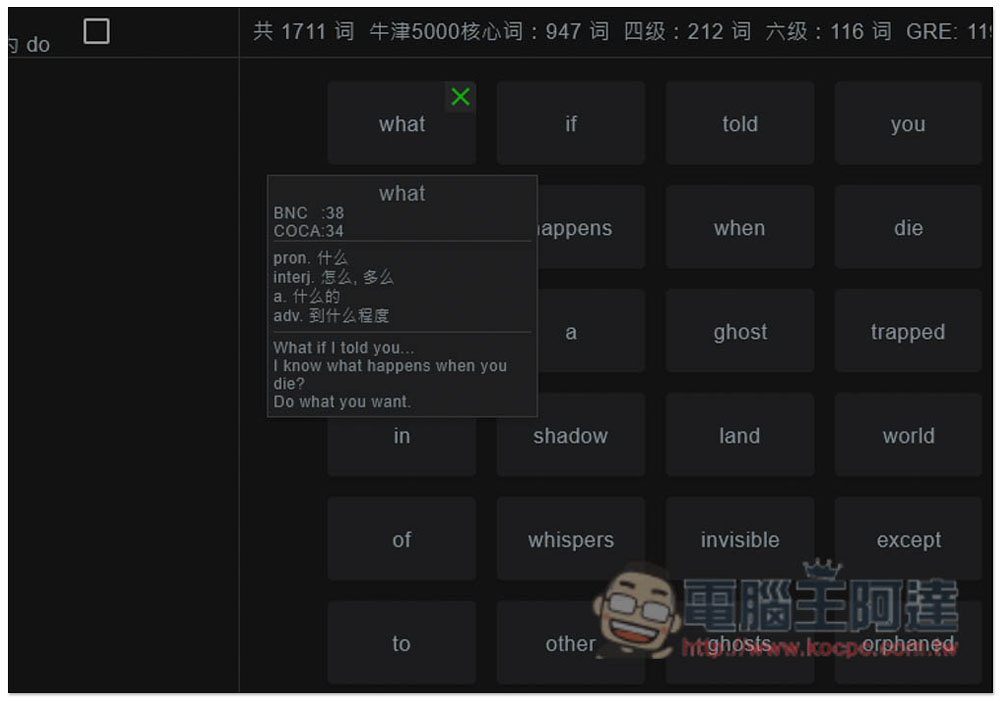
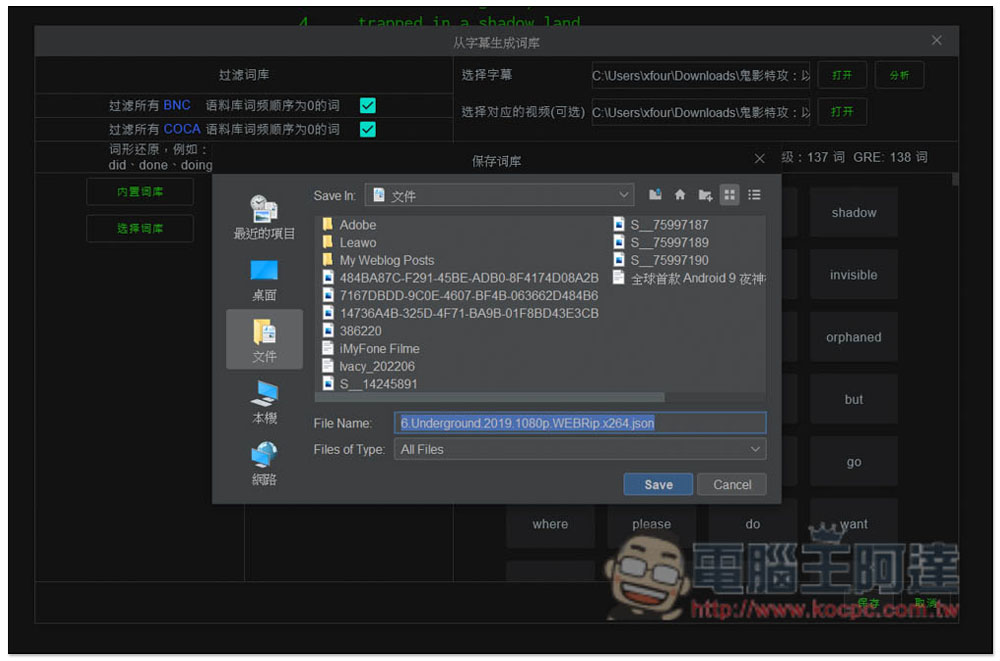
Then save this word book:
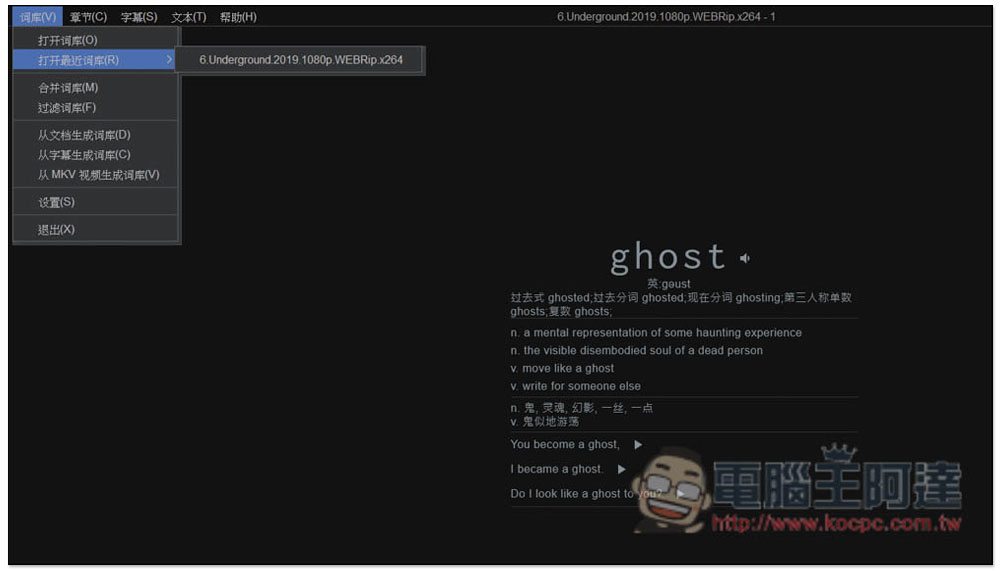
Then open the thesaurus menu. Generally speaking, you should see the new thesaurus you just created in “Open recent thesaurus”. Click on it and the words in this list will be displayed:
If you have set the video position, there will be a play icon on the right side of the sentence below each word. Click to play the video clip in which this word appears:
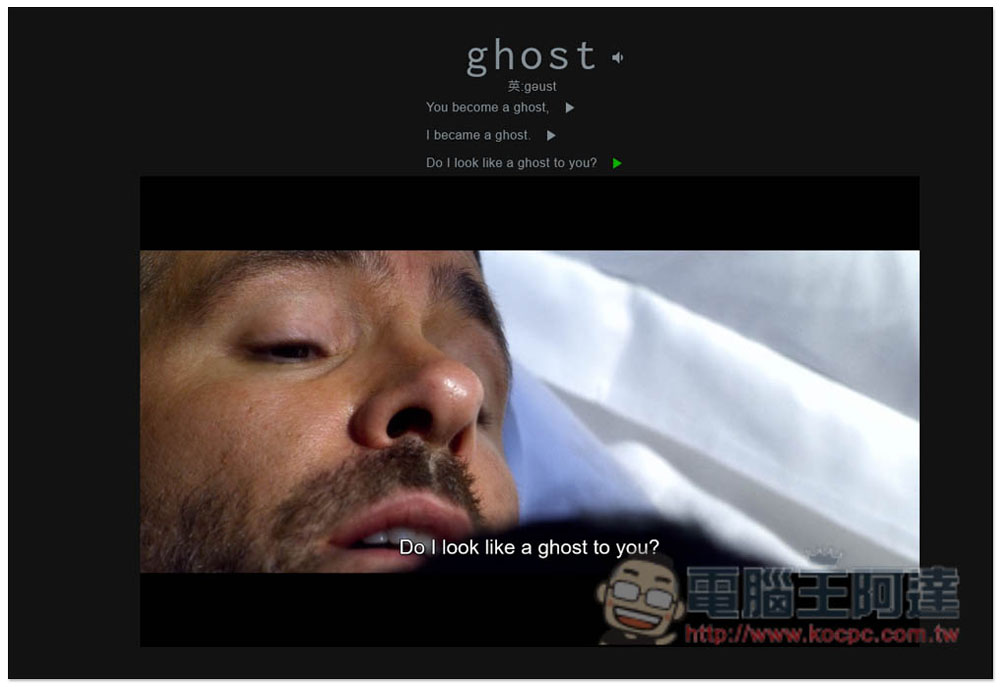
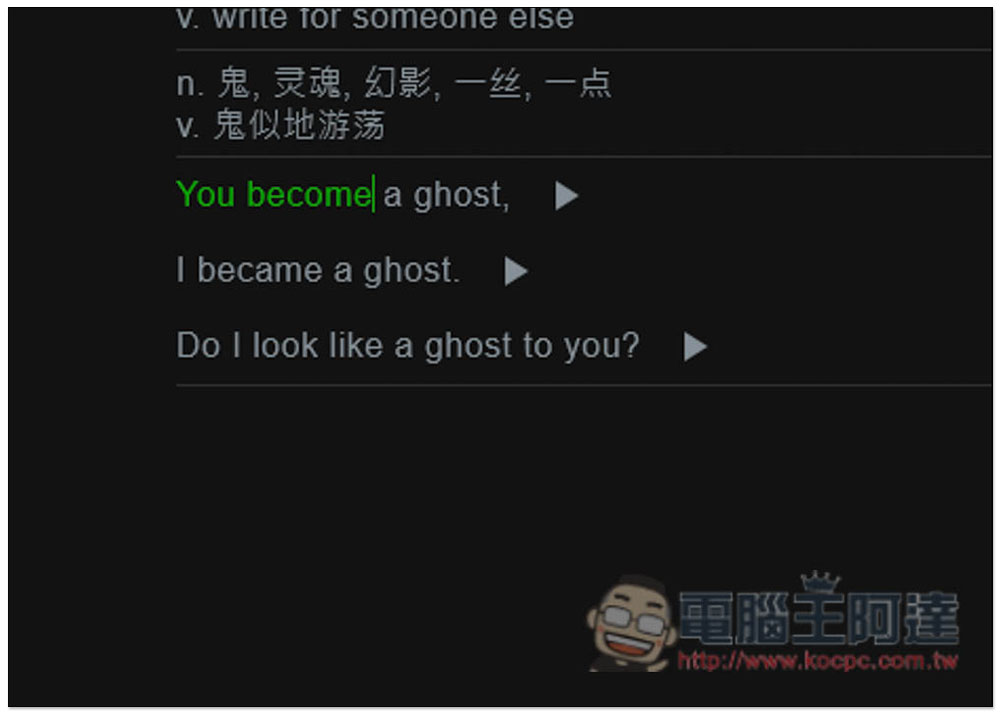
You can also practice typing in the sentence part. Pressing Enter will jump to the next word:
There is also a function menu on the left. If you want to jump to the next list by pressing Enter after manually inputting a word, turn on automatic switching (shortcut Ctrl+A):
The functions provided by this product are actually more than that, the rest is for everyone to play and see on their own!
Source: KOCPC Chinese