


Like me, many people rely heavily on their web browsers. Some tabs belong to fixed websites that you read every day, so you usually keep them, but there are always times when you are not careful. If you are a user of the Google Chome browser, this time the author has compiled four methods for retrieving accidentally closed pagination in the browser, so that you can learn them all at once!

Four ways to reopen closed tabs in Chrome
Google Chrome gives you some options for restoring tabs and windows after closing them, and depending on your personal needs, it’s a good idea to understand how they work. But please note that restoring closed tabs will not work when browsing in incognito mode.
Keyboard shortcut Ctrl + Shift + T (Mac: Cmd + Shift + T)
The quickest way to restore a single tab that has been closed unexpectedly is to use the shortcut key combination on the keyboard. You can press Ctrl + Shift + T on Windows or Cmd + Shift + T on macOS. If you want to restore multiple tabs, or need a tab that was closed not long ago, just hold down Ctrl+Shift+T and the tabs will reopen in the order they were closed. If you accidentally close the entire browser window completely, just open a new Chrome window, and this keyboard shortcut will instantly reopen everything. This is a useful trick, especially if a system update forces the browser to close or the computer to restart.

Recover from browser history
Your Chrome history also keeps track of recently closed tabs. It’s not as intuitive or quick as a keyboard shortcut, but it’s useful if you’ve accidentally turned off pagination for a while and now need to revisit it. There are several ways to access your browser history in Chrome.
- Use the shortcut: Ctrl + H.
- Click the three-dot menu in the upper right corner of the browser and select “Record.”

- Type “chrome://history” directly into the URL bar and press Enter.

With browser history turned on, you can access all the sites and tabs you’ve viewed in reverse chronological order, and double-click on a given item to reopen it. There is also a small list of “recently closed tabs” in the “History” of the browser’s three-dot menu, from which you can choose to reopen the tabs.
Page search method
Have you noticed that there is a down arrow in the Chrome tab bar? On Windows, it’s next to the controls for minimizing, maximizing, and closing windows (or in the upper right corner on a Mac). This arrow icon is used to search for tabs in Chrome, and itself can be opened with the simple keyboard shortcut Ctrl + Shift + A.

Tab search displays a list of all currently open tabs, plus a list of recently closed tabs. You can scroll through the list to reopen or switch to the desired tab item, or use keyword search in the search bar. This feature is very convenient for those who keep dozens of tabs open at all times.

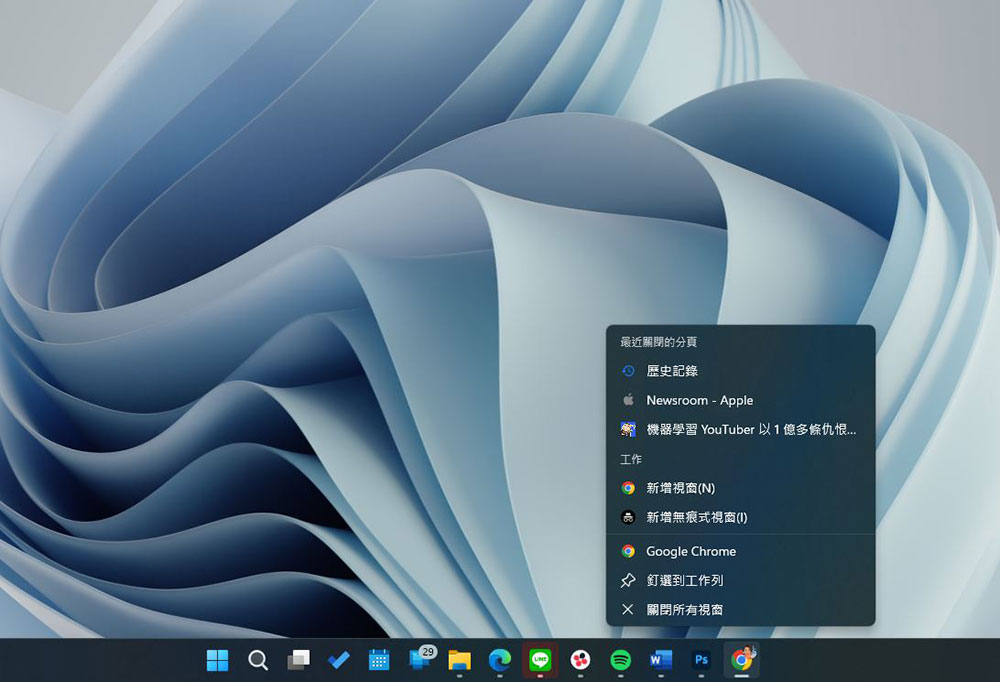
From the Windows taskbar
If you have a Chrome window open or have Chrome browser pinned to the taskbar, right-click the app icon to see a short list. Just click on the tab you want to restore. This feature is of course unique to Windows.
Source: KOCPC Chinese